reset HONDA ACCORD 2022 User Guide
[x] Cancel search | Manufacturer: HONDA, Model Year: 2022, Model line: ACCORD, Model: HONDA ACCORD 2022Pages: 657, PDF Size: 11.42 MB
Page 254 of 657

252
uuAudio System uAudio Remote Controls
Features
/ (Seek/Skip) Buttons
• When listening to the radio
Press : To select the next preset radio station.
Press : To select the previous preset radio station.
Press and hold : To select the next strong station.
Press and hold : To select the previous strong station.
• When listening to an iPod, USB flash drive, or Bluetooth® Audio, or Smartphone
Connection
Press : To skip to the next song.
Press : To go back to the beginning of the current or previous song.
• When listening to a USB flash drive
Press and hold : To skip to the next folder.
Press and hold : To go back to the previous folder.
Page 257 of 657
255
uuAudio System Basic Operation uAudio/Information Screen
Continued
Features
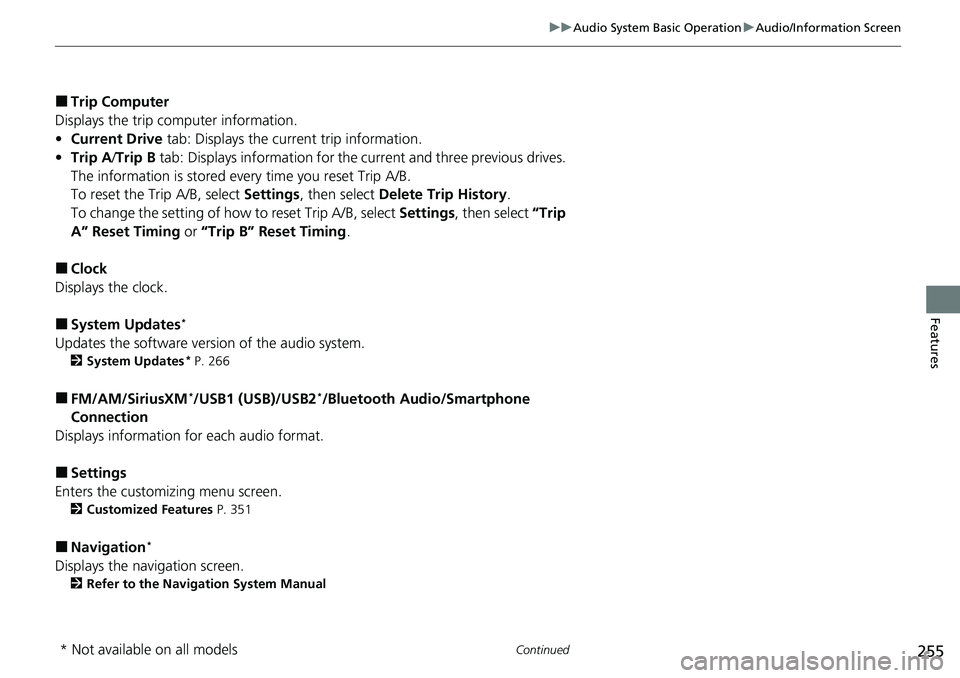
■Trip Computer
Displays the trip computer information.
• Current Drive tab: Displays the current trip information.
• Trip A /Trip B tab: Displays information for the current and three previous drives.
The information is stored ev ery time you reset Trip A/B.
To reset the Trip A/B, select Settings, then select Delete Trip History .
To change the setting of how to reset Trip A/B, select Settings , then select “Trip
A” Reset Timing or “Trip B” Reset Timing .
■Clock
Displays the clock.
■System Updates*
Updates the software version of the audio system.
2 System Updates* P. 266
■FM/AM/SiriusXM*/USB1 (USB)/USB2*/Bluetooth Audio/Smartphone
Connection
Displays information for each audio format.
■Settings
Enters the customizing menu screen.
2 Customized Features P. 351
■Navigation*
Displays the navigation screen.
2Refer to the Navigation System Manual
* Not available on all models
Page 262 of 657
uuAudio System Basic Operation uAudio/Information Screen
260
Features
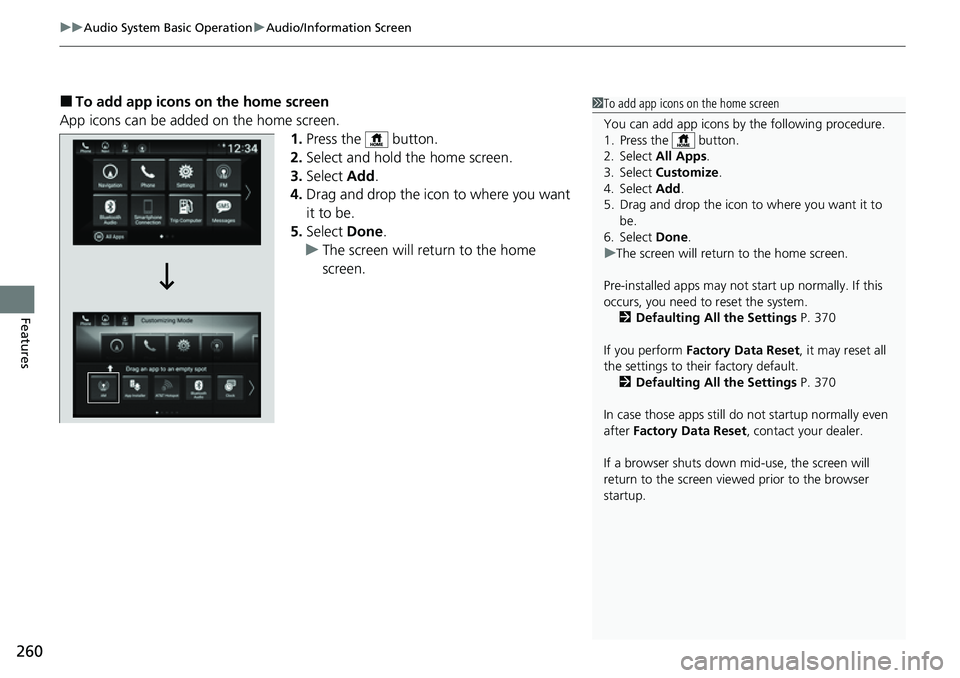
■To add app icons on the home screen
App icons can be added on the home screen. 1.Press the button.
2. Select and hold the home screen.
3. Select Add.
4. Drag and drop the icon to where you want
it to be.
5. Select Done.
u The screen will return to the home
screen.1To add app icons on the home screen
You can add app icons by the following procedure.
1. Press the button.
2. Select All Apps .
3. Select Customize .
4. Select Add .
5. Drag and drop the icon to where you want it to be.
6. Select Done .
u The screen will return to the home screen.
Pre-installed apps may not start up normally. If this
occurs, you need to reset the system. 2 Defaulting All the Settings P. 370
If you perform Factory Data Reset , it may reset all
the settings to their factory default. 2 Defaulting All the Settings P. 370
In case those apps still do not startup normally even
after Factory Data Reset , contact your dealer.
If a browser shuts down mi d-use, the screen will
return to the screen viewed prior to the browser
startup.
Page 265 of 657
Continued263
uuAudio System Basic Operation uAudio/Information Screen
Features
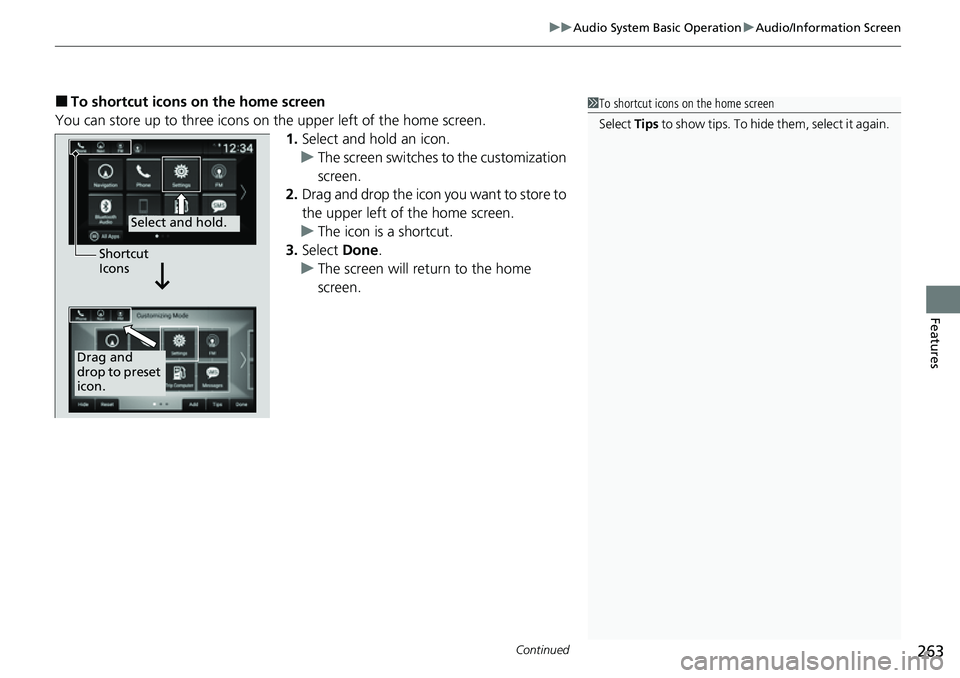
■To shortcut icons on the home screen
You can store up to three icons on the upper left of the home screen. 1.Select and hold an icon.
u The screen switches to the customization
screen.
2. Drag and drop the icon you want to store to
the upper left of the home screen.
u The icon is a shortcut.
3. Select Done.
u The screen will return to the home
screen.1To shortcut icons on the home screen
Select Tips to show tips. To hide them, select it again.
Select and hold.
Drag and
drop to preset
icon.Shortcut
Icons
Page 274 of 657
272
uuAudio System Basic Operation uAdjusting the Sound
Features
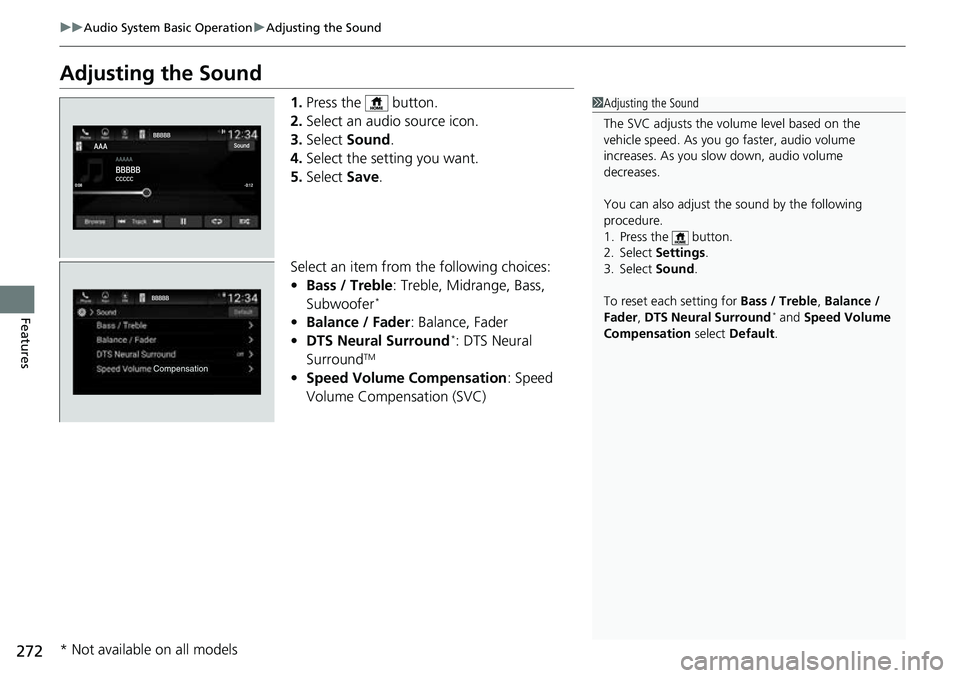
Adjusting the Sound
1. Press the button.
2. Select an audio source icon.
3. Select Sound.
4. Select the setting you want.
5. Select Save.
Select an item from the following choices:
• Bass / Treble : Treble, Midrange, Bass,
Subwoofer
*
• Balance / Fader : Balance, Fader
• DTS Neural Surround*: DTS Neural
SurroundTM
• Speed Volume Compensation : Speed
Volume Compensation (SVC)
1 Adjusting the Sound
The SVC adjusts the volume level based on the
vehicle speed. As you go faster, audio volume
increases. As you slow down, audio volume
decreases.
You can also adjust the sound by the following
procedure.
1. Press the button.
2. Select Settings .
3. Select Sound .
To reset each setting for Bass / Treble , Balance /
Fader , DTS Neural Surround
* and Speed Volume
Compensation select Default .
* Not available on all models
Page 275 of 657
273
uuAudio System Basic Operation uDisplay Setup
Continued
Features
Display Setup
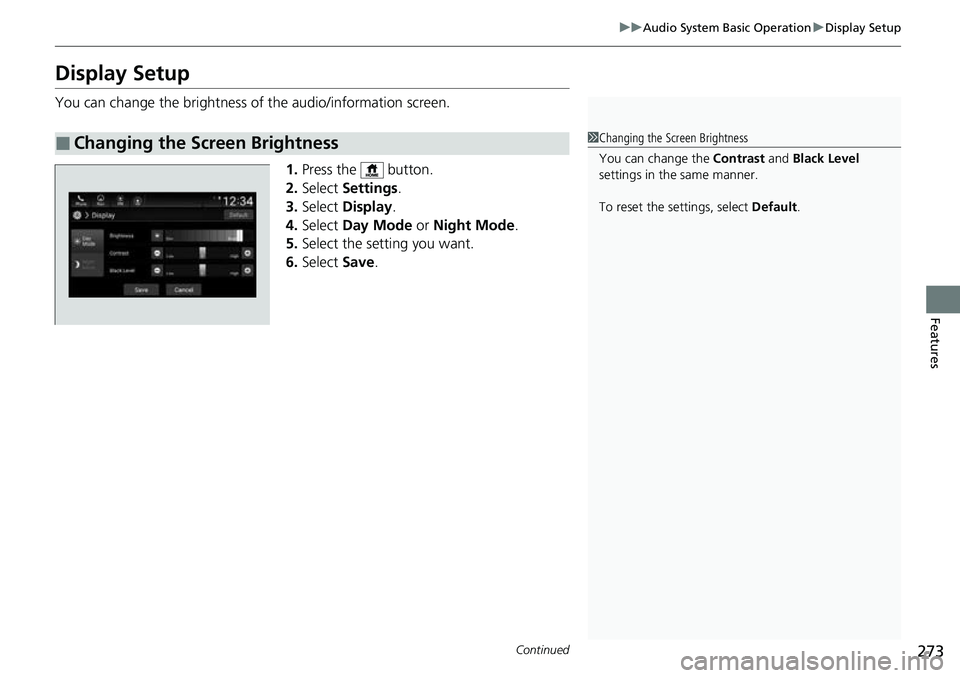
You can change the brightness of the audio/information screen.
1.Press the button.
2. Select Settings .
3. Select Display .
4. Select Day Mode or Night Mode .
5. Select the setting you want.
6. Select Save.
■Changing the Screen Brightness1Changing the Screen Brightness
You can change the Contrast and Black Level
settings in the same manner.
To reset the settings, select Default.
Page 280 of 657
278
uuAudio System Basic Operation uPlaying AM/FM Radio
Features
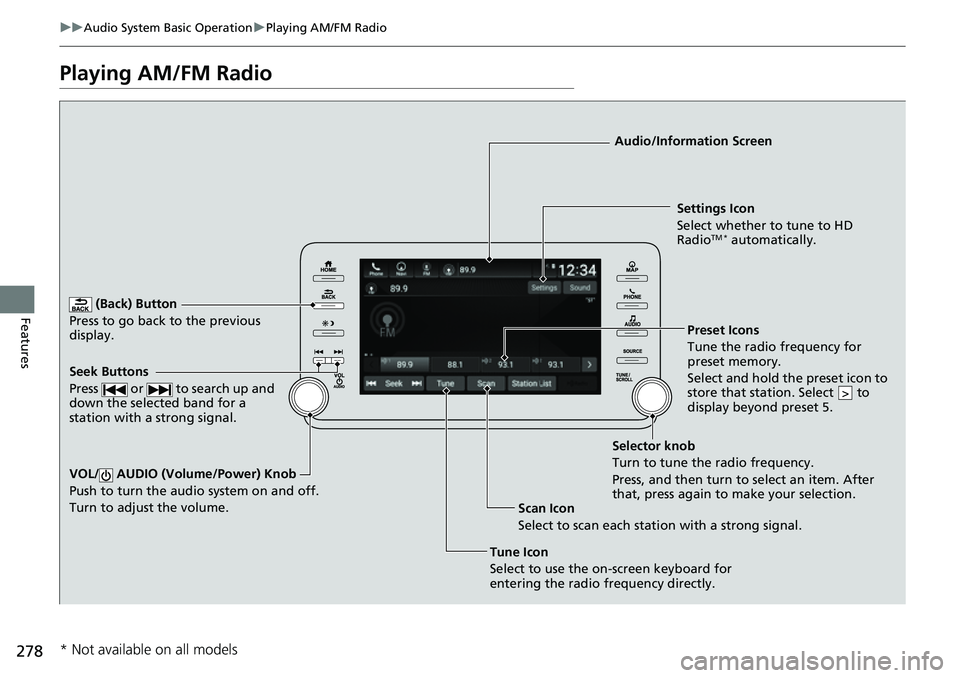
Playing AM/FM Radio
(Back) Button
Press to go back to the previous
display.
Seek Buttons
Press or to search up and
down the selected band for a
station with a strong signal.
VOL/ AUDIO (Volume/Power) Knob
Push to turn the audi o system on and off.
Turn to adjust the volume.
Tune Icon
Select to use the on-screen keyboard for
entering the radio frequency directly. Audio/Information Screen
Scan Icon
Select to scan eac h station with a strong signal.Preset Ico
n
s
Tune the radio frequency for
preset memory.
Select and hold the preset icon to
store that station. Select to
display beyond preset 5.
>
Settings Icon
Select whether to tune to HD
Radio
TM * automatically.
Selector knob
Turn to tune the radio frequency.
Press, and then turn to select an item. After
that, press again to make your selection.
* Not available on all models
Page 281 of 657
Continued279
uuAudio System Basic Operation uPlaying AM/FM Radio
Features
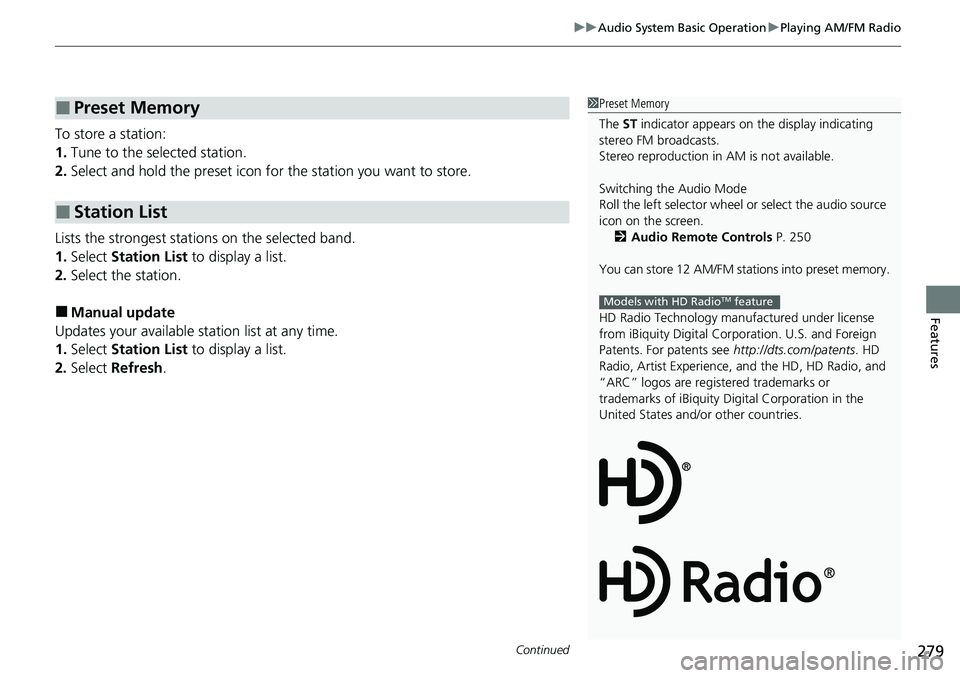
To store a station:
1. Tune to the selected station.
2. Select and hold the preset icon fo r the station you want to store.
Lists the strongest stations on the selected band.
1. Select Station List to display a list.
2. Select the station.
■Manual update
Updates your available st ation list at any time.
1. Select Station List to display a list.
2. Select Refresh .
■Preset Memory
■Station List
1Preset Memory
The ST indicator appears on the display indicating
stereo FM broadcasts.
Stereo reproduction in AM is not available.
Switching the Audio Mode
Roll the left selector wheel or select the audio source
icon on the screen. 2 Audio Remote Controls P. 250
You can store 12 AM/FM stations into preset memory.
HD Radio Technology manufactured under license
from iBiquity Digi tal Corporation. U.S. and Foreign
Patents. For patents see http://dts.com/patents. HD
Radio, Artist Experience, and the HD, HD Radio, and
“ARC” logos are registered trademarks or
trademarks of iBiquity Di gital Corporation in the
United States and/ or other countries.
Models with HD RadioTM feature
Page 284 of 657
282
uuAudio System Basic Operation uPlaying SiriusXM ® Radio*
Features
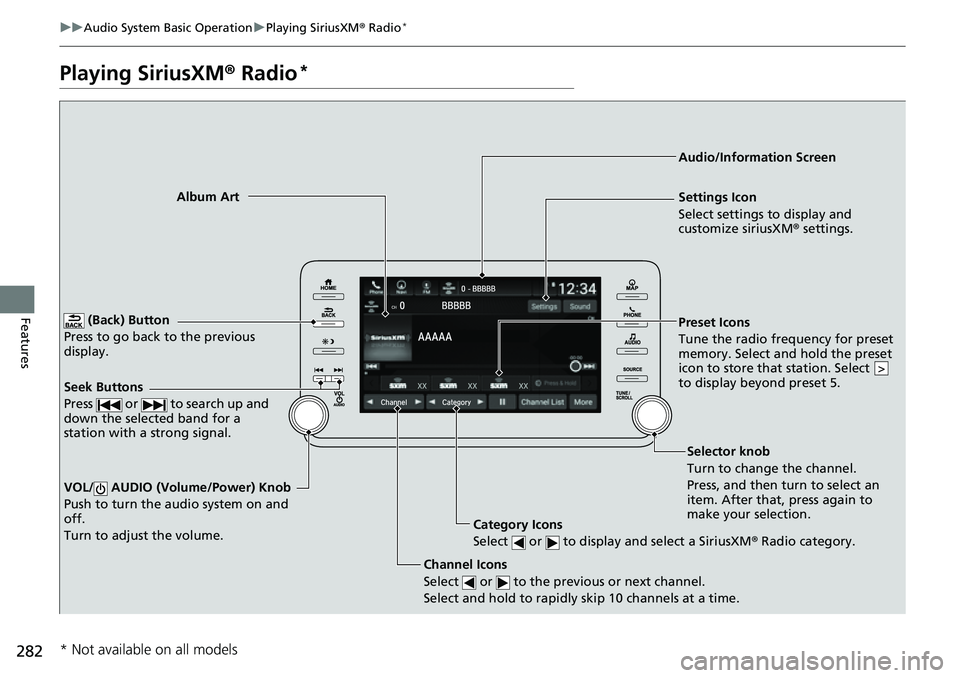
Playing SiriusXM ® Radio*
(Back) Button
Press to go back to the previous
display.
Channel Icons
Select or to the previous or next channel.
Select and hold to rapidly skip 10 channels at a time.
VOL/ AUDIO (Volume/Power) Knob
Push to turn the audio system on and
off.
Turn to adjust the volume.
Category Icons
Select or to display and select a SiriusXM ® Radio category.
Audio/Information Screen
Preset Icons
Tune the radio freq
uency for preset
memory. Select and hold the preset
icon to store that station. Select
to display beyond preset 5.
>
Album Art Settings Icon
Select settings to display and
customize siriusXM® settings.
Seek Buttons
Press or to search up and
down the selected band for a
station with a strong signal.
Selector knob
Turn to change the channel.
Press, and then turn to select an
item. After that, press again to
make your selection.
* Not available on all models
Page 285 of 657
Continued283
uuAudio System Basic Operation uPlaying SiriusXM ® Radio*
Features
1. Select Settings .
2. Select Tune Mode .
3. Select Channel or Category .
■To Change the Tune Mode1Playing SiriusXM ® Radio*
In the channel mode, all available channels are
selectable. In the categor y mode, you can select a
channel within a ca tegory (Jazz, Rock, Classical, etc.).
There may be instances when SiriusXM ® Radio does
not broadcast all the data fi elds (artist name, title).
This does not indicate a problem with your audio
system.
SiriusXM ® Radio stations load in ascending order,
which can take about a minute. Once they have
loaded you will be able to scroll up or down to make
your selections.
Switching the Audio Mode
Roll up or down the left se lector wheel to select
Audio or select the audio source icon on the screen.
2 Audio Remote Controls P. 250
Tune Start:
When you change to a preset channel, a song being
played on that channel restarts from the beginning
with this function. This can be turned on or off by the
following procedure.
1. Select Settings .
2. Select Tune Start .
3. Select ON or OFF .
To change a category, select Category icons, or
select More and then select Category List.
* Not available on all models