steering HONDA ACCORD HYBRID 2017 9.G Quick Guide
[x] Cancel search | Manufacturer: HONDA, Model Year: 2017, Model line: ACCORD HYBRID, Model: HONDA ACCORD HYBRID 2017 9.GPages: 80, PDF Size: 10.35 MB
Page 47 of 80

86 || 87
Models with touchscreen
HondaLink® Assist
Automatically attempts to connect and talk to an operator who can locate\
your
vehicle and send emergency help in the event of a collision.
visit www
.hondalink.
com (U.S.) or honda.ca/hondalinkassist (Canada) for more information.
1.
Make sure your phone is on and paired to
Bluetooth® HandsFreeLink® (see page 82).
2.
Select Call Now, or the system automatically
connects after 10 seconds. The vehicle information
and its position are sent to the operator.
3.
Select Talk Now to immediately talk to the operator.
4.
When the call is complete, select Hang Up or press
the Hang Up/Back button on the steering wheel.
For vehicles equipped with HondaLink Assist, owner activation constitute\
s authorization for Honda to
collect information from your vehicle needed to provide the service, and\
agreement to the Terms of
Use at www.hondalink.com/TermsAndConditions. In a crash, HondaLink Assist will attempt to notify
emergency services but NEITHER Honda NOR ITS SERVICE PROVIDERS GUARANTEE\
THAT SUCH
NOTIFICATION WILL OCCUR.
Models with touchscreen
Siri® Eyes Free
Activate Siri through your vehicle when an iPhone is paired to the syste\
m.
visit handsfreelink.honda.com
(U.S.) or honda.ca/siri (Canada) to check phone
compatibility.
(Talk) Button
Press and hold until the display changes as shown.
Press again to cancel Siri.
Appears
when Siri
Eyes Free is
activated.
Here are some examples of Siri commands:
“Call John Smith”
“Read my new text message”
“Find a nearby sushi restaurant”
Notes:
•
Any requests that include visual feedback from Siri on your phone are no\
t
displayed in the vehicle.
•
Certain commands rely on the iPhone’s features and existing apps.
•
To hear turn-by-turn directions or songs through the vehicle, set the aud\
io source
to Bluetooth
Audio.
Siri and iPhone are trademarks of Apple, Inc.
“Remind me to pick up dinner”
“Set up a meeting today at 3 p.m.”
“Play song XYZ”
BLUETOOTH® HANDSFreeLINK®BLUETOOTH® HANDSFreeLINK®
Page 48 of 80
88 || 89
NAVIGATION
NAVIGATION
Learn how to enter a destination and operate the navigation system.
Basic Navigation Operation
A real-time navigation system uses GPS and a map database to show your current
location and help guide you to a desired destination. You can operate the system
using voice commands or the touchscreen.
To reduce the potential for driver distraction, certain manual functions \
may be
inoperable or grayed out while the vehicle is moving. Voice commands are always
available.
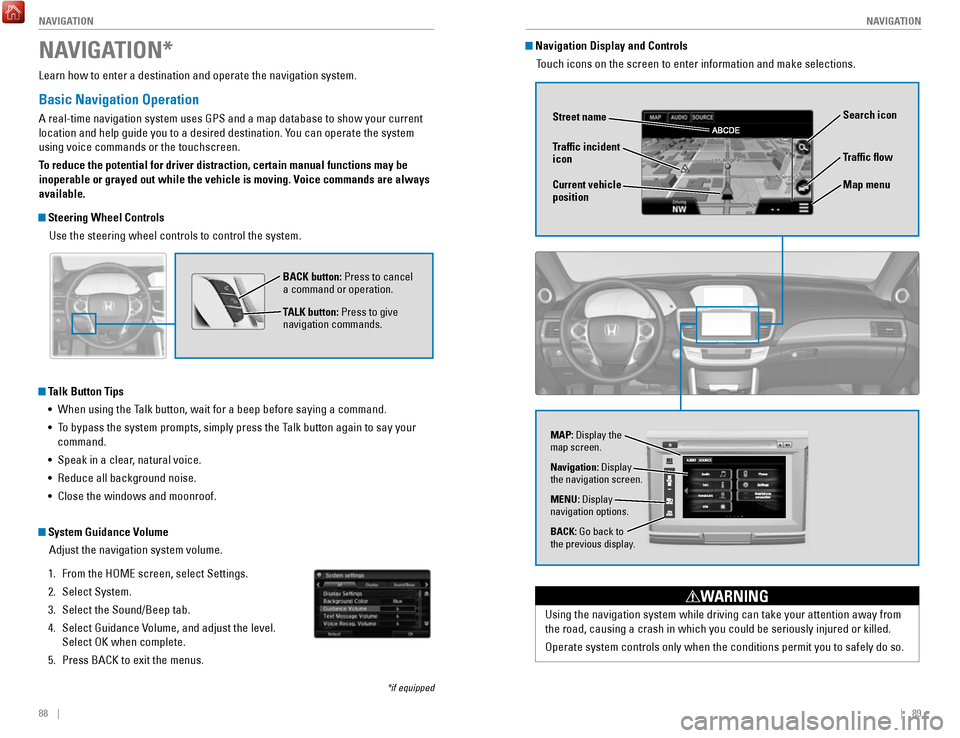
Steering Wheel Controls
Use the steering wheel controls to control the system.
NAVIGATION*
*if equipped
BACK button: Press to cancel
a command or operation.
TALK button: Press to give
navigation commands.
Talk Button Tips•
When using the Talk button, wait for a beep before saying a command.
•
To bypass the system prompts, simply press the Talk button again to say your
command.
•
Speak in a clear, natural voice.
•
reduce all background noise.
•
Close the windows and moonroof.
System Guidance Volume Adjust the navigation system volume.
1.
From the HoMe screen, select Settings.
2.
Select System.
3.
Select the Sound/Beep tab.
4.
Select Guidance volume, and adjust the level.
Select
oK when complete.
5.
Press BACK to exit the menus.
Using the navigation system while driving can take your attention away f\
rom
the road, causing a crash in which you could be seriously injured or kil\
led.
operate system controls only when the conditions permit you to safely do \
so.
WARNING
Navigation Display and Controls Touch icons on the screen to enter information and make selections.
Navigation: Display
the navigation screen.
BACK: Go back to
the previous display. MENU: Display
navigation options.
Traffic flow
Current vehicle
position Traffic incident
icon
Search icon
Map menu
MAP: Display the
map screen.
Street name
Page 51 of 80
94 || 95
DRIVING
NAVIGATION
Traffic
view traffic flow and incidents in major metro areas. You can also select traffic to
avoid. T
raffic coverage is limited in Canada.
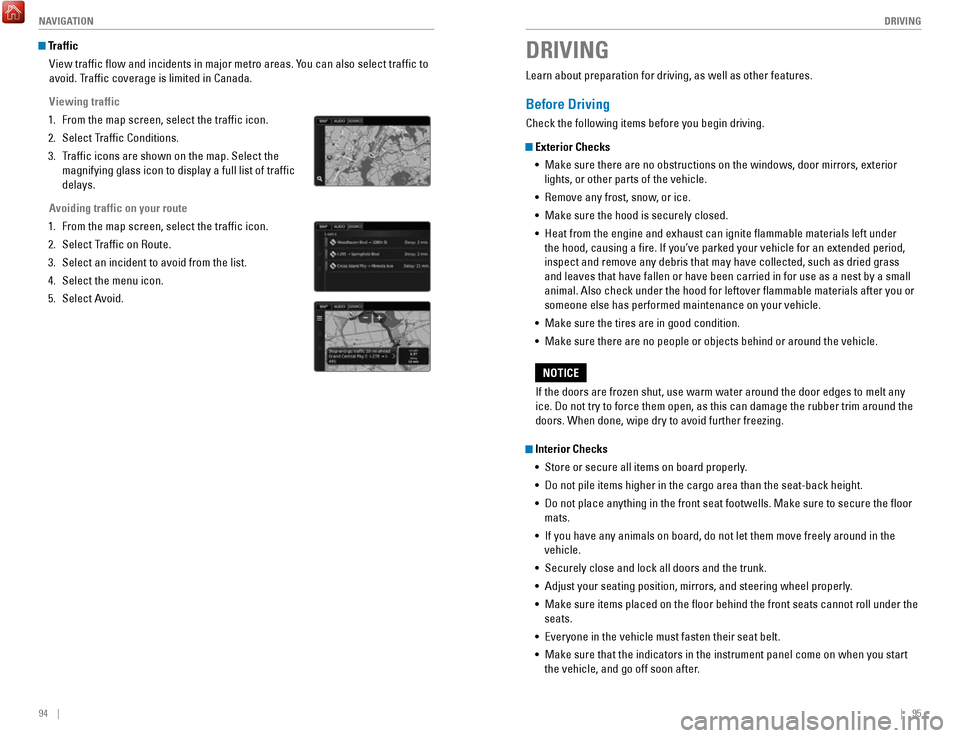
Viewing traffic
1.
From the map screen, select the traffic icon.
2.
Select Traffic Conditions.
3.
Traffic icons are shown on the map. Select the
magnifying glass icon to display a full list of traffic
delays.
Avoiding traffic on your route
1.
From the map screen, select the traffic icon.
2.
Select Traffic on route.
3.
Select an incident to avoid from the list.
4.
Select the menu icon.
5.
Select Avoid.
DRIVING
Learn about preparation for driving, as well as other features.
Before Driving
Check the following items before you begin driving.
Exterior Checks •
Make sure there are no obstructions on the windows, door mirrors, exteri\
or
lights, or other parts of the vehicle.
•
remove any frost, snow, or ice.
•
Make sure the hood is securely closed.
•
Heat from the engine and exhaust can ignite flammable materials left u\
nder
the hood, causing a fire. If you’ve parked your vehicle for an exte\
nded period,
inspect and remove any debris that may have collected, such as dried gra\
ss and leaves that have fallen or have been carried in for use as a nest by\
a small animal. Also check under the hood for leftover flammable materials aft\
er you or
someone else has performed maintenance on your vehicle.
•
Make sure the tires are in good condition.
•
Make sure there are no people or objects behind or around the vehicle.
Interior Checks •
Store or secure all items on board properly.
•
Do not pile items higher in the cargo area than the seat-back height.
•
Do not place anything in the front seat footwells. Make sure to secure t\
he floor
mats.
•
If you have any animals on board, do not let them move freely around in \
the
vehicle.
•
Securely close and lock all doors and the trunk.
•
Adjust your seating position, mirrors, and steering wheel properly.
•
Make sure items placed on the floor behind the front seats cannot roll\
under the
seats.
•
everyone in the vehicle must fasten their seat belt.
•
Make sure that the indicators in the instrument panel come on when you s\
tart
the vehicle, and go off soon after.
If the doors are frozen shut, use warm water around the door edges to me\
lt any
ice. Do not try to force them open, as this can damage the rubber trim a\
round the
doors. When done, wipe dry to avoid further freezing.
NOTICE
Page 55 of 80
102 || 103
DRIVING
DRIVING
Braking
Slow down or stop your vehicle, and keep it from moving when parked.
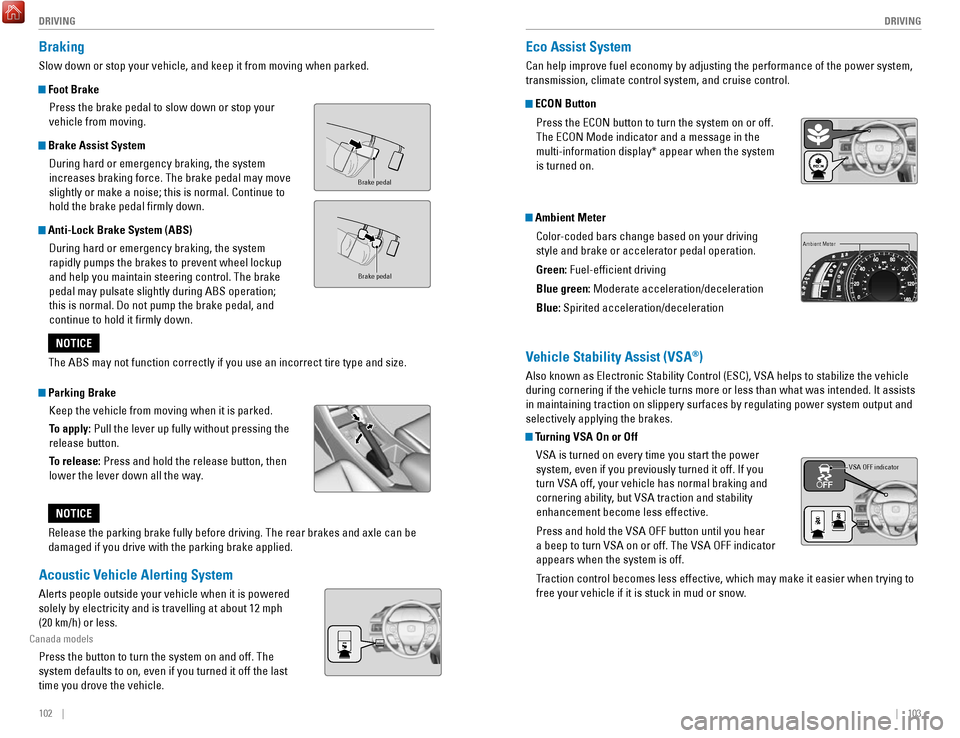
Foot Brake
Press the brake pedal to slow down or stop your
vehicle from moving.
Brake Assist System During hard or emergency braking, the system
increases braking force. The brake pedal may move
slightly or make a noise; this is normal. Continue to
hold the brake pedal firmly down.
Anti-Lock Brake System (ABS) During hard or emergency braking, the system
rapidly pumps the brakes to prevent wheel lockup
and help you maintain steering control. The brake
pedal may pulsate slightly during ABS operation;
this is normal. Do not pump the brake pedal, and
continue to hold it firmly down.
Parking BrakeKeep the vehicle from moving when it is parked.
To apply: Pull the lever up fully without pressing the
release button.
To release: Press and hold the release button, then
lower the lever down all the way.
Brake peda l
Brake pedal
The ABS may not function correctly if you use an incorrect tire type and\
size.
NOTICE
release the parking brake fully before driving. The rear brakes and axle \
can be
damaged if you drive with the parking brake applied.
NOTICE
Acoustic Vehicle Alerting System
Alerts people outside your vehicle when it is powered
solely by electricity and is travelling at about 12 mph
(20 km/h) or less.
Canada models
Press the button to turn the system on and off. The
system defaults to on, even if you turned it off the last
time you drove the vehicle.
Eco Assist System
Can help improve fuel economy by adjusting the performance of the power \
system,
transmission, climate control system, and cruise control.
ECON Button
Press the
eCoN button to turn the system on or off.
The
eCoN Mode indicator and a message in the
multi-information display* appear when the system
is turned on.
Ambient Meter
Color-coded bars change based on your driving
style and brake or accelerator pedal operation.
Green: Fuel-efficient driving
Blue green: Moderate acceleration/deceleration
Blue: Spirited acceleration/deceleration
Ambient Meter
Vehicle Stability Assist (VSA®)
Also known as electronic Stability Control (eSC), vSA helps to stabilize the vehicle
during cornering if the vehicle turns more or less than what was intende\
d. It assists
in maintaining traction on slippery surfaces by regulating power system \
output and
selectively applying the brakes.
Turning VSA On or Off
vSA is turned on every time you start the power
system, even if you previously turned it off. If you
turn
vSA off, your vehicle has normal braking and
cornering ability, but
vSA traction and stability
enhancement become less effective.
Press and hold the
vSA oFF button until you hear
a beep to turn
vSA on or off. The vSA oFF indicator
appears when the system is off.
Traction control becomes less effective, which may make it easier when t
rying to
free your vehicle if it is stuck in mud or snow.
VSA OFF indicator
Page 57 of 80

106 || 107
DRIVING
DRIVING
During Operation
If a vehicle is detected ahead of you when ACC is turned on, the system \
maintains,
accelerates, or decelerates your vehicle to keep the vehicle’s set following
interval from the vehicle ahead.
You can temporarily increase the vehicle speed
when you press the accelerator pedal. ACC stays
on unless you cancel it. When you release the
accelerator pedal, the system resumes the set
speed or a sufficient speed to maintain the following
interval.
If a vehicle detected ahead of you slows down
abruptly, or if another vehicle cuts in front of you,
a beep sounds and B
rAKe appears on the multi-
information display to alert you.
ACC has limited braking capability.
When your vehicle speed drops below 22 mph (35 km/h), ACC will
automatically cancel and no longer will apply your vehicle’
s brakes.
Always be prepared to apply the brake pedal when conditions require.
WARNING
Canceling ACC
Press the CANC
eL or MAIN button, or press the
brake pedal. The ACC indicator goes off.
Certain conditions may cause ACC to cancel
automatically. When this happens, the amber ACC
indicator appears on the multi-information display
.
After adaptive cruise control has been canceled,
you can still resume the prior set speed by pressing
reS/+ when your vehicle speed is over 25 mph (40
km/h).
Improper use of ACC can lead to a crash.
Use ACC only when traveling on open highways in good weather.
WARNING
Beep
Road Departure Mitigation (RDM)
Alerts and helps to assist you if the system determines a possibility of\
your vehicle
unintentionally crossing over detected lane markings while driving betwe\
en 45–90
mph (72–145 km/h).
If your vehicle is getting too close to detected lane
markings without a turn signal activated, a message
appears in the multi-information display. Steering
wheel torque and vibrations are applied to help your
vehicle stay in the lane.
Braking may also be applied if the lane lines are solid
and continuous.
If the system operates several times without detecting
driver response, the system beeps to alert you.
Changing Settings
Determine the warning timing. The vehicle must be in Park (P).
1.
Models with one display: Press the SeTTINGS
button. Select
vehicle Settings.
Models with touchscreen: From the H
oMe
screen, select Settings. Select
vehicle.
2.
Select Driver Assist System Setup.
3.
Select road Departure Mitigation Setting.
4.
Select from the options. Normal (default): Steering control starts from inside the lane edge.
Wide: Steering control starts from outside the lane edge.
W
arning Only: The system only provides a B
rAKe message, but does not apply
steering or braking.
5.
Press BACK to exit the menu.
Important Safety Reminder
The
rDM system has limitations. over-reliance on it may result in a collision. It is
always your responsibility to keep your vehicle within the driving lane.\
Beep
Turning the System On or Off
Press the
rDM button to turn the system on or off.
A green indicator appears on the button when the
system is on.
RDM button
Indicator
Steering assistance
Page 58 of 80

Provides steering input to help keep the vehicle in the middle of a dete\
cted lane and
visual and tactile alerts if the vehi")
108 || 109
DRIVING
DRIVING
Lane Keeping Assist System (LKAS)
Provides steering input to help keep the vehicle in the middle of a dete\
cted lane and
visual and tactile alerts if the vehicle is detected drifting out of its\
lane while driving
between 45–90 mph (72–145 km/h).
If your vehicle is getting too close to detected left
or right side lane markings without a turn signal
activated, the system provides visual and tactile alerts.
A Lane Departure message appears on the multi-
information display, and the steering wheel vibrates.
Steering torque is also applied to help keep your
vehicle within your driving lane. Take appropriate
action to stay within your driving lane.
Turning the System On or Off
1.
Press the MAIN button. LKAS appears in the
multi-information display.
2.
Press the LKAS button. Lane outlines appear in
the multi-information display. Dotted lane lines
turn solid when the system activates.
3.
Press the MAIN button or the LKAS button to turn
the system off.
Important Safety Reminder
LKAS is for your convenience only. It is not a substitute for your vehicle control. The
system does not work if you take your hands off the steering wheel or fa\
il to steer
the vehicle.
Do not place an object on the top of the instrument panel. It may refl\
ect onto the
windshield and prevent the system from detecting lane lines properly
.
MAIN button
Steering assistance
LKAS button
LaneWatch™
Check the passenger-side rear areas in the upper display when the right turn signal
is activated.
Activating LaneWatch
Activate the right turn signal. The LaneWatch display
appears. Check the display for blind spots, and
visually confirm that it is safe to change lanes.
You can also press the LaneWatch button on the end
of the turn signal switch to view a constant real-time
display. Press it again to turn the display off.
Changing SettingsCustomize the display and how and when the display appears.
1.
From the Home screen, select Settings.
2.
Select Camera Settings.
3.
Select LaneWatch.
4.
Select an option and make the preferred
changes.
5.
Press BACK to exit the menu.
Important Safety Reminder
Like all assistance systems, LaneWatch has limitations.
over-reliance on the system
may result in a collision.
LaneWatch display
Failure to visually confirm that it is safe to change lanes before doi\
ng so may
result in a crash and serious injury or death.
Do not rely only on LaneWatch while driving. Always look in your mirrors, to
either side of your vehicle, and behind you for other vehicles before ch\
anging
lanes.
WARNING
Page 59 of 80

Can assist you when there is a possibility of your vehicle colliding wit\
h a vehicle or a
pedestrian detected")
110 || 111
DRIVING
DRIVING
Collision Mitigation Braking System™ (CMBS™)
Can assist you when there is a possibility of your vehicle colliding wit\
h a vehicle or a
pedestrian detected in front of yours.
The system can give you visual, audible, and tactile alerts when a poten\
tial collision
is determined, and reduce your vehicle speed to help minimize collision \
severity
when a collision is deemed unavoidable.
When a potential collision with a detected oncoming vehicle is determine\
d, a B
rAKe
message appears in the multi-information display, the head-up warning lights flash,
a beep sounds, and the steering wheel vibrates.
The system activates when:
•
The speed difference between your vehicle and a vehicle or pedestrian de\
tected
in front of you is about 3 mph (5 km/h) and over with a chance of a co\
llision.
•
Your vehicle speed is about 62 mph (100 km/h) or less and there is a ch\
ance of a
collision with an oncoming detected vehicle or a pedestrian in front of \
you.
Alert Stages
The system has three alert stages for a possible collision. Depending on\
the
circumstances or CMBS settings, CMBS may not go through all of the stage\
s
before initiating the last stage.
Stage 1:
visual and audible warning, steering wheel vibrations
Stage 2:
visual and audible warning, light brake application
Stage 3:
visual and audible warning, strong brake application
Beep Head-up
warning lights Steering vibrations
Important Safety Reminder
CMBS is designed to reduce the severity of an unavoidable collision. It \
does not
prevent collisions nor stop the vehicle automatically. It is still your responsibility to
operate the brake pedal and steering wheel appropriately according to th\
e driving
conditions.
Turning CMBS On or Off
Press and hold the CMBS
oFF button. A beep sounds
and a message appears in the multi-information display.
The CMBS indicator appears when the system is off.CMBS oFF
button
Changing Settings
Determine the warning timing. The vehicle must be in Park (P).
1.
From the HoMe screen, select Settings.
2.
Select vehicle Settings.
3.
Select Driver Assist System Setup.
4.
Select Forward Collision Warning Distance.
5.
Select Long, Normal, or Short.
6.
Press BACK to exit the menu.
Parking Sensor System*
When the system senses an object when you are parking or backing up, ind\
icators
appear on the upper display and a series of beeps will sound.
Turning the System On or Off Press the parking sensor button to turn the system
on or off. A green indicator light appears on the
button when the system is on.
Screen indicators
Page 60 of 80
112 || 113
DRIVING
DRIVING
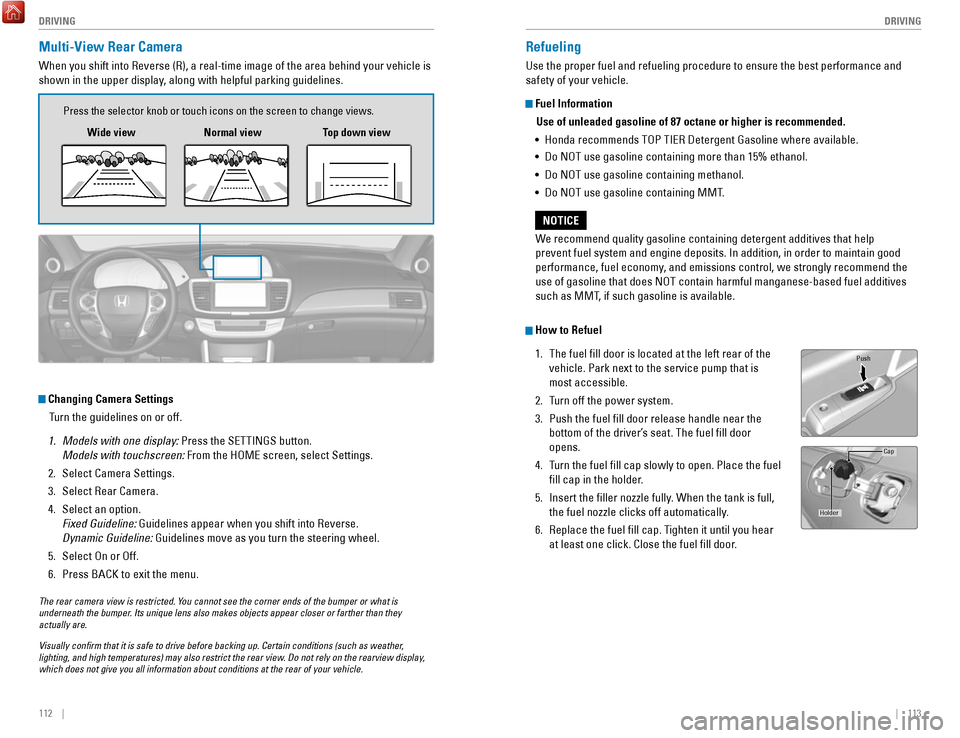
Multi-View Rear Camera
When you shift into reverse (r), a real-time image of the area behind your vehicle is
shown in the upper display, along with helpful parking guidelines.
Changing Camera Settings
Turn the guidelines on or off.
1.
Models with one display: Press the SeTTINGS button.
Models with touchscreen: From the H
oMe screen, select Settings.
2.
Select Camera Settings.
3.
Select rear Camera.
4.
Select an option.
Fixed Guideline: Guidelines appear when you shift into
reverse.
Dynamic Guideline: Guidelines move as you turn the steering wheel.
5.
Select on or off.
6.
Press BACK to exit the menu.
Wide view
Press the selector knob or touch icons on the screen to change views.
Normal viewTop down view
The rear camera view is restricted. You cannot see the corner ends of the bumper or what is
underneath the bumper. Its unique lens also makes objects appear closer or farther than they \
actually are.
Visually confirm that it is safe to drive before backing up. Certain c\
onditions (such as weather,
lighting, and high temperatures) may also restrict the rear view. Do not rely on the rearview display,
which does not give you all information about conditions at the rear of \
your vehicle.
Refueling
Use the proper fuel and refueling procedure to ensure the best performan\
ce and
safety of your vehicle.
Fuel Information
Use of unleaded gasoline of 87 octane or higher is recommended.
•
Honda recommends ToP TIer Detergent Gasoline where available.
•
Do NoT use gasoline containing more than 15% ethanol.
•
Do NoT use gasoline containing methanol.
•
Do NoT use gasoline containing MMT.
How to Refuel
1.
The fuel fill door is located at the left rear of the
vehicle. Park next to the service pump that is
most accessible.
2.
Turn off the power system.
3.
Push the fuel fill door release handle near the
bottom of the driver’s seat. The fuel fill door
opens.
4.
Turn the fuel fill cap slowly to open. Place the fuel
fill cap in the holder.
5.
Insert the filler nozzle fully. When the tank is full,
the fuel nozzle clicks off automatically.
6.
replace the fuel fill cap. Tighten it until you hear
at least one click. Close the fuel fill door
.
Push
Cap
Holder
We recommend quality gasoline containing detergent additives that help
prevent fuel system and engine deposits. In addition, in order to mainta\
in good
performance, fuel economy, and emissions control, we strongly recommend the
use of gasoline that does N
oT contain harmful manganese-based fuel additives
such as MMT, if such gasoline is available.
NOTICE
Page 63 of 80
118 || 119
HANDLING THE UNEXPECTED
HANDLING THE UNEXPECTED
Overheating
If your engine is overheating, one of two messages will appear on the multi-
information display. Immediately park the vehicle in a safe place. Move the shift
lever to (P) and set the parking brake. Turn off all accessories and turn on the hazard
warning lights.
High Temperature. Power Reduced.
Keep the power mode on and wait until the message disappears. Have your \
vehicle checked by a dealer if the message remains on.
Engine Temperature Too Hot.
•
If steam or spray is present: Turn off the power system and wait until the steam
or spray stops. Then, open the hood.
•
No steam or spray present: Keep the power system on and open the hood.
Check that the cooling fan is operating and stop the power system once t\
he
engine Temperature T
oo Hot message disappears. If the cooling fan is not
operating, immediately turn off the vehicle.
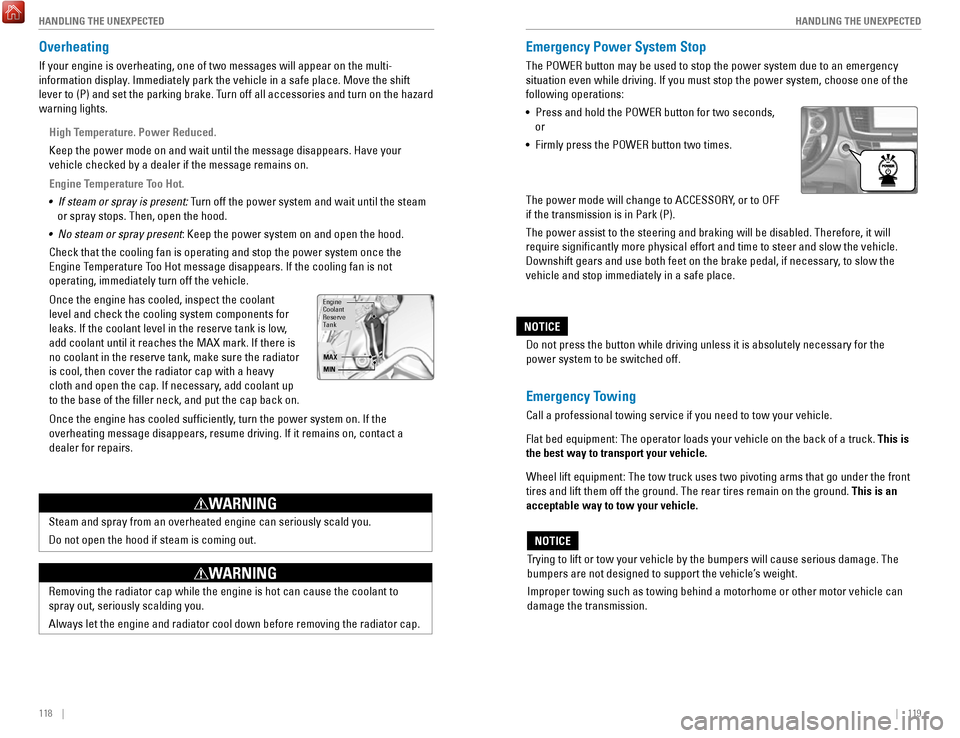
once the engine has cooled, inspect the coolant
level and check the cooling system components for
leaks. If the coolant level in the reserve tank is low,
add coolant until it reaches the MAX mark. If there is
no coolant in the reserve tank, make sure the radiator
is cool, then cover the radiator cap with a heavy
cloth and open the cap. If necessary
, add coolant up
to the base of the filler neck, and put the cap back on.
once the engine has cooled sufficiently, turn the power system on. If the
overheating message disappears, resume driving. If it remains on, contac\
t
a
dealer for repairs.
engine
reserve Coolant
Tank
MAX
MIN
Steam and spray from an overheated engine can seriously scald you.
Do not open the hood if steam is coming out.
WARNING
removing the radiator cap while the engine is hot can cause the coolant t\
o
spray out, seriously scalding you.
Always let the engine and radiator cool down before removing the radiato\
r cap.
WARNING
Emergency Power System Stop
The PoWer button may be used to stop the power system due to an emergency
situation even while driving. If you must stop the power system, choose \
one of the
following operations:
•
Press and hold the PoWer button for two seconds,
or
•
Firmly press the PoWer button two times.
The power mode will change to ACC
eSSorY, or to oFF
if the transmission is in Park (P).
The power assist to the steering and braking will be disabled. Therefore\
, it will
require significantly more physical effort and time to steer and slow \
the
vehicle.
Downshift gears and use both feet on the brake pedal, if necessary, to slow the
vehicle and stop immediately in a safe place.
Trying to lift or tow your vehicle by the bumpers will cause serious dama\
ge. The
bumpers are not designed to support the vehicle’s weight.
Improper towing such as towing behind a motorhome or other motor vehicle\
can
damage the transmission.
NOTICE
Emergency Towing
Call a professional towing service if you need to tow your vehicle.
Flat bed equipment: The operator loads your vehicle on the back of a tru\
ck. This is
the best way to transport your vehicle.
Wheel lift equipment: The tow truck uses two pivoting arms that go under the front
tires and lift them off the ground. The rear tires remain on the ground.\
This is an
acceptable way to tow your vehicle. Do not press the button while driving unless it is absolutely necessary \
for the
power system to be switched off.
NOTICE
Page 64 of 80
120 || 121
HANDLING THE UNEXPECTED
HANDLING THE UNEXPECTED
Tire Pressure Monitoring System (TPMS)
Monitors the tire pressure while you are driving.
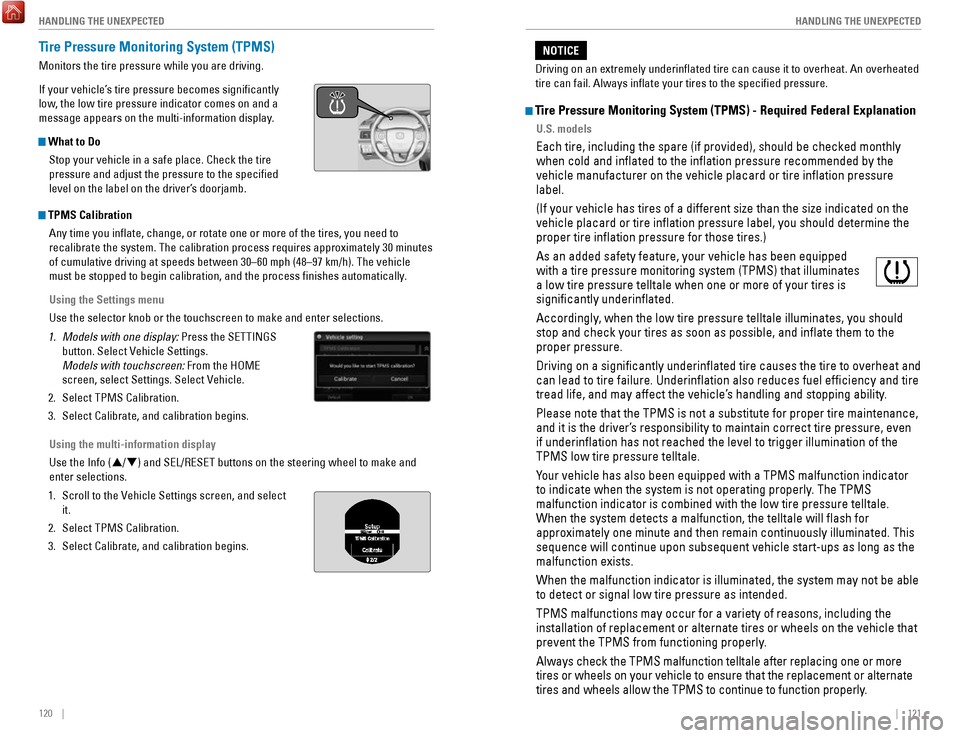
If your vehicle’s tire pressure becomes significantly
low, the low tire pressure indicator comes on and a
message appears on the multi-information display.
What to Do
Stop your vehicle in a safe place. Check the tire
pressure and adjust the pressure to the specified
level on the label on the driver’s doorjamb.
TPMS CalibrationAny time you inflate, change, or rotate one or more of the tires, you \
need to
recalibrate the system. The calibration process requires approximately 3\
0 minutes
of cumulative driving at speeds between 30–60 mph (48–97 km/h). \
The vehicle
must be stopped to begin calibration, and the process finishes automat\
ically.
Using the Settings menu
Use the selector knob or the touchscreen to make and enter selections.
1.
Models with one display: Press the SeTTINGS
button. Select
vehicle Settings.
Models with touchscreen: From the H
oMe
screen, select Settings. Select
vehicle.
2.
Select TPMS Calibration.
3.
Select Calibrate, and calibration begins.
Using the multi-information display
Use the Info (p/
q) and S
eL/reSeT buttons on the steering wheel to make and
enter selections.
1.
Scroll to the vehicle Settings screen, and select
it.
2.
Select TPMS Calibration.
3.
Select Calibrate, and calibration begins.
Tire Pressure Monitoring System (TPMS) - Required Federal Explanation
U.S. models
each tire, including the spare (if provided), should be checked monthly\
when cold and inflated to the inflation pressure recommended by the \
vehicle manufacturer on the vehicle placard or tire inflation pressure\
label.
(If your vehicle has tires of a different size than the size indicated \
on the
vehicle placard or tire inflation pressure label, you should determine\
the
proper tire inflation pressure for those tires.)
As an added safety feature, your vehicle has been equipped
with a tire pressure monitoring system (TPMS) that illuminates
a low tire pressure telltale when one or more of your tires is
significantly underinflated.
Accordingly, when the low tire pressure telltale illuminates, you should
stop and check your tires as soon as possible, and inflate them to the\
proper pressure.
Driving on a significantly underinflated tire causes the tire to ove\
rheat and
can lead to tire failure. Underinflation also reduces fuel efficienc\
y and tire
tread life, and may affect the vehicle’s handling and stopping ability
.
Please note that the TPMS is not a substitute for proper tire maintenanc\
e,
and it is the driver’s responsibility to maintain correct tire pressure, even
if underinflation has not reached the level to trigger illumination of\
the
TPMS low tire pressure telltale.
Your vehicle has also been equipped with a TPMS malfunction indicator
to indicate when the system is not operating properly. The TPMS
malfunction indicator is combined with the low tire pressure telltale.
When the system detects a malfunction, the telltale will flash for
approximately one minute and then remain continuously illuminated. This \
sequence will continue upon subsequent vehicle start-ups as long as the \
malfunction exists.
When the malfunction indicator is illuminated, the system may not be abl\
e
to detect or signal low tire pressure as intended.
TPMS malfunctions may occur for a variety of reasons, including the
installation of replacement or alternate tires or wheels on the vehicle \
that
prevent the TPMS from functioning properly.
Always check the TPMS malfunction telltale after replacing one or more
tires or wheels on your vehicle to ensure that the replacement or altern\
ate
tires and wheels allow the TPMS to continue to function properly.
Driving on an extremely underinflated tire can cause it to overheat. A\
n overheated
tire can fail. Always inflate your tires to the specified pressure.
NOTICE