display HONDA ACCORD HYBRID 2019 Service Manual
[x] Cancel search | Manufacturer: HONDA, Model Year: 2019, Model line: ACCORD HYBRID, Model: HONDA ACCORD HYBRID 2019Pages: 727, PDF Size: 24.78 MB
Page 205 of 727
203uu Operating the Switches Around the Steering Wheel u Brightness Control
Continued
Controls
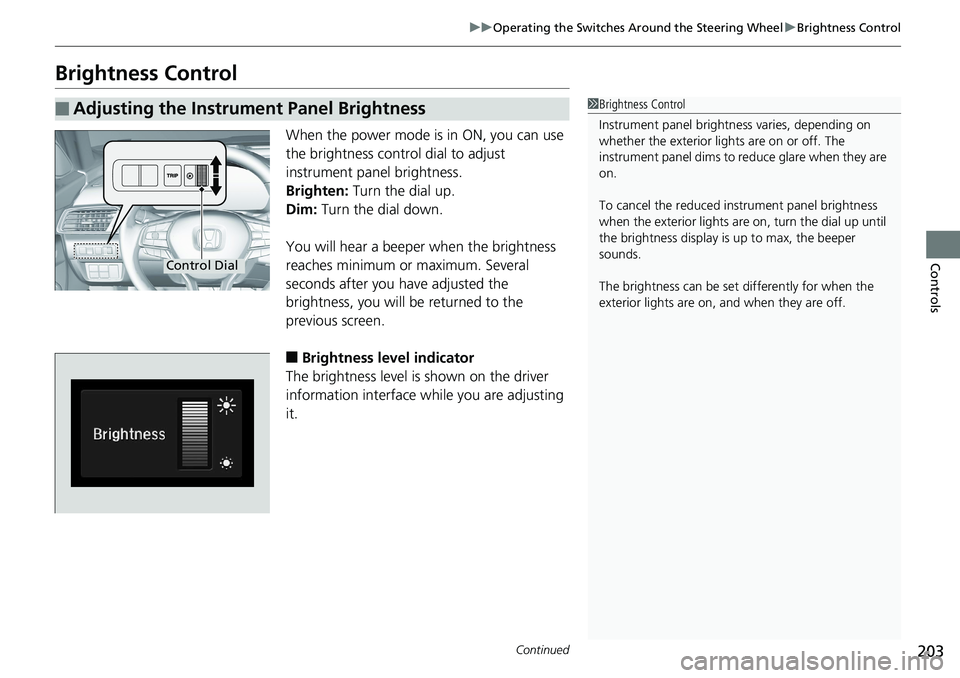
Brightness Control When the power mode is in ON, you can use
the brightness control dial to adjust
instrument panel brightness.
Brighten: Turn the dial up.
Dim: Turn the dial down.
You will hear a beeper when the brightness
reaches minimum or maximum. Several
seconds after you have adjusted the
brightness, you will be returned to the
previous screen.
■ Brightness level indicator
The brightness level is shown on the driver
information interface while you are adjusting
it.■ Adjusting the Instrument Panel Brightness 1 Brightness Control
Instrument panel brightne ss varies, depending on
whether the exterior lights are on or off. The
instrument panel dims to reduce glare when they are
on.
To cancel the reduced in strument pane l brightness
when the exterior lights ar e on, turn the dial up until
the brightness display is up to max, the beeper
sounds.
The brightness can be set differently for when the
exterior lights are on, and when they are off.Control Dial
Page 206 of 727
204 uu Operating the Switches Around the Steering Wheel u Brightness Control
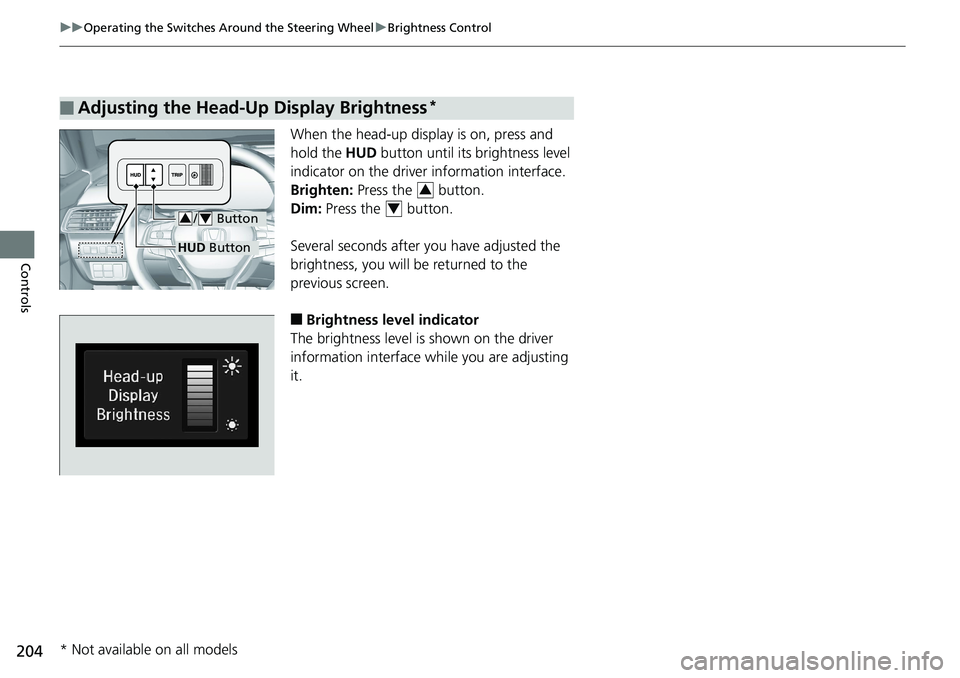
Controls When the head-up display is on, press and
hold the HUD button until its brightness level
indicator on the driver information interface.
Brighten: Press the button.
Dim: Press the button.
Several seconds after you have adjusted the
brightness, you will be returned to the
previous screen.
■ Brightness level indicator
The brightness level is shown on the driver
information interface wh ile you are adjusting
it.■ Adjusting the Head-Up Display Brightness *
/ Button3 4
HUD Button 3
4
* Not available on all models
Page 241 of 727
239Continued
Controls
Climate Control SystemUsing Automatic Climate Control The automatic climate control system maintains the interior temperature you select.
The system also selects the proper mix of heat ed or cooled air that raises or lowers
the interior temperature to your pr eference as quickly as possible.
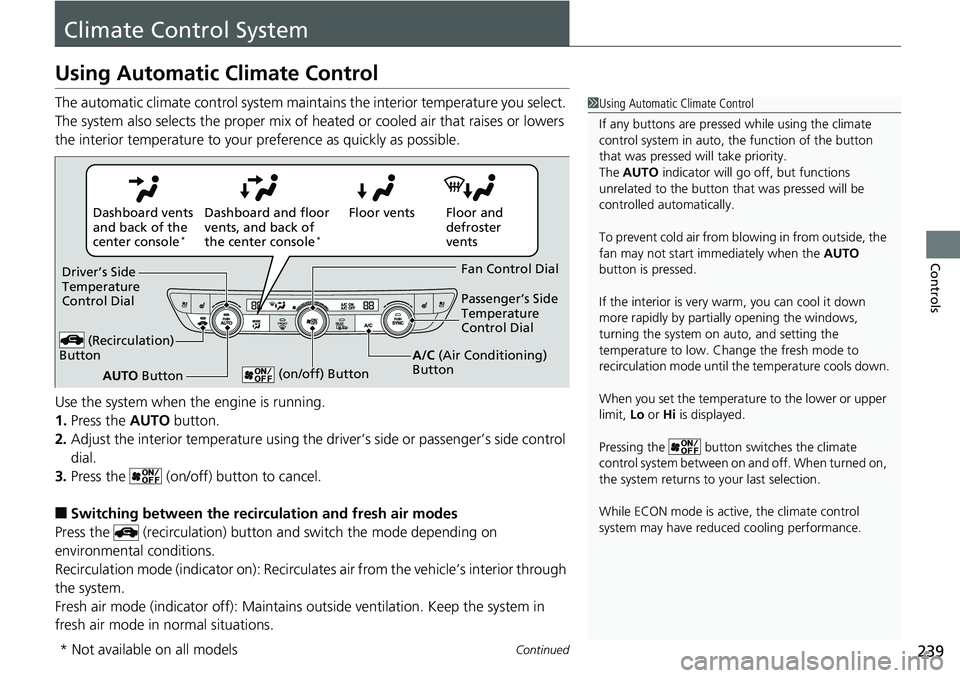
Use the system when the engine is running.
1. Press the AUTO button.
2. Adjust the interior temperature using the dr iver’s side or passenger’s side control
dial.
3. Press the (on/off) button to cancel.
■ Switching between the recirc ulation and fresh air modes
Press the (recirculation) button and switch the mode depending on
environmental conditions.
Recirculation mode (indicator on): Recirculat es air from the vehicle’s interior through
the system.
Fresh air mode (indicator off): Maintains outside ventilation. Keep the system in
fresh air mode in normal situations. 1 Using Automatic Climate Control
If any buttons are presse d while using the climate
control system in auto, the function of the button
that was pressed will take priority.
The AUTO indicator will go off, but functions
unrelated to the button th at was pressed will be
controlled automatically.
To prevent cold air from bl owing in from outside, the
fan may not start i mmediately when the AUTO
button is pressed.
If the interior is very warm, you can cool it down
more rapidly by partial ly opening the windows,
turning the system on auto, and setting the
temperature to low. Change the fresh mode to
recirculation mode until the temperature cools down.
When you set the temperature to the lower or upper
limit, Lo or Hi is displayed.
Pressing the button sw itches the climate
control system between on and off. When turned on,
the system returns to your last selection.
While ECON mode is active, the climate control
system may have reduced cooling performance.Floor and
defroster
ventsFloor ventsDashboard and floor
vents, and back of
the center console *
Dashboard vents
and back of the
center console *
AUTO ButtonDriver’s Side
Temperature
Control Dial
(Recirculation)
Button Fan Control Dial
A/C (Air Conditioning)
Button Passenger’s Side
Temperature
Control Dial
(on/off) Button
* Not available on all models
Page 245 of 727
243Features This chapter describes how to operate technology features.
Audio System
About Your Audio System ................ 244
USB Port(s) ....................................... 245
Audio System Theft Protection ......... 247
Audio Remote Controls .................... 248
Audio System Basic Operation ........ 252
Audio/Information Screen ................ 253
Adjusting the Sound ........................ 257
Display Setup ................................... 258
Playing AM/FM Radio ....................... 259
Playing an iPod ................................ 261
Playing Pandora ® .............................. 264
Playing a USB Flash Drive ................. 266 Models with color audio Playing Bluetooth ® Audio................. 269
Siri ® Eyes Free .................................. 272
Audio System Basic Operation ........ 273
Audio/Information Screen ................ 274
System Updates ............................... 286
Adjusting the Sound ........................ 292
Display Setup ................................... 293
Voice Control Operation .................. 295
Playing AM/FM Radio ....................... 298
Playing SiriusXM ® Radio *
................. 302
Playing an iPod ................................ 313
Playing a USB Flash Drive ................. 316
Playing Bluetooth ® Audio................. 319Models with Display Audio
HondaLink ® ..................................... 321
HondaLink ® Service *
........................ 325
Wi-Fi Connection ............................. 330
Near Field Communication (NFC) *
... 332
Siri ® Eyes Free .................................. 335
Apple CarPlay ® ................................ 336
Android Auto TM
............................... 339
Audio Error Messages ...................... 343
General Information on the Audio
System ............................................. 348
Customized Features ................ 370 , 381
HomeLink ® Universal Transceiver *
..... 400
Bluetooth ® HandsFreeLink ® ..... 403 , 427
Refuel Recommend .............................. 452
* Not available on all models
Page 246 of 727
244
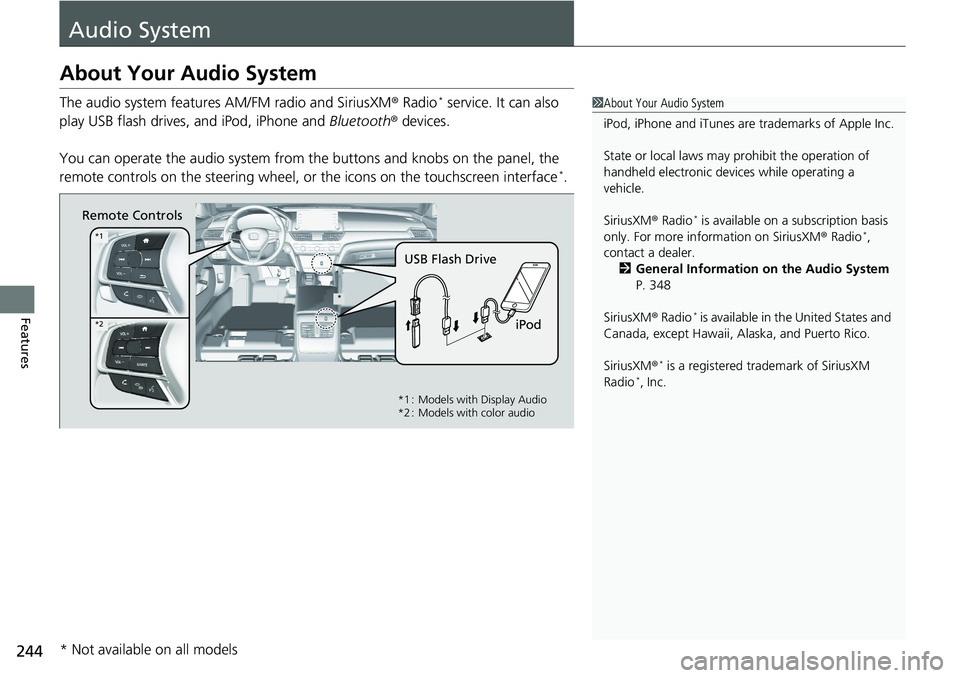
Features Audio SystemAbout Your Audio System The audio system features AM/FM radio and SiriusXM ® Radio *
service. It can also
play USB flash drives, and iPod, iPhone and Bluetooth ® devices.
You can operate the audio sy stem from the buttons and knobs on the panel, the
remote controls on the steering wheel, or the icons on the touchscreen interface *
. 1 About Your Audio System
iPod, iPhone and iTunes are trademarks of Apple Inc.
State or local laws may pr ohibit the operation of
handheld electronic devi ces while operating a
vehicle.
SiriusXM ® Radio *
is available on a subscription basis
only. For more information on SiriusXM ® Radio *
,
contact a dealer.
2 General Information on the Audio System
P. 348
SiriusXM ® Radio *
is available in the United States and
Canada, except Ha waii, Alaska, and Puerto Rico.
SiriusXM ® *
is a registered trademark of SiriusXM
Radio *
, Inc.Remote Controls
iPodUSB Flash Drive **1
*2
*1 : Models with Display Audio
*2 : Models with color audio
* Not available on all models
Page 247 of 727
245 uu Audio System u USB Port(s)
Continued
Features
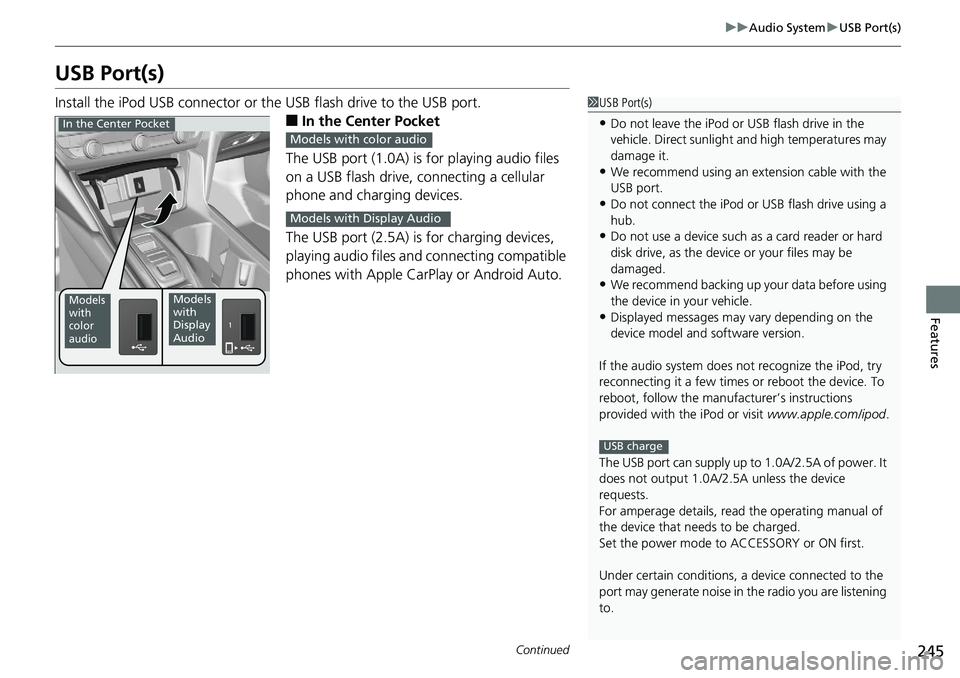
USB Port(s) Install the iPod USB connector or th e USB flash drive to the USB port.
■ In the Center Pocket
The USB port (1.0A) is for playing audio files
on a USB flash drive, connecting a cellular
phone and charging devices.
The USB port (2.5A) is for charging devices,
playing audio files and connecting compatible
phones with Apple CarPlay or Android Auto. 1 USB Port(s)
• Do not leave the iPod or USB flash drive in the
vehicle. Direct sunlight and high temperatures may
damage it.
• We recommend using an ex tension cable with the
USB port.
• Do not connect the iPod or USB flash drive using a
hub.
• Do not use a device such as a card reader or hard
disk drive, as the device or your files may be
damaged.
• We recommend backing up yo ur data before using
the device in your vehicle.
• Displayed messages may vary depending on the
device model and software version.
If the audio system does not recognize the iPod, try
reconnecting it a few times or reboot the device. To
reboot, follow the manufac turer’s instructions
provided with the iPod or visit www.apple.com/ipod .
The USB port can supply up to 1.0A/2.5A of power. It
does not output 1.0A/2.5A unless the device
requests.
For amperage details, read the operating manual of
the device that ne eds to be charged.
Set the power mode to ACCESSORY or ON first.
Under certain condi tions, a device connected to the
port may generate noise in the radio you are listening
to. USB chargeModels
with
color
audio Models
with
Display
AudioIn the Center Pocket
Models with color audio
Models with Display Audio
Page 249 of 727

247uu Audio System u Audio System Theft Protection
Features
Audio System Theft Protection The audio system is disabled when it is disconnected from the power source, such as
when the battery is disconnected or goes dead. In certain conditions, the system
may display a code entry screen. If this occurs, reactivate the audio system.
■ Reactivating the audio system
1. Set the power mode to ON.
2. Turn on the audio system.
3. Press and hold the audio system powe r knob for more than two seconds.
u The audio system is reac tivated when the audio co ntrol unit establishes a
connection with the vehicle control unit. If the contro l unit fails to recognize
the audio unit, you must go to a dealer and have the audio unit checked.
Page 251 of 727
Continued
249uu Audio System u Audio Remote Controls
Features
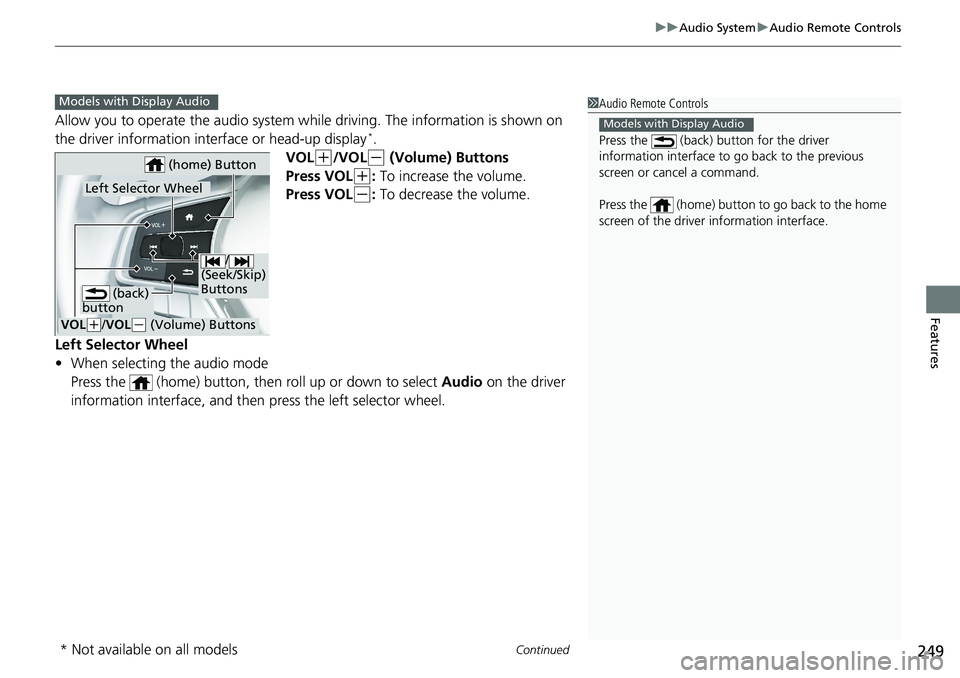
Allow you to operate the audio system whil e driving. The information is shown on
the driver information inte rface or head-up display *
.
VOL ( +
/VOL ( -
(Volume) Buttons
Press VOL ( +
: To increase the volume.
Press VOL ( -
: To decrease the volume.
Left Selector Wheel
• When selecting the audio mode
Press the (home) button, then roll up or down to select Audio on the driver
information interface, and then press the left selector wheel. 1 Audio Remote Controls
Press the (back) button for the driver
information interface to go back to the previous
screen or cancel a command.
Press the (home) button to go back to the home
screen of the driver information interface. Models with Display Audio
Models with Display Audio
/
(Seek/Skip)
Buttons
VOL ( +
/ VOL ( -
(Volume) ButtonsLeft Selector Wheel (home) Button
(back)
button
* Not available on all models
Page 254 of 727
252
Features Audio System Basic Operation To use the audio system function, the po wer mode must be in ACCESSORY or ON.
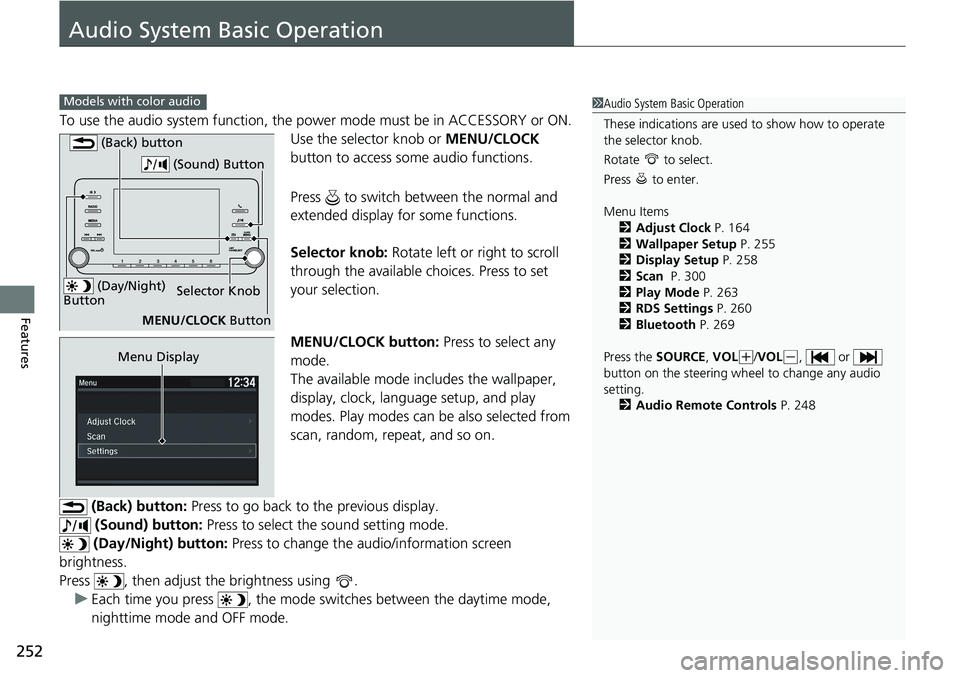
Use the selector knob or MENU/CLOCK
button to access some audio functions.
Press to switch between the normal and
extended display fo r some functions.
Selector knob: Rotate left or right to scroll
through the available ch oices. Press to set
your selection.
MENU/CLOCK button: Press to select any
mode.
The available mode includes the wallpaper,
display, clock, langu age setup, and play
modes. Play modes can be also selected from
scan, random, repeat, and so on.
(Back) button: Press to go back to the previous display.
(Sound) button: Press to select the sound setting mode.
(Day/Night) button: Press to change the au dio/information screen
brightness.
Press , then adjust the brightness using .
u Each time you press , the mode sw itches between the daytime mode,
nighttime mode and OFF mode.Models with color audio
1 Audio System Basic Operation
These indications are used to show how to operate
the selector knob.
Rotate to select.
Press to enter.
Menu Items
2 Adjust Clock P. 164
2 Wallpaper Setup P. 255
2 Display Setup P. 258
2 Scan P. 300
2 Play Mode P. 263
2 RDS Settings P. 260
2 Bluetooth P. 269
Press the SOURCE , VOL ( +
/ VOL ( -
, or
button on the steering whee l to change any audio
setting.
2 Audio Remote Controls P. 248 (Day/Night)
Button Selector Knob
MENU/CLOCK Button (Back) button
(Sound) Button
Menu Display
Page 255 of 727
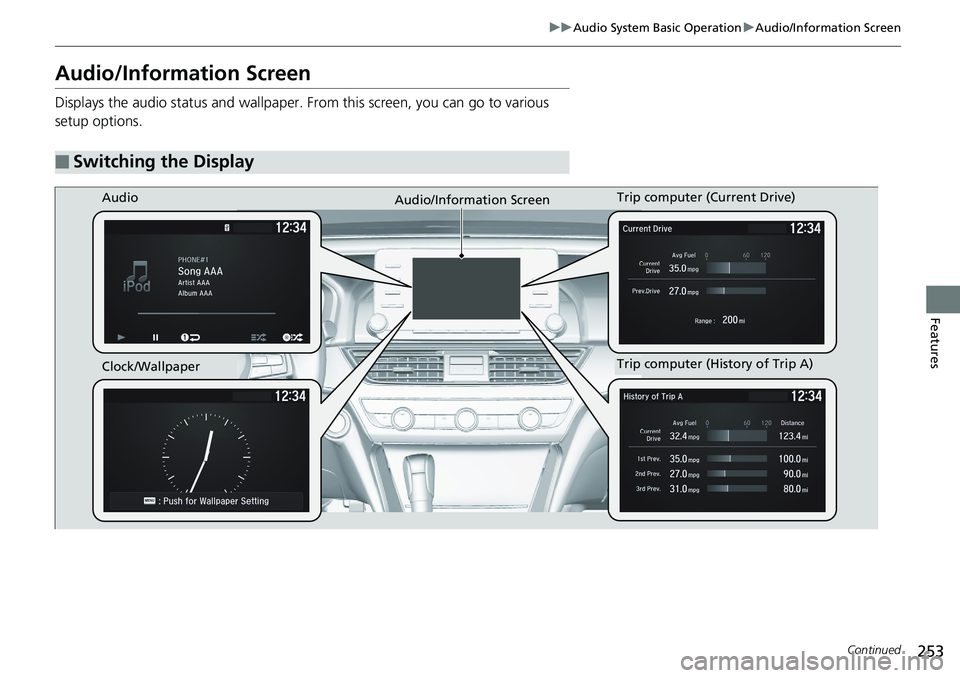
253uu Audio System Basic Operation u Audio/Information Screen
Continued
Features
Audio/Information Screen Displays the audio status and wallpaper. From this screen, you can go to various
setup options.
■ Switching the Display Audio
Audio/Information Screen
Clock/Wallpaper Trip computer (History of Trip A)Trip computer (Current Drive)