display HONDA ACCORD HYBRID 2019 Manual PDF
[x] Cancel search | Manufacturer: HONDA, Model Year: 2019, Model line: ACCORD HYBRID, Model: HONDA ACCORD HYBRID 2019Pages: 727, PDF Size: 24.78 MB
Page 287 of 727
285uu Audio System Basic Operation u Audio/Information Screen
Features
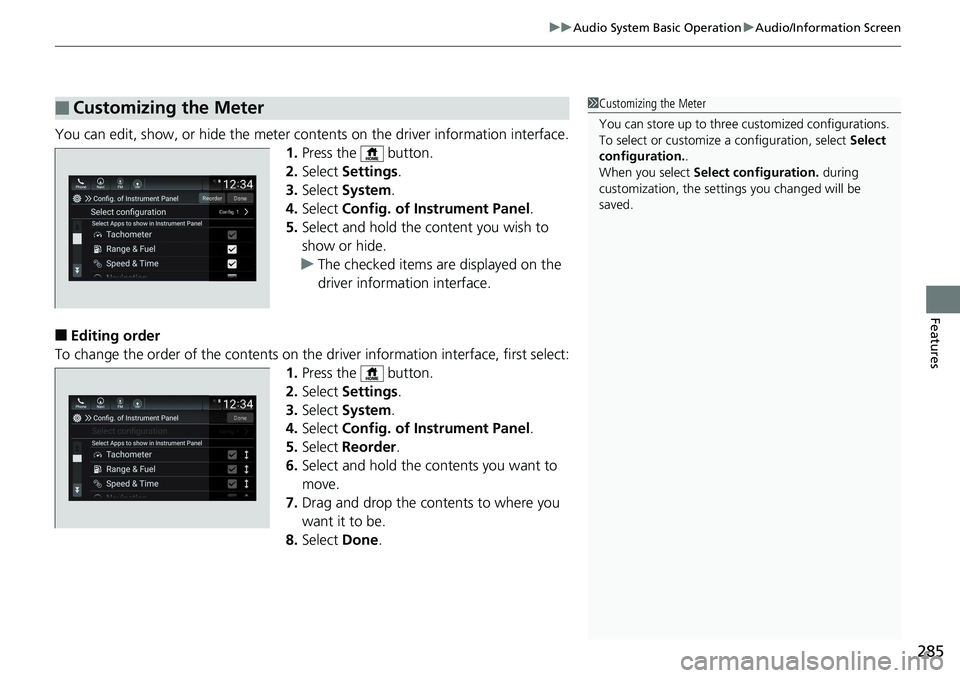
You can edit, show, or hide the meter cont ents on the driver information interface.
1. Press the button.
2. Select Settings .
3. Select System .
4. Select Config. of Instrument Panel .
5. Select and hold the content you wish to
show or hide.
u The checked items are displayed on the
driver information interface.
■ Editing order
To change the order of the contents on th e driver information interface, first select:
1. Press the button.
2. Select Settings .
3. Select System .
4. Select Config. of Instrument Panel .
5. Select Reorder .
6. Select and hold the contents you want to
move.
7. Drag and drop the contents to where you
want it to be.
8. Select Done .■ Customizing the Meter 1 Customizing the Meter
You can store up to three customized configurations.
To select or customize a configuration, select Select
configuration. .
When you select Select configuration. during
customization, the settings you changed will be
saved.
Page 288 of 727
286 uu Audio System Basic Operation u System Updates
Features System Updates The audio system’s firmware can be update d with a Wi-Fi connec tion, or with a USB
device.
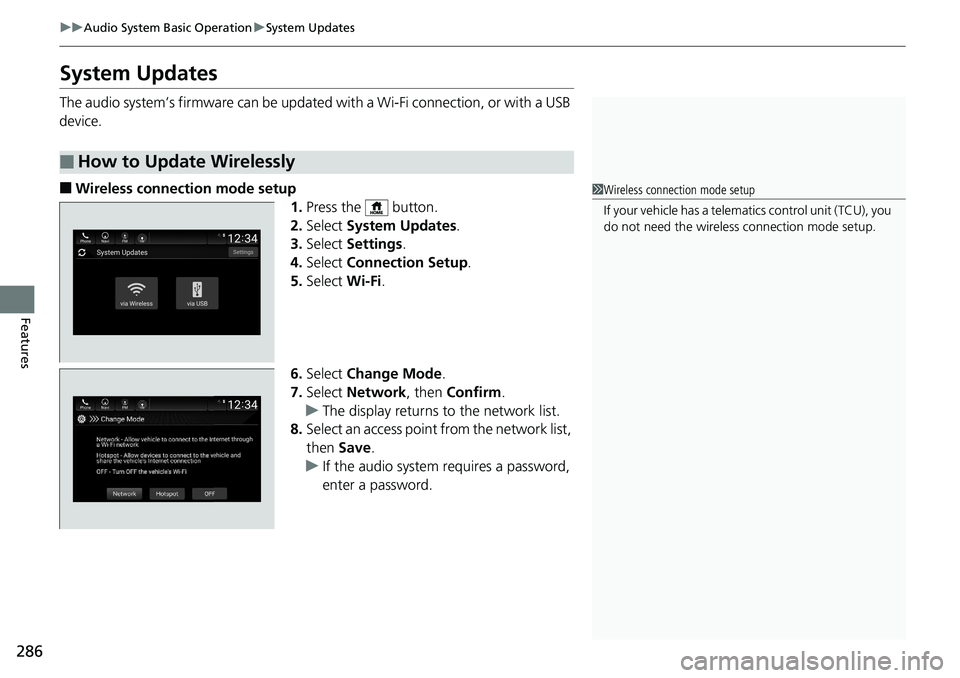
■ Wireless connection mode setup
1. Press the button.
2. Select System Updates .
3. Select Settings .
4. Select Connection Setup .
5. Select Wi-Fi .
6. Select Change Mode .
7. Select Network , then Confirm .
u The display returns to the network list.
8. Select an access point from the network list,
then Save .
u If the audio system requires a password,
enter a password.■ How to Update Wirelessly 1 Wireless connection mode setup
If your vehicle has a telema tics control unit (TCU), you
do not need the wireless connection mode setup.
Page 289 of 727
Continued
287uu Audio System Basic Operation u System Updates
Features
■ How to update
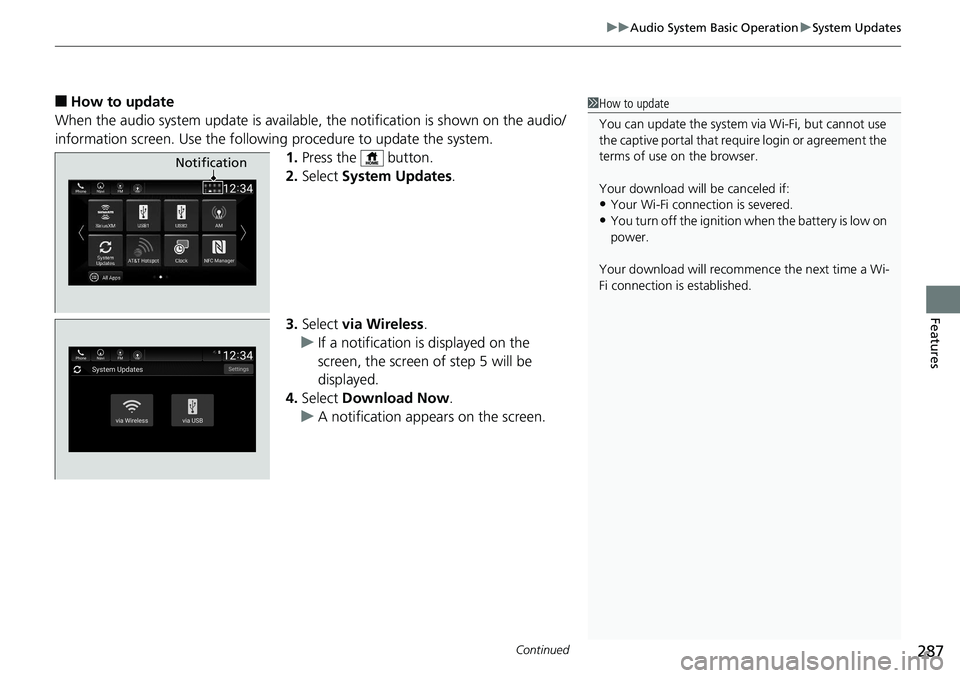
When the audio system update is available, the notificati on is shown on the audio/
information screen. Use the following procedure to update the system.
1. Press the button.
2. Select System Updates .
3. Select via Wireless .
u If a notification is displayed on the
screen, the screen of step 5 will be
displayed.
4. Select Download Now .
u A notification appears on the screen. 1 How to update
You can update the system vi a Wi-Fi, but cannot use
the captive portal that requi re login or agreement the
terms of use on the browser.
Your download will be canceled if:
• Your Wi-Fi connection is severed.
• You turn off the ignition when the battery is low on
power.
Your download will recomme nce the next time a Wi-
Fi connection is established. Notification
Page 295 of 727
293uu Audio System Basic Operation u Display Setup
Continued
Features
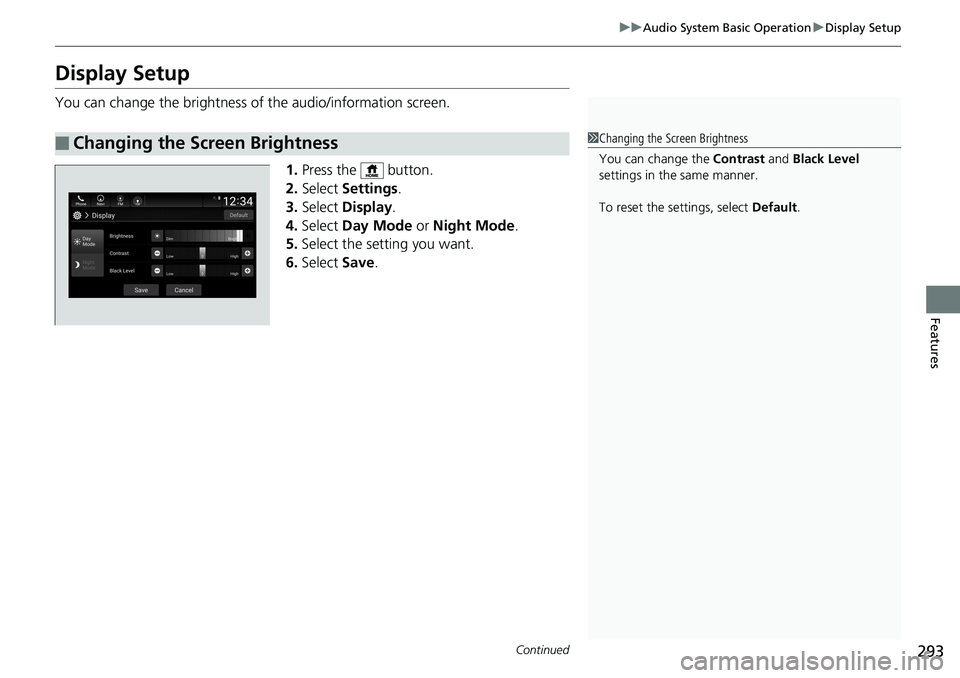
Display Setup You can change the brightness of the audio/information screen.
1. Press the button.
2. Select Settings .
3. Select Display .
4. Select Day Mode or Night Mode .
5. Select the setting you want.
6. Select Save .
■ Changing the Screen Brightness 1 Changing the Screen Brightness
You can change the Contrast and Black Level
settings in the same manner.
To reset the settings, select Default .
Page 296 of 727
294 uu Audio System Basic Operation u Display Setup
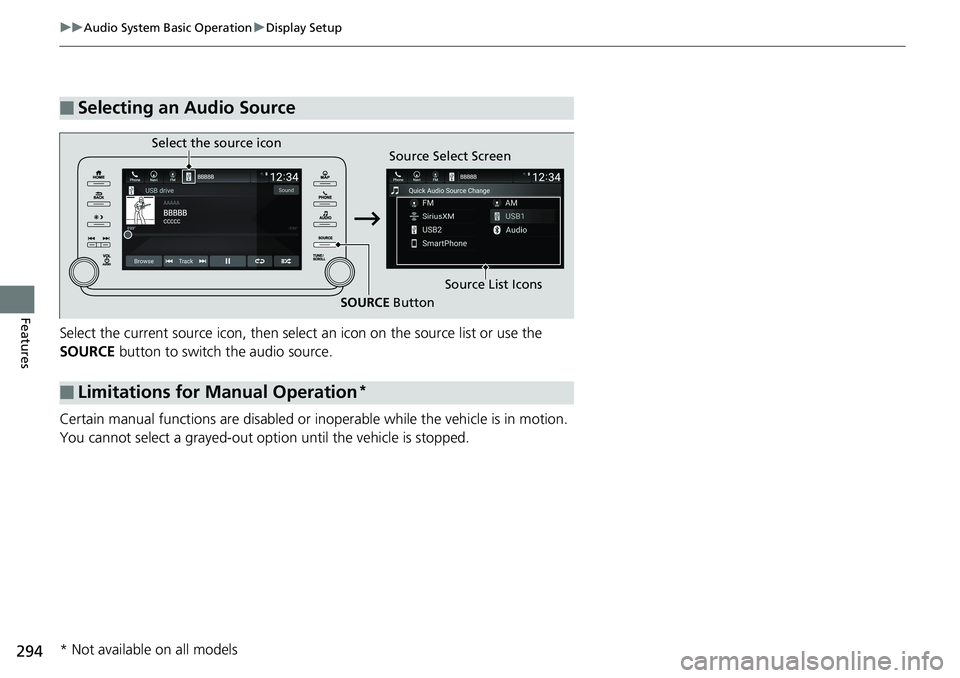
Features Select the current source icon , then select an icon on the source list or use the
SOURCE button to switch the audio source.
Certain manual functions are disabled or inoperable while the vehicle is in motion.
You cannot select a grayed-out option until the vehicle is stopped.■ Selecting an Audio Source
■ Limitations for Manual Operation *Select the source icon
Source Select Screen
Source List Icons
SOURCE Button
* Not available on all models
Page 300 of 727
298 uu Audio System Basic Operation u Playing AM/FM Radio
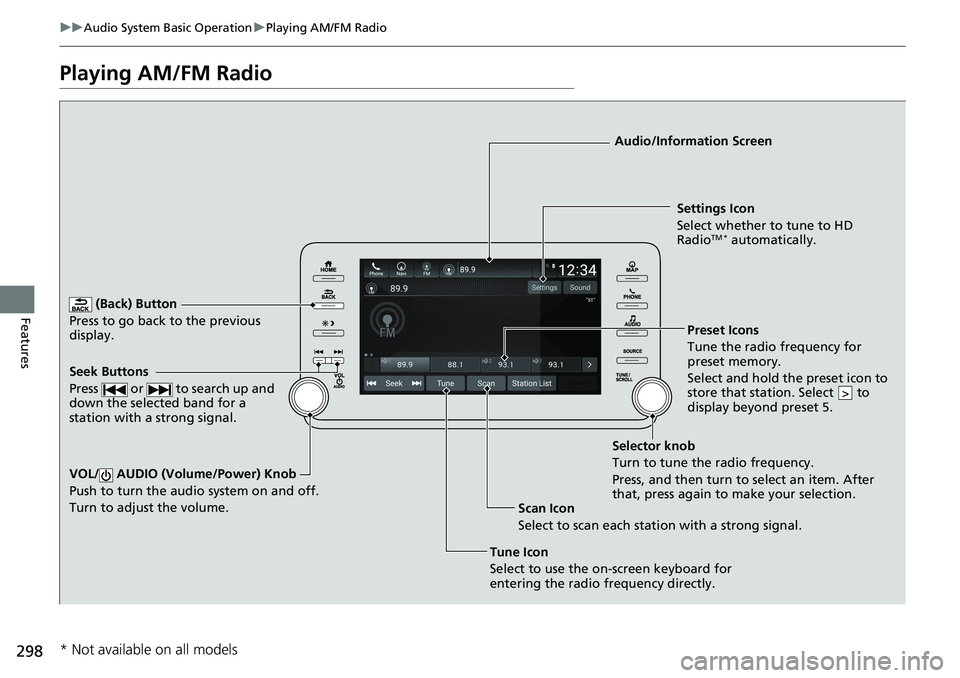
Features Playing AM/FM Radio (Back) Button
Press to go back to the previous
display.
Seek Buttons
Press or to search up and
down the selected band for a
station with a strong signal.
VOL/ AUDIO (Volume/Power) Knob
Push to turn the audi o system on and off.
Turn to adjust the volume.
Tune Icon
Select to use the on-screen keyboard for
entering the radio frequency directly. Audio/Information Screen
Scan Icon
Select to scan each station with a strong signal. Preset Icons
Tune the radio frequency for
preset memory.
Select and hold the preset icon to
store that station. Select to
display beyond preset 5. >Settings Icon
Select whether to tune to HD
Radio TM *
automatically.
Selector knob
Turn to tune the radio frequency.
Press, and then turn to select an item. After
that, press again to make your selection.
* Not available on all models
Page 301 of 727
Continued
299uu Audio System Basic Operation u Playing AM/FM Radio
Features
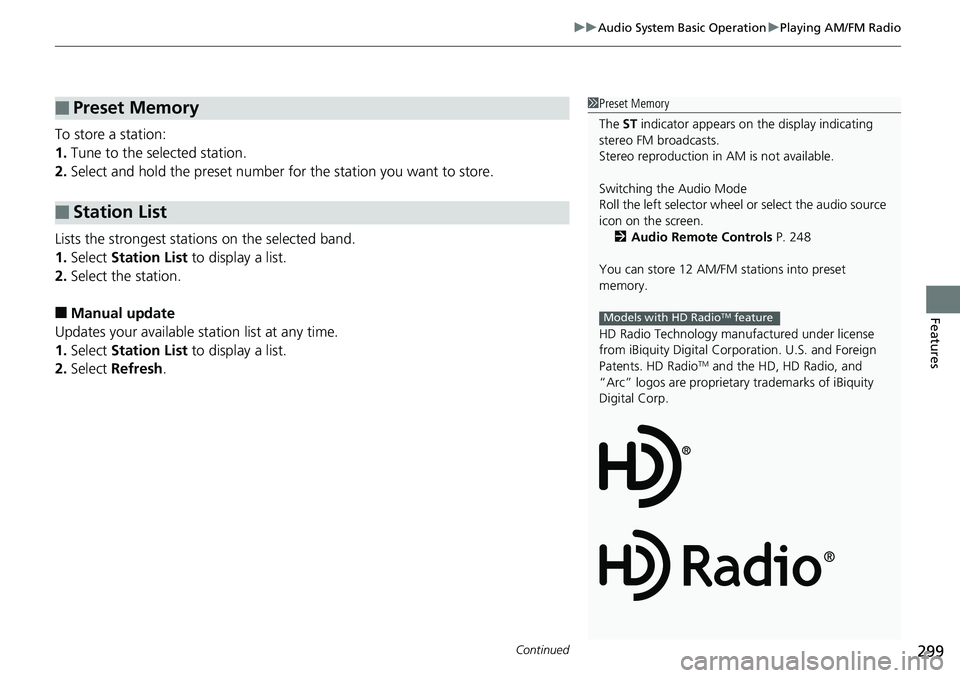
To store a station:
1. Tune to the selected station.
2. Select and hold the preset number for the station you want to store.
Lists the strongest stations on the selected band.
1. Select Station List to display a list.
2. Select the station.
■ Manual update
Updates your available st ation list at any time.
1. Select Station List to display a list.
2. Select Refresh .■ Preset Memory
■ Station List 1 Preset Memory
The ST indicator appears on the display indicating
stereo FM broadcasts.
Stereo reproduction in AM is not available.
Switching the Audio Mode
Roll the left selector wheel or select the audio source
icon on the screen.
2 Audio Remote Controls P. 248
You can store 12 AM/FM stations into preset
memory.
HD Radio Technology manufactured under license
from iBiquity Digital Cor poration. U.S. and Foreign
Patents. HD Radio TM
and the HD, HD Radio, and
“Arc” logos are proprietary trademarks of iBiquity
Digital Corp. Models with HD Radio TM
feature
Page 302 of 727
uu Audio System Basic Operation u Playing AM/FM Radio
300
Features Samples each of the strongest stations on the selected band for 10 seconds. To turn
off scan, select Stop or .
Provides text data information related to your selected RDS-capable FM station.
■ To find an RDS station from Station List
1. Select Station List to display a list while listening to an FM station.
2. Select the station.
■ Manual update
Updates your available station list at any time.
1. Select Station List to display a list while listening to an FM station.
2. Select Refresh .
■ Scan
Samples each of the strongest stations on the selected band for 10 seconds. To turn
off scan, select Stop or .■ Scan
■ Radio Data System (RDS) 1 Radio Data System (RDS)
When you select an RDS-capable FM station, the RDS
automatically turns on, and the frequency display
changes to the station name. However, when the
signals of that station become weak, the display
changes from the statio n name to the frequency.
Page 303 of 727
301uu Audio System Basic Operation u Playing AM/FM Radio
Features
Displays the subchannel list when an HD Radio TM
station is selected while listening to
an FM station.
1. Select HD Radio Channels .
2. Select the channel number.
Change the AM/FM settings.
1. Select Settings .
2. Select an option.
• HD Radio: Automatically choose a digital or an analog channel, or listen to
analog only.
• Artwork: Turns the artwork display on and off.■ HD Subchannel
■ AM/FM Settings Models with HD Radio TM
feature
Page 304 of 727
302 uu Audio System Basic Operation u Playing SiriusXM ® Radio *
Features Playing SiriusXM ® Radio *
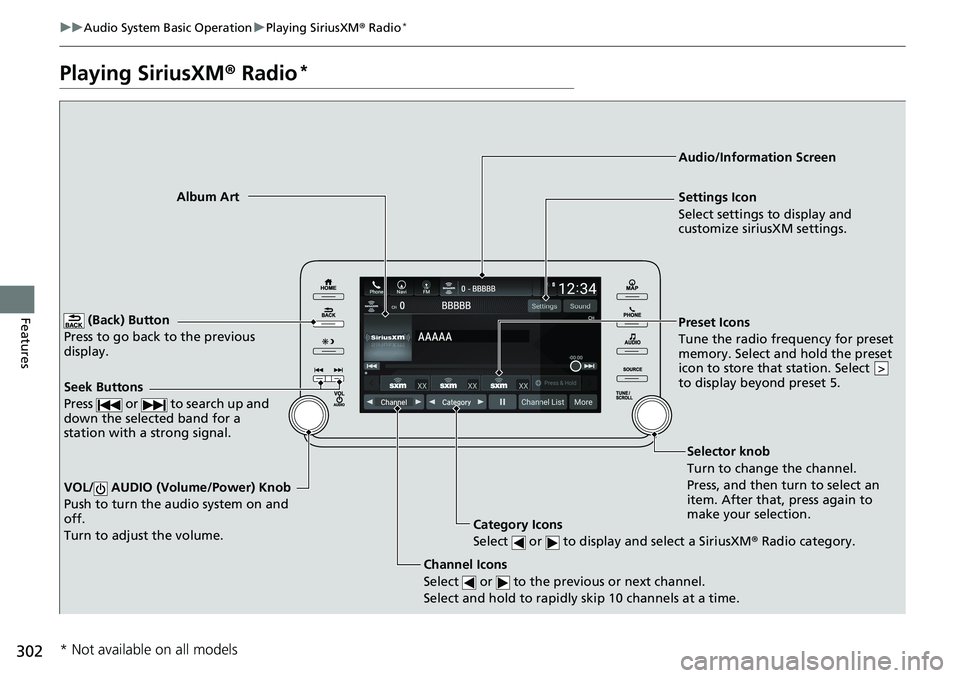
(Back) Button
Press to go back to the previous
display.
Channel Icons
Select or to the previous or next channel.
Select and hold to rapidly skip 10 channels at a time.VOL/ AUDIO (Volume/Power) Knob
Push to turn the audio system on and
off.
Turn to adjust the volume. Category Icons
Select or to display and select a SiriusXM ® Radio category.Audio/Information Screen
Preset Icons
Tune the radio frequency for preset
memory. Select and hold the preset
icon to store that station. Select
to display beyond preset 5. >Album Art
Settings Icon
Select settings to display and
customize siriusXM settings.
Seek Buttons
Press or to search up and
down the selected band for a
station with a strong signal.
Selector knob
Turn to change the channel.
Press, and then turn to select an
item. After that, press again to
make your selection.
* Not available on all models