audio HONDA CIVIC 2013 9.G Owners Manual
[x] Cancel search | Manufacturer: HONDA, Model Year: 2013, Model line: CIVIC, Model: HONDA CIVIC 2013 9.GPages: 367, PDF Size: 8.43 MB
Page 1 of 367
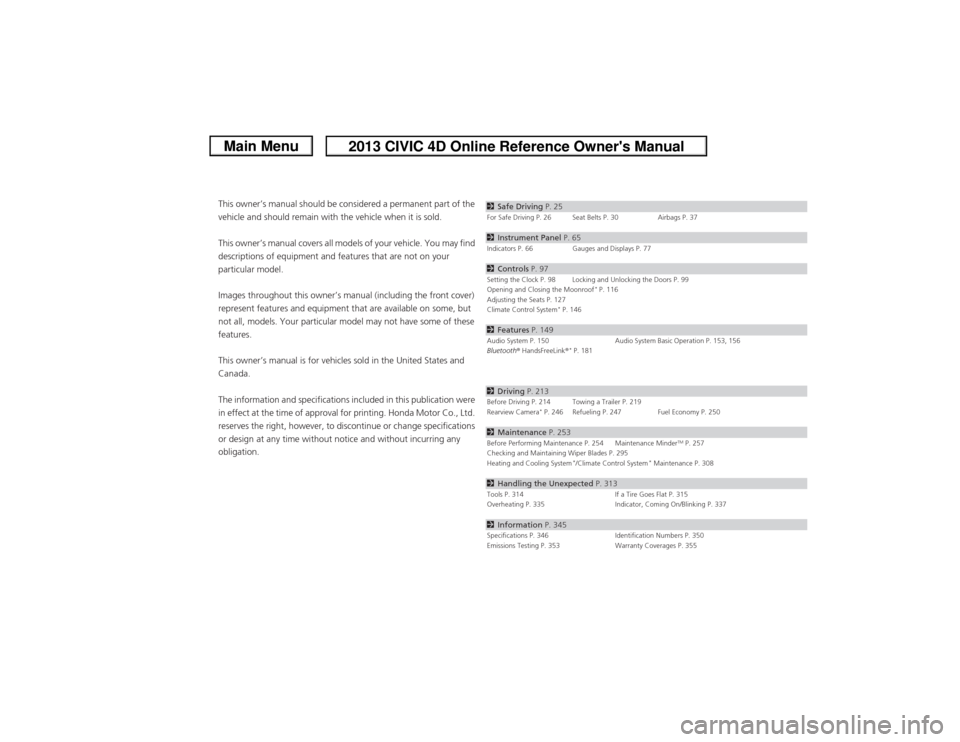
ContentsThis owner’s manual should be considered a permanent part of the
vehicle and should remain with the vehicle when it is sold.
This owner’s manual covers all models of your vehicle. You may find
descriptions of equipment and features that are not on your
particular model.
Images throughout this owner’s manual (including the front cover)
represent features and equipment that are available on some, but
not all, models. Your particular model may not have some of these
features.
This owner’s manual is for vehicles sold in the United States and
Canada.
The information and specifications included in this publication were
in effect at the time of approval for printing. Honda Motor Co., Ltd.
reserves the right, however, to discontinue or change specifications
or design at any time without notice and without incurring any
obligation.
2Safe Driving P. 25For Safe Driving P. 26 Seat Belts P. 30 Airbags P. 372Instrument Panel P. 65Indicators P. 66 Gauges and Displays P. 772Controls P. 97Setting the Clock P. 98 Locking and Unlocking the Doors P. 99
Opening and Closing the Moonroof
* P. 116
Adjusting the Seats P. 127
Climate Control System
* P. 146
2 Features P. 149Audio System P. 150 Audio System Basic Operation P. 153, 156
Bluetooth ® HandsFreeLink ®
* P. 181
2Driving P. 213Before Driving P. 214 Towing a Trailer P. 219
Rearview Camera
* P. 246 Refueling P. 247 Fuel Economy P. 250
2Maintenance P. 253Before Performing Maintenance P. 254 Maintenance Minder
TM P. 257
Checking and Maintaining Wiper Blades P. 295
Heating and Cooling System
*/Climate Control System
* Maintenance P. 308
2 Handling the Unexpected P. 313Tools P. 314 If a Tire Goes Flat P. 315
Overheating P. 335 Indicator, Coming On/Blinking P. 3372Information P. 345Specifications P. 346 Identification Numbers P. 350
Emissions Testing P. 353 Warranty Coverages P. 355
Page 2 of 367
Contents
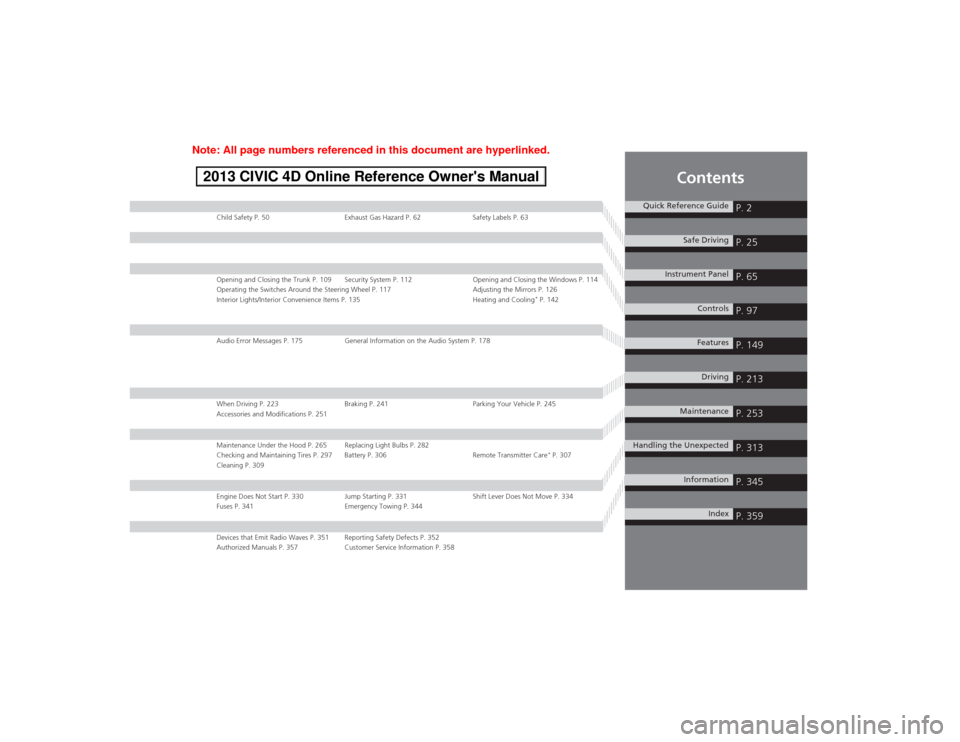
Child Safety P. 50Exhaust Gas Hazard P. 62 Safety Labels P. 63Opening and Closing the Trunk P. 109 Security System P. 112 Opening and Closing the Windows P. 114
Operating the Switches Around the Steering Wheel P. 117 Adjusting the Mirrors P. 126
Interior Lights/Interior Convenience Items P. 135 Heating and Cooling
* P. 142
Audio Error Messages P. 175General Information on the Audio System P. 178When Driving P. 223 Braking P. 241 Parking Your Vehicle P. 245
Accessories and Modifications P. 251Maintenance Under the Hood P. 265 Replacing Light Bulbs P. 282
Checking and Maintaining Tires P. 297 Battery P. 306 Remote Transmitter Care
* P. 307
Cleaning P. 309
Engine Does Not Start P. 330 Jump Starting P. 331 Shift Lever Does Not Move P. 334
Fuses P. 341 Emergency Towing P. 344Devices that Emit Radio Waves P. 351 Reporting Safety Defects P. 352
Authorized Manuals P. 357 Customer Service Information P. 358
Quick Reference Guide
P. 2
Safe Driving
P. 25
Instrument Panel
P. 65
Controls
P. 97
Features
P. 149
Driving
P. 213
Maintenance
P. 253
Handling the Unexpected
P. 313
Information
P. 345
Index
P. 359
Page 3 of 367
2Quick Reference Guide
Quick Reference GuideVisual Index
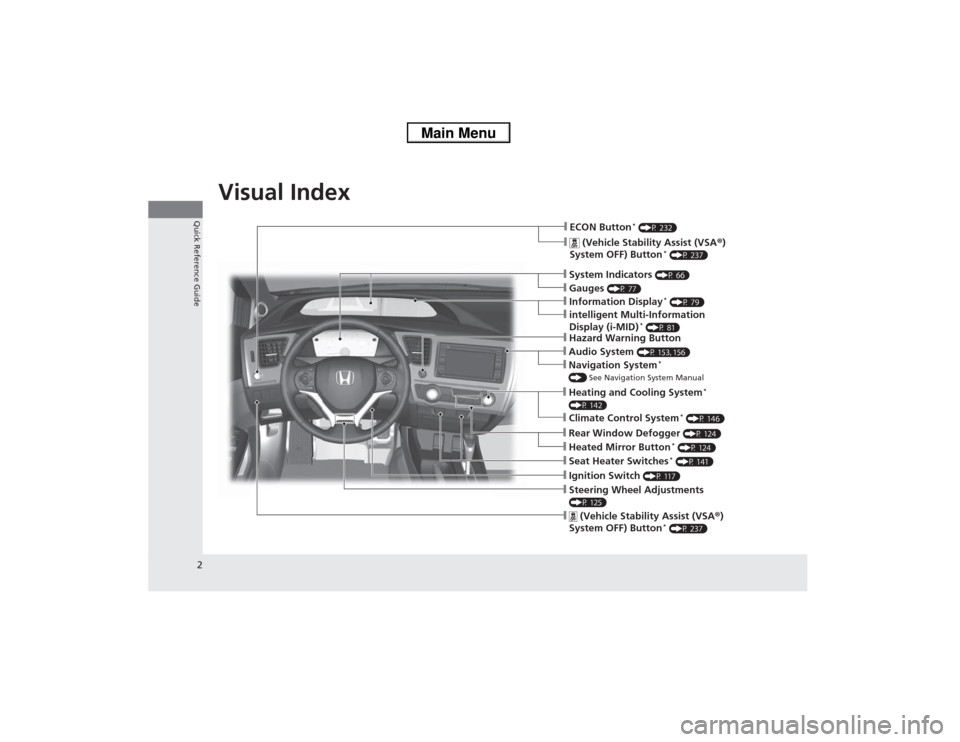
❙Navigation System
*
() See Navigation System Manual❙Audio System
(P 153, 156)
❙Hazard Warning Button❙Seat Heater Switches
* (P 141)
❙Ignition Switch
(P 117)
❙Steering Wheel Adjustments (P 125)❙
(Vehicle Stability Assist (VSA ®)
System OFF) Button
* (P 237)
❙ECON Button
* (P 232)
❙
(Vehicle Stability Assist (VSA ®)
System OFF) Button
* (P 237)
❙Heating and Cooling System
*
(P 142)❙Climate Control System
* (P 146)
❙System Indicators
(P 66)
❙Gauges
(P 77)
❙Information Display
* (P 79)
❙intelligent Multi-Information
Display (i-MID)
* (P 81)
❙Rear Window Defogger
(P 124)
❙Heated Mirror Button
* (P 124)
Page 15 of 367
14Quick Reference Guide
Features
(P 149)
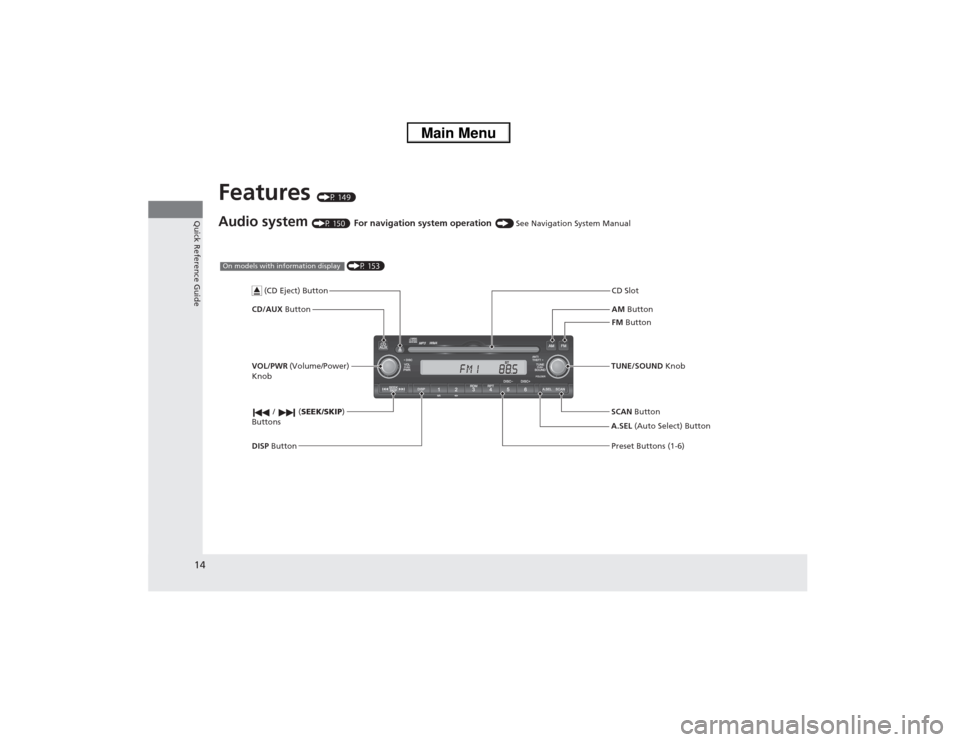
Audio system
(P 150)
For navigation system operation
() See Navigation System Manual
AM Button
FM Button
CD/AUX
Button CD Slot
SCAN Button Preset Buttons (1-6)
TUNE/SOUND
Knob
/ (SEEK/SKIP )
Buttons
(P 153)
On models with information display
A.SEL (Auto Select) Button
VOL/PWR
(Volume/Power)
Knob
DISP Button
(CD Eject) Button
Page 16 of 367
15Quick Reference Guide
002300
75°
F miles
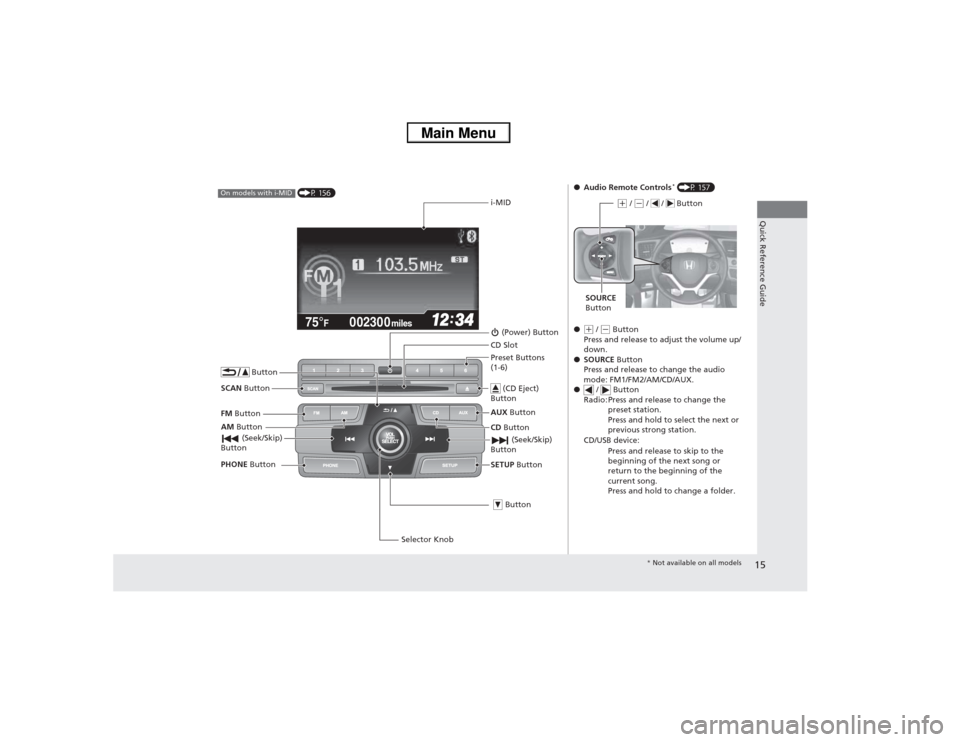
(P 156)
On models with i-MID
i-MID
AM Button
FM
Button
SCAN Button
(Seek/Skip)
Button
Selector Knob
Button
(Power) ButtonCD
Button
AUX
Button
CD Slot
(CD Eject)
ButtonPreset Buttons
(1-6)
ButtonSETUP Button
(Seek/Skip)
Button
PHONE Button
●Audio Remote Controls
* (P 157)
●
(+ / (- Button
Press and release to adjust the volume up/
down.
● SOURCE Button
Press and release to change the audio
mode: FM1/FM2/AM/CD/AUX.
● / Button
Radio: Press and release to change the preset station.
Press and hold to select the next or
previous strong station.
CD/USB device: Press and release to skip to the
beginning of the next song or
return to the beginning of the
current song.
Press and hold to change a folder.(+ / (- / / Button
SOURCE
Button
* Not available on all models
Page 82 of 367
81
uuGauges and Displays uintelligent Multi-Info rmation Display (i-MID)
*
Continued
Instrument Panel
intelligent Multi-Information Display (i-MID)
*
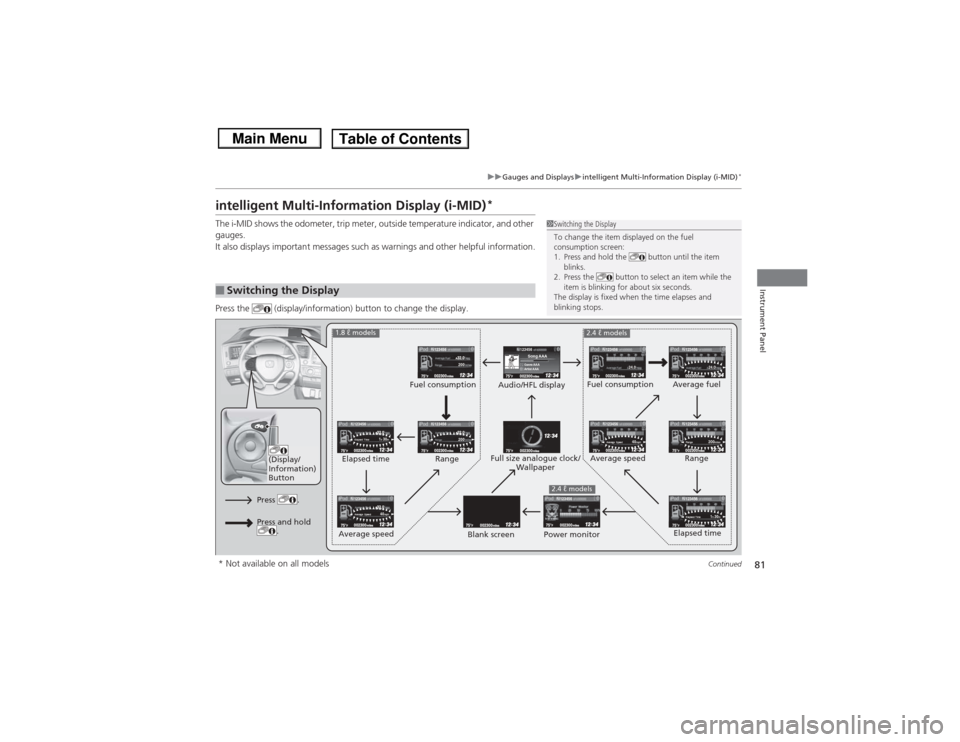
The i-MID shows the odometer, trip meter, outside temperature indicator, and other
gauges.
It also displays important messages such as warnings and other helpful information.
Press the (display/information) button to change the display.■Switching the Display
1Switching the Display
To change the item displayed on the fuel
consumption screen:
1. Press and hold the button until the item
blinks.
2. Press the button to select an item while the
item is blinking for about six seconds.
The display is fixed when the time elapses and
blinking stops.
123456Genre AAASong AAAArtist AAA
200200
1h 30m
Elapsed Time
1h 30m
Elapsed Time
24.0
24.0
40mph
Average Speed
40mph
Average Speed
200miles
Range
123456
123456123456
123456123456
123456
123456
123456
123456123456
(Display/
Information)
Button
Audio/HFL display Fuel consumption
Blank screen Full size analogue clock/
Wallpaper
2.4 ℓ models
Power monitor
1.8 ℓ models
2.4 ℓ models
Fuel consumption
Range
Elapsed time
Average speed Elapsed time
Average speed
Average fuel
Range
Press .Press and hold .
* Not available on all models
Page 118 of 367
117Controls
Operating the Switches Around the Steering WheelIgnition Switch
1Ignition Switch
You cannot take the key out unless the shift lever is
in
(P.
If you open the driver's door when the key is in LOCK
(0 or ACCESSORY
(q, a warning buzzer will sound
to remind you to take the key out.
When this happens, the following messages appear
on the i-MID
*:
•In LOCK
(0: REMOVE KEY.
•In ACCESSORY
(q: RETURN IGNITION SWITCH
TO LOCK (0) POSITION The buzzer will stop when
you take the key out.
If the key won't turn from LOCK
(0 to ACCESSORY
(q, turn the key while moving the steering wheel left
and right. The steering wheel will unlock, allowing
the key to turn.
3
WARNING
Removing the key from the ignition switch
while driving locks the steering. This can
cause you to lose control of the vehicle.
Remove the key from the ignition switch
only when parked.Manual transmission modelsAutomatic transmission modelsAll models
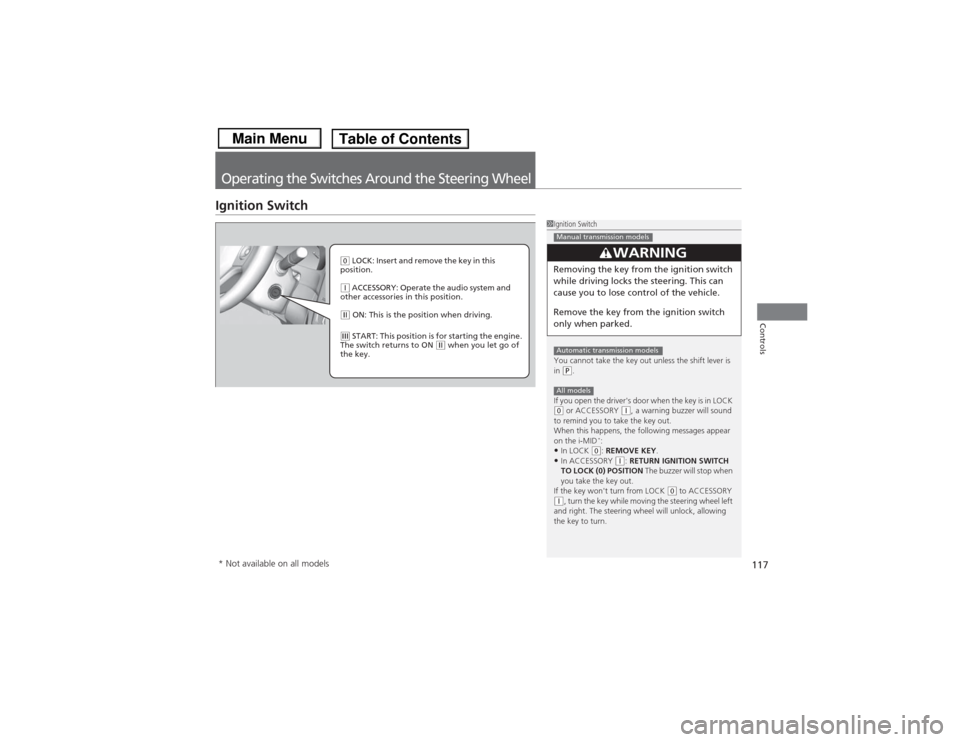
( 0 LOCK: Insert and remove the key in this
position.(q ACCESSORY: Operate the audio system and
other accessories in this position.(w ON: This is the position when driving.(e START: This position is for starting the engine.
The switch returns to ON
(w when you let go of
the key.
* Not available on all models
Page 150 of 367
149
Features
This chapter describes how to operate technology features.
Audio SystemAbout Your Audio System ................ 150
USB Adapter Cable
*........................ 151
Auxiliary Input Jack .......................... 151
Audio System Theft Protection
*....... 152
Audio System Basic Operation ...... 153
Adjusting the Sound ........................ 153
Playing AM/FM Radio ....................... 154
Playing a CD .................................... 155
Models with information display
Audio System Basic Operation ...... 156
Audio Remote Controls.................... 157
Adjusting the Sound ........................ 158
Playing AM/FM Radio ....................... 159
Playing a CD .................................... 162
Playing an iPod ®............................... 165
Playing Internet Radio ...................... 168
Playing a USB Flash Drive ................. 170
Playing Bluetooth ® Audio................. 173Models with i-MID
Audio Error Messages
CD Player......................................... 175
iPod® /USB Flash Drive ...................... 176
Pandora ®......................................... 177
General Information on the Audio System
Recommended CDs ......................... 178Compatible iPod
® and USB Flash Drives.... 180
Bluetooth® HandsFreeLink ®
*
Using HFL ........................................ 181
HFL Menus ...................................... 183
* Not available on all models
Page 151 of 367
150Features
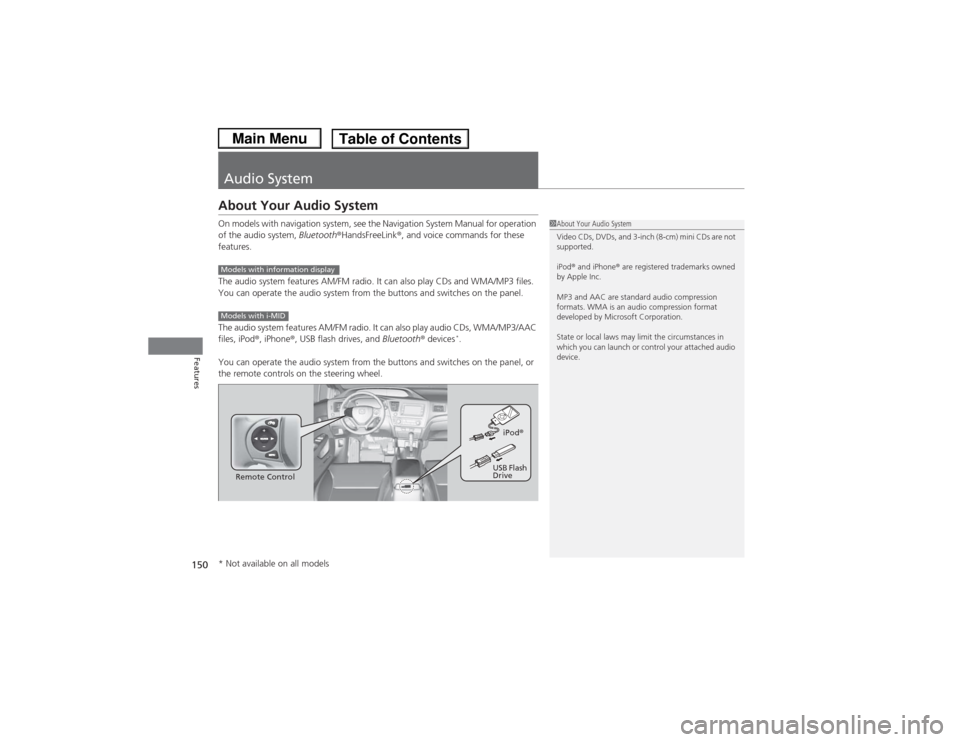
Audio SystemAbout Your Audio SystemOn models with navigation system, see the Navigation System Manual for operation
of the audio system, Bluetooth®HandsFreeLink ®, and voice commands for these
features.
The audio system features AM/FM radio. It can also play CDs and WMA/MP3 files.
You can operate the audio system from the buttons and switches on the panel.
The audio system features AM/FM radio. It can also play audio CDs, WMA/MP3/AAC
files, iPod ®, iPhone ®, USB flash drives, and Bluetooth® devices
*.
You can operate the audio system from the buttons and switches on the panel, or
the remote controls on the steering wheel.
1 About Your Audio System
Video CDs, DVDs, and 3-inch (8-cm) mini CDs are not
supported.
iPod ® and iPhone ® are registered trademarks owned
by Apple Inc.
MP3 and AAC are standard audio compression
formats. WMA is an audio compression format
developed by Microsoft Corporation.
State or local laws may limit the circumstances in
which you can launch or control your attached audio
device.
Models with information displayModels with i-MID
Remote Control iPod
®
USB Flash
Drive
* Not available on all models
Page 152 of 367
151
uuAudio System uUSB Adapter Cable
*
Features
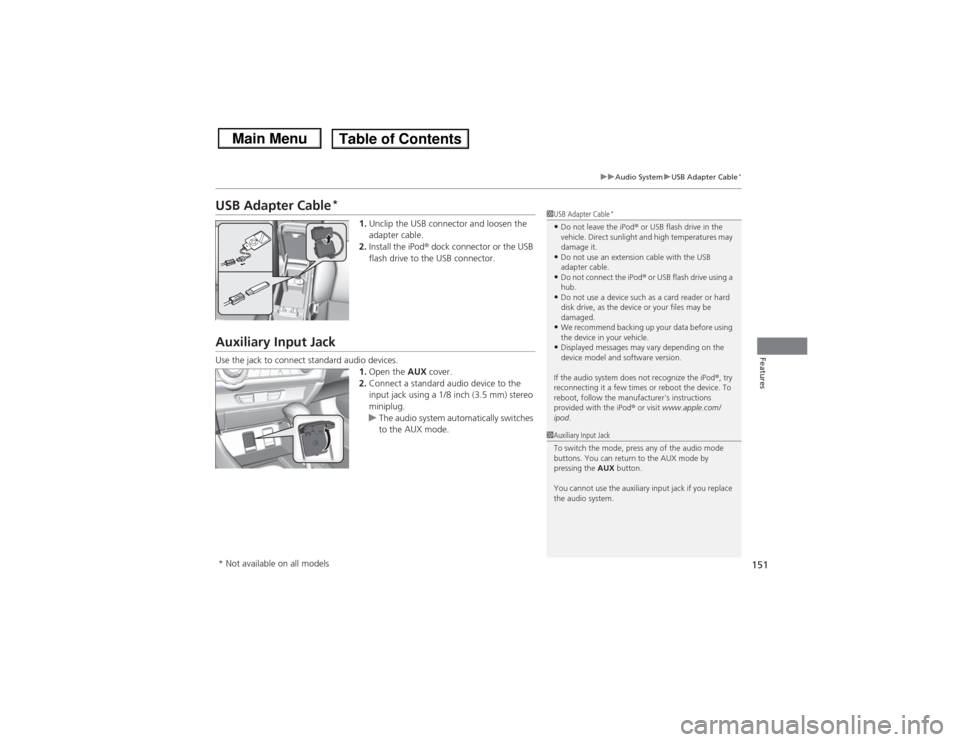
USB Adapter Cable
*
1. Unclip the USB connector and loosen the
adapter cable.
2. Install the iPod ® dock connector or the USB
flash drive to the USB connector.
Auxiliary Input JackUse the jack to connect standard audio devices. 1.Open the AUX cover.
2. Connect a standard audio device to the
input jack using a 1/8 inch (3.5 mm) stereo
miniplug.
u The audio system automatically switches
to the AUX mode.
1USB Adapter Cable
*
•Do not leave the iPod ® or USB flash drive in the
vehicle. Direct sunlight and high temperatures may
damage it.•Do not use an extension cable with the USB
adapter cable.•Do not connect the iPod ® or USB flash drive using a
hub.•Do not use a device such as a card reader or hard
disk drive, as the device or your files may be
damaged.•We recommend backing up your data before using
the device in your vehicle.•Displayed messages may vary depending on the
device model and software version.
If the audio system does not recognize the iPod® , try
reconnecting it a few times or reboot the device. To
reboot, follow the manufacturer's instructions
provided with the iPod® or visit www.apple.com/
ipod .
1Auxiliary Input Jack
To switch the mode, press any of the audio mode
buttons. You can return to the AUX mode by
pressing the AUX button.
You cannot use the auxiliary input jack if you replace
the audio system.
* Not available on all models