Driving HONDA CIVIC 2023 Owners Manual
[x] Cancel search | Manufacturer: HONDA, Model Year: 2023, Model line: CIVIC, Model: HONDA CIVIC 2023Pages: 840, PDF Size: 26.53 MB
Page 253 of 840
Continued251
uuClimate Control System uUsing Automatic Climate Control
Controls
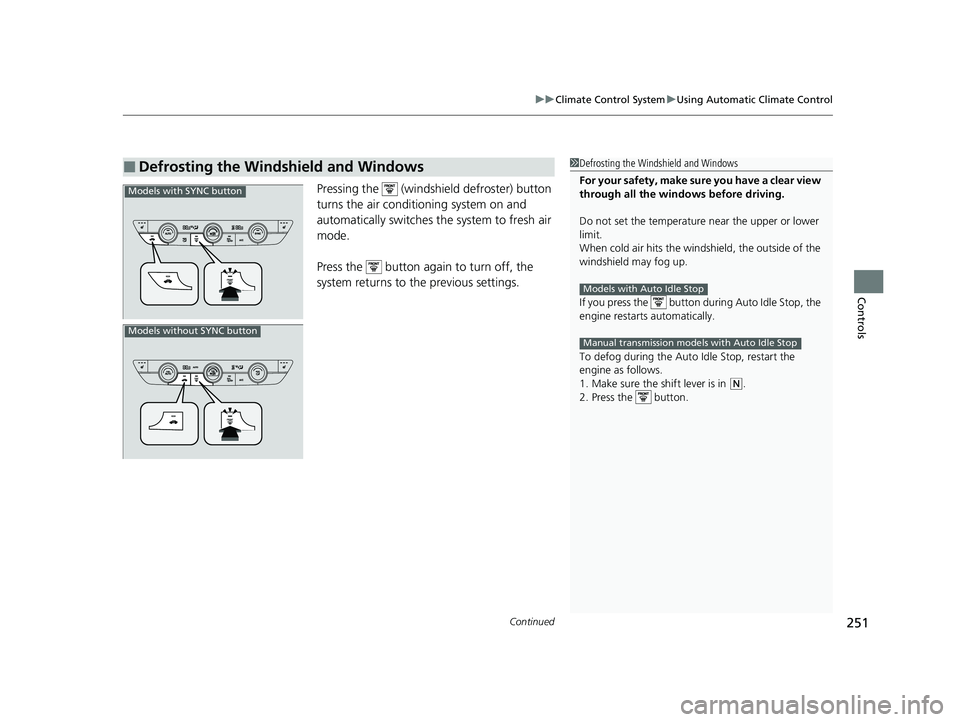
Pressing the (windshield defroster) button
turns the air conditioning system on and
automatically switches th e system to fresh air
mode.
Press the button again to turn off, the
system returns to the previous settings.
■Defrosting the Windshield and Windows1 Defrosting the Windshield and Windows
For your safety, make sure you have a clear view
through all the windows before driving.
Do not set the temperatur e near the upper or lower
limit.
When cold air hits the windshield, the outside of the
windshield may fog up.
If you press the button during Auto Idle Stop, the
engine restarts automatically.
To defog during the Auto Idle Stop, restart the
engine as follows.
1. Make sure the shift lever is in
( N.
2. Press the button.
Models with Auto Idle Stop
Manual transmission models with Auto Idle Stop
Models with SYNC button
Models without SYNC button
23 CIVIC HATCHBACK TYPE R-31T406100_03.book 251 ページ 2022年6月23日 木曜日 午後9時28分
Page 262 of 840
260
uuAudio System uAudio Remote Controls
Features
Audio Remote Controls
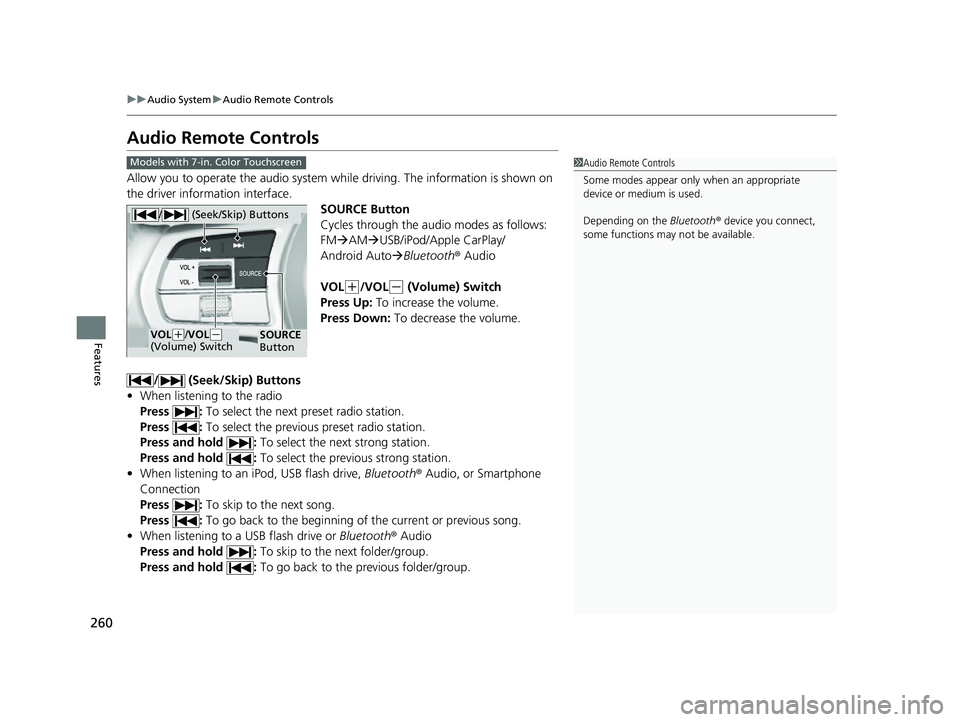
Allow you to operate the audio system while driving. The information is shown on
the driver information interface.
SOURCE Button
Cycles through the audio modes as follows:
FMAM USB/iPod/Apple CarPlay/
Android Auto Bluetooth ® Audio
VOL
(+/VOL(- (Volume) Switch
Press Up: To increase the volume.
Press Down: To decrease the volume.
/ (Seek/Skip) Buttons
• When listening to the radio
Press : To select the next preset radio station.
Press : To select the previous preset radio station.
Press and hold : To select the next strong station.
Press and hold : To select the previous strong station.
• When listening to an iPod, USB flash drive, Bluetooth® Audio, or Smartphone
Connection
Press : To skip to the next song.
Press : To go back to the beginning of the current or previous song.
• When listening to a USB flash drive or Bluetooth® Audio
Press and hold : To skip to the next folder/group.
Press and hold : To go back to the previous folder/group.
1Audio Remote Controls
Some modes appear only when an appropriate
device or medium is used.
Depending on the Bluetooth® device you connect,
some functions may not be available.Models with 7-in. Color Touchscreen
/ (Seek/Skip) Buttons
SOURCE
ButtonVOL( +/VOL(-
(Volume) Switch
23 CIVIC HATCHBACK TYPE R-31T406100_03.book 260 ページ 2022年6月23日 木曜日 午後9時28分
Page 264 of 840
262
uuAudio System uAudio Remote Controls
Features
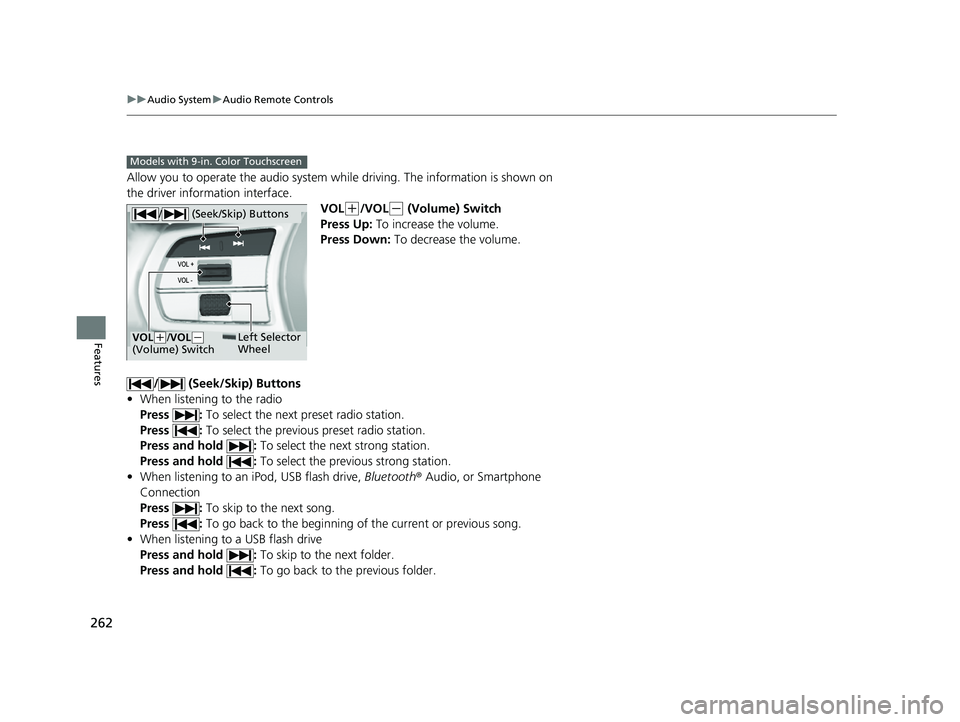
Allow you to operate the audio system while driving. The information is shown on
the driver information interface.
VOL
(+/VOL(- (Volume) Switch
Press Up: To increase the volume.
Press Down: To decrease the volume.
/ (Seek/Skip) Buttons
• When listening to the radio
Press : To select the next preset radio station.
Press : To select the previous preset radio station.
Press and hold : To select the next strong station.
Press and hold : To select the previous strong station.
• When listening to an iPod, USB flash drive, Bluetooth® Audio, or Smartphone
Connection
Press : To skip to the next song.
Press : To go back to the beginning of the current or previous song.
• When listening to a USB flash drive
Press and hold : To skip to the next folder.
Press and hold : To go back to the previous folder.
Models with 9-in. Color Touchscreen
/ (Seek/Skip) Buttons
Left Selector
WheelVOL(+/ VOL(-
(Volume) Switch
23 CIVIC HATCHBACK TYPE R-31T406100_03.book 262 ページ 2022年6月23日 木曜日 午後9時28分
Page 266 of 840
264
Features
Audio System Basic Operation
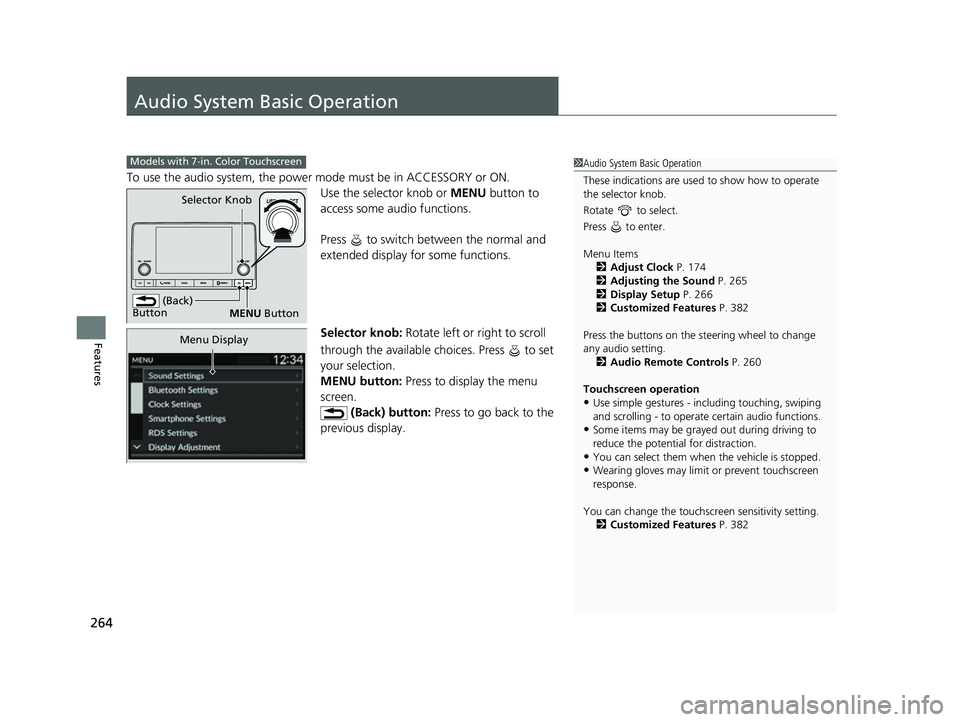
To use the audio system, the power mode must be in ACCESSORY or ON.
Use the selector knob or MENU button to
access some audio functions.
Press to switch between the normal and
extended display fo r some functions.
Selector knob: Rotate left or right to scroll
through the available choices. Press to set
your selection.
MENU button: Press to display the menu
screen. (Back) button: Press to go back to the
previous display.
Models with 7-in. Color Touchscreen1 Audio System Basic Operation
These indications are used to show how to operate
the selector knob.
Rotate to select.
Press to enter.
Menu Items 2 Adjust Clock P. 174
2 Adjusting the Sound P. 265
2 Display Setup P. 266
2 Customized Features P. 382
Press the buttons on the steering wheel to change
any audio setting. 2 Audio Remote Controls P. 260
Touchscreen operation
•Use simple gestures - in cluding touching, swiping
and scrolling - to operate certain audio functions.
•Some items may be grayed out during driving to
reduce the potential for distraction.
•You can select them when the vehicle is stopped.•Wearing gloves may limit or prevent touchscreen
response.
You can change the touchs creen sensitivity setting.
2 Customized Features P. 382
(Back)
Button
Selector Knob
MENU Button
Menu Display
23 CIVIC HATCHBACK TYPE R-31T406100_03.book 264 ページ 2022年6月23日 木曜日 午後9時28分
Page 277 of 840
275
uuAudio System Basic Operation uPlaying Bluetooth ® Audio
Continued
Features
Playing Bluetooth ® Audio
Your audio system allows you to listen to music from your Bluetooth-compatible
phone.
This function is available when the phone is paired an d connected to the vehicle's
Bluetooth ® HandsFreeLink ® (HFL) system.
2Phone Setup P. 449
1Playing Bluetooth ® Audio
Not all Bluetooth-enabled phones with streaming
audio capabilities are compatible with the system.
For a list of compatible phones:
•U.S.: Visit automobiles.honda.com /handsfreelink/,
or call 1-888-528-7876.
•Canada: For more info rmation on smartphone
compatibility, call 1-855-490-7351.
In some states, it may be il legal to perform some data
device functions while driving.
Only one phone can be used with HFL at a time.
When there are more than two paired phones in the
vehicle, the system automatically connects to the
prioritized phone. You can a ssign priority to a phone
in the Bluetooth Settings menu.
2 HFL Menus P. 447
To change the searched phone manually, select Go
to Device List .
In some cases, the name of the artist, album, or track
may not appear correctly.
Some functions may not be available on some devices.
If a phone is currently conne cted via Apple CarPlay or
Android Auto, Bluetooth® Audio from that phone is
unavailable. However, a se cond previously paired
phone can stream Bluetooth® Audio by selecting
Audio from the Bluetooth® device list.
2 Phone Setup P. 449
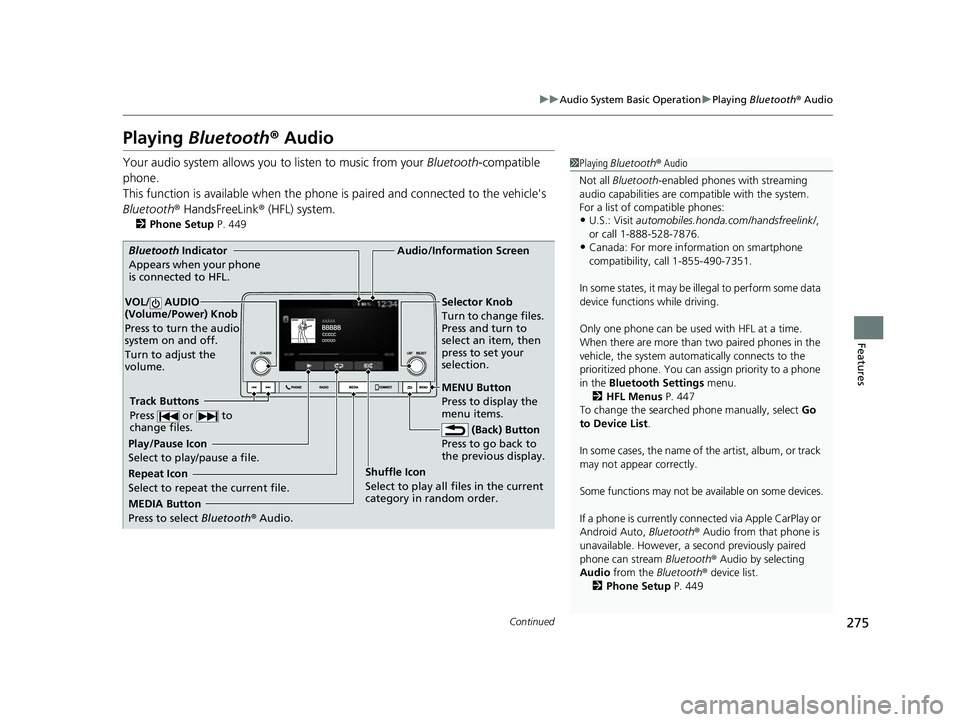
MEDIA Button
Press to select Bluetooth ® Audio.
VOL/ AUDIO
(Volume/Power) Knob
Press to turn the audio
system on and off.
Turn to adjust the
volume.
MENU Button
Press to display the
menu items.
Audio/Information Screen
Bluetooth Indicator
App e
ars when your phone
is connected to HFL.
Track Buttons
Press or to
change files.
Repeat Icon
Select to repeat the current file. Shuffle Icon
Select to play all files in the current
category in random order.Selector Knob
Turn to change files.
Press and turn to
select an item, then
press to set your
selection.
(Back) Button
Pre s
s to go back to
the previous display.
Play/Pause Icon
Select to play/pause a file.
23 CIVIC HATCHBACK TYPE R-31T406100_03.book 275 ページ 2022年6月23日 木曜日 午後9時28分
Page 293 of 840
291
uuAudio System Basic Operation uAudio/Information Screen
Continued
Features
Audio/Information Screen
Displays the audio status and wallpaper. From this display, you can go to various
setup options.
■Using the audio/in formation screen
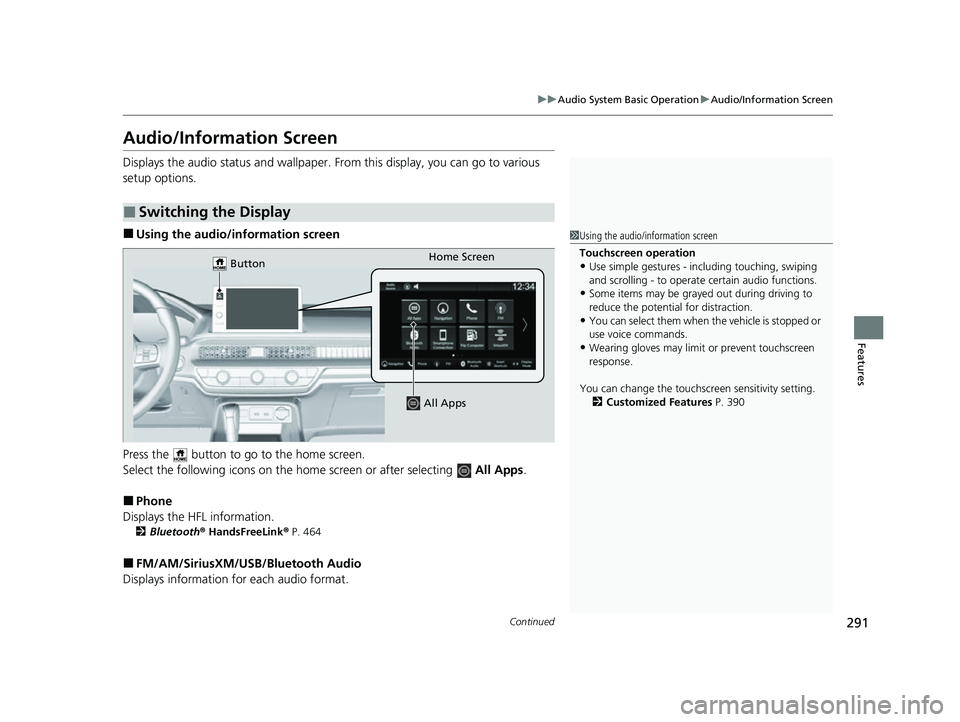
Press the button to go to the home screen.
Select the following icons on the home screen or after selecting All Apps .
■Phone
Displays the HFL information.
2 Bluetooth ® HandsFreeLink ® P. 464
■FM/AM/SiriusXM/USB/Bluetooth Audio
Displays information for each audio format.
■Switching the Display
1 Using the audio/in formation screen
Touchscreen operation
•Use simple gestures - in cluding touching, swiping
and scrolling - to operate certain audio functions.
•Some items may be grayed out during driving to
reduce the potential for distraction.
•You can select them when the vehicle is stopped or
use voice commands.
•Wearing gloves may limit or prevent touchscreen
response.
You can change the touchs creen sensitivity setting.
2 Customized Features P. 390
Home Screen
Button
All Apps
23 CIVIC HATCHBACK TYPE R-31T406100_03.book 291 ページ 2022年6月23日 木曜日 午後9時28分
Page 336 of 840
334
uuAudio System Basic Operation uPlaying Bluetooth ® Audio
Features
Playing Bluetooth ® Audio
Your audio system allows you to listen to music from your Bluetooth-compatible
phone.
This function is available when the phone is paired and connected to the vehicle's
Bluetooth ® HandsFreeLink ® (HFL) system.
2 Phone Setup P. 469
1Playing Bluetooth ® Audio
Not all Bluetooth-enabled phones with streaming
audio capabilities are compatible with the system.
For a list of compatible phones:
•U.S.: Visit automobiles.honda.com /handsfreelink/,
or call 1-888-528-7876.
•Canada: For more info rmation on smartphone
compatibility, call 1-855-490-7351.
It may be illegal to pe rform some data device
functions while driving.
Only one phone can be used with HFL at a time.
When there are more than two paired phones in the
vehicle, the system automatically connects to the
prioritized phone. You can a ssign priority to a phone
in the Bluetooth ® device list.
2 Phone Setup P. 469
The connected phone for Bluetooth® Audio can be
different.
If more than one phone is paired to the HFL system,
there may be a delay before the system begins to play.
In some cases, the name of the artist, album, or track
may not appear correctly.
Some functions may not be available on some devices.
If a phone is currently conne cted via Apple CarPlay or
Android Auto, Bluetooth® Audio from that phone is
unavailable. However, a se cond previously paired
phone can stream Bluetooth® Audio by selecting
from the Bluetooth ® device list.
2 Phone Setup P. 469
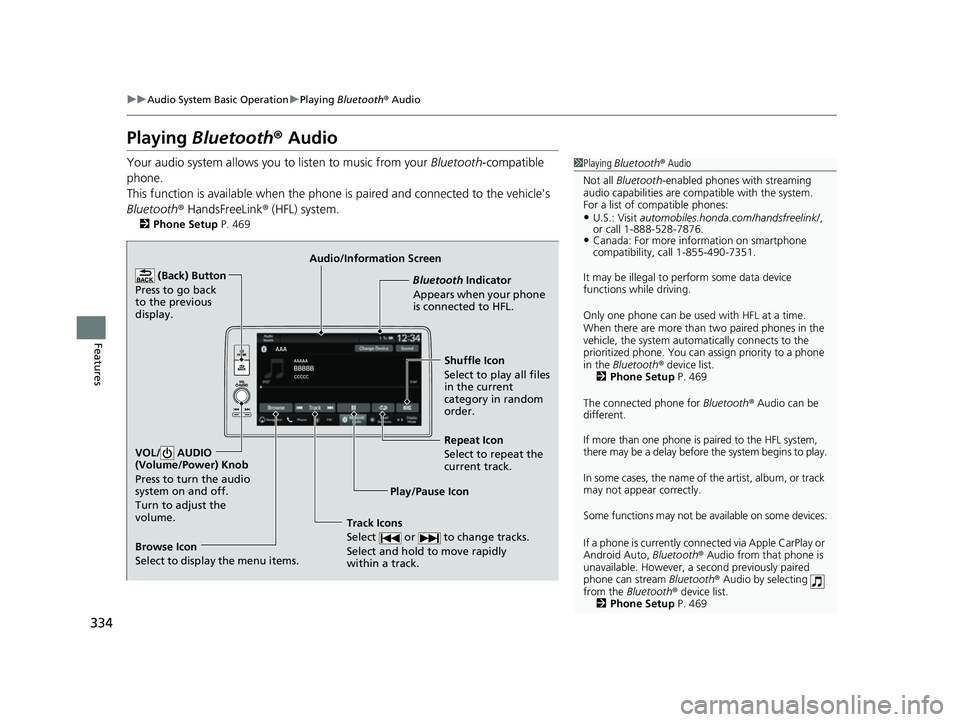
Audio/Information Screen
Browse Icon
Select to display the menu items. Play/Pause IconBluetooth Indic
a
tor
Appears when your phone
is connected to HFL.
Track Icons
Select or to change tracks.
Select and hold to move rapidly
within a track.
Repeat Icon
Select to repeat the
current track.
(Back) Button
Press to go back
to the previous
display.VOL/ AUDIO
(Volume/Power) Knob
Press to turn the audio
system on and off.
Turn to adjust the
volume.
Shuffle Icon
Select to play all files
in the current
category in random
order.
23 CIVIC HATCHBACK TYPE R-31T406100_03.book 334 ページ 2022年6月23日 木曜日 午後9時28分
Page 370 of 840
368
uuGeneral Information on the Audio System uHonda App License Agreement
Features
2. Potential Map Inaccuracy and Route Safety. Maps used by this system may be inaccurate because of changes in roads, traffic controls,
routing, or driving conditions. Always use good judgment and co mmon sense when following suggested routes. Do not follow the route
suggestions if doing so would result in an un safe or illegal driving maneuver, if you would be placed in an unsafe situation, o r if you would
be directed into an area that you consider unsafe. Do not rely on any navigation features included in the system to route you t o emergency
services. Not all emergency services such as police, fire stations, hospitals, or clin ics are likely to be contained in the map database for such
navigation features. Ask local authorities or an emergency services operator for such locations and routes. The driver is ultimately
responsible for the safe operation of the ve hicle and therefore, must evaluate whether it is safe to follow the suggested directions. Any
navigation features are provided only as an aid. Make your driving decisions based on your obser vations of local conditions and existing
traffic regulations. Navigation features are not a substitute for your personal judgmen t. Any route suggestions made by the SOFTWARE or
SERVICES should never replace any local traffic regulations or yo ur personal judgment or knowledge of safe driving practices.
3. Speech Recognition:
You acknowledge and understand that HONDA and PROVIDERS may reco rd, retain, and use voices commands
when you use the speech recognit ion components of the SOFTWARE or SERVICES. You and all VEHICLE operators and passengers (a)
consent to the recording and retention of voice commands in support of providing speech recognition components and (b) release HONDA
and PROVIDERS from all claims, liabilities, an d losses that may result from any use of such recorded voice commands. Recognitio n errors
are inherent in speech recognition. It is your responsibility to monitor any speech recognition functions included in the system and address
any errors. Neither HONDA nor PROVIDERS will be liable for any damages arising out of errors in the speech recognition process.
4. Distraction Hazards.
Navigation features may require manua l (non-verbal) input or setup. Attempting to perform such set-up or insert
data while driving can seriously distract your attention and could cause a crash or other serious consequences; the ability to undertake such
interactions may also be limited by state or local law, which la ws you are responsible to know and follow. Even occasional shor t scans of
the screen may be hazardous if your attention has been diverted away from your driving at a critical time. Pull over and stop the vehicle in
a safe and legal manner before attempting to access a function of the system requiring prolonged attention. Do not raise the vo lume
excessively. Keep the volume at a level wh ere you can still hear outside traffic and em ergency signals while driving. Driving while unable
to hear these sounds could result in a crash.
23 CIVIC HATCHBACK TYPE R-31T406100_03.book 368 ページ 2022年6月23日 木曜日 午後9時28分
Page 397 of 840
395
uuCustomized Features u
Continued
Features
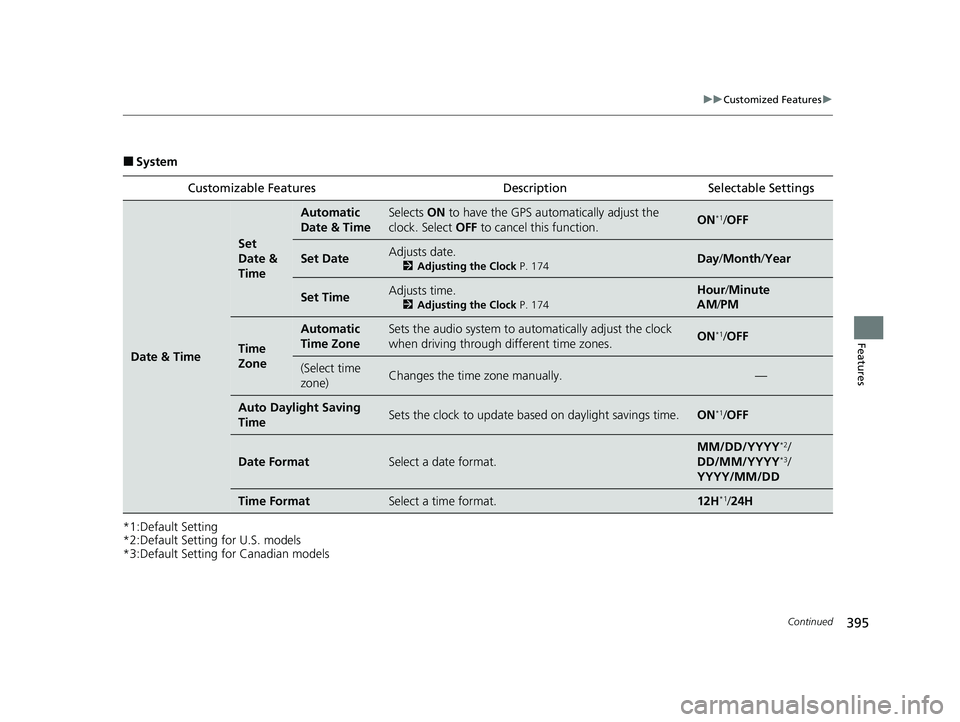
■System
*1:Default Setting
*2:Default Setting for U.S. models
*3:Default Setting for Canadian models Customizable Features Description Selectable Settings
Date & Time
Set
Date &
Time
Automatic
Date & TimeSelects
ON to have the GPS auto matically adjust the
clock. Select OFF to cancel this function.ON*1/OFF
Set DateAdjusts date.
2 Adjusting the Clock P. 174Day/Month/ Year
Set TimeAdjusts time.
2Adjusting the Clock P. 174
Hour/Minute
AM /PM
Time
Zone
Automatic
Time ZoneSets the audio system to au tomatically adjust the clock
when driving through different time zones.ON*1/ OFF
(Select time
zone)Changes the time zone manually.—
Auto Daylight Saving
TimeSets the clock to update based on daylight savings time.ON*1/OFF
Date FormatSelect a date format.
MM/DD/YYYY*2/
DD/MM/YYYY*3/
YYYY/MM/DD
Time FormatSelect a time format.12H*1/ 24H
23 CIVIC HATCHBACK TYPE R-31T406100_03.book 395 ページ 2022年6月23日 木曜日 午後9時28分
Page 416 of 840
414
Features
Honda LogR*
About Honda LogR
Monitors driving conditions, and lets you record them. By checking the recorded
data on the audio/information screen or uploading it to a server, you can compare it
with other users' data.
Honda LogR has two modes:
• Auto Score Mode
Evaluates driving performance in everyday situations.
2Auto Score Mode P. 418
•Data Log Mode
Allows you to record and anal yze your track driving data.
2Data Log Mode P. 425
Refer to the commentary in the customiz e menu for more details on each mode.
2Settings P. 437
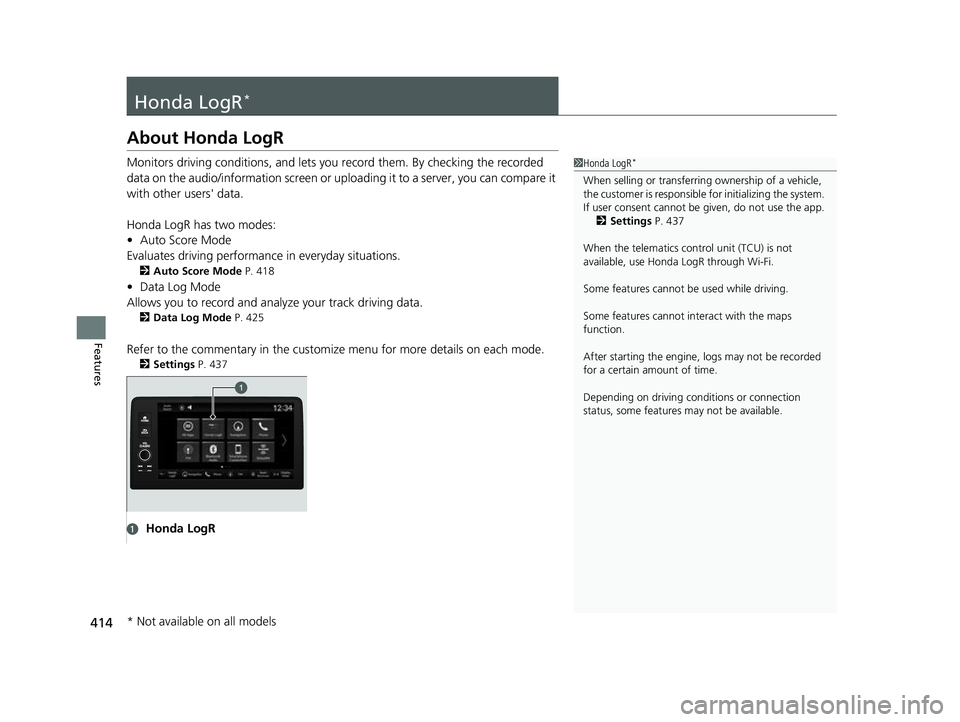
1Honda LogR*
When selling or transferri ng ownership of a vehicle,
the customer is responsible for initializing the system.
If user consent cannot be given, do not use the app.
2 Settings P. 437
When the telematics control unit (TCU) is not
available, use Honda LogR through Wi-Fi.
Some features cannot be used while driving.
Some features cannot in teract with the maps
function.
After starting the engine, l ogs may not be recorded
for a certain amount of time.
Depending on driving condi tions or connection
status, some features may not be available.
aHonda LogR
* Not available on all models
23 CIVIC HATCHBACK TYPE R-31T406100_03.book 414 ページ 2022年6月23日 木曜日 午後9時28分