turn signal HONDA CIVIC HATCHBACK 2021 (in English) User Guide
[x] Cancel search | Manufacturer: HONDA, Model Year: 2021, Model line: CIVIC HATCHBACK, Model: HONDA CIVIC HATCHBACK 2021Pages: 711, PDF Size: 37.1 MB
Page 242 of 711
240
uuAudio System Basic Operation uPlaying the AM/FM Radio
Features
Playing the AM/FM Radio
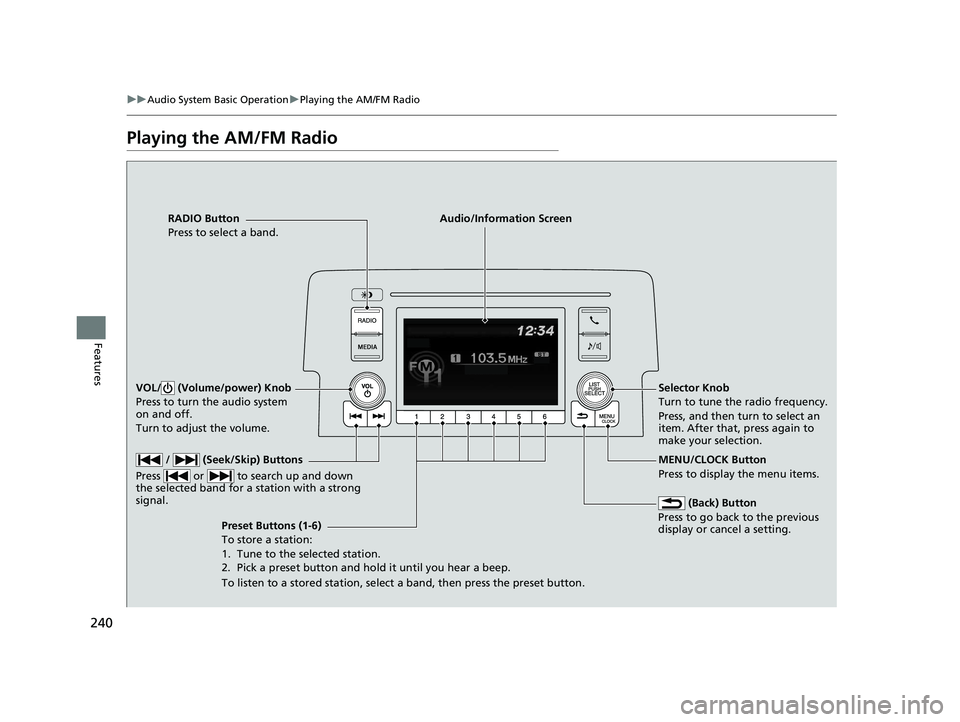
RADIO Button
Press to select a band.
(Back) Button
Press to go back to the previous
display or cancel a setting.
/ (Seek/Skip) Buttons
Press or to search up and down
the selected band for a station with a strong
signal.
VOL/ (Volume/power) Knob
Press to turn the audio system
on and off.
Turn to adjust the volume.
Preset Buttons (1-6)
To store a station:
1. Tune to the selected station.
2. Pick a preset button and hold it until you hear a beep.
To listen to a stored station, select a band, then press the preset button. Selector Knob
Turn to tune the radio frequency.
Press, and then turn to select an
item. After that, press again to
make your selection.
MENU/CLOCK Button
Press to display the menu items.
Audio/Information Screen
21 CIVIC 5D HUM-31TGG6400_01.book 240 ページ 2020年8月28日 金曜日 午後1時
48分
Page 243 of 711
241
uuAudio System Basic Operation uPlaying the AM/FM Radio
Features
Provides text data information related to your selected RDS capable FM station.
■To find an RDS station from Station List
1. Press while listening to an FM station.
2. Rotate to select the station, then press .
■Update List
Updates your available st ation list at any time.
1. Press while listening to an FM station.
2. Rotate to select Update List, then press .
■Radio text
Displays the radio text informat ion of the selected RDS station.
1. Press the MENU/CLOCK button.
2. Rotate to select Settings, then press .
3. Rotate to select RDS Settings, then press .
4. Rotate to select Radio Text, then press .
■Scan
Samples each of the strongest stations on the selected band for 10 seconds.
1. Press the MENU/CLOCK button.
2. Rotate to select Scan, then press .
To turn off scan, press .
■Radio Data System (RDS)1 Playing the AM/FM Radio
The ST indicator appears on the display indicating
stereo FM broadcasts.
Stereo reproduction in AM is not available.
You can store 6 AM stations and 12 FM stations into
the preset memory.
Switching the Audio Mode
Press the audio source selecting button on the
steering wheel.
2 Audio Remote Controls P. 230
1Radio Data System (RDS)
When you select an RDS-capable FM station, the RDS
automatically turns on, and the frequency display
changes to the station name. However, when the
signals of that station become weak, the display
changes from the statio n name to the frequency.
21 CIVIC 5D HUM-31TGG6400_01.book 241 ページ 2020年8月28日 金曜日 午後1時 48分
Page 282 of 711
280
uuAudio System Basic Operation uPlaying AM/FM Radio
Features
Playing AM/FM Radio
*1:Some or all of the lists may not be displayed.
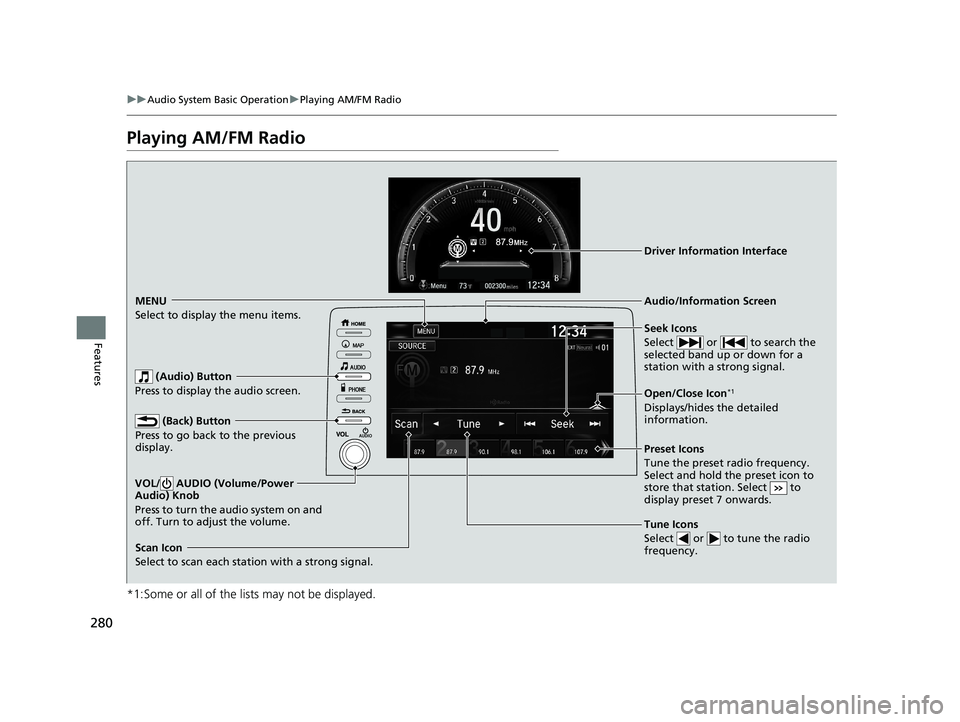
MENU
Select to display the menu items.
(Back) Button
Press to go back to the previous
display.
Seek Icons
Select or to search the
selected band up or down for a
station with a strong signal.
(Audio) Button
Press to display the audio screen.
Open/Close Icon*1
Displays/hides the detailed
information.
VOL/ AUDIO (Volume/Power
Audio) Knob
Press to turn the audio system on and
off. Turn to adjust the volume.
Tune Icons
Select or to tune the radio
frequency.
Audio/Information Screen
Scan Icon
Select to scan each station with a strong signal. Preset Icons
Tune the preset radio frequency.
Select and hold the preset icon to
store that station. Select to
display preset 7 onwards.
Driver Information Interface
21 CIVIC 5D HUM-31TGG6400_01.book 280 ページ 2020年8月28日 金曜日 午後1時
48分
Page 284 of 711
uuAudio System Basic Operation uPlaying AM/FM Radio
282
Features
Displays the subchannel list when an HD RadioTM station is selected while listening to
an FM station.
1. Select MENU .
2. Select HD Radio Subchannel .
3. Select the channel number.
Provides text data information related to your selected RDS-capable FM station.
■To find an RDS station from Station List
1. Select the open/close icon to display a list while listening to an FM station.
2. Select the Station List tab.
3. Select the station.
■Manual update
Updates your available station list at any time.
1. Select the open/close icon to display a list while listening to an FM station.
2. Select the Station List tab.
3. Select Refresh .
■Radio text
Displays the radio text informat ion of the selected RDS station.
1. Select MENU .
2. Select View Radio Text .
■HD Subchannel
■Radio Data System (RDS)
Models with HD RadioTM feature
1Radio Data System (RDS)
When you select an RDS-capable FM station, the RDS
automatically turns on, and the frequency display
changes to the station name. However, when the
signals of that station become weak, the display
changes from the statio n name to the frequency.
21 CIVIC 5D HUM-31TGG6400_01.book 282 ページ 2020年8月28日 金曜日 午後1時 48分
Page 354 of 711
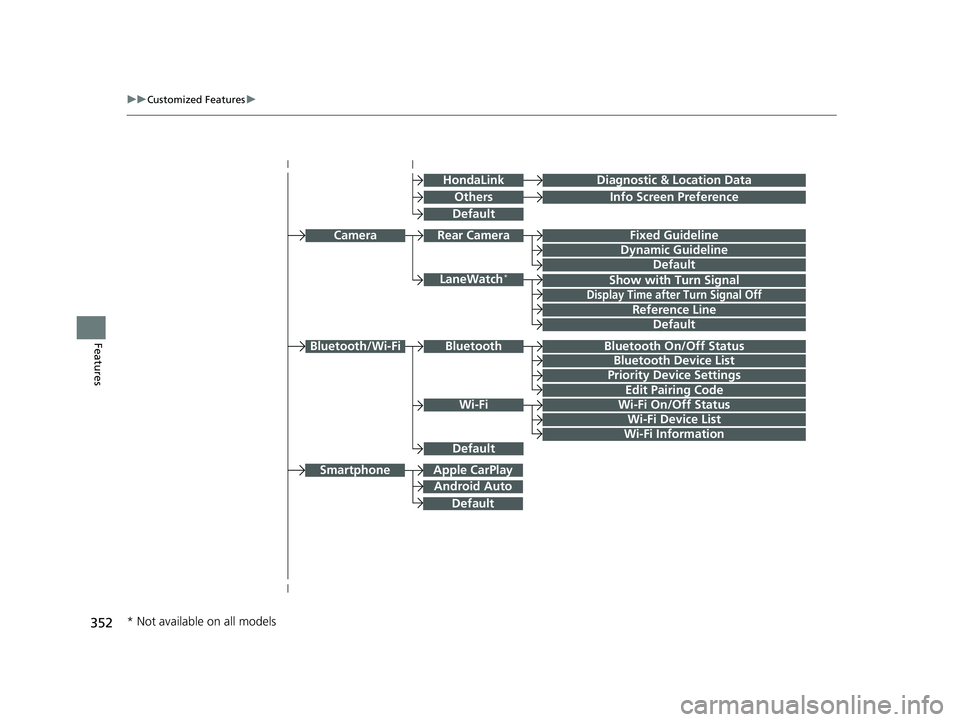
352
uuCustomized Features u
FeaturesBluetooth On/Off Status
Bluetooth Device List
Edit Pairing Code
Wi-Fi On/Off Status
Wi-Fi Device List
Wi-Fi
BluetoothBluetooth/Wi-Fi
Wi-Fi Information
LaneWatch*
Fixed Guideline
Dynamic Guideline
Show with Turn Signal
Rear CameraCamera
Display Time after Turn Signal Off
Reference Line
Apple CarPlay
Android Auto
Smartphone
OthersInfo Screen Preference
HondaLinkDiagnostic & Location Data
Default
Default
Default
Default
Default
Priority Device Settings
* Not available on all models
21 CIVIC 5D HUM-31TGG6400_01.book 352 ページ 2020年8月28日 金曜日 午後1時 48分
Page 364 of 711
362
uuCustomized Features u
Features
*1:Default SettingSetup
Group Customizable Featur
es Description Sel ectable Settings
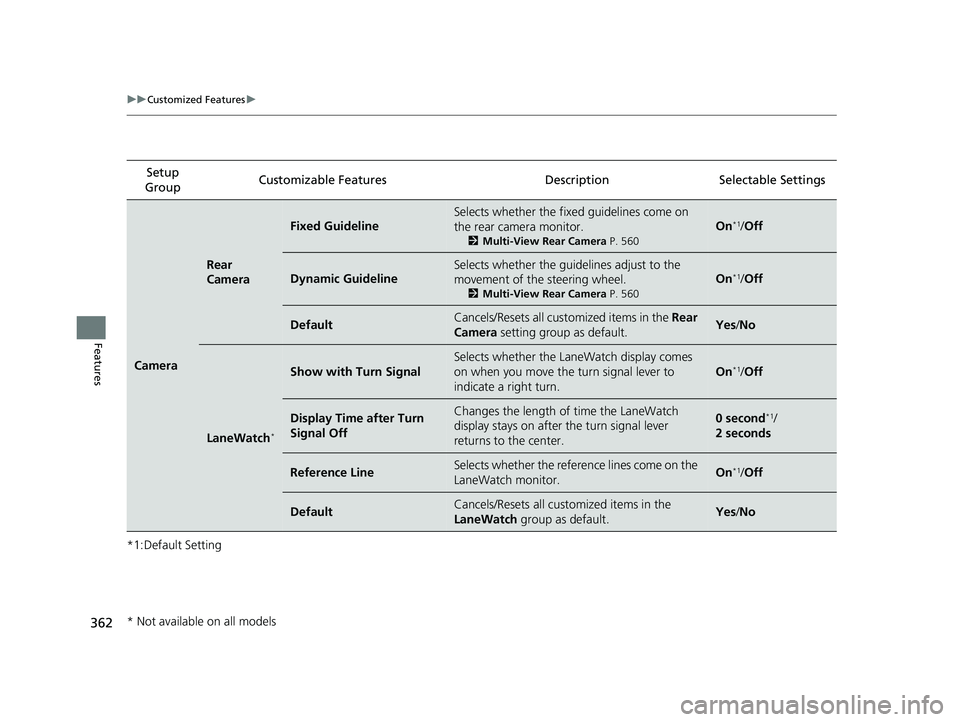
Camera
Rear
Camera
Fixed Guideline
Selects whether the fixed guidelines come on
the rear camera monitor.
2 Multi-View Rear Camera P. 560
On*1/Off
Dynamic Guideline
Selects whether the guidelines adjust to the
movement of the steering wheel.
2 Multi-View Rear Camera P. 560
On*1/Off
DefaultCancels/Resets all cust omized items in the Rear
Camera setting group as default.Yes/No
LaneWatch*
Show with Turn Signal
Selects whether the LaneWatch display comes
on when you move the turn signal lever to
indicate a right turn.
On*1/Off
Display Time after Turn
Signal OffChanges the length of time the LaneWatch
display stays on after the turn signal lever
returns to the center.0 second*1/
2 seconds
Reference LineSelects whether the reference lines come on the
LaneWatch monitor.On*1/ Off
DefaultCancels/Resets all customized items in the
LaneWatch group as default.Yes/No
* Not available on all models
21 CIVIC 5D HUM-31TGG6400_01.book 362 ページ 2020年8月28日 金曜日 午後1時 48分
Page 375 of 711
373
uuCustomized Features u
Continued
Features
*1:Default SettingSetup
Group Customizable Features Description Selectable Settings
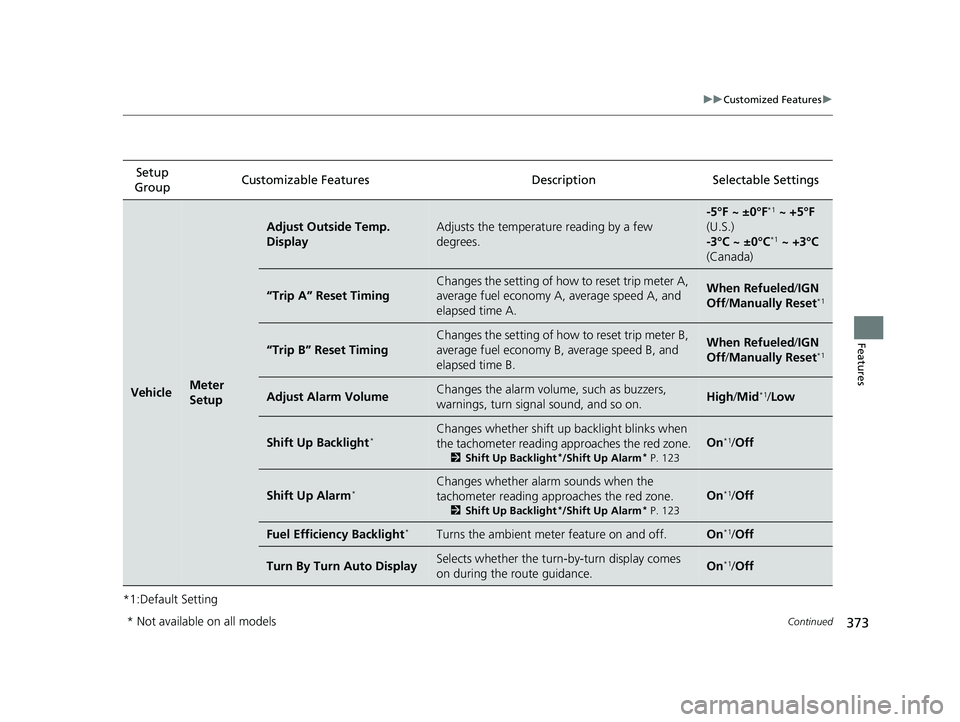
VehicleMeter
Setup
Adjust Outside Temp.
DisplayAdjusts the temperature reading by a few
degrees.
-5°F ~ ±0°F*1
~ +5°F
(U.S.)
-3°C ~ ±0°C
*1 ~ +3°C
(Canada)
“Trip A” Reset Timing
Changes the setting of how to reset trip meter A,
average fuel economy A, average speed A, and
elapsed time A.When Refueled /IGN
Off /Manually Reset*1
“Trip B” Reset Timing
Changes the setting of how to reset trip meter B,
average fuel economy B, average speed B, and
elapsed time B.When Refueled /IGN
Off /Manually Reset*1
Adjust Alarm VolumeChanges the alarm volu me, such as buzzers,
warnings, turn signal sound, and so on.High /Mid*1/ Low
Shift Up Backlight*Changes whether shift up backlight blinks when
the tachometer reading approaches the red zone.
2 Shift Up Backlight*/Shift Up Alarm* P. 123
On*1/Off
Shift Up Alarm*Changes whether alarm sounds when the
tachometer reading approaches the red zone.
2 Shift Up Backlight*/Shift Up Alarm* P. 123
On*1/Off
Fuel Efficiency Backlight*Turns the ambient meter feature on and off.On*1/Off
Turn By Turn Auto DisplaySelects whether the turn -by-turn display comes
on during the route guidance.On*1/ Off
* Not available on all models
21 CIVIC 5D HUM-31TGG6400_01.book 373 ページ 2020年8月28日 金曜日 午後1時 48分
Page 482 of 711
480
uuWhen Driving uLaneWatchTM*
Driving
LaneWatchTM*
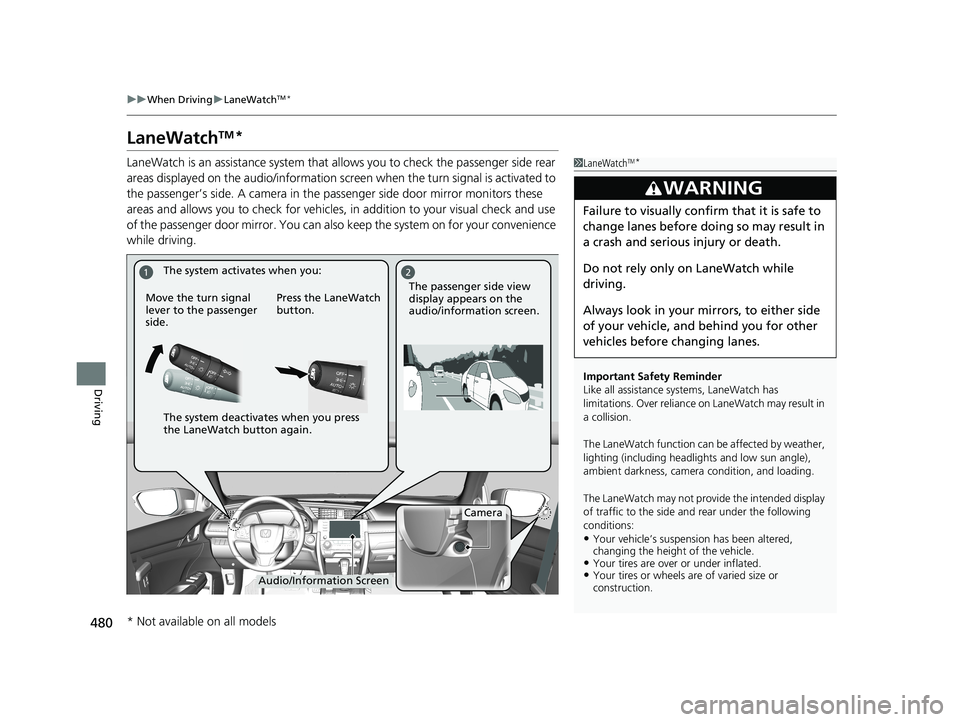
LaneWatch is an assistance system that allows you to check the passenger side rear
areas displayed on the audio/in formation screen when the turn signal is activated to
the passenger’s side. A camera in the passenger side door mirror monitors these
areas and allows you to check for vehicles, in addition to your visual check and use
of the passenger door mirror. You can also keep the system on for your convenience
while driving.1 LaneWatchTM*
Important Safety Reminder
Like all assistance systems, LaneWatch has
limitations. Over reliance on LaneWatch may result in
a collision.
The LaneWatch func tion can be affected by weather,
lighting (including headli ghts and low sun angle),
ambient darkness, camera condition, and loading.
The LaneWatch may not prov ide the intended display
of traffic to the side and rear under the following
conditions:
•Your vehicle’s suspension has been altered,
changing the height of the vehicle.
•Your tires are over or under inflated.•Your tires or wheels are of varied size or
construction.
3WARNING
Failure to visually confirm that it is safe to
change lanes before doing so may result in
a crash and serious injury or death.
Do not rely only on LaneWatch while
driving.
Always look in your mi rrors, to either side
of your vehicle, and behind you for other
vehicles before changing lanes.
12
Camera
Audio/Information Screen
Move the turn signal
lever to the passenger
side.
Press the LaneWatch
button.
The passenger side view
display appears on the
audio/information screen.
The system activates when you:
The system deactivates when you press
the LaneWatch button again.
* Not available on all models
21 CIVIC 5D HUM-31TGG6400_01.book 480 ページ 2020年8月28日 金曜日 午後1時
48分
Page 483 of 711
481
uuWhen Driving uLaneWatchTM*
Driving
■Customizing the La neWatch settings
You can customize the following items using the audio/information screen.
• Show with Turn Signal : Selects whether LaneWatch monitor comes on when
you operate the tu rn signal lever.
• Display Time after Turn Signal Off : Changes the length of time the LaneWatch
display stays on after you pull the turn signal lever back.
• Reference Line : Selects whether the reference lines appear on the LaneWatch
monitor.
• Display: Allows for display adjust ments of items, such as brightness, contrast and
black level. This setting is part of the System setup group.
2Customized Features P. 350
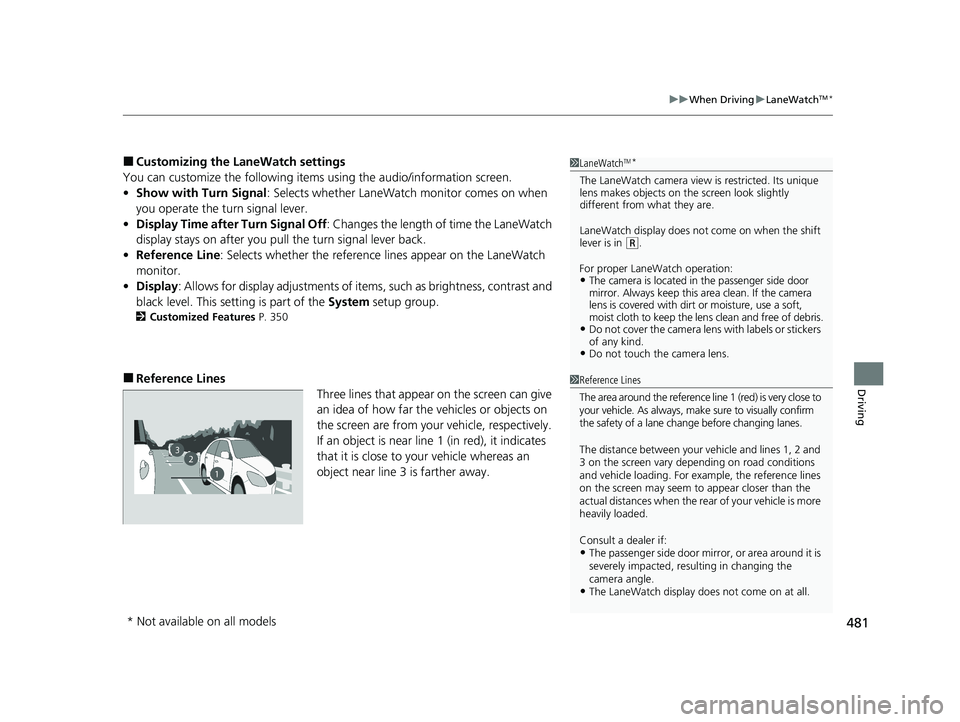
■Reference Lines
Three lines that appear on the screen can give
an idea of how far the vehicles or objects on
the screen are from your vehicle, respectively.
If an object is near line 1 (in red), it indicates
that it is close to your vehicle whereas an
object near line 3 is farther away.
1LaneWatchTM*
The LaneWatch camera view is restricted. Its unique
lens makes objects on the screen look slightly
different from what they are.
LaneWatch display does not come on when the shift
lever is in
( R.
For proper LaneWatch operation:
•The camera is located in the passenger side door
mirror. Always keep this area clean. If the camera
lens is covered with dirt or moisture, use a soft,
moist cloth to keep the lens clean and free of debris.
•Do not cover the camera lens with labels or stickers
of any kind.
•Do not touch the camera lens.
23
1
1Reference Lines
The area around the reference line 1 (red) is very close to
your vehicle. As always, m ake sure to visually confirm
the safety of a lane chan ge before changing lanes.
The distance betwee n your vehicle and lines 1, 2 and
3 on the screen vary depending on road conditions
and vehicle loading. For ex ample, the reference lines
on the screen may seem to appear closer than the
actual distances when the rear of your vehicle is more
heavily loaded.
Consult a dealer if:
•The passenger side door mirr or, or area around it is
severely impacted, resulting in changing the
camera angle.
•The LaneWatch display doe s not come on at all.
* Not available on all models
21 CIVIC 5D HUM-31TGG6400_01.book 481 ページ 2020年8月28日 金曜日 午後1時 48分
Page 535 of 711
533
uuHonda Sensing ®u Lane Keeping Assist System (LKAS)
Continued
Driving
Lane Keeping Assist System (LKAS)
Provides steering input to help keep the vehicle in the middle of a detected lane and
provides tactile and visual al erts if the vehicle is detected drifting out of its lane.1Lane Keeping Assist System (LKAS)
Important Safety Reminders
The LKAS is for your convenience only. It is not a
substitute for your vehicl e control. The system does
not work if you take y our hands off the steering
wheel or fail to steer the vehicle.
2 Driver Information Interface Warning and
Information Messages P. 104
Do not place objects on the instrument panel.
Objects may reflect on th e windshield and prevent
correct detection of the traffic lanes.
The LKAS only alerts you when lane drift is detected
without a turn signal in use. The LKAS may not detect
all lane markings or lane departures; accuracy will
vary based on weather, speed, and lane marker
condition.
It is always your responsibility to safely operate the
vehicle and avoid collisions.
The LKAS is convenient when it is used on freeways.
The LKAS may not work properly or may work
improperly under the certain conditions:
2 LKAS Conditions and Limitations P. 538
You can read about handling information for the
camera equipped with this system. 2 Front Sensor Camera P. 546
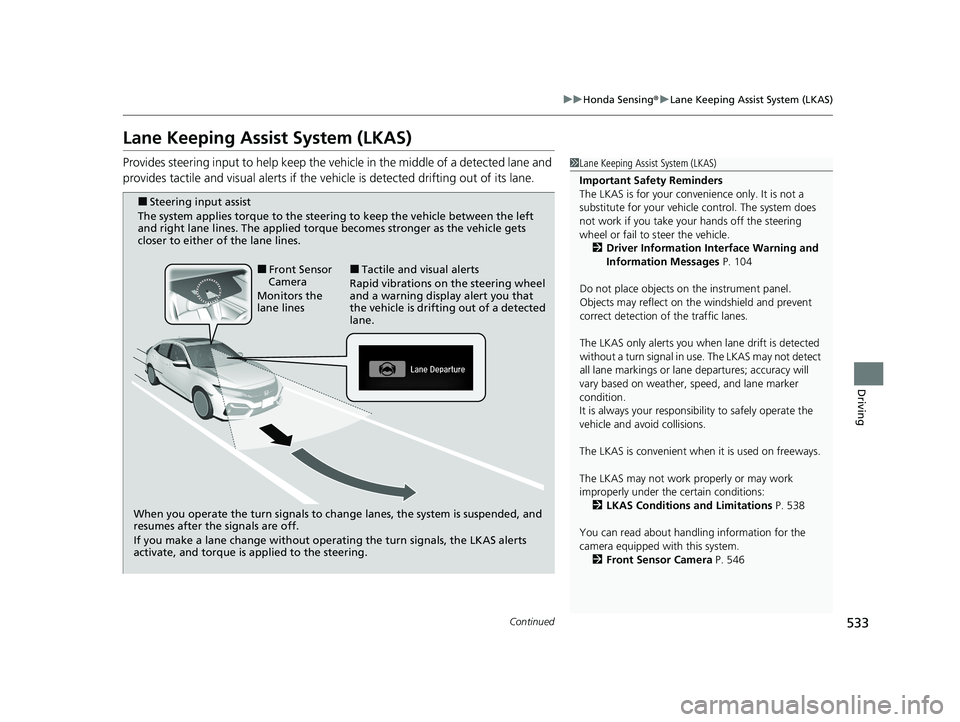
When you operate the turn signals to chan ge lanes, the system is suspended, and
resumes after the signals are off.
If you make a lane change without operating the turn signals, the LKAS alerts
activate, and torque is applied to the steering.
■Front Sensor
Camera
Monitors the
lane lines■Tactile and visual alerts
Rapid vibrations on the steering wheel
and a warning display alert you that
the vehicle is drifting out of a detected
lane.
■Steering input assist
The system applies torque to the steering to keep the vehicle between the left
and right lane lines. The applied torque becomes stronger as the vehicle gets
closer to either of the lane lines.
21 CIVIC 5D HUM-31TGG6400_01.book 533 ページ 2020年8月28日 金曜日 午後1時 48分