remote control HONDA CIVIC HATCHBACK 2021 (in English) Owner's Guide
[x] Cancel search | Manufacturer: HONDA, Model Year: 2021, Model line: CIVIC HATCHBACK, Model: HONDA CIVIC HATCHBACK 2021Pages: 711, PDF Size: 37.1 MB
Page 175 of 711
173
uuOperating the Switches Around the Steering Wheel uENGINE START/STOP Button*
Continued
Controls
If you leave the vehicle for 30 to 60 minutes with the transmission in (P*1 and the
power mode in ACCESSORY, the vehicle automa tically goes into the mode similar to
VEHICLE OFF (LOCK) to avoid draining the battery.
When in this mode:
The steering wheel does not lock.
You cannot lock or unlock doors with th e remote transmitter or the smart entry
system.
Press the ENGINE START/STOP button twice to switch the mode to VEHICLE OFF
(LOCK).
*1: Continuously variab le transmission models
■Automatic Power Off
U.S. models with manual tr ansmission and Canadian models
21 CIVIC 5D HUM-31TGG6400_01.book 173 ページ 2020年8月28日 金曜日 午後1時 48分
Page 176 of 711
uuOperating the Switches Around the Steering Wheel uENGINE START/STOP Button*
174
Controls
If you open the driver’s door when the powe r mode is set to ACCESSORY, a warning
beep sounds.
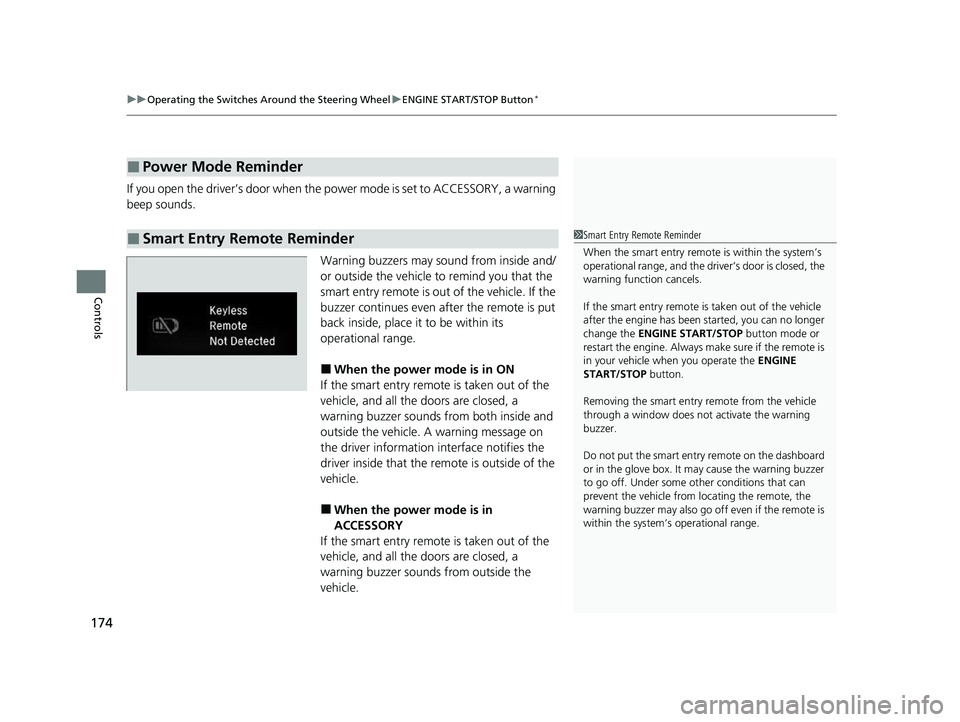
Warning buzzers may sound from inside and/
or outside the vehicle to remind you that the
smart entry remote is out of the vehicle. If the
buzzer continues even after the remote is put
back inside, place it to be within its
operational range.
■When the power mode is in ON
If the smart entry remote is taken out of the
vehicle, and all the doors are closed, a
warning buzzer sounds from both inside and
outside the vehicle. A warning message on
the driver information interface notifies the
driver inside that the remote is outside of the
vehicle.
■When the power mode is in
ACCESSORY
If the smart entry remote is taken out of the
vehicle, and all the doors are closed, a
warning buzzer sounds from outside the
vehicle.
■Power Mode Reminder
■Smart Entry Remote Reminder1 Smart Entry Remote Reminder
When the smart entry remote is within the system’s
operational range, and the driv er’s door is closed, the
warning function cancels.
If the smart entry remote is taken out of the vehicle
after the engine has been started, you can no longer
change the ENGINE START/STOP button mode or
restart the engine. Always make sure if the remote is
in your vehicle when you operate the ENGINE
START/STOP button.
Removing the smart entry remote from the vehicle
through a window does not activate the warning
buzzer.
Do not put the smart entr y remote on the dashboard
or in the glove box. It may cause the warning buzzer
to go off. Under some other conditions that can
prevent the vehicle from locating the remote, the
warning buzzer may al so go off even if the remote is
within the system’s operational range.
21 CIVIC 5D HUM-31TGG6400_01.book 174 ページ 2020年8月28日 金曜日 午後1時 48分
Page 181 of 711
179
uuOperating the Switches Around the Steering Wheel uLight Switches
Controls
The headlights automatically come on when the wipers are used several times within
a certain number of intervals with the headlight switch in AUTO.
The headlights automatically go off a few minutes later if the wipers are stopped.
The headlights, all other exterior lights, a nd the instrument panel lights turn off 15
seconds after you remove the key or set the power mode to VEHICLE OFF (LOCK),
take the remote with you, and close the driver’s door.
If you turn the igniti on switch to LOCK
(0*1 with the headlight switch on, but do
not open the door, the lights tu rn off after 10 minutes (3 minutes, if the switch is in
the AUTO position).
The lights turn on again when you unlock or open the driver’s door. If you unlock
the door, but do not open it within 15 seconds, the lights go off. If you open the
driver’s door, you will hear a lights on reminder chime.
*1: Models with the smart entry system have an ENGINE START/STOP button instead of an
ignition switch.
■Headlight Integration with Wipers
■Automatic Lighting Off Feature
1 Automatic Operation (aut omatic lighting control)
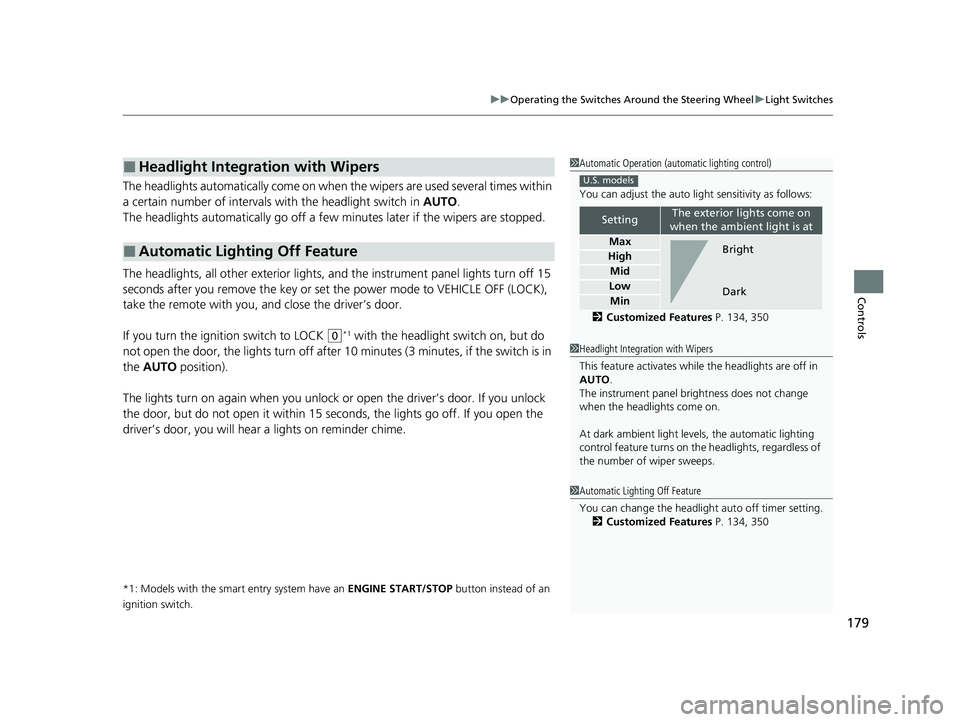
You can adjust the auto li ght sensitivity as follows:
2 Customized Features P. 134, 350
SettingThe exterior lights come on
when the ambient light is at
Max
High
Mid
Low
Min
U.S. models
Bright
Dark
1 Headlight Integration with Wipers
This feature activates while the headlights are off in
AUTO .
The instrument panel br ightness does not change
when the headlights come on.
At dark ambient light leve ls, the automatic lighting
control feature turns on the headlights, regardless of
the number of wiper sweeps.
1 Automatic Lighting Off Feature
You can change the headlight auto off timer setting.
2 Customized Features P. 134, 350
21 CIVIC 5D HUM-31TGG6400_01.book 179 ページ 2020年8月28日 金曜日 午後1時 48分
Page 227 of 711
225
Features
This chapter describes how to operate technology features.
Audio SystemAbout Your Audio System ................ 226
USB Port(s) ....................................... 227
Audio System Theft Protection ......... 229
Audio Remote Controls .................... 230
Audio System Basic Operation ........ 233
Audio/Information Screen ................ 234
Adjusting the Sound ........................ 238
Display Setup ................................... 239
Playing the AM/FM Radio ................. 240
Playing an iPod ................................ 242
Playing a USB Flash Drive ................. 245
Models with color audio system
Playing Bluetooth ® Audio................. 248
Audio System Basic Operation ........ 251
Audio/Information Screen ................ 252
Adjusting the Sound ........................ 273
Display Setup ................................... 274
Voice Control Operation .................. 276
Playing AM/FM Radio ....................... 280
Playing SiriusXM ® Radio
*................. 283
Playing an iPod ................................ 291
Song By Voice
TM (SBV) ...................... 294
Playing Pandora ®*1........................... 298
Playing a USB Flash Drive ................. 300
Models with Display AudioPlaying Bluetooth ® Audio ................ 303
HondaLink ®..................................... 305
Wi-Fi Connection ............................. 310
Siri Eyes Free .................................... 312
Apple CarPlay .................................. 313
Android Auto .................................. 316
Audio Error Messages ...................... 320
General Information on the Audio System..324
Customized Features................ 343, 350
HomeLink ® Universal Transceiver*.. 380
Bluetooth ® HandsFreeLink® ..... 383, 410
*1: Available only on U.S. models.
* Not available on all models
21 CIVIC 5D HUM-31TGG6400_01.book 225 ページ 2020年8月28日 金曜日 午後1時 48分
Page 228 of 711
226
Features
Audio System
About Your Audio System
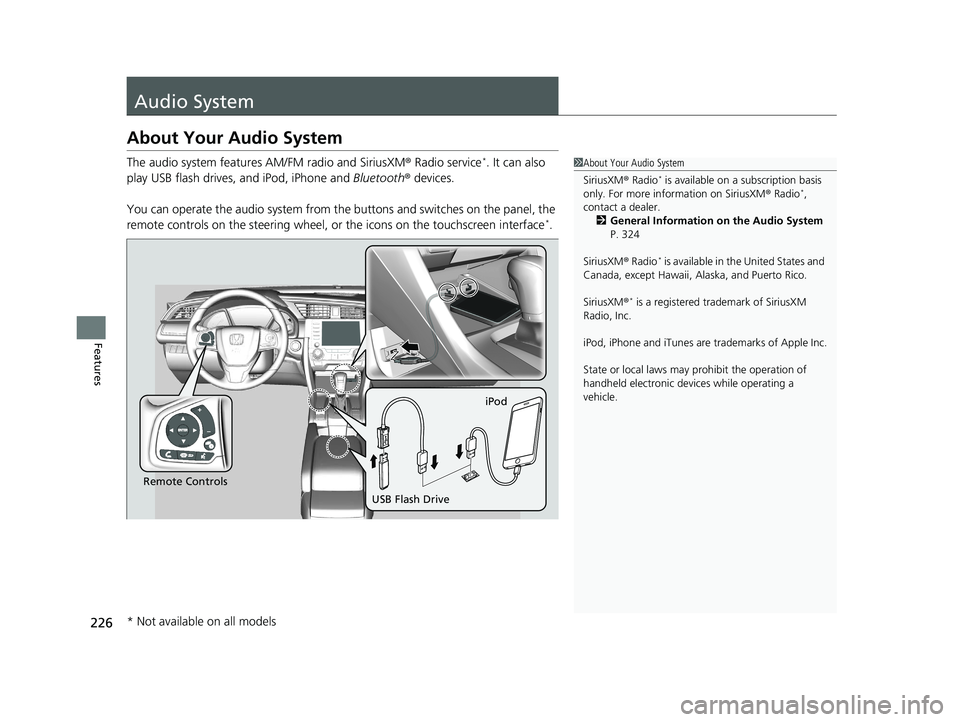
The audio system features AM/FM radio and SiriusXM ® Radio service*. It can also
play USB flash drives, and iPod, iPhone and Bluetooth® devices.
You can operate the audio system from the buttons and switches on the panel, the
remote controls on the steering wheel, or the icons on the touchscreen interface
*.
1About Your Audio System
SiriusXM ® Radio
* is available on a subscription basis
only. For more information on SiriusXM ® Radio*,
contact a dealer.
2 General Information on the Audio System
P. 324
SiriusXM ® Radio
* is available in the United States and
Canada, except Ha waii, Alaska, and Puerto Rico.
SiriusXM ®
* is a registered tra demark of SiriusXM
Radio, Inc.
iPod, iPhone and iTunes are trademarks of Apple Inc.
State or local laws may pr ohibit the operation of
handheld electronic devi ces while operating a
vehicle.
Remote Controls iPod
USB Flash Drive
* Not available on all models
21 CIVIC 5D HUM-31TGG6400_01.book 226 ページ 2020年8月28日 金曜日 午後1時 48分
Page 232 of 711
230
uuAudio System uAudio Remote Controls
Features
Audio Remote Controls
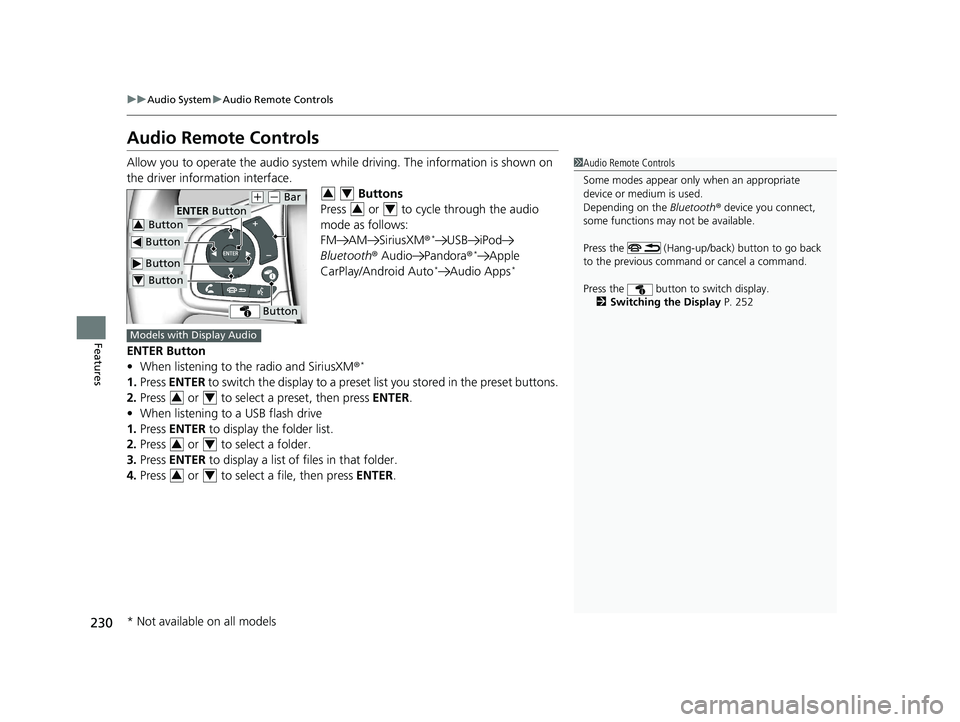
Allow you to operate the audio system while driving. The information is shown on
the driver information interface. Buttons
Press or to cycle through the audio
mode as follows:
FM AM SiriusXM®
*USB iPod
Bluetooth ® Audio Pandora ®*Apple
CarPlay/Android Auto*Audio Apps*
ENTER Button
• When listening to the radio and SiriusXM ®*
1.Press ENTER to switch the display to a preset li st you stored in the preset buttons.
2. Press or to select a preset, then press ENTER.
• When listening to a USB flash drive
1. Press ENTER to display the folder list.
2. Press or to select a folder.
3. Press ENTER to display a list of files in that folder.
4. Press or to select a file, then press ENTER.
1Audio Remote Controls
Some modes appear only when an appropriate
device or medium is used.
Depending on the Bluetooth® device you connect,
some functions may not be available.
Press the (Hang-up/back) button to go back
to the previous command or cancel a command.
Press the button to switch display. 2 Switching the Display P. 252
Button
Button
(+ (- Bar
Button
Button3
Button4
ENTER Button
34
34
Models with Display Audio
34
34
34
* Not available on all models
21 CIVIC 5D HUM-31TGG6400_01.book 230 ページ 2020年8月28日 金曜日 午後1時 48分
Page 233 of 711
231
uuAudio System uAudio Remote Controls
Continued
Features
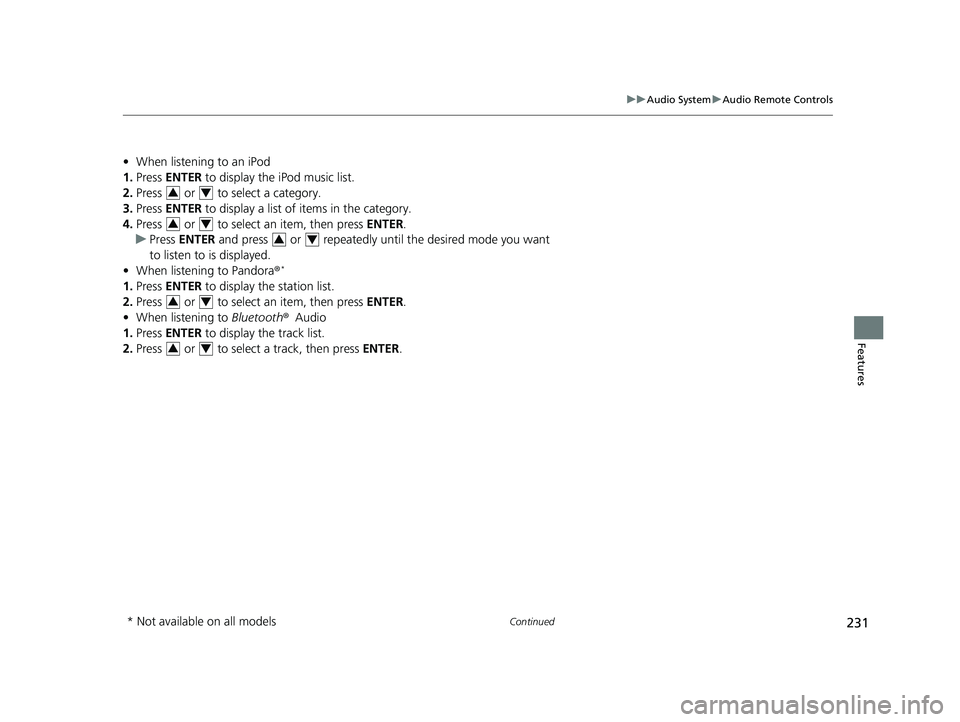
• When listening to an iPod
1. Press ENTER to display the iPod music list.
2. Press or to select a category.
3. Press ENTER to display a list of items in the category.
4. Press or to select an item, then press ENTER.
u Press ENTER and press or repeatedly until the desired mode you want
to listen to is displayed.
• When listening to Pandora ®
*
1.Press ENTER to display the station list.
2. Press or to select an item, then press ENTER.
• When listening to Bluetooth®Audio
1. Press ENTER to display the track list.
2. Press or to select a track, then press ENTER.
34
34
34
34
34
* Not available on all models
21 CIVIC 5D HUM-31TGG6400_01.book 231 ページ 2020年8月28日 金曜日 午後1時 48分
Page 234 of 711
232
uuAudio System uAudio Remote Controls
Features
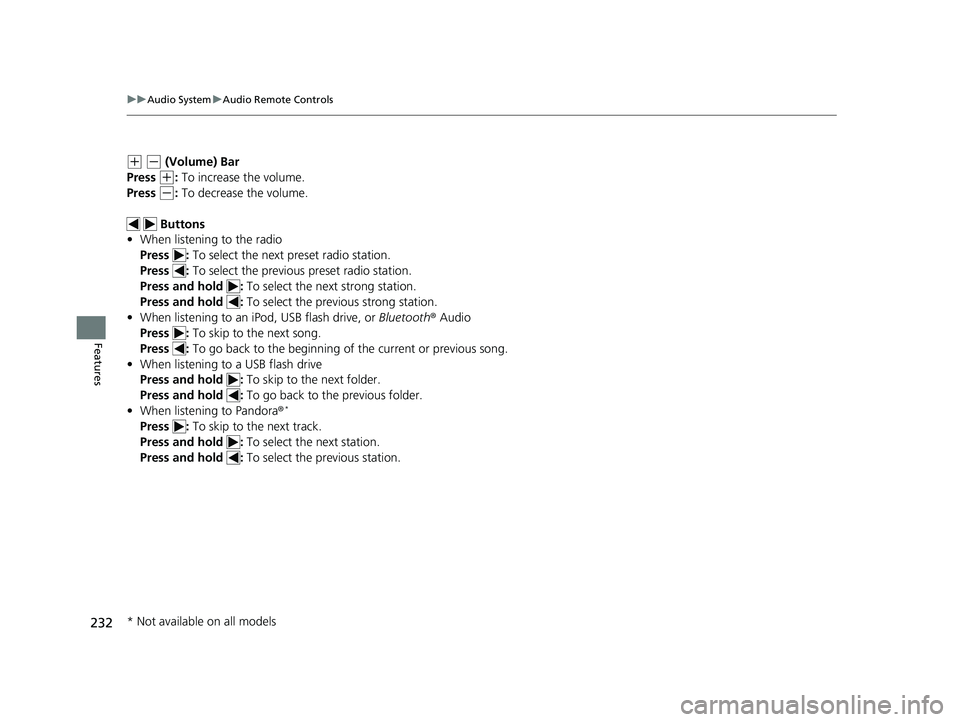
(+ (- (Volume) Bar
Press
(+: To increase the volume.
Press
(-: To decrease the volume.
Buttons
• When listening to the radio
Press : To select the next preset radio station.
Press : To select the previous preset radio station.
Press and hold : To select the next strong station.
Press and hold : To select the previous strong station.
• When listening to an iPod, USB flash drive, or Bluetooth ® Audio
Press : To skip to the next song.
Press : To go back to the beginning of the current or previous song.
• When listening to a USB flash drive
Press and hold : To skip to the next folder.
Press and hold : To go back to the previous folder.
• When listening to Pandora ®
*
Press : To skip to the next track.
Press and hold : To select the next station.
Press and hold : To select the previous station.
* Not available on all models
21 CIVIC 5D HUM-31TGG6400_01.book 232 ページ 2020年8月28日 金曜日 午後1時 48分
Page 235 of 711
233
Features
Audio System Basic Operation
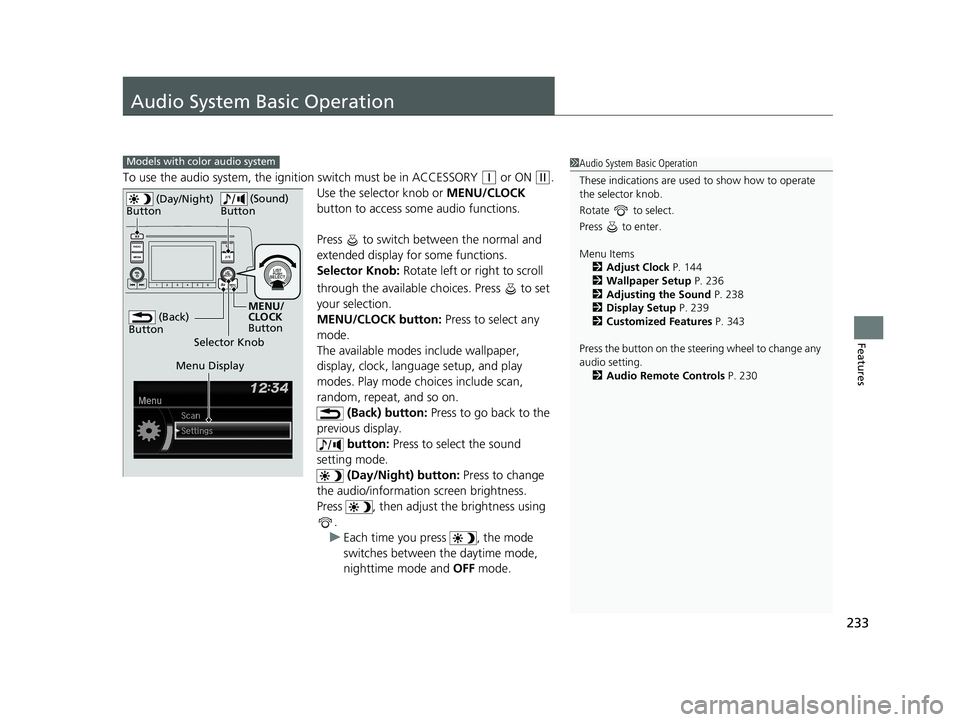
To use the audio system, the ignition switch must be in ACCESSORY (q or ON (w.
Use the selector knob or MENU/CLOCK
button to access some audio functions.
Press to switch between the normal and
extended display fo r some functions.
Selector Knob: Rotate left or right to scroll
through the available ch oices. Press to set
your selection.
MENU/CLOCK button: Press to select any
mode.
The available modes include wallpaper,
display, clock, language setup, and play
modes. Play mode choices include scan,
random, repeat, and so on. (Back) button: Press to go back to the
previous display. button: Press to select the sound
setting mode.
(Day/Night) button: Press to change
the audio/information screen brightness.
Press , then adjust the brightness using .
u Each time you press , the mode
switches between the daytime mode,
nighttime mode and OFF mode.
Models with color audio system1Audio System Basic Operation
These indications are used to show how to operate
the selector knob.
Rotate to select.
Press to enter.
Menu Items 2 Adjust Clock P. 144
2 Wallpaper Setup P. 236
2 Adjusting the Sound P. 238
2 Display Setup P. 239
2 Customized Features P. 343
Press the button on the stee ring wheel to change any
audio setting. 2 Audio Remote Controls P. 230
(Back)
Button
Selector Knob MENU/
CLOCK
Button
(Day/Night)
Button
(Sound)
Button
Menu Display
21 CIVIC 5D HUM-31TGG6400_01.book 233 ページ 2020年8月28日 金曜日 午後1時 48分
Page 243 of 711
241
uuAudio System Basic Operation uPlaying the AM/FM Radio
Features
Provides text data information related to your selected RDS capable FM station.
■To find an RDS station from Station List
1. Press while listening to an FM station.
2. Rotate to select the station, then press .
■Update List
Updates your available st ation list at any time.
1. Press while listening to an FM station.
2. Rotate to select Update List, then press .
■Radio text
Displays the radio text informat ion of the selected RDS station.
1. Press the MENU/CLOCK button.
2. Rotate to select Settings, then press .
3. Rotate to select RDS Settings, then press .
4. Rotate to select Radio Text, then press .
■Scan
Samples each of the strongest stations on the selected band for 10 seconds.
1. Press the MENU/CLOCK button.
2. Rotate to select Scan, then press .
To turn off scan, press .
■Radio Data System (RDS)1 Playing the AM/FM Radio
The ST indicator appears on the display indicating
stereo FM broadcasts.
Stereo reproduction in AM is not available.
You can store 6 AM stations and 12 FM stations into
the preset memory.
Switching the Audio Mode
Press the audio source selecting button on the
steering wheel.
2 Audio Remote Controls P. 230
1Radio Data System (RDS)
When you select an RDS-capable FM station, the RDS
automatically turns on, and the frequency display
changes to the station name. However, when the
signals of that station become weak, the display
changes from the statio n name to the frequency.
21 CIVIC 5D HUM-31TGG6400_01.book 241 ページ 2020年8月28日 金曜日 午後1時 48分