audio HONDA CR-Z 2011 1.G Owners Manual
[x] Cancel search | Manufacturer: HONDA, Model Year: 2011, Model line: CR-Z, Model: HONDA CR-Z 2011 1.GPages: 333, PDF Size: 9.97 MB
Page 1 of 333
Safe Driving P. 29
For Safe Driving P. 30 Seat Belts P. 34 Airbags P. 41
Instrument Panel P. 67
Indicators P. 68 Gauges and Multi-Information Display P. 81
Controls P. 97
Setting the Clock P. 98 Locking and Unlocking the Doors P. 99
Operating the Switches Around the Steering Wheel P. 109
Interior Lights/Interior Convenience Items P. 123
Features P. 135
Audio System P. 136 Audio without Navigation System P. 141
General Information on the Audio System P. 170
Driving P. 191
Before Driving P. 192 Towing a Trailer P. 196
Refueling P. 231 Fuel Economy P. 234
Maintenance P. 237
Before Performing Maintenance P. 238 Maintenance Minder ™
P. 241
Checking and Maintaining Wiper Blades P. 266
Climate Control System Maintenance P. 280
Handling the Unexpected P. 285
Tools P. 286 If a Tire Goes Flat P. 287
Overheating P. 297 Indicator, Coming On/Blinking P. 299
Information P. 311
Specifications P. 312 Identification Numbers P. 314
Emissions Testing P. 317 Authorized Manuals P. 319
This owner’s manual should be considered a permanent part of
the vehicle and should remain with the vehicle when it is sold.
This owner’s manual covers all models of the CR-Z. You may
find descriptions of equipment and features that are not on your
particular model.
Images throughout this owner’s manual (including the front
cover) represent features and equipment that are available on
some, but not all, models. Your particular model may not have
some of these features.
The information and specifications included in this publication
were in effect at the time of approval for printing. Honda Motor
Co., Ltd. reserves the right, however, to discontinue or change
specifications or design at any time without notice and without
incurring any obligation.
Main Menu2011 CR-Z Online Reference Owner's Manual
Page 2 of 333
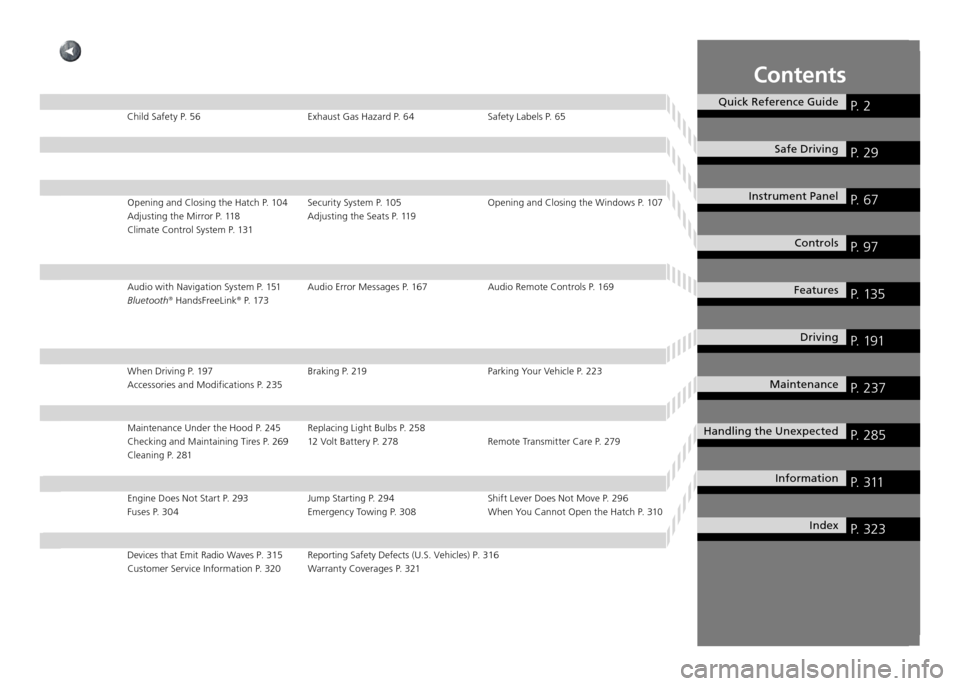
Contents
Quick Reference GuideP. 2
Safe DrivingP. 29
Instrument Panel P. 67
ControlsP. 97
FeaturesP. 135
DrivingP. 191
MaintenanceP. 237
Handling the UnexpectedP. 285
InformationP. 311
IndexP. 323
Child Safety P. 56 Exhaust Gas Hazard P. 64 Safety Labels P. 65Opening and Closing the Hatch P. 104 Security System P. 105 Opening and Clos ing the Windows P. 107
Adjusting the Mirror P. 118 Adjusting the Seats P. 119
Climate Control System P. 131
Audio with Navigation System P. 151 Audio Error Messages P. 167 Audio Rem ote Controls P. 169
Bluetooth ®
HandsFreeLink ®
P. 173
When Driving P. 197 Braking P. 219 Parking Your Vehicle P. 223 Accessories and Modifications P. 235
Maintenance Under the Hood P. 245 Replacing Light Bulbs P. 258
Checking and Maintaining Tires P. 269 12 Volt Battery P. 278 Remote Trans mitter Care P. 279
Cleaning P. 281
Engine Does Not Start P. 293 Jump Starting P. 294 Shift Lever Does Not Move P. 296 Fuses P. 304 Emergency Towing P. 308 When You Cannot Open the Hatch P. 310
Devices that Emit Radio Waves P. 315 Reporting Safety Defects (U.S. Vehicles) P. 316
Customer Service Information P. 320 Warranty Coverages P. 321
Page 3 of 333
2
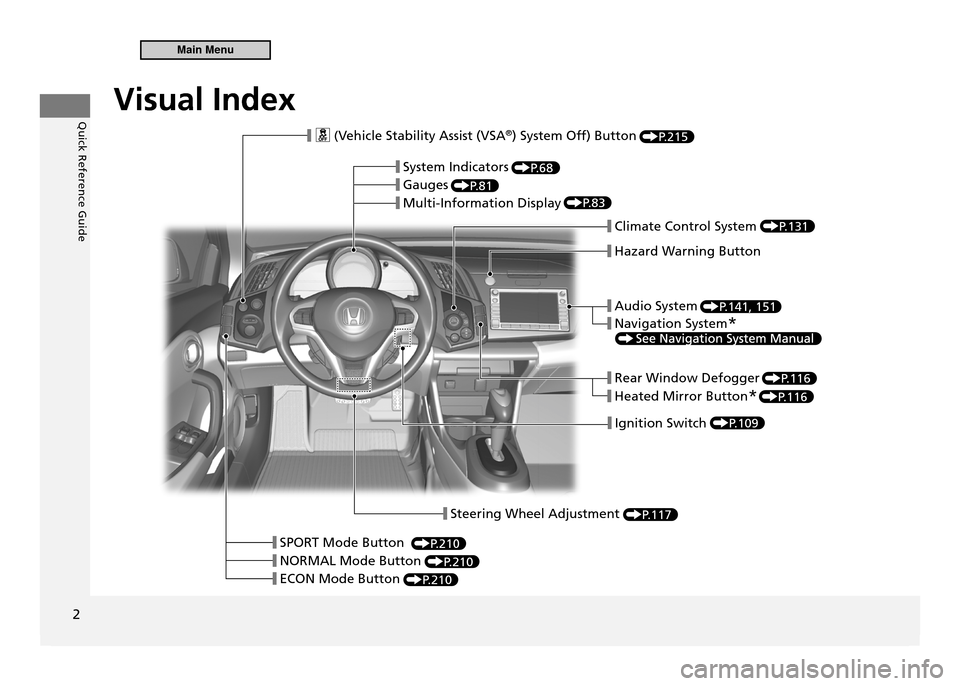
Quick Reference GuideVisual Index
P.215
P.68
P.81
P.83
P.131
P.141, 151
P.116
P.116
P.109
P.117
P.210
P.210
P.210
❙ System Indicators
❙ Gauges
❙ Multi-Information Display
❙ Navigation System
*
❙ Audio System
❙ Hazard Warning Button
❙ Climate Control System
❙ Rear Window Defogger
❙ Heated Mirror Button
*
❙ Ignition Switch
❙ Steering Wheel Adjustment
❙ ( Vehicle Stability Assist (VSA ®
) System Off) Button
❙ SPORT Mode Button
❙ NORMAL Mode Button
❙ ECON Mode Button
Visual Index
Main Menu
Page 4 of 333
3
Quick Reference Guide
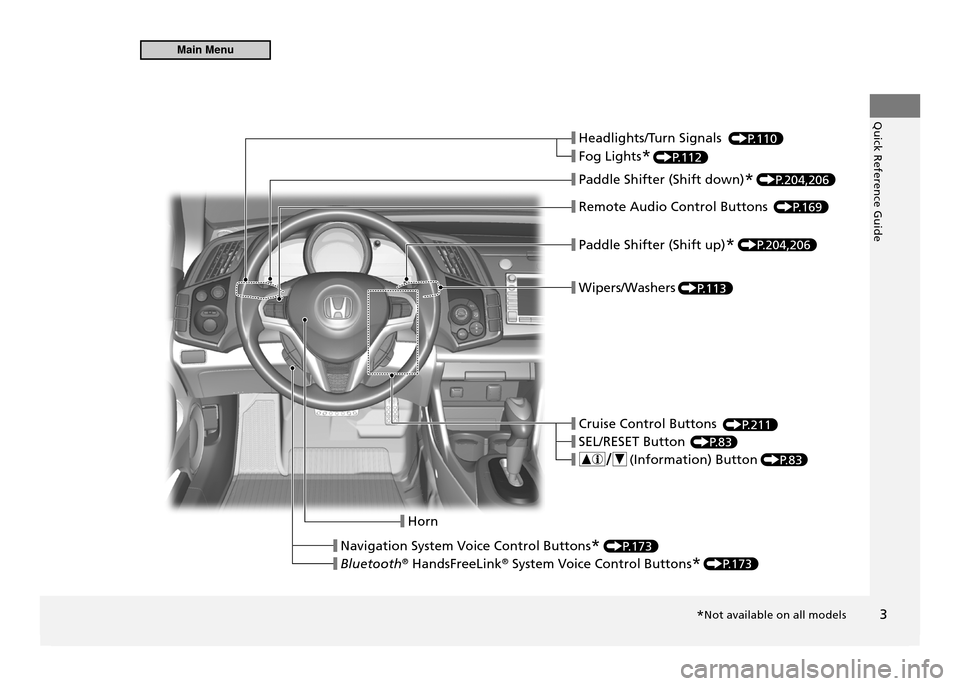
❙ Headlights/Turn Signals
❙ Fog Lights
*
❙ Paddle Shifter (Shift down)
*
❙ Remote Audio Control Buttons
❙ Paddle Shifter (Shift up)
*
❙ Wipers/Washers
❙ Cruise Control Buttons
❙ SEL/RESET Button
❙ ( Information) Button
❙ Horn
❙ Navigation System Voice Control Buttons
*
❙ Bluetooth ®
HandsFreeLink ®
System Voice Control Buttons *
P.110
P.112
P.204,206
P.204,206
P.169
P.113
P.211
P.83
P.83
P.173
P.173
*Not available on all models
Main Menu
Page 19 of 333
Quick Reference Guide
18
Features P.13 5
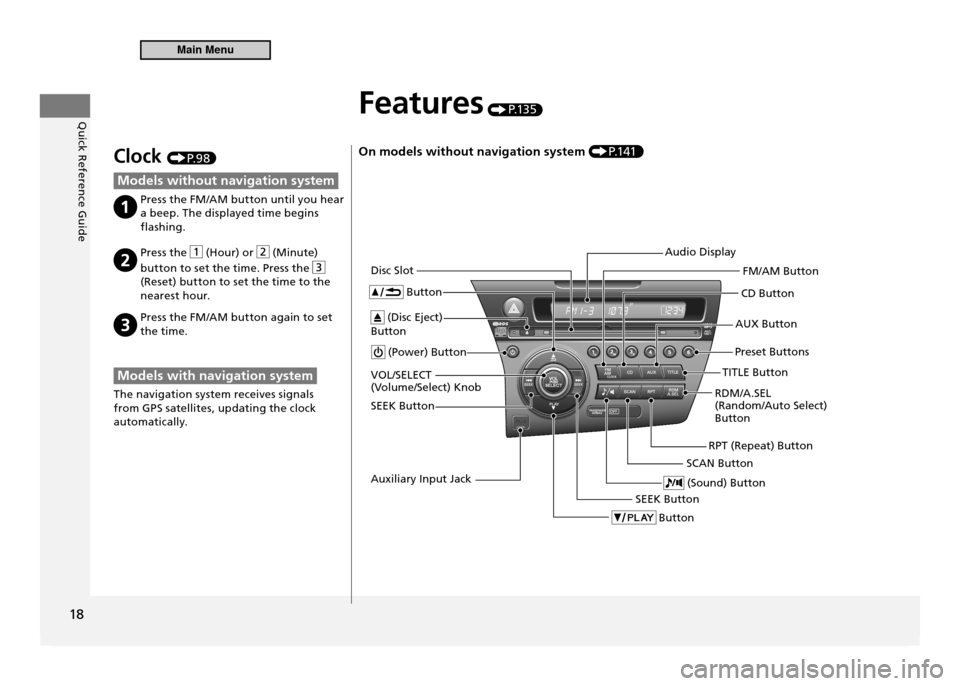
On models without navigation system P.1 41
(Power) Button CD Button
AUX Button
Disc Slot
(Disc Eject)
Button Button
Preset Buttons
SEEK Button Button
SEEK Button
(Sound) ButtonRDM/A.SEL (Random/Auto Select) Button
VOL/SELECT
(Volume/Select) Knob
RPT (Repeat) Button
Audio Display
FM/AM Button
TITLE Button
SCAN Button
Auxiliary Input Jack
Clock P. 9 8
Models without navigation system
Press the FM/AM button until you hear a beep. The displayed time begins
flashing.
Press the (Hour) or (Minute)
button to set the time. Press the
(Reset) button to set the time to the
nearest hour.
Press the FM/AM button again to set the time.
Models with navigation system
The navigation system receives signals
from GPS satellites, updating the clock
automatically.
Main Menu
Page 20 of 333
Quick Reference Guide
19
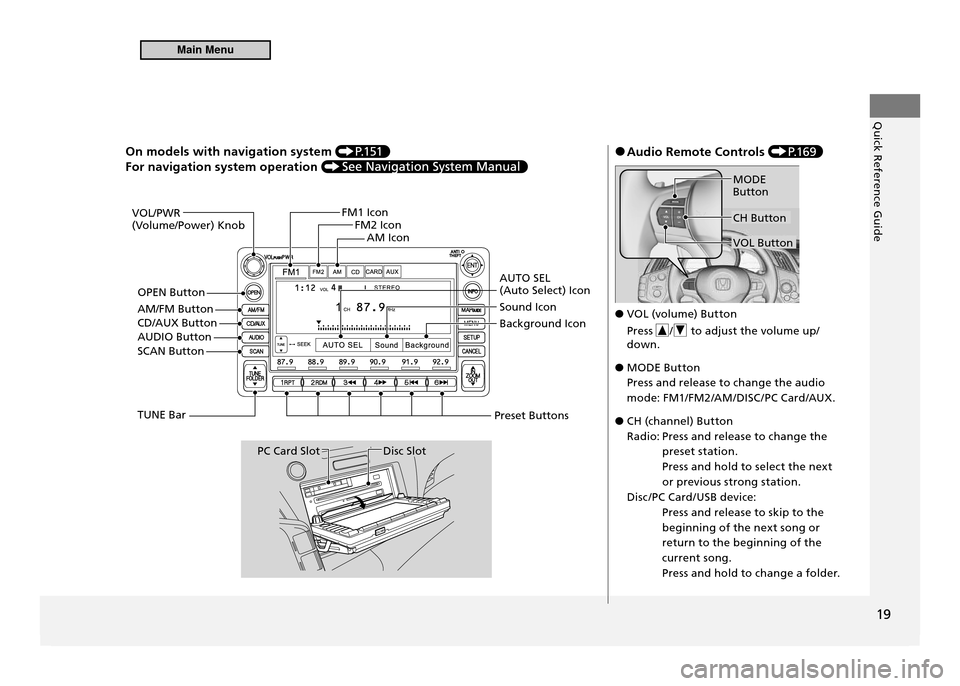
On models with navigation system P.1 51
For navigation system operation
VOL/PWR
(Volume/Power) KnobFM1 Icon
FM2 Icon
AM Icon
AUTO SEL (Auto Select) Icon Sound Icon Background Icon
Preset Buttons
Disc SlotPC Card Slot
TUNE Bar
SCAN Button
AUDIO Button OPEN Button
AM/FM Button CD/AUX Button
Audio Remote Controls
●
P.1 6 9
VOL (volume) Button
●
Press
/ to adjust the volume up/
down.
MODE Button
●
Press and release to change the audio
mode: FM1/FM2/AM/DISC /PC Card/AUX.
CH (channel) Button
●
Radio: Press and release to change the preset station.
Press and hold to select the next
or previous strong station.
Disc /PC Card/USB device: Press and release to skip to the
beginning of the next song or
return to the beginning of the
current song.
Press and hold to change a folder.
CH Button
MODE Button
VOL Button
Main Menu
Page 110 of 333
109
Controls
Operating the Switches Around the Steering Wheel
Ignition Switch
Ignition Switch
Manual transmission models Automatic transmission (CVT) models
You cannot take the key out unless the shift lever is
in .
On all models If you open the driver's door when the key is in LOCK or ACCESSORY , a warning buzzer will
sound to remind you to take the key out. If the key won't turn from LOCK
to ACCESSORY , turn the key while moving the steering wheel
left and right. The steering wheel will unlock, allowing the key to turn.
WARNING
Removing the key from the ignition switch locks the steering. If you do this while the vehicle is in motion, you can lose control of the vehicle. Only remove the key from the ignition switch when parked.
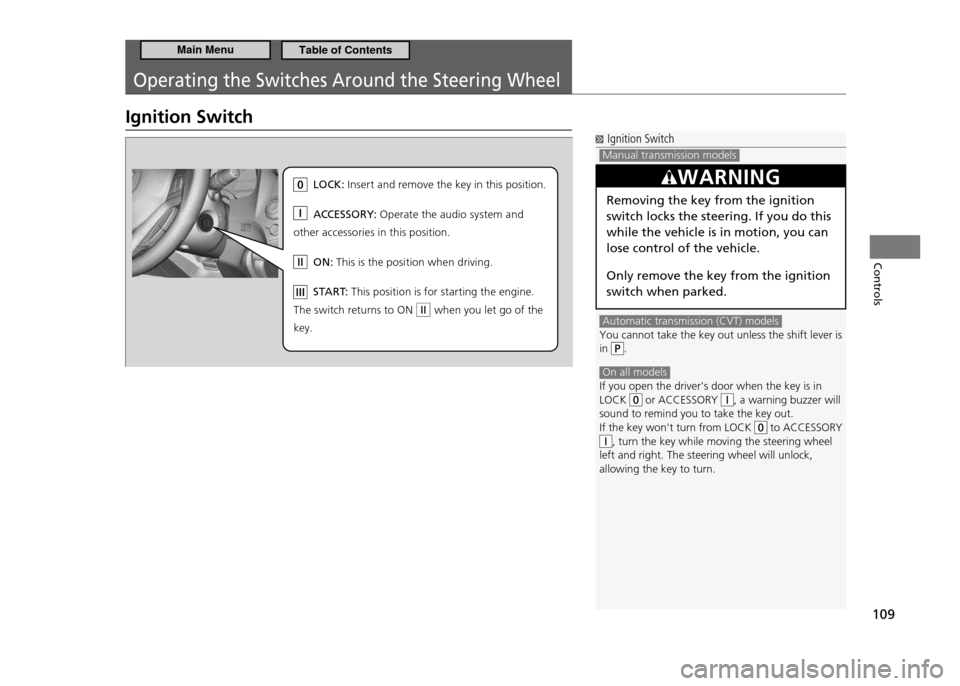
LO CK: In se rt and re move the key in this position.
AC CESSOR Y: Op erate the audio system and
other acce ssories in this position.
ON : Th is is the position when driving.
ST AR T: Th is position is for starting the engine .
Th e sw itch returns to ON when you let go of the
key.
Main MenuTable of Contents
Page 136 of 333
Features
This chapter describes how to operate the audio system and other technology features.
135
Audio System
About Your Audio System ...................... 136 Compatible iPod and USB Flash Memory
Devices .................................................. 137
USB Adapter Cable ................................. 138
Auxiliary Input Jack ................................. 139
Audio System Theft Protection ............... 140
Audio without Navigation System
Audio System Basic Operation ................ 141
Playing the AM/FM Radio ....................... 143
Playing a CD ........................................... 145Playing an iPod ®
..................................... 147
Playing a USB Flash Memory Device ........ 149 General Information on the Audio System
Recommended Discs .............................. 170Recommended USB Flash Memory
Devices .................................................. 172
Bluetooth ®
HandsFreeLink ®
.................... 173
Using HFL ............................................... 173
HFL Menus ............................................. 175
Phone Setup ........................................... 177
Making a Call ......................................... 179
HFL Phonebook ...................................... 183
Cellular Phonebook ................................ 185
System Setup ......................................... 188
Audio with Navigation System
Audio System Basic Operation ................ 151
Playing the AM/FM Radio ....................... 154
Playing a Disc ......................................... 156
Playing a PC Card ................................... 158Playing an iPod ®
..................................... 162
Playing a USB Flash Memory Device ........ 165
Audio Error Messages Disc Player .............................................. 167iPod ®
/USB Flash Memory Device ............. 168
Audio Remote Controls .......................... 169
Main Menu
Page 137 of 333
136
Features
Audio System
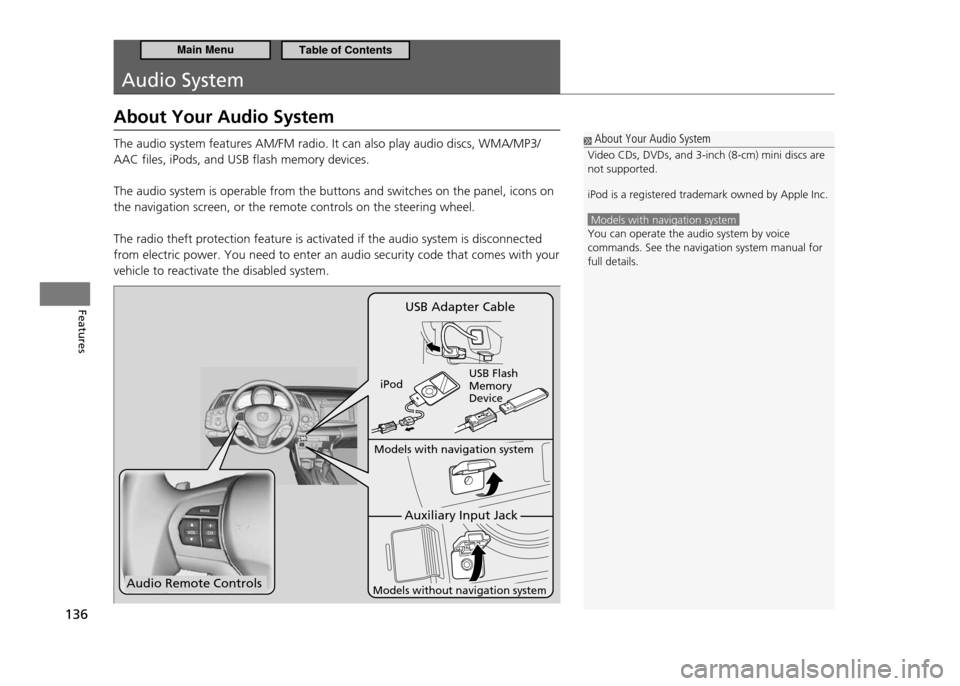
About Your Audio System The audio system features AM/FM radio. It can also play audio discs, WMA/MP3/ AAC files, iPods, and USB flash memory devices. The audio system is operable from the buttons and switches on the panel, icons on the navigation screen, or the remote controls on the steering wheel. The radio theft protection feature is activated if the audio system is disconnected from electric power. You need to enter an audio security code that comes with your vehicle to reactivate the disabled system.
About Your Audio System
Video CDs, DVDs, and 3-inch (8-cm) mini discs are not supported. iPod is a registered trademark owned by Apple Inc.
Models with navigation system You can operate the audio system by voice commands. See the navigation system manual for full details.
Audio Remote Controls
Auxiliary Input Jack
Models with navigation system
Models without navigation system
USB Adapter Cable
iPod USB Flash Memory Device
Main MenuTable of Contents
Page 138 of 333
137
Features
Audio System Compatible iPod and USB Flash Memory Devices
Compatible iPod and USB Flash Memory Devices
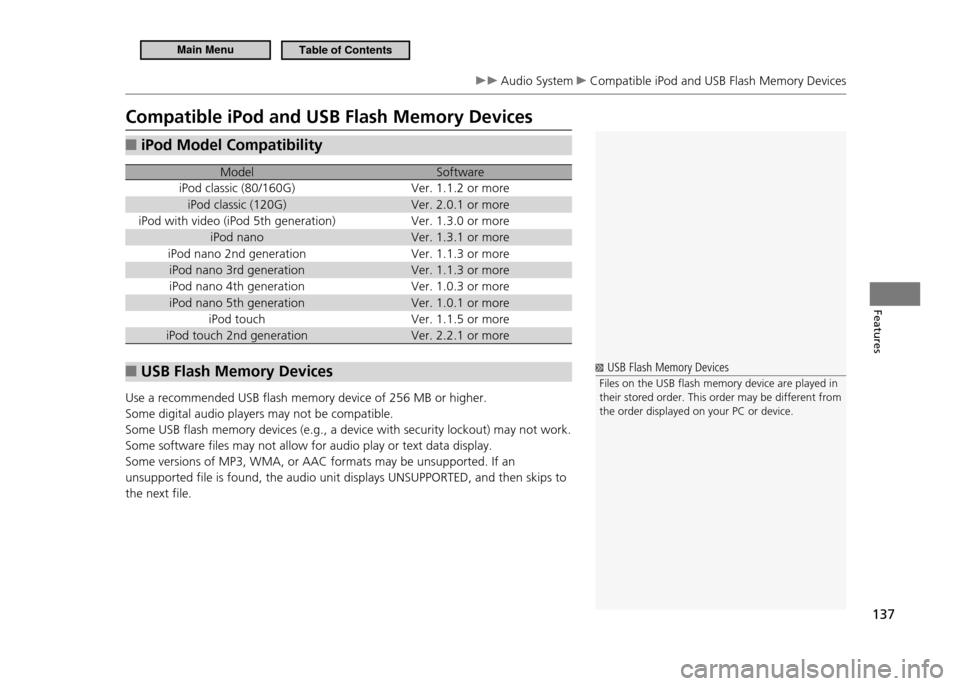
iPod Model Compatibility
■
Model Software
iPod classic (80/160G) Ver. 1.1.2 or more
iPod classic (120G) Ver. 2.0.1 or more
iPod with video (iPod 5th generation) Ver. 1.3.0 or more iPod nano Ver. 1.3.1 or more
iPod nano 2nd generation Ver. 1.1.3 or more iPod nano 3rd generation Ver. 1.1.3 or more
iPod nano 4th generation Ver. 1.0.3 or more
iPod nano 5th generation Ver. 1.0.1 or more iPod touch Ver. 1.1.5 or more
iPod touch 2nd generation Ver. 2.2.1 or more
USB Flash Memory Devices
■
Use a recommended USB flash memory device of 256 MB or higher. Some digital audio players may not be compatible.Some USB flash memory devices (e.g., a device with security lockout) may not work.Some software files may not allow for audio play or text data display.Some versions of MP3, WMA, or AAC formats may be unsupported. If an unsupported file is found, the audio unit displays UNSUPPORTED, and then skips to the next file.
USB Flash Memory Devices
Files on the USB lash memory device are played in their stored order. This order may be different from the order displayed on your PC or device.
Main MenuTable of Contents