volume HONDA CROSSTOUR 2013 1.G Owner's Manual
[x] Cancel search | Manufacturer: HONDA, Model Year: 2013, Model line: CROSSTOUR, Model: HONDA CROSSTOUR 2013 1.GPages: 573, PDF Size: 25.21 MB
Page 233 of 573
232
uuAudio System Basic OperationuPlaying AM/FM Radio
Features
Playing AM/FM Radio
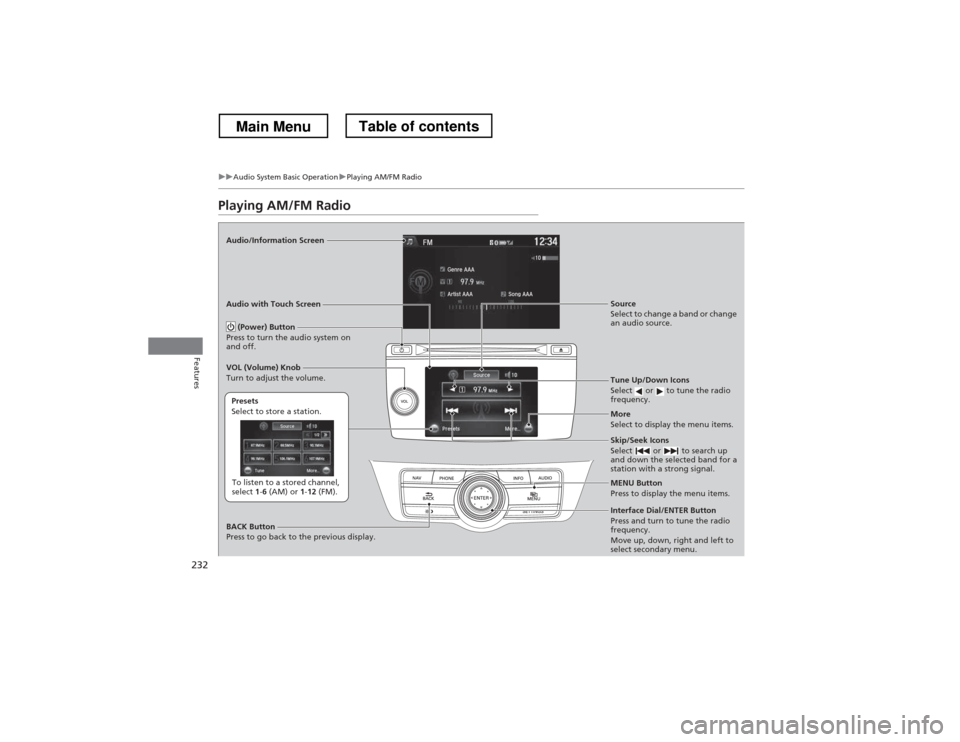
Audio/Information Screen Audio with Touch ScreenTune Up/Down Icons
Select or to tune the radio
frequency.
MENU Button
Press to display the menu items.
(Power) Button
Press to turn the audio system on
and off.
Source
Select to change a band or change
an audio source.
To listen to a stored channel,
select 1-6 (AM) or 1-12 (FM).
Presets
Select to store a station.
Skip/Seek Icons
Select or to search up
and down the selected band for a
station with a strong signal.
More
Select to display the menu items.
BACK Button
Press to go back to the previous display.
VOL (Volume) Knob
Turn to adjust the volume.
Interface Dial/ENTER Button
Press and turn to tune the radio
frequency.
Move up, down, right and left to
select secondary menu.
Main MenuTable of contents
Page 237 of 573
236
uuAudio System Basic OperationuPlaying XM® Radio
Features
Playing XM ® Radio
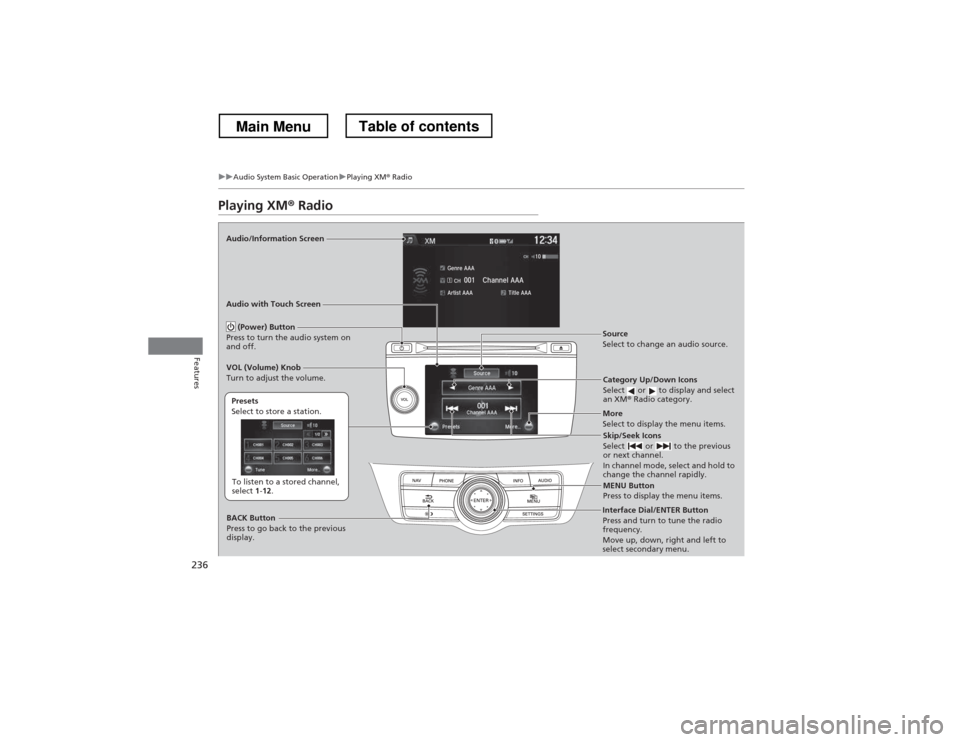
Audio/Information Screen Audio with Touch Screen
Category Up/Down Icons
Select or to display and select an XM® Radio category.
MENU Button
Press to display the menu items.
(Power) Button
Press to turn the audio system on
and off.Source
Select to change an audio source.
To listen to a stored channel,
select 1-12 .
Presets
Select to store a station.
Skip/Seek Icons
Select or to the previous
or next channel.
In channel mode, select and hold to
change the channel rapidly.
More
Select to display the menu items.
BACK Button
Press to go back to the previous
display.
VOL (Volume) Knob
Turn to adjust the volume.
Interface Dial/ENTER Button
Press and turn to tune the radio
frequency.
Move up, down, right and left to
select secondary menu.
Main MenuTable of contents
Page 240 of 573
239
uuAudio System Basic OperationuPlaying a CD
Continued
Features
Playing a CD
Your audio system supports audio CDs, CD-Rs and CD-RWs in either MP3, WMA, or AAC*1
format. With the CD loaded, select the CD mode.
*1:Only AAC format files recorded with iTunes ® are playable on this unit.
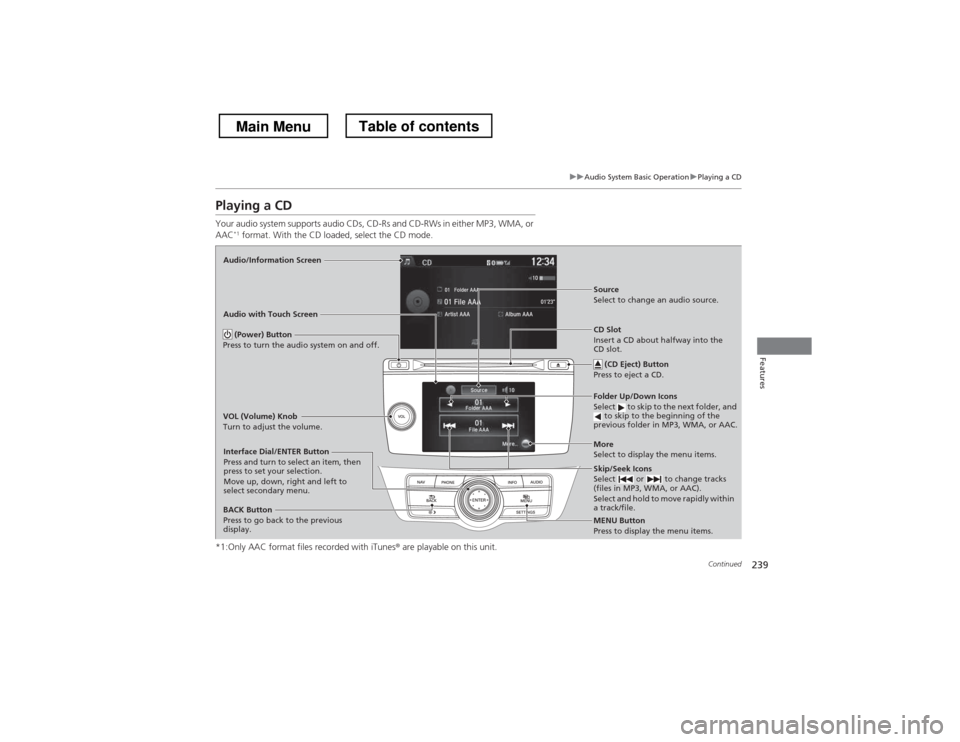
Audio/Information Screen
Audio with Touch Screen
MENU Button
Press to display the menu items.
CD Slot
Insert a CD about halfway into the
CD slot. (CD Eject) Button
Press to eject a CD.
Folder Up/Down Icons
Select to skip to the next folder, and to skip to the beginning of the
previous folder in MP3, WMA, or AAC.
Source
Select to change an audio source.
Skip/Seek Icons
Select or to change tracks
(files in MP3, WMA, or AAC).
Select and hold to move rapidly within
a track/file.
More
Select to display the menu items.
(Power) Button
Press to turn the audio system on and off.
BACK Button
Press to go back to the previous
display.
VOL (Volume) Knob
Turn to adjust the volume.
Interface Dial/ENTER Button
Press and turn to select an item, then
press to set your selection.
Move up, down, right and left to
select secondary menu.
Main MenuTable of contents
Page 243 of 573
242
uuAudio System Basic OperationuPlaying Hard Disc Drive (HDD) Audio
Features
Playing Hard Disc Drive (HDD) Audio
The Hard Disc Drive (HDD) Audio function plays tracks from music CDs that have
been recorded onto the built-in HDD. You can arrange the tracks in playlists or play
the tracks using various search methods.
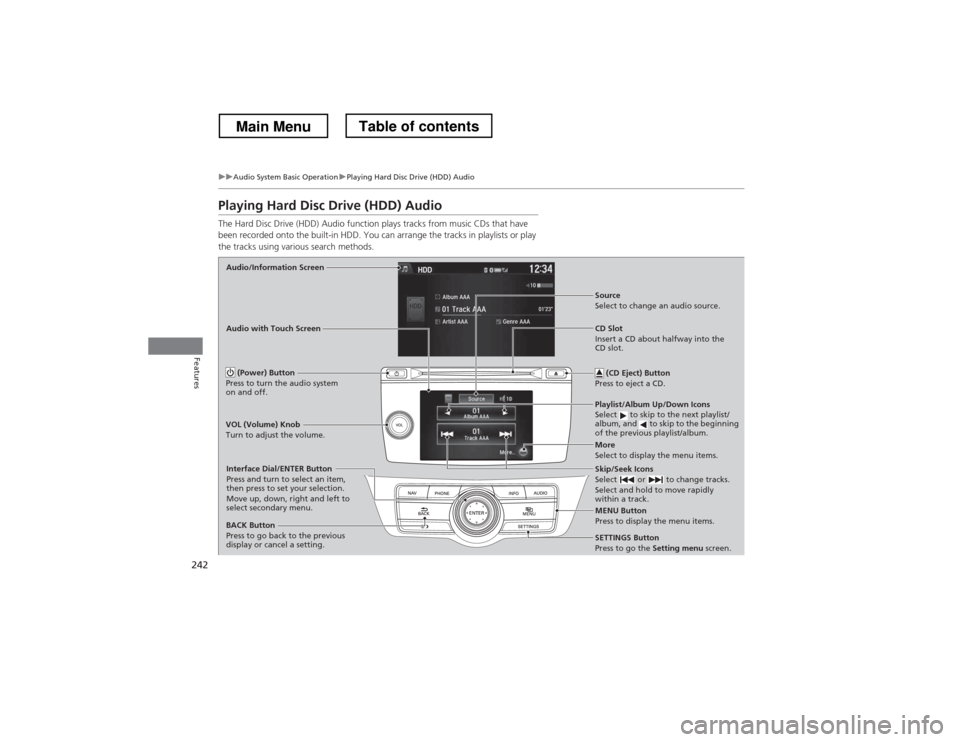
Audio/Information Screen Audio with Touch ScreenMENU Button
Press to display the menu items.
CD Slot
Insert a CD about halfway into the
CD slot. (CD Eject) Button
Press to eject a CD.
Playlist/Album Up/Down Icons
Select to skip to the next playlist/
album, and to skip to the beginning
of the previous playlist/album.
Source
Select to change an audio source.
Skip/Seek Icons
Select or to change tracks.
Select and hold to move rapidly
within a track.
More
Select to display the menu items.
(Power) Button
Press to turn the audio system
on and off.
BACK Button
Press to go back to the previous
display or cancel a setting.
VOL (Volume) Knob
Turn to adjust the volume.
Interface Dial/ENTER Button
Press and turn to select an item,
then press to set your selection.
Move up, down, right and left to
select secondary menu.
SETTINGS Button
Press to go the
Setting menu screen.
Main MenuTable of contents
Page 253 of 573
252
uuAudio System Basic OperationuPlaying an iPod®
Features
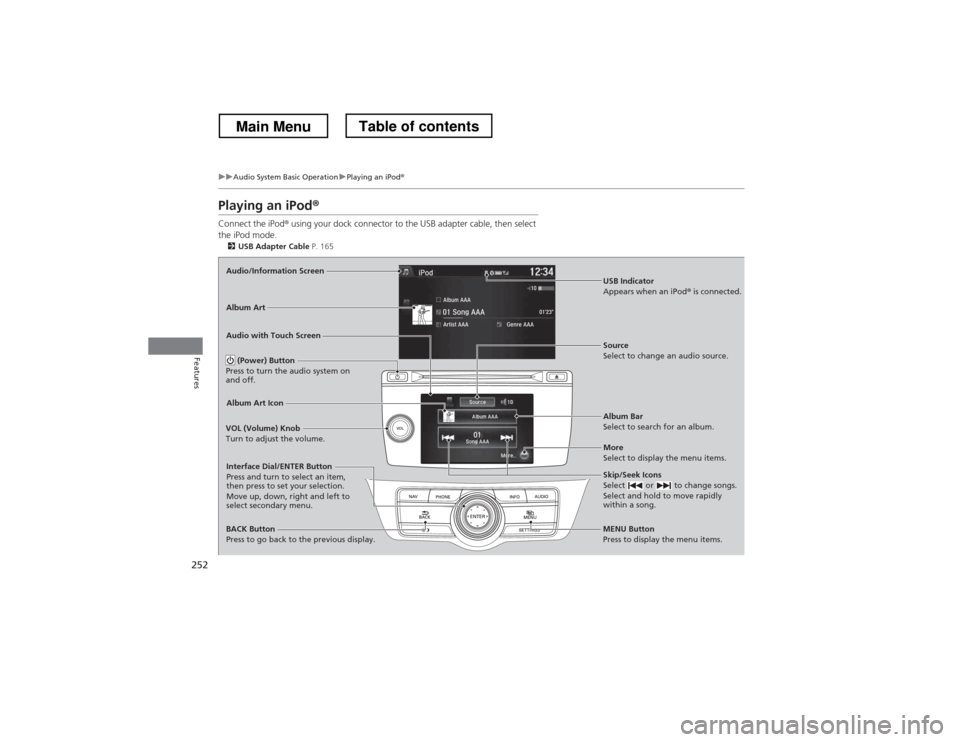
Playing an iPod ®
Connect the iPod ® using your dock connector to the USB adapter cable, then select
the iPod mode. 2 USB Adapter Cable P. 165
Audio/Information Screen Audio with Touch Screen
MENU Button
Press to display the menu items.
Album Bar
Select to search for an album.
Source
Select to change an audio source.
Skip/Seek Icons
Select or to change songs.
Select and hold to move rapidly
within a song.
More
Select to display the menu items.
(Power) Button
Press to turn the audio system on and off.
BACK Button
Press to go back to the previous display.
VOL (Volume) Knob
Turn to adjust the volume.
Interface Dial/ENTER Button
Press and turn to select an item,
then press to set your selection.
Move up, down, right and left to
select secondary menu.
USB Indicator
Appears when an iPod
® is connected.
Album Art
Album Art Icon
Main MenuTable of contents
Page 261 of 573
260
uuAudio System Basic OperationuPlaying Internet Radio
Features
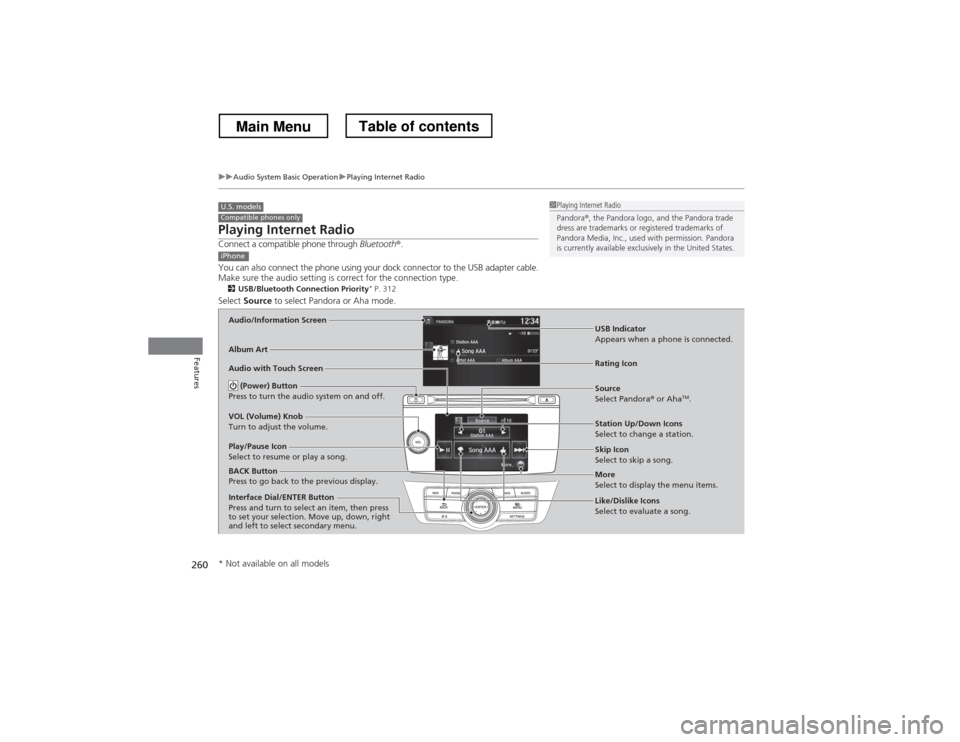
Playing Internet Radio
Connect a compatible phone through Bluetooth®.
You can also connect the phone using your dock connector to the USB adapter cable.
Make sure the audio setting is correct for the connection type. 2 USB/Bluetooth Connection Priority *
P. 312
Select Source to select Pandora or Aha mode.
U.S. modelsCompatible phones only1Playing Internet Radio
Pandora®, the Pandora logo, and the Pandora trade
dress are trademarks or registered trademarks of
Pandora Media, Inc., used with permission. Pandora
is currently available exclusively in the United States.
iPhone
Audio/Information Screen
Album Art
USB Indicator
Appears when a phone is connected.
Rating IconAudio with Touch Screen
BACK Button
Press to go back to the previous display.
Skip Icon
Select to skip a song.
More
Select to display the menu items.
Station Up/Down Icons
Select to change a station.
Source
Select Pandora
® or Aha TM
.
Play/Pause Icon
Select to resume or play a song.
Like/Dislike Icons
Select to evaluate a song.
(Power) Button
Press to turn the audio system on and off.
VOL (Volume) Knob
Turn to adjust the volume.
Interface Dial/ENTER Button
Press and turn to select an item, then press
to set your selection. Move up, down, right
and left to select secondary menu.
* Not available on all models
Main MenuTable of contents
Page 264 of 573
263
uuAudio System Basic OperationuPlaying a USB Flash Drive
Continued
Features
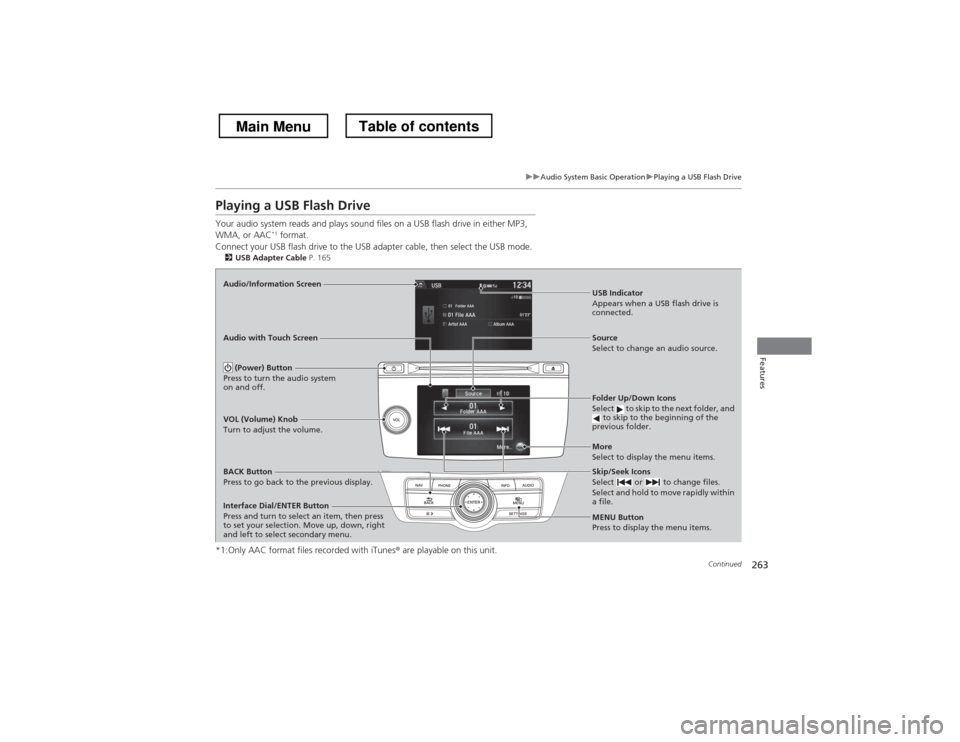
Playing a USB Flash Drive
Your audio system reads and plays sound files on a USB flash drive in either MP3,
WMA, or AAC*1
format.
Connect your USB flash driv e to the USB adapter cable, then select the USB mode.
2 USB Adapter Cable P. 165
*1:Only AAC format files recorded with iTunes ® are playable on this unit.
Audio/Information Screen
BACK Button
Press to go back to the previous display.
More
Select to display the menu items.
Source
Select to change an audio source.
USB Indicator
Appears when a USB flash drive is
connected.
Folder Up/Down Icons
Select to skip to the next folder, and
to skip to the beginning of the
previous folder.
Skip/Seek Icons
Select or to change files.
Select and hold to move rapidly within a file.
(Power) Button
Press to turn the audio system
on and off.
VOL (Volume) Knob
Turn to adjust the volume.
Interface Dial/ENTER Button
Press and turn to select an item, then press
to set your selection. Move up, down, right
and left to select secondary menu.
Audio with Touch Screen
MENU Button
Press to display the menu items.
Main MenuTable of contents
Page 267 of 573
266
uuAudio System Basic OperationuPlaying Bluetooth ® Audio
Features
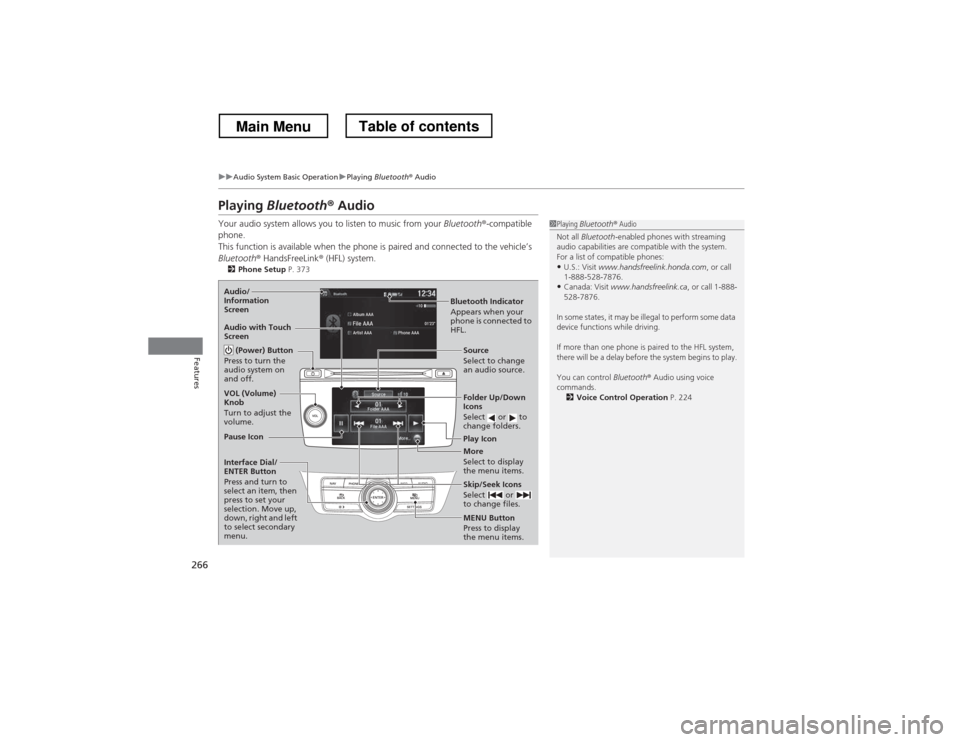
Playing Bluetooth ® Audio
Your audio system allows you to listen to music from your Bluetooth®-compatible
phone.
This function is available when the phone is paired and connected to the vehicle’s
Bluetooth ® HandsFreeLink ® (HFL) system.
2 Phone Setup P. 373
1Playing Bluetooth ® Audio
Not all Bluetooth -enabled phones with streaming
audio capabilities are compatible with the system.
For a list of compatible phones:
• U.S.: Visit www.handsfreelink.honda.com , or call
1-888-528-7876.
• Canada: Visit www.handsfreelink.ca , or call 1-888-
528-7876.
In some states, it may be illegal to perform some data
device functions while driving.
If more than one phone is paired to the HFL system,
there will be a delay before the system begins to play.
You can control Bluetooth® Audio using voice
commands. 2 Voice Control Operation P. 224
Bluetooth Indicator
Appears when your
phone is connected to
HFL.
Audio/
Information Screen
Audio with Touch Screen
Play Icon
Pause Icon
More
Select to display
the menu items.
Source
Select to change
an audio source.
(Power) Button
Press to turn the
audio system on and off.
VOL (Volume) Knob
Turn to adjust the
volume.
Interface Dial/ ENTER Button
Press and turn to
select an item, then
press to set your
selection. Move up,
down, right and left
to select secondary menu.
Skip/Seek Icons
Select or
to change files.
MENU Button Press to display
the menu items.
Folder Up/Down
Icons
Select or to
change folders.
Main MenuTable of contents
Page 289 of 573
288
uuCustomized Features*u
Features
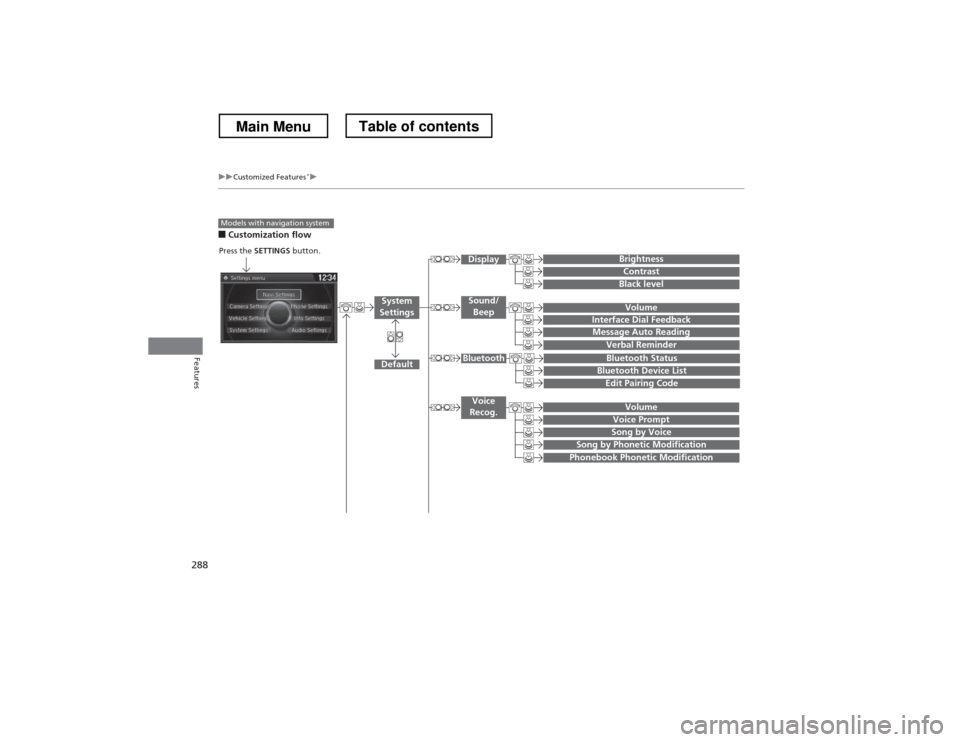
■
Customization flow
Models with navigation system
Song by Voice
Song by Phonetic Modification
Phonebook Phonetic Modification
Press the SETTINGS button.
Volume
Voice Prompt
Message Auto Reading
VolumeInterface Dial Feedback
Verbal Reminder
Brightness
Contrast
Black level
Bluetooth Status
Bluetooth Device List
Edit Pairing Code
Default
Sound/Beep
Display
System
Settings
Bluetooth
Voice
Recog.
Main MenuTable of contents
Page 305 of 573
304
uuCustomized Features*u
Features
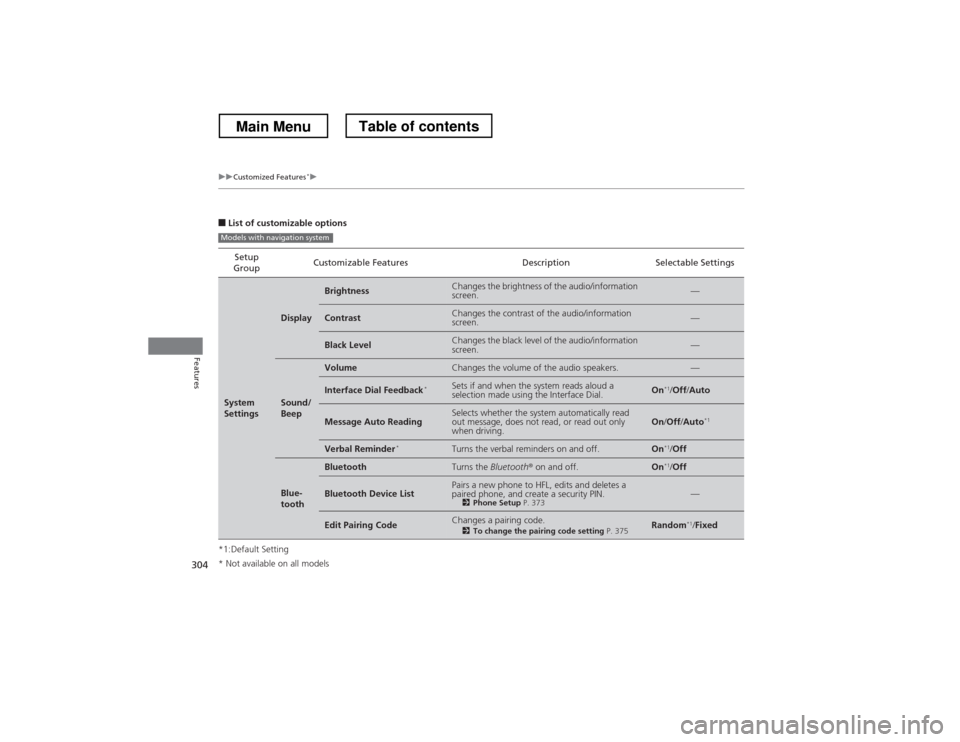
■
List of customizable options
*1:Default Setting Setup
Group Customizable Features Description Selectable Settings
System
Settings
Display
BrightnessChanges the brightness of the audio/information screen.—
ContrastChanges the contrast of the audio/information screen.—
Black LevelChanges the black level of the audio/information screen.—
Sound/
Beep
VolumeChanges the volume of the audio speakers.—
Interface Dial Feedback
*Sets if and when the system reads aloud a
selection made using the Interface Dial.On*1
/Off /Auto
Message Auto ReadingSelects whether the system automatically read
out message, does not read, or read out only
when driving.On /Off /Auto *1
Verbal Reminder *Turns the verbal reminders on and off.On*1
/Off
Blue-
tooth
BluetoothTurns the Bluetooth® on and off.On *1
/Off
Bluetooth Device ListPairs a new phone to HFL, edits and deletes a
paired phone, and create a security PIN.
2Phone Setup P. 373—
Edit Pairing CodeChanges a pairing code.
2To change the pairing code setting P. 375Random*1
/Fixed
Models with navigation system
* Not available on all models
Main MenuTable of contents