display HONDA CROSSTOUR 2015 1.G Workshop Manual
[x] Cancel search | Manufacturer: HONDA, Model Year: 2015, Model line: CROSSTOUR, Model: HONDA CROSSTOUR 2015 1.GPages: 573
Page 211 of 573
210
uuAudio System Basic Operation uPlaying a USB Flash Drive
Features
Playing a USB Flash Drive
Your audio system reads and plays sound fi les on a USB flash drive in either MP3,
WMA or AAC*1 format.
Connect your USB flash drive to the USB ad apter cable, then select the USB mode.
2USB Adapter Cable P. 165
*1:Only AAC format files recorded with iTunes are playable on this unit.
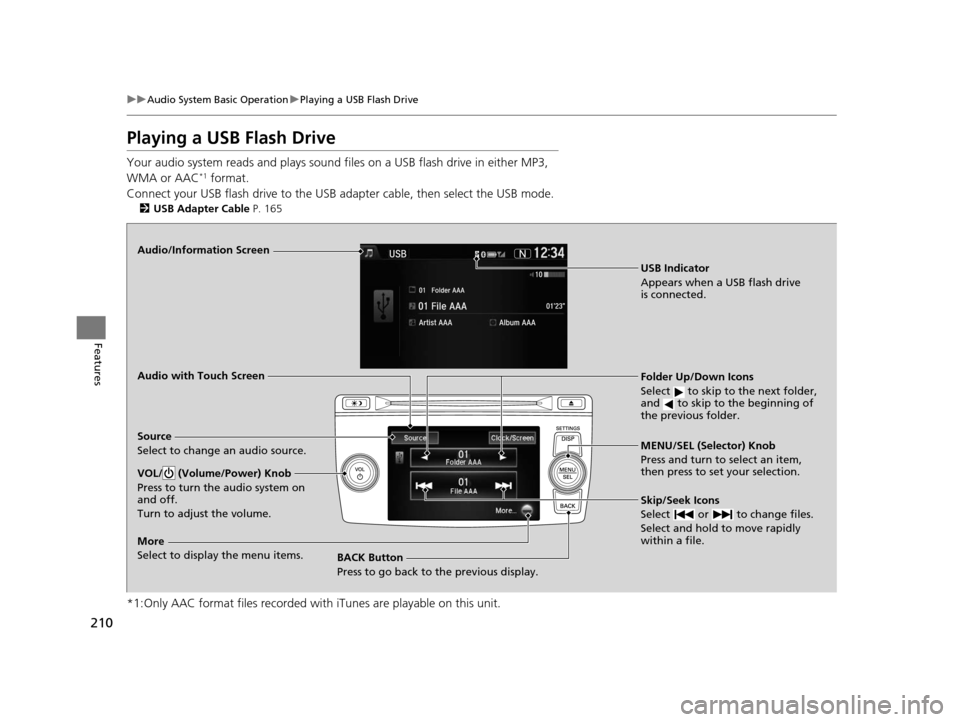
Audio/Information Screen
Audio with Touch Screen
BACK Button
Press to go back to the previous display. MENU/SEL (Selector) Knob
Press and turn to select an item,
then press to set your selection.
VOL/ (Volume/Power) Knob
Press to turn the audio system on
and off.
Turn to adjust the volume.
Skip/Seek Icons
Select or to change files.
Select and hold to move rapidly
within a file.
More
Select to display the menu items.
Source
Select to change an audio source.
USB Indicator
Appears when a USB flash drive
is connected.
Folder Up/Down Icons
Select to skip to the next folder,
and to skip to the beginning of
the previous folder.
15 CROSSTOUR-31TP66500.book 210 ページ 2014年7月31日 木曜日 午後3時23分
Page 212 of 573
Continued211
uuAudio System Basic Operation uPlaying a USB Flash Drive
Features
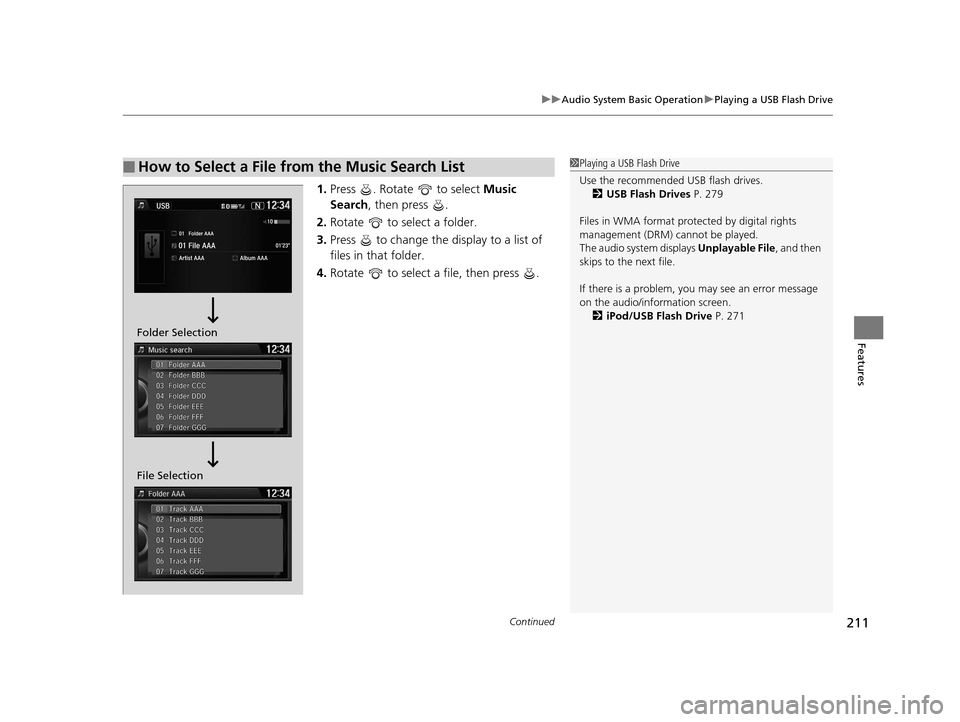
1. Press . Rotate to select Music
Search , then press .
2. Rotate to select a folder.
3. Press to change the display to a list of
files in that folder.
4. Rotate to select a file, then press .
■How to Select a File from the Music Search List1Playing a USB Flash Drive
Use the recommended USB flash drives.
2 USB Flash Drives P. 279
Files in WMA format prot ected by digital rights
management (DRM) cannot be played.
The audio system displays Unplayable File, and then
skips to the next file.
If there is a problem, you may see an error message
on the audio/information screen. 2 iPod/USB Flash Drive P. 271
Folder Selection
File Selection
15 CROSSTOUR-31TP66500.book 211 ページ 2014年7月31日 木曜日 午後3時23分
Page 214 of 573
213
uuAudio System Basic Operation uPlaying Bluetooth ® Audio
Continued
Features
Playing Bluetooth ® Audio
Your audio system allows you to listen to music from your Bluetooth-compatible
phone.
This function is available when the phone is paired an d connected to the vehicle’s
Bluetooth ® HandsFreeLink ® (HFL) system.
2Phone Setup P. 338
1Playing Bluetooth ® Audio
Not all Bluetooth -enabled phones with streaming
audio capabilities are compatible with the system.
For a list of compatible phones:
•U.S.: Visit www.handsfreelink.honda.com , or call
1-888-528-7876.
•Canada: Visit www.handsfreelink.ca , or call 1-888-
528-7876.
In some states, it may be il legal to perform some data
device functions while driving.
If more than one phone is paired to the HFL system,
there will be a delay before the system begins to play.
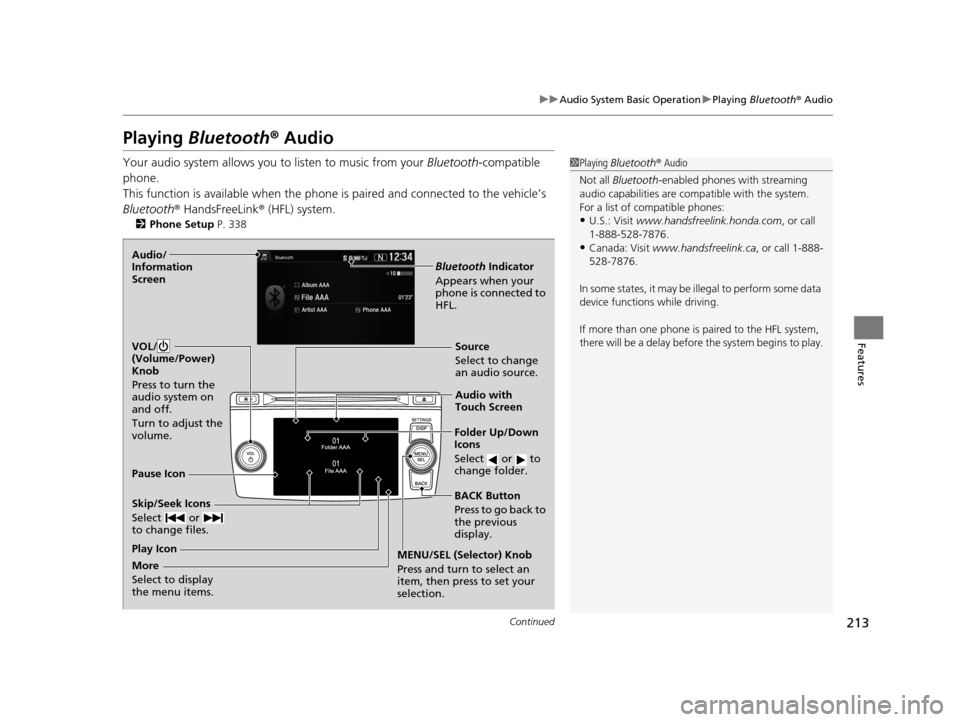
Skip/Seek Icons
Select or
to change files.
Bluetooth Indicator
Appears when your
phone is connected to
HFL.
VOL/
(Volume/Power)
Knob
Press to turn the
audio system on
and off.
Turn to adjust the
volume.Audio/
Information
Screen
Audio with
Touch Screen
BACK Button
Press to go back to
the previous
display.
More
Select to display
the menu items. MENU/SEL (Selector) Knob
Press and turn to select an
item, then press to set your
selection.Source
Select to change
an audio source.
Folder Up/Down
Icons
Select or to
change folder.
Play Icon Pause Icon
15 CROSSTOUR-31TP66500.book 213 ページ 2014年7月31日 木曜日 午後3時23分
Page 216 of 573
215
Features
Audio System Basic Operation
To use the audio system function, the ignition swit ch must be in ACCESSORY (q or
ON
(w*1.
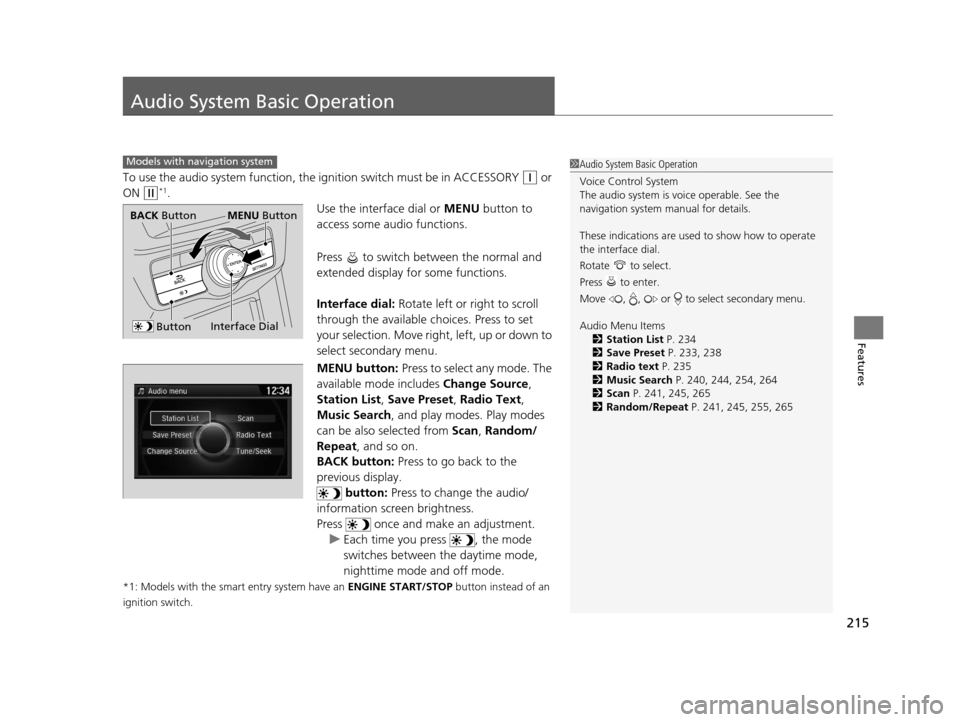
Use the interface dial or MENU button to
access some audio functions.
Press to switch between the normal and
extended display fo r some functions.
Interface dial: Rotate left or right to scroll
through the available ch oices. Press to set
your selection. Move right, left, up or down to
select secondary menu.
MENU button: Press to select any mode. The
available mode includes Change Source,
Station List , Save Preset , Radio Text,
Music Search , and play mode s. Play modes
can be also selected from Scan, Random/
Repeat , and so on.
BACK button: Press to go back to the
previous display. button: Press to change the audio/
information screen brightness.
Press once and make an adjustment.
u Each time you press , the mode
switches between the daytime mode,
nighttime mode and off mode.
*1: Models with the smart entry system have an ENGINE START/STOP button instead of an
ignition switch.
Models with navigation system1 Audio System Basic Operation
Voice Control System
The audio system is voice operable. See the
navigation system manual for details.
These indications are used to show how to operate
the interface dial.
Rotate to select.
Press to enter.
Move , , or to select secondary menu.
Audio Menu Items 2 Station List P. 234
2 Save Preset P. 233, 238
2 Radio text P. 235
2 Music Search P. 240, 244, 254, 264
2 Scan P. 241, 245, 265
2 Random/Repeat P. 241, 245, 255, 265
Interface Dial
MENU ButtonBACK Button
Button
15 CROSSTOUR-31TP66500.book 215 ページ 2014年7月31日 木曜日 午後3時23分
Page 217 of 573
216
uuAudio System Basic Operation uAudio with Touch Screen
Features
Audio with Touch Screen
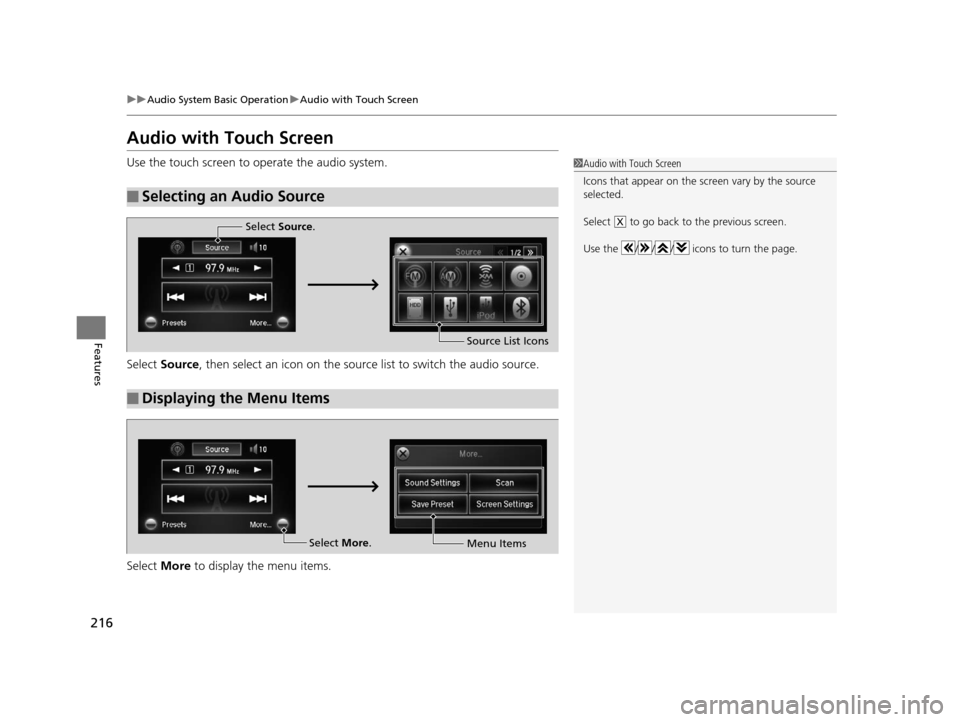
Use the touch screen to operate the audio system.
Select Source , then select an icon on the source list to switch the audio source.
Select More to display the menu items.
■Selecting an Audio Source
1Audio with Touch Screen
Icons that appear on the sc reen vary by the source
selected.
Select to go back to the previous screen.
Use the / / / icons to turn the page.
X
■Displaying the Menu Items
Select Source .
Source List Icons
Select More.
Menu Items
15 CROSSTOUR-31TP66500.book 216 ページ 2014年7月31日 木曜日 午後3時23分
Page 218 of 573
217
uuAudio System Basic Operation uAudio with Touch Screen
Features
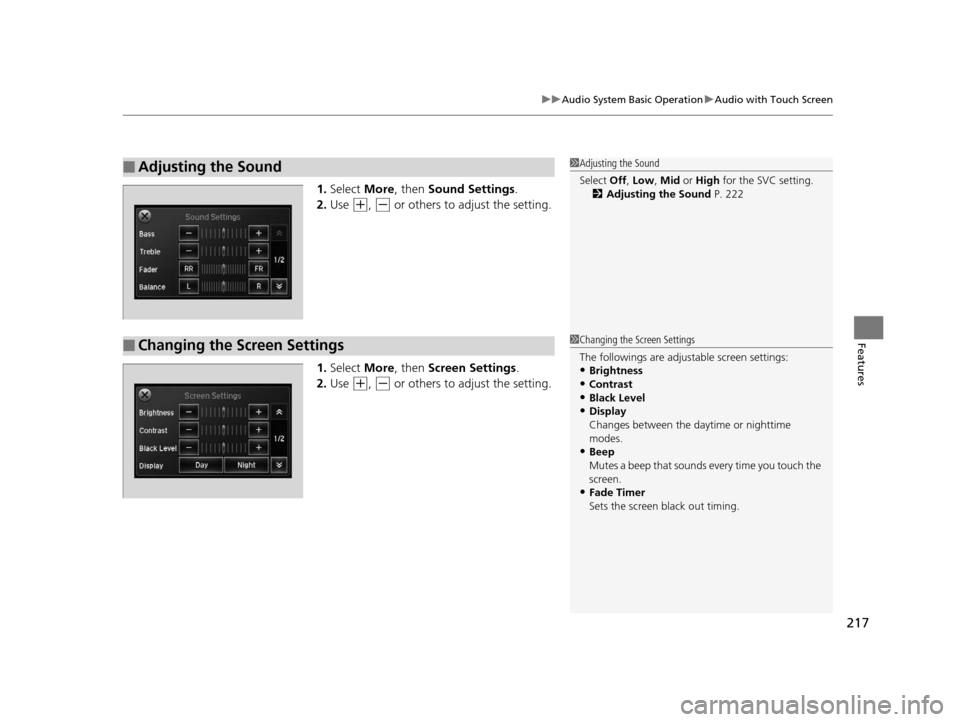
1. Select More, then Sound Settings.
2. Use
(+, (- or others to adjust the setting.
1. Select More, then Screen Settings .
2. Use
(+, (- or others to adjust the setting.
■Adjusting the Sound1Adjusting the Sound
Select Off, Low , Mid or High for the SVC setting.
2 Adjusting the Sound P. 222
■Changing the Screen Settings1Changing the Screen Settings
The followings are adjustable screen settings:
•Brightness
•Contrast
•Black Level•Display
Changes between the da ytime or nighttime
modes.
•Beep
Mutes a beep that sounds every time you touch the
screen.
•Fade Timer
Sets the screen black out timing.
15 CROSSTOUR-31TP66500.book 217 ページ 2014年7月31日 木曜日 午後3時23分
Page 219 of 573
218
uuAudio System Basic Operation uAudio/Information Screen
Features
Audio/Information Screen
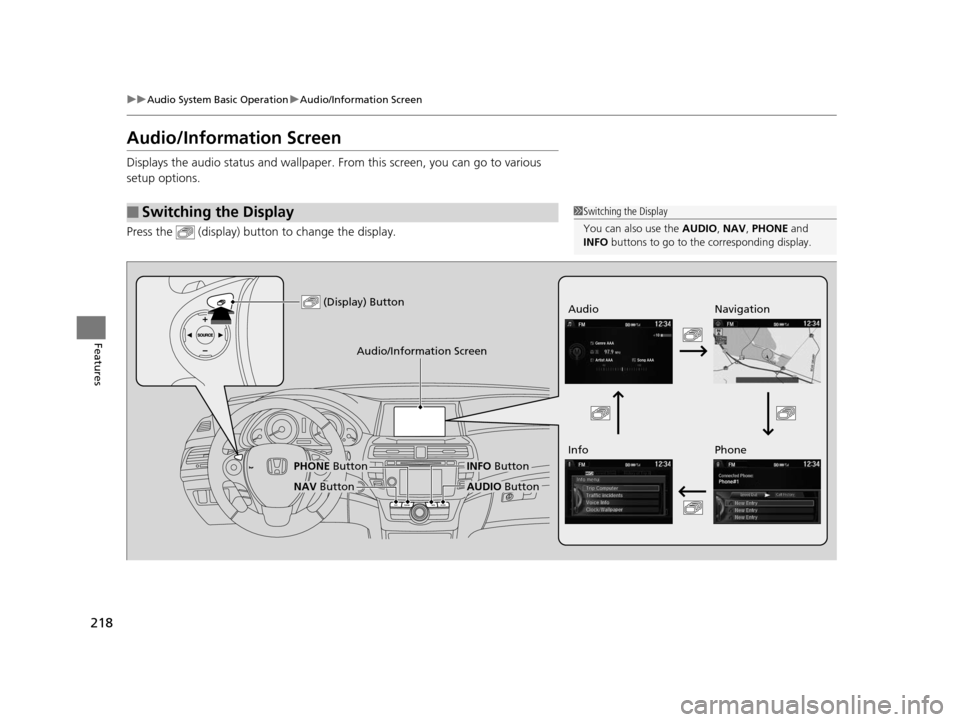
Displays the audio status and wallpaper. From this screen, you can go to various
setup options.
Press the (display) butto n to change the display.
■Switching the Display1Switching the Display
You can also use the AUDIO, NAV, PHONE and
INFO buttons to go to the corresponding display.
(Display) ButtonAudio
Info
Audio/Information Screen
Navigation
Phone
AUDIO ButtonNAV Button
PHONE ButtonINFO Button
15 CROSSTOUR-31TP66500.book 218 ページ 2014年7月31日 木曜日 午後3時23分
Page 220 of 573
219
uuAudio System Basic Operation uAudio/Information Screen
Continued
Features
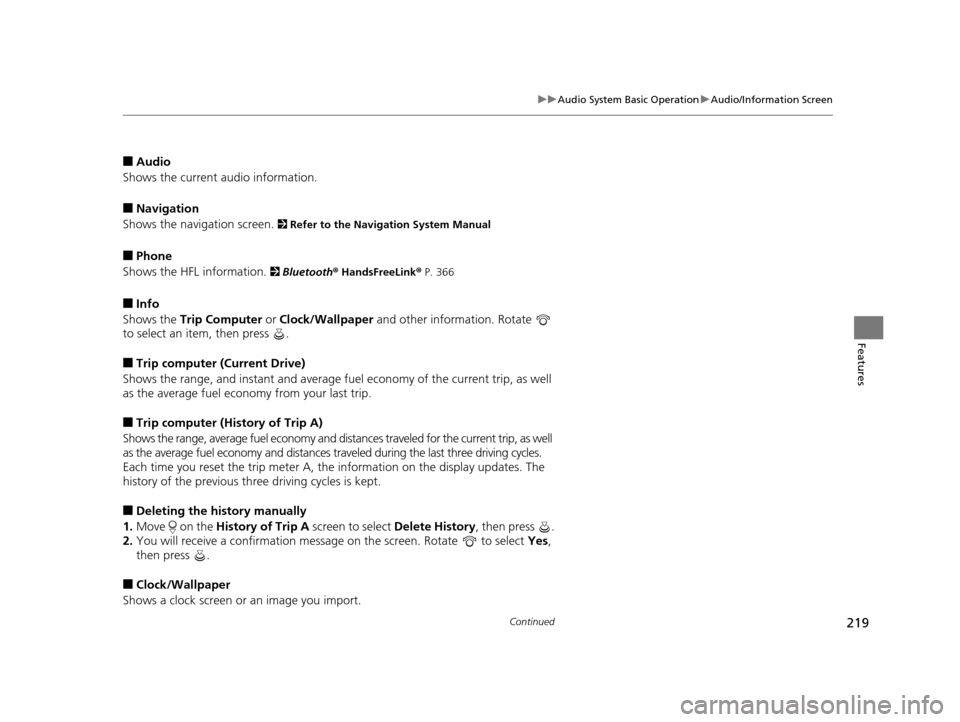
■Audio
Shows the current audio information.
■Navigation
Shows the navigation screen.
2 Refer to the Navigation System Manual
■Phone
Shows the HFL information.
2 Bluetooth ® HandsFreeLink® P. 366
■Info
Shows the Trip Computer or Clock/Wallpaper and other information. Rotate
to select an item, then press .
■Trip computer (Current Drive)
Shows the range, and instant and average fuel economy of the current trip, as well
as the average fuel economy from your last trip.
■Trip computer (History of Trip A)
Shows the range, average fuel economy and dist ances traveled for the current trip, as well
as the average fuel economy and distances traveled during the last three driving cycles.
Each time you reset the trip meter A, th e information on the display updates. The
history of the previous three driving cycles is kept.
■Deleting the history manually
1. Move on the History of Trip A screen to select Delete History , then press .
2. You will receive a confirmation message on the screen. Rotate to select Yes,
then press .
■Clock/Wallpaper
Shows a clock screen or an image you import.
15 CROSSTOUR-31TP66500.book 219 ページ 2014年7月31日 木曜日 午後3時23分
Page 221 of 573
uuAudio System Basic Operation uAudio/Information Screen
220
Features
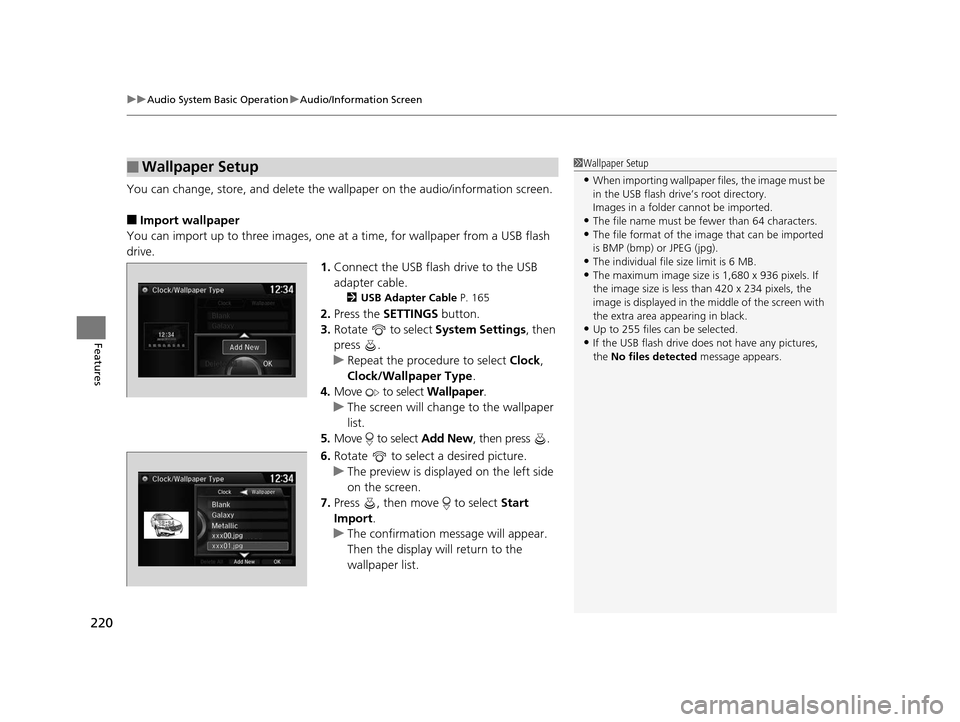
You can change, store, and delete the wa llpaper on the audio/information screen.
■Import wallpaper
You can import up to three images, one at a time, for wallpaper from a USB flash
drive.
1.Connect the USB flash drive to the USB
adapter cable.
2 USB Adapter Cable P. 165
2.Press the SETTINGS button.
3. Rotate to select System Settings, then
press .
u Repeat the procedure to select Clock,
Clock/Wallpaper Type .
4. Move to select Wallpaper.
u The screen will change to the wallpaper
list.
5. Move to select Add New, then press .
6. Rotate to select a desired picture.
u The preview is displayed on the left side
on the screen.
7. Press , then move to select Start
Import .
u The confirmation message will appear.
Then the display will return to the
wallpaper list.
■Wallpaper Setup1Wallpaper Setup
•When importing wallpaper files, the image must be
in the USB flash drive’s root directory.
Images in a folder cannot be imported.
•The file name must be fewer than 64 characters.•The file format of the im age that can be imported
is BMP (bmp) or JPEG (jpg).
•The individual file size limit is 6 MB.•The maximum image size is 1,680 x 936 pixels. If
the image size is less than 420 x 234 pixels, the
image is displayed in the middle of the screen with
the extra area appearing in black.
•Up to 255 files can be selected.
•If the USB flash drive doe s not have any pictures,
the No files detected message appears.
15 CROSSTOUR-31TP66500.book 220 ページ 2014年7月31日 木曜日 午後3時23分
Page 222 of 573
221
uuAudio System Basic Operation uAudio/Information Screen
Features
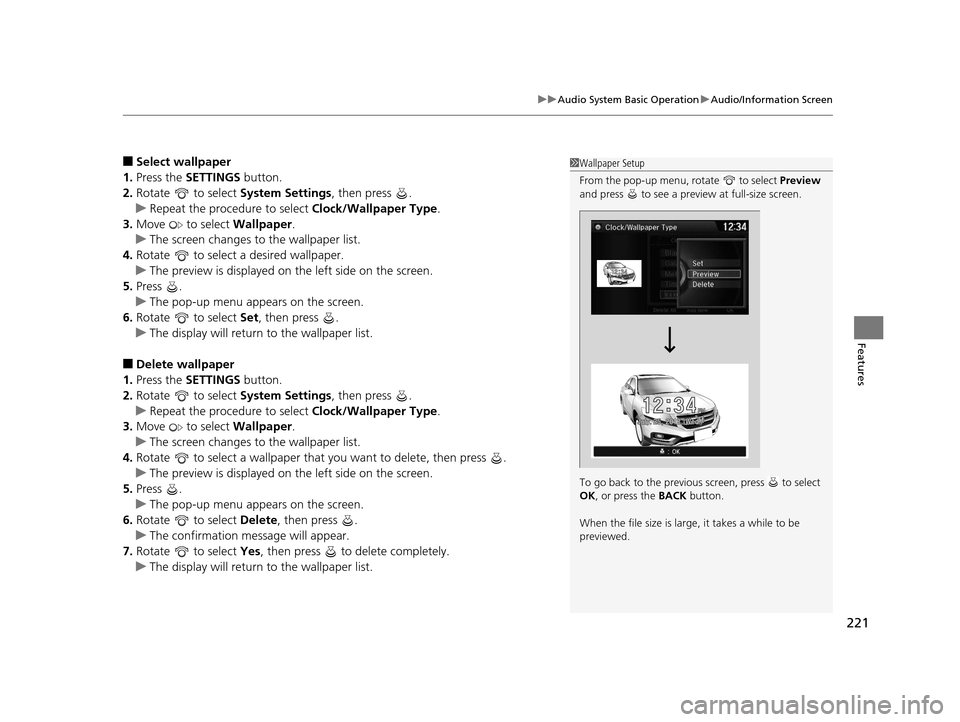
■Select wallpaper
1. Press the SETTINGS button.
2. Rotate to select System Settings, then press .
u Repeat the procedure to select Clock/Wallpaper Type .
3. Move to select Wallpaper.
u The screen changes to the wallpaper list.
4. Rotate to select a desired wallpaper.
u The preview is displayed on the left side on the screen.
5. Press .
u The pop-up menu appears on the screen.
6. Rotate to select Set, then press .
u The display will return to the wallpaper list.
■Delete wallpaper
1. Press the SETTINGS button.
2. Rotate to select System Settings, then press .
u Repeat the procedure to select Clock/Wallpaper Type .
3. Move to select Wallpaper.
u The screen changes to the wallpaper list.
4. Rotate to select a wallpaper that you want to delete, then press .
u The preview is displayed on the left side on the screen.
5. Press .
u The pop-up menu appears on the screen.
6. Rotate to select Delete, then press .
u The confirmation me ssage will appear.
7. Rotate to select Yes, then press to delete completely.
u The display will return to the wallpaper list.
1Wallpaper Setup
From the pop-up menu, rotate to select Preview
and press to see a preview at full-size screen.
To go back to the previous screen, press to select
OK , or press the BACK button.
When the file size is large, it takes a while to be
previewed.
15 CROSSTOUR-31TP66500.book 221 ページ 2014年7月31日 木曜日 午後3時23分