audio HONDA FIT 2010 2.G Workshop Manual
[x] Cancel search | Manufacturer: HONDA, Model Year: 2010, Model line: FIT, Model: HONDA FIT 2010 2.GPages: 351, PDF Size: 5.67 MB
Page 194 of 351
–Bit rate:
32/40/48/56/64/80/96/112/128/
160/192/224/256/320/VBR kbps(MPEG1)
8/16/24/32/40/48/56/64/80/96/
112/128/144/160/VBR kbps(MPEG2)
– Supported standards:
MPEG1 Audio Layer3
MPEG2 Audio LSF Layer3
– Partition:
Top partition only
– Maximum layers: 8
The specifications for compatible
WMA files are: – Sampling frequency:
32/44.1/48 kHz
– Bit rate:48 -320/VBR kbps (Max 384)
– Supported standards:
WMA version 7/8/9 –
Partition:
Top partition only
– Maximum layers: 8
The specifications for compatible
AAC files are: – Sampling frequency:
8/11.025/12/16/22.05/24/32/
44.1/48 kHz
– Bit rate:8- 320 kbps
– Supported standards:
MPEG4/AAC LC
MPEG2/AAC LC
– Partition:
Top partition only
– Maximum layers: 8
Even if recorded in MP3, WMA or
AAC format, a file with unsupported
version cannot be played. If the
system finds it, the audio unit
displays UNSUPPORTED, and then
skips to the next file. In WMA or AAC format, DRM
(digital rights management) files
cannot be played. If the system finds
a DRM file, the audio unit displays
UNPLAYABLE FILE, and then skips
to the next file.
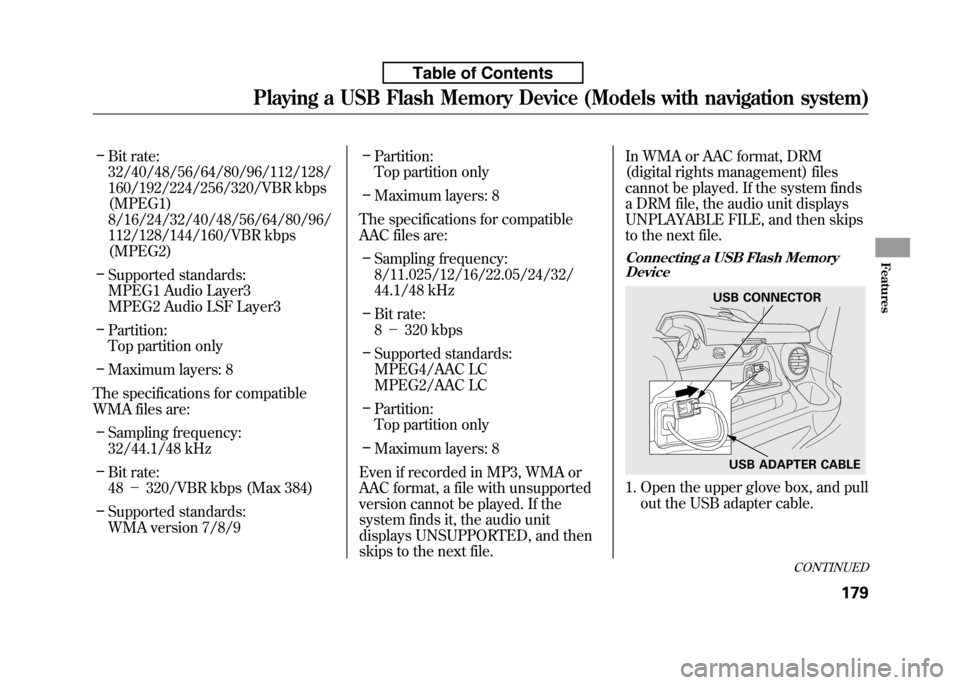
Connecting a USB Flash Memory
Device
1. Open the upper glove box, and pull
out the USB adapter cable.
USB CONNECTOR
USB ADAPTER CABLE
CONTINUED
Playing a USB Flash Memory Device (Models with navigation system)
179
Features
Table of Contents
Page 195 of 351
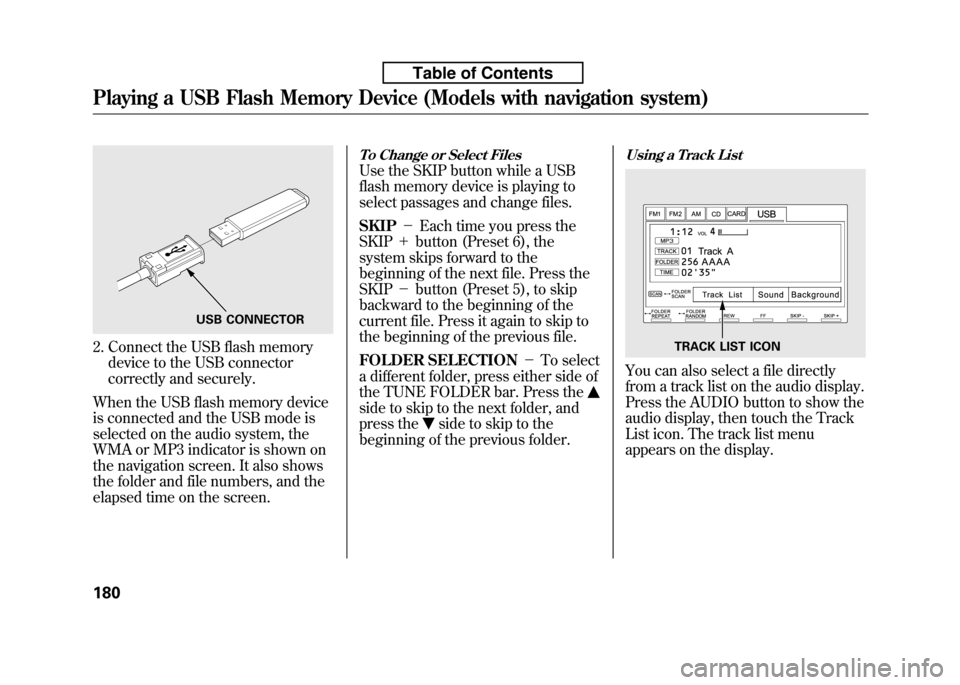
2. Connect the USB flash memorydevice to the USB connector
correctly and securely.
When the USB flash memory device
is connected and the USB mode is
selected on the audio system, the
WMA or MP3 indicator is shown on
the navigation screen. It also shows
the folder and file numbers, and the
elapsed time on the screen.
To Change or Select Files
Use the SKIP button while a USB
flash memory device is playing to
select passages and change files. SKIP -Each time you press the
SKIP +button (Preset 6), the
system skips forward to the
beginning of the next file. Press theSKIP -button (Preset 5), to skip
backward to the beginning of the
current file. Press it again to skip to
the beginning of the previous file.
FOLDER SELECTION -To select
a different folder, press either side of
the TUNE FOLDER bar. Press the
side to skip to the next folder, and
press the
side to skip to the
beginning of the previous folder.
Using a Track List
You can also select a file directly
from a track list on the audio display.
Press the AUDIO button to show the
audio display, then touch the Track
List icon. The track list menu
appears on the display.
USB CONNECTOR
TRACK LIST ICON
Playing a USB Flash Memory Device (Models with navigation system)
180
Table of Contents
Page 197 of 351

FOLDER SCAN-This feature
samples the first file in each folder in
the order they are stored. To activate
the folder scan feature, press and
hold the SCAN button. You will see‘‘ FOLDER SCAN ’’in the display. You
will also see the folder number
blinking. You will get a 10 second
sampling of each first file in the
folder(s). Press the SCAN button to
get out of the scan mode. The system
plays the last file sampled. To Stop Playing a USB Flash
Memory Device
To play the radio when a USB flash
memory device is playing, press the
FM/AM button or touch the FM1,
FM2, or AM icon. If a disc is in the
audio unit, press the CD/AUX button
or touch the CD icon to play the disc.
If a PC card is in the audio unit, press
the CD/AUX button or touch the
CARD icon to play a PC card.
Press the CD/AUX button again or
touch the AUX icon to switch back to
the USB flash memory device.Disconnecting a USB Flash Memory
Device
You can disconnect the USB flash
memory device in any time even if
the USB mode is selected on the
audio system. Always follow the USB
flash memory device's instructions
when you remove it.
When you disconnect the USB flash
memory device while it is playing,
the navigation screen shows ‘‘NO
DATA. ’’
If you reconnect the same USB flash
memory device, the system will
begin playing where it left off.
USB Flash Memory Device Error Messages
If you see an error message on the
screen, see page 183.
Playing a USB Flash Memory Device (Models with navigation system)
182
Table of Contents
Page 201 of 351
General Information● When using CD-R or CD-RW
discs, use only high quality discs
labeled for audio use.
● When recording a CD-R or
CD-RW, the recording must be
closed for it to be used by thesystem.
● Play only standard round discs.
Odd-shaped discs may jam in the
drive or cause other problems.
● Handle your discs properly to
prevent damage and skipping.
Do not use discs with adhesive labels.
The label can curl up and cause the
disc to jam in the unit. Protecting Discs
When a disc is not being played,
store it in its case to protect it from
dust and other contamination. To
prevent warpage, keep discs out of
direct sunlight and extreme heat.
To clean a disc, use a clean soft cloth.
Wipe across the disc from the center
to the outside edge.
A new disc may be rough on the
inner and outer edges. The small
plastic pieces causing this roughness
can flake off and fall on the recording
surface of the disc, causing skipping
or other problems. Remove these
pieces by rubbing the inner and
outer edges with the side of a pencil
or pen.
Never try to insert foreign objects in
the disc player.
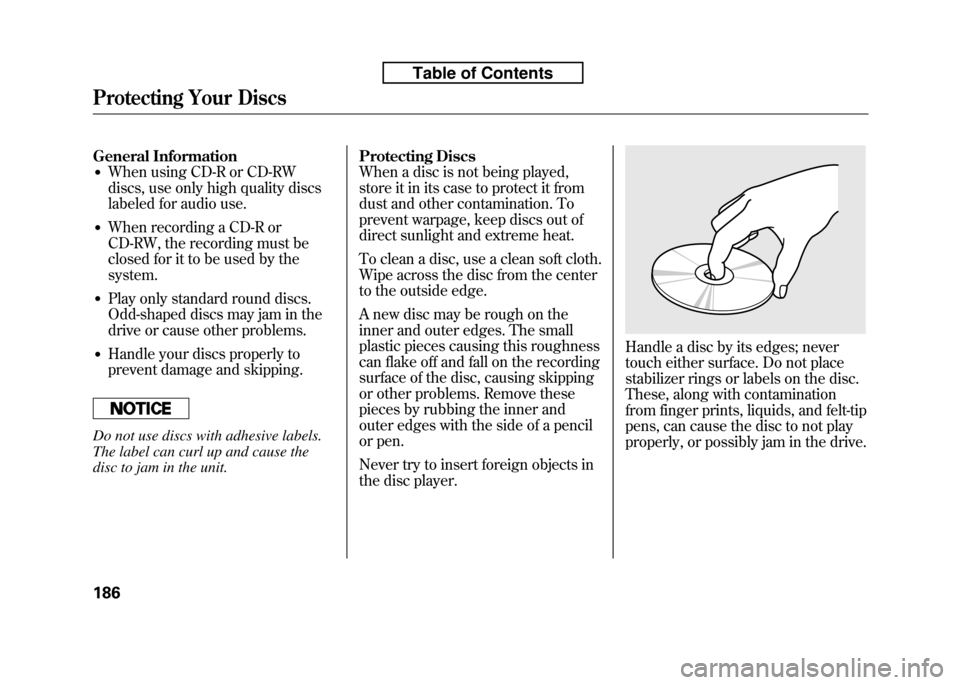
Handle a disc by its edges; never
touch either surface. Do not place
stabilizer rings or labels on the disc.
These, along with contamination
from finger prints, liquids, and felt-tip
pens, can cause the disc to not play
properly, or possibly jam in the drive.
Protecting Your Discs
186
Table of Contents
Page 202 of 351
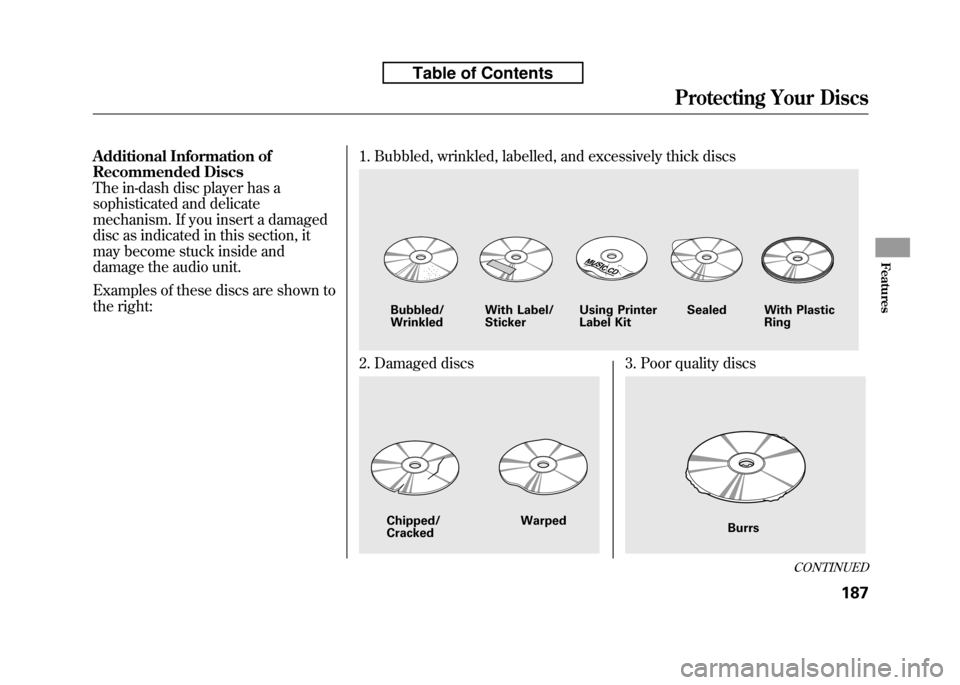
Additional Information of
Recommended Discs
The in-dash disc player has a
sophisticated and delicate
mechanism. If you insert a damaged
disc as indicated in this section, it
may become stuck inside and
damage the audio unit.
Examples of these discs are shown to
the right:1. Bubbled, wrinkled, labelled, and excessively thick discs
2. Damaged discs3. Poor quality discs
Bubbled/ Wrinkled
With Label/StickerUsing Printer
Label Kit Sealed With Plastic
Ring
Chipped/ Cracked WarpedBurrs
CONTINUED
Protecting Your Discs
187
Features
Table of Contents
Page 203 of 351
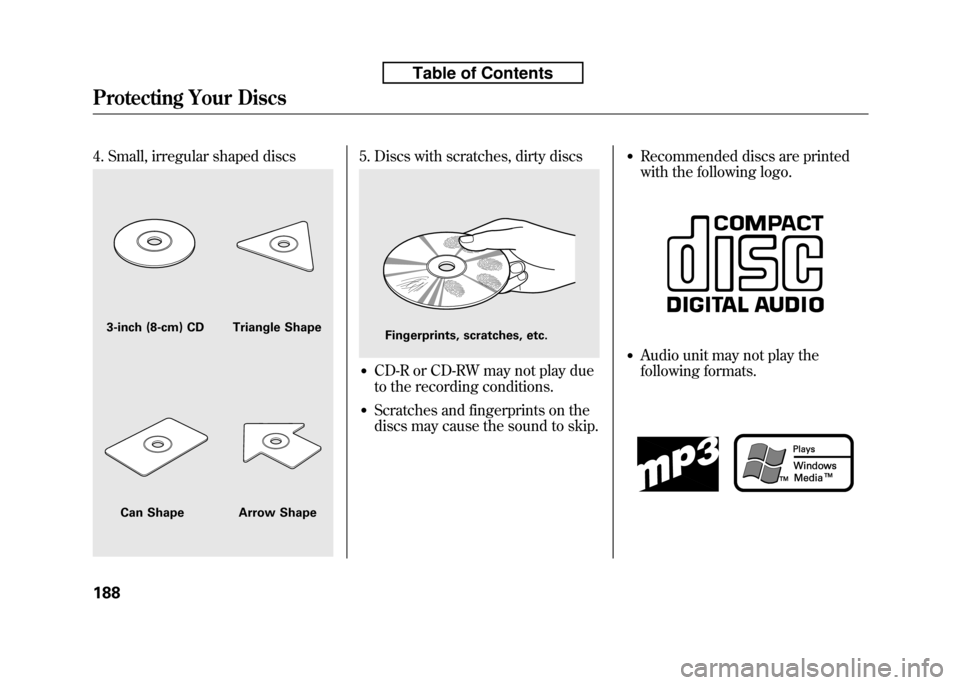
4. Small, irregular shaped discs5. Discs with scratches, dirty discs
●CD-R or CD-RW may not play due
to the recording conditions.
● Scratches and fingerprints on the
discs may cause the sound to skip. ●
Recommended discs are printed
with the following logo.
● Audio unit may not play the
following formats.
3-inch (8-cm) CD Triangle Shape
Can Shape Arrow ShapeFingerprints, scratches, etc.
Protecting Your Discs
188
Table of Contents
Page 204 of 351
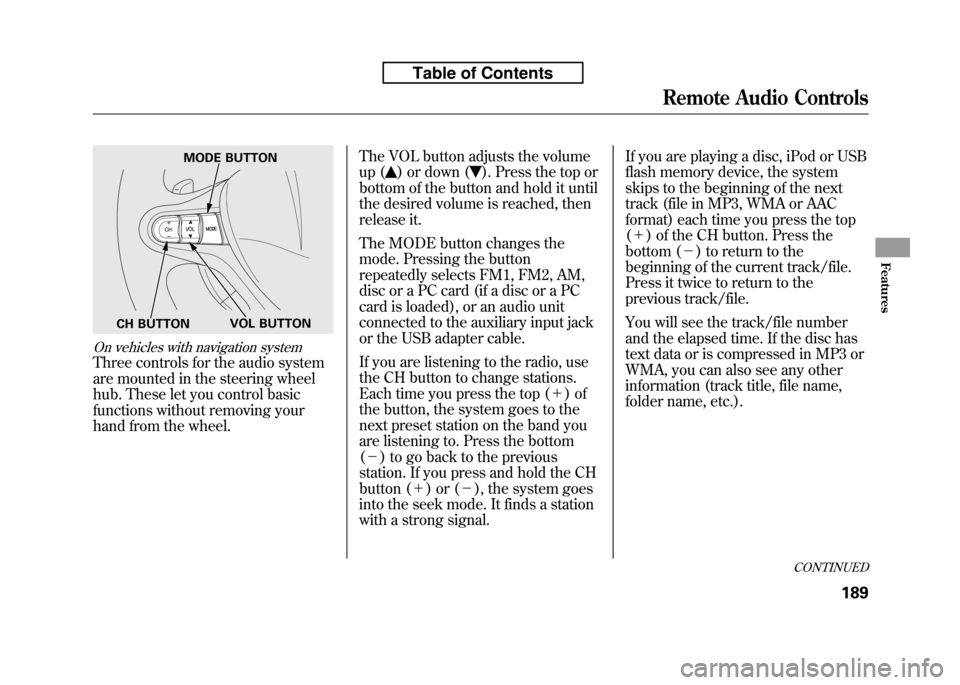
On vehicles with navigation system
Three controls for the audio system
are mounted in the steering wheel
hub. These let you control basic
functions without removing your
hand from the wheel.The VOL button adjusts the volume
up (
) or down (). Press the top or
bottom of the button and hold it until
the desired volume is reached, then
release it.
The MODE button changes the
mode. Pressing the button
repeatedly selects FM1, FM2, AM,
disc or a PC card (if a disc or a PC
card is loaded), or an audio unit
connected to the auxiliary input jack
or the USB adapter cable.
If you are listening to the radio, use
the CH button to change stations.
Each time you press the top ( +)of
the button, the system goes to the
next preset station on the band you
are listening to. Press the bottom( - ) to go back to the previous
station. If you press and hold the CH
button ( +)or( -), the system goes
into the seek mode. It finds a station
with a strong signal. If you are playing a disc, iPod or USB
flash memory device, the system
skips to the beginning of the next
track (file in MP3, WMA or AAC
format) each time you press the top(
+ ) of the CH button. Press the
bottom ( -) to return to the
beginning of the current track/file.
Press it twice to return to the
previous track/file.
You will see the track/file number
and the elapsed time. If the disc has
text data or is compressed in MP3 or
WMA, you can also see any other
information (track title, file name,
folder name, etc.).
MODE BUTTON
VOL BUTTON
CH BUTTON
CONTINUED
Remote Audio Controls
189
Features
Table of Contents
Page 205 of 351
In MP3 or WMA mode, you can use
the skip function to select folders.
Press and hold the top (+) of the CH
button until you hear a beep, to skip
forward to the first file of the next
folder. Press the bottom ( -) to skip
backward to the previous folder.
If you are playing a PC card, press
the top ( +) of the CH button to
advance to the next file. Press the
bottom ( -) to go back to the
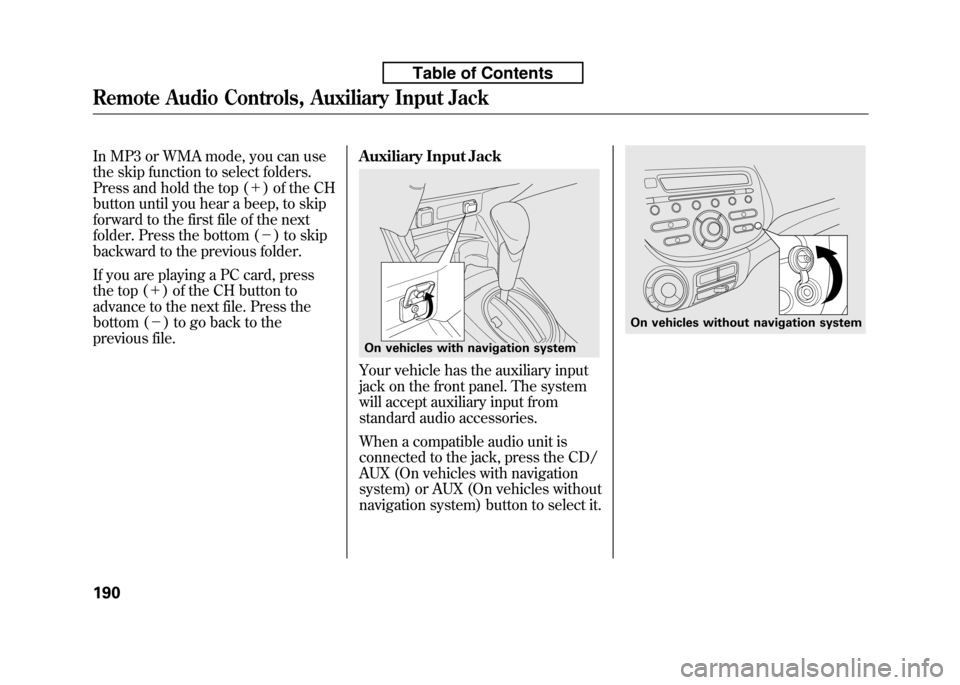
previous file. Auxiliary Input Jack
Your vehicle has the auxiliary input
jack on the front panel. The system
will accept auxiliary input from
standard audio accessories.
When a compatible audio unit is
connected to the jack, press the CD/
AUX (On vehicles with navigation
system) or AUX (On vehicles without
navigation system) button to select it.
On vehicles with navigation system
On vehicles without navigation system
Remote Audio Controls, Auxiliary Input Jack
190
Table of Contents
Page 206 of 351

Your vehicle's audio system will
disable itself if it is disconnected
from electrical power for any reason.
To make it work again, you must
enter a specific digit code using the
preset buttons. Because there are
hundreds of number combinations
possible from specific digits, making
the system work without knowing
the exact code is nearly impossible.
You should have received a card that
lists your audio system's code and
serial numbers. It is best to store this
card in a safe place at home. In
addition, you should write the audio
system's serial number in this
owner's manual.
If you lose the card, you must obtain
the code number from a dealer. To
do this, you will need the system's
serial number.If your vehicle's battery is
disconnected or goes dead, or the
radio fuse is removed, the audio
system will disable itself. If this
happens, you will see
‘‘ENTER
CODE ’’in the frequency display the
next time you turn on the system.
Use the preset buttons to enter the
code. On vehicles with navigation
system, touch the Done icon to set
the code. The code is on the radio
code card included in your owner's
manual kit. When it is entered
correctly, the radio will start playing.
If you make a mistake entering the
code, do not start over; complete the
sequence, then enter the correct
code. You have 10 tries to enter the
correct code. If you are unsuccessful
in 10 attempts, you must then leave
the system on for 1 hour before
trying again.
Radio Theft Protection
191
Features
Table of Contents
Page 208 of 351
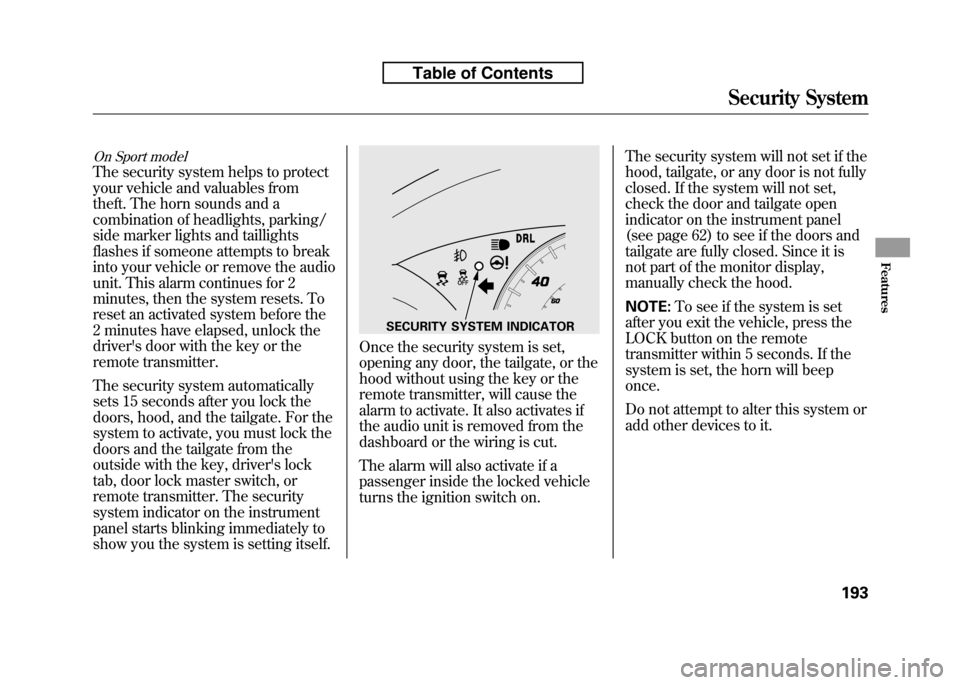
On Sport model
The security system helps to protect
your vehicle and valuables from
theft. The horn sounds and a
combination of headlights, parking/
side marker lights and taillights
flashes if someone attempts to break
into your vehicle or remove the audio
unit. This alarm continues for 2
minutes, then the system resets. To
reset an activated system before the
2 minutes have elapsed, unlock the
driver's door with the key or the
remote transmitter.
The security system automatically
sets 15 seconds after you lock the
doors, hood, and the tailgate. For the
system to activate, you must lock the
doors and the tailgate from the
outside with the key, driver's lock
tab, door lock master switch, or
remote transmitter. The security
system indicator on the instrument
panel starts blinking immediately to
show you the system is setting itself.
Once the security system is set,
opening any door, the tailgate, or the
hood without using the key or the
remote transmitter, will cause the
alarm to activate. It also activates if
the audio unit is removed from the
dashboard or the wiring is cut.
The alarm will also activate if a
passenger inside the locked vehicle
turns the ignition switch on.The security system will not set if the
hood, tailgate, or any door is not fully
closed. If the system will not set,
check the door and tailgate open
indicator on the instrument panel
(see page 62) to see if the doors and
tailgate are fully closed. Since it is
not part of the monitor display,
manually check the hood. NOTE:
To see if the system is set
after you exit the vehicle, press the
LOCK button on the remote
transmitter within 5 seconds. If the
system is set, the horn will beeponce.
Do not attempt to alter this system or
add other devices to it.
SECURITY SYSTEM INDICATOR
Security System
193
Features
Table of Contents