change time HONDA FIT 2020 (in English) User Guide
[x] Cancel search | Manufacturer: HONDA, Model Year: 2020, Model line: FIT, Model: HONDA FIT 2020Pages: 599, PDF Size: 41.91 MB
Page 151 of 599
Continued149
uuSecurity System uSecurity System Alarm
Controls
■To deactivate the security system alarm
Unlock the vehicle using the key, remote transmitter, smart entry system*, or turn
the ignition switch to ON
(w*1. The system, along with the horn and flashing lights,
is deactivated.
■Setting the security system alarm
The security system alarm automatically sets when the following conditions have
been met:
• The ignition switch is in LOCK
(0*1.
• The hood is closed.
• All doors and the tailgate are locked from outside with the key, remote
transmitter, or smart entry system
*.
• The key has been removed from the ignition switch.
■When the security system alarm sets
The security system alarm in dicator in the instrument panel blinks and the blinking
interval changes after about 15 seconds.
■To cancel the security system alarm
The security system alarm is canceled wh en the vehicle is unlocked using the key,
remote transmitter, smart entry system
*, or when the ignition switch is turned to ON
(w*1. The security system alarm indica tor goes off at the same time.
*1 : Models with the smart entry system have an ENGINE START/STOP button instead of an ignition switch.
1Security System Alarm
Do not set the security system alarm when someone
is in the vehicle or a window is open. The system can
accidentally activate when:
•Unlocking the door with the lock tab.•Opening the hood with the hood release handle.
•Taking the transmission out of ( P.
If the battery goes dead after you have set the
security system alarm, the security alarm may go off
once the battery is re charged or replaced.
If this occurs, deactivate the security system alarm by
unlocking a door using the ke y, remote transmitter,
or smart entry system
*.
Continuously variable transmission models
Models without keyless access system
* Not available on all models
20 FIT-31T5A6500.book 149 ページ 2019年9月26日 木曜日 午後4時41分
Page 158 of 599
uuOperating the Switches Around the Steering Wheel uENGINE START/STOP Button
156
Controls
If you leave the vehicle for 30 to 60 minutes with the transmission in (P*1 and the
power mode in ACCESSORY, the vehicle automa tically goes into the mode similar to
VEHICLE OFF (LOCK) to avoid draining the battery.
When in this mode:
The steering wheel does not lock.
You cannot lock or unlock doors with th e remote transmitter or the smart entry
system.
Press the ENGINE START/STOP button three times to swit ch the mode to VEHICLE
OFF (LOCK).
*1 : Continuously variable transmission models
■Automatic Power Off1 ENGINE START/STOP Button
Do not leave the power mode in ACCESSORY or ON
when you get out.
If the power mode does not change from VEHICLE
OFF to ACCESSORY, press the ENGINE START/STOP
button while moving the st eering wheel left and
right. The steering wheel will unlock, allowing the
mode to change.
Except U.S. models with cont inuously variable transmission
Except U.S. models with continuously variable transmission
20 FIT-31T5A6500.book 156 ページ 2019年9月26日 木曜日 午後4時41分
Page 161 of 599
159
uuOperating the Switches Around the Steering Wheel uTurn Signals
Controls
Turn Signals
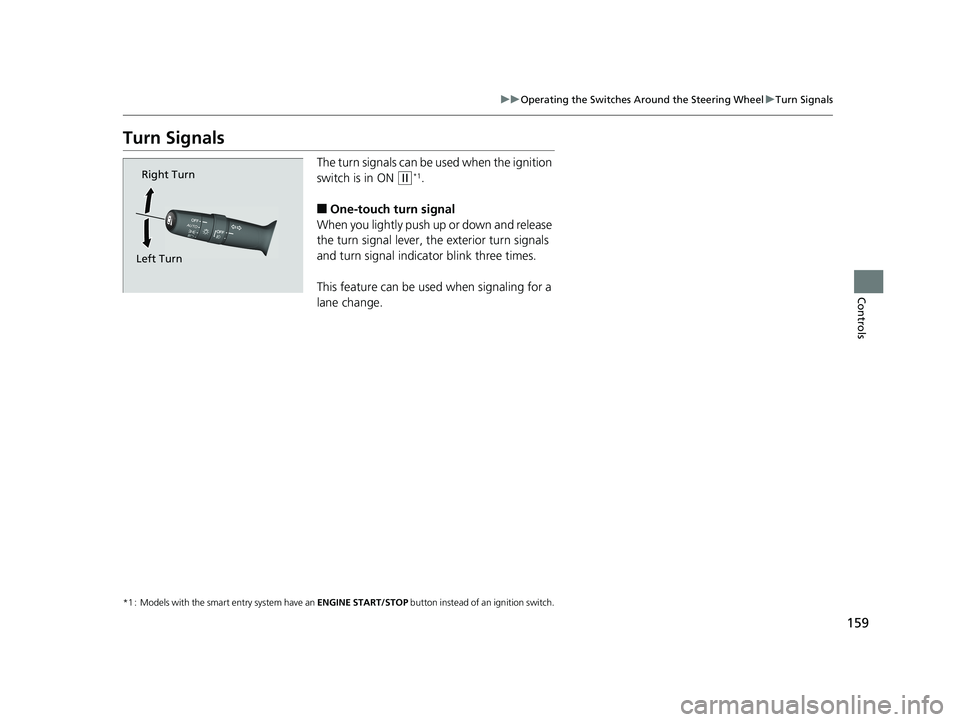
The turn signals can be used when the ignition
switch is in ON
(w*1.
■One-touch turn signal
When you lightly push up or down and release
the turn signal lever, th e exterior turn signals
and turn signal indicator blink three times.
This feature can be used when signaling for a
lane change.
*1 : Models with the smart entry system have an ENGINE START/STOP button instead of an ignition switch.
Right Turn
Left Turn
20 FIT-31T5A6500.book 159 ページ 2019年9月26日 木曜日 午後4時41分
Page 164 of 599
uuOperating the Switches Around the Steering Wheel uLight Switches
162
Controls
The headlights automatically co me on when the wipers are used several times within
a certain number of intervals wi th the headlight switch in AUTO.
The headlights automatically go off a few minutes later if the wipers are stopped.
The headlights, all other exterior lights, an d the instrument panel lights turn off 15
seconds after you remove the key or set the power mode to VEHICLE OFF (LOCK),
take the remote with you, and close the driver's door.
If you turn the igniti on switch to LOCK
(0*1 with the headlight switch on, but do
not open the door, the lights turn off after 10 minutes (3 minutes, if the switch is in
the AUTO position).
The lights turn on again when you unlock or open the driver's door. If you unlock
the door, but do not open it within 15 seconds, the lights go off. If you open the
driver's door, you will hear a lights on reminder chime.
*1 : Models with the smart entry system have an ENGINE START/STOP button instead of an ignition switch.
■Headlight Integration with Wipers*
■Automatic Lighting Off Feature
1Headlight Integration with Wipers*
This feature activates while the headlights are off in
AUTO .
The instrument panel br ightness does not change
when the headlights come on.
At dark ambient light leve ls, the automatic lighting
control feature turns on the headlights, regardless of
the number of wiper sweeps.
* Not available on all models
20 FIT-31T5A6500.book 162 ページ 2019年9月26日 木曜日 午後4時41分
Page 170 of 599
168
uuOperating the Switches Around the Steering Wheel uWipers and Washers
Controls
Wipers and Washers
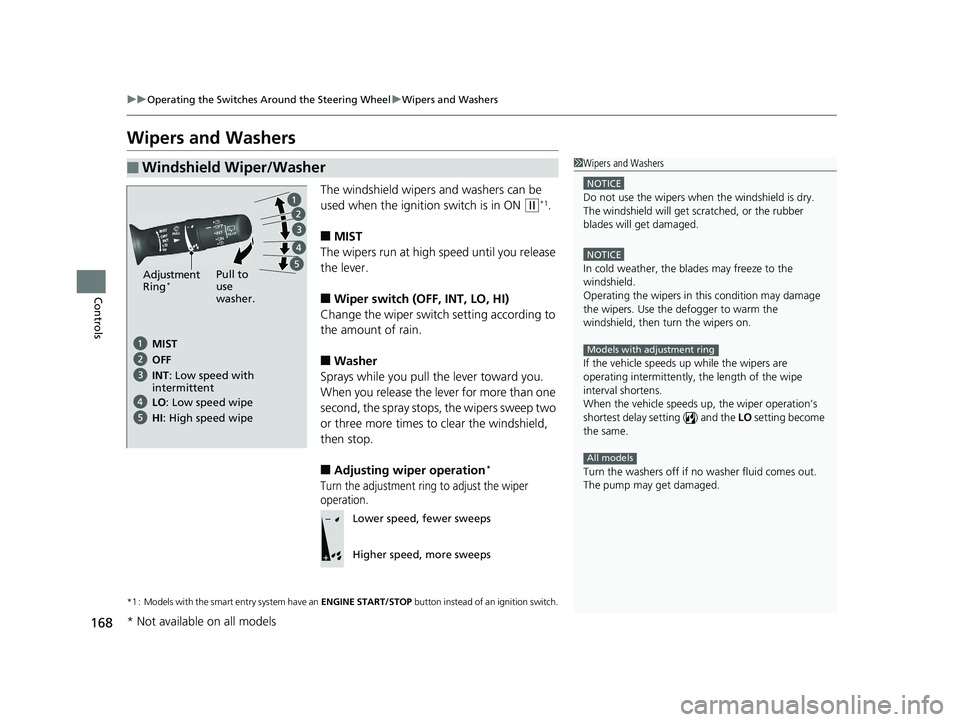
The windshield wipers and washers can be
used when the ignition switch is in ON
(w*1.
■MIST
The wipers run at high speed until you release
the lever.
■Wiper switch (OFF, INT, LO, HI)
Change the wiper switch setting according to
the amount of rain.
■Washer
Sprays while you pull the lever toward you.
When you release the lever for more than one
second, the spray stops, the wipers sweep two
or three more times to clear the windshield,
then stop.
■Adjusting wiper operation*
Turn the adjustment ring to adjust the wiper
operation.
*1 : Models with the smart entry system have an ENGINE START/STOP button instead of an ignition switch.
■Windshield Wiper/Washer1Wipers and Washers
NOTICE
Do not use the wipers when the windshield is dry.
The windshield will get sc ratched, or the rubber
blades will get damaged.
NOTICE
In cold weather, the blades may freeze to the
windshield.
Operating the wipers in th is condition may damage
the wipers. Use the defogger to warm the
windshield, then turn the wipers on.
If the vehicle speeds up while the wipers are
operating intermittently, the length of the wipe
interval shortens.
When the vehicle speeds up, the wiper operation’s
shortest delay se tting ( ) and the LO setting become
the same.
Turn the washers off if no washer fluid comes out.
The pump may get damaged.
Models with adjustment ring
All models
Pull to
use
washer.
MIST
INT: Low speed with
intermittent OFF
LO : Low speed wipe
HI: High speed wipe
Adjustment
Ring*
Lower speed, fewer sweeps
Higher speed, more sweeps
* Not available on all models
20 FIT-31T5A6500.book 168 ページ 2019年9月26日 木曜日 午後4時41分
Page 214 of 599
212
Features
Audio System Basic Operation
To use the audio system, the ignition switch must be in ACCESSORY (q or ON (w.
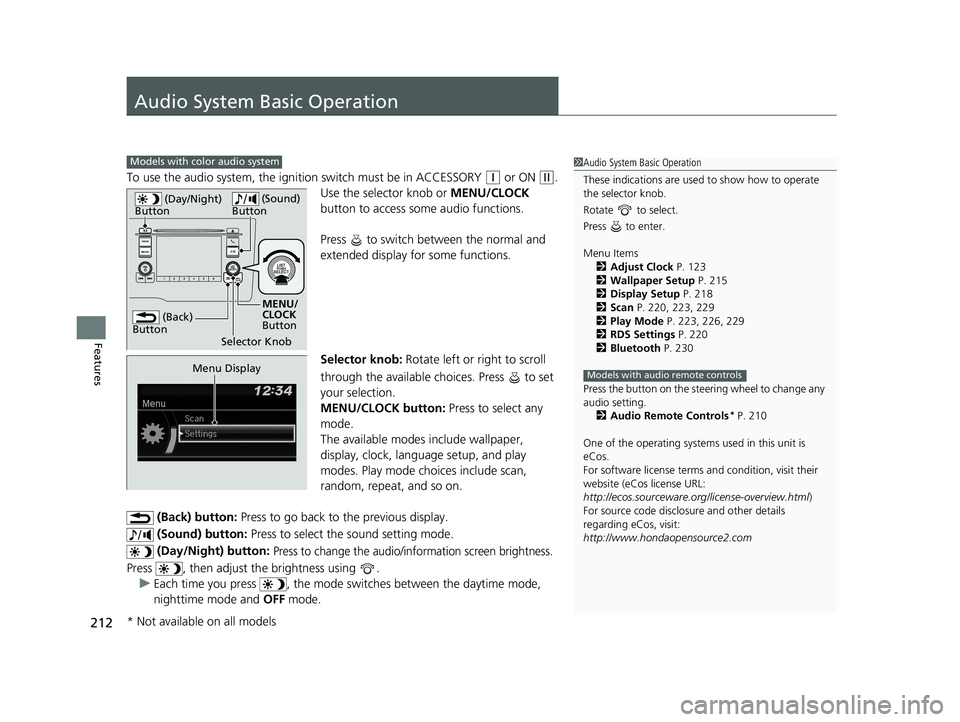
Use the selector knob or MENU/CLOCK
button to access some audio functions.
Press to switch between the normal and
extended display fo r some functions.
Selector knob: Rotate left or right to scroll
through the available choices. Press to set
your selection.
MENU/CLOCK button: Press to select any
mode.
The available modes include wallpaper,
display, clock, langu age setup, and play
modes. Play mode choices include scan,
random, repeat, and so on.
(Back) button: Press to go back to the previous display.
(Sound) button: Press to select the sound setting mode.
(Day/Night) button:
Press to change the audio/information screen brightness.
Press , then adjust th e brightness using .
u Each time you press , the mode switches between the daytime mode,
nighttime mode and OFF mode.
Models with color audio system1Audio System Basic Operation
These indications are used to show how to operate
the selector knob.
Rotate to select.
Press to enter.
Menu Items 2 Adjust Clock P. 123
2 Wallpaper Setup P. 215
2 Display Setup P. 218
2 Scan P. 220, 223, 229
2 Play Mode P. 223, 226, 229
2 RDS Settings P. 220
2 Bluetooth P. 230
Press the button on the stee ring wheel to change any
audio setting. 2 Audio Remote Controls
* P. 210
One of the operating system s used in this unit is
eCos.
For software license terms and condition, visit their
website (eCos license URL:
http://ecos.sourceware.org/license-overview.html )
For source code disclo sure and other details
regarding eCos, visit:
http://www.hondaopensource2.com
Models with audio remote controls
(Back)
Button
Selector Knob MENU/
CLOCK
Button
(Day/Night)
Button
(Sound)
Button
Menu Display
* Not available on all models
20 FIT-31T5A6500.book 212 ページ 2019年9月26日 木曜日 午後4時41分
Page 217 of 599
Continued215
uuAudio System Basic Operation uAudio/Information Screen
Features
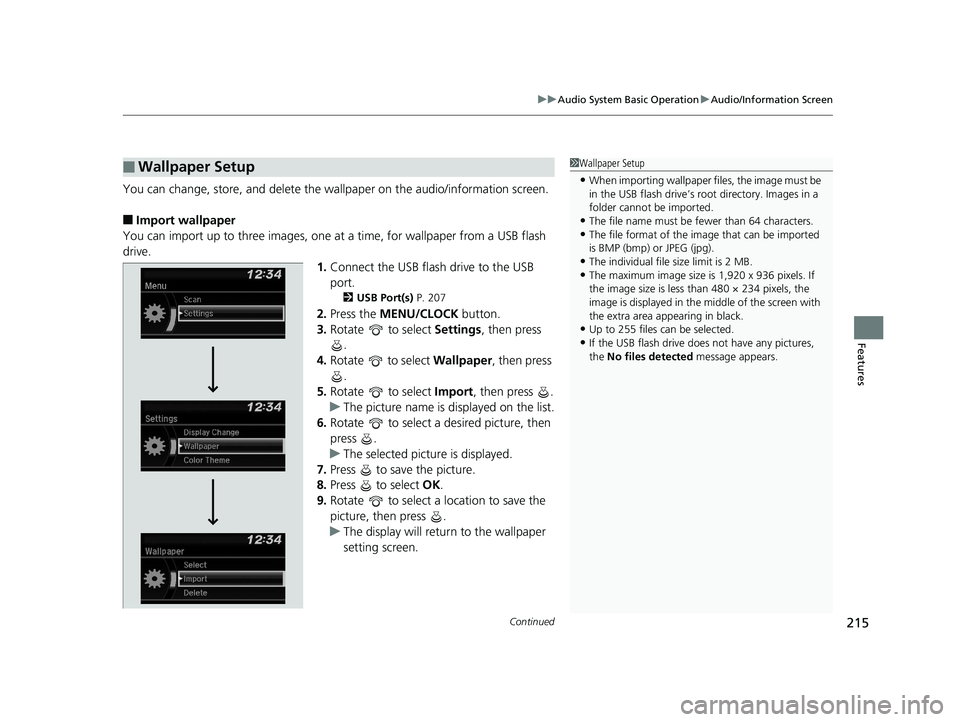
You can change, store, and delete the wallpaper on the audio/ information screen.
■Import wallpaper
You can import up to three images, one at a time, for wallpaper from a USB flash
drive.
1.Connect the USB flash drive to the USB
port.
2 USB Port(s) P. 207
2.Press the MENU/CLOCK button.
3. Rotate to select Settings, then press
.
4. Rotate to select Wallpaper, then press
.
5. Rotate to select Import, then press .
u The picture name is displayed on the list.
6. Rotate to select a desired picture, then
press .
u The selected picture is displayed.
7. Press to save the picture.
8. Press to select OK.
9. Rotate to select a location to save the
picture, then press .
u The display will return to the wallpaper
setting screen.
■Wallpaper Setup1Wallpaper Setup
•When importing wallpaper files, the image must be
in the USB flash drive’s root directory. Images in a
folder cannot be imported.
•The file name must be fewer than 64 characters.•The file format of the im age that can be imported
is BMP (bmp) or JPEG (jpg).
•The individual file size limit is 2 MB.•The maximum image size is 1,920 x 936 pixels. If
the image size is less than 480 × 234 pixels, the
image is displayed in the middle of the screen with
the extra area appearing in black.
•Up to 255 files can be selected.
•If the USB flash drive doe s not have any pictures,
the No files detected message appears.
20 FIT-31T5A6500.book 215 ページ 2019年9月26日 木曜日 午後4時41分
Page 222 of 599
uuAudio System Basic Operation uPlaying AM/FM Radio
220
Features
Provides text data information related to your selected RDS capable FM station.
■To find an RDS station from Station List
1. Press while listening to an FM station.
2. Rotate to select the station, then press .
■Update List
Updates your available station list at any time.
1. Press while listening to an FM station.
2. Rotate to select Update List, then press .
■Radio text
Displays the radio text informat ion of the selected RDS station.
1. Press the MENU/CLOCK button.
2. Rotate to select Settings, then press .
3. Rotate to select RDS Settings, then press .
4. Rotate to select Radio Text, then press .
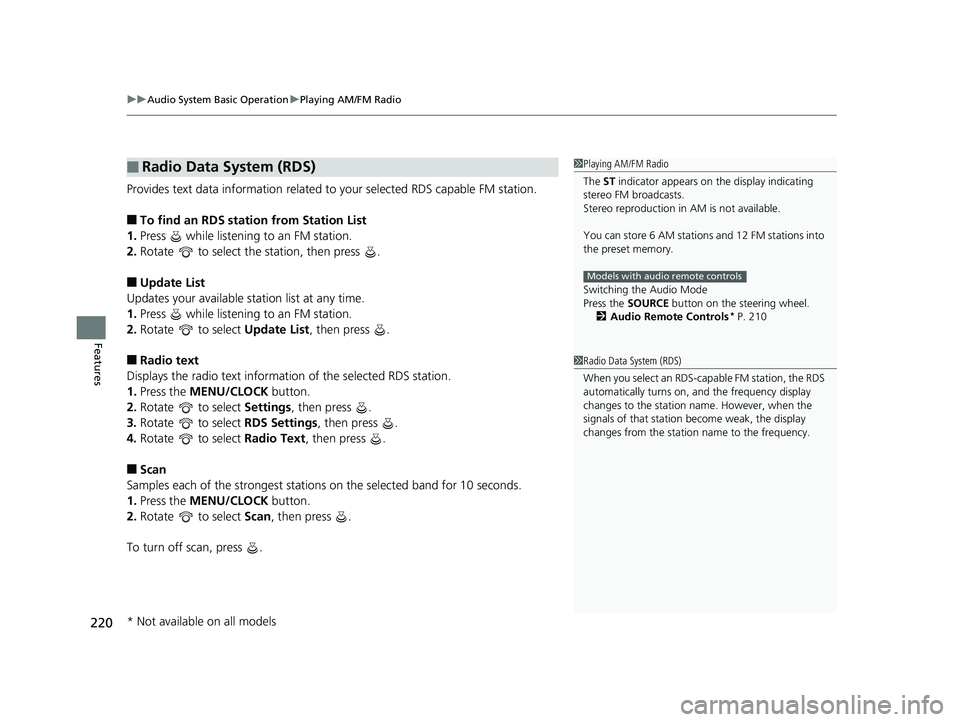
■Scan
Samples each of the strongest stations on the selected band for 10 seconds.
1. Press the MENU/CLOCK button.
2. Rotate to select Scan, then press .
To turn off scan, press .
■Radio Data System (RDS)1 Playing AM/FM Radio
The ST indicator appears on the display indicating
stereo FM broadcasts.
Stereo reproduction in AM is not available.
You can store 6 AM stations and 12 FM stations into
the preset memory.
Switching the Audio Mode
Press the SOURCE button on the steering wheel.
2 Audio Remote Controls
* P. 210
Models with audio remote controls
1Radio Data System (RDS)
When you select an RDS-capable FM station, the RDS
automatically turns on, and the frequency display
changes to the station name. However, when the
signals of that station become weak, the display
changes from the statio n name to the frequency.
* Not available on all models
20 FIT-31T5A6500.book 220 ページ 2019年9月26日 木曜日 午後4時41分
Page 232 of 599
230
uuAudio System Basic Operation uPlaying Bluetooth ® Audio
Features
Playing Bluetooth ® Audio
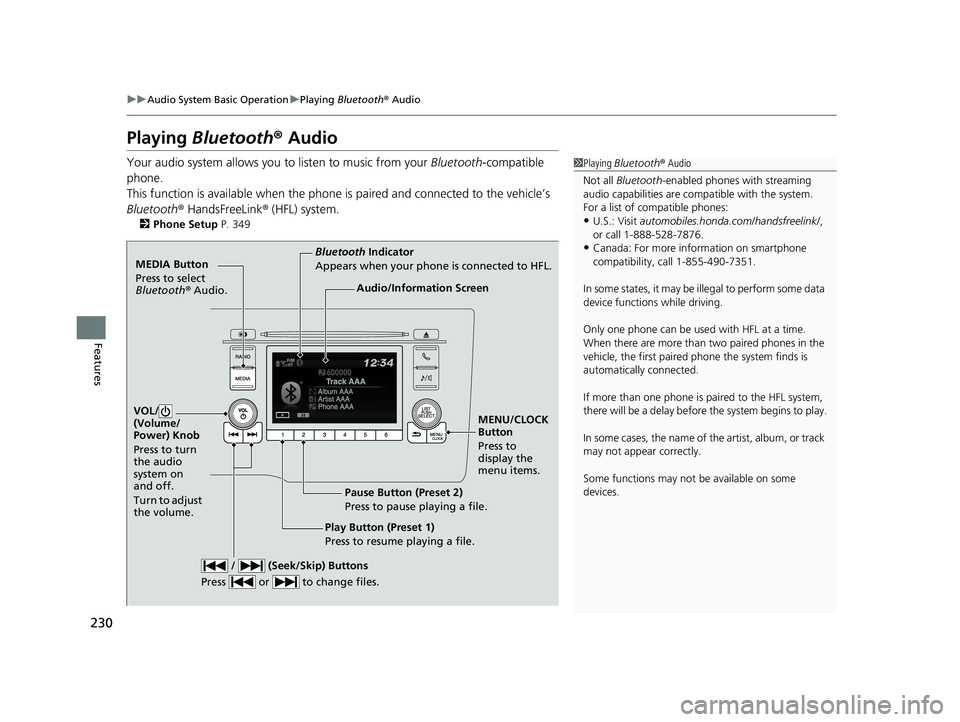
Your audio system allows you to listen to music from your Bluetooth-compatible
phone.
This function is available when the phone is paired and connected to the vehicle’s
Bluetooth ® HandsFreeLink ® (HFL) system.
2 Phone Setup P. 349
1Playing Bluetooth ® Audio
Not all Bluetooth -enabled phones with streaming
audio capabilities are comp atible with the system.
For a list of compatible phones:
•U.S.: Visit automobiles.honda.com /handsfreelink/,
or call 1-888-528-7876.
•Canada: For more info rmation on smartphone
compatibility, call 1-855-490-7351.
In some states, it may be il legal to perform some data
device functions while driving.
Only one phone can be used with HFL at a time.
When there are more than two paired phones in the
vehicle, the first paired phone the system finds is
automatically connected.
If more than one phone is paired to the HFL system,
there will be a delay before the system begins to play.
In some cases, the name of the artist, album, or track
may not appear correctly.
Some functions may not be available on some
devices.
MEDIA Button
Press to select
Bluetooth ® Audio.
VOL/
(Volume/
Power) Knob
Press to turn
the audio
system on
and off.
Turn to adjust
the volume.
MENU/CLOCK
Button
Press to
display the
menu items.
Audio/Information Screen
Bluetooth Indicator
Appears when your phone is connected to HFL.
/ (Seek/Skip) Buttons
Press or to change files.
Play Button (Preset 1)
Press to resume playing a file. Pause Button (Preset 2)
Press to pause playing a file.
20 FIT-31T5A6500.book 230 ページ 2019年9月26日 木曜日 午後4時41分
Page 235 of 599
233
Features
Audio System Basic Operation
To use the audio system function, the ignition swit ch must be in ACCESSORY (q or
ON
(w*1.
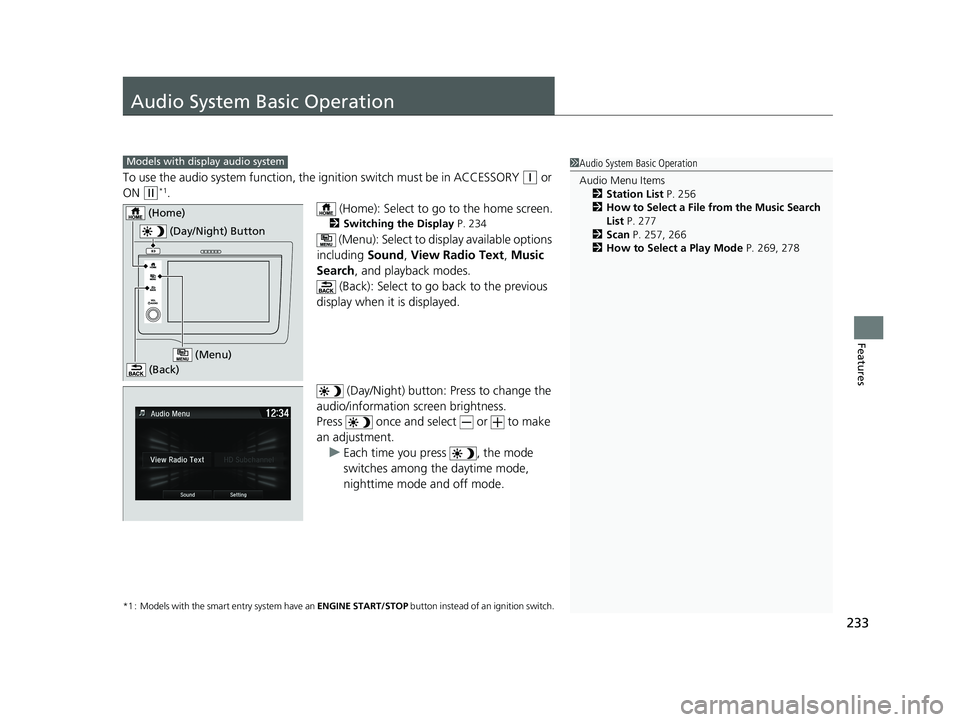
(Home): Select to go to the home screen.
2Switching the Display P. 234
(Menu): Select to disp lay available options
including Sound, View Radio Text , Music
Search , and playback modes.
(Back): Select to go back to the previous
display when it is displayed.
(Day/Night) button: Press to change the
audio/information screen brightness.
Press once and select or to make
an adjustment. u Each time you press , the mode
switches among the daytime mode,
nighttime mode and off mode.
*1 : Models with the smart entry system have an ENGINE START/STOP button instead of an ignition switch.
1Audio System Basic Operation
Audio Menu Items
2 Station List P. 256
2 How to Select a File from the Music Search
List P. 277
2 Scan P. 257, 266
2 How to Select a Play Mode P. 269, 278Models with display audio system
(Day/Night) Button
(Home)
(Menu)
(Back)
20 FIT-31T5A6500.book 233 ページ 2019年9月26日 木曜日 午後4時41分