reset HONDA INSIGHT 2019 (in English) Owner's Guide
[x] Cancel search | Manufacturer: HONDA, Model Year: 2019, Model line: INSIGHT, Model: HONDA INSIGHT 2019Pages: 675, PDF Size: 36.97 MB
Page 297 of 675
Continued295
uuAudio System Basic Operation uPlaying SiriusXM ® Radio*
Features
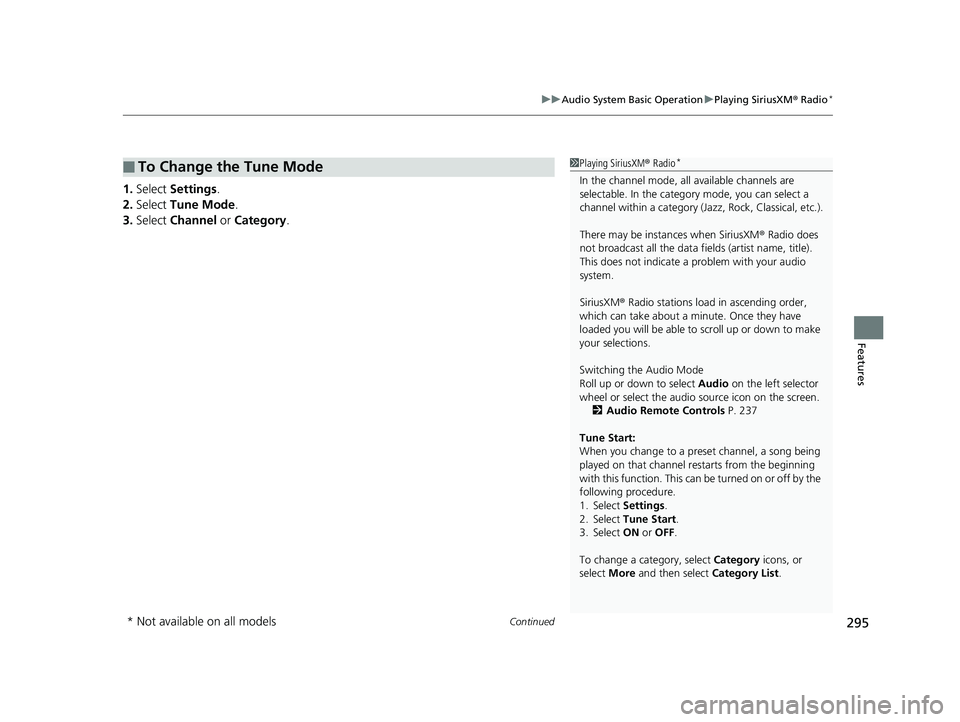
1. Select Settings .
2. Select Tune Mode .
3. Select Channel or Category .
■To Change the Tune Mode1Playing SiriusXM ® Radio*
In the channel mode, all available channels are
selectable. In the categor y mode, you can select a
channel within a ca tegory (Jazz, Rock, Classical, etc.).
There may be instances when SiriusXM ® Radio does
not broadcast all the data fi elds (artist name, title).
This does not indicate a problem with your audio
system.
SiriusXM ® Radio stations load in ascending order,
which can take about a minute. Once they have
loaded you will be able to scroll up or down to make
your selections.
Switching the Audio Mode
Roll up or down to select Audio on the left selector
wheel or select the audio source icon on the screen.
2 Audio Remote Controls P. 237
Tune Start:
When you change to a preset channel, a song being
played on that channel restarts from the beginning
with this function. This can be turned on or off by the
following procedure.
1. Select Settings .
2. Select Tune Start .
3. Select ON or OFF .
To change a category, select Category icons, or
select More and then select Category List.
* Not available on all models
19 INSIGHT HMIN-31TXM6000.book 295 ページ 2018年4月20日 金曜日 午後4時22分
Page 298 of 675
uuAudio System Basic Operation uPlaying SiriusXM ® Radio*
296
Features
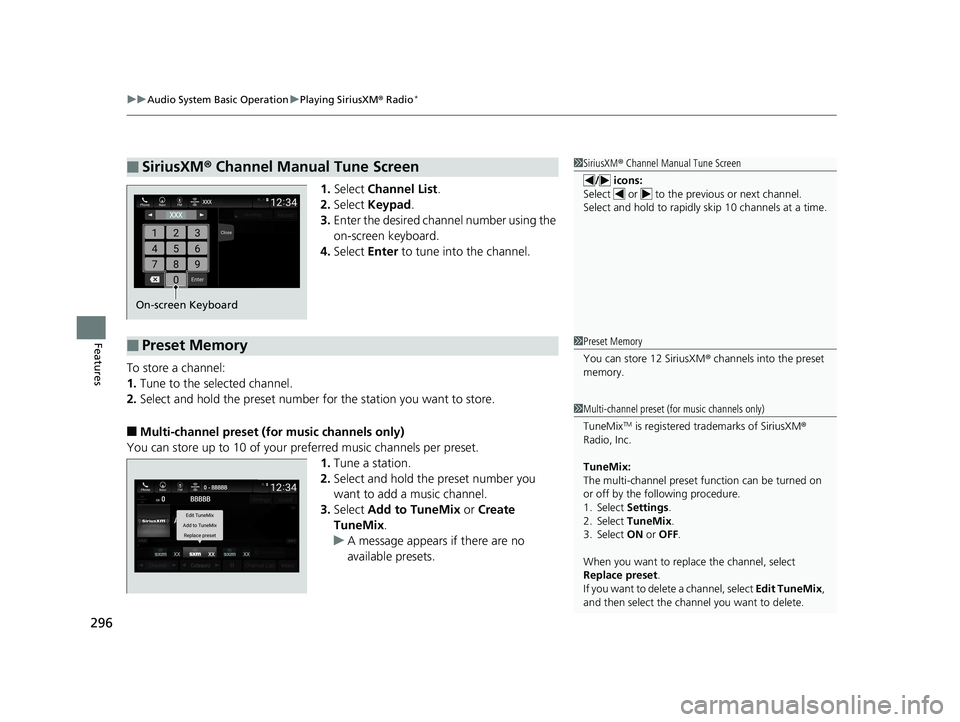
1. Select Channel List .
2. Select Keypad .
3. Enter the desired channel number using the
on-screen keyboard.
4. Select Enter to tune into the channel.
To store a channel:
1. Tune to the selected channel.
2. Select and hold the preset number fo r the station you want to store.
■Multi-channel preset (for music channels only)
You can store up to 10 of your pref erred music channels per preset.
1. Tune a station.
2. Select and hold the preset number you
want to add a music channel.
3. Select Add to TuneMix or Create
TuneMix .
u A message appears if there are no
available presets.
■SiriusXM ® Channel Manual Tune Screen1 SiriusXM ® Channel Manual Tune Screen
/ icons:
Select or to the previous or next channel.
Select and hold to rapidly sk ip 10 channels at a time.
On-screen Keyboard
■Preset Memory1Preset Memory
You can store 12 SiriusXM ® channels into the preset
memory.
1 Multi-channel preset (for music channels only)
TuneMix
TM is registered tra demarks of SiriusXM ®
Radio, Inc.
TuneMix:
The multi-channel preset function can be turned on
or off by the following procedure.
1. Select Settings .
2. Select TuneMix.
3. Select ON or OFF .
When you want to replac e the channel, select
Replace preset .
If you want to delete a channel, select Edit TuneMix,
and then select the channel you want to delete.
19 INSIGHT HMIN-31TXM6000.book 296 ページ 2018年4月20日 金曜日 午後4時22分
Page 300 of 675
uuAudio System Basic Operation uPlaying SiriusXM ® Radio*
298
Features
The system can record up to the last 60 minutes broadcast of your currently tuned
channel as well as the last 30 minutes br oadcast of preset channels, starting from
the moment you turn the vehicle on. If yo u tuned to preset channel, the system
records up to 60 minutes of a broadcast instead of up to 30 minutes. You can
rewind and replay the last 30 or 60 minutes of a broadcast.
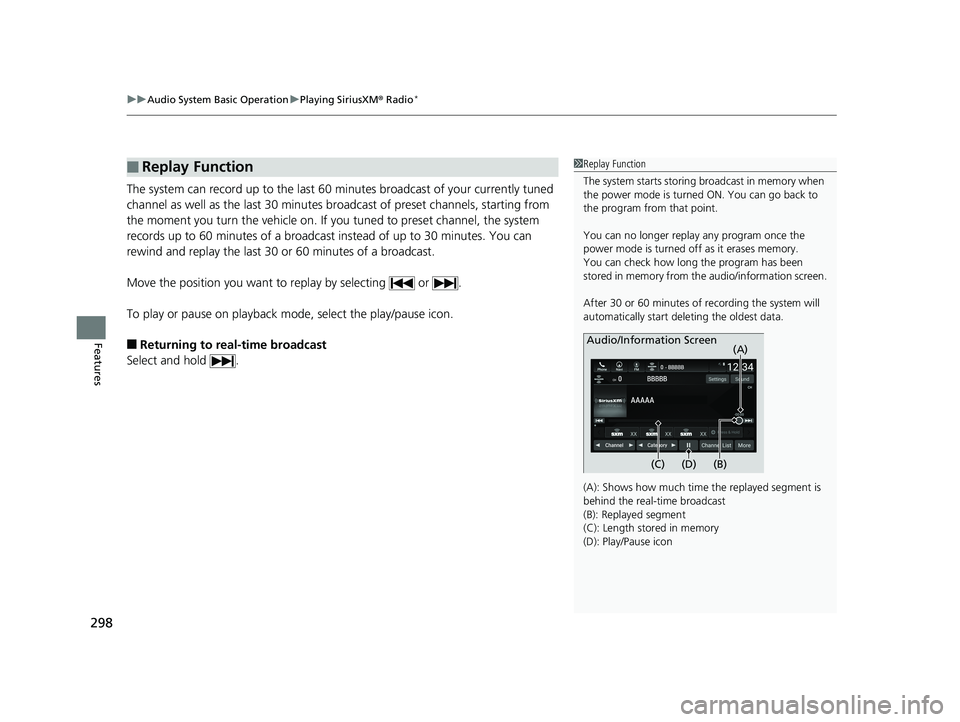
Move the position you want to replay by selecting or .
To play or pause on playback m ode, select the play/pause icon.
■Returning to real-time broadcast
Select and hold .
■Replay Function1 Replay Function
The system starts storing broadcast in memory when
the power mode is turned ON. You can go back to
the program from that point.
You can no longer repl ay any program once the
power mode is turned off as it erases memory.
You can check how long the program has been
stored in memory from th e audio/information screen.
After 30 or 60 minutes of recording the system will
automatically start deleting the oldest data.
(A): Shows how much time the replayed segment is
behind the real-time broadcast
(B): Replayed segment
(C): Length stored in memory
(D): Play/Pause icon
Audio/Information Screen
(C) (B) (A)
(D)
19 INSIGHT HMIN-31TXM6000.book 298 ページ 2018年4月20日 金曜日 午後4時22分
Page 305 of 675
Continued303
uuAudio System Basic Operation uPlaying SiriusXM ® Radio*
Features
Sample each channel on the selected mode for 10 seconds.
1. Select More.
2. Select Scan.
You can change a scan mode by the following procedure.
1. Select Settings .
2. Select Scan Mode .
3. Select Channel or Preset .
To turn off scan, select Stop.
■Scan1Scan
The “Scan Songs in Preset s” function is based on
TuneScan
TM technology of SiriusXM ®.
The “Featured Channels ” function is based on
Featured Favorites
TM technology of SiriusXM ®.
TuneScan
TM and Featured FavoritesTM are registered
trademarks of SiriusXM ® Radio, Inc.
19 INSIGHT HMIN-31TXM6000.book 303 ページ 2018年4月20日 金曜日 午後4時22分
Page 306 of 675
304
uuAudio System Basic Operation uPlaying SiriusXM ® Radio*
Features
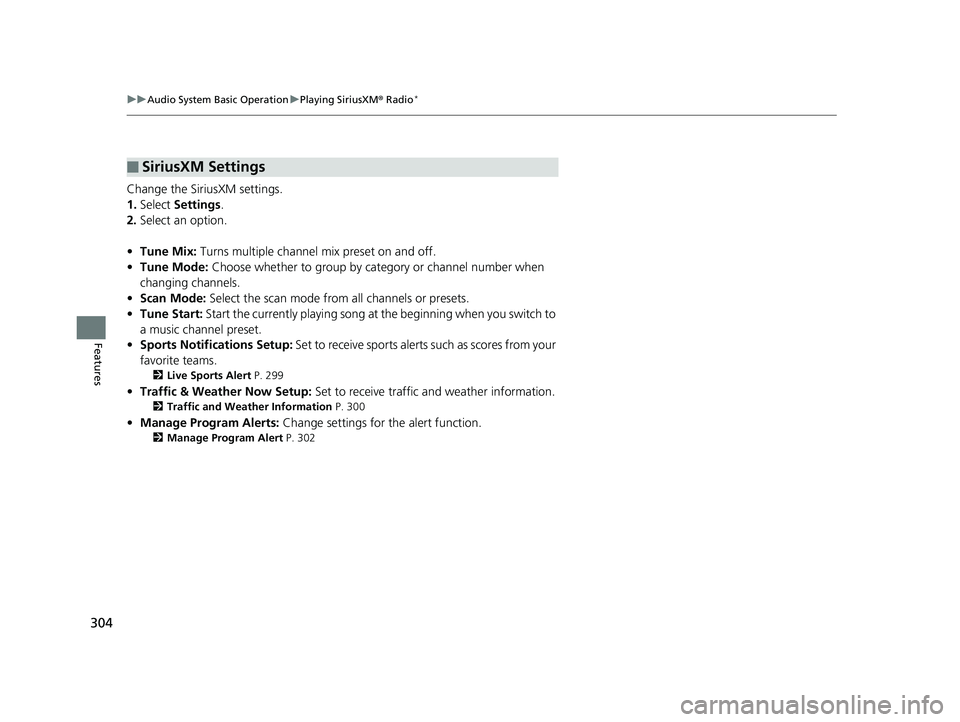
Change the SiriusXM settings.
1. Select Settings .
2. Select an option.
• Tune Mix: Turns multiple channel mix preset on and off.
• Tune Mode: Choose whether to group by category or channel number when
changing channels.
• Scan Mode: Select the scan mode fro m all channels or presets.
• Tune Start: Start the currently playing song at the beginning when you switch to
a music channel preset.
• Sports Notifi cations Setup: Set to receive sports alerts such as scores from your
favorite teams.
2 Live Sports Alert P. 299
•Traffic & Weather Now Setup: Set to receive traffic and weather information.
2Traffic and Weather Information P. 300
•Manage Program Alerts: Change settings for the alert function.
2Manage Program Alert P. 302
■SiriusXM Settings
19 INSIGHT HMIN-31TXM6000.book 304 ページ 2018年4月20日 金曜日 午後4時22分
Page 323 of 675
321
uuAudio System Basic Operation uHondaLink® Service*
Features
Your subscribed telematics service prov ider can check your vehicle’s condition.
■Virtual Dashboard
You can remotely check the mileage, fuel range, and oil life in your app.
■Remote Start and stop the engine
You can remotely turn on an d off the power system using your app as same as the
smart entry key.
■Geofence Alert
You can receive a notification anytime your ve hicle enters or leaves a region set by
you.
■Speed Alert
You can receive a notification when your ve hicle has exceeded a speed limit set by
you.
■Personal Data Wipe
You can reset your audio and navigation system settings to factory defaults with the
app.
■Wi-Fi hotspot
Vehicle provides 4G LTE ne twork environment as Wi-Fi router to use tablet or
smartphone in your vehicle.
■Convenient Features1 Convenient Features
The contact information of your provider, your user
ID and PIN will be given when you subscribe to
HondaLink ®. If you forget any of the above, contact a
Honda dealer, or go to hondalink.honda.com.
19 INSIGHT HMIN-31TXM6000.book 321 ページ 2018年4月20日 金曜日 午後4時22分
Page 338 of 675
336
uuAudio Error Messages uAndroid/Apps
Features
Android/Apps
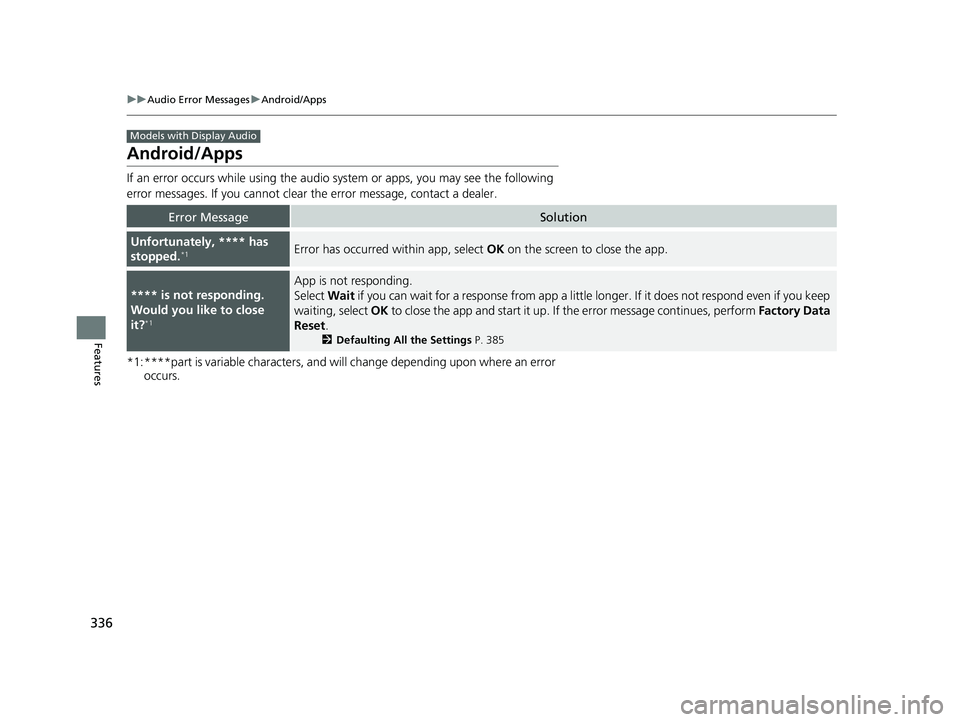
If an error occurs while using the audio system or apps, you may see the following
error messages. If you cannot clear the error message, contact a dealer.
*1:****part is variable characters, and will change depending upon where an error occurs.
Error MessageSolution
Unfortunately, **** has
stopped.*1Error has occurred within app, select OK on the screen to close the app.
**** is not responding.
Would you like to close
it?
*1
App is not responding.
Select Wait if you can wait for a response from app a littl e longer. If it does not respond even if you keep
waiting, select OK to close the app and start it up. If the error message continues, perform Factory Data
Reset .
2Defaulting All the Settings P. 385
Models with Display Audio
19 INSIGHT HMIN-31TXM6000.book 336 ページ 2018年4月20日 金曜日 午後4時22分
Page 367 of 675
365
uuCustomized Features u
Features
*1:Default Setting
Setup
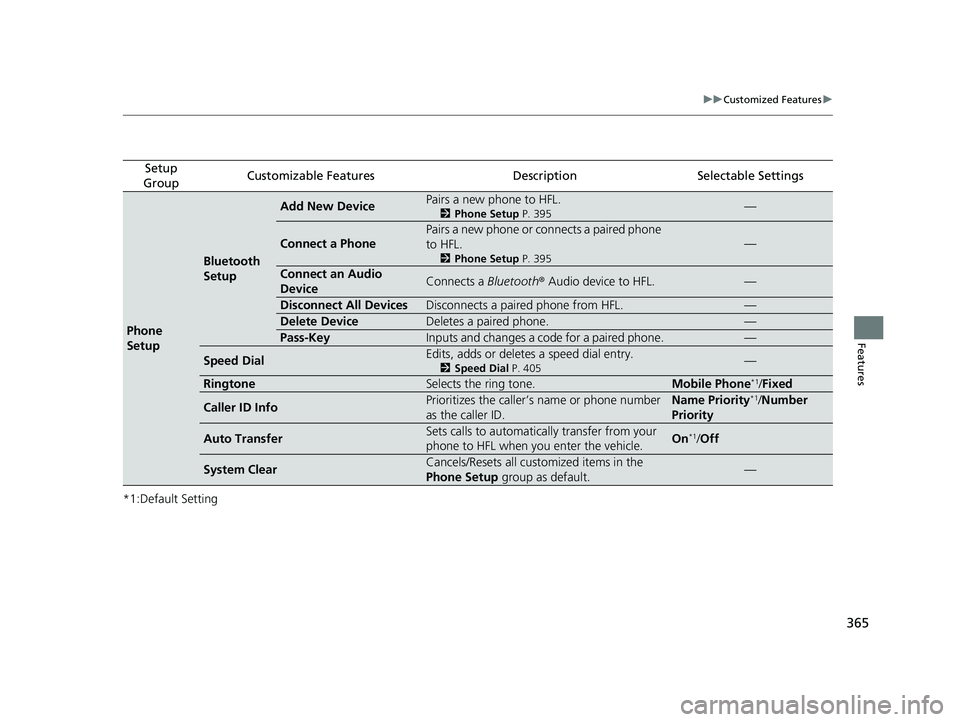
GroupCustomizable FeaturesDescriptionSelectable Settings
Phone
Setup
Bluetooth
Setup
Add New DevicePairs a new phone to HFL.
2 Phone Setup P. 395—
Connect a Phone
Pairs a new phone or connects a paired phone
to HFL.
2Phone Setup P. 395
—
Connect an Audio
DeviceConnects a Bluetooth® Audio device to HFL.—
Disconnect All DevicesDisconnects a paired phone from HFL.—
Delete DeviceDeletes a paired phone.—
Pass-KeyInputs and changes a code for a paired phone.—
Speed DialEdits, adds or deletes a speed dial entry.
2Speed Dial P. 405—
RingtoneSelects the ring tone.Mobile Phone*1/Fixed
Caller ID InfoPrioritizes the caller’s name or phone number
as the caller ID.Name Priority*1/Number
Priority
Auto TransferSets calls to automatically transfer from your
phone to HFL when you enter the vehicle.On*1/ Off
System ClearCancels/Resets all customized items in the
Phone Setup group as default.—
19 INSIGHT HMIN-31TXM6000.book 365 ページ 2018年4月20日 金曜日 午後4時22分
Page 370 of 675
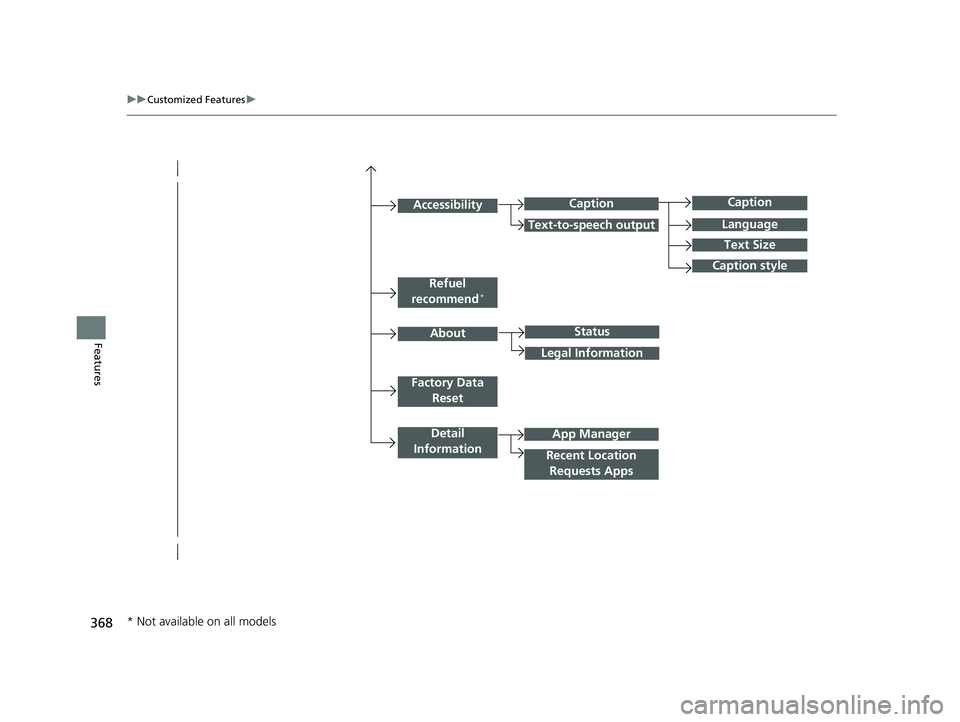
368
uuCustomized Features u
Features
Caption
Language
Caption style
Detail
Information
Factory Data Reset
About
Refuel
recommend*
Accessibility
Status
Legal Information
App Manager
Recent Location Requests Apps
Caption
Text-to-speech output
Text Size
* Not available on all models
19 INSIGHT HMIN-31TXM6000.book 368 ページ 2018年4月20日 金曜日 午後4時22分
Page 372 of 675
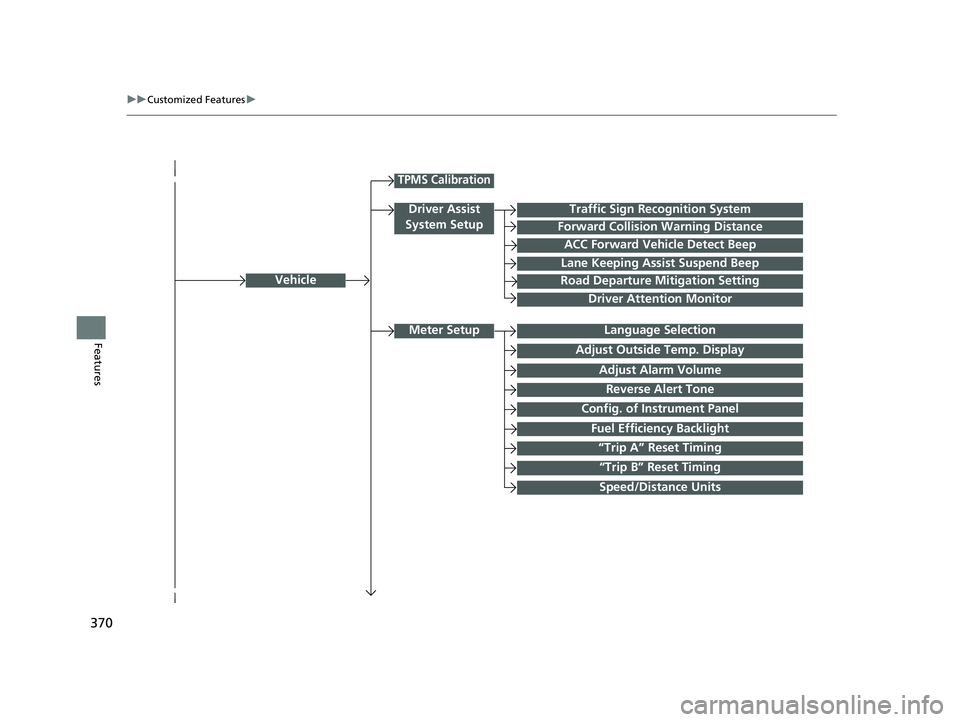
370
uuCustomized Features u
FeaturesLanguage Selection
Vehicle
Meter Setup
Adjust Outside Temp. Display
“Trip A” Reset Timing
“Trip B” Reset Timing
Reverse Alert Tone
Config. of Instrument Panel
Adjust Alarm Volume
Fuel Efficiency Backlight
TPMS Calibration
Driver Assist
System SetupTraffic Sign Recognition System
Forward Collision Warning Distance
ACC Forward Vehicle Detect Beep
Lane Keeping Assist Suspend Beep
Road Departure Mitigation Setting
Driver Attention Monitor
Speed/Distance Units
19 INSIGHT HMIN-31TXM6000.book 370 ページ 2018年4月20日 金曜日 午後4時22分