phone HONDA INSIGHT 2022 Service Manual
[x] Cancel search | Manufacturer: HONDA, Model Year: 2022, Model line: INSIGHT, Model: HONDA INSIGHT 2022Pages: 609, PDF Size: 18.48 MB
Page 357 of 609
uuBluetooth ® HandsFreeLink ®u HFL Menus
356
Features
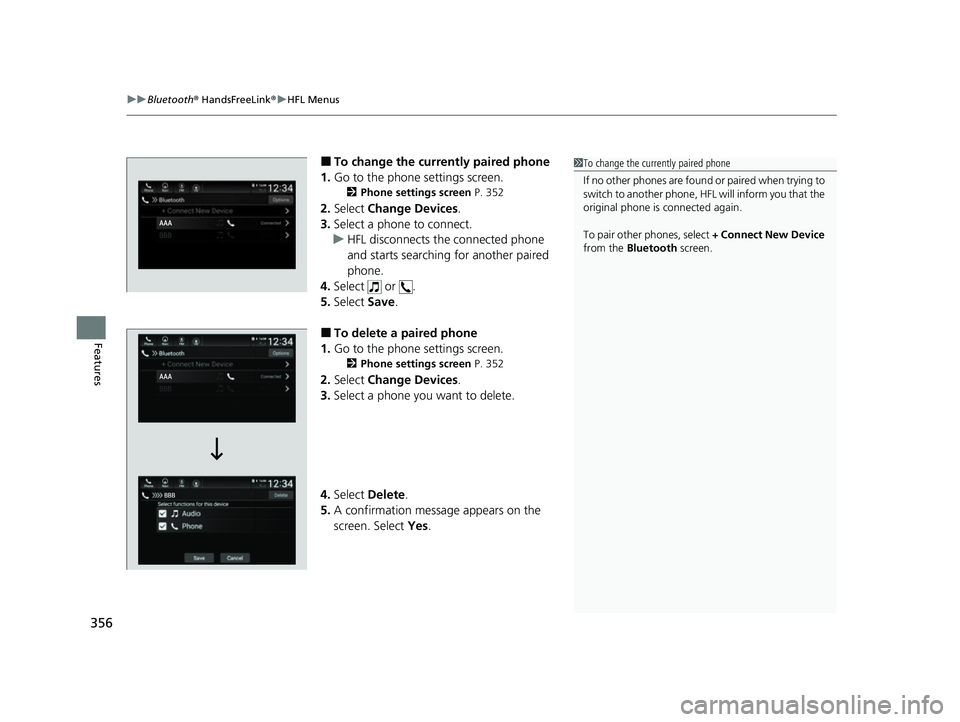
■To change the currently paired phone
1. Go to the phone settings screen.
2 Phone settings screen P. 352
2.Select Change Devices .
3. Select a phone to connect.
u HFL disconnects the connected phone
and starts searching for another paired
phone.
4. Select or .
5. Select Save.
■To delete a paired phone
1. Go to the phone settings screen.
2 Phone settings screen P. 352
2.Select Change Devices .
3. Select a phone you want to delete.
4. Select Delete.
5. A confirmation message appears on the
screen. Select Yes.
1To change the currently paired phone
If no other phones are found or paired when trying to
switch to another phone, HFL will inform you that the
original phone is connected again.
To pair other phones, select + Connect New Device
from the Bluetooth screen.
22 INSIGHT HMIN-31TXM6300.book 356 ページ 2021年2月24日 水曜日 午後3時45分
Page 358 of 609
Continued357
uuBluetooth ® HandsFreeLink ®u HFL Menus
Features
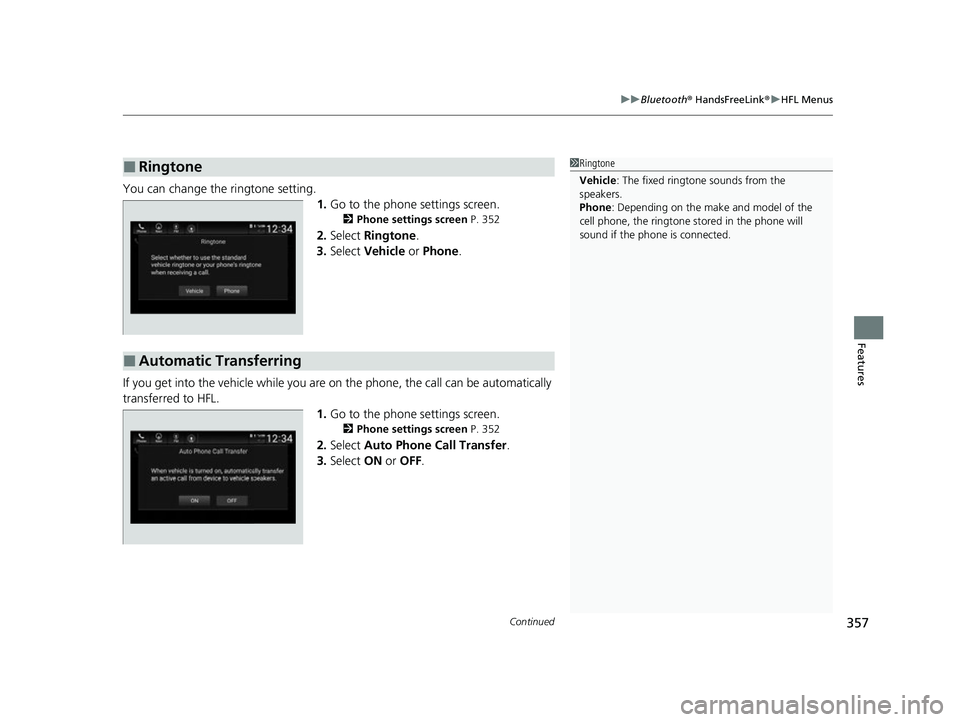
You can change the ringtone setting.
1.Go to the phone settings screen.
2 Phone settings screen P. 352
2.Select Ringtone .
3. Select Vehicle or Phone .
If you get into the vehicle while you are on the phone, the call can be automatically
transferred to HFL. 1.Go to the phone settings screen.
2 Phone settings screen P. 352
2.Select Auto Phone Call Transfer .
3. Select ON or OFF .
■Ringtone1Ringtone
Vehicle : The fixed ringtone sounds from the
speakers.
Phone : Depending on the make and model of the
cell phone, the ringtone st ored in the phone will
sound if the phone is connected.
■Automatic Transferring
22 INSIGHT HMIN-31TXM6300.book 357 ページ 2021年2月24日 水曜日 午後3時45分
Page 359 of 609
uuBluetooth ® HandsFreeLink ®u HFL Menus
358
Features
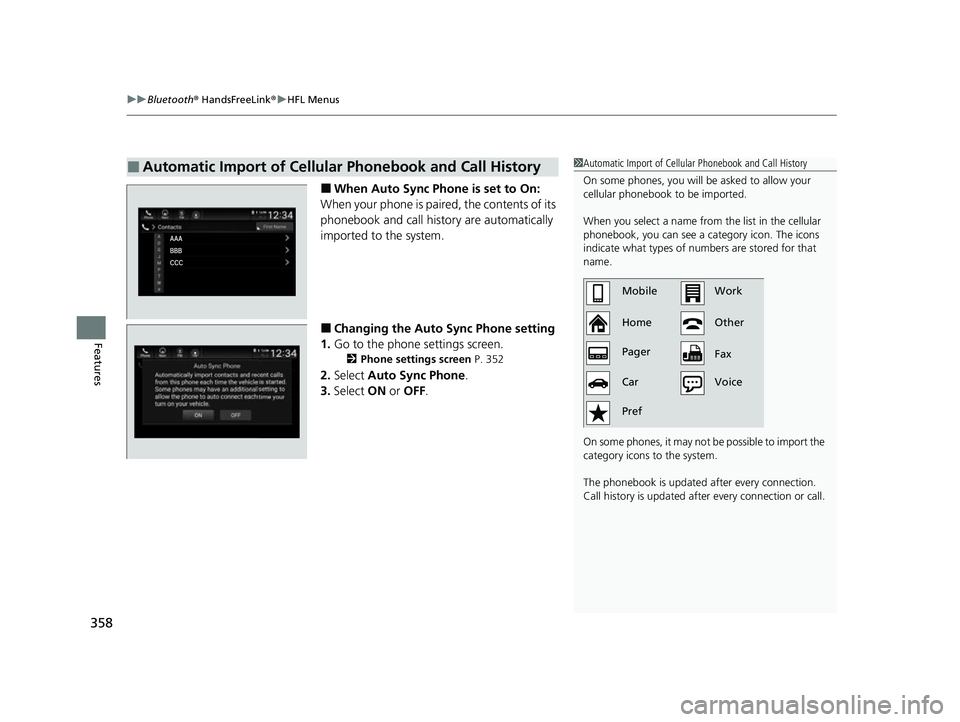
■When Auto Sync Phone is set to On:
When your phone is paired, the contents of its
phonebook and call hist ory are automatically
imported to the system.
■Changing the Auto Sync Phone setting
1. Go to the phone settings screen.
2 Phone settings screen P. 352
2.Select Auto Sync Phone .
3. Select ON or OFF .
■Automatic Import of Cellular Phonebook and Call History1Automatic Import of Cellular Phonebook and Call History
On some phones, you will be asked to allow your
cellular phonebook to be imported.
When you select a name from the list in the cellular
phonebook, you can see a category icon. The icons
indicate what types of num bers are stored for that
name.
On some phones, it may no t be possible to import the
category icons to the system.
The phonebook is updated after every connection.
Call history is updated after every connection or call.
Home MobileWork
Other
Pager
Car
Pref Fax
Voice
22 INSIGHT HMIN-31TXM6300.book 358 ページ 2021年2月24日 水曜日 午後3時45分
Page 360 of 609
359
uuBluetooth ® HandsFreeLink ®u HFL Menus
Continued
Features
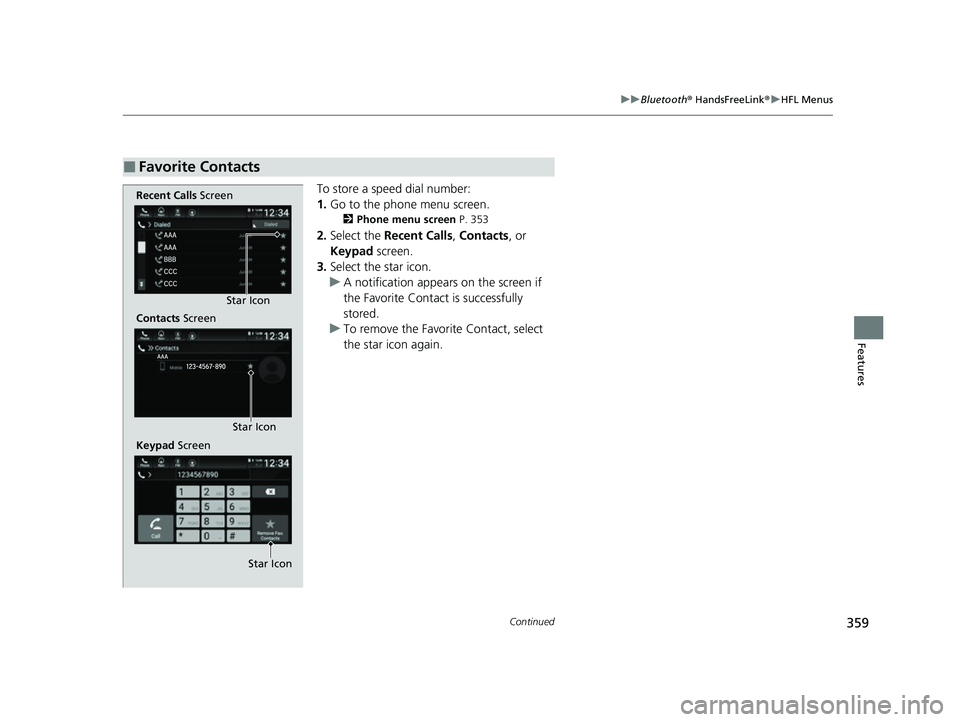
To store a speed dial number:
1. Go to the phone menu screen.
2 Phone menu screen P. 353
2.Select the Recent Calls , Contacts, or
Keypad screen.
3. Select the star icon.
u A notification appears on the screen if
the Favorite Contact is successfully
stored.
u To remove the Favorite Contact, select
the star icon again.
■Favorite Contacts
Recent Calls Screen
Contacts Screen
Keypad Screen Star Icon
Star Icon
Star Icon
22 INSIGHT HMIN-31TXM6300.book 359 ページ 2021年2月24日 水曜日 午後3時45分
Page 361 of 609
360
uuBluetooth ® HandsFreeLink ®u HFL Menus
Features
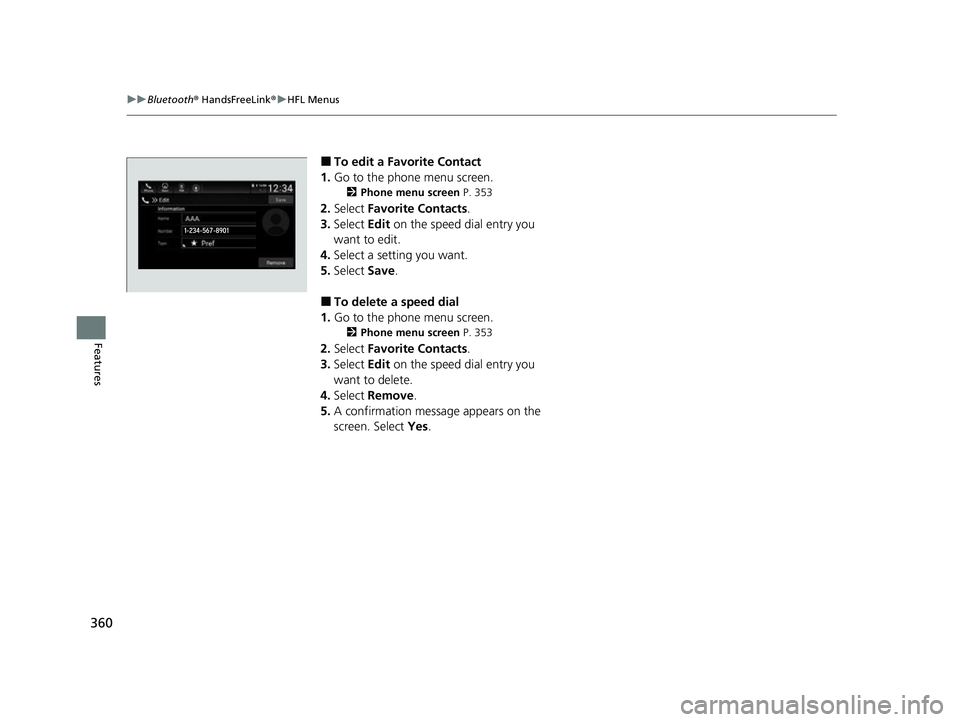
■To edit a Favorite Contact
1. Go to the phone menu screen.
2 Phone menu screen P. 353
2.Select Favorite Contacts .
3. Select Edit on the speed dial entry you
want to edit.
4. Select a setting you want.
5. Select Save.
■To delete a speed dial
1. Go to the phone menu screen.
2 Phone menu screen P. 353
2.Select Favorite Contacts .
3. Select Edit on the speed dial entry you
want to delete.
4. Select Remove .
5. A confirmation message appears on the
screen. Select Yes.
22 INSIGHT HMIN-31TXM6300.book 360 ページ 2021年2月24日 水曜日 午後3時45分
Page 362 of 609
Continued361
uuBluetooth ® HandsFreeLink ®u HFL Menus
Features
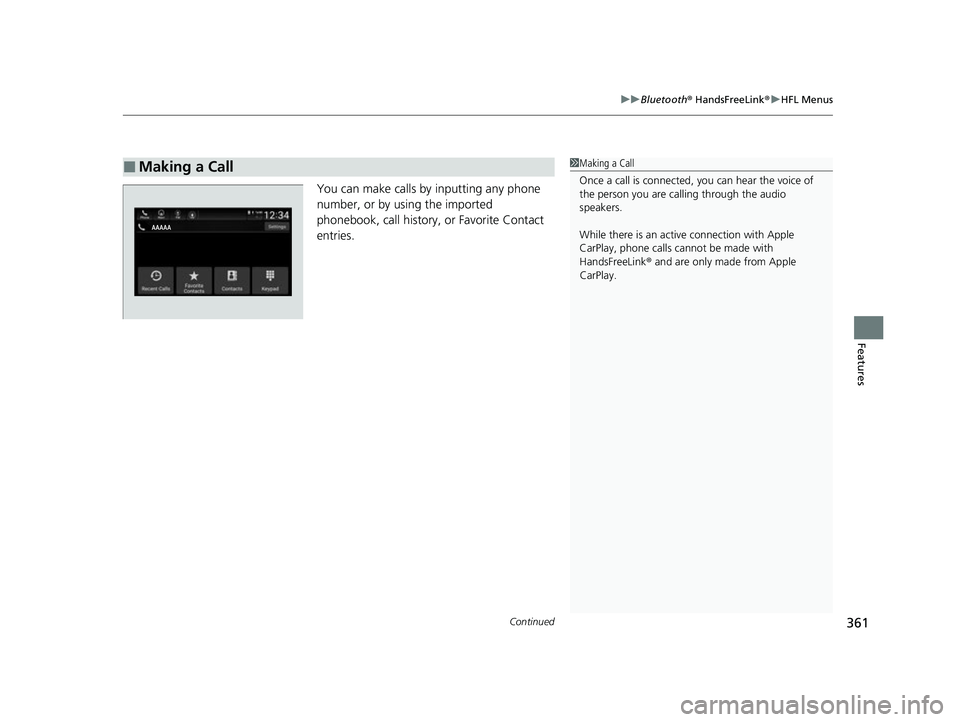
You can make calls by inputting any phone
number, or by using the imported
phonebook, call history, or Favorite Contact
entries.
■Making a Call1Making a Call
Once a call is connected, you can hear the voice of
the person you are call ing through the audio
speakers.
While there is an active connection with Apple
CarPlay, phone calls ca nnot be made with
HandsFreeLink ® and are only made from Apple
CarPlay.
22 INSIGHT HMIN-31TXM6300.book 361 ページ 2021年2月24日 水曜日 午後3時45分
Page 363 of 609
362
uuBluetooth ® HandsFreeLink ®u HFL Menus
Features
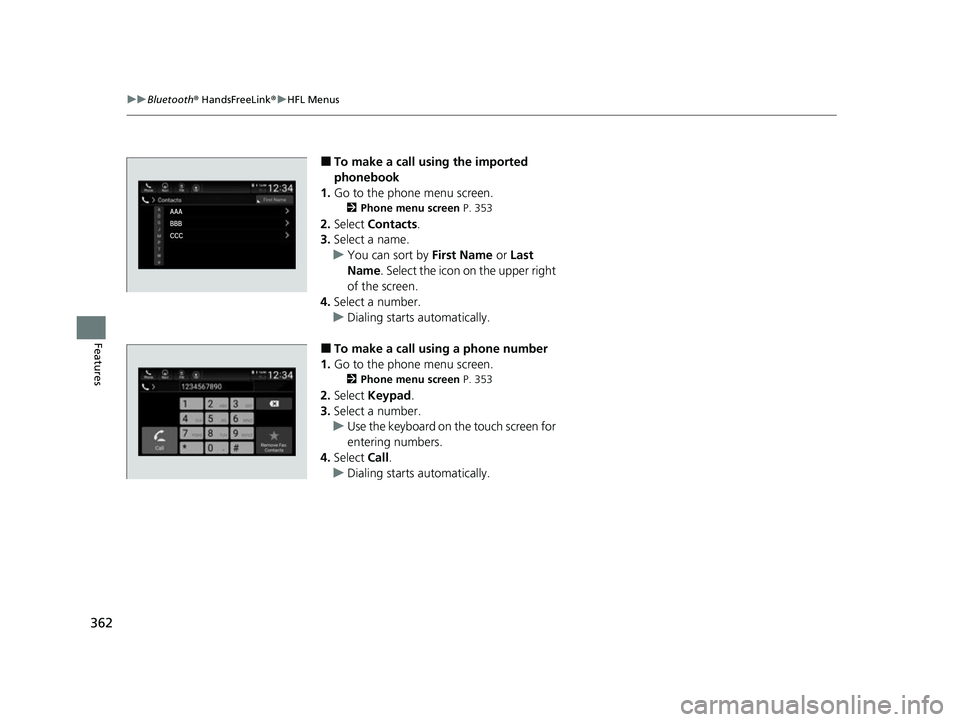
■To make a call using the imported
phonebook
1. Go to the phone menu screen.
2 Phone menu screen P. 353
2.Select Contacts .
3. Select a name.
u You can sort by First Name or Last
Name . Select the icon on the upper right
of the screen.
4. Select a number.
u Dialing starts automatically.
■To make a call using a phone number
1. Go to the phone menu screen.
2 Phone menu screen P. 353
2.Select Keypad .
3. Select a number.
u Use the keyboard on the touch screen for
entering numbers.
4. Select Call.
u Dialing starts automatically.
22 INSIGHT HMIN-31TXM6300.book 362 ページ 2021年2月24日 水曜日 午後3時45分
Page 364 of 609
Continued363
uuBluetooth ® HandsFreeLink ®u HFL Menus
Features
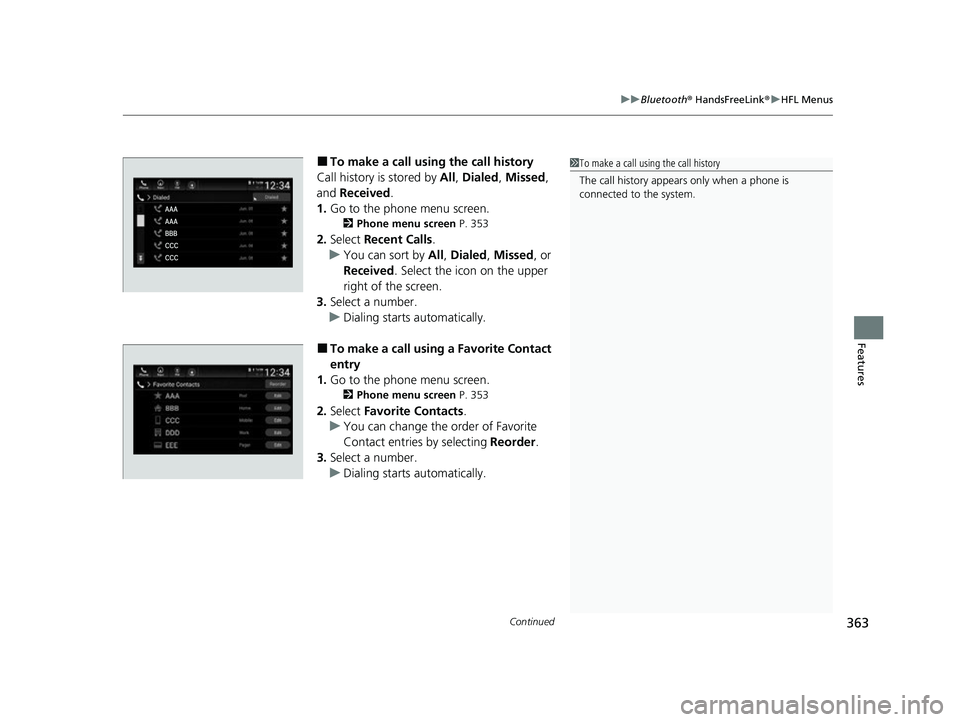
■To make a call using the call history
Call history is stored by All, Dialed , Missed ,
and Received.
1. Go to the phone menu screen.
2 Phone menu screen P. 353
2.Select Recent Calls .
u You can sort by All, Dialed , Missed , or
Received . Select the icon on the upper
right of the screen.
3. Select a number.
u Dialing starts automatically.
■To make a call using a Favorite Contact
entry
1. Go to the phone menu screen.
2 Phone menu screen P. 353
2.Select Favorite Contacts .
u You can change the order of Favorite
Contact entries by selecting Reorder.
3. Select a number.
u Dialing starts automatically.
1To make a call using the call history
The call history appears only when a phone is
connected to the system.
22 INSIGHT HMIN-31TXM6300.book 363 ページ 2021年2月24日 水曜日 午後3時45分
Page 365 of 609
uuBluetooth ® HandsFreeLink ®u HFL Menus
364
Features
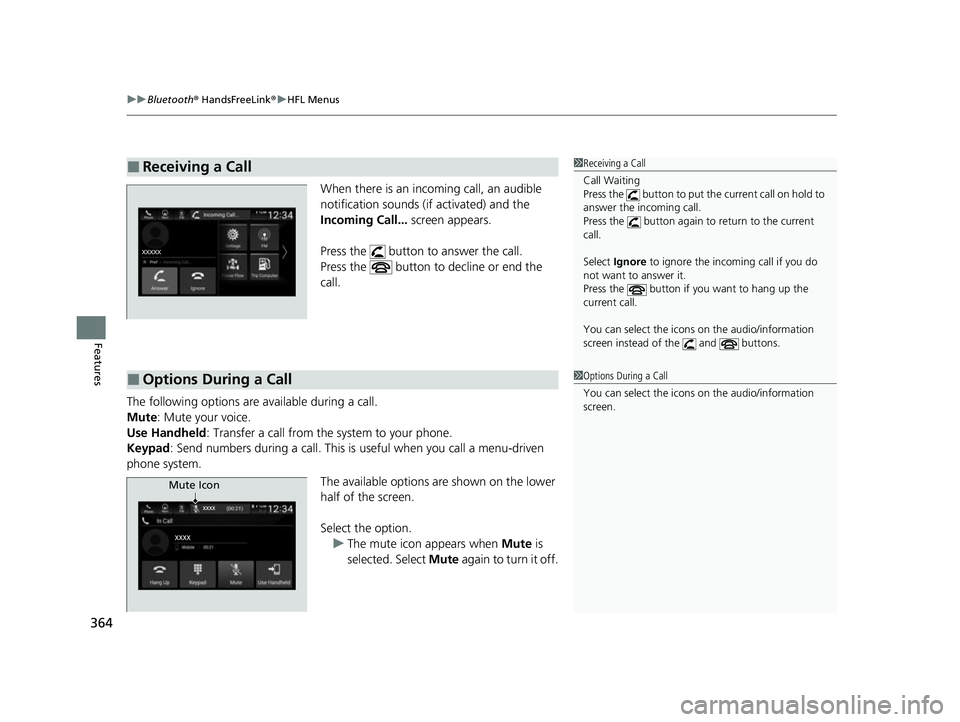
When there is an incoming call, an audible
notification sounds (i f activated) and the
Incoming Call... screen appears.
Press the button to answer the call.
Press the button to decline or end the
call.
The following options are available during a call.
Mute: Mute your voice.
Use Handheld : Transfer a call from the system to your phone.
Keypad : Send numbers during a call. This is useful when you call a menu-driven
phone system.
The available options are shown on the lower
half of the screen.
Select the option.u The mute icon appears when Mute is
selected. Select Mute again to turn it off.
■Receiving a Call1Receiving a Call
Call Waiting
Press the button to put th e current call on hold to
answer the incoming call.
Press the button again to return to the current
call.
Select Ignore to ignore the incoming call if you do
not want to answer it.
Press the button if you want to hang up the
current call.
You can select the icons on the audio/information
screen instead of the and buttons.
■Options During a Call1 Options During a Call
You can select the icons on the audio/information
screen.
Mute Icon
22 INSIGHT HMIN-31TXM6300.book 364 ページ 2021年2月24日 水曜日 午後3時45分
Page 366 of 609
Continued365
uuBluetooth ® HandsFreeLink ®u HFL Menus
Features
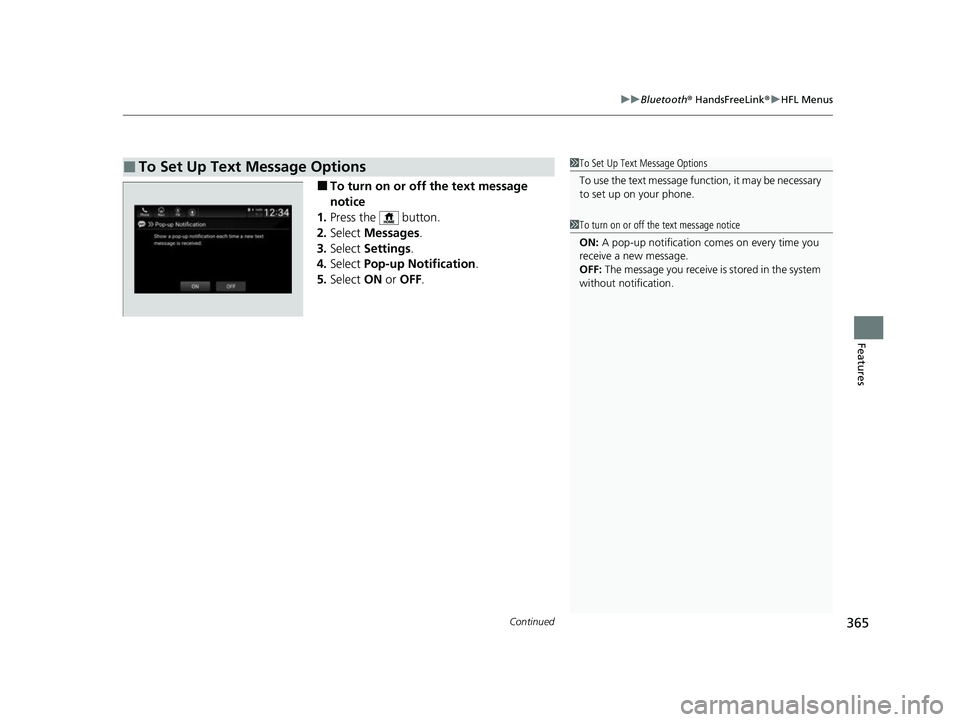
■To turn on or off the text message
notice
1. Press the button.
2. Select Messages.
3. Select Settings .
4. Select Pop-up Notification .
5. Select ON or OFF .
■To Set Up Text Message Options1To Set Up Text Message Options
To use the text message func tion, it may be necessary
to set up on your phone.
1 To turn on or off the text message notice
ON: A pop-up notification comes on every time you
receive a new message.
OFF: The message you receive is stored in the system
without not ification.
22 INSIGHT HMIN-31TXM6300.book 365 ページ 2021年2月24日 水曜日 午後3時45分