display HONDA ODYSSEY 2023 Workshop Manual
[x] Cancel search | Manufacturer: HONDA, Model Year: 2023, Model line: ODYSSEY, Model: HONDA ODYSSEY 2023Pages: 707, PDF Size: 23.9 MB
Page 331 of 707
329
uuAudio System Basic Operation uWi-Fi Connection
Features
Wi-Fi Connection
This vehicle is equipped with Wi-Fi connectivity. You can connect to an external Wi-
Fi hotspot or communication device.
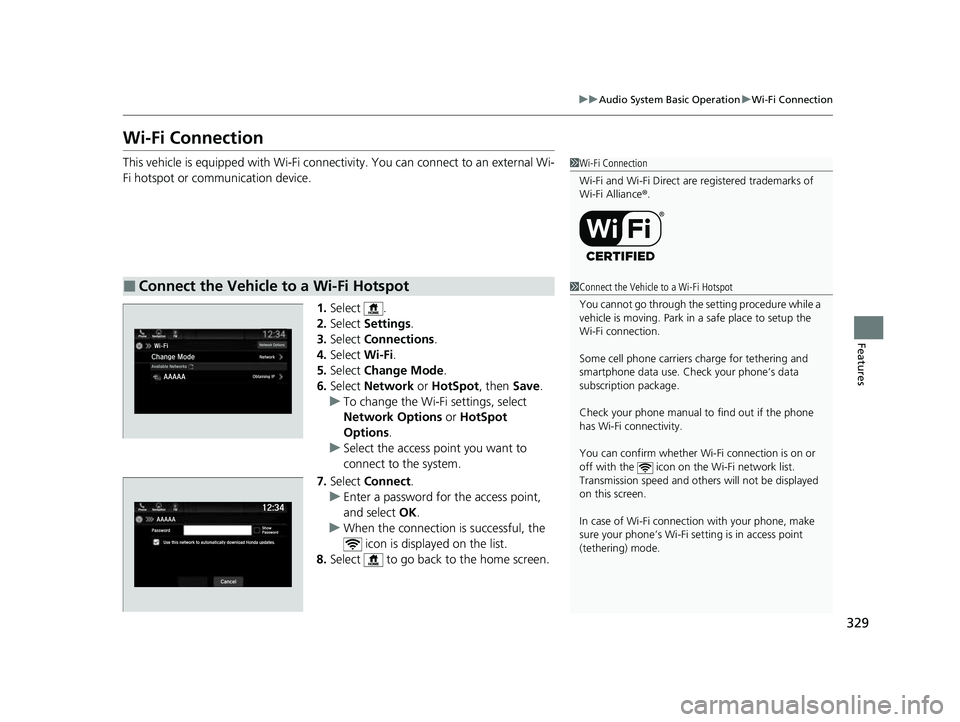
1.Select .
2. Select Settings .
3. Select Connections .
4. Select Wi-Fi.
5. Select Change Mode .
6. Select Network or HotSpot , then Save.
u To change the Wi-Fi settings, select
Network Options or HotSpot
Options.
u Select the access point you want to
connect to the system.
7. Select Connect .
u Enter a password for the access point,
and select OK.
u When the connection is successful, the
icon is displayed on the list.
8. Select to go back to the home screen.
■Connect the Vehicle to a Wi-Fi Hotspot
1Wi-Fi Connection
Wi-Fi and Wi-Fi Direct are registered trademarks of
Wi-Fi Alliance ®.
1 Connect the Vehicle to a Wi-Fi Hotspot
You cannot go through the setting procedure while a
vehicle is moving. Park in a safe place to setup the
Wi-Fi connection.
Some cell phone carriers charge for tethering and
smartphone data use. Check your phone’s data
subscription package.
Check your phone manual to find out if the phone
has Wi-Fi connectivity.
You can confirm whether Wi -Fi connection is on or
off with the icon on the Wi-Fi network list.
Transmission speed and others will not be displayed
on this screen.
In case of Wi-Fi connect ion with your phone, make
sure your phone’s Wi-Fi se tting is in access point
(tethering) mode.
23 US ODYSSEY-31THR6500.book 329 ページ 2022年1月24日 月曜日 午前11時35分
Page 333 of 707
331
uuAudio System Basic Operation uSiri Eyes Free
Features
Siri Eyes Free
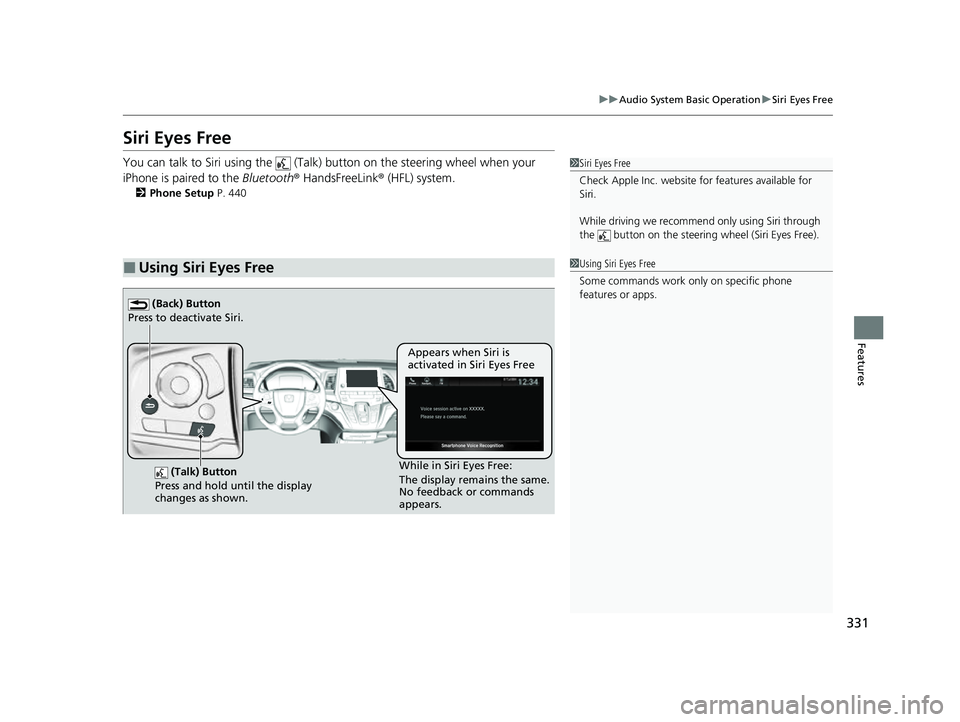
You can talk to Siri using the (Talk) button on the steering wheel when your
iPhone is paired to the Bluetooth® HandsFreeLink ® (HFL) system.
2Phone Setup P. 440
■Using Siri Eyes Free
1Siri Eyes Free
Check Apple Inc. website for features available for
Siri.
While driving we recomme nd only using Siri through
the button on the steering wheel (Siri Eyes Free).
1Using Siri Eyes Free
Some commands work only on specific phone
features or apps.
(Talk) Button
Press and hold until the display
changes as shown.
(Back) Button
Press to deactivate Siri.
While in Siri Eyes Free:
The display remains the same.
No feedback or commands
appears. Appears when Siri is
activated in Siri Eyes Free
23 US ODYSSEY-31THR6500.book 331 ページ 2022年1月24日 月曜日 午前11時35分
Page 334 of 707
332
uuAudio System Basic Operation uApple CarPlay
Features
Apple CarPlay
If you connect an Apple CarPlay-compatible iPhone to the system via the USB port,
you can use the audio/information screen, instead of the iPhone display, to make a
phone call, listen to musi c, view maps (navigation), and access messages.
2USB Ports P. 259
■Phone
Access the contact list, make phone calls, or listen to voice mail.
■Messages
Check and reply to text messages, or have messages read to you.
■Music
Play music stored on your iPhone.
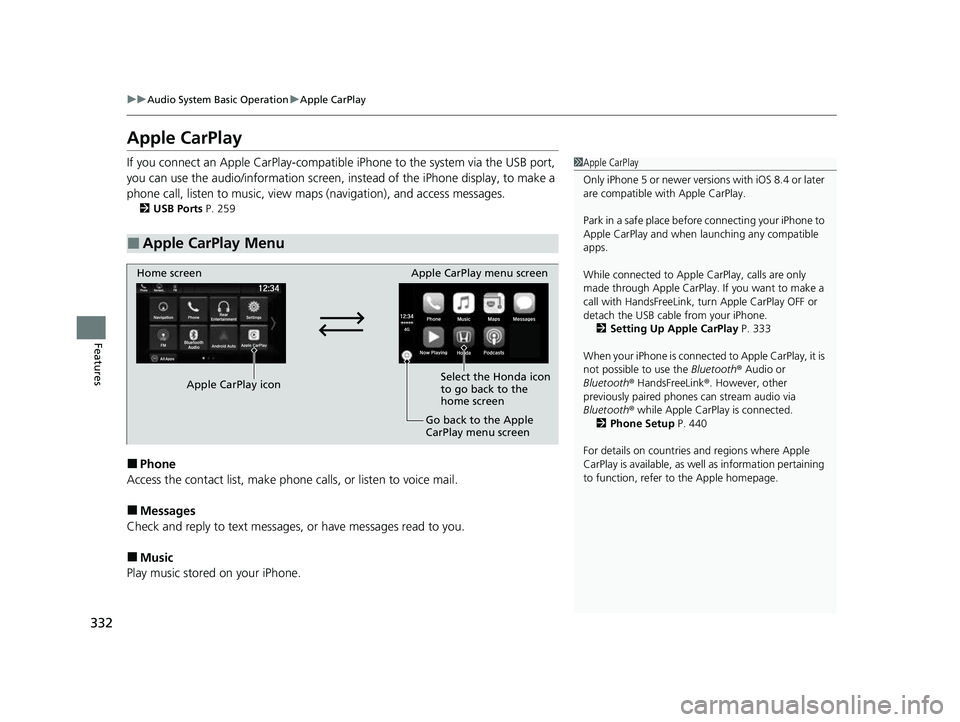
■Apple CarPlay Menu
1 Apple CarPlay
Only iPhone 5 or newer versi ons with iOS 8.4 or later
are compatible with Apple CarPlay.
Park in a safe place before connecting your iPhone to
Apple CarPlay and when launching any compatible
apps.
While connected to Apple CarPlay, calls are only
made through Apple CarPlay. If you want to make a
call with HandsFreeLink, tu rn Apple CarPlay OFF or
detach the USB cable from your iPhone. 2 Setting Up Apple CarPlay P. 333
When your iPhone is connected to Apple CarPlay, it is
not possible to use the Bluetooth® Audio or
Bluetooth ® HandsFreeLink ®. However, other
previously paired phones can stream audio via
Bluetooth ® while Apple CarPlay is connected.
2 Phone Setup P. 440
For details on c ountries and regions where Apple
CarPlay is available, as well as information pertaining
to function, refer to the Apple homepage.
Home screen
Apple CarPlay icon Apple CarPlay menu screen
Go back to the Apple
CarPlay menu screen
Select the Honda icon
to go back to the
home screen
23 US ODYSSEY-31THR6500.book 332 ページ 2022年1月24日 月曜日 午前11時35分
Page 335 of 707
Continued333
uuAudio System Basic Operation uApple CarPlay
Features
■Maps
Display Apple Maps and use the navigation function just as you would on your
iPhone.
Only one navigation system (pre-installed navigation or Apple CarPlay) can give
directions at a time. When you are using one system, directions to any prior
destination set on the other system will be canceled, and the system you are
currently using will direct you to your destination.
After you have connected your iPhone to the system via the USB port, use the
following procedure to set up Apple CarPlay. Use of Apple CarPlay will result in the
transmission of certain user and vehicle information (such as vehicle location, speed,
and status) to your iPhone to enhance the Apple CarPlay experience. You will need
to consent to the sharing of this in formation on the audio/information screen.
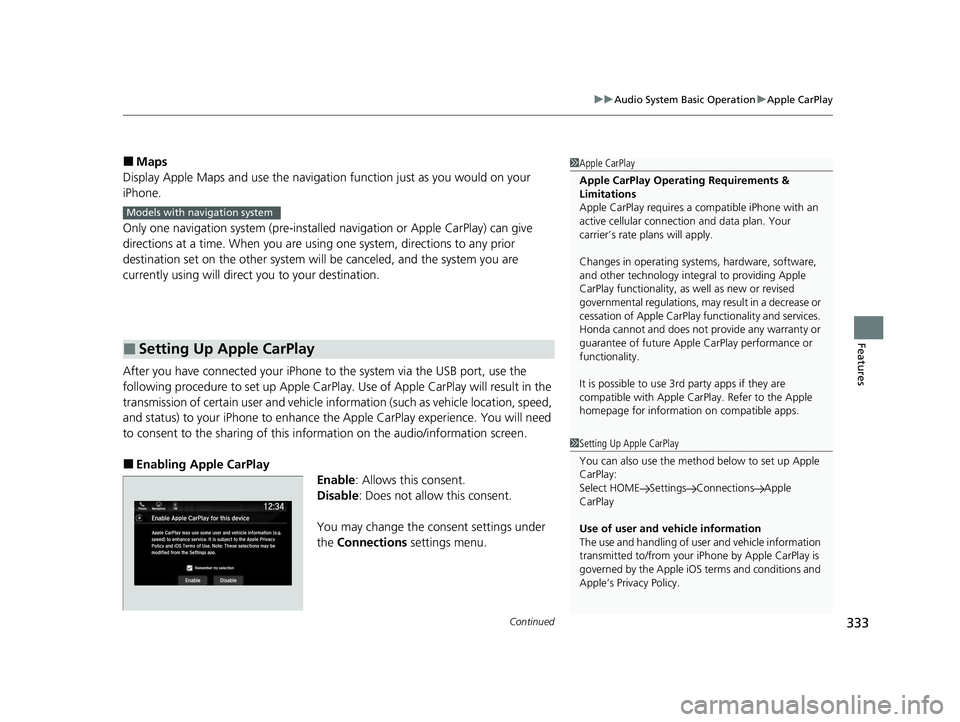
■Enabling Apple CarPlay
Enable: Allows this consent.
Disable : Does not allow this consent.
You may change the consent settings under
the Connections settings menu.
■Setting Up Apple CarPlay
1Apple CarPlay
Apple CarPlay Operating Requirements &
Limitations
Apple CarPlay requi res a compatible iPhone with an
active cellular connecti on and data plan. Your
carrier’s rate plans will apply.
Changes in operating systems, hardware, software,
and other technology integral to providing Apple
CarPlay functionality, as well as new or revised
governmental regulations, may result in a decrease or
cessation of Apple CarPlay functionality and services.
Honda cannot and does not pr ovide any warranty or
guarantee of future Appl e CarPlay performance or
functionality.
It is possible to use 3r d party apps if they are
compatible with Apple CarPlay. Refer to the Apple
homepage for information on compatible apps.
Models with navigation system
1 Setting Up Apple CarPlay
You can also use the method below to set up Apple
CarPlay:
Select HOME Settings Connections Apple
CarPlay
Use of user and vehicle information
The use and handling of user and vehicle information
transmitted to/from your iP hone by Apple CarPlay is
governed by the Apple iOS terms and conditions and
Apple’s Privacy Policy.
23 US ODYSSEY-31THR6500.book 333 ページ 2022年1月24日 月曜日 午前11時35分
Page 338 of 707
uuAudio System Basic Operation uAndroid AutoTM
336
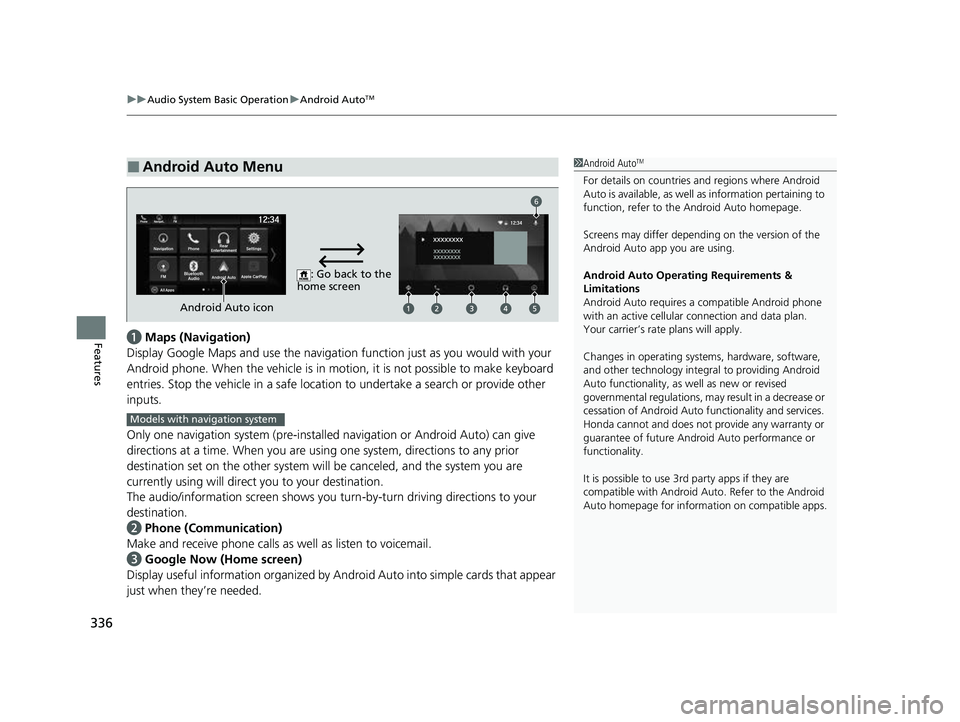
Featuresa Maps (Navigation)
Display Google Maps and use the navigation function just as you would with your
Android phone. When the vehicle is in mo tion, it is not possible to make keyboard
entries. Stop the vehicle in a safe location to undertake a search or provide other
inputs.
Only one navigation system (pre-installe d navigation or Android Auto) can give
directions at a time. When you are using one system, directions to any prior
destination set on the other system will be canceled, and the system you are
currently using will direct you to your destination.
The audio/information screen shows you turn -by-turn driving directions to your
destination.
b Phone (Communication)
Make and receive phone calls as well as listen to voicemail.
c Google Now (Home screen)
Display useful information organized by Andr oid Auto into simple cards that appear
just when they’re needed.
■Android Auto Menu1 Android AutoTM
For details on c ountries and regions where Android
Auto is available, as well as information pertaining to
function, refer to the Android Auto homepage.
Screens may differ depending on the version of the
Android Auto app you are using.
Android Auto Operating Requirements &
Limitations
Android Auto requires a compatible Android phone
with an active cellular connection and data plan.
Your carrier’s rate plans will apply.
Changes in operating systems, hardware, software,
and other technology integral to providing Android
Auto functionality, as well as new or revised
governmental regulations, may result in a decrease or
cessation of Android Auto functionality and services.
Honda cannot and does not pr ovide any warranty or
guarantee of future Android Auto performance or
functionality.
It is possible to use 3r d party apps if they are
compatible with Android Auto. Refer to the Android
Auto homepage for informat ion on compatible apps.
: Go back to the
home screen
Android Auto icon
6
Models with navigation system
23 US ODYSSEY-31THR6500.book 336 ページ 2022年1月24日 月曜日 午前11時35分
Page 343 of 707
341
Features
General Information on the Audio System
SiriusXM® Radio Service*
1.You need your radio ID ready before regist ering for subscription. To see the ID in
the screen, select Channel to 0.
2. Have your radio ID ready, and either call or visit the SiriusXM® website to
subscribe.
Switch to the SiriusXM ® mode by using the audio remote controls on the steering
wheel, or through the audio/information screen, and stay in this mode for about 30
minutes until the service is activated. Make sure your vehicle is in an open area with
good reception.
Channel not subscribed. Call SiriusXM to subscribe.:
You are not subscribed to the channel selected.
Subscription updated:
SiriusXM ® radio is receiving informati on update from the network.
Channel Not Available:
No such channel exits, or the artist or title information is unavailable.
No Signal:
The signal is too weak in the current location.
Check Tuner:
There is a problem with the SiriusXM ® tuner. Contact a dealer.
Check Antenna:
There is a problem with the SiriusXM ® antenna. Contact a dealer.
■Subscribing to SiriusXM® Radio
■Receiving SiriusXM ® Radio
■SiriusXM ® Radio Display Messages
1 Subscribing to SiriusXM ® Radio
Contact Information for SiriusXM ® Radio:
•US: SiriusXM ® Radio at www.siriusxm.com or 1-
800-852-9696
•Canada: SiriusXM ® Canada at www.siriusxm.ca , or
1-877-209-0079
1 Receiving SiriusXM ® Radio
The SiriusXM ® satellites are in orbit over the equator;
therefore, objects south of the vehicle may cause
satellite reception interruptions. Sa tellite signals are
more likely to be blocked by tall buildings and
mountains the farther north you travel from the
equator.
You may experience rece ption problems under the
following circumstances:
•In a location with an obstruction to the south of
your vehicle.
•In tunnels
•On the lower level of a multi-tiered road
•Large items carried on the roof rack
* Not available on all models
23 US ODYSSEY-31THR6500.book 341 ページ 2022年1月24日 月曜日 午前11時35分
Page 344 of 707
342
uuGeneral Information on the Audio System uRecommended CDs*
Features
Recommended CDs*
• Use only high-quality CD-R or CD-RW discs labeled for audio use.
• Use only CD-R or CD-RW discs on which the recordings are closed.
• Play only standard round-shaped CDs.
• Some software files may not allow for audio play or text data display.
• Some versions of MP3, WMA or AAC formats may be unsupported.1Recommended CDs*
A Dual-disc cannot play on this audio unit. If recorded
under certain conditions, a CD-R or CD-RW may not
play either.
■CDs with MP3, WMA or AAC files
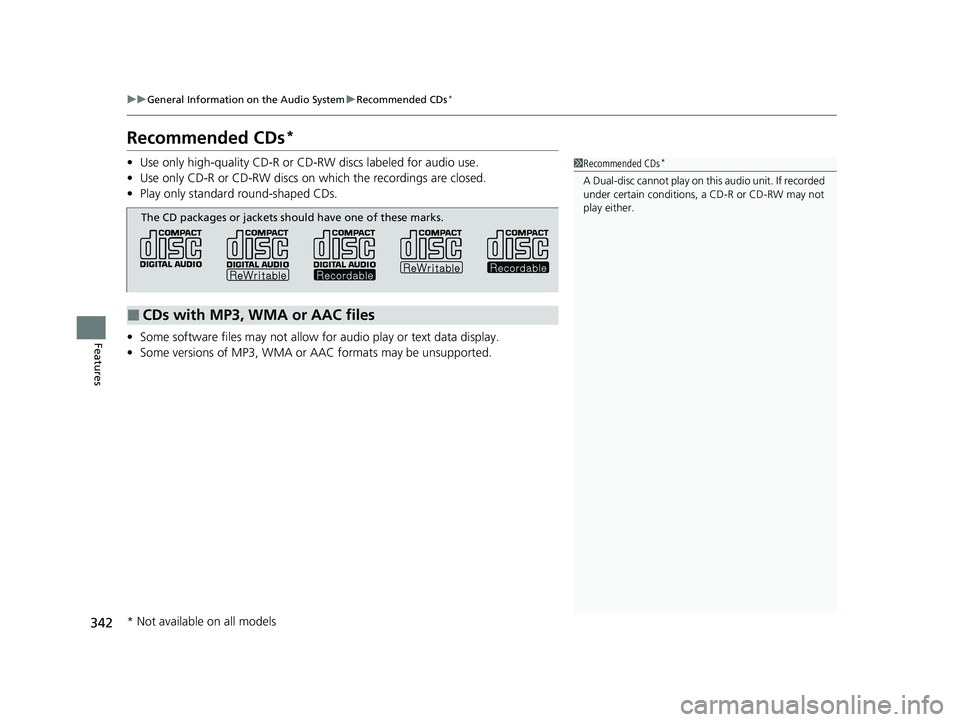
The CD packages or jackets should have one of these marks.
* Not available on all models
23 US ODYSSEY-31THR6500.book 342 ページ 2022年1月24日 月曜日 午前11時35分
Page 346 of 707
344
uuGeneral Information on the Audio System uCompatible iPod, iPad, iPhone, and USB Flash Drives
Features
Compatible iPod, iPad, iPhone, and USB Flash Drives
• A USB flash drive of 256 MB or higher is recommended.
• Some digital audio players may not be compatible.
• Some USB flash drives (e.g., a device with security lockout) may not work.
• Some software files may not allow for audio play or text data display.
• Some versions of MP3, WMA, or AAC formats may be unsupported.
■iPod, iPad, and iPhone Model Compatibility
Model
Made for iPod (5th generation)
Made for iPod classic 80GB/160GB (launch in 2007)
Made for iPod classic 120GB (launch in 2008)
Made for iPod classic 160GB (launch in 2009)
Made for iPod nano (1st to 7th generation) released between 2005 and 2012
Made for iPod touch (1st to 5th generation) released between 2007 and 2012
Made for iPhone/iPhone 3G/iPhone 3GS/iP hone 4/iPhone 4s/iPhone 5/iPhone 5c/
iPhone 5s/iPhone 6/iPhone 6 Plus
Made for iPad/iPad 2/iPad (3rd generation)/iPad (4th generation)
Made for iPad Air/iPad Air 2
Made for iPad mini/iPad mini 2/iPad mini 3
■USB Flash Drives
1iPod, iPad, and iPhone Model Compatibility
This system may not work with all software versions
of these devices.
1 USB Flash Drives
Files on the USB flash drive are played in their stored
order. This order may be different from the order
displayed on your PC or device.
23 US ODYSSEY-31THR6500.book 344 ページ 2022年1月24日 月曜日 午前11時35分
Page 354 of 707
352
uuGeneral Information on the Audio System uHonda App License Agreement
Features
F. NO WARRANTY. You understand and agree that your use of the SOFTWARE and SERVICES are solely at your own risk and that you
will be solely responsible for any damage to your VEHICLE’s multim edia system or any other equipment or any loss of data that may result
from your use of the SOFTWARE or SERVICES. THE SOFTWARE AND SERVICES ARE PROVIDED ON AN “AS IS” AND “AS AVAILABLE” BASIS
WITHOUT ANY WARRANTY OF ANY KIND, EXPRESSED, IMPLIED OR STATUTORY. WE SPECIFICALLY DISCLAIM ANY IMPLIED WARRANTIES
OF MERCHANTABILITY, FITNESS FOR A PA RTICULAR PURPOSE, AND NON-INFRINGEMENT . HONDA makes no warranties that the
SOFTWARE or SERVICES will meet your requirements, or that th e SOFTWARE or SERVICES will be uninterrupted, timely, secure, non-
infringing or error free. You understand and agree that you are responsible for any and all charges, costs or expenses associated with your
use of the SOFTWARE or SERVICES. Advice or information, whether oral or written, obtained by you from us or through the SOFTWAR E
or SERVICES are provided for informational purposes only and w ill not create any warranty not expressly made herein. You should not rely
on any such information or advice. We assume no liability or resp onsibility for any errors or omissions in the SOFTWARE or SERV ICES. We
do not make any warranty or representation th at your use of the material displayed on, or obtained through, the SOFTWARE or SER VICES
is non-infringing of any rights of any third party. Any decision or action taken by you on the basis of information or content provided via
the application is at your sole discretion and risk. HONDA and PROVIDERS are not respon sible or liable for any such decision, o r for the
accuracy, completeness, usefulness, or availability of any cont ent or information displayed, transmitted, or otherwise made available via
the SOFTWARE or SERVICES. To the extent ju risdictions do not allow the exclusion of certain warranties, some of the above exclu sions may
not apply to you.
G. LIMITATIONS ON LIABILITY. You and HONDA are each wa iving important rights.
1. Limitations on YOUR liability.
HONDA cannot recover from you any consequential, indire ct, incidental, or special damages, or attorney’s
fees in connection with your use of the SOFTWARE or HONDA SERVICES. HONDA WAIVES TO THE FULLEST EXTENT ALLOWED BY LAW
ANY CLAIM FOR DAMAGES OTHER THAN DIRECT, COMPENSATORY DAMAGES AS LIMITED IN THIS AGREEMENT.
23 US ODYSSEY-31THR6500.book 352 ページ 2022年1月24日 月曜日 午前11時35分
Page 371 of 707
369
uuBlu-ray/DVD Rear Entertainment System*uOperating the System
Features
Operating the System
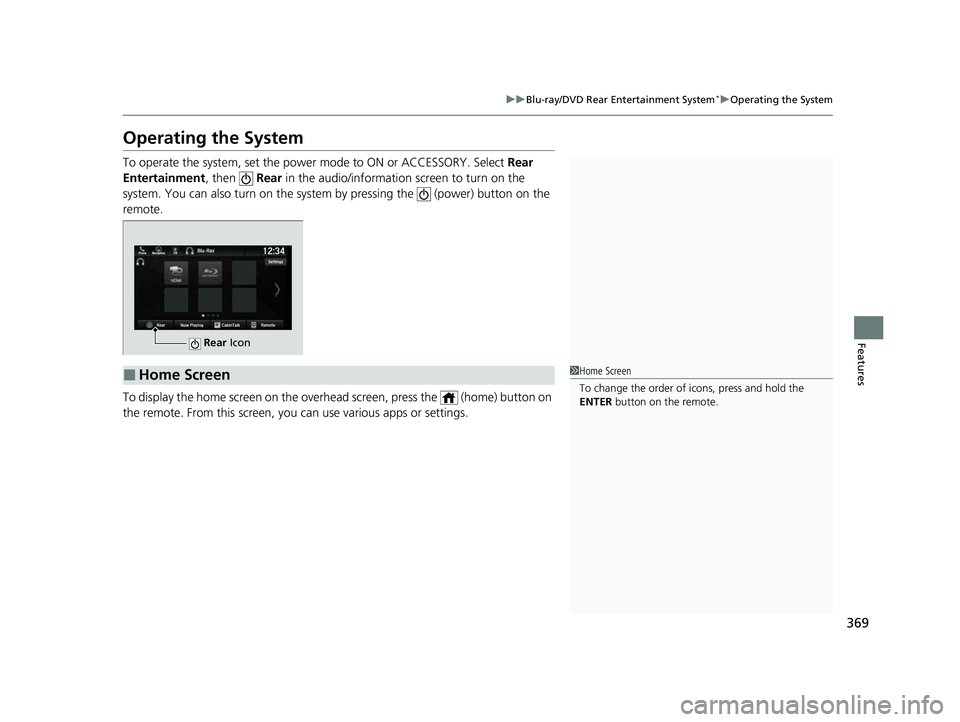
To operate the system, set the power mode to ON or ACCESSORY. Select Rear
Entertainment, then Rear in the audio/informatio n screen to turn on the
system. You can also turn on the system by pressing the (power) button on the
remote.
To display the home screen on the overhead screen, press the (home) button on
the remote. From this screen, you can use various apps or settings.
Rear Icon
■Home Screen1Home Screen
To change the order of icons, press and hold the
ENTER button on the remote.
23 US ODYSSEY-31THR6500.book 369 ページ 2022年1月24日 月曜日 午前11時35分