audio HONDA PILOT 2013 2.G Owners Manual
[x] Cancel search | Manufacturer: HONDA, Model Year: 2013, Model line: PILOT, Model: HONDA PILOT 2013 2.GPages: 488, PDF Size: 10.18 MB
Page 267 of 488
266
Features
Audio Error Messages
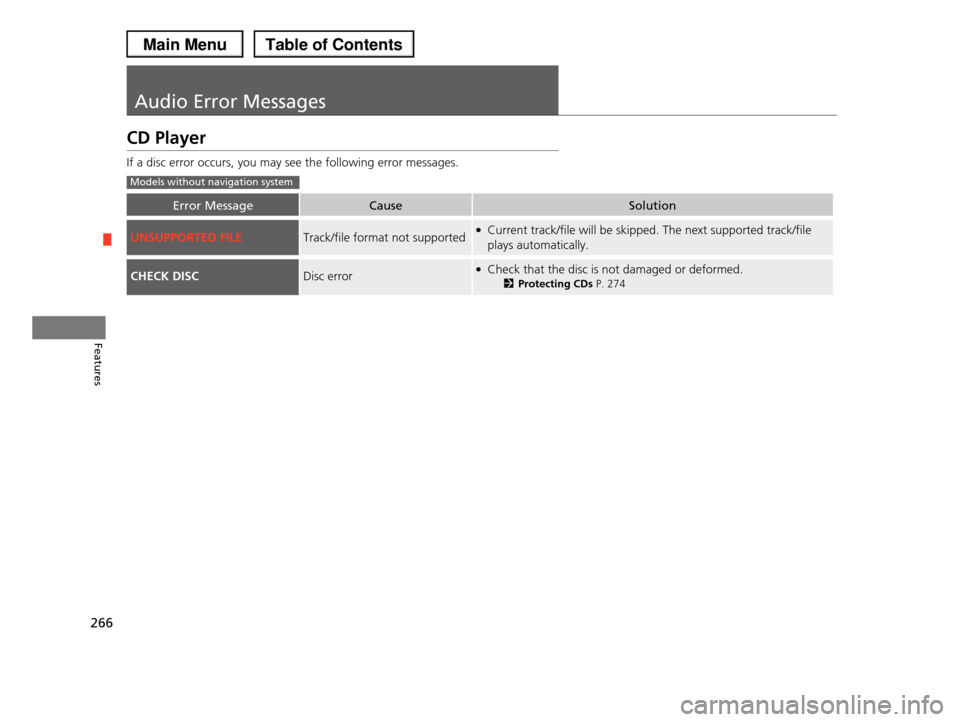
CD Player
If a disc error occurs, you may see the following error messages.
Error MessageCauseSolution
UNSUPPORTED FILETrack/file format not supported●Current track/file will be skipped. The next supported track/file
plays automatically.
CHECK DISCDisc error●Check that the disc is not damaged or deformed.
2Protecting CDs P. 274
Models without navigation system
Page 268 of 488
267
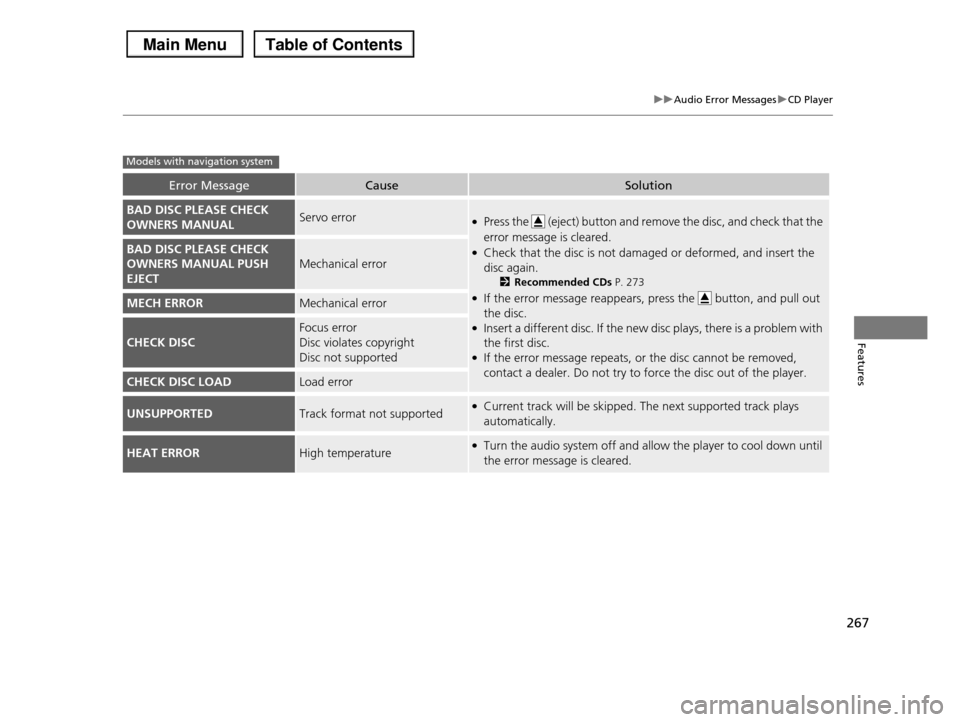
uuAudio Error MessagesuCD Player
Features
Error MessageCauseSolution
BAD DISC PLEASE CHECK
OWNERS MANUALServo error●Press the (eject) button and remove the disc, and check that the
error message is cleared.
●Check that the disc is not damaged or deformed, and insert the
disc again.
2Recommended CDs P. 273
●If the error message reappears, press the button, and pull out
the disc.●Insert a different disc. If the new disc plays, there is a problem with
the first disc.●If the error message repeats, or the disc cannot be removed,
contact a dealer. Do not try to force the disc out of the player.
BAD DISC PLEASE CHECK
OWNERS MANUAL PUSH
EJECT
Mechanical error
MECH ERRORMechanical error
CHECK DISC
Focus error
Disc violates copyright
Disc not supported
CHECK DISC LOADLoad error
UNSUPPORTEDTrack format not supported●Current track will be skipped. The next supported track plays
automatically.
HEAT ERRORHigh temperature●Turn the audio system off and allow the player to cool down until
the error message is cleared.
Models with navigation system
Page 269 of 488
268
uuAudio Error MessagesuiPod®/USB Flash Drive
Features
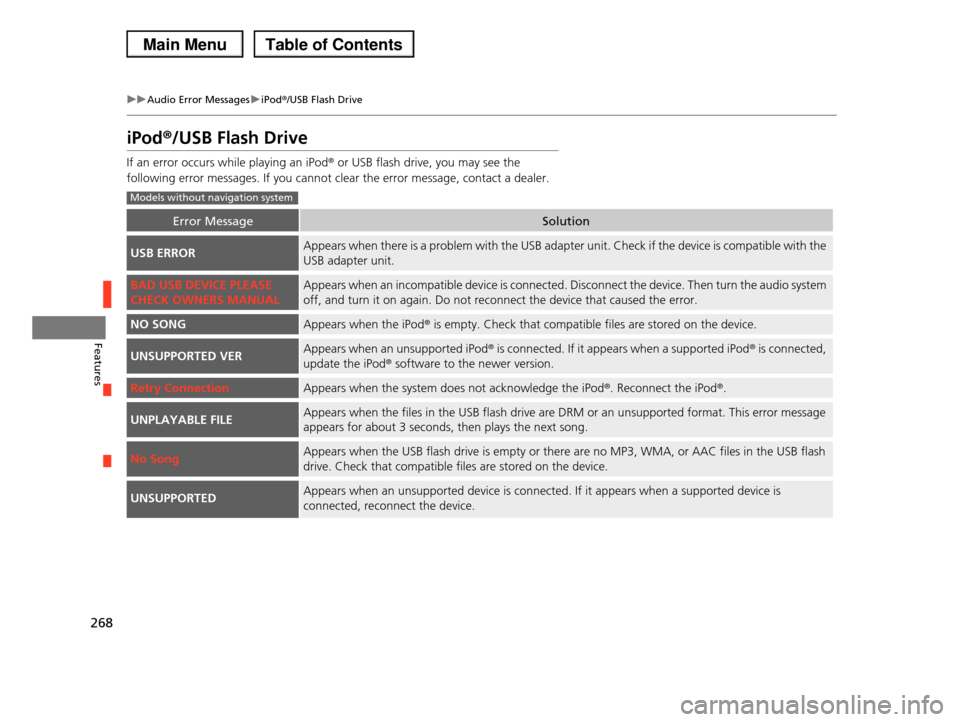
iPod®/USB Flash Drive
If an error occurs while playing an iPod® or USB flash drive, you may see the
following error messages. If you cannot clear the error message, contact a dealer.
Error MessageSolution
USB ERRORAppears when there is a problem with the USB adapter unit. Check if the device is compatible with the
USB adapter unit.
BAD USB DEVICE PLEASE
CHECK OWNERS MANUAL
Appears when an incompatible device is connected. Disconnect the device. Then turn the audio system
off, and turn it on again. Do not reconnect the device that caused the error.
NO SONGAppears when the iPod® is empty. Check that compatible files are stored on the device.
UNSUPPORTED VERAppears when an unsupported iPod® is connected. If it appears when a supported iPod® is connected,
update the iPod® software to the newer version.
Retry ConnectionAppears when the system does not acknowledge the iPod®. Reconnect the iPod®.
UNPLAYABLE FILEAppears when the files in the USB flash drive are DRM or an unsupported format. This error message
appears for about 3 seconds, then plays the next song.
No SongAppears when the USB flash drive is empty or there are no MP3, WMA, or AAC files in the USB flash
drive. Check that compatible files are stored on the device.
UNSUPPORTEDAppears when an unsupported device is connected. If it appears when a supported device is
connected, reconnect the device.
Models without navigation system
Page 270 of 488
269
uuAudio Error MessagesuiPodr
Features
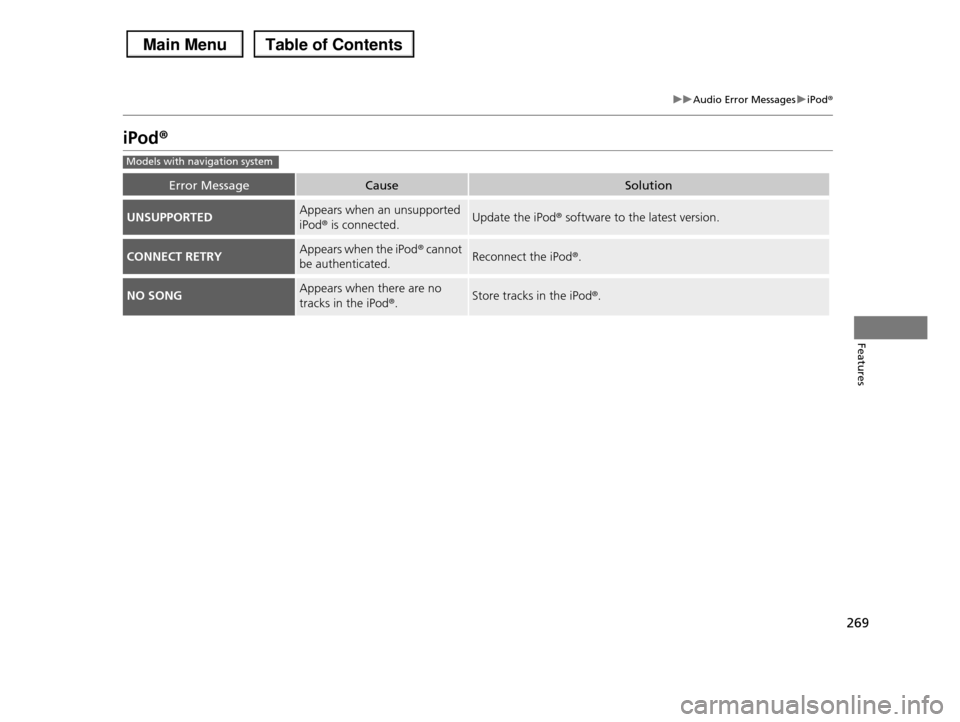
iPodr
Error MessageCauseSolution
UNSUPPORTEDAppears when an unsupported
iPodr is connected.Update the iPodr software to the latest version.
CONNECT RETRYAppears when the iPodr cannot
be authenticated.Reconnect the iPodr.
NO SONGAppears when there are no
tracks in the iPodr.Store tracks in the iPodr.
Models with navigation system
Page 271 of 488
270
uuAudio Error MessagesuUSB Flash Drive
Features
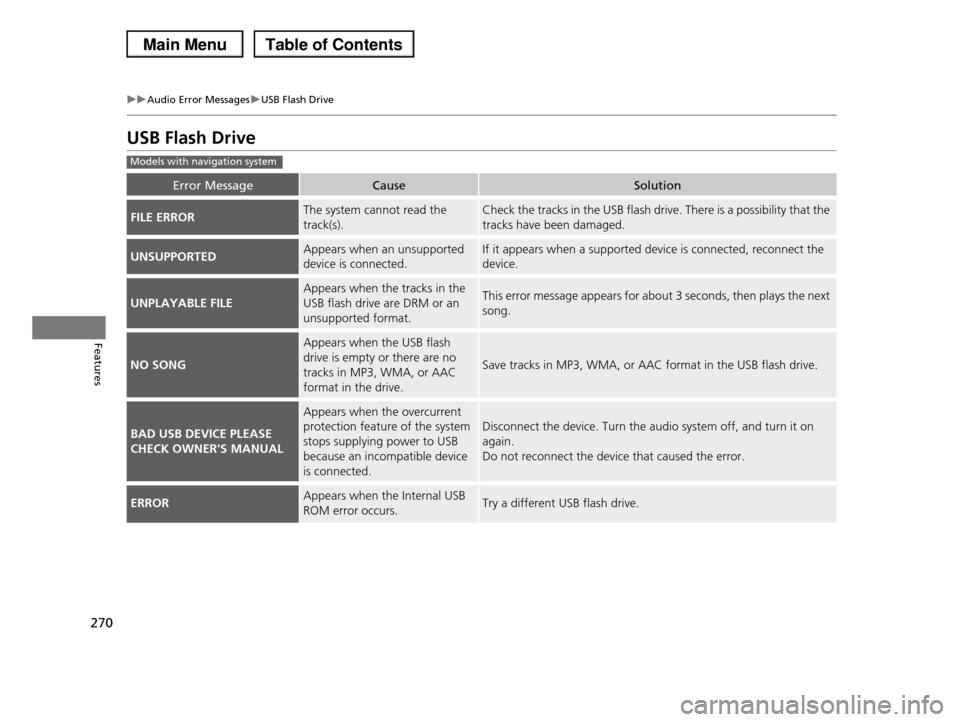
USB Flash Drive
Error MessageCauseSolution
FILE ERRORThe system cannot read the
track(s).
Check the tracks in the USB flash drive. There is a possibility that the
tracks have been damaged.
UNSUPPORTEDAppears when an unsupported
device is connected.
If it appears when a supported device is connected, reconnect the
device.
UNPLAYABLE FILE
Appears when the tracks in the
USB flash drive are DRM or an
unsupported format.
This error message appears for about 3 seconds, then plays the next
song.
NO SONG
Appears when the USB flash
drive is empty or there are no
tracks in MP3, WMA, or AAC
format in the drive.
Save tracks in MP3, WMA, or AAC format in the USB flash drive.
BAD USB DEVICE PLEASE
CHECK OWNER'S MANUAL
Appears when the overcurrent
protection feature of the system
stops supplying power to USB
because an incompatible device
is connected.
Disconnect the device. Turn the audio system off, and turn it on
again.
Do not reconnect the device that caused the error.
ERRORAppears when the Internal USB
ROM error occurs.Try a different USB flash drive.
Models with navigation system
Page 272 of 488
271
uuAudio Error MessagesuDVD Player Error Messages
Features
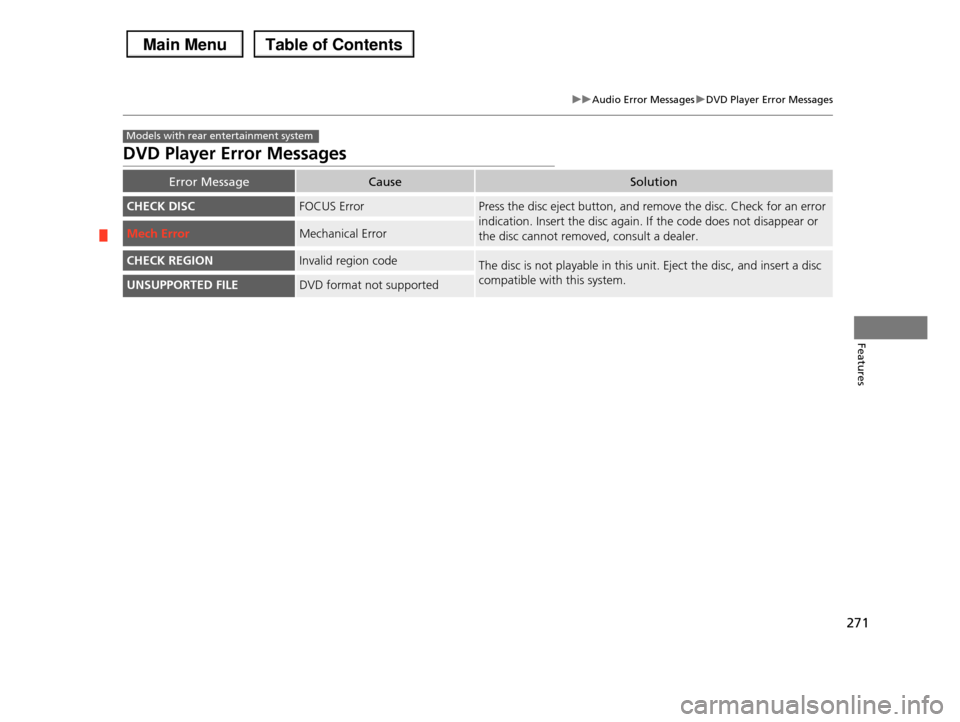
DVD Player Error Messages
Error MessageCauseSolution
CHECK DISCFOCUS ErrorPress the disc eject button, and remove the disc. Check for an error
indication. Insert the disc again. If the code does not disappear or
the disc cannot removed, consult a dealer. Mech ErrorMechanical Error
CHECK REGIONInvalid region codeThe disc is not playable in this unit. Eject the disc, and insert a disc
compatible with this system.UNSUPPORTED FILEDVD format not supported
Models with rear entertainment system
Page 273 of 488
272
Features
General Information on the Audio System
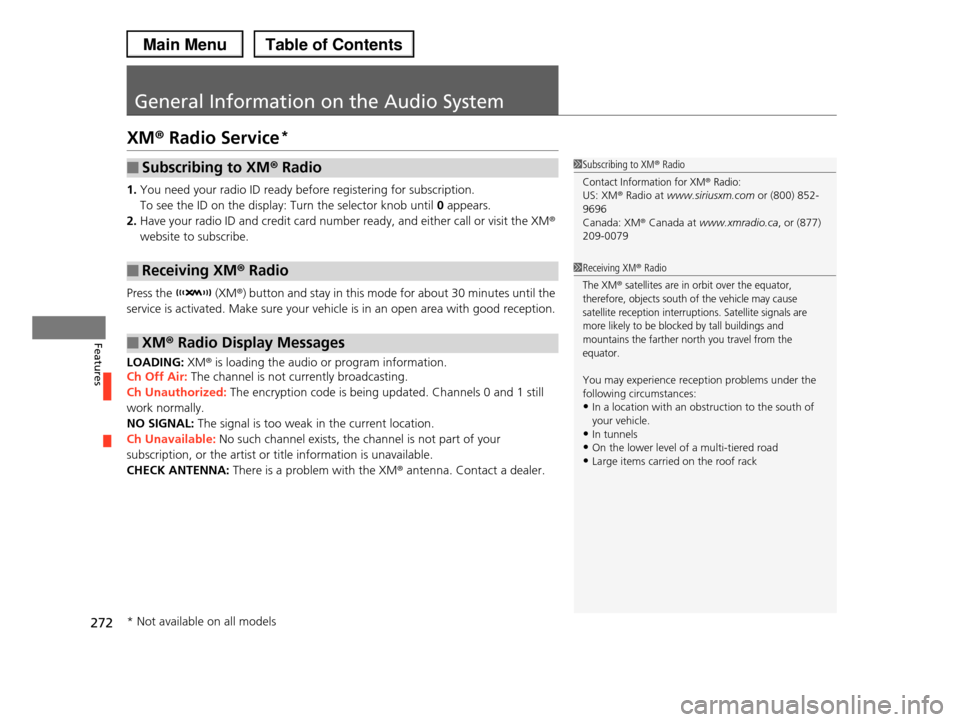
XM® Radio Service*
1.You need your radio ID ready before registering for subscription.
To see the ID on the display: Turn the selector knob until 0 appears.
2.Have your radio ID and credit card number ready, and either call or visit the XM®
website to subscribe.
Press the (XM®) button and stay in this mode for about 30 minutes until the
service is activated. Make sure your vehicle is in an open area with good reception.
LOADING: XM® is loading the audio or program information.
Ch Off Air: The channel is not currently broadcasting.
Ch Unauthorized: The encryption code is being updated. Channels 0 and 1 still
work normally.
NO SIGNAL: The signal is too weak in the current location.
Ch Unavailable: No such channel exists, the channel is not part of your
subscription, or the artist or title information is unavailable.
CHECK ANTENNA: There is a problem with the XM® antenna. Contact a dealer.
■Subscribing to XM® Radio
■Receiving XM® Radio
■XM® Radio Display Messages
1Subscribing to XM® Radio
Contact Information for XM® Radio:US: XM® Radio at www.siriusxm.com or (800) 852-
9696
Canada: XM® Canada at www.xmradio.ca, or (877) 209-0079
1Receiving XM® Radio
The XM® satellites are in orbit over the equator, therefore, objects south of the vehicle may cause
satellite reception interruptions. Satellite signals are
more likely to be blocked by tall buildings and mountains the farther north you travel from the
equator.
You may experience reception problems under the
following circumstances:
•In a location with an obstruction to the south of your vehicle.
•In tunnels
•On the lower level of a multi-tiered road•Large items carried on the roof rack
* Not available on all models
Page 274 of 488
273
uuGeneral Information on the Audio SystemuRecommended CDs
Continued
Features
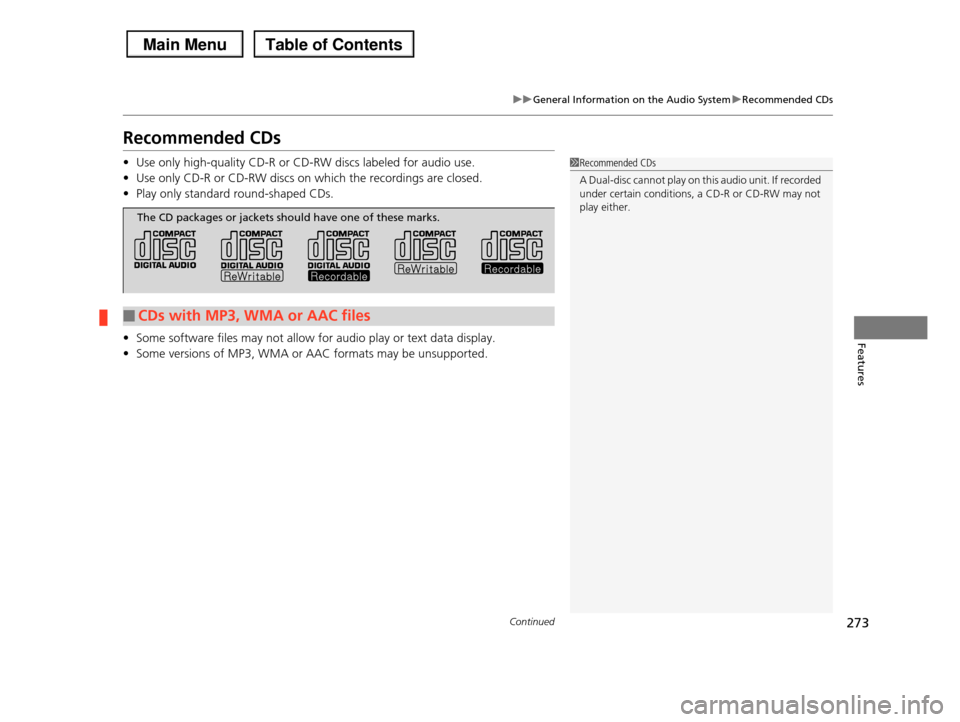
Recommended CDs
•Use only high-quality CD-R or CD-RW discs labeled for audio use.
•Use only CD-R or CD-RW discs on which the recordings are closed.
•Play only standard round-shaped CDs.
•Some software files may not allow for audio play or text data display.
•Some versions of MP3, WMA or AAC formats may be unsupported.
1Recommended CDs
A Dual-disc cannot play on this audio unit. If recorded
under certain conditions, a CD-R or CD-RW may not
play either.
■CDs with MP3, WMA or AAC files
The CD packages or jackets should have one of these marks.
Page 275 of 488
uuGeneral Information on the Audio SystemuRecommended CDs
274
Features
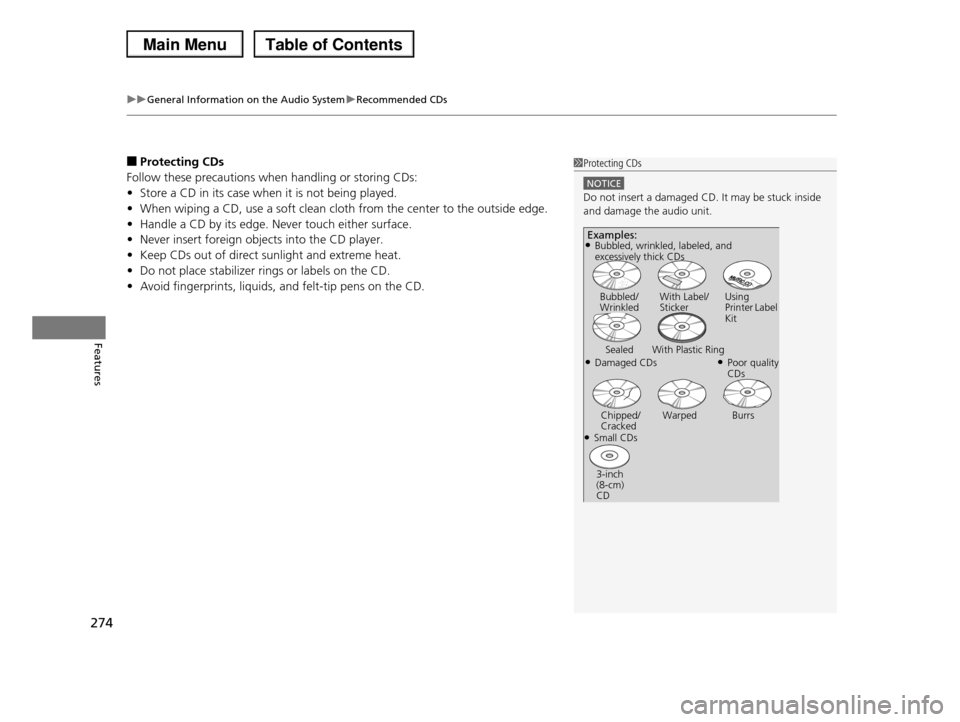
■Protecting CDs
Follow these precautions when handling or storing CDs:
•Store a CD in its case when it is not being played.
•When wiping a CD, use a soft clean cloth from the center to the outside edge.
•Handle a CD by its edge. Never touch either surface.
•Never insert foreign objects into the CD player.
•Keep CDs out of direct sunlight and extreme heat.
•Do not place stabilizer rings or labels on the CD.
•Avoid fingerprints, liquids, and felt-tip pens on the CD.
1Protecting CDs
NOTICE
Do not insert a damaged CD. It may be stuck inside and damage the audio unit.
Examples:
●Damaged CDs
Bubbled/ WrinkledWith Label/StickerUsing Printer Label Kit
Sealed With Plastic Ring●Poor quality CDs
Chipped/CrackedWarped Burrs
●Small CDs
3-inch (8-cm) CD
●Bubbled, wrinkled, labeled, and excessively thick CDs
Page 276 of 488
275
uuGeneral Information on the Audio SystemuCompatible iPod® and USB Flash Drives
Features
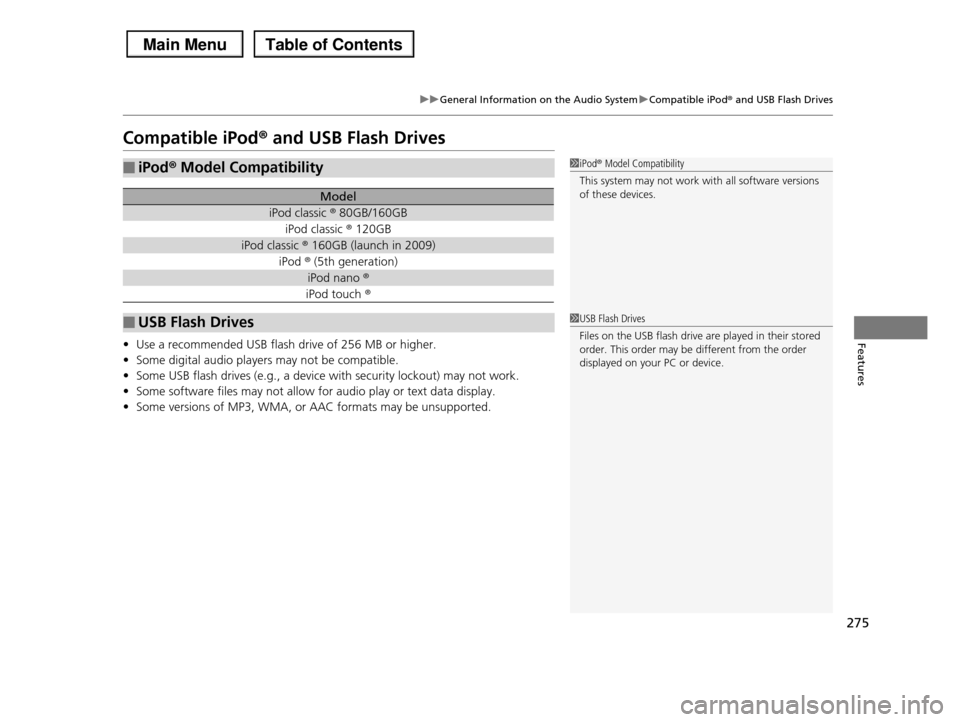
Compatible iPod® and USB Flash Drives
•Use a recommended USB flash drive of 256 MB or higher.
•Some digital audio players may not be compatible.
•Some USB flash drives (e.g., a device with security lockout) may not work.
•Some software files may not allow for audio play or text data display.
•Some versions of MP3, WMA, or AAC formats may be unsupported.
■iPod® Model Compatibility
Model
iPod classic ® 80GB/160GB
iPod classic ® 120GB
iPod classic ® 160GB (launch in 2009)
iPod ® (5th generation)
iPod nano ®
iPod touch ®
■USB Flash Drives
1iPod® Model Compatibility
This system may not work with all software versions
of these devices.
1USB Flash Drives
Files on the USB flash drive are played in their stored
order. This order may be different from the order displayed on your PC or device.