audio HONDA PILOT 2013 2.G Manual Online
[x] Cancel search | Manufacturer: HONDA, Model Year: 2013, Model line: PILOT, Model: HONDA PILOT 2013 2.GPages: 488, PDF Size: 10.18 MB
Page 245 of 488
244
uuAudio System Basic OperationuPlaying a USB Flash Drive
Features
Playing a USB Flash Drive
Your audio system reads and plays sound files on a USB flash drive in either MP3,
WMA or AAC*1 format.
Connect your USB flash drive to the USB adapter cable, then press the USB/AUX
button.
2USB Adapter Cable P. 173
*1:Only AAC format files recorded with iTunes® are playable on this unit.
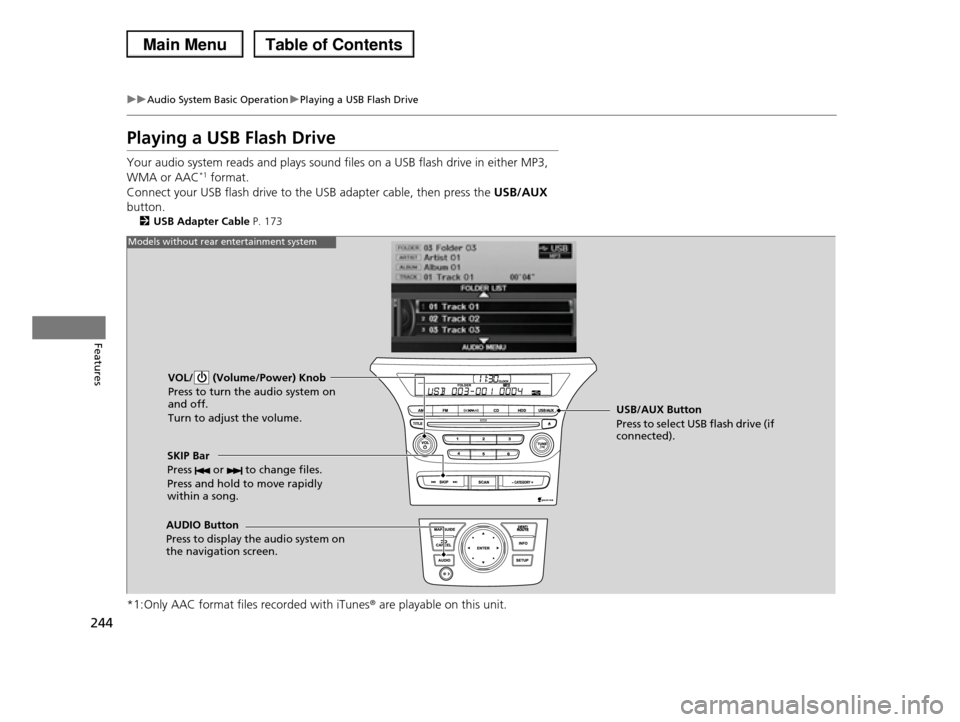
VOL/ (Volume/Power) Knob
Press to turn the audio system on and off.
Turn to adjust the volume.
SKIP Bar
Press or to change files.
Press and hold to move rapidly within a song.
AUDIO Button
Press to display the audio system on the navigation screen.
USB/AUX Button
Press to select USB flash drive (if connected).
Models without rear entertainment system
Page 246 of 488
245
uuAudio System Basic OperationuPlaying a USB Flash Drive
Continued
Features
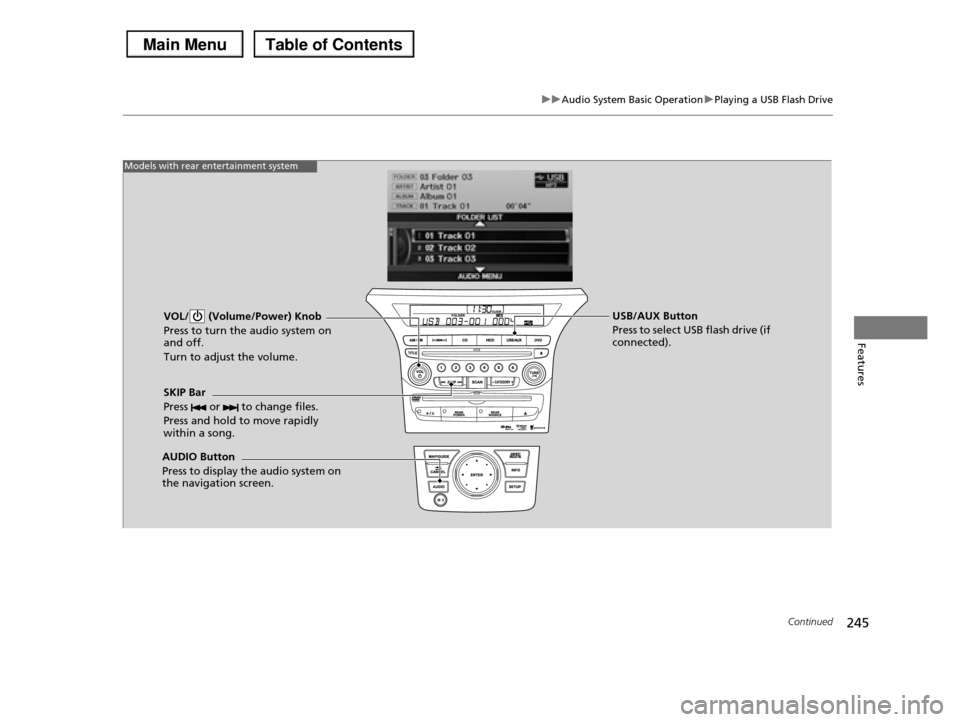
VOL/ (Volume/Power) Knob
Press to turn the audio system on and off.
Turn to adjust the volume.
SKIP Bar
Press or to change files.
Press and hold to move rapidly within a song.
AUDIO Button
Press to display the audio system on the navigation screen.
USB/AUX Button
Press to select USB flash drive (if connected).
Models with rear entertainment system
Page 247 of 488
uuAudio System Basic OperationuPlaying a USB Flash Drive
246
Features
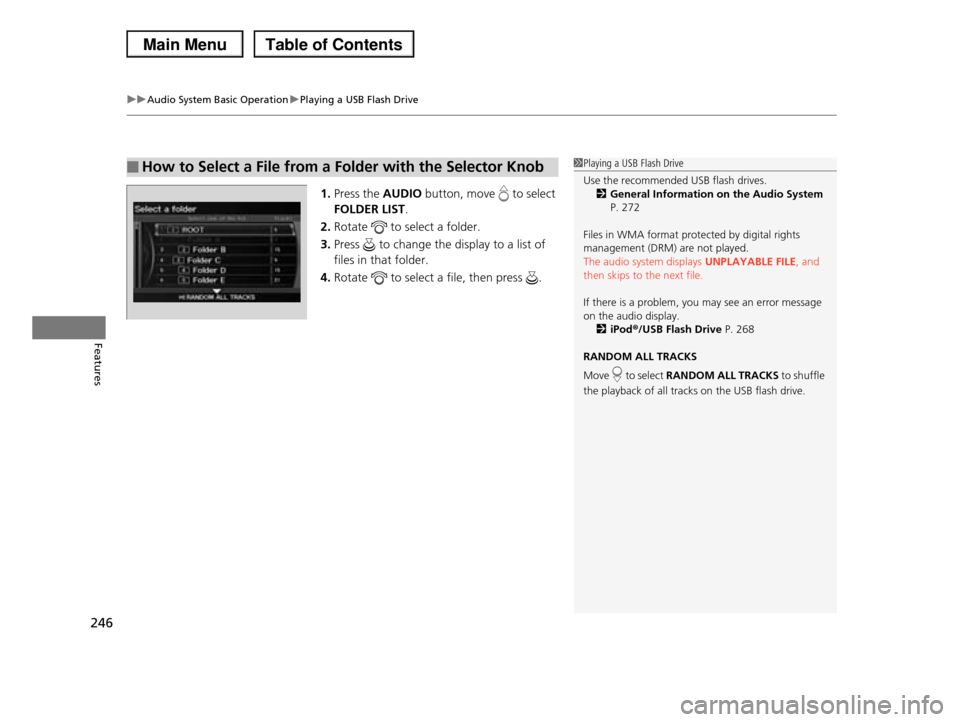
1.Press the AUDIO button, move to select
FOLDER LIST.
2.Rotate to select a folder.
3.Press to change the display to a list of
files in that folder.
4.Rotate to select a file, then press .
■How to Select a File from a Folder with the Selector Knob1Playing a USB Flash Drive
Use the recommended USB flash drives.2General Information on the Audio System
P. 272
Files in WMA format protected by digital rights
management (DRM) are not played.
The audio system displays UNPLAYABLE FILE, and then skips to the next file.
If there is a problem, you may see an error message on the audio display.
2iPod®/USB Flash Drive P. 268
RANDOM ALL TRACKS
Move to select RANDOM ALL TRACKS to shuffle
the playback of all tracks on the USB flash drive.
Page 248 of 488
247
uuAudio System Basic OperationuPlaying a USB Flash Drive
Features
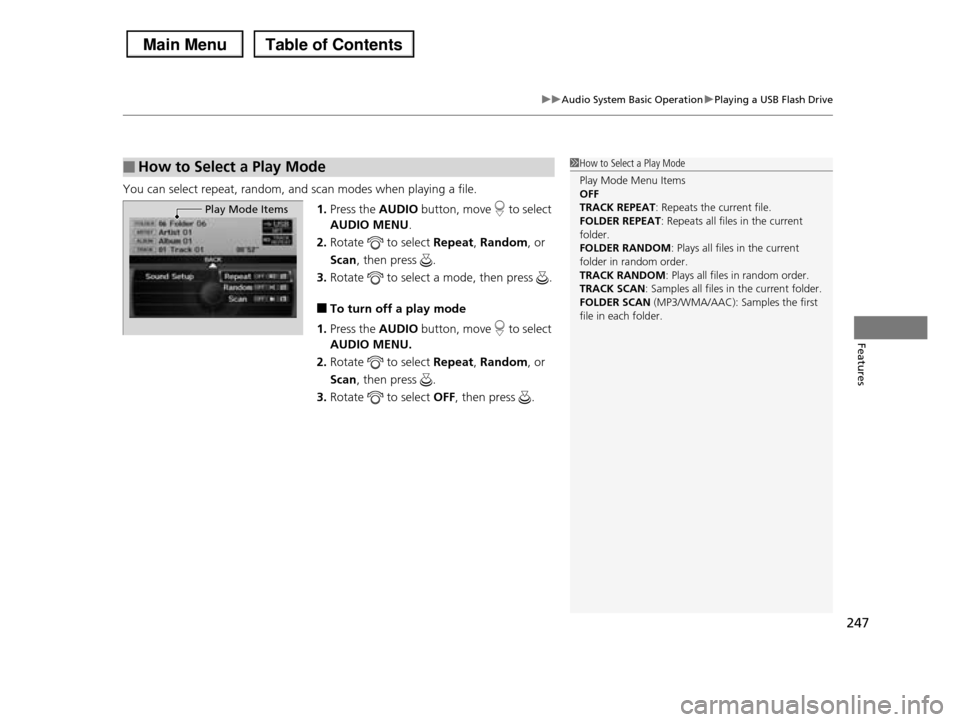
You can select repeat, random, and scan modes when playing a file.
1.Press the AUDIO button, move to select
AUDIO MENU.
2.Rotate to select Repeat, Random, or
Scan, then press .
3.Rotate to select a mode, then press .
■To turn off a play mode
1.Press the AUDIO button, move to select
AUDIO MENU.
2.Rotate to select Repeat, Random, or
Scan, then press .
3.Rotate to select OFF, then press .
■How to Select a Play Mode1How to Select a Play Mode
Play Mode Menu Items OFF
TRACK REPEAT: Repeats the current file.
FOLDER REPEAT: Repeats all files in the current folder.
FOLDER RANDOM: Plays all files in the current
folder in random order. TRACK RANDOM: Plays all files in random order.
TRACK SCAN: Samples all files in the current folder.
FOLDER SCAN (MP3/WMA/AAC): Samples the first file in each folder.
Play Mode Items
Page 249 of 488
248
uuAudio System Basic OperationuPlaying Bluetooth® Audio
Features
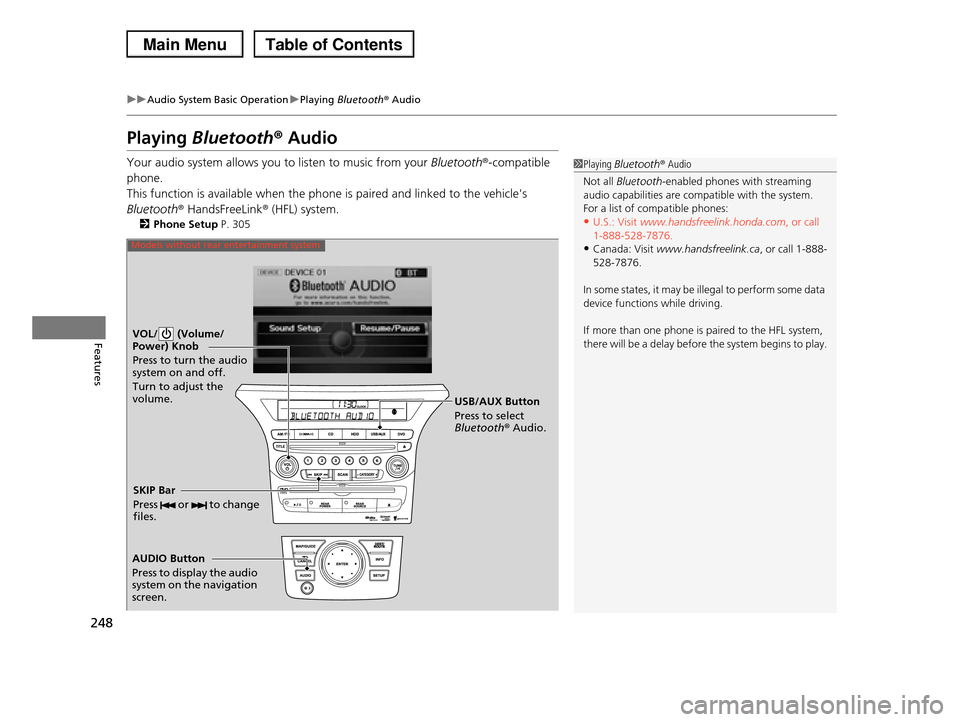
Playing Bluetooth® Audio
Your audio system allows you to listen to music from your Bluetooth®-compatible
phone.
This function is available when the phone is paired and linked to the vehicle's
Bluetooth® HandsFreeLink® (HFL) system.
2Phone Setup P. 305
1Playing Bluetooth® Audio
Not all Bluetooth-enabled phones with streaming
audio capabilities are compatible with the system. For a list of compatible phones:
•U.S.: Visit www.handsfreelink.honda.com, or call
1-888-528-7876.•Canada: Visit www.handsfreelink.ca, or call 1-888-
528-7876.
In some states, it may be illegal to perform some data
device functions while driving.
If more than one phone is paired to the HFL system,
there will be a delay before the system begins to play.VOL/ (Volume/ Power) Knob
Press to turn the audio system on and off.
Turn to adjust the volume.
AUDIO Button
Press to display the audio system on the navigation screen.
USB/AUX Button
Press to select Bluetooth® Audio.
SKIP Bar
Press or to change files.
Models without rear entertainment system
Page 250 of 488
249
uuAudio System Basic OperationuPlaying Bluetooth® Audio
Continued
Features
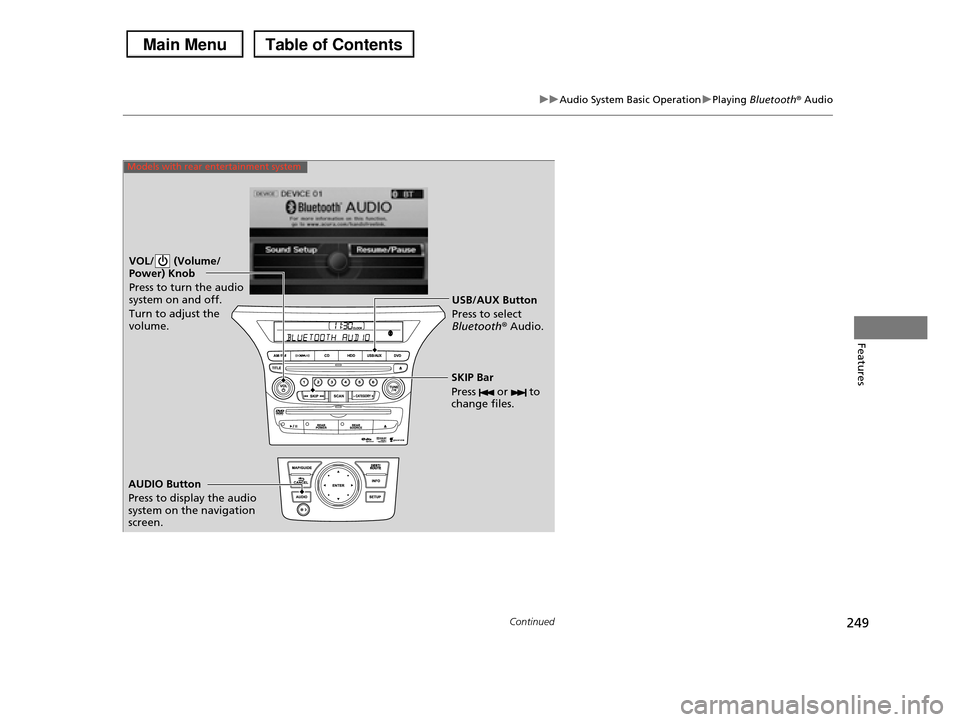
VOL/ (Volume/ Power) Knob
Press to turn the audio system on and off.
Turn to adjust the volume.
AUDIO Button
Press to display the audio system on the navigation screen.
USB/AUX Button
Press to select Bluetooth® Audio.
SKIP Bar
Press or to change files.
Models with rear entertainment system
Page 251 of 488
uuAudio System Basic OperationuPlaying Bluetooth® Audio
250
Features
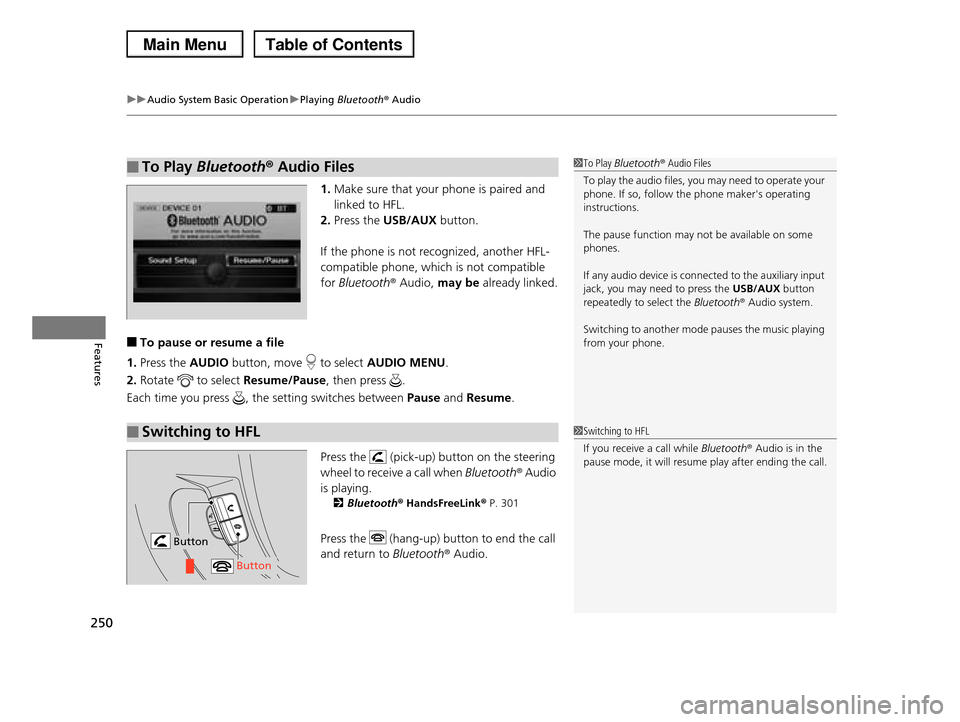
1.Make sure that your phone is paired and
linked to HFL.
2.Press the USB/AUX button.
If the phone is not recognized, another HFL-
compatible phone, which is not compatible
for Bluetooth® Audio, may be already linked.
■To pause or resume a file
1.Press the AUDIO button, move to select AUDIO MENU.
2.Rotate to select Resume/Pause, then press .
Each time you press , the setting switches between Pause and Resume.
Press the (pick-up) button on the steering
wheel to receive a call when Bluetooth® Audio
is playing.
2Bluetooth® HandsFreeLink® P. 301
Press the (hang-up) button to end the call
and return to Bluetooth® Audio.
■To Play Bluetooth® Audio Files1To Play Bluetooth® Audio Files
To play the audio files, you may need to operate your phone. If so, follow the phone maker's operating
instructions.
The pause function may not be available on some
phones.
If any audio device is connected to the auxiliary input
jack, you may need to press the USB/AUX button
repeatedly to select the Bluetooth® Audio system.
Switching to another mode pauses the music playing
from your phone.
■Switching to HFL1Switching to HFL
If you receive a call while Bluetooth® Audio is in the
pause mode, it will resume play after ending the call.
Button
Button
Page 252 of 488
251Continued
Features
Rear Entertainment System*
Allows the rear passengers to enjoy a different entertainment source, such as DVD,
CD, CD Library*, HDD*, and radio, than the front passengers.
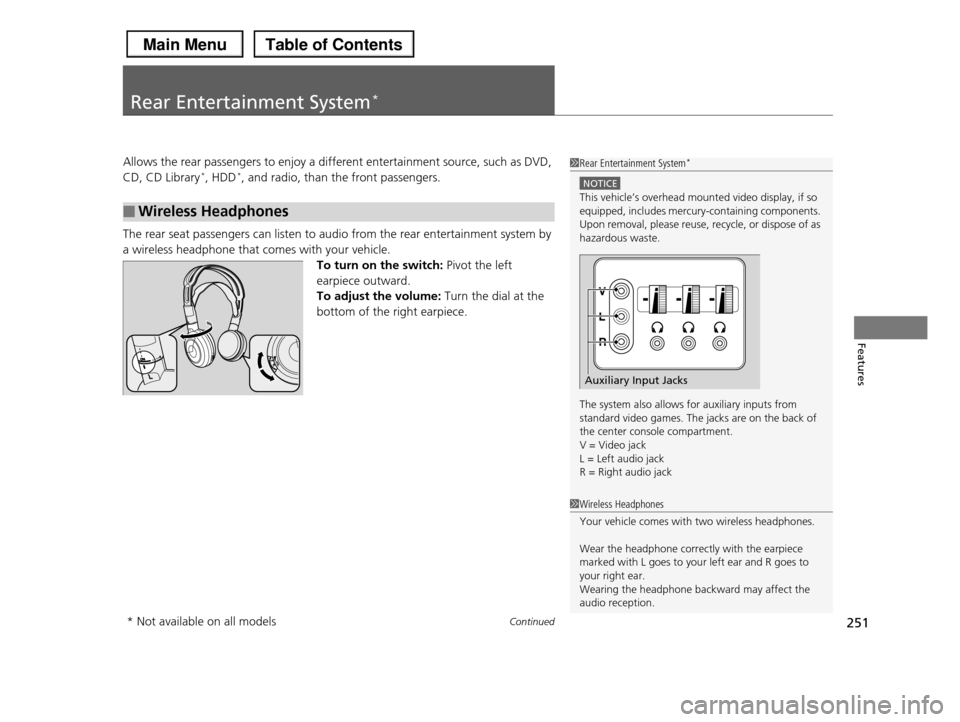
The rear seat passengers can listen to audio from the rear entertainment system by
a wireless headphone that comes with your vehicle.
To turn on the switch: Pivot the left
earpiece outward.
To adjust the volume: Turn the dial at the
bottom of the right earpiece.
■Wireless Headphones
1Rear Entertainment System*
NOTICE
This vehicle’s overhead mounted video display, if so equipped, includes mercury-containing components.
Upon removal, please reuse, recycle, or dispose of as
hazardous waste.
The system also allows for auxiliary inputs from standard video games. The jacks are on the back of
the center console compartment.
V = Video jack L = Left audio jack
R = Right audio jack
Auxiliary Input Jacks
1Wireless Headphones
Your vehicle comes with two wireless headphones.
Wear the headphone correctly with the earpiece marked with L goes to your left ear and R goes to
your right ear.
Wearing the headphone backward may affect the audio reception.
* Not available on all models
Page 253 of 488
uuRear Entertainment System*uOperating the System
252
Features
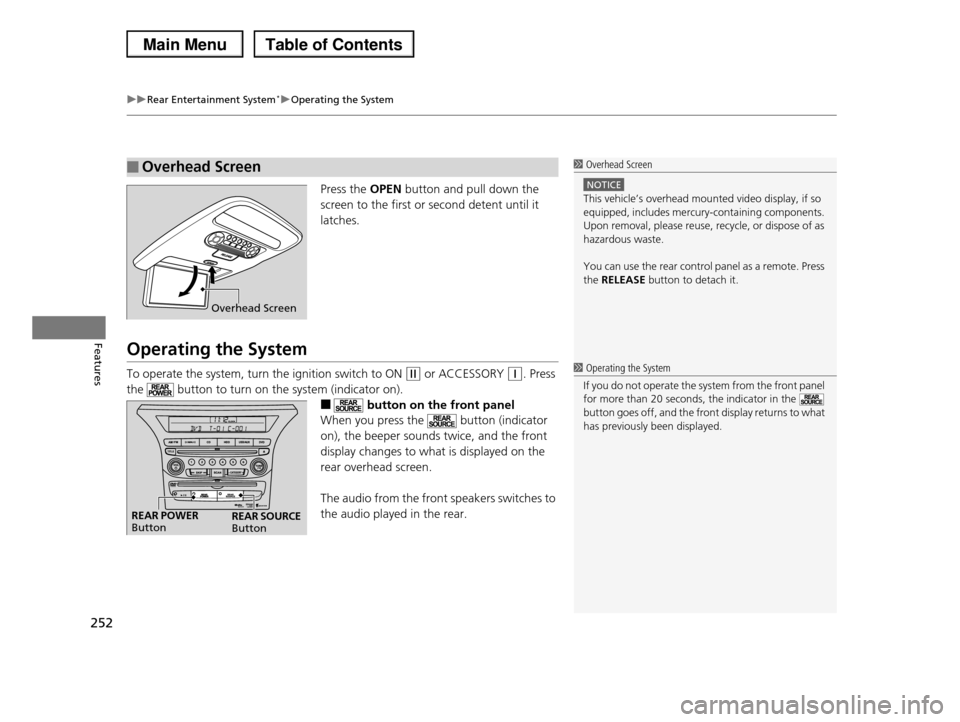
Press the OPEN button and pull down the
screen to the first or second detent until it
latches.
Operating the System
To operate the system, turn the ignition switch to ON (w or ACCESSORY (q. Press
the button to turn on the system (indicator on).
■ button on the front panel
When you press the button (indicator
on), the beeper sounds twice, and the front
display changes to what is displayed on the
rear overhead screen.
The audio from the front speakers switches to
the audio played in the rear.
■Overhead Screen1 Overhead Screen
NOTICE
This vehicle’s overhead mounted video display, if so
equipped, includes mercury-containing components. Upon removal, please reuse, recycle, or dispose of as
hazardous waste.
You can use the rear control panel as a remote. Press
the RELEASE button to detach it.
Overhead Screen
1 Operating the System
If you do not operate the system from the front panel
for more than 20 seconds, the indicator in the button goes off, and the front display returns to what
has previously been displayed.
REAR POWER ButtonREAR SOURCE Button
Page 254 of 488
253
uuRear Entertainment System*uOperating the System
Continued
Features
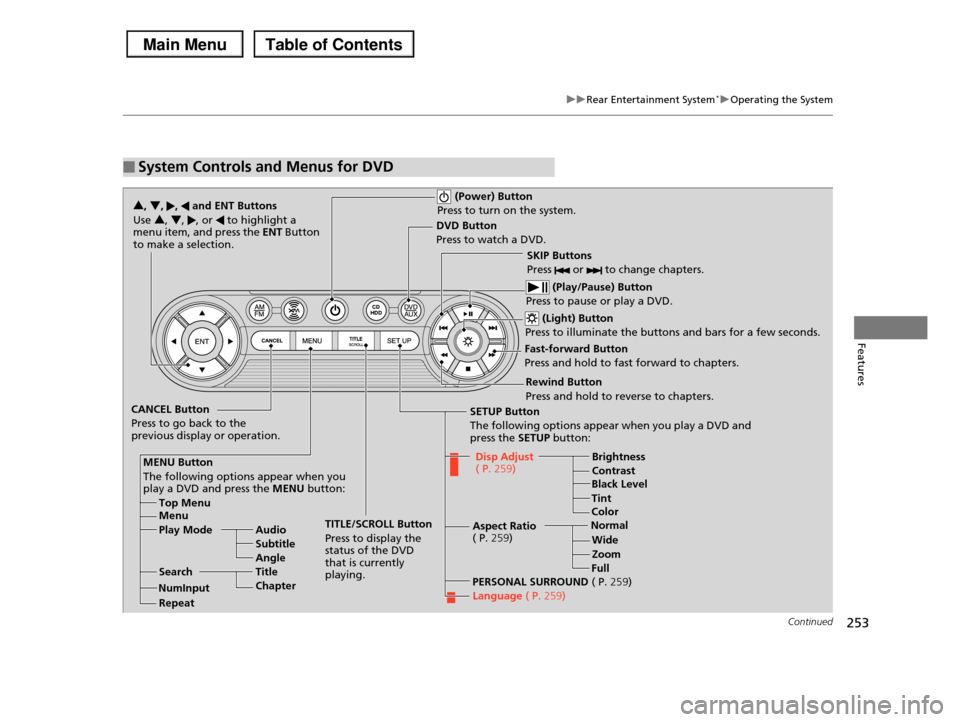
■System Controls and Menus for DVD
(Power) Button
Press to turn on the system.
DVD Button
Press to watch a DVD.
(Light) Button
Press to illuminate the buttons and bars for a few seconds.
SKIP Buttons
Press or to change chapters.
(Play/Pause) Button
Press to pause or play a DVD.
TITLE/SCROLL Button
Press to display the status of the DVD that is currently playing.
MENU Button
The following options appear when you play a DVD and press the MENU button:
Top Menu Menu
Play Mode Audio
Subtitle
Angle
SearchTitle
Chapter
Repeat
SETUP Button
The following options appear when you play a DVD and press the SETUP button:
Disp Adjust ( P.259)Brightness
ContrastBlack Level
Color
CANCEL Button
Press to go back to the previous display or operation.
3, 4, , and ENT Buttons
Use 3, 4, , or to highlight a menu item, and press the ENT Button to make a selection.
Tint
Normal
Wide
Zoom
Full
Aspect Ratio ( P.259)
PERSONAL SURROUND ( P.259)
Language ( P.259)
Rewind Button
Press and hold to reverse to chapters.
Fast-forward Button
Press and hold to fast forward to chapters.
NumInput