android auto HONDA PILOT 2018 Owner's Manual (in English)
[x] Cancel search | Manufacturer: HONDA, Model Year: 2018, Model line: PILOT, Model: HONDA PILOT 2018Pages: 695, PDF Size: 48.42 MB
Page 22 of 695
20
Quick Reference Guide
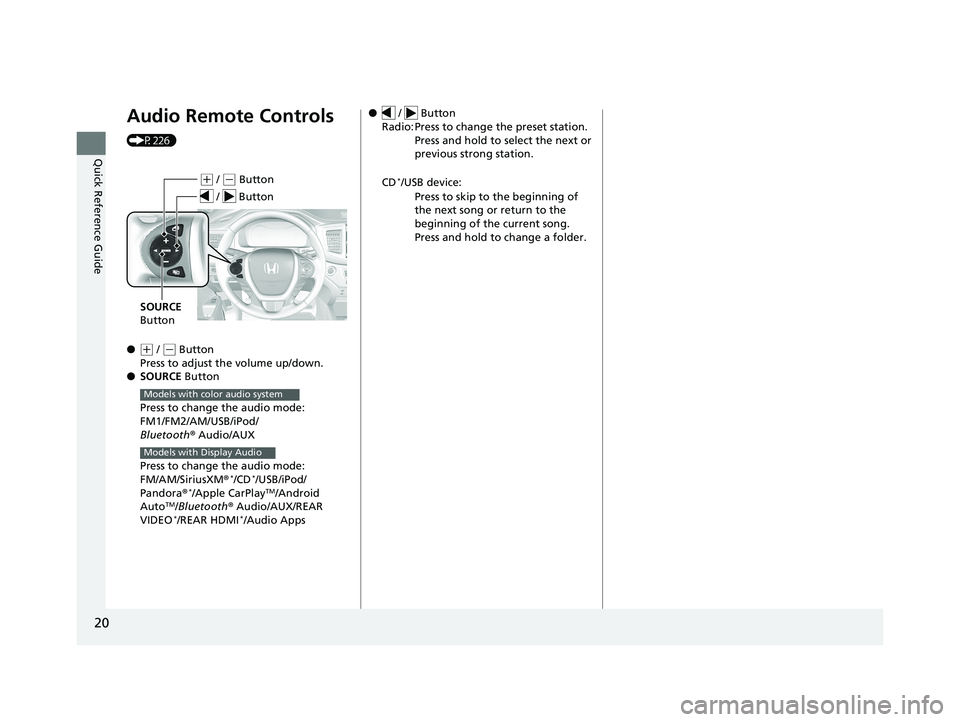
Audio Remote Controls
(P226)
●
(+ / ( - Button
Press to adjust the volume up/down.
● SOURCE Button
Press to change the audio mode:
FM1/FM2/AM/USB/iPod/
Bluetooth ® Audio/AUX
Press to change the audio mode:
FM/AM/SiriusXM ®
*/CD*/USB/iPod/
Pandora®*/Apple CarPlayTM/Android
AutoTM/Bluetooth ® Audio/AUX/REAR
VIDEO*/REAR HDMI*/Audio Apps
( + / (- Button
SOURCE
Button
/ Button
Models with color audio system
Models with Display Audio
● / Button
Radio: Press to change the preset station. Press and hold to select the next or
previous strong station.
CD
*/USB device: Press to skip to the beginning of
the next song or return to the
beginning of the current song.
Press and hold to change a folder.
18 PILOT-31TG76200.book 20 ページ 2018年3月30日 金曜日 午前11時51分
Page 223 of 695
221
Features
This chapter describes how to operate technology features.
Audio SystemAbout Your Audio System ................ 222
USB Port(s) ....................................... 223
Auxiliary Input Jack .......................... 224
Audio System Theft Protection ......... 225
Audio Remote Controls .................... 226
Audio System Basic Operation ........ 228
Audio System Basic Operation ........ 246
Audio Error Messages
CD Player
*....................................... 314
iPod/USB Flash Drive ........................ 315
Models with color audio system
Models with Display Audio
Pandora ®*....................................... 316
Android/Apps*................................ 317
General Information on the Audio
System SiriusXM ® Radio Service
*................. 318
Recommended CD*......................... 319
Compatible iPod, iPhone, and USB Flash Drives............................................. 321
Honda App License Agreement ........ 322
Legal Information on Apple CarPlay
TM/
Android AutoTM.............................. 334
About Open Source Licenses ............ 336
License Information
*........................ 337 Blu-ray/DVD Rear Entertainment
System
*........................................... 338
Customized Features ........................ 367
HomeLink ® Universal Transceiver
*.. 403
Bluetooth ® HandsFreeLink® ............. 406
Bluetooth ® HandsFreeLink® ............. 431
Compass
*
Compass Calibration........................ 465
Compass Zone Selection .................. 466
Models with color audio system
Models with Display Audio
* Not available on all models
18 PILOT-31TG76200.book 221 ページ 2018年3月30日 金曜日 午前11時51分
Page 225 of 695
223
uuAudio System uUSB Port(s)
Continued
Features
USB Port(s)
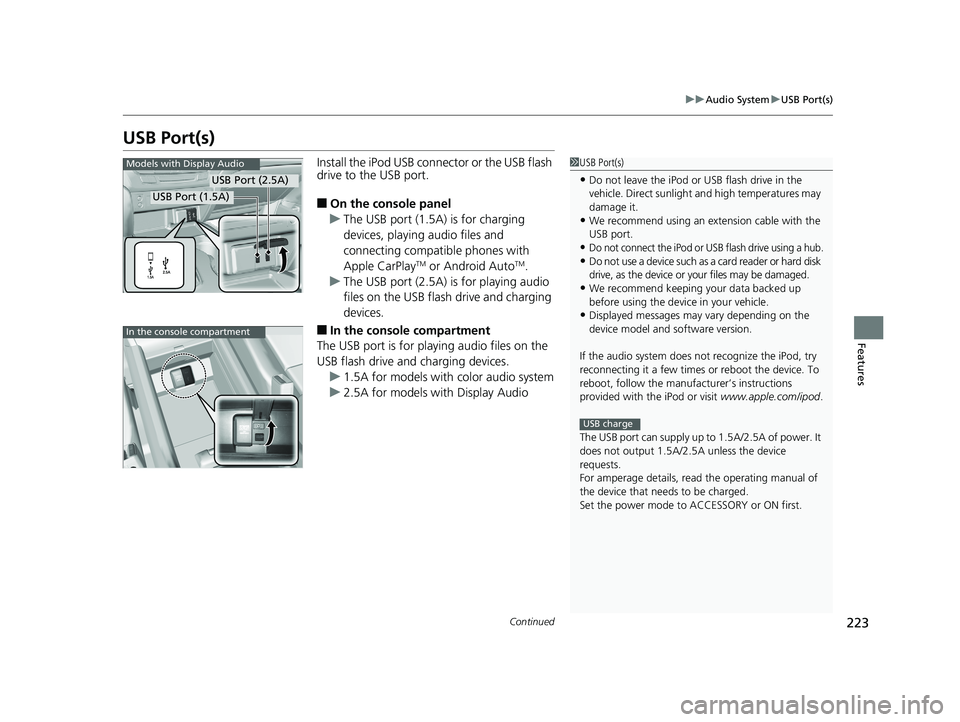
Install the iPod USB connector or the USB flash
drive to the USB port.
■On the console panel
u The USB port (1.5A) is for charging
devices, playing audio files and
connecting compatib le phones with
Apple CarPlay
TM or Android AutoTM.
u The USB port (2.5A) is for playing audio
files on the USB flash drive and charging
devices.
■In the consol e compartment
The USB port is for playing audio files on the
USB flash drive and charging devices.
u 1.5A for models with color audio system
u 2.5A for models with Display Audio
1USB Port(s)
•Do not leave the iPod or USB flash drive in the
vehicle. Direct sunlight and high temperatures may
damage it.
•We recommend using an ex tension cable with the
USB port.
•Do not connect the iPod or USB flash drive using a hub.
•Do not use a device such as a card reader or hard disk
drive, as the device or your files may be damaged.
•We recommend keeping y our data backed up
before using the device in your vehicle.
•Displayed messages may vary depending on the
device model and software version.
If the audio system does not recognize the iPod, try
reconnecting it a few times or reboot the device. To
reboot, follow the manufac turer’s instructions
provided with the iPod or visit www.apple.com/ipod.
The USB port can supply up to 1.5A/2.5A of power. It
does not output 1.5A/2.5A unless the device
requests.
For amperage details, read the operating manual of
the device that ne eds to be charged.
Set the power mode to ACCESSORY or ON first.
USB charge
Models with Display Audio
USB Port (2.5A)
USB Port (1.5A)
In the console compartment
18 PILOT-31TG76200.book 223 ページ 2018年3月30日 金曜日 午前11時51分
Page 228 of 695
226
uuAudio System uAudio Remote Controls
Features
Audio Remote Controls
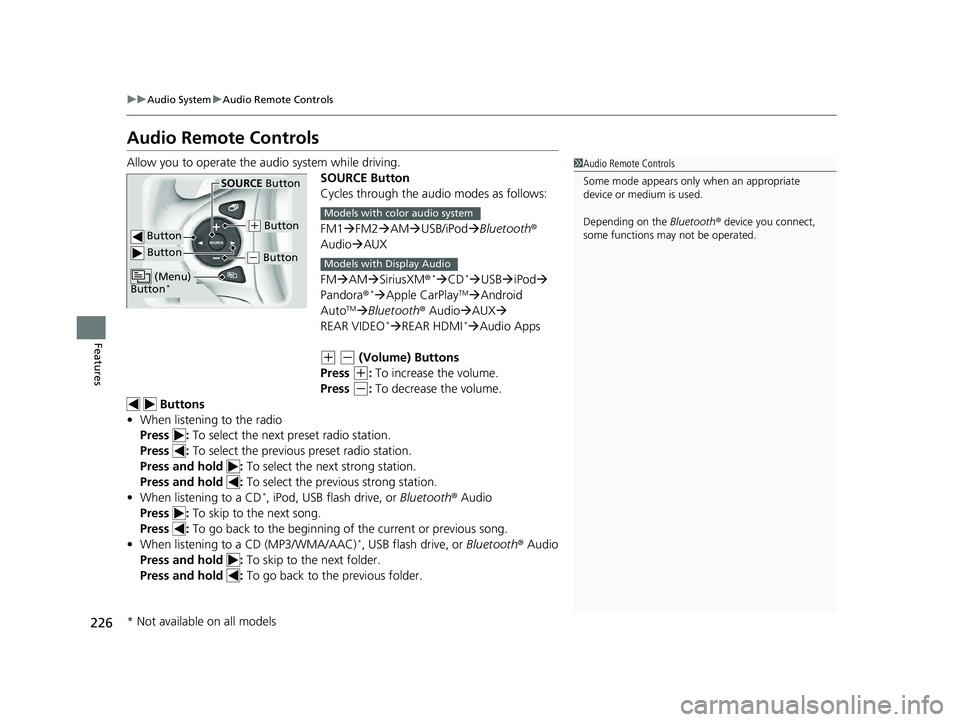
Allow you to operate the au dio system while driving.
SOURCE Button
Cycles through the audio modes as follows:
FM1FM2 AM USB/iPod Bluetooth®
Audio AUX
FM AM SiriusXM ®
*CD* USB iPod
Pandora®* Apple CarPlayTMAndroid
AutoTM Bluetooth ® AudioAUX
REAR VIDEO* REAR HDMI*Audio Apps
(+ (- (Volume) Buttons
Press
(+: To increase the volume.
Press
(-: To decrease the volume.
Buttons
• When listening to the radio
Press : To select the next preset radio station.
Press : To select the previous preset radio station.
Press and hold : To select the next strong station.
Press and hold : To select the previous strong station.
• When listening to a CD
*, iPod, USB flash drive, or Bluetooth® Audio
Press : To skip to the next song.
Press : To go back to the beginning of the current or previous song.
• When listening to a CD (MP3/WMA/AAC)
*, USB flash drive, or Bluetooth ® Audio
Press and hold : To skip to the next folder.
Press and hold : To go back to the previous folder.
1Audio Remote Controls
Some mode appears only when an appropriate
device or medium is used.
Depending on the Bluetooth® device you connect,
some functions ma y not be operated.
Button
SOURCE Button
Button
(+ Button
(- Button
(Menu)
Button*
Models with color audio system
Models with Display Audio
* Not available on all models
18 PILOT-31TG76200.book 226 ページ 2018年3月30日 金曜日 午前11時51分
Page 250 of 695
uuAudio System Basic Operation uAudio/Information Screen
248
Features
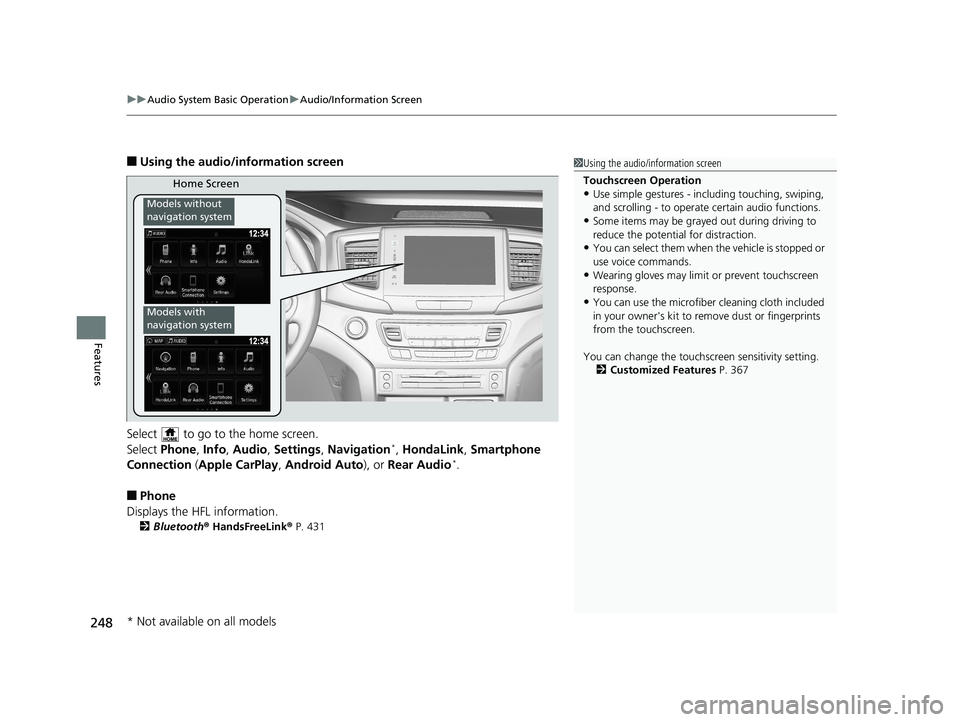
■Using the audio/information screen
Select to go to the home screen.
Select Phone, Info, Audio , Settings , Navigation
*, HondaLink , Smartphone
Connection ( Apple CarPlay , Android Auto ), or Rear Audio*.
■Phone
Displays the HFL information.
2 Bluetooth ® HandsFreeLink ® P. 431
1 Using the audio/in formation screen
Touchscreen Operation
•Use simple gestures - in cluding touching, swiping,
and scrolling - to operate certain audio functions.
•Some items may be grayed out during driving to
reduce the potential for distraction.
•You can select them when the vehicle is stopped or
use voice commands.
•Wearing gloves may limit or prevent touchscreen
response.
•You can use the microfiber cleaning cloth included
in your owner's kit to remo ve dust or fingerprints
from the touchscreen.
You can change the touchs creen sensitivity setting.
2 Customized Features P. 367
Home Screen
Models without
navigation system
Models with
navigation system
* Not available on all models
18 PILOT-31TG76200.book 248 ページ 2018年3月30日 金曜日 午前11時51分
Page 252 of 695
250
uuAudio System Basic Operation uAudio/Information Screen
Features
■HondaLink
Displays the HondaLink ® screen.
2 HondaLink ® P. 299
■Smartphone Connection
Displays Apple CarPlay or Android Auto .
2Apple CarPlayTM P. 307
2 Android AutoTM P. 310
■Rear Audio*
Displays the rear audio screen.
2Blu-ray/DVD Rear Entertainment System* P. 338
* Not available on all models
18 PILOT-31TG76200.book 250 ページ 2018年3月30日 金曜日 午前11時51分
Page 270 of 695
268
uuAudio System Basic Operation uVoice Control Operation
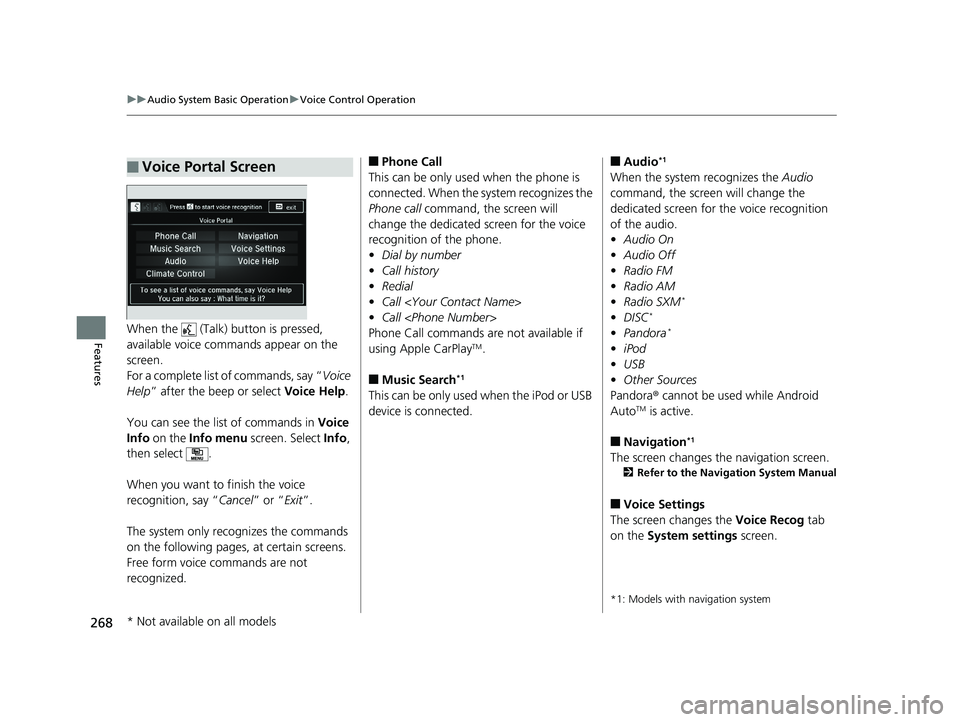
FeaturesWhen the (Talk) button is pressed,
available voice commands appear on the
screen.
For a complete list of commands, say “ Voice
Help ” after the beep or select Voice Help.
You can see the list of commands in Voice
Info on the Info menu screen. Select Info,
then select .
When you want to finish the voice
recognition, say “ Cancel” or “Exit”.
The system only reco gnizes the commands
on the following pages, at certain screens.
Free form voice commands are not
recognized.
■Voice Portal Screen■Phone Call
This can be only used when the phone is
connected. When the sy stem recognizes the
Phone call command, the screen will
change the dedicated screen for the voice
recognition of the phone.
• Dial by number
• Call history
• Redial
• Call
• Call
Phone Call commands are not available if
using Apple CarPlay
TM.
■Music Search*1
This can be only used when the iPod or USB
device is connected.
■Audio*1
When the system recognizes the Audio
command, the screen will change the
dedicated screen for the voice recognition
of the audio.
• Audio On
• Audio Off
• Radio FM
• Radio AM
• Radio SXM
*
•DISC*
•Pandora*
•iPod
• USB
• Other Sources
Pandora ® cannot be used while Android
Auto
TM is active.
■Navigation*1
The screen changes the navigation screen.
2 Refer to the Navigation System Manual
■Voice Settings
The screen changes the Voice Recog tab
on the System settings screen.
*1: Models with navigation system
* Not available on all models
18 PILOT-31TG76200.book 268 ページ 2018年3月30日 金曜日 午前11時51分
Page 294 of 695
292
uuAudio System Basic Operation uPlaying Pandora ®*
Features
Playing Pandora ®*
Your audio system allows you to listen to music from the Pandora ® app on a
compatible smartphone.
This function is available when the phone is paired and connected to the vehicle’s
Bluetooth ® HandsFreeLink ® (HFL) system, or with an iPhone, you can connect using
your USB cable to the USB port.
2 Phone Setup P. 439
2 USB Port(s) P. 223
*1:Some or all of the lists may not be displayed.
1Playing Pandora ®*
Pandora®, the Pandora logo, and the Pandora trade
dress are trademarks or registered trademarks of
Pandora Media, Inc., used with permission. Pandora
is only available in certai n countries. Visit the Pandora
website for more information.
To find out if your phone is compatible with this
feature, visit automobiles.honda.com /handsfreelink/,
or call 1-888-528-7876.
To use this service in your vehicle, the Pandora ® app
must first be installed on your phone. Visit
www.pandora.com . for more information.
Pandora ® is free, personalized radio that plays music
and comedy you’ll love. Just start with the name of
one of your favorite arti sts, tracks, comedians or
composers and Pandora ® will create a custom station
that plays similar tracks. Pandora ® also features
hundreds of genre stations ranging from Dubstep to
Smooth Jazz to Power Workout.
If you cannot operate Pandora ® through the audio
system, it may be streaming through Bluetooth®
Audio. Make sure Pandora ® mode on your audio
system is selected.
If your phone is connected to Android Auto
TM,
Pandora ® is only available through the Android
Auto
TM interface. Visit the Android AutoTM website to
check compatibility.
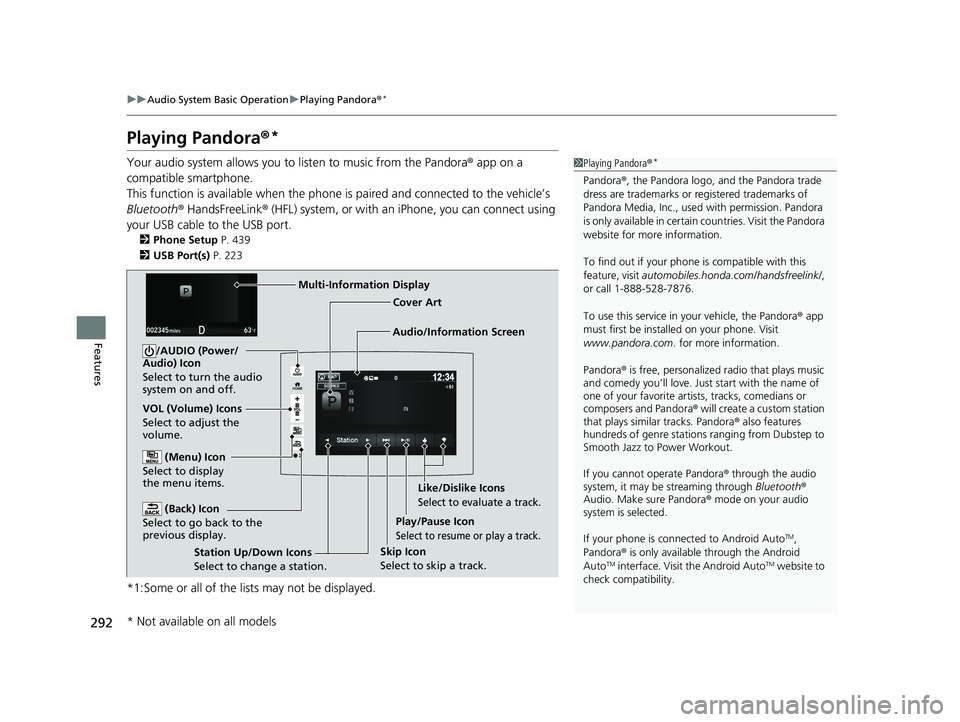
Audio/Information Screen Cover Art
VOL (Volume) Icons
Select to adjust the
volume. (Back) Icon
Select to go back to the
previous display.
/AUDIO (Power/
Audio) Icon
Select to turn the audio
system on and off.
(Menu) Icon
Select to display
the menu items.
Play/Pause Icon
Select to resume or play a track.
Station Up/Down Icons
Select to change a station. Skip Icon
Select to skip a track.Like/Dislike Icons
Select to evaluate a track.
Multi-Information Display
* Not available on all models
18 PILOT-31TG76200.book 292 ページ 2018年3月30日 金曜日 午前11時51分
Page 299 of 695
297
uuAudio System Basic Operation uPlaying Bluetooth ® Audio
Continued
Features
Playing Bluetooth ® Audio
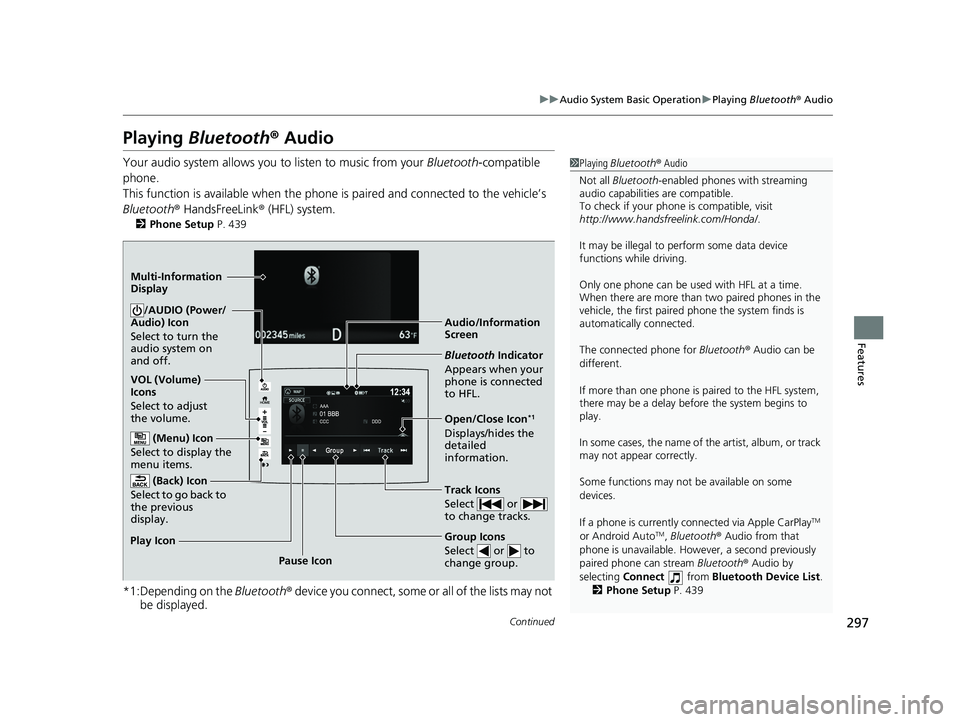
Your audio system allows you to listen to music from your Bluetooth-compatible
phone.
This function is available when the phone is paired an d connected to the vehicle’s
Bluetooth ® HandsFreeLink ® (HFL) system.
2Phone Setup P. 439
*1:Depending on the Bluetooth ® device you connect, some or all of the lists may not
be displayed.
1 Playing Bluetooth ® Audio
Not all Bluetooth -enabled phones with streaming
audio capabilities are compatible.
To check if your phone is compatible, visit
http://www.handsfr eelink.com/Honda/.
It may be illegal to pe rform some data device
functions while driving.
Only one phone can be used with HFL at a time.
When there are more than two paired phones in the
vehicle, the first paired phone the system finds is
automatically connected.
The connected phone for Bluetooth® Audio can be
different.
If more than one phone is paired to the HFL system,
there may be a delay before the system begins to
play.
In some cases, the name of the artist, album, or track
may not appear correctly.
Some functions may not be available on some
devices.
If a phone is currently c onnected via Apple CarPlay
TM
or Android AutoTM, Bluetooth ® Audio from that
phone is unavailable. However, a second previously
paired phone can stream Bluetooth ® Audio by
selecting Connect from Bluetooth Device List .
2 Phone Setup P. 439
Audio/Information
Screen
VOL (Volume)
Icons
Select to adjust
the volume.
(Back) Icon
Select to go back to
the previous
display./AUDIO (Power/
Audio) Icon
Select to turn the
audio system on
and off.
(Menu) Icon
Select to display the
menu items.
Group Icons
Select or to
change group.
Pause Icon
Play Icon
Bluetooth
Indicator
Appears when your
phone is connected
to HFL.
Track Icons
Select or
to change tracks.
Open/Close Icon*1
Displays/hides the
detailed
information.
Multi-Information
Display
18 PILOT-31TG76200.book 297 ページ 2018年3月30日 金曜日 午前11時51分
Page 301 of 695
299
uuAudio System Basic Operation uHondaLink ®
Continued
Features
HondaLink ®
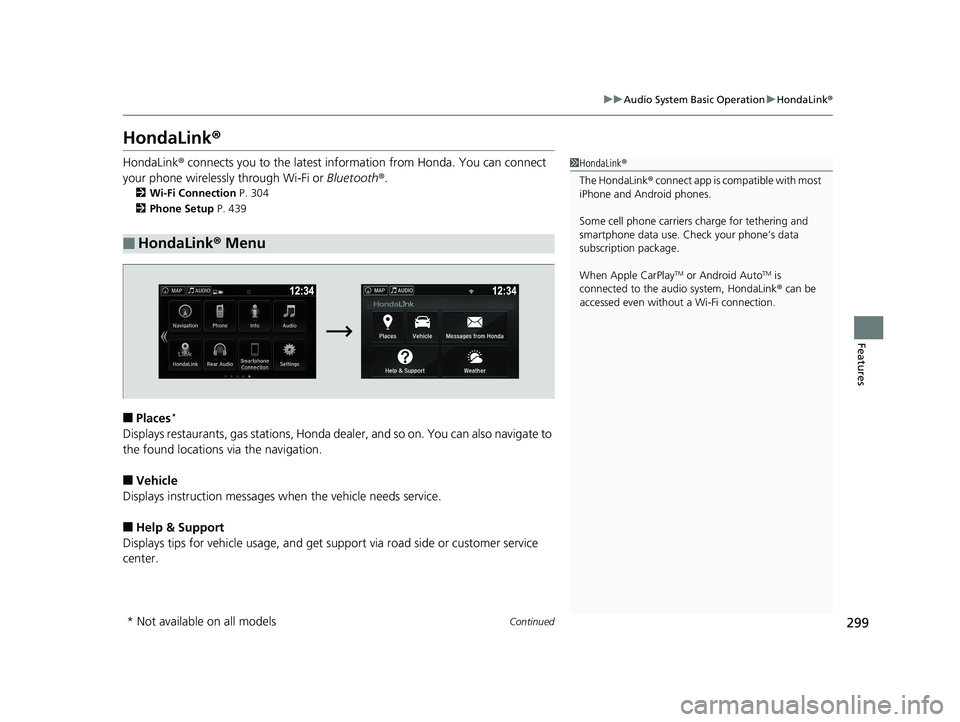
HondaLink® connects you to the latest info rmation from Honda. You can connect
your phone wirelessly through Wi-Fi or Bluetooth®.
2Wi-Fi Connection P. 304
2 Phone Setup P. 439
■Places*
Displays restaurants, gas stations, Honda de aler, and so on. You can also navigate to
the found locations via the navigation.
■Vehicle
Displays instruction messages when the vehicle needs service.
■Help & Support
Displays tips for vehicle us age, and get support via road side or customer service
center.
■HondaLink ® Menu
1 HondaLink ®
The HondaLink ® connect app is compatible with most
iPhone and Android phones.
Some cell phone carriers charge for tethering and
smartphone data use. Check your phone’s data
subscription package.
When Apple CarPlay
TM or Android AutoTM is
connected to the audio system, HondaLink ® can be
accessed even without a Wi-Fi connection.
* Not available on all models
18 PILOT-31TG76200.book 299 ページ 2018年3月30日 金曜日 午前11時51分