buttons HONDA PILOT 2023 User Guide
[x] Cancel search | Manufacturer: HONDA, Model Year: 2023, Model line: PILOT, Model: HONDA PILOT 2023Pages: 814, PDF Size: 29.02 MB
Page 284 of 814
283Continued
Controls
Climate Control System
Using Automatic Climate Control
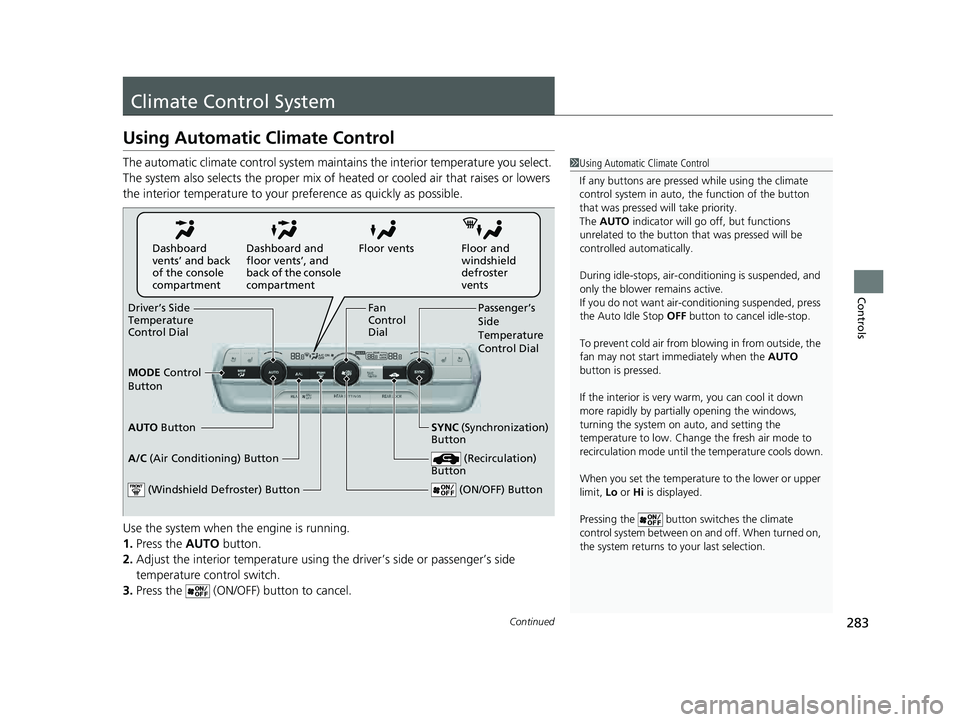
The automatic climate control system maintains the interior temperature you select.
The system also selects the proper mix of heat ed or cooled air that raises or lowers
the interior temperature to your pr eference as quickly as possible.
Use the system when the engine is running.
1. Press the AUTO button.
2. Adjust the interior temperature using the driver’s side or passenger’s side
temperature control switch.
3. Press the (ON/OFF) button to cancel.1Using Automatic Climate Control
If any buttons are presse d while using the climate
control system in auto, the function of the button
that was pressed will take priority.
The AUTO indicator will go off, but functions
unrelated to the button th at was pressed will be
controlled automatically.
During idle-stops, air-conditioning is suspended, and
only the blower remains active.
If you do not want air-cond itioning suspended, press
the Auto Idle Stop OFF button to cancel idle-stop.
To prevent cold air from bl owing in from outside, the
fan may not start i mmediately when the AUTO
button is pressed.
If the interior is very warm, you can cool it down
more rapidly by partial ly opening the windows,
turning the system on auto, and setting the
temperature to low. Change the fresh air mode to
recirculation mode until the temperature cools down.
When you set the temperat ure to the lower or upper
limit, Lo or Hi is displayed.
Pressing the button switches the climate
control system between on and off. When turned on,
the system returns to your last selection.
Floor and
windshield
defroster
vents
Floor vents
Dashboard and
floor vents’, and
back of the console
compartment
Dashboard
vents’ and back
of the console
compartment
Driver’s Side
Temperature
Control Dial Passenger’s
Side
Temperature
Control Dial
A/C (Air Conditioning) Button
(ON/OFF) Button
Fan
Control
Dial
(Recirculation)
Button
(Windshield Defroster) Button
AUTO Button SYNC (Synchronization)
Button
MODE
Control
Button
23 PILOT-31T906000_03.book 283 ページ 2022年10月31日 月曜日 午前10時26分
Page 289 of 814
uuClimate Control System uRear Climate Control System
288
Controls
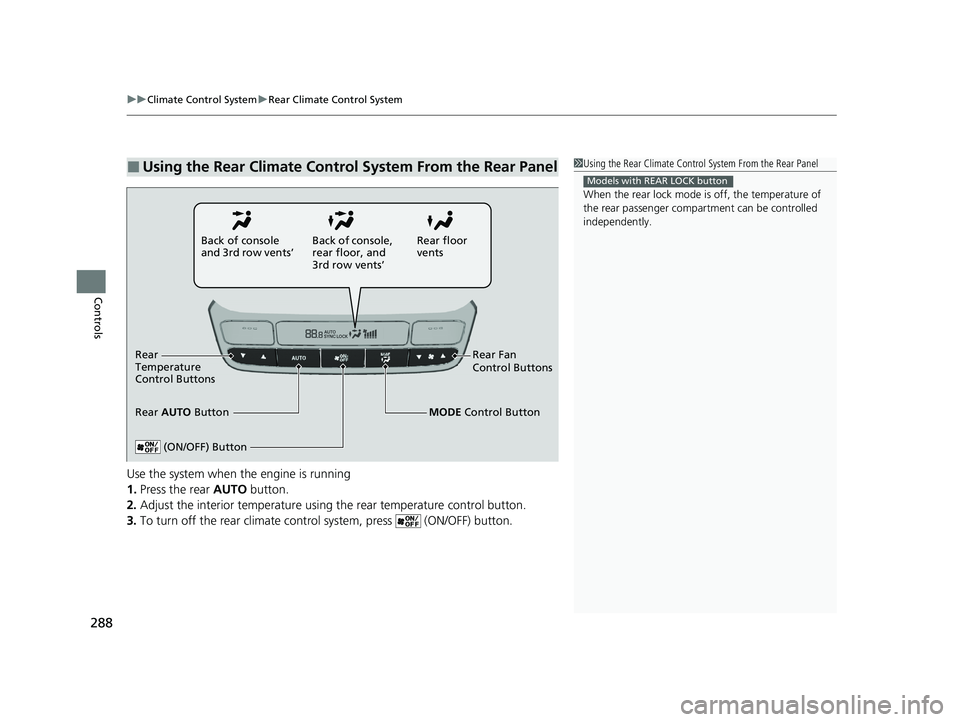
Use the system when the engine is running
1. Press the rear AUTO button.
2. Adjust the interior temperature using the rear temperature control button.
3. To turn off the rear climate con trol system, press (ON/OFF) button.
■Using the Rear Climate Control System From the Rear Panel1Using the Rear Climate Control System From the Rear Panel
When the rear lock mode is off, the temperature of
the rear passenger compar tment can be controlled
independently.
Models with REAR LOCK button
Rear floor
vents
Back of console
and 3rd row vents’
Rear Fan
Control Buttons
(ON/OFF) Button
Rear
Temperature
Control Buttons
Rear AUTO Button Back of console,
rear floor, and
3rd row vents’
MODE Control Button
23 PILOT-31T906000_03.book 288 ページ 2022年10月31日 月曜日 午前10時26分
Page 293 of 814
292
Features
Audio System
About Your Audio System
The audio system features AM/FM radio and SiriusXM® Radio service*. It can also
play USB flash drives, iPod, iPhone, and Bluetooth® devices.
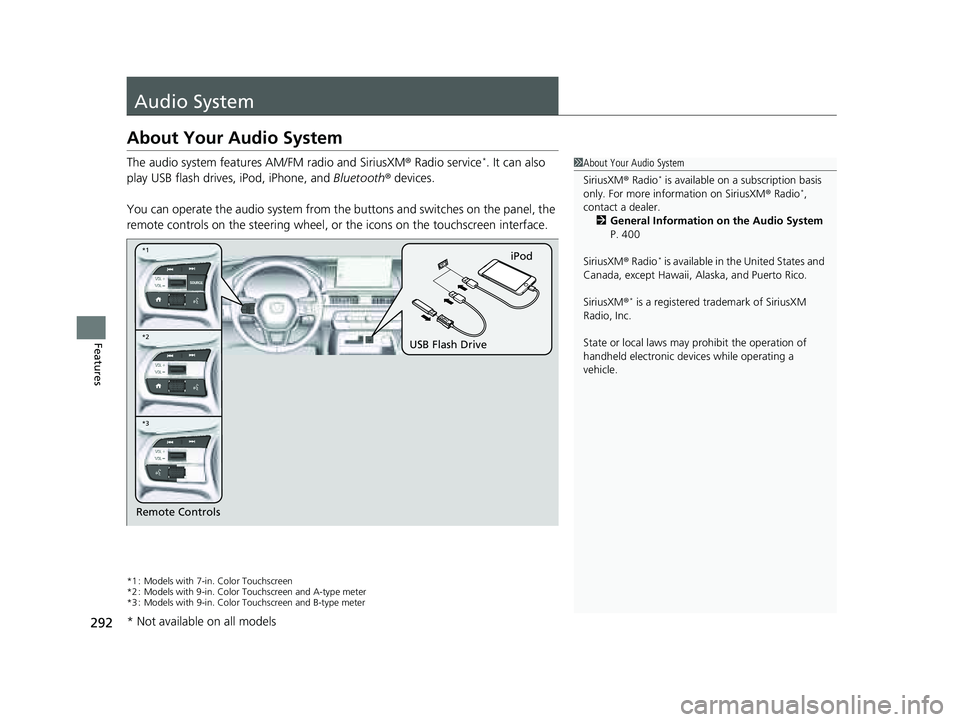
You can operate the audio system from the buttons and switches on the panel, the
remote controls on the steering wheel, or the icons on the touchscreen interface.
*1 : Models with 7-in. Color Touchscreen
*2 : Models with 9-in. Color Touchscreen and A-type meter
*3 : Models with 9-in. Color Touchscreen and B-type meter
1 About Your Audio System
SiriusXM ® Radio
* is available on a subscription basis
only. For more information on SiriusXM ® Radio*,
contact a dealer.
2 General Information on the Audio System
P. 400
SiriusXM ® Radio
* is available in the United States and
Canada, except Ha waii, Alaska, and Puerto Rico.
SiriusXM ®
* is a registered tra demark of SiriusXM
Radio, Inc.
State or local laws may pr ohibit the operation of
handheld electronic devices while operating a
vehicle.
Remote Controls iPod
USB Flash Drive
*2 *1
*3
* Not available on all models
23 PILOT-31T906000_03.book 292 ページ 2022年10月31日 月曜日 午前10時26分
Page 297 of 814
296
uuAudio System uAudio Remote Controls
Features
Audio Remote Controls
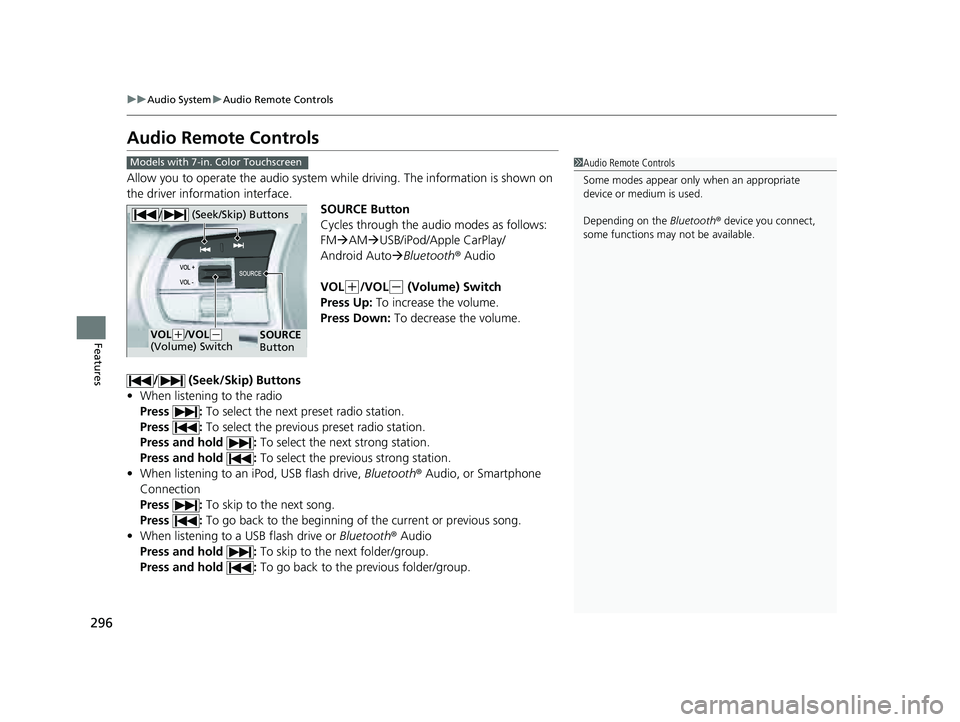
Allow you to operate the audio system wh ile driving. The information is shown on
the driver information interface.
SOURCE Button
Cycles through the audio modes as follows:
FMAM USB/iPod/Apple CarPlay/
Android Auto Bluetooth ® Audio
VOL
(+/VOL(- (Volume) Switch
Press Up: To increase the volume.
Press Down: To decrease the volume.
/ (Seek/Skip) Buttons
• When listening to the radio
Press : To select the next preset radio station.
Press : To select the previous preset radio station.
Press and hold : To select the next strong station.
Press and hold : To select the previous strong station.
• When listening to an iPod, USB flash drive, Bluetooth® Audio, or Smartphone
Connection
Press : To skip to the next song.
Press : To go back to the beginning of the current or previous song.
• When listening to a USB flash drive or Bluetooth® Audio
Press and hold : To skip to the next folder/group.
Press and hold : To go back to the previous folder/group.
1Audio Remote Controls
Some modes appear only when an appropriate
device or medium is used.
Depending on the Bluetooth® device you connect,
some functions may not be available.Models with 7-in. Color Touchscreen
/ (Seek/Skip) Buttons
SOURCE
ButtonVOL( +/VOL(-
(Volume) Switch
23 PILOT-31T906000_03.book 296 ページ 2022年10月31日 月曜日 午前10時26分
Page 298 of 814
Continued297
uuAudio System uAudio Remote Controls
Features
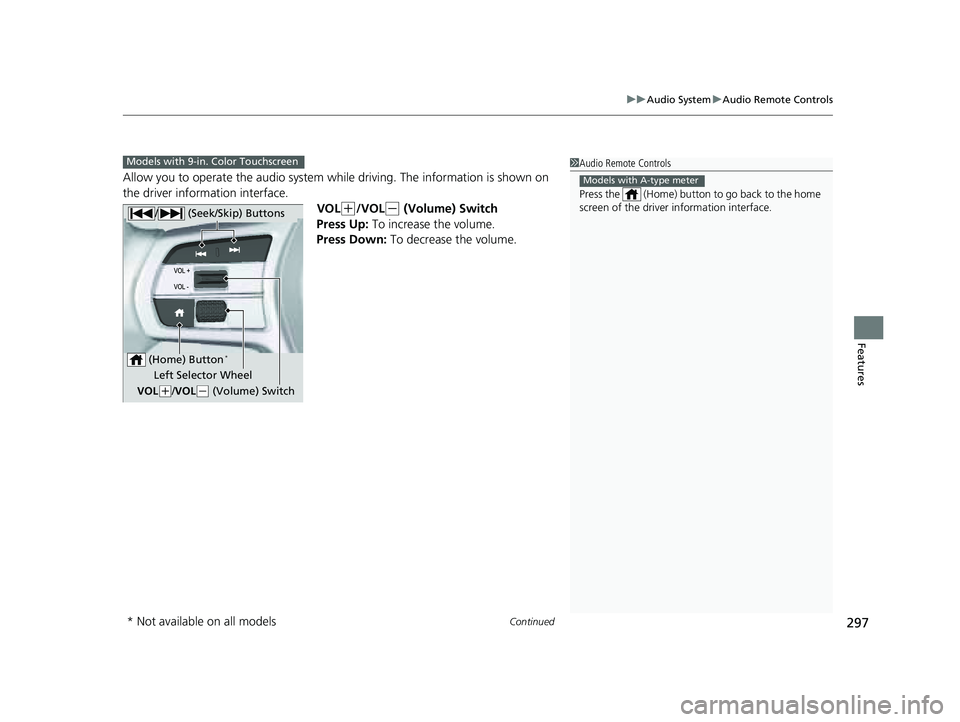
Allow you to operate the audio system whil e driving. The information is shown on
the driver information interface.
VOL
(+/VOL(- (Volume) Switch
Press Up: To increase the volume.
Press Down: To decrease the volume.
1 Audio Remote Controls
Press the (Home) button to go back to the home
screen of the driver information interface.
Models with A-type meter
Models with 9-in. Color Touchscreen
/ (Seek/Skip) Buttons
Left Selector Wheel
VOL
( +/VOL(- (Volume) Switch
(Home) Button
*
* Not available on all models
23 PILOT-31T906000_03.book 297 ページ 2022年10月31日 月曜日 午前10時26分
Page 299 of 814
298
uuAudio System uAudio Remote Controls
Features
/ (Seek/Skip) Buttons
• When listening to the radio
Press : To select the next preset radio station.
Press : To select the previous preset radio station.
Press and hold : To select the next strong station.
Press and hold : To select the previous strong station.
• When listening to an iPod, USB flash drive, Bluetooth® Audio, or Smartphone
Connection
Press : To skip to the next song.
Press : To go back to the beginning of the current or previous song.
• When listening to a USB flash drive
Press and hold : To skip to the next folder.
Press and hold : To go back to the previous folder.
23 PILOT-31T906000_03.book 298 ページ 2022年10月31日 月曜日 午前10時26分
Page 302 of 814
301
Features
Audio System Basic Operation
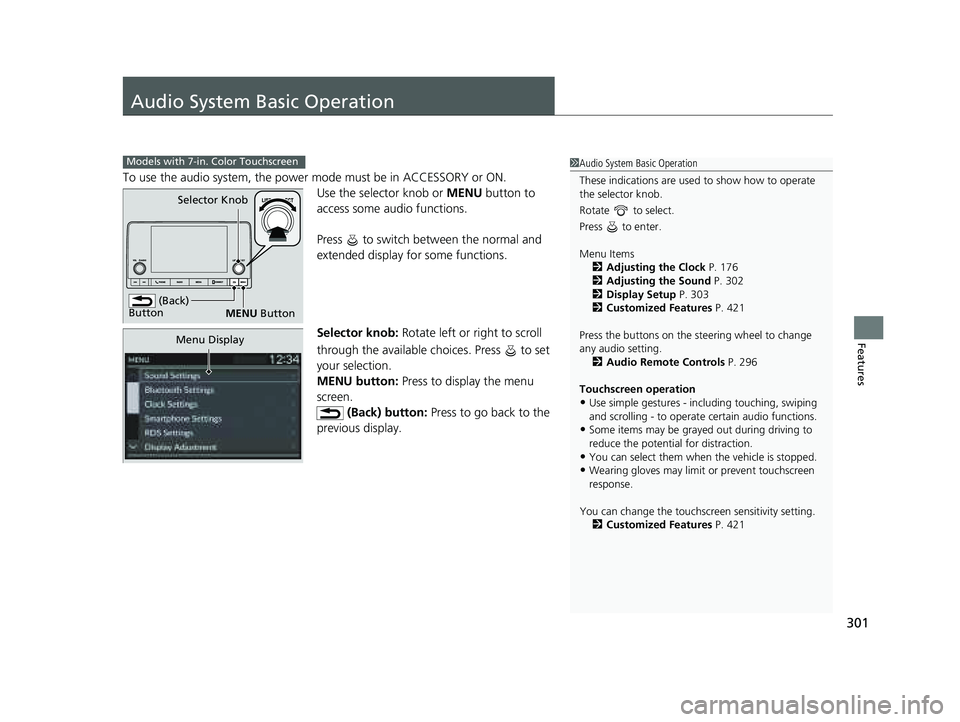
To use the audio system, the power mode must be in ACCESSORY or ON.Use the selector knob or MENU button to
access some au dio functions.
Press to switch between the normal and
extended display fo r some functions.
Selector knob: Rotate left or right to scroll
through the available choices. Press to set
your selection.
MENU button: Press to display the menu
screen. (Back) button: Press to go back to the
previous display.
Models with 7-in. Color Touchscreen1 Audio System Basic Operation
These indications are used to show how to operate
the selector knob.
Rotate to select.
Press to enter.
Menu Items 2 Adjusting the Clock P. 176
2 Adjusting the Sound P. 302
2 Display Setup P. 303
2 Customized Features P. 421
Press the buttons on the steering wheel to change
any audio setting. 2 Audio Remote Controls P. 296
Touchscreen operation
•Use simple gestures - in cluding touching, swiping
and scrolling - to operate certain audio functions.
•Some items may be grayed out during driving to
reduce the potential for distraction.
•You can select them when the vehicle is stopped.•Wearing gloves may limit or prevent touchscreen
response.
You can change the touchs creen sensitivity setting.
2 Customized Features P. 421
(Back)
Button
Selector Knob
MENU Button
Menu Display
23 PILOT-31T906000_03.book 301 ページ 2022年10月31日 月曜日 午前10時26分
Page 305 of 814
304
uuAudio System Basic Operation uPlaying AM/FM Radio
Features
Playing AM/FM Radio
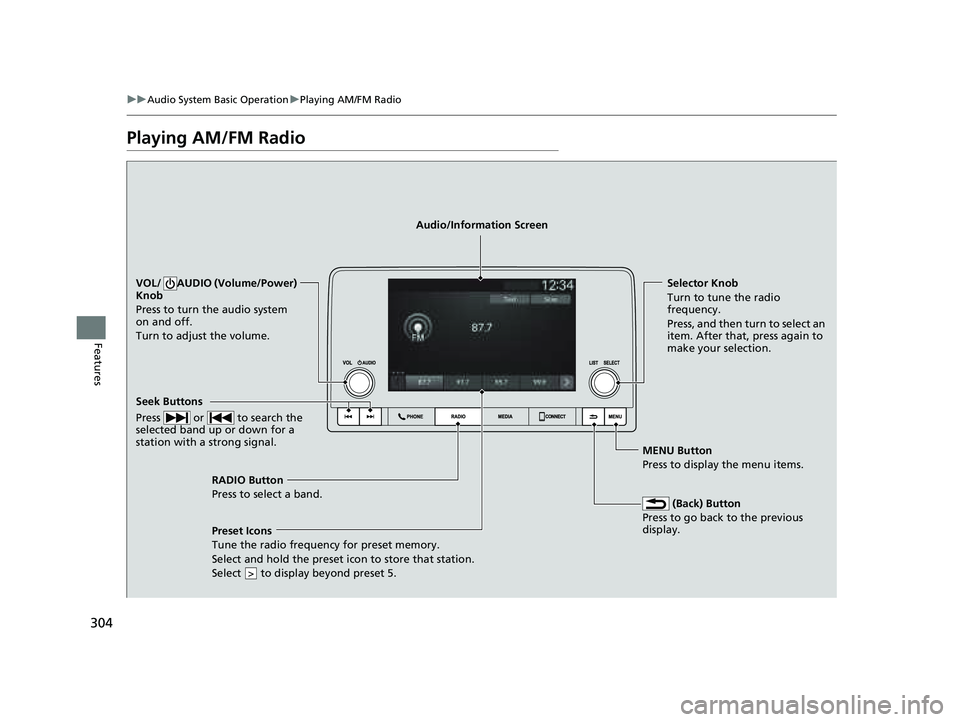
RADIO Button
Press to select a band.
(Back) Button
Press to go back to the previous
display.
Seek Buttons
Press or to search the
selected band up or down for a
station with a strong signal.
VOL/ AUDIO (Volume/Power)
Knob
Press to turn the audio system
on and off.
Turn to adjust the volume.Selector Knob
Turn to tune the radio
frequency.
Press, and then turn to select an
item. After that, press again to
make your selection.
MENU Button
Press to display the menu items.
Audio/Information Screen
Preset Icons
Tune the radio frequency for
preset memory.
Select and hold the preset icon to store that station.
Select to display beyond preset 5.
>
23 PILOT-31T906000_03.book 304 ページ 2022年10月31日 月曜日 午前10時26分
Page 307 of 814
306
uuAudio System Basic Operation uPlaying an iPod
Features
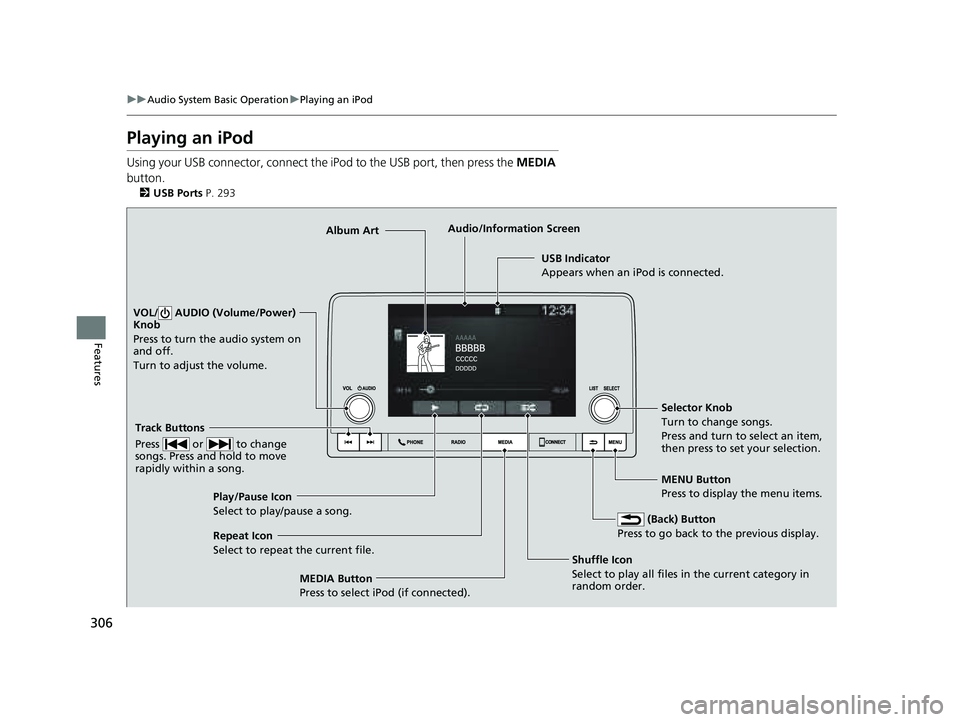
Playing an iPod
Using your USB connector, connect the iPod to the USB port, then press the MEDIA
button.
2 USB Ports P. 293
USB Indicator
Appears when an iPod is connected.
MEDIA Button
Press to select iPod (if connected). (Back) Button
Press to go back to the previous display.
Track Buttons
Press or to change
songs. Press and hold to move
rapidly within a song.
VOL/ AUDIO (Volume/Power)
Knob
Press to turn the audio system on
and off.
Turn to adjust the volume.
Selector Knob
Turn to change songs.
Press and turn to select an item,
then press to set your selection.
MENU Button
Press to display the menu items.
Audio/Information Screen
Albu m
Art
Shuffle Icon
Select to
play all files in the current category in
random order.
Play/Pause Icon
Select to play/pause a song.
Repeat Icon
Select to repeat the current file.
23 PILOT-31T906000_03.book 306 ページ 2022年10月31日 月曜日 午前10時26分
Page 310 of 814
309
uuAudio System Basic Operation uPlaying a USB Flash Drive
Continued
Features
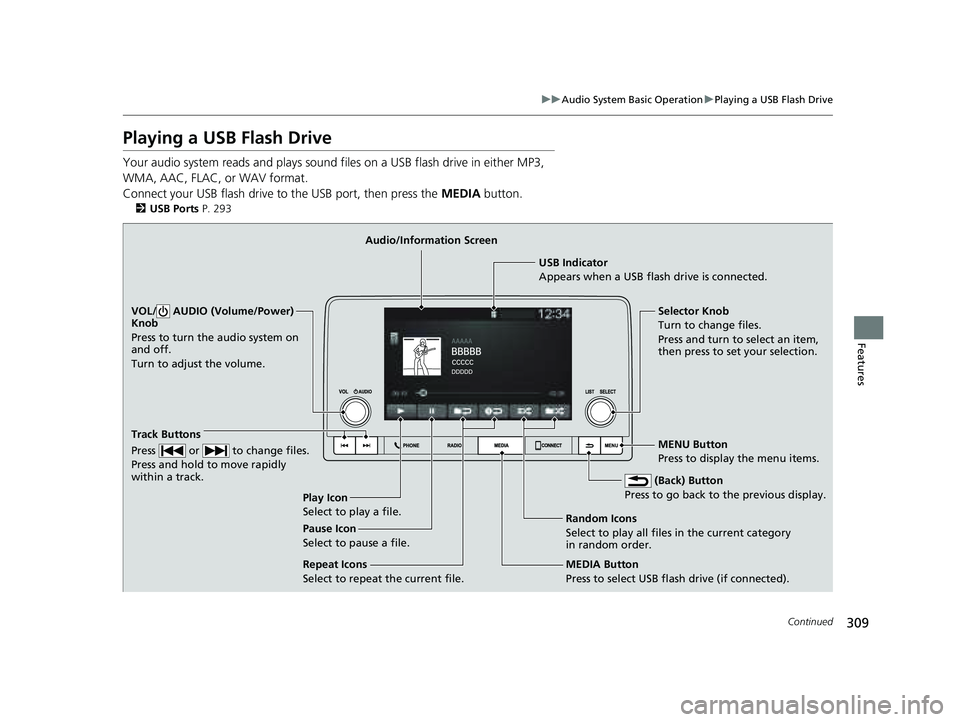
Playing a USB Flash Drive
Your audio system reads and plays sound files on a USB flash drive in either MP3,
WMA, AAC, FLAC, or WAV format.
Connect your USB flash drive to the USB port, then press the MEDIA button.
2USB Ports P. 293
USB Indicator
Appears when a USB flash drive is connected.
MEDIA Button
Press to select USB flash drive (if connected). (Back) Button
Press to go back to the previous display.
Track Buttons
Press or to change files.
Press and hold to move rapidly
within a track.
VOL/ AUDIO (Volume/Power)
Knob
Press to turn the audio system on
and off.
Turn to adjust the volume.Selector Knob
Turn to change files.
Press and turn to select an item,
then press to set your selection.
MENU Button
Press to display the menu items.
Audio/Information Screen
Play Icon
Select to play a f
ile. Random Icons
Select to play all files in the current category
in random order.
Pause Icon
Select to pause a file.
Repeat Icons
Select to repeat the current file.
23 PILOT-31T906000_03.book 309 ページ 2022年10月31日 月曜日 午前10時26分