buttons HONDA PILOT 2023 Owner's Manual
[x] Cancel search | Manufacturer: HONDA, Model Year: 2023, Model line: PILOT, Model: HONDA PILOT 2023Pages: 814, PDF Size: 29.02 MB
Page 313 of 814
312
uuAudio System Basic Operation uPlaying Bluetooth ® Audio
Features
Playing Bluetooth ® Audio
Your audio system allows you to listen to music from your Bluetooth-compatible
phone.
This function is available when the phone is paired and connected to the vehicle’s
Bluetooth ® HandsFreeLink ® (HFL) system.
2 Phone Setup P. 464
1Playing Bluetooth ® Audio
Not all Bluetooth -enabled phones with streaming
audio capabilities are compatible with the system.
For a list of compatible phones:
•U.S.: Visit automobiles.honda.com/handsfreelink/ ,
or call 1-888-528-7876.
•Canada: For more info rmation on smartphone
compatibility, call 1-855-490-7351.
In some states, it may be il legal to perform some data
device functions while driving.
Only one phone can be used with HFL at a time.
When there is more than one paired phone in the
vehicle, the system automatically connects to the
prioritized phone. You can a ssign priority to a phone
in the Bluetooth Settings menu.
2 HFL Menus P. 462
To change the searched phone manually, select Go
to Device List .
In some cases, the name of the artist, album, or track
may not appear correctly.
Some functions may not be available on some devices.
If a phone is currently conne cted via Apple CarPlay or
Android Auto, Bluetooth® Audio from that phone is
unavailable. However, a se cond previously paired
phone can stream Bluetooth® Audio by selecting
Audio from the Bluetooth® device list.
2 Phone Setup P. 464
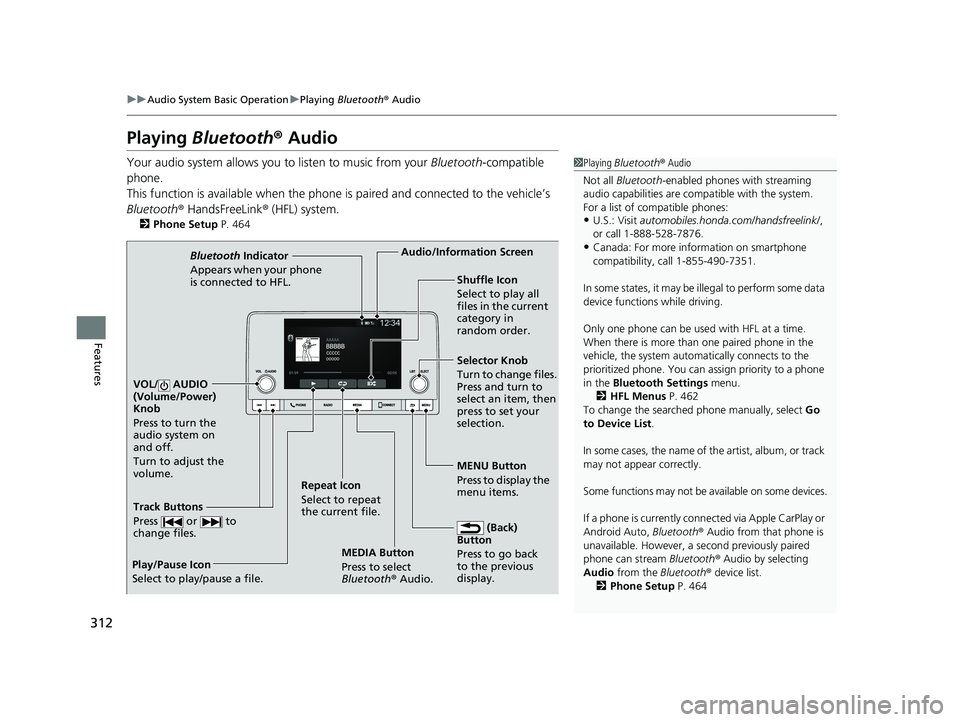
MEDIA Button
Press to select
Bluetooth® Audio.
VOL/ AUDIO
(Volume/Power)
Knob
Press to turn the
audio system on
and off.
Turn to adjust the
volume.
MENU Button
Press to display the
menu items.
Audio/Information Screen
Bluetooth Indicator
Appears when your pho
ne
is connected to HFL.
Track Buttons
Press or to
change files.
Repeat Icon
Select to repeat
the current file. Shuffle Icon
Select to play all
files in the current
category in
random order.
Selector Knob
Turn to change files.
Press and turn to
select an item, then
press to set your
selection.
(Back)
Button
Press to go back
to t h
e
previous
display.
Play/Pause Icon
Select to play/pause a file.
23 PILOT-31T906000_03.book 312 ページ 2022年10月31日 月曜日 午前10時26分
Page 327 of 814
326
Features
Audio System Basic Operation
To use the audio system function, the power mode must be in ACCESSORY or ON.
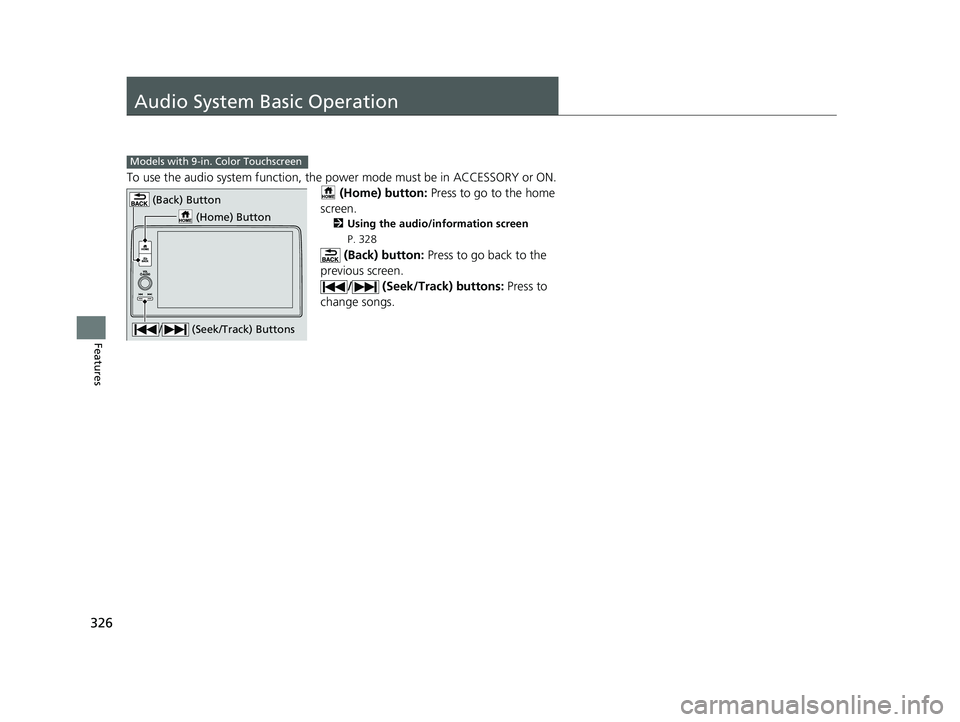
(Home) button: Press to go to the home
screen.
2 Using the audio/information screen
P. 328
(Back) button: Press to go back to the
previous screen. / (Seek/Track) buttons: Press to
change songs.
Models with 9-in. Color Touchscreen
(Home) Button
(Back) Button
/ (Seek/Track) Buttons
23 PILOT-31T906000_03.book 326 ページ 2022年10月31日 月曜日 午前10時26分
Page 353 of 814
352
uuAudio System Basic Operation uPlaying AM/FM Radio
Features
Playing AM/FM Radio
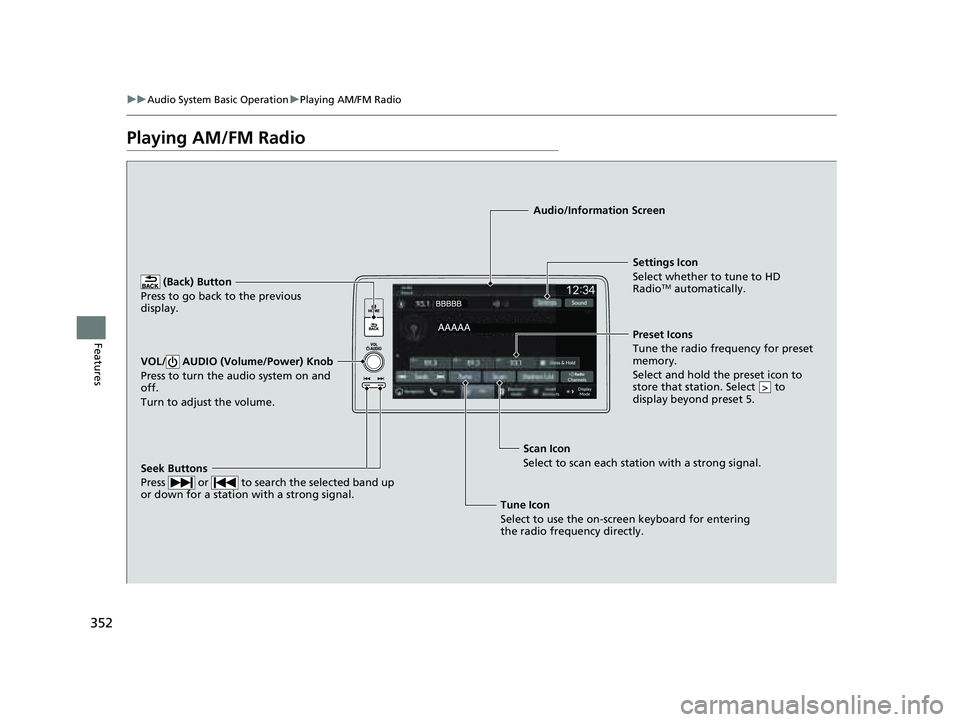
(Back) Button
Press to go back to the previous
display.
Seek Buttons
Press or to search the selected band up
or down for a station with a strong signal.
VOL/ AUDIO (Volume/Power) Knob
Press to turn the audio system on and
off.
Turn to adjust the volume.
Settings Icon
Select whether to tune to HD
Radio
TM automatically.
Tune Icon
Select to use the on-scr een keyboard for entering
the radio frequency directly. Audio/Information Screen
Scan Icon
Select to sca n each stat
ion with a strong signal.
Preset Icons
Tune the radio frequency for preset
memory.
Select and hold the preset icon to
store that station. Select to
display beyond preset 5.
>
23 PILOT-31T906000_03.book 352 ページ 2022年10月31日 月曜日 午前10時26分
Page 357 of 814
356
uuAudio System Basic Operation uPlaying SiriusXM ® Radio
Features
Playing SiriusXM ® Radio
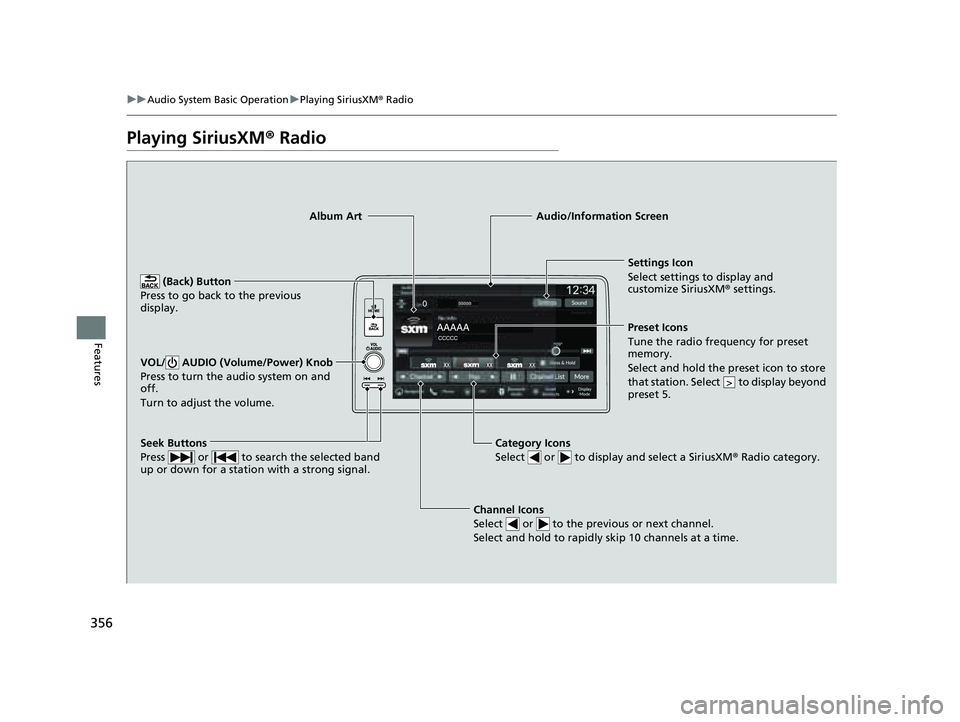
Channel Icons
Select or to the previous or next channel.
Select and hold to rapidly skip 10 channels at a time.
Settings Icon
Select settings to display and
customize SiriusXM ® settings.
Category Icons
Select or to display and select a SiriusXM ® Radio category.
Audio/Information Screen
Preset Icons
Tune the radio frequency for prese t
memory.
Select and hold the preset icon to store
that station. Select to display beyond
preset 5.
>
Seek Buttons
Press or to search the selected band
up or down for a station with a strong signal.
Album Art
(Back) Button
Press to go back to the previous
display.
VOL/ AUDIO (Volume/Power) Knob
Press to turn the audio system on and
off.
Turn to adjust the volume.
23 PILOT-31T906000_03.book 356 ページ 2022年10月31日 月曜日 午前10時26分
Page 368 of 814
367
uuAudio System Basic Operation uPlaying an iPod
Continued
Features
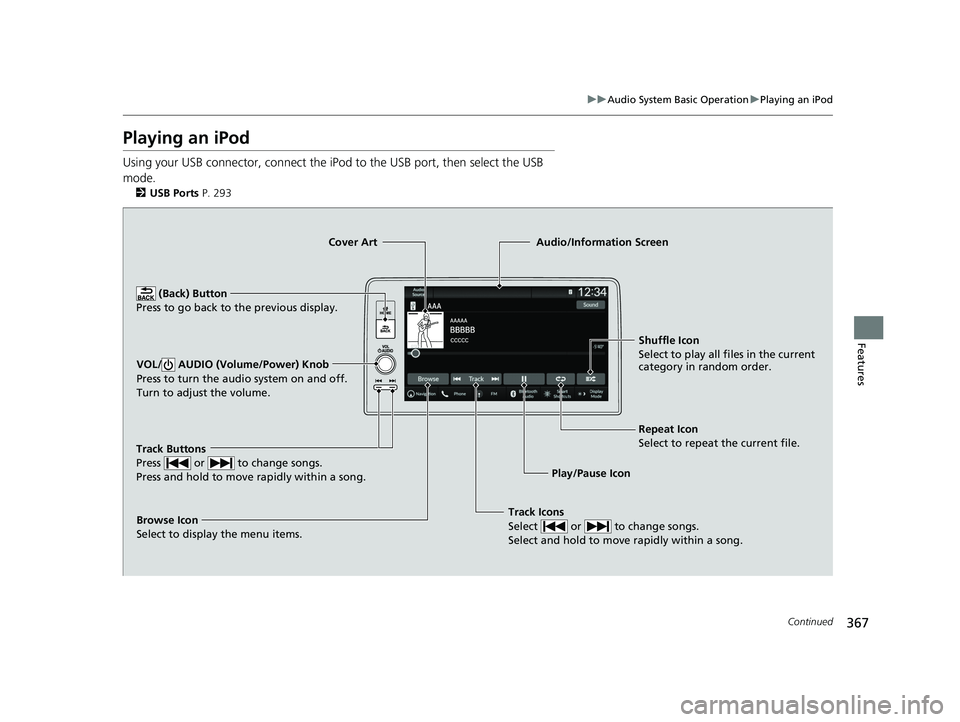
Playing an iPod
Using your USB connector, connect the iPod to the USB port, then select the USB
mode.
2 USB Ports P. 293
Track Icons
Select or to change songs.
Select and hold to move rapidly within a song.
Shuffle Icon
Select to play all files in the current
category in random order.
Cover Art
Audio/Information Screen
Play/Pause Icon
(B
ack)
Button
Pre
ss to go back to the previous display.
VOL/ AUDIO (Volume/Power) Knob
Press to turn the audio system on and off.
Turn to adjust the volume.
Repeat Icon
Select to repeat the current file.
Track Buttons
Press or to change songs.
Press and hold to move rapidly within a song.
Browse Icon
Select to display the menu items.
23 PILOT-31T906000_03.book 367 ページ 2022年10月31日 月曜日 午前10時26分
Page 371 of 814

370
uuAudio System Basic Operation uPlaying a USB Flash Drive
Features
Playing a USB Flash Drive
Your audio system reads and plays sound files on a USB flash drive in either MP3,
WMA, AAC*1, FLAC, or WAV format.
Connect your USB flash drive to the USB port, then select the USB mode.
2USB Ports P. 293
*1:Only AAC format files recorded with iTunes are playable on this unit.
Track Buttons
Press or to change files.
Press and hold to move rapidly within a track.
Random Icon
Select to play all files in the current
category in random order.
Audio/Information Screen
Play/Pause Ico n
(Back) Bu
tton
Press to go
back to the previous display.
VOL/ AUDIO (Volume/Power) Knob
Press to turn the audio system on and off.
Turn to adjust the volume.
Track Icons
Select or to change files.
Select and hold to move rapidly within a track.
Repeat Icon
Select to repeat the current file.
Browse Icon
Select to display the menu items.
23 PILOT-31T906000_03.book 370 ページ 2022年10月31日 月曜日 午前10時26分
Page 458 of 814
457
uuHomeLink ® Universal Transceiver*u Training HomeLink
Continued
Features
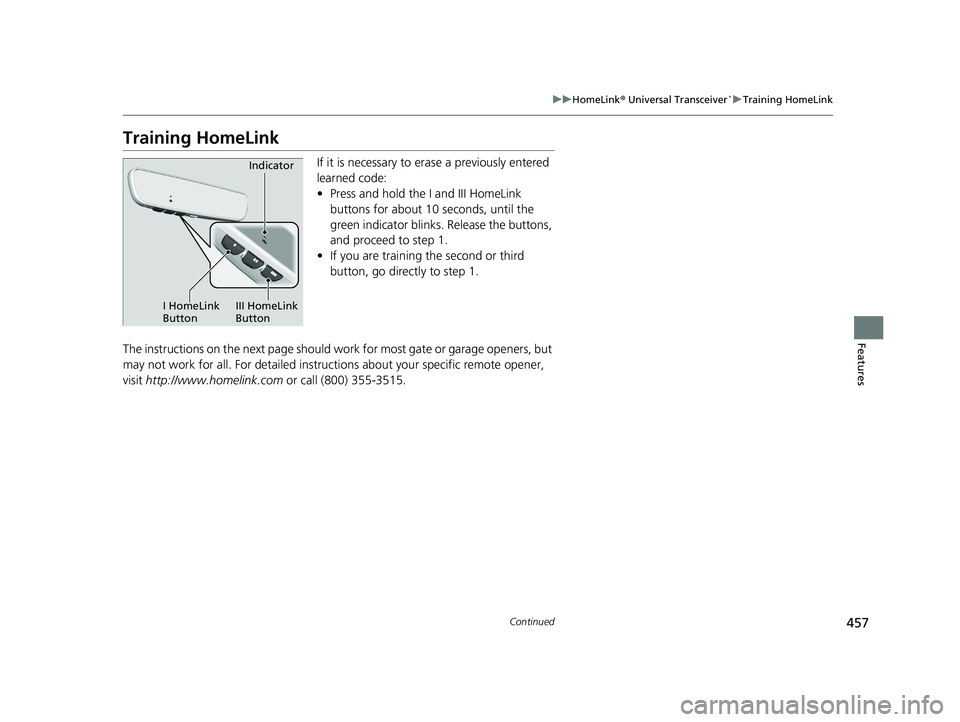
Training HomeLink
If it is necessary to er ase a previously entered
learned code:
• Press and hold the I and III HomeLink
buttons for about 10 seconds, until the
green indicator blinks. Release the buttons,
and proceed to step 1.
• If you are training the second or third
button, go directly to step 1.
The instructions on the next page should work for most gate or garage openers, but
may not work for all. For detailed instructions about your specific remote opener,
visit http://www.homelink.com or call (800) 355-3515.
III HomeLink
Button
Indicator
I HomeLink
Button
23 PILOT-31T906000_03.book 457 ページ 2022年10月31日 月曜日 午前10時26分
Page 459 of 814
uuHomeLink ® Universal Transceiver*u Training HomeLink
458
Features
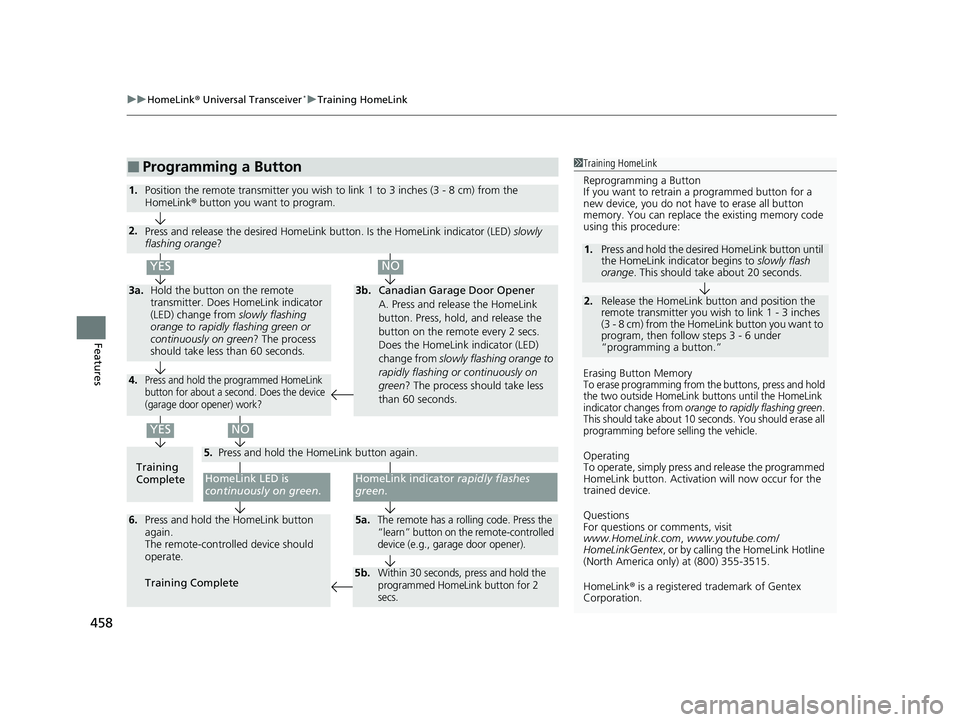
■Programming a Button1Training HomeLink
Reprogramming a Button
If you want to retrain a programmed button for a
new device, you do not ha ve to erase all button
memory. You can replace the existing memory code
using this procedure:
Erasing Button Memory
To erase programming from the buttons, press and hold
the two outside HomeLink buttons until the HomeLink
indicator changes from
orange to rapidly flashing green.
This should take about 10 seconds. You should erase all
programming before selling the vehicle.
Operating
To operate, simply press and release the programmed
HomeLink button. Activati on will now occur for the
trained device.
Questions
For questions or comments, visit
www.HomeLink.com , www.youtube.com/
HomeLinkGentex , or by calling the HomeLink Hotline
(North America only) at (800) 355-3515.
HomeLink® is a registered tra demark of Gentex
Corporation.
2.
1. Press and hold the desired HomeLink button until
the HomeLink indi
cator begins to slowly flash
orange . This should take about 20 seconds.
Release the HomeLink button and position the
remote transmitter you wish to link 1 - 3 inches
(3 - 8 cm) from the Home Link button you want to
program, then follow steps 3 - 6 under
“programming a button.”
Training
CompleteHomeLink LED is
continuously on green .
YES
YES
1.Position the remote transmitter you wish to link 1 to 3 inches (3 - 8 cm) from the
HomeLink® button you want to program.
3b.Canadian Garage Door Opener
A. Press and release the HomeLink
button. Press, hold, and release the
button on the remote every 2 secs.
Does the HomeLink indicator (LED)
change from slowly flashing orange to
rapidly flashing or continuously on
green ? The process should take less
than 60 seconds.
NO
2. Press and release the desired HomeLink but ton. Is the HomeLink indicator (LED) slowly
flashing orange ?
NO
3a.Hold the button on the remote
transmitter. Does HomeLink indicator
(LED) change from slowly flashing
orange to rapidly flashing green or
continuously on green? The process
should take less than 60 seconds.
5. Press and hold the HomeLink button again.
HomeLink indicator rapidly flashes
green .
5a.The remote has a rolling code. Press the
“learn” button on th e remote-controlled
device (e.g., garage door opener).6. Press and hold the HomeLink button
again.
The remote-controll ed device should
operate.
Training Complete
5b.Within 30 seconds, press and hold the
programmed HomeLink button for 2
secs.
4.Press and hold the programmed HomeLink
button for about a second. Does the device
(garage door opener) work?
23 PILOT-31T906000_03.book 458 ページ 2022年10月31日 月曜日 午前10時26分
Page 460 of 814
459Continued
Features
Bluetooth® HandsFreeLink ®
Bluetooth® HandsFreeLink ® (HFL) allows you to place and receive phone calls using
your vehicle’s audio system, without handling your cell phone.
Using HFL
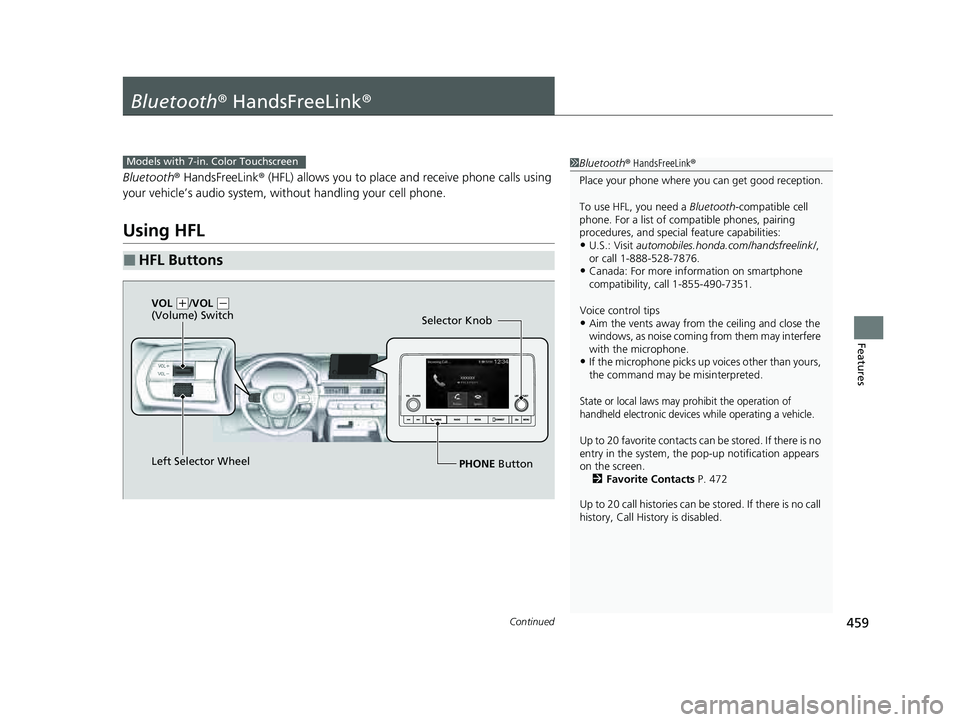
■HFL Buttons
1 Bluetooth ® HandsFreeLink ®
Place your phone where y ou can get good reception.
To use HFL, you need a Bluetooth-compatible cell
phone. For a list of compatible phones, pairing
procedures, and special feature capabilities:
•U.S.: Visit automobiles.honda.com/handsfreelink/ ,
or call 1-888-528-7876.
•Canada: For more info rmation on smartphone
compatibility, call 1-855-490-7351.
Voice control tips
•Aim the vents away from the ceiling and close the
windows, as noise coming from them may interfere
with the microphone.
•If the microphone picks up vo ices other than yours,
the command may be misinterpreted.
State or local laws may pr ohibit the operation of
handheld electronic devices while operating a vehicle.
Up to 20 favorite contacts ca n be stored. If there is no
entry in the system, the pop-up notification appears
on the screen. 2 Favorite Contacts P. 472
Up to 20 call histories can be stored. If there is no call
history, Call History is disabled.
Models with 7-in. Color Touchscreen
Selector Knob
Left Selector Wheel PHONE Button
VOL
(
+/VOL (-
(Volume) Switch
23 PILOT-31T906000_03.book 459 ページ 2022年10月31日 月曜日 午前10時26分
Page 480 of 814
479Continued
Features
Bluetooth® HandsFreeLink ®
Bluetooth® HandsFreeLink ® (HFL) allows you to place and receive phone calls using
your vehicle’s audio system, without handling your cell phone.
Using HFL
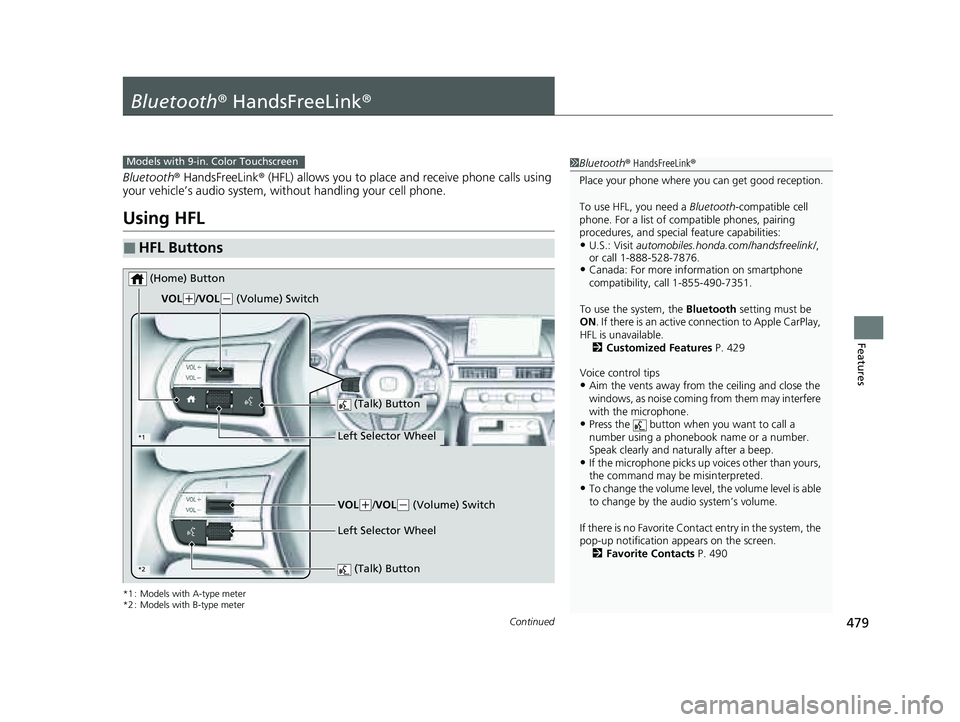
*1 : Models with A-type meter
*2 : Models with B-type meter
1 Bluetooth ® HandsFreeLink ®
Place your phone where y ou can get good reception.
To use HFL, you need a Bluetooth-compatible cell
phone. For a list of compatible phones, pairing
procedures, and special feature capabilities:
•U.S.: Visit automobiles.honda.com/handsfreelink/ ,
or call 1-888-528-7876.
•Canada: For more info rmation on smartphone
compatibility, call 1-855-490-7351.
To use the system, the Bluetooth setting must be
ON . If there is an active c onnection to Apple CarPlay,
HFL is unavailable. 2 Customized Features P. 429
Voice control tips
•Aim the vents away from the ceiling and close the
windows, as noise coming from them may interfere
with the microphone.
•Press the button when you want to call a
number using a phonebook name or a number.
Speak clearly and naturally after a beep.
•If the microphone picks up vo ices other than yours,
the command may be misinterpreted.
•To change the volume level, the volume level is able
to change by the audio system’s volume.
If there is no Favorite Contact entry in the system, the
pop-up notification appears on the screen. 2 Favorite Contacts P. 490
Models with 9-in. Color Touchscreen
■HFL Buttons
(Talk) Button
Left Selector Wheel
VOL
(
+/VOL(- (Volume) Switch
(Home) Button
*2
*1
Left Selector Wheel
(Talk) Button
VOL(+/VOL(- (Volume) Switch
23 PILOT-31T906000_03.book 479 ページ 2022年10月31日 月曜日 午前10時26分