turn signal HONDA PILOT 2023 User Guide
[x] Cancel search | Manufacturer: HONDA, Model Year: 2023, Model line: PILOT, Model: HONDA PILOT 2023Pages: 814, PDF Size: 29.02 MB
Page 306 of 814
305
uuAudio System Basic Operation uPlaying AM/FM Radio
Features
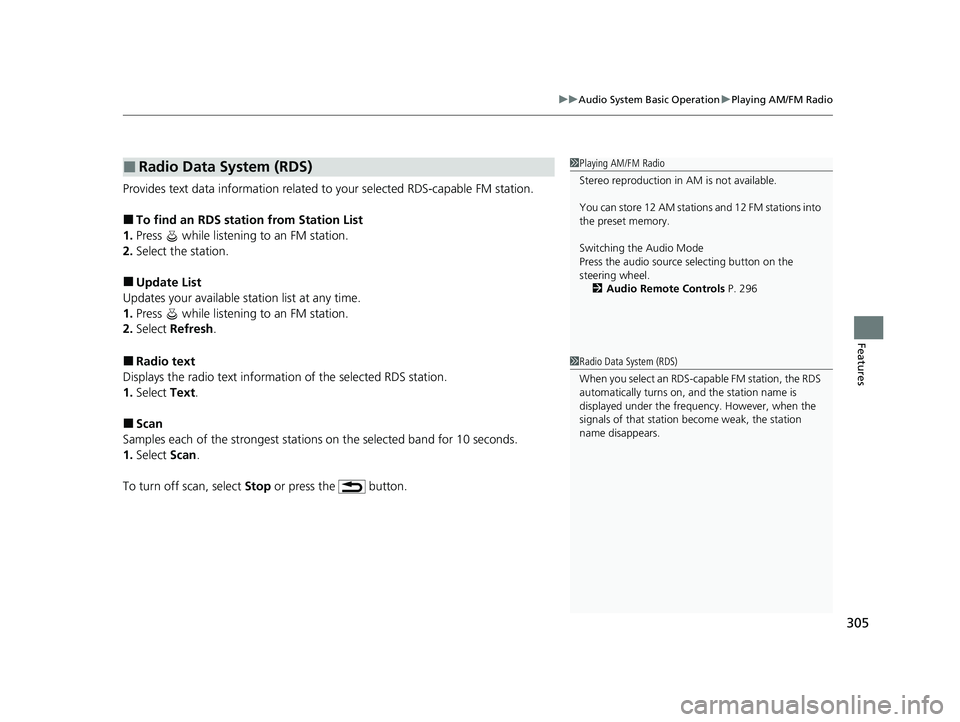
Provides text data information related to your selected RDS-capable FM station.
■To find an RDS station from Station List
1. Press while listening to an FM station.
2. Select the station.
■Update List
Updates your available st ation list at any time.
1. Press while listening to an FM station.
2. Select Refresh .
■Radio text
Displays the radio text information of the selected RDS station.
1. Select Text.
■Scan
Samples each of the strongest stations on the selected band for 10 seconds.
1. Select Scan.
To turn off scan, select Stop or press the button.
■Radio Data System (RDS)1Playing AM/FM Radio
Stereo reproduction in AM is not available.
You can store 12 AM stations and 12 FM stations into
the preset memory.
Switching the Audio Mode
Press the audio source selecting button on the
steering wheel.
2 Audio Remote Controls P. 296
1Radio Data System (RDS)
When you select an RDS-capable FM station, the RDS
automatically turns on, and the station name is
displayed under the frequency. However, when the
signals of that station become weak, the station
name disappears.
23 PILOT-31T906000_03.book 305 ページ 2022年10月31日 月曜日 午前10時26分
Page 353 of 814
352
uuAudio System Basic Operation uPlaying AM/FM Radio
Features
Playing AM/FM Radio
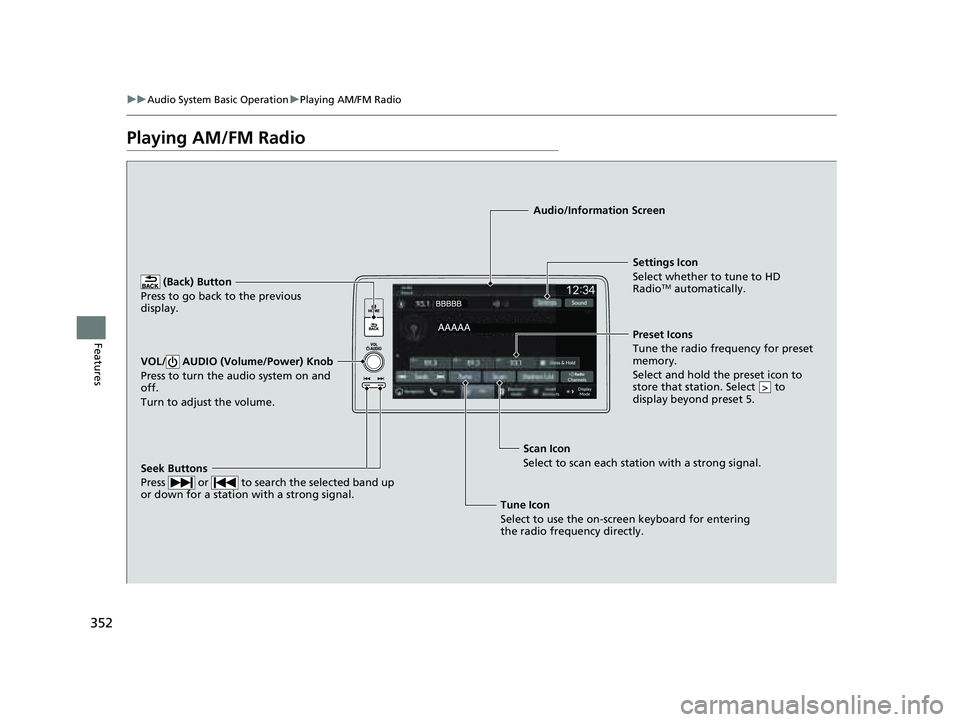
(Back) Button
Press to go back to the previous
display.
Seek Buttons
Press or to search the selected band up
or down for a station with a strong signal.
VOL/ AUDIO (Volume/Power) Knob
Press to turn the audio system on and
off.
Turn to adjust the volume.
Settings Icon
Select whether to tune to HD
Radio
TM automatically.
Tune Icon
Select to use the on-scr een keyboard for entering
the radio frequency directly. Audio/Information Screen
Scan Icon
Select to sca n each stat
ion with a strong signal.
Preset Icons
Tune the radio frequency for preset
memory.
Select and hold the preset icon to
store that station. Select to
display beyond preset 5.
>
23 PILOT-31T906000_03.book 352 ページ 2022年10月31日 月曜日 午前10時26分
Page 355 of 814
uuAudio System Basic Operation uPlaying AM/FM Radio
354
Features
Samples each of the strongest stations on th e selected band for 10 seconds. To turn
off scan, select Stop or press the button.
Displays the subchannel list when an HD Radio
TM station is selected while listening to
an FM station.
1. Select HD Radio Channels .
2. Select the channel number.
Provides text data information related to your selected RDS-capable FM station.
■To find an RDS station from Station List
1. Select Station List to display a list while listening to an FM station.
2. Select the station.
■Manual update
Updates your available station list at any time.
1. Select Station List to display a list while listening to an FM station.
2. Select Refresh .
■Scan
■HD Subchannel
■Radio Data System (RDS)1Radio Data System (RDS)
When you select an RDS-capable FM station, the RDS
automatically turns on, and the frequency display
changes to the station name. However, when the
signals of that station become weak, the display
changes from the statio n name to the frequency.
23 PILOT-31T906000_03.book 354 ページ 2022年10月31日 月曜日 午前10時26分
Page 357 of 814
356
uuAudio System Basic Operation uPlaying SiriusXM ® Radio
Features
Playing SiriusXM ® Radio
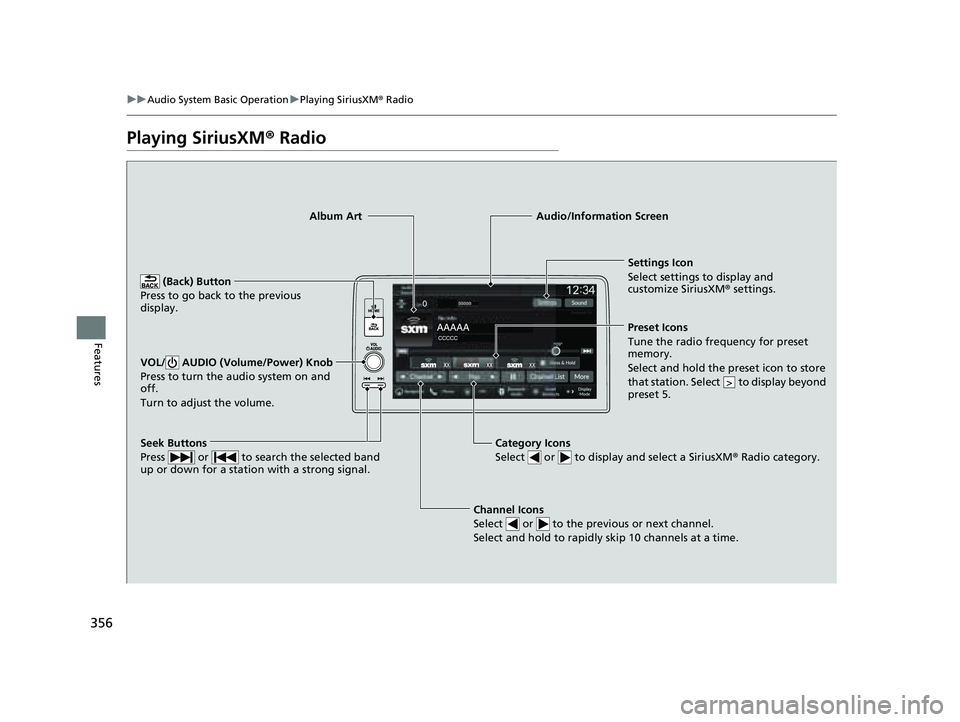
Channel Icons
Select or to the previous or next channel.
Select and hold to rapidly skip 10 channels at a time.
Settings Icon
Select settings to display and
customize SiriusXM ® settings.
Category Icons
Select or to display and select a SiriusXM ® Radio category.
Audio/Information Screen
Preset Icons
Tune the radio frequency for prese t
memory.
Select and hold the preset icon to store
that station. Select to display beyond
preset 5.
>
Seek Buttons
Press or to search the selected band
up or down for a station with a strong signal.
Album Art
(Back) Button
Press to go back to the previous
display.
VOL/ AUDIO (Volume/Power) Knob
Press to turn the audio system on and
off.
Turn to adjust the volume.
23 PILOT-31T906000_03.book 356 ページ 2022年10月31日 月曜日 午前10時26分
Page 514 of 814
Continued513
uuTowing a Trailer uTowing Preparation
Driving
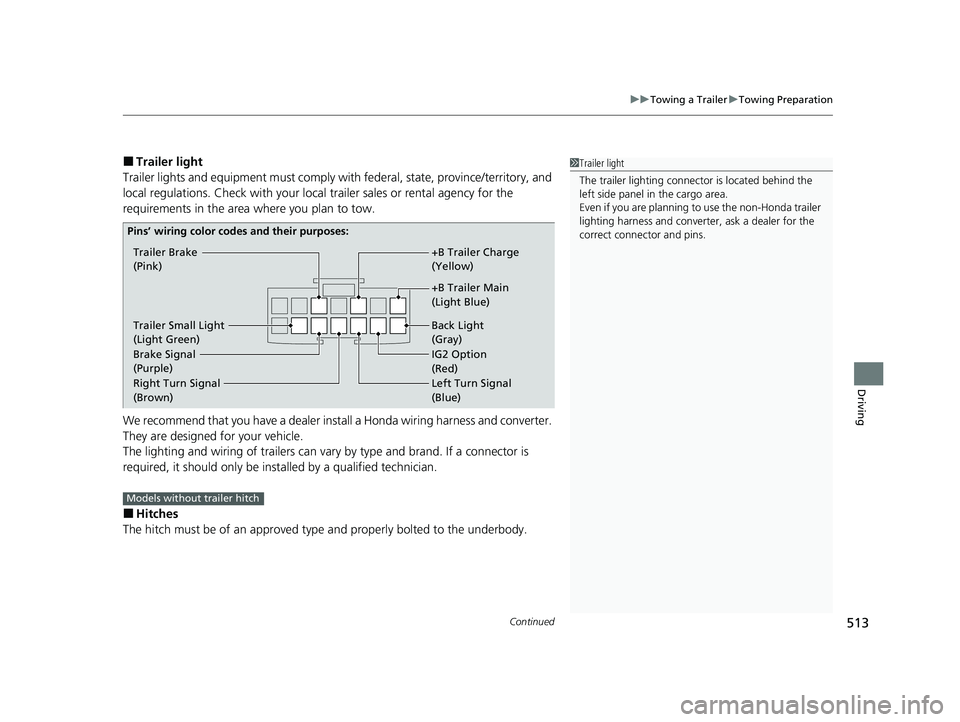
■Trailer light
Trailer lights and equipment must comply with federal, state, province/territory, and
local regulations. Check with your local trailer sales or rental agency for the
requirements in the area where you plan to tow.
We recommend that you have a dealer inst all a Honda wiring harness and converter.
They are designed for your vehicle.
The lighting and wiring of trailers can vary by type and brand. If a connector is
required, it should only be installed by a qualified technician.
■Hitches
The hitch must be of an approved type and properly bolted to the underbody.
1 Trailer light
The trailer lighting connect or is located behind the
left side panel in the cargo area.
Even if you are planning to use the non-Honda trailer
lighting harness and converte r, ask a dealer for the
correct connector and pins.
Trailer Brake
(Pink)
+B Trailer Main
(Light Blue) +B Trailer Charge
(Yellow)
IG2 Option
(Red) Back Light
(Gray)
Trailer Small Light
(Light Green)
Brake Signal
(Purple)
Pins’ wiring color codes and their purposes:
Right Turn Signal
(B ro wn) Left
Turn Signal
(Blue)
Models without trailer hitch
23 PILOT-31T906000_03.book 513 ページ 2022年10月31日 月曜日 午前10時26分
Page 565 of 814
uuWhen Driving uBlind Spot Information System*
564
Driving
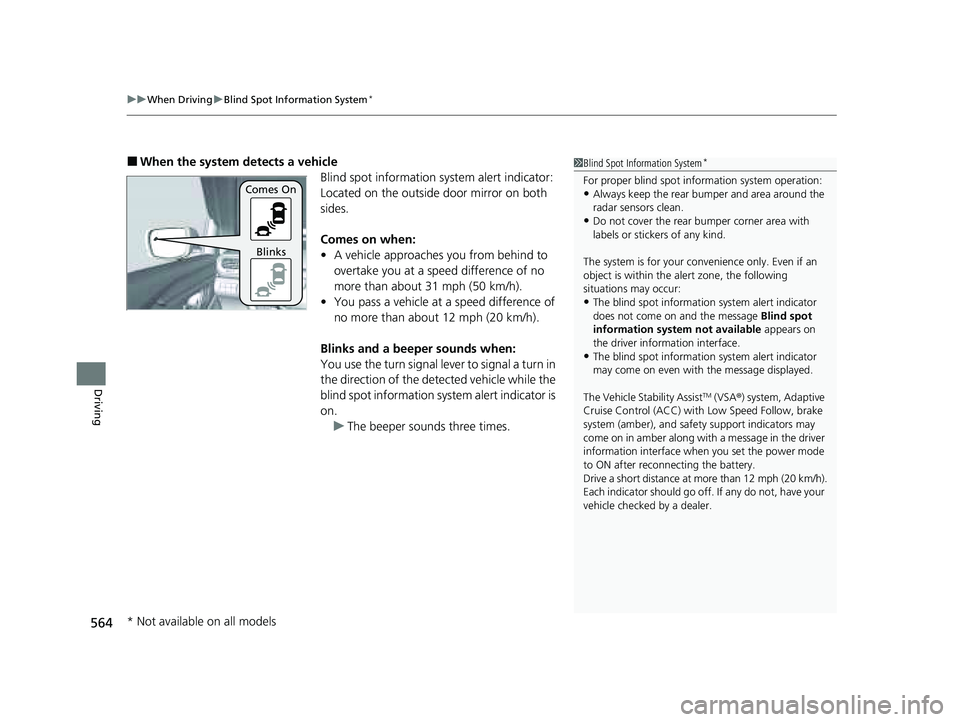
■When the system detects a vehicle
Blind spot information system alert indicator:
Located on the outside door mirror on both
sides.
Comes on when:
• A vehicle approaches you from behind to
overtake you at a speed difference of no
more than about 31 mph (50 km/h).
• You pass a vehicle at a speed difference of
no more than about 12 mph (20 km/h).
Blinks and a beeper sounds when:
You use the turn signal lever to signal a turn in
the direction of the detected vehicle while the
blind spot information system alert indicator is
on. u The beeper sounds three times.1Blind Spot Information System*
For proper blind spot information system operation:•Always keep the rear bumper and area around the
radar sensors clean.
•Do not cover the rear bumper corner area with
labels or sticke rs of any kind.
The system is for your convenience only. Even if an
object is within the alert zone, the following
situations may occur:
•The blind spot informatio n system alert indicator
does not come on and the message Blind spot
information system not available appears on
the driver information interface.
•The blind spot informatio n system alert indicator
may come on even with the message displayed.
The Vehicle Stability Assist
TM (VSA ®) system, Adaptive
Cruise Control (ACC) with Low Speed Follow, brake
system (amber), and safety support indicators may
come on in amber along with a message in the driver
information interface when you set the power mode
to ON after reconnecting the battery.
Drive a short distance at more than 12 mph (20 km/h).
Each indicator should go off. If any do not, have your
vehicle checked by a dealer.
Comes On
Blinks
* Not available on all models
23 PILOT-31T906000_03.book 564 ページ 2022年10月31日 月曜日 午前10時26分
Page 567 of 814
566
uuWhen Driving uBlind Spot Information System*
Driving
The blind spot information system alert indicator may not come on under the
following conditions:
• There is a large speed difference betwee n your vehicle and the vehicle in the
adjacent lane.
• A vehicle is parked in a side lane.
• An object not detected by the radar se nsors approaches or passes your vehicle.
• The vehicle driving in the adjacent lane is a motorcycle or other small vehicle.
The blind spot information system may not operate correctly under the following
conditions:
• Making a turn at an intersection.
• Objects (guard rails, poles, trees, etc.) are detected.
• An object that does not reflect radio wave s well or a motorcycle is in the alert
zone.
• Driving on a curved road.
• A vehicle is moving from a far lane to the adjacent lane.
• The system picks up signal interference such as other radar sensors from another
vehicle or strong radio wave transmitted from a facility nearby.
• The rear bumper or the area around the radar sensors is covered by dirt, mud,
snow, ice, etc.
• The rear bumper or the area around the radar sensors has been damaged or
deformed.
• In bad weather (heavy rain, snow, and fog).
• Making a short turn or driving on a bumpy road that slightly tilts the vehicle.
• An object such as a bicycle rack is attached to the rear of the vehicle.
■Blind spot information system Conditions and Limitations
23 PILOT-31T906000_03.book 566 ページ 2022年10月31日 月曜日 午前10時26分
Page 581 of 814
580
uuHonda Sensing ®u Collision Mitigation Braking SystemTM (CMBSTM)
Driving
■Examples of other limitations on detection or system operation
• When the vehicle ahead of you is a small motorcycle, motorcycle with a sidecar,
wheelchair, or other specially shaped vehicle.
• When a vehicle is lower in the rear than the front such as trucks that are not
carrying a cargo, or a narrow vehicle.
• When the vehicle ahead of you, oncoming vehicle, pedestrian or moving bicycle
is not in front of the vehicle.
• The speed difference between your vehi cle and the vehicle ahead of you,
oncoming vehicle, pedestrian or moving bicycle is significantly large.
• When the vehicle or moving bicycle in front of you slows suddenly.
• When the driver operates the brake pedal and steering wheel to avoid a collision.
• When you approach the vehicle ahead of you, oncoming vehicle, pedestrians or
moving bicycles while accelerating rapidl y or operating the steering wheel (except
when turning left at an intersection, etc.)
*1
•When the moving bicycle is a child-sized bicycle, folding bicycle, three-wheeler or
other bicycle with small tires, or a long bicycle like a tandem bicycle.
• When the radar and camera cannot correct ly identify the shape of the vehicle
ahead of you, oncoming vehicle, pedestrian, or moving bicycle.
• When the minimum ground clearance of a vehicle ahead of you is extremely high.
• When turning left or right and your turn signal is not activated in the same
direction you are turning.
*1 : When there is a possibility of a frontal collision with the oncoming vehicle while turning left, the CMBSTM
is activated. However, it may not be acti vated if you suddenly turn the steering wheel.
23 PILOT-31T906000_03.book 580 ページ 2022年10月31日 月曜日 午前10時26分
Page 613 of 814
612
uuHonda Sensing ®u Lane Keeping Assist System (LKAS)
Driving
Lane Keeping Assist System (LKAS)
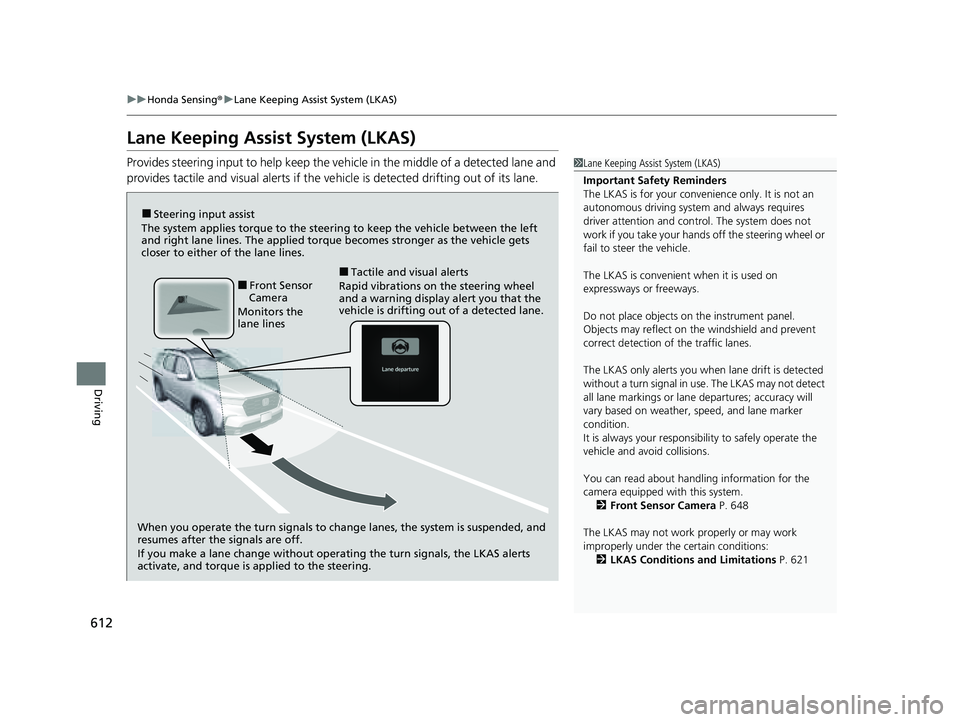
Provides steering input to help keep the vehicle in the middle of a detected lane and
provides tactile and visual alerts if the ve hicle is detected drifting out of its lane.1Lane Keeping Assist System (LKAS)
Important Safety Reminders
The LKAS is for your convenience only. It is not an
autonomous driving system and always requires
driver attention and control. The system does not
work if you take your hands off the steering wheel or
fail to steer the vehicle.
The LKAS is convenient when it is used on
expressways or freeways.
Do not place objects on the instrument panel.
Objects may reflect on th e windshield and prevent
correct detection of the traffic lanes.
The LKAS only alerts you when lane drift is detected
without a turn signal in use. The LKAS may not detect
all lane markings or lane departures; accuracy will
vary based on weather, speed, and lane marker
condition.
It is always your responsibility to safely operate the
vehicle and avoid collisions.
You can read about handling information for the
camera equipped with this system. 2 Front Sensor Camera P. 648
The LKAS may not work properly or may work
improperly under the certain conditions: 2 LKAS Conditions and Limitations P. 621
When you operate the turn signals to chan ge lanes, the system is suspended, and
resumes after the signals are off.
If you make a lane change without operating the turn signals, the LKAS alerts
activate, and torque is applied to the steering.
■Front Sensor
Camera
Monitors the
lane lines■Tactile and visual alerts
Rapid vibrations on the steering wheel
and a warning display alert you that the
vehicle is drifting out of a detected lane.
■Steering input assist
The system applies torque to the steering to keep the vehicle between the left
and right lane lines. The applied torque becomes stronger as the vehicle gets
closer to either of the lane lines.
23 PILOT-31T906000_03.book 612 ページ 2022年10月31日 月曜日 午前10時26分
Page 616 of 814
Continued615
uuHonda Sensing ®u Lane Keeping Assist System (LKAS)
Driving
The system can be used when th e following conditions are met.
• The lane in which you are driving has detectable lane markers on both sides, and
your vehicle is in the center of the lane.
• The vehicle is traveling between about 45 and 90 mph (72 and 145 km/h).
• You are driving on a straight or slightly curved road.
• The turn signals are off.
• The brake pedal is not depressed.
■When the System can be Used1When the System can be Used
If the vehicle drifts toward ei ther left or right lane line
due to the system applying torque, turn off the LKAS
and have your vehicle checked by a dealer.
Follow the points below to properly activate the
system:
•Always keep the windshi eld around the camera
clean.
•When cleaning the windshield, be careful not to
apply windshield cleanser to the camera lens.
•Do not touch the camera lens.
•Do not attach a sticker to the area around the
camera.
If LKAS button is pressed when the system can be
used, LKAS is on without standby.
23 PILOT-31T906000_03.book 615 ページ 2022年10月31日 月曜日 午前10時26分