lock HONDA PILOT 2023 Manual Online
[x] Cancel search | Manufacturer: HONDA, Model Year: 2023, Model line: PILOT, Model: HONDA PILOT 2023Pages: 814, PDF Size: 29.02 MB
Page 275 of 814
uuInterior Convenience Items uOther Interior Convenience Items
274
Controls
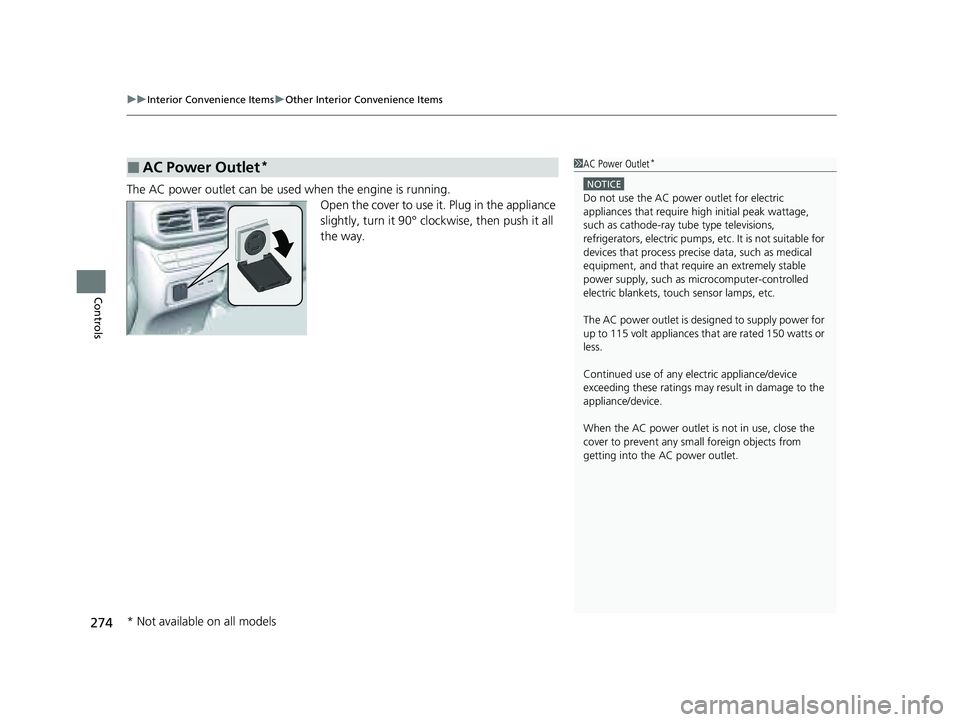
The AC power outlet can be used when the engine is running.
Open the cover to use it. Plug in the appliance
slightly, turn it 90° clockwise, then push it all
the way.
■AC Power Outlet*1AC Power Outlet*
NOTICE
Do not use the AC power outlet for electric
appliances that require high initial peak wattage,
such as cathode-ray tube type televisions,
refrigerators, electric pumps, etc. It is not suitable for
devices that process precis e data, such as medical
equipment, and that require an extremely stable
power supply, such as microcomputer-controlled
electric blankets, touc h sensor lamps, etc.
The AC power outlet is desi gned to supply power for
up to 115 volt appliances that are rated 150 watts or
less.
Continued use of any elec tric appliance/device
exceeding these ratings may result in damage to the
appliance/device.
When the AC power outlet is not in use, close the
cover to prevent any small foreign objects from
getting into the AC power outlet.
* Not available on all models
23 PILOT-31T906000_03.book 274 ページ 2022年10月31日 月曜日 午前10時26分
Page 285 of 814
uuClimate Control System uUsing Automatic Climate Control
284
Controls
■Switching between the recirc ulation and fresh air modes
Press the (recirculation) button and switch the mode depending on
environmental conditions.
Recirculation mode (indicator on): Recirculates air from the vehicle’s interior through
the system.
Fresh air mode (indicator off): Maintains outside ventilation.1Using Automatic Climate Control
When you unlock the doors with your remote, the
driver’s ID (DRIVER 1 or DRIVER 2) is detected, and
the climate control settings are turned to the
respective mode automatically when you set the
power mode to ON.
23 PILOT-31T906000_03.book 284 ページ 2022年10月31日 月曜日 午前10時26分
Page 288 of 814
287
uuClimate Control System uRear Climate Control System
Continued
Controls
Rear Climate Control System
Use the system when the engine is runni ng and the climate control system is
operating.
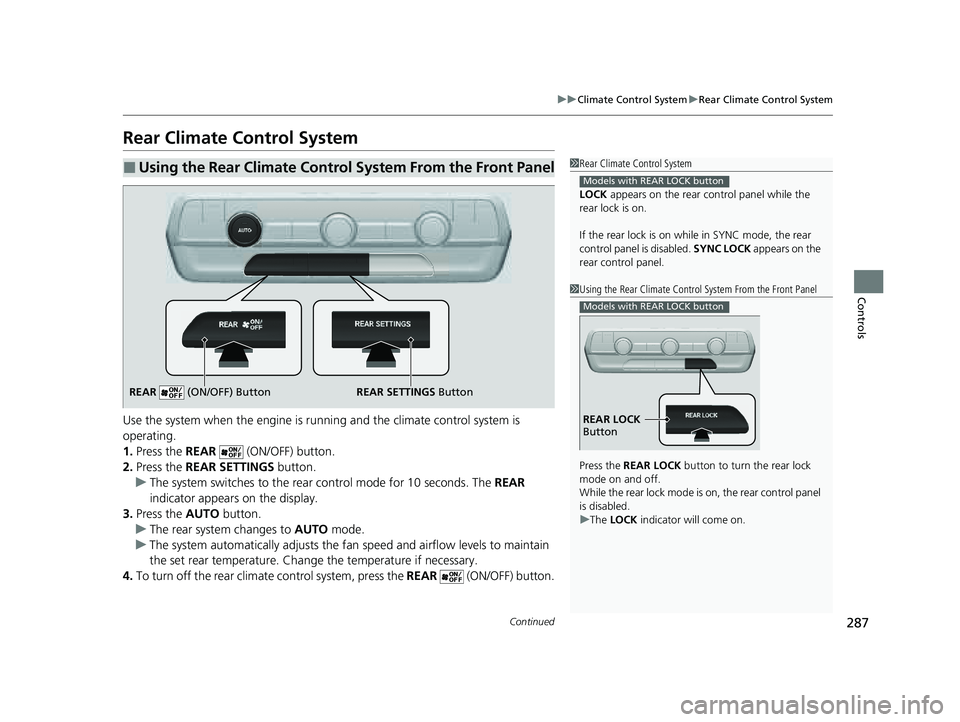
1. Press the REAR (ON/OFF) button.
2. Press the REAR SETTINGS button.
u The system switches to the rear control mode for 10 seconds. The REAR
indicator appears on the display.
3. Press the AUTO button.
u The rear system changes to AUTO mode.
u The system automatically adjusts the fan speed and airfl ow levels to maintain
the set rear temperature. Change the temperature if necessary.
4. To turn off the rear climat e control system, press the REAR (ON/OFF) button.
■Using the Rear Climate Control System From the Front Panel1Rear Climate Control System
LOCK appears on the rear control panel while the
rear lock is on.
If the rear lock is on while in SYNC mode, the rear
control panel is disabled. SYNC LOCK appears on the
rear control panel.
Models with REAR LOCK button
1 Using the Rear Climate Control System From the Front Panel
Press the REAR LOCK button to turn the rear lock
mode on and off.
While the rear lock mode is on, the rear control panel
is disabled.
u The LOCK indicator will come on.
Models with REAR LOCK button
REAR LOCK
Button
REAR SETTINGS Button
REAR (ON/OFF) Button
23 PILOT-31T906000_03.book 287 ページ 2022年10月31日 月曜日 午前10時26分
Page 289 of 814
uuClimate Control System uRear Climate Control System
288
Controls
Use the system when the engine is running
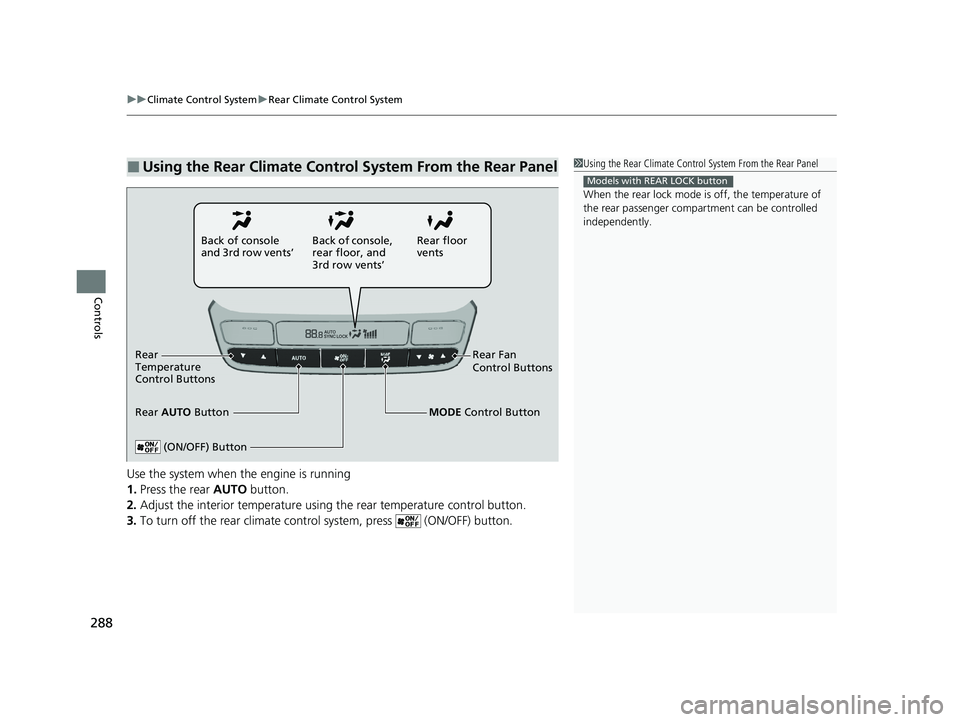
1. Press the rear AUTO button.
2. Adjust the interior temperature using the rear temperature control button.
3. To turn off the rear climate con trol system, press (ON/OFF) button.
■Using the Rear Climate Control System From the Rear Panel1Using the Rear Climate Control System From the Rear Panel
When the rear lock mode is off, the temperature of
the rear passenger compar tment can be controlled
independently.
Models with REAR LOCK button
Rear floor
vents
Back of console
and 3rd row vents’
Rear Fan
Control Buttons
(ON/OFF) Button
Rear
Temperature
Control Buttons
Rear AUTO Button Back of console,
rear floor, and
3rd row vents’
MODE Control Button
23 PILOT-31T906000_03.book 288 ページ 2022年10月31日 月曜日 午前10時26分
Page 302 of 814
301
Features
Audio System Basic Operation
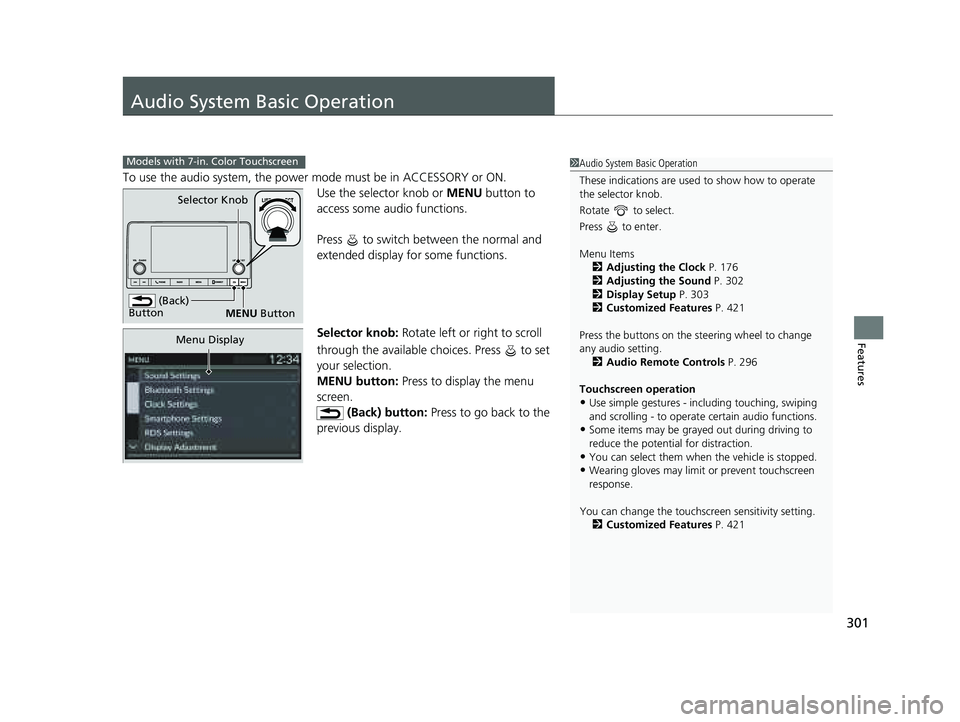
To use the audio system, the power mode must be in ACCESSORY or ON.Use the selector knob or MENU button to
access some au dio functions.
Press to switch between the normal and
extended display fo r some functions.
Selector knob: Rotate left or right to scroll
through the available choices. Press to set
your selection.
MENU button: Press to display the menu
screen. (Back) button: Press to go back to the
previous display.
Models with 7-in. Color Touchscreen1 Audio System Basic Operation
These indications are used to show how to operate
the selector knob.
Rotate to select.
Press to enter.
Menu Items 2 Adjusting the Clock P. 176
2 Adjusting the Sound P. 302
2 Display Setup P. 303
2 Customized Features P. 421
Press the buttons on the steering wheel to change
any audio setting. 2 Audio Remote Controls P. 296
Touchscreen operation
•Use simple gestures - in cluding touching, swiping
and scrolling - to operate certain audio functions.
•Some items may be grayed out during driving to
reduce the potential for distraction.
•You can select them when the vehicle is stopped.•Wearing gloves may limit or prevent touchscreen
response.
You can change the touchs creen sensitivity setting.
2 Customized Features P. 421
(Back)
Button
Selector Knob
MENU Button
Menu Display
23 PILOT-31T906000_03.book 301 ページ 2022年10月31日 月曜日 午前10時26分
Page 331 of 814
330
uuAudio System Basic Operation uAudio/Information Screen
Features
■Trip Computer
Displays the trip computer information.
• Current Drive tab: Displays the current trip information.
• Trip A /Trip B tab: Displays information for the current and three previous drives.
The information is stored ever y time you reset Trip A/B.
To reset the Trip A/B, select Settings, then select Delete Trip History .
To change the setting of how to reset Trip A/B, select Settings, then select “Trip A”
Reset Timing or “Trip B” Reset Timing .
■System Updates
Updates the software versi on of the audio system.
2System Updates P. 340
■Clock
Displays the clock.
■Smart Shortcuts
Displays the Smart Shortcuts screen.
2Smart Shortcuts P. 380
■Display Mode
Displays the brightness bar.
23 PILOT-31T906000_03.book 330 ページ 2022年10月31日 月曜日 午前10時26分
Page 333 of 814
uuAudio System Basic Operation uAudio/Information Screen
332
Features
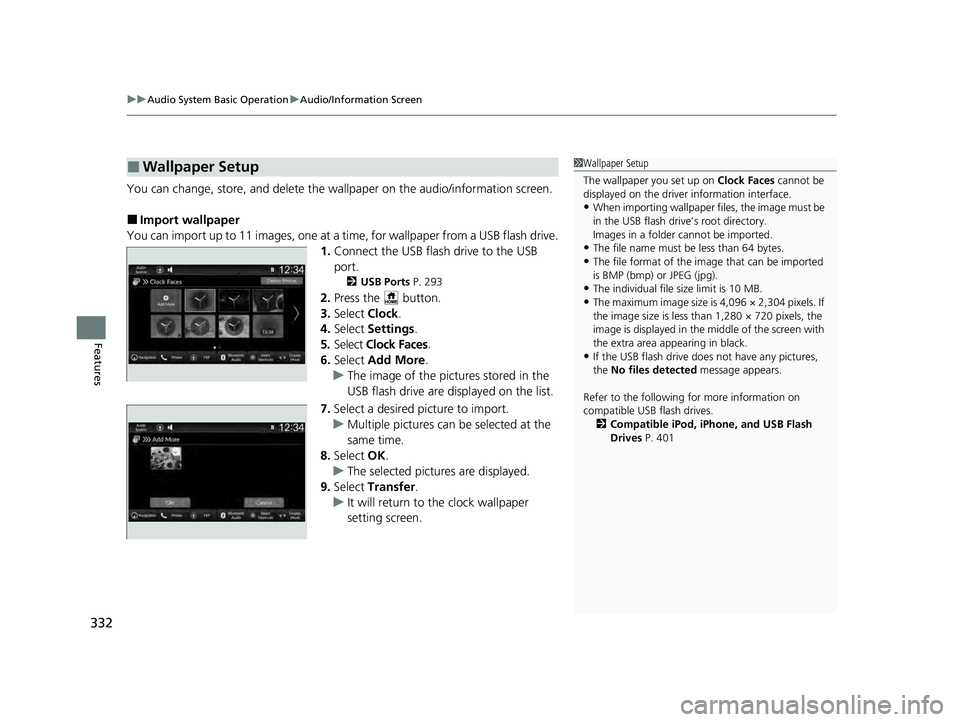
You can change, store, and delete the wallpaper on the audio/information screen.
■Import wallpaper
You can import up to 11 images, one at a time, for wallpaper from a USB flash drive.
1.Connect the USB flash drive to the USB
port.
2 USB Ports P. 293
2.Press the button.
3. Select Clock.
4. Select Settings .
5. Select Clock Faces.
6. Select Add More .
u The image of the pictures stored in the
USB flash drive are displayed on the list.
7. Select a desired picture to import.
u Multiple pictures can be selected at the
same time.
8. Select OK.
u The selected pictures are displayed.
9. Select Transfer.
u It will return to the clock wallpaper
setting screen.
■Wallpaper Setup1Wallpaper Setup
The wallpaper you set up on Clock Faces cannot be
displayed on the driver information interface.
•When importing wallpaper f iles, the image must be
in the USB flash drive’s root directory.
Images in a folder cannot be imported.
•The file name must be less than 64 bytes.
•The file format of the im age that can be imported
is BMP (bmp) or JPEG (jpg).
•The individual file size limit is 10 MB.
•The maximum image size is 4,096 × 2,304 pixels. If
the image size is less than 1,280 × 720 pixels, the
image is displayed in the middle of the screen with
the extra area appearing in black.
•If the USB flash drive doe s not have any pictures,
the No files detected message appears.
Refer to the following for more information on
compatible USB flash drives. 2 Compatible iPod, iPhone, and USB Flash
Drives P. 401
23 PILOT-31T906000_03.book 332 ページ 2022年10月31日 月曜日 午前10時26分
Page 334 of 814
Continued333
uuAudio System Basic Operation uAudio/Information Screen
Features
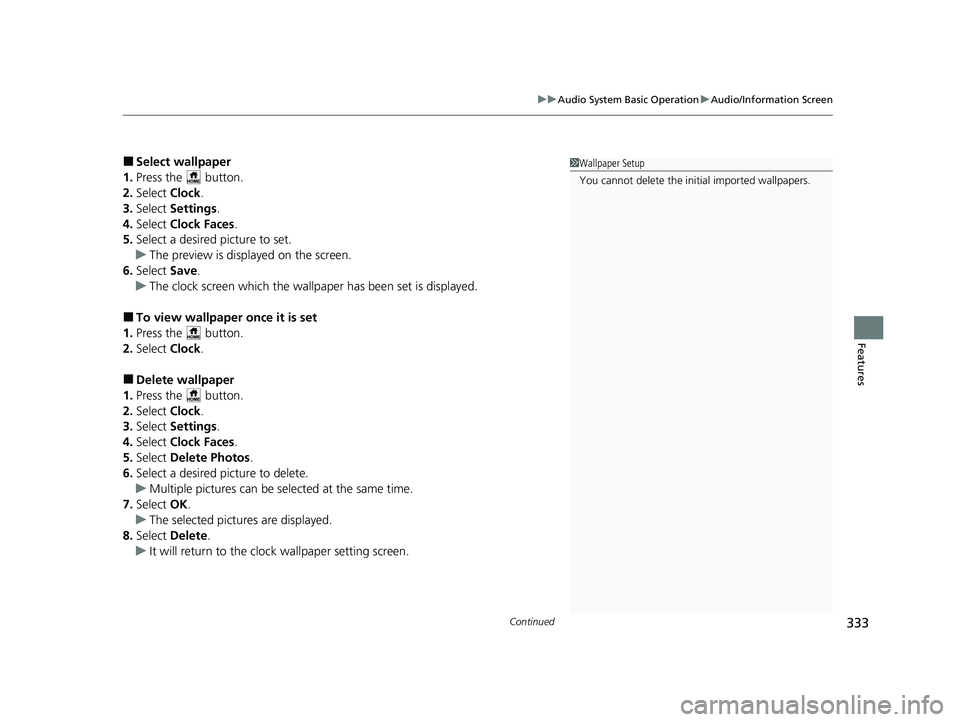
■Select wallpaper
1. Press the button.
2. Select Clock.
3. Select Settings .
4. Select Clock Faces .
5. Select a desired picture to set.
u The preview is displayed on the screen.
6. Select Save.
u The clock screen which the wallpa per has been set is displayed.
■To view wallpaper once it is set
1. Press the button.
2. Select Clock.
■Delete wallpaper
1. Press the button.
2. Select Clock.
3. Select Settings .
4. Select Clock Faces .
5. Select Delete Photos .
6. Select a desired picture to delete.
u Multiple pictures can be selected at the same time.
7. Select OK.
u The selected pictures are displayed.
8. Select Delete .
u It will return to the cloc k wallpaper setting screen.
1Wallpaper Setup
You cannot delete the initial imported wallpapers.
23 PILOT-31T906000_03.book 333 ページ 2022年10月31日 月曜日 午前10時26分
Page 401 of 814
400
Features
General Information on the Audio System
SiriusXM® Radio Service*
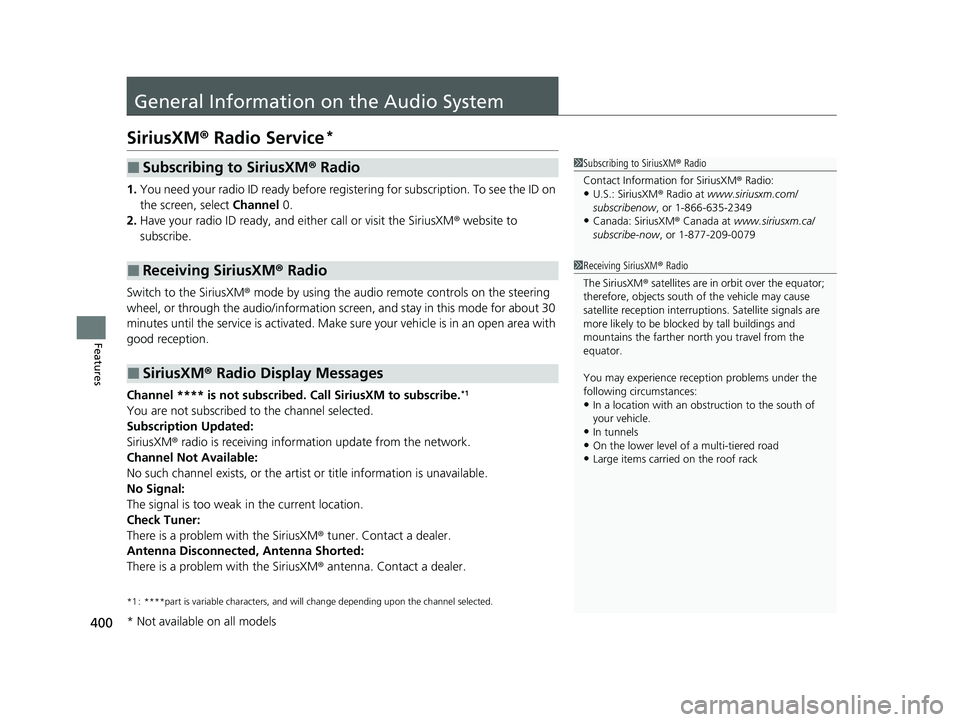
1. You need your radio ID ready before regist ering for subscription. To see the ID on
the screen, select Channel 0.
2. Have your radio ID ready, and either call or visit the SiriusXM ® website to
subscribe.
Switch to the SiriusXM ® mode by using the audio remote controls on the steering
wheel, or through the audio/information screen, and stay in this mode for about 30
minutes until the service is activated. Make sure your vehicle is in an open area with
good reception.
Channel **** is not subscribed. Call SiriusXM to subscribe.
*1
You are not subscribed to the channel selected.
Subscription Updated:
SiriusXM ® radio is receiving informat ion update from the network.
Channel Not Available:
No such channel exists, or the artist or title information is unavailable.
No Signal:
The signal is too weak in the current location.
Check Tuner:
There is a problem with the SiriusXM ® tuner. Contact a dealer.
Antenna Disconnected, Antenna Shorted:
There is a problem with the SiriusXM ® antenna. Contact a dealer.
*1 : ****part is variable characters, and w ill change depending upon the channel selected.
■Subscribing to SiriusXM® Radio
■Receiving SiriusXM ® Radio
■SiriusXM ® Radio Display Messages
1 Subscribing to SiriusXM ® Radio
Contact Information for SiriusXM ® Radio:
•U.S.: SiriusXM ® Radio at www.siriusxm.com/
subscribenow , or 1-866-635-2349
•Canada: SiriusXM ® Canada at www.siriusxm.ca/
subscribe-now , or 1-877-209-0079
1Receiving SiriusXM ® Radio
The SiriusXM ® satellites are in orbit over the equator;
therefore, objects south of the vehicle may cause
satellite reception interruptions. Sa tellite signals are
more likely to be blocked by tall buildings and
mountains the farther north you travel from the
equator.
You may experience rece ption problems under the
following circumstances:
•In a location with an obstruction to the south of
your vehicle.
•In tunnels•On the lower level of a multi-tiered road
•Large items carried on the roof rack
* Not available on all models
23 PILOT-31T906000_03.book 400 ページ 2022年10月31日 月曜日 午前10時26分
Page 402 of 814
401
uuGeneral Information on the Audio System uCompatible iPod, iPhone, and USB Flash Drives
Features
Compatible iPod, iPhone , and USB Flash Drives
•Please use a FAT16 or FAT32 format USB flash drive.
• A USB flash drive of 256 MB or higher is recommended.
• Some digital audio players may not be compatible.
• Some USB flash drives (e.g., a device with security lockout) may not work.
• Some software files may not allow for audio play or text data display.
• Some versions of MP3, WMA, AAC, FLAC, or WAV formats may be unsupported.
*1 : Models with 9-in. Color Touchscreen
*2 : Models with 7-in. Color Touchscreen
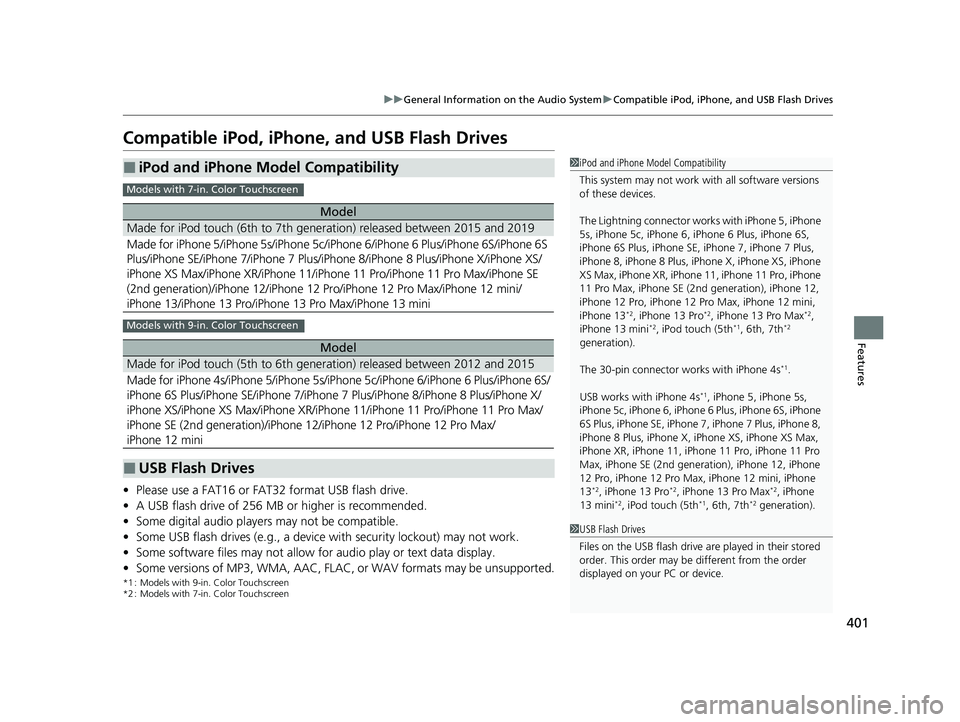
■iPod and iPhone Model Compatibility
Model
Made for iPod touch (6th to 7th generation) released between 2015 and 2019
Made for iPhone 5/iPhone 5s/iPhone 5c/iPhone 6/iPhone 6 Plus/iPhone 6S/iPhone 6S
Plus/iPhone SE/iPhone 7/iPhone 7 Plus/iPhon e 8/iPhone 8 Plus/iPhone X/iPhone XS/
iPhone XS Max/iPhone XR/iP hone 11/iPhone 11 Pro/iPhone 11 Pro Max/iPhone SE
(2nd generation)/iPhone 12/iPhone 12 Pro/iPhone 12 Pro Max/iPhone 12 mini/
iPhone 13/iPhone 13 Pro/iP hone 13 Pro Max/iPhone 13 mini
Model
Made for iPod touch (5th to 6th generation) released between 2012 and 2015
Made for iPhone 4s/iPhone 5/ iPhone 5s/iPhone 5c/iPhone 6/iPhone 6 Plus/iPhone 6S/
iPhone 6S Plus/iPhone SE/i Phone 7/iPhone 7 Plus/iPhone 8/iPhone 8 Plus/iPhone X/
iPhone XS/iPhone XS Max/iP hone XR/iPhone 11/iPhone 11 Pro/iPhone 11 Pro Max/
iPhone SE (2nd generation)/iPhone 12/iPhone 12 Pro/iPhone 12 Pro Max/
iPhone 12 mini
■USB Flash Drives
1 iPod and iPhone Model Compatibility
This system may not work with all software versions
of these devices.
The Lightning connector work s with iPhone 5, iPhone
5s, iPhone 5c, iPhone 6, iPhone 6 Plus, iPhone 6S,
iPhone 6S Plus, iPhone SE, iPhone 7, iPhone 7 Plus,
iPhone 8, iPhone 8 Plus, iP hone X, iPhone XS, iPhone
XS Max, iPhone XR, iPhone 11, iPhone 11 Pro, iPhone
11 Pro Max, iPhone SE (2nd generation), iPhone 12,
iPhone 12 Pro, iPhone 12 Pro Max, iPhone 12 mini,
iPhone 13
*2, iPhone 13 Pro*2, iPhone 13 Pro Max*2,
iPhone 13 mini*2, iPod touch (5th*1, 6th, 7th*2
generation).
The 30-pin connector works with iPhone 4s
*1.
USB works with iPhone 4s
*1, iPhone 5, iPhone 5s,
iPhone 5c, iPhone 6, iPhone 6 Plus, iPhone 6S, iPhone
6S Plus, iPhone SE, iPhone 7, iPhone 7 Plus, iPhone 8,
iPhone 8 Plus, iPhone X, iP hone XS, iPhone XS Max,
iPhone XR, iPhone 11, iPhone 11 Pro, iPhone 11 Pro
Max, iPhone SE (2nd gene ration), iPhone 12, iPhone
12 Pro, iPhone 12 Pro Max, iPhone 12 mini, iPhone
13
*2, iPhone 13 Pro*2, iPhone 13 Pro Max*2, iPhone
13 mini*2, iPod touch (5th*1, 6th, 7th*2 generation).
Models with 7-in. Color Touchscreen
Models with 9-in. Color Touchscreen
1 USB Flash Drives
Files on the USB flash drive are played in their stored
order. This order may be different from the order
displayed on your PC or device.
23 PILOT-31T906000_03.book 401 ページ 2022年10月31日 月曜日 午前10時26分