change wheel HONDA PILOT 2023 Owners Manual
[x] Cancel search | Manufacturer: HONDA, Model Year: 2023, Model line: PILOT, Model: HONDA PILOT 2023Pages: 814, PDF Size: 29.02 MB
Page 24 of 814
23
Quick Reference Guide
Features (P291)
Audio Remote Controls
(P 296)
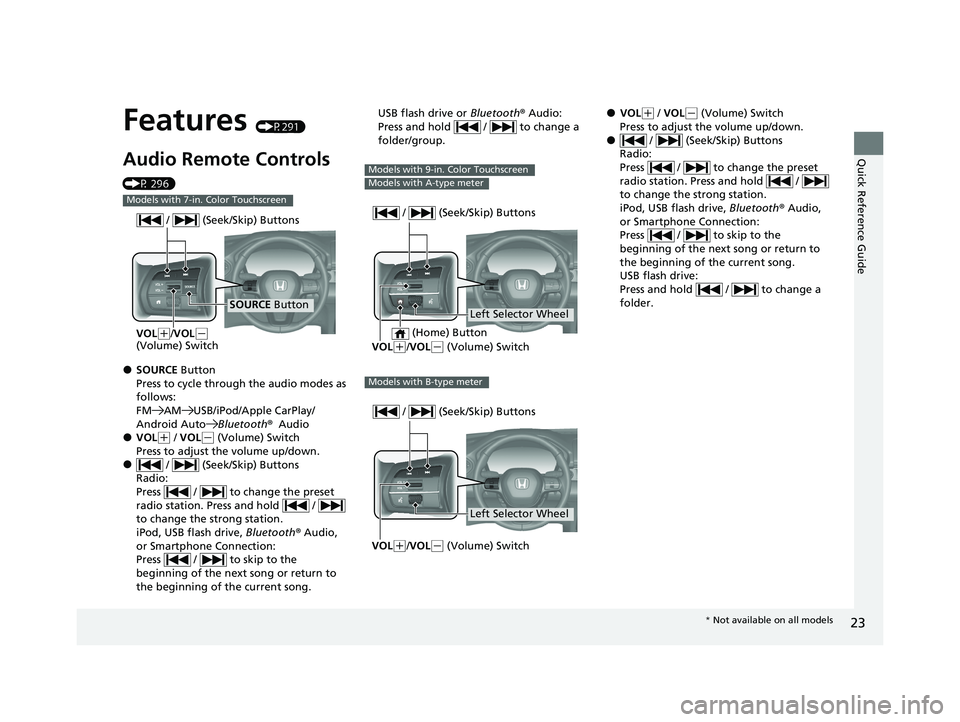
●SOURCE Button
Press to cycle through the audio modes as
follows:
FM AM USB/iPod/Apple CarPlay/
Android AutoBluetooth®Audio
●VOL(+ / VOL( - (Volume) Switch
Press to adjust the volume up/down.
● / (Seek/Skip) Buttons
Radio:
Press / to change the preset
radio station. Press and hold /
to change the strong station.
iPod, USB flash drive, Bluetooth® Audio,
or Smartphone Connection:
Press / to skip to the
beginning of the next song or return to
the beginning of the current song.
Models with 7-in. Color Touchscreen
SOURCE Button
/ (Seek/Skip) Buttons
VOL(
+/VOL(-
(Volume) Switch
USB flash drive or Bluetooth® Audio:
Press and hold / to change a
folder/group.
Models with 9-in. Color Touchscreen
Models with A-type meter
Left Selector Wheel
/ (Seek/Skip) Buttons
VOL(
+/VOL( - (Volume) Switch
(Home) Button
Models with B-type meter
Left Selector Wheel
/ (Seek/Skip) Buttons
VOL(
+/VOL( - (Volume) Switch
●VOL(+ / VOL( - (Volume) Switch
Press to adjust the volume up/down.
● / (Seek/Skip) Buttons
Radio:
Press / to change the preset
radio station. Press and hold /
to change the strong station.
iPod, USB flash drive, Bluetooth® Audio,
or Smartphone Connection:
Press / to skip to the
beginning of the next song or return to
the beginning of the current song.
USB flash drive:
Press and hold / to change a
folder.
* Not available on all models
23 PILOT-31T906000_03.book 23 ページ 2022年10月31日 月曜日 午前10時26分
Page 129 of 814
uuGauges and Displays uDriver Information Interface (A-type Meter)
128
Instrument Panel
■Trip meter
Shows the total number of miles or kilomete rs driven since the last reset. Meters A
and B can be used to measure two separate trips.
Resetting a trip meter
To reset the trip meter, display it, press the left selector wheel, and then select
Reset .
u The trip meter is reset to 0.0.
■Average fuel economy
Shows the estimated average fuel economy of each trip meter in mpg or l/100 km.
The display is updated at set intervals. When a trip meter is reset, the average fuel
economy is also reset.
■Instant fuel economy
Shows the instant fuel economy as a bar graph in mpg or l/100 km.
■Range
Shows the estimated distance you can trave l on the remaining fuel. This estimated
distance is based on the vehicle’s current fuel economy.
1 Average fuel economy
You can change when to reset the average fuel
economy.
2 Settings
* P. 140
2 Customized Features P. 429
1Range
The driving range displayed is only an estimate and
may differ from the actual distance the vehicle can
travel.
* Not available on all models
23 PILOT-31T906000_03.book 128 ページ 2022年10月31日 月曜日 午前10時26分
Page 139 of 814
uuGauges and Displays uDriver Information Interface (A-type Meter)
138
Instrument Panel
2 Tachometer P. 122
■Speed/Distance Units
Enables you to show another unit on th e driver information interface and audio/
information screen and set the displayed m easurements to read in either miles and
mph or km and km/h.
Press and hold the left selector wheel when you select No content on the driver
information interface. Each ti me you do this, the unit will change from miles and
mph to km and km/h or vice versa. After this, a confirmation screen will appear for
a few seconds.
Press the left selector wheel when the Brightness screen is displayed.
When the power mode is in ON, you can use the left selector wheel to adjust
instrument panel brightness.
Brighten: Roll the left selector wheel up.
Dim: Roll the left selector wheel down.
Press the left selector wheel to exit.
■No Content
■Brightness
1 No Content
The tachometer can be tu rned on and off using the
driver information interf ace or audio/information
screen. 2 Settings
* P. 140
2 Customized Features P. 429
Even if you have turned off the tachometer on the
driver information interf ace or audio/information
screen, if No content is selected on the driver
information interface, it will change to a tachometer-
only display. 2 Switching the Display P. 125
1Brightness
The brightness of the gauge is automatically adjusted
depending on the ambient brightness.
•The brightness dims when the ambient light is
dark.
•The brightness brightens when the ambient light is
bright.
You can change the setting even when the ambient
lighting is bright, but the brightness of the gauge
won’t change.
* Not available on all models
23 PILOT-31T906000_03.book 138 ページ 2022年10月31日 月曜日 午前10時26分
Page 141 of 814
uuGauges and Displays uDriver Information Interface (A-type Meter)
140
Instrument Panel
Use the driver information interfac e to customize certain features.
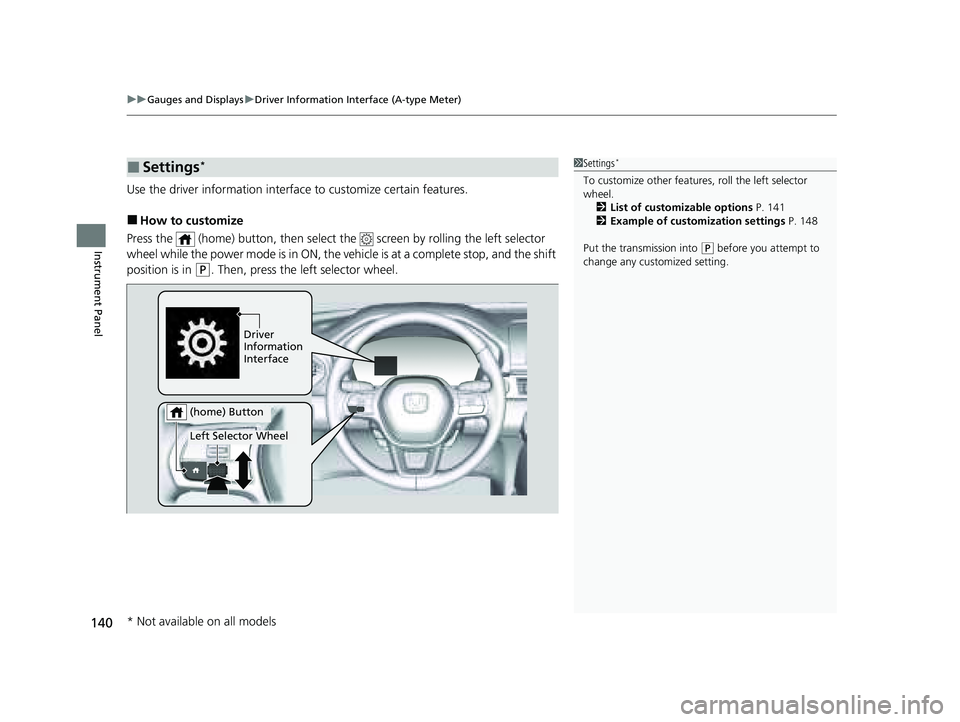
■How to customize
Press the (home) button, then select th e screen by rolling the left selector
wheel while the power mode is in ON, the ve hicle is at a complete stop, and the shift
position is in
(P. Then, press the left selector wheel.
■Settings*1 Settings*
To customize other features , roll the left selector
wheel. 2 List of customizable options P. 141
2 Example of customization settings P. 148
Put the transmission into
( P before you attempt to
change any customized setting.
Driver
Information
Interface
Left Selector Wheel
(home) Button
* Not available on all models
23 PILOT-31T906000_03.book 140 ページ 2022年10月31日 月曜日 午前10時26分
Page 156 of 814
155
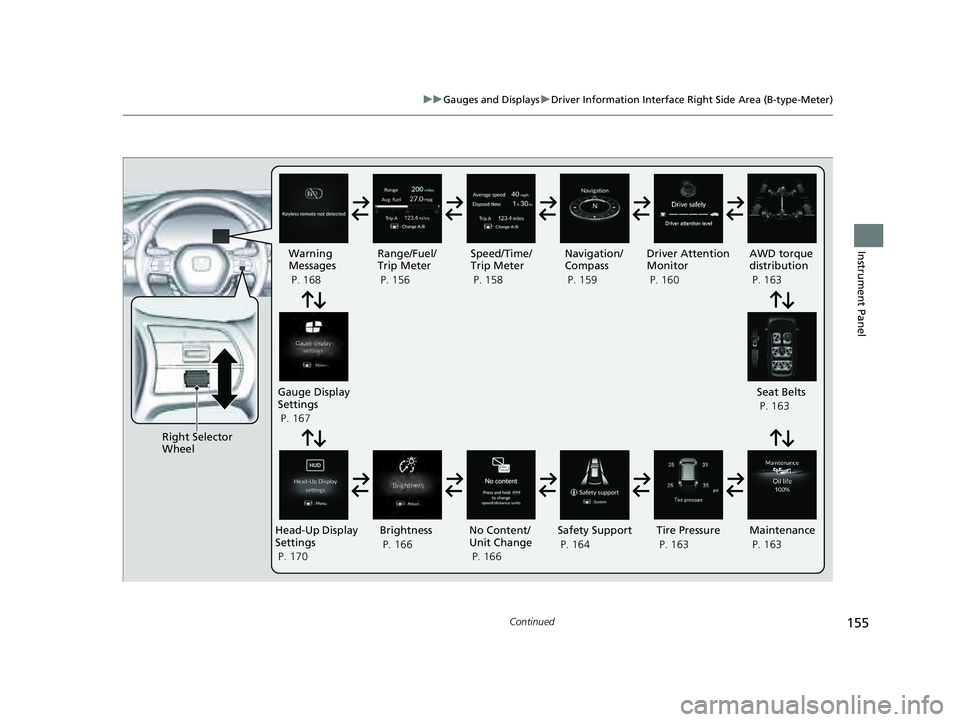
uuGauges and Displays uDriver Information Interface Right Side Area (B-type-Meter)
Continued
Instrument Panel
Right Selector
Wheel Warning
Messages
P. 168
Range/Fuel/
Trip Meter
P. 156
No Content/
Unit Change
P. 166 Driver Attention
Monitor
P. 160
Navigation/
Compass
P. 159
Speed/Time/
Trip Meter
P. 158
Gauge Display
Settings
P. 167 Maintenance
P. 163
Safety Support
P. 164 Seat Belts
P. 163
Head-Up Display
Settings
P. 170 Brightness
P. 166
Tire Pressure
P. 163
AWD torque
distribution
P. 163
23 PILOT-31T906000_03.book 155 ページ 2022年10月31日 月曜日 午前10時26分
Page 160 of 814
Continued159
uuGauges and Displays uDriver Information Interface Right Side Area (B-type-Meter)
Instrument Panel
■Trip meter
2 Trip meter P. 156
■Elapsed time
Shows the time elapsed since Trip A or Trip B was reset.
■Average speed
Shows the average speed in mph or km/h since Trip A or Trip B was reset.
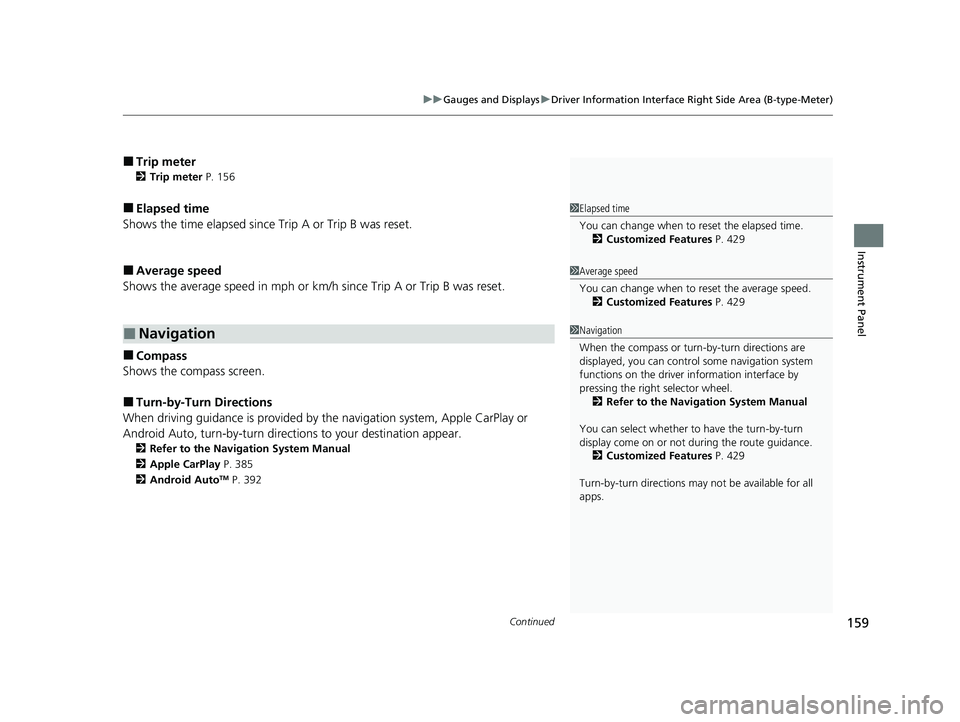
■Compass
Shows the compass screen.
■Turn-by-Turn Directions
When driving guidance is provided by the navigation system, Apple CarPlay or
Android Auto, turn-by-turn directions to your destination appear.
2 Refer to the Navigation System Manual
2 Apple CarPlay P. 385
2 Android Auto
TM P. 392
■Navigation
1Elapsed time
You can change when to reset the elapsed time.
2 Customized Features P. 429
1Average speed
You can change when to reset the average speed.
2 Customized Features P. 429
1Navigation
When the compass or turn-by-turn directions are
displayed, you can contro l some navigation system
functions on the driver information interface by
pressing the right selector wheel.
2 Refer to the Navigation System Manual
You can select whether to have the turn-by-turn
display come on or not dur ing the route guidance.
2 Customized Features P. 429
Turn-by-turn directions may not be available for all
apps.
23 PILOT-31T906000_03.book 159 ページ 2022年10月31日 月曜日 午前10時26分
Page 167 of 814
uuGauges and Displays uDriver Information Interface Ri ght Side Area (B-type-Meter)
166
Instrument Panel
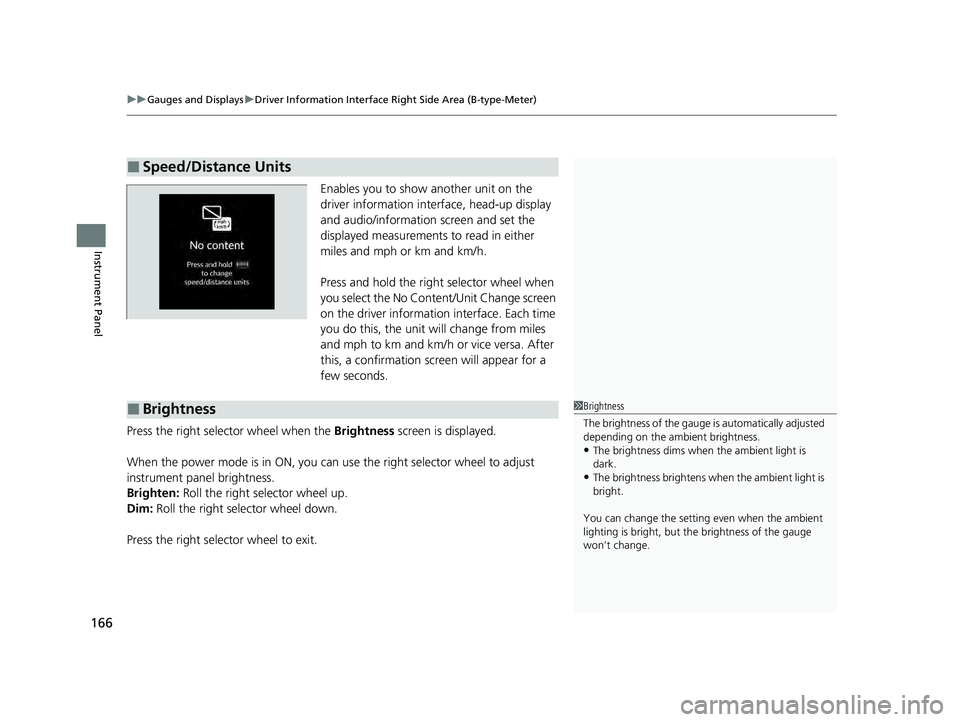
Enables you to show another unit on the
driver information interface, head-up display
and audio/information screen and set the
displayed measurements to read in either
miles and mph or km and km/h.
Press and hold the right selector wheel when
you select the No Content/Unit Change screen
on the driver information interface. Each time
you do this, the unit will change from miles
and mph to km and km/h or vice versa. After
this, a confirmation screen will appear for a
few seconds.
Press the right selector wheel when the Brightness screen is displayed.
When the power mode is in ON, you can use the right selector wheel to adjust
instrument panel brightness.
Brighten: Roll the right selector wheel up.
Dim: Roll the right selector wheel down.
Press the right selector wheel to exit.
■Speed/Distance Units
■Brightness1 Brightness
The brightness of the gauge is automatically adjusted
depending on the ambient brightness.
•The brightness dims when the ambient light is
dark.
•The brightness brightens when the ambient light is
bright.
You can change the setting even when the ambient
lighting is bright, but the brightness of the gauge
won’t change.
23 PILOT-31T906000_03.book 166 ページ 2022年10月31日 月曜日 午前10時26分
Page 169 of 814
uuGauges and Displays uDriver Information Interface Ri ght Side Area (B-type-Meter)
168
Instrument Panel
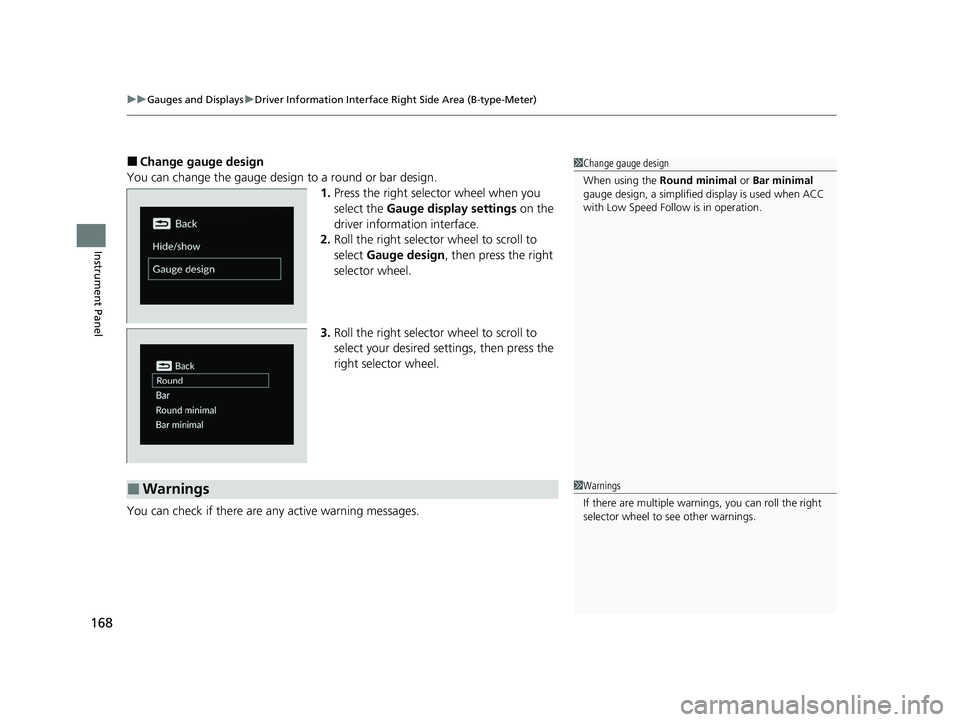
■Change gauge design
You can change the gauge design to a round or bar design. 1.Press the right selector wheel when you
select the Gauge display settings on the
driver information interface.
2. Roll the right selector wheel to scroll to
select Gauge design , then press the right
selector wheel.
3. Roll the right selector wheel to scroll to
select your desired settings, then press the
right selector wheel.
You can check if there are any active warning messages.1 Change gauge design
When using the Round minimal or Bar minimal
gauge design, a simplified display is used when ACC
with Low Speed Follow is in operation.
■Warnings1 Warnings
If there are multiple warnings, you can roll the right
selector wheel to see other warnings.
23 PILOT-31T906000_03.book 168 ページ 2022年10月31日 月曜日 午前10時26分
Page 171 of 814
uuGauges and Displays uHead-Up Display*
170
Instrument Panel
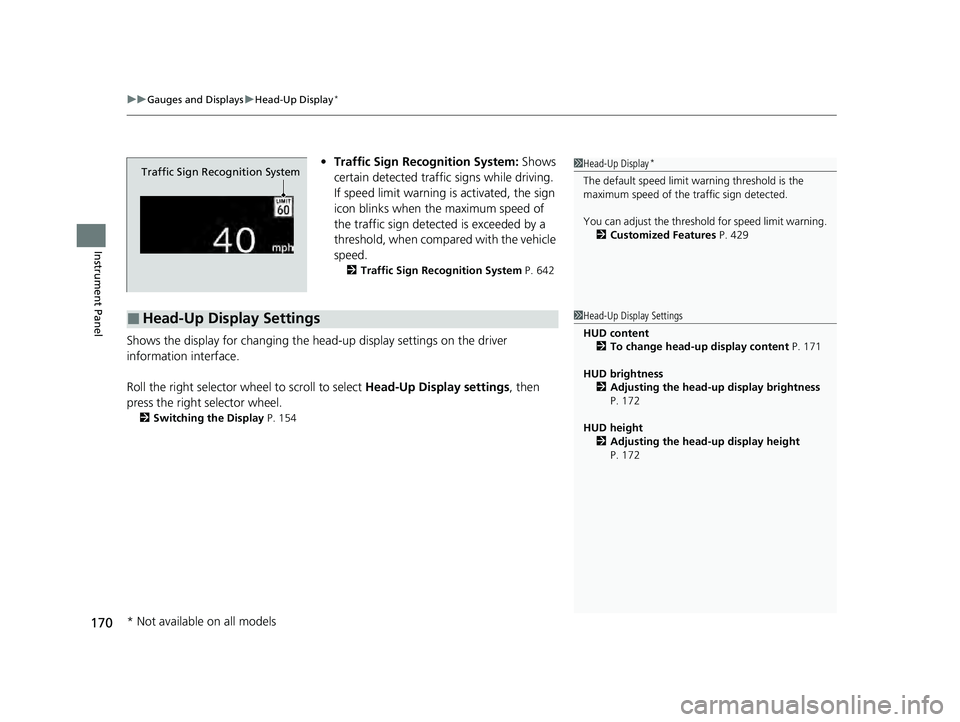
• Traffic Sign Recognition System: Shows
certain detected traffic signs while driving.
If speed limit warning is activated, the sign
icon blinks when th e maximum speed of
the traffic sign detect ed is exceeded by a
threshold, when compar ed with the vehicle
speed.
2 Traffic Sign Recognition System P. 642
Shows the display for changing the head-up display settings on the driver
information interface.
Roll the right selector wheel to scroll to select Head-Up Display settings, then
press the right selector wheel.
2 Switching the Display P. 154
Traffic Sign Recognition System
■Head-Up Display Settings
1Head-Up Display*
The default speed limit wa rning threshold is the
maximum speed of the traffic sign detected.
You can adjust the threshol d for speed limit warning.
2 Customized Features P. 429
1Head-Up Display Settings
HUD content
2 To change head-up display content P. 171
HUD brightness 2 Adjusting the head-up display brightness
P. 172
HUD height 2 Adjusting the head-up display height
P. 172
* Not available on all models
23 PILOT-31T906000_03.book 170 ページ 2022年10月31日 月曜日 午前10時26分
Page 172 of 814
171
uuGauges and Displays uHead-Up Display*
Continued
Instrument Panel
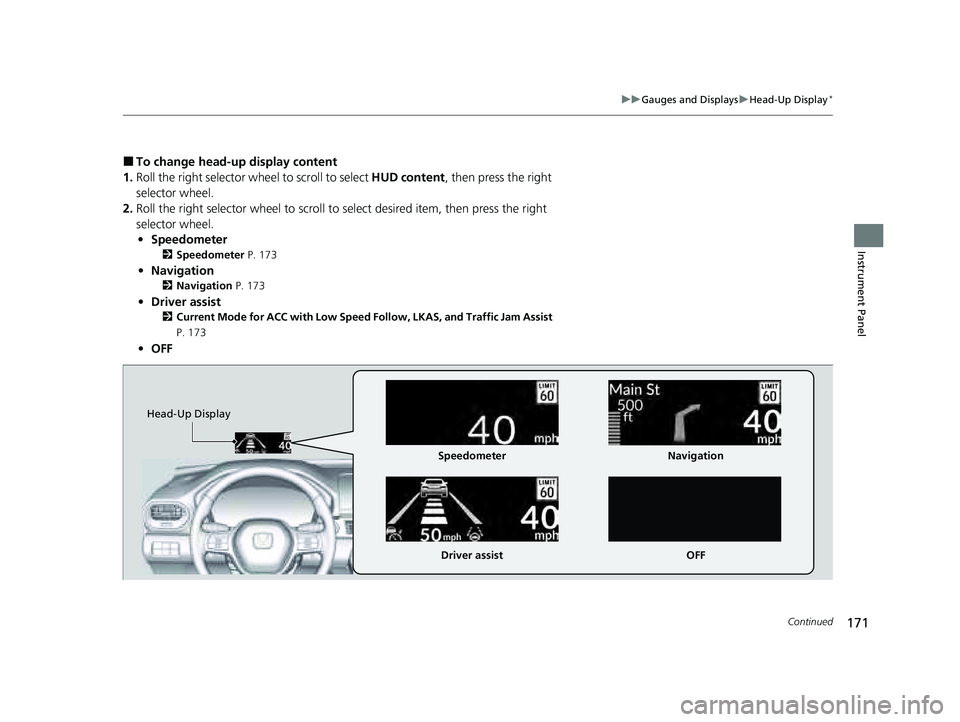
■To change head-up display content
1. Roll the right selector wheel to scroll to select HUD content, then press the right
selector wheel.
2. Roll the right selector wheel to scroll to select desired item, then press the right
selector wheel. • Speedometer
2 Speedometer P. 173
•Navigation
2 Navigation P. 173
•Driver assist
2 Current Mode for ACC with Low Speed Follow, LKAS, and Traffic Jam Assist
P. 173
• OFF
Head-Up Display
Speedometer
Driver assist Navigation
OFF
23 PILOT-31T906000_03.book 171 ページ 2022年10月31日 月曜日 午前10時26分