lock HONDA RIDGELINE 2017 2.G Owners Manual
[x] Cancel search | Manufacturer: HONDA, Model Year: 2017, Model line: RIDGELINE, Model: HONDA RIDGELINE 2017 2.GPages: 606, PDF Size: 13.21 MB
Page 297 of 606
296
Features
General Information on the Audio System
SiriusXM® Radio Service*
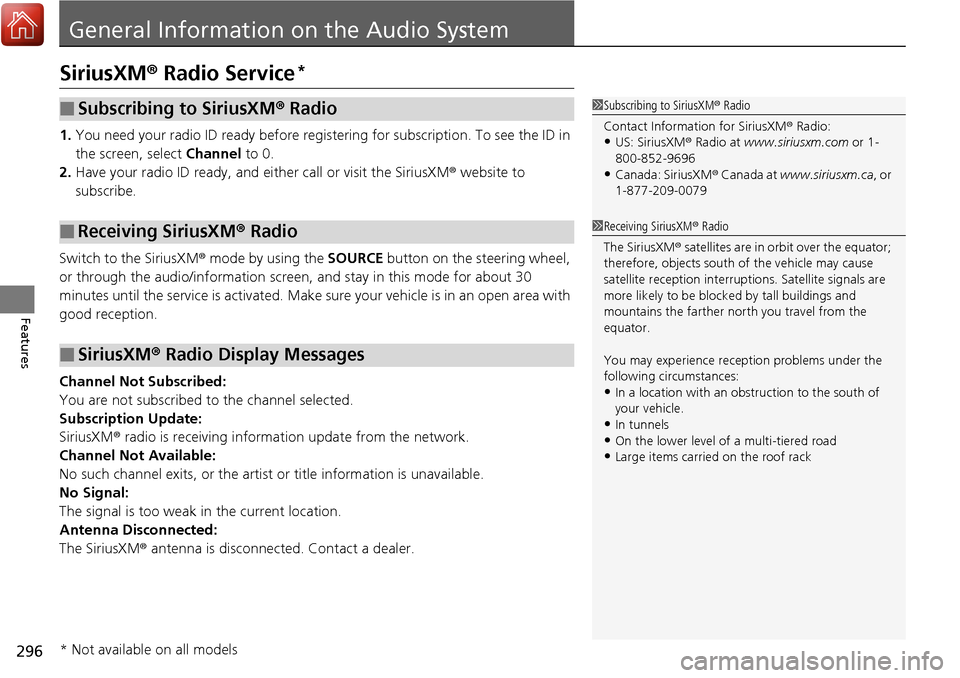
1. You need your radio ID ready before registering for subscription. To see the ID in
the screen, select Channel to 0.
2. Have your radio ID ready, and either call or visit the SiriusXM ® website to
subscribe.
Switch to the SiriusXM ® mode by using the SOURCE button on the steering wheel,
or through the audio/information screen, and stay in this mode for about 30
minutes until the service is activated. Make sure your vehicle is in an open area with
good reception.
Channel Not Subscribed:
You are not subscribed to the channel selected.
Subscription Update:
SiriusXM ® radio is receiving information update from the network.
Channel Not Available:
No such channel exits, or the artist or title information is unavailable.
No Signal:
The signal is too weak in the current location.
Antenna Disconnected:
The SiriusXM ® antenna is disconnected. Contact a dealer.
■Subscribing to SiriusXM ® Radio
■Receiving SiriusXM® Radio
■SiriusXM® Radio Display Messages
1 Subscribing to SiriusXM ® Radio
Contact Information for SiriusXM ® Radio:
•US: SiriusXM ® Radio at www.siriusxm.com or 1-
800-852-9696
•Canada: SiriusXM ® Canada at www.siriusxm.ca, or
1-877-209-0079
1 Receiving SiriusXM ® Radio
The SiriusXM ® satellites are in orbit over the equator;
therefore, objects south of the vehicle may cause
satellite reception interruptions. Sa tellite signals are
more likely to be blocked by tall buildings and
mountains the farther north you travel from the
equator.
You may experience rece ption problems under the
following circumstances:
•In a location with an obstruction to the south of
your vehicle.
•In tunnels
•On the lower level of a multi-tiered road•Large items carried on the roof rack
* Not available on all models
Page 300 of 606
299
uuGeneral Information on the Audio System uCompatible iPod, iPhone, and USB Flash Drives
Features
Compatible iPod, iPhone , and USB Flash Drives
•Use a recommended USB flash drive of 256 MB or higher.
• Some digital audio players may not be compatible.
• Some USB flash drives (e.g., a device with security lockout) may not work.
• Some software files may not allow for audio play or text data display.
• Some versions of MP3, WMA, or AAC formats may be unsupported.
*1: Models with Display Audio
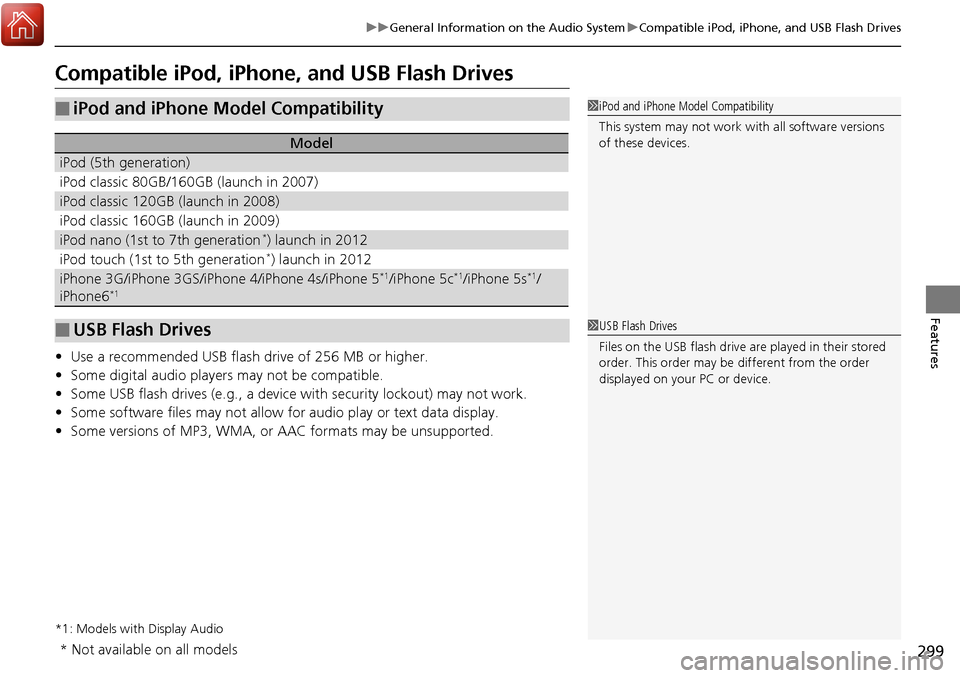
■iPod and iPhone Model Compatibility
Model
iPod (5th generation)
iPod classic 80GB/160GB (launch in 2007)
iPod classic 120GB (launch in 2008)
iPod classic 160GB (launch in 2009)
iPod nano (1st to 7th generation*) launch in 2012
iPod touch (1st to 5th generation*) launch in 2012
iPhone 3G/iPhone 3GS/iPhone 4/iPhone 4s/iPhone 5*1/iPhone 5c*1/iPhone 5s*1/
iPhone6*1
■USB Flash Drives
1 iPod and iPhone Model Compatibility
This system may not work with all software versions
of these devices.
1USB Flash Drives
Files on the USB flash drive are played in their stored
order. This order may be different from the order
displayed on your PC or device.
* Not available on all models
Page 304 of 606
303Continued
Features
Customized Features
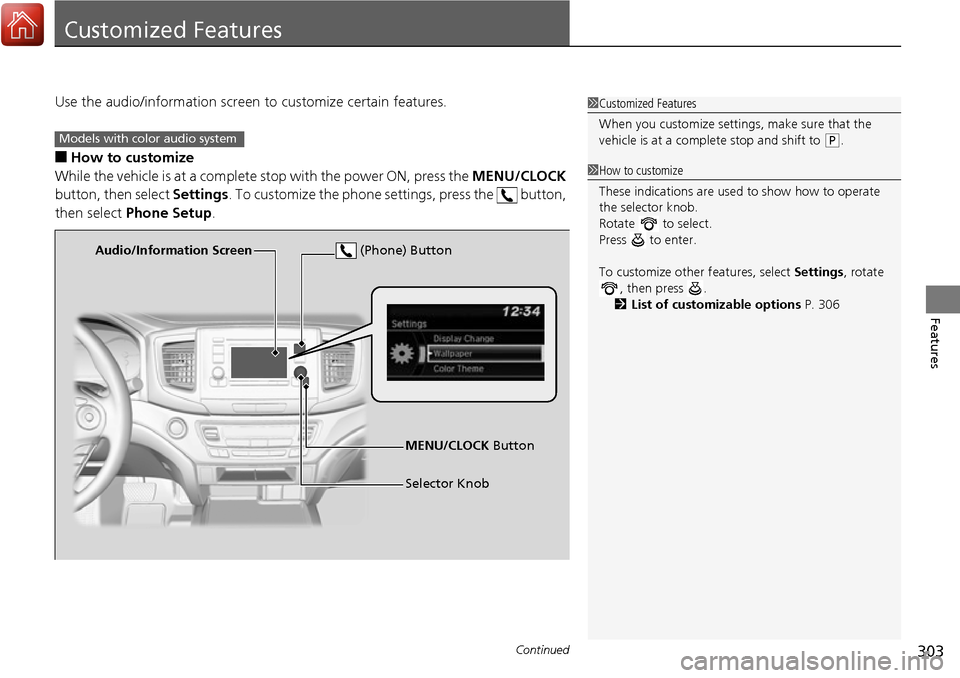
Use the audio/information screen to customize certain features.
■How to customize
While the vehicle is at a complete stop with the power ON, press the MENU/CLOCK
button, then select Settings. To customize the phone se ttings, press the button,
then select Phone Setup .
1Customized Features
When you customize settings, make sure that the
vehicle is at a complete stop and shift to
(P.Models with color audio system
1 How to customize
These indications are used to show how to operate
the selector knob.
Rotate to select.
Press to enter.
To customize other features, select Settings, rotate
, then press .
2 List of customizable options P. 306
Audio/Information Screen
MENU/CLOCK Button
Selector Knob
(Phone) Button
Page 305 of 606
304
uuCustomized Features u
Features
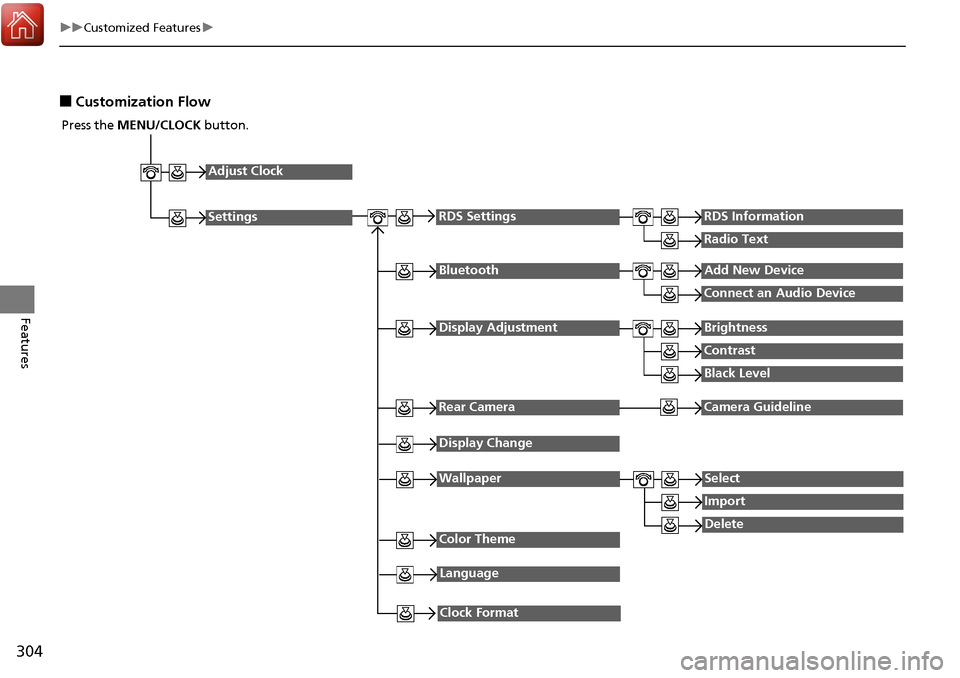
■Customization Flow
Press the MENU/CLOCK button.
Adjust Clock
Settings
BluetoothAdd New Device
Connect an Audio Device
Display AdjustmentBrightness
Contrast
Black Level
Rear CameraCamera Guideline
RDS SettingsRDS Information
Radio Text
Display Change
WallpaperSelect
Import
DeleteColor Theme
Language
Clock Format
Page 307 of 606
306
uuCustomized Features u
Features
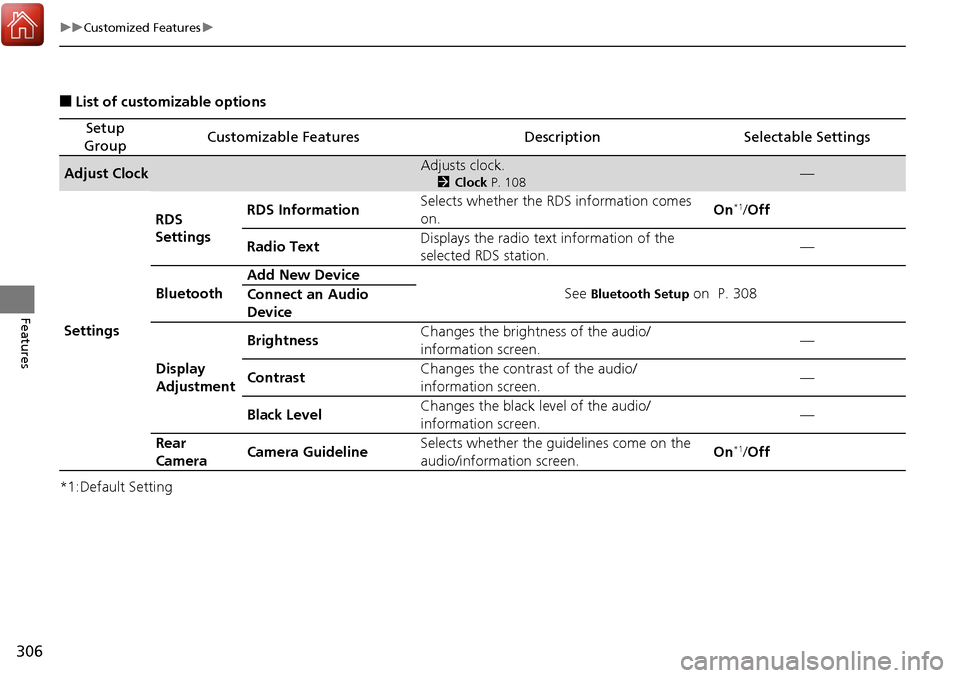
■List of customizable options
*1:Default Setting
Setup
GroupCustomizable FeaturesDescriptionSelectable Settings
Adjust ClockAdjusts clock.
2 Clock P. 108—
Settings RDS
Settings
RDS Information
Selects whether the RDS information comes
on. On
*1/
Off
Radio Text Displays the radio text information of the
selected RDS station. —
Bluetooth Add New Device
See
Bluetooth Setup on P. 308
Connect an Audio
Device
Display
Adjustment Brightness
Changes the brightness of the audio/
information screen. —
Contrast Changes the contrast of the audio/
information screen. —
Black Level Changes the black level of the audio/
information screen.
—
Rear
Camera Camera Guideline Selects whether the guidelines come on the
audio/information screen. On
*1/
Off
Page 308 of 606
307
uuCustomized Features u
Continued
Features
*1:Default Setting
Setup
GroupCustomizable FeaturesDescriptionSelectable Settings
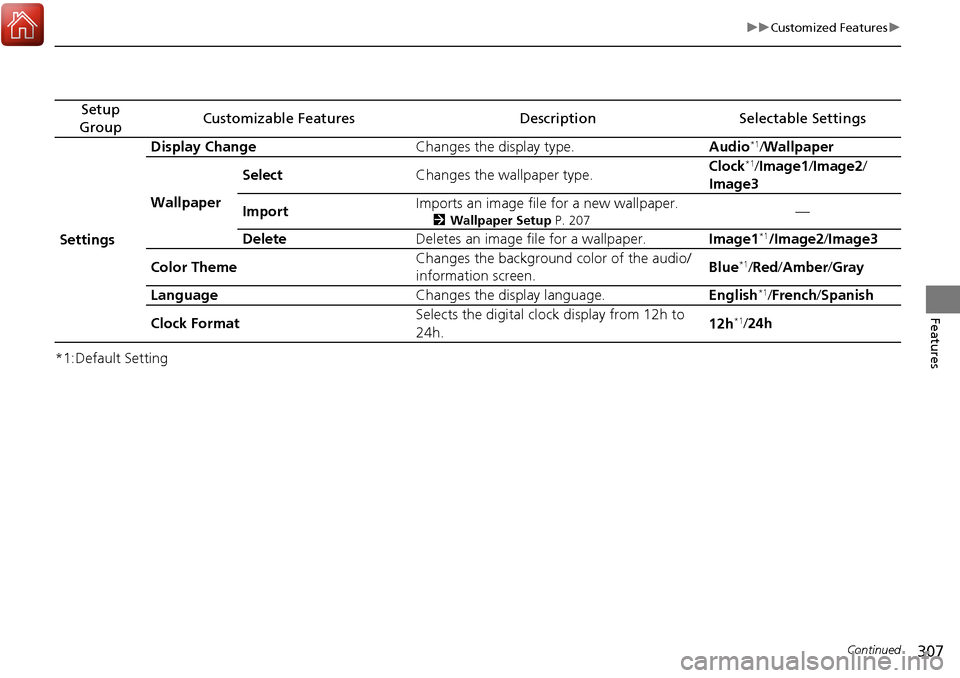
Settings Display Change
Changes the display type. Audio
*1/Wallpaper
Wallpaper Select
Changes the wallpaper type. Clock*1/
Image1/ Image2/
Image3
Import Imports an image file for a new wallpaper.
2
Wallpaper Setup P. 207—
Delete Deletes an image file for a wallpaper. Image1
*1/Image2/Image3
Color Theme Changes the background color of the audio/
information screen.
Blue
*1/
Red /Amber /Gray
Language Changes the display language. English
*1/French /Spanish
Clock Format Selects the digital clock display from 12h to
24h. 12h
*1/
24h
Page 312 of 606
311
uuCustomized Features u
Continued
Features
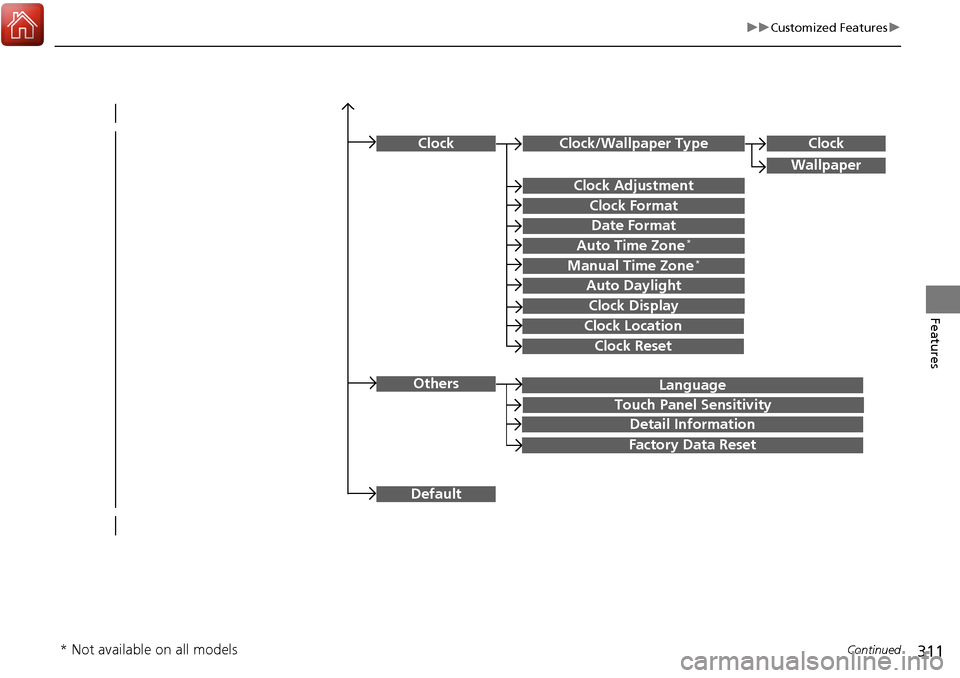
Language
Default
Others
Clock/Wallpaper Type
Date Format
Clock Adjustment
ClockClock
Wallpaper
Manual Time Zone*
Auto Daylight
Clock Display
Touch Panel Sensitivity
Clock Format
Auto Time Zone*
Detail Information
Factory Data Reset
Clock Reset
Clock Location
* Not available on all models
Page 313 of 606
312
uuCustomized Features u
Features
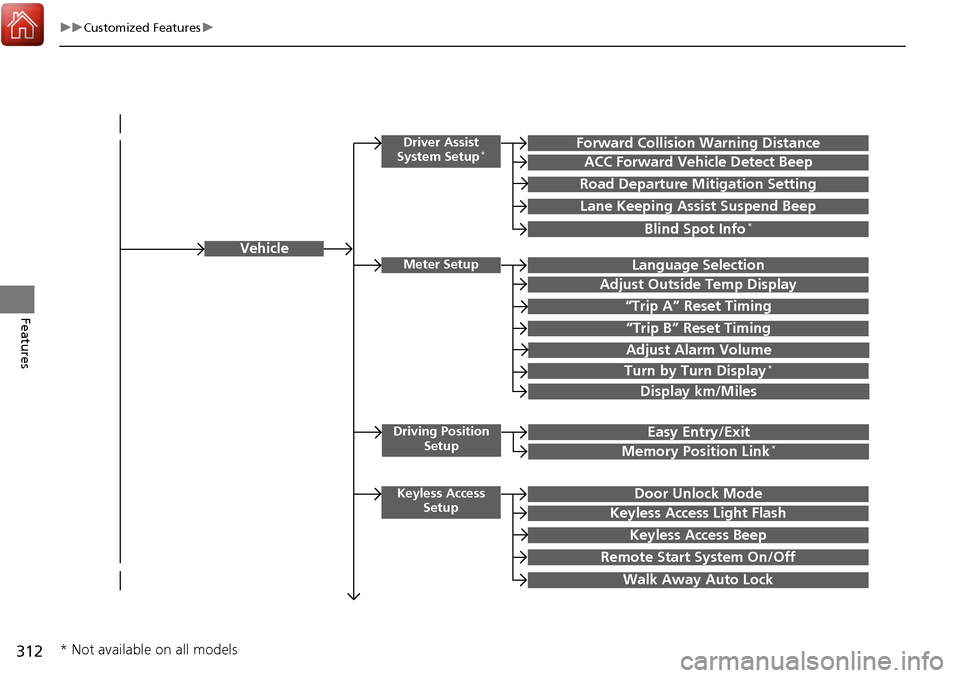
Vehicle
Driver Assist
System Setup*Forward Collision Warning Distance
ACC Forward Vehicle Detect Beep
Road Departure Mi tigation Setting
Lane Keeping Assist Suspend Beep
Blind Spot Info*
Meter SetupLanguage Selection
Adjust Outside Temp Display
“Trip A” Reset Timing
“Trip B” Reset Timing
Adjust Alarm Volume
Turn by Turn Display*
Display km/Miles
Driving Position
SetupEasy Entry/Exit
Memory Position Link*
Keyless Access SetupDoor Unlock Mode
Keyless Access Light Flash
Keyless Access Beep
Remote Start System On/Off
Walk Away Auto Lock
* Not available on all models
Page 314 of 606
313
uuCustomized Features u
Continued
Features
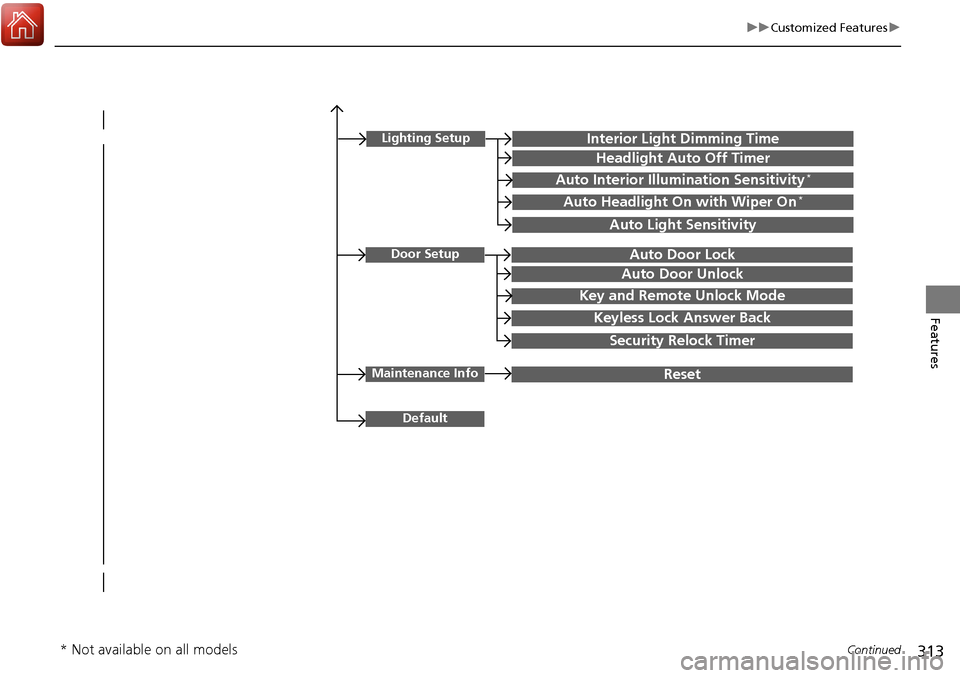
Lighting SetupInterior Light Dimming Time
Headlight Auto Off Timer
Auto Interior Illumination Sensitivity*
Auto Headlight On with Wiper On*
Auto Light Sensitivity
Door SetupAuto Door Lock
Auto Door Unlock
Key and Remote Unlock Mode
Keyless Lock Answer Back
Security Relock Timer
Maintenance Info
Default
Reset
* Not available on all models
Page 316 of 606
315
uuCustomized Features u
Continued
Features
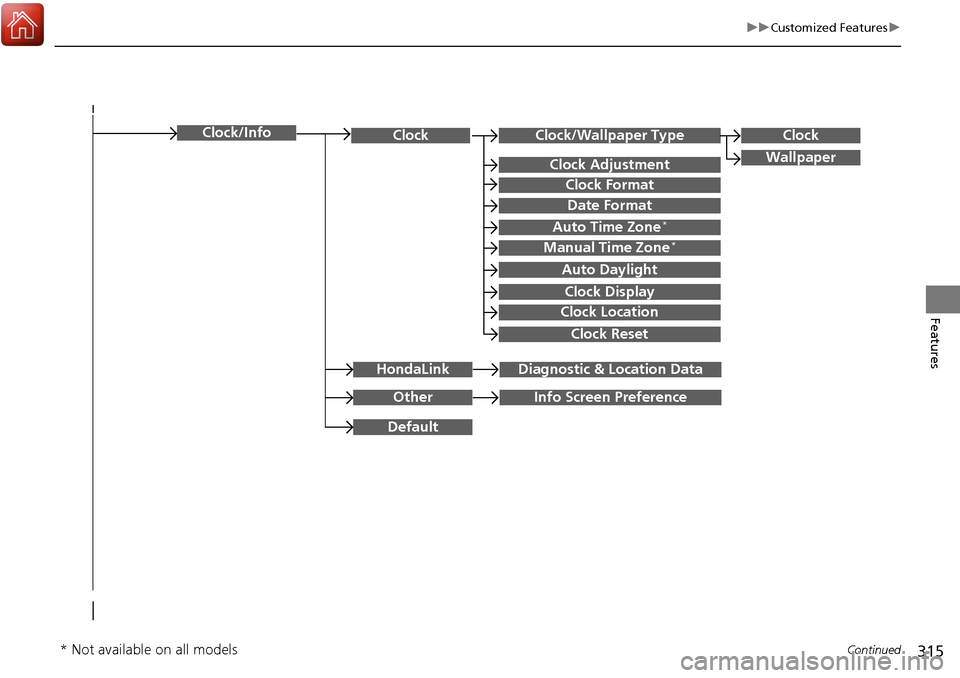
Clock/Wallpaper TypeClockClock
WallpaperClock Adjustment
Clock Format
Date Format
Auto Time Zone*
Manual Time Zone*
Auto Daylight
Clock Display
Clock Location
Clock Reset
OtherInfo Screen Preference
Default
Clock/Info
HondaLinkDiagnostic & Location Data
* Not available on all models