automatic HONDA RIDGELINE 2023 Manual PDF
[x] Cancel search | Manufacturer: HONDA, Model Year: 2023, Model line: RIDGELINE, Model: HONDA RIDGELINE 2023Pages: 598, PDF Size: 12.34 MB
Page 329 of 598
327
uuHomeLink ® Universal Transceiver uTraining HomeLink
Continued
Features
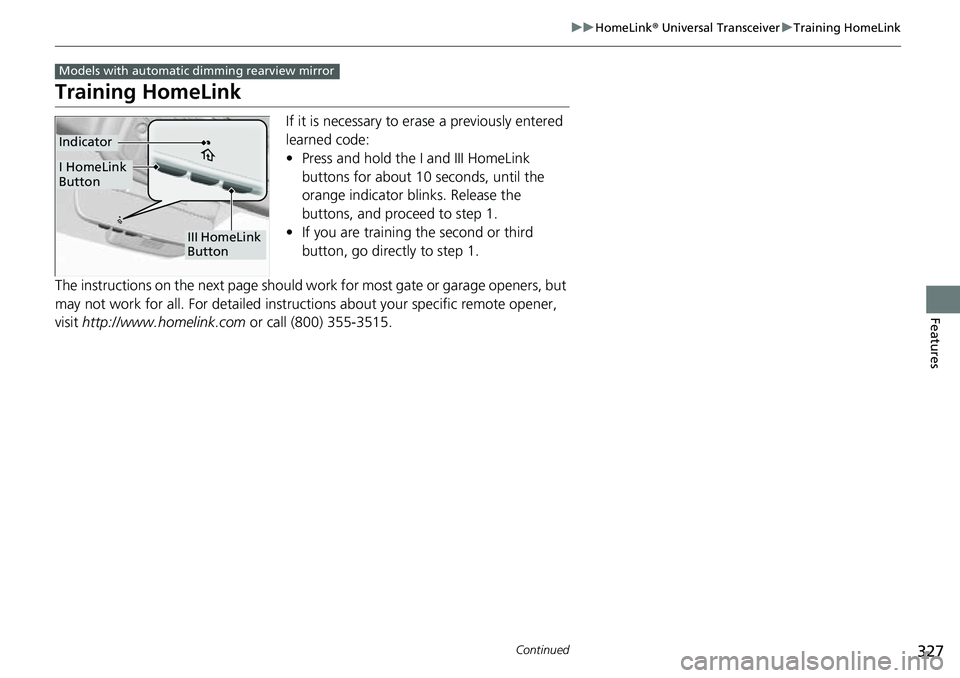
Training HomeLink
If it is necessary to er ase a previously entered
learned code:
• Press and hold the I and III HomeLink
buttons for about 10 seconds, until the
orange indicator blinks. Release the
buttons, and proceed to step 1.
• If you are training the second or third
button, go directly to step 1.
The instructions on the next page should work for most gate or garage openers, but
may not work for all. For detailed instructions about your specific remote opener,
visit http://www.homelink.com or call (800) 355-3515.
Models with automatic dimming rearview mirror
III HomeLink
Button
Indicator
I HomeLink
Button
Page 336 of 598
334
uuBluetooth ® HandsFreeLink ®u HFL Menus
Features
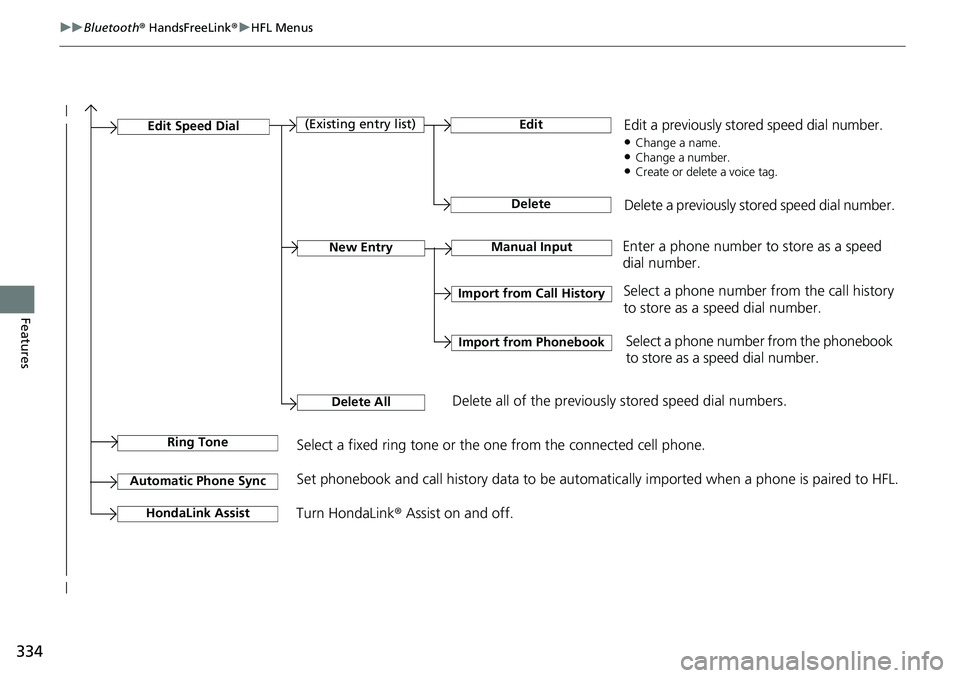
Manual InputNew Entry
Import from Call History
Import from Phonebook
Edit
Delete
(Existing entry list)Edit Speed Dial
Delete All
Enter a phone number to store as a speed
dial number.
Select a phone number from the call history
to store as a speed dial number.
Delete all of the previously stored speed dial numbers. Select a phone number from the phonebook
to store as a speed dial number.
Edit a previously stored speed dial number.
●Change a name.●Change a number.●Create or delete a voice tag.
Delete a previously stored speed dial number.
Ring ToneSelect a fixed ring tone or the one from the connected cell phone.
Automatic Phone SyncSet phonebook and call history data to be automatically imported when a phone is paired to HFL.
Turn HondaLink
® Assist on and off.HondaLink Assist
Page 340 of 598
uuBluetooth ® HandsFreeLink ®u HFL Menus
338
Features
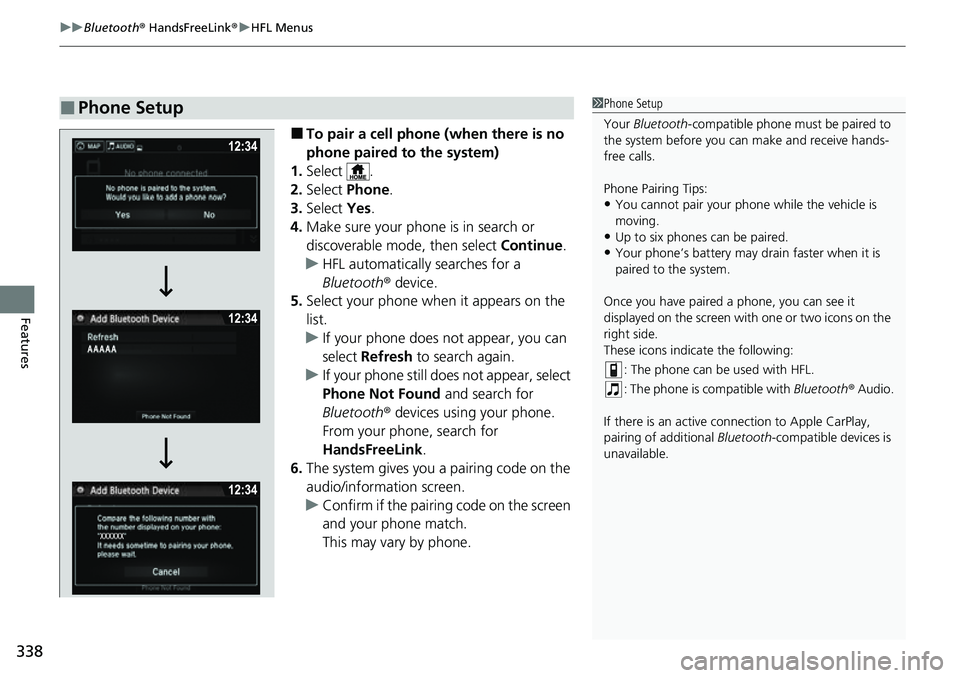
■To pair a cell phone (when there is no
phone paired to the system)
1. Select .
2. Select Phone .
3. Select Yes.
4. Make sure your phone is in search or
discoverable mode, then select Continue.
u HFL automatically searches for a
Bluetooth® device.
5. Select your phone when it appears on the
list.
u If your phone does not appear, you can
select Refresh to search again.
u If your phone still does not appear, select
Phone Not Found and search for
Bluetooth® devices using your phone.
From your phone, search for
HandsFreeLink .
6. The system gives you a pairing code on the
audio/information screen.
u Confirm if the pairing code on the screen
and your phone match.
This may vary by phone.
■Phone Setup1Phone Setup
Your Bluetooth -compatible phone must be paired to
the system before you ca n make and receive hands-
free calls.
Phone Pairing Tips:
•You cannot pair your phone while the vehicle is
moving.
•Up to six phones can be paired.
•Your phone’s battery may dr ain faster when it is
paired to the system.
Once you have paired a phone, you can see it
displayed on the screen with one or two icons on the
right side.
These icons indicate the following: : The phone can be used with HFL.
: The phone is compatible with Bluetooth® Audio.
If there is an active c onnection to Apple CarPlay,
pairing of additional Bluetooth -compatible devices is
unavailable.
Page 345 of 598
Continued343
uuBluetooth ® HandsFreeLink ®u HFL Menus
Features
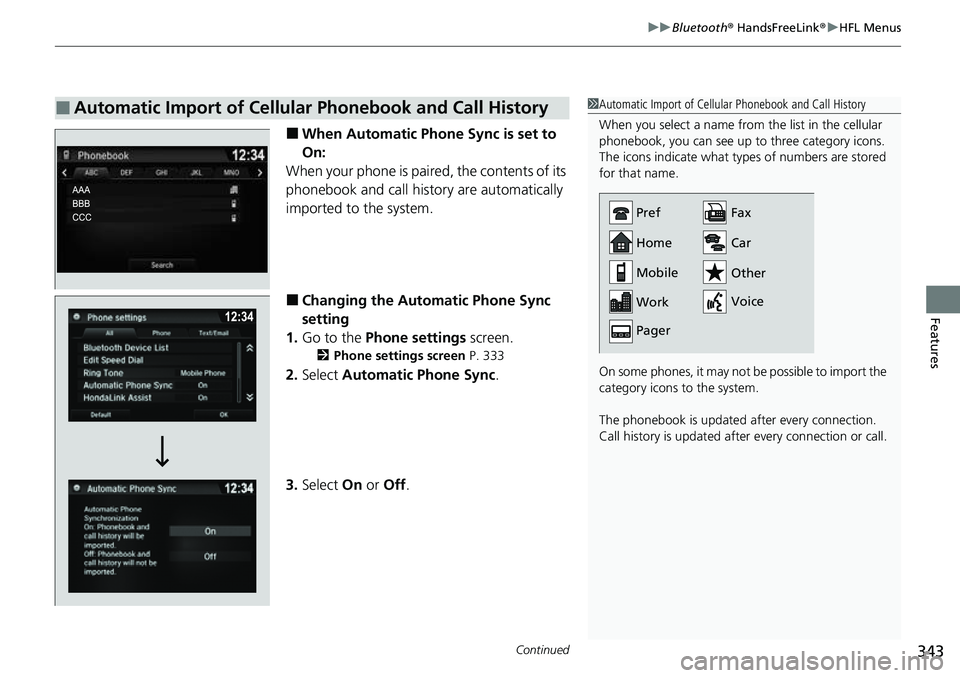
■When Automatic Phone Sync is set to
On:
When your phone is paired, the contents of its
phonebook and call history are automatically
imported to the system.
■Changing the Automatic Phone Sync
setting
1. Go to the Phone settings screen.
2Phone settings screen P. 333
2.Select Automatic Phone Sync .
3. Select On or Off .
■Automatic Import of Cellular Phonebook and Call History1Automatic Import of Cellular Phonebook and Call History
When you select a name from the list in the cellular
phonebook, you can see up to three category icons.
The icons indicate what types of numbers are stored
for that name.
On some phones, it may no t be possible to import the
category icons to the system.
The phonebook is updated after every connection.
Call history is updated after every connection or call.
Home
Mobile
Work
PagerFax
Car
Other
Voice
Pref
Page 354 of 598
352
uuBluetooth ® HandsFreeLink ®u HFL Menus
Features
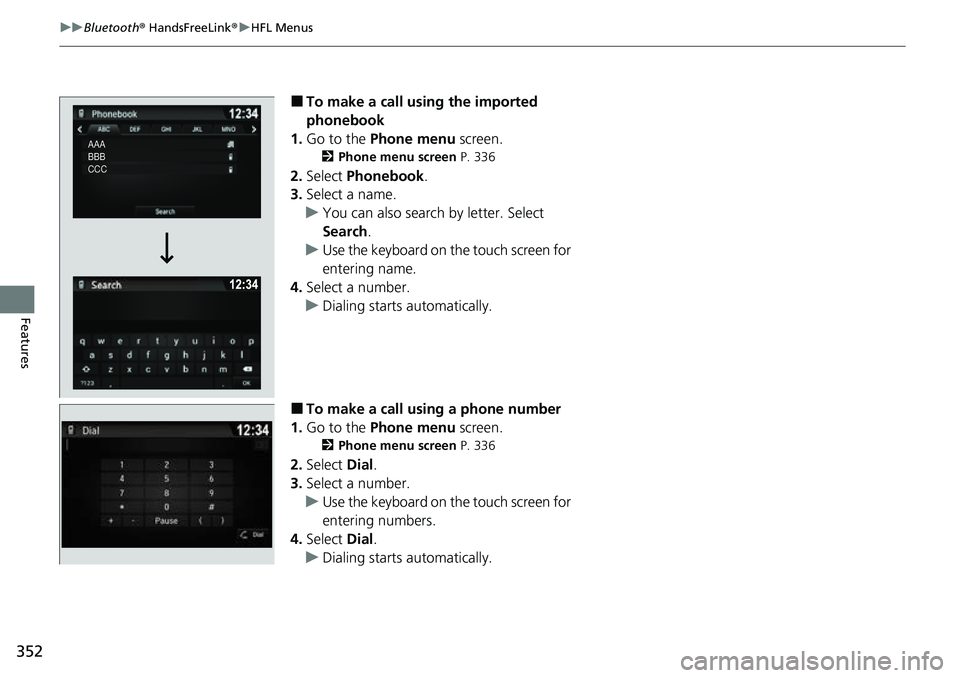
■To make a call using the imported
phonebook
1. Go to the Phone menu screen.
2Phone menu screen P. 336
2.Select Phonebook .
3. Select a name.
u You can also search by letter. Select
Search .
u Use the keyboard on the touch screen for
entering name.
4. Select a number.
u Dialing starts automatically.
■To make a call using a phone number
1. Go to the Phone menu screen.
2Phone menu screen P. 336
2.Select Dial.
3. Select a number.
u Use the keyboard on the touch screen for
entering numbers.
4. Select Dial.
u Dialing starts automatically.
AAAAAABBBBBBCCCCCC
AAA
BBB
CCC
Page 355 of 598
Continued353
uuBluetooth ® HandsFreeLink ®u HFL Menus
Features
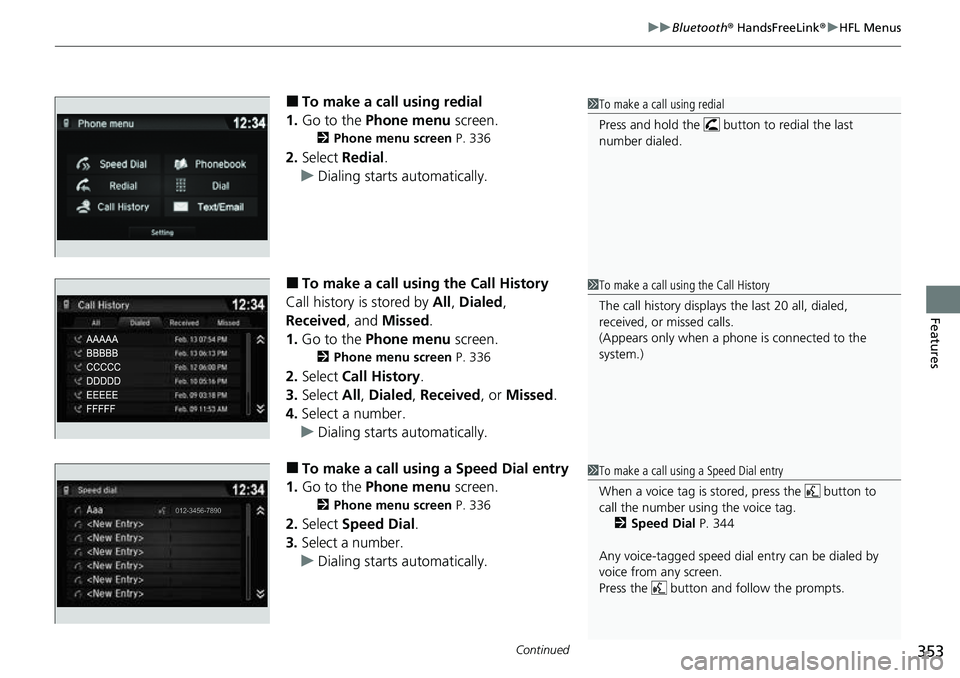
■To make a call using redial
1. Go to the Phone menu screen.
2Phone menu screen P. 336
2.Select Redial .
u Dialing starts automatically.
■To make a call using the Call History
Call history is stored by All, Dialed ,
Received , and Missed .
1. Go to the Phone menu screen.
2Phone menu screen P. 336
2.Select Call History .
3. Select All, Dialed , Received , or Missed .
4. Select a number.
u Dialing starts automatically.
■To make a call using a Speed Dial entry
1. Go to the Phone menu screen.
2Phone menu screen P. 336
2.Select Speed Dial .
3. Select a number.
u Dialing starts automatically.
1To make a call using redial
Press and hold the butt on to redial the last
number dialed.
1 To make a call using the Call History
The call history displays the last 20 all, dialed,
received, or missed calls.
(Appears only when a phone is connected to the
system.)
1 To make a call using a Speed Dial entry
When a voice tag is stored, press the button to
call the number using the voice tag.
2 Speed Dial P. 344
Any voice-tagged speed dial entry can be dialed by
voice from any screen.
Press the button and follow the prompts.
Page 357 of 598
Continued355
uuBluetooth ® HandsFreeLink ®u HFL Menus
Features
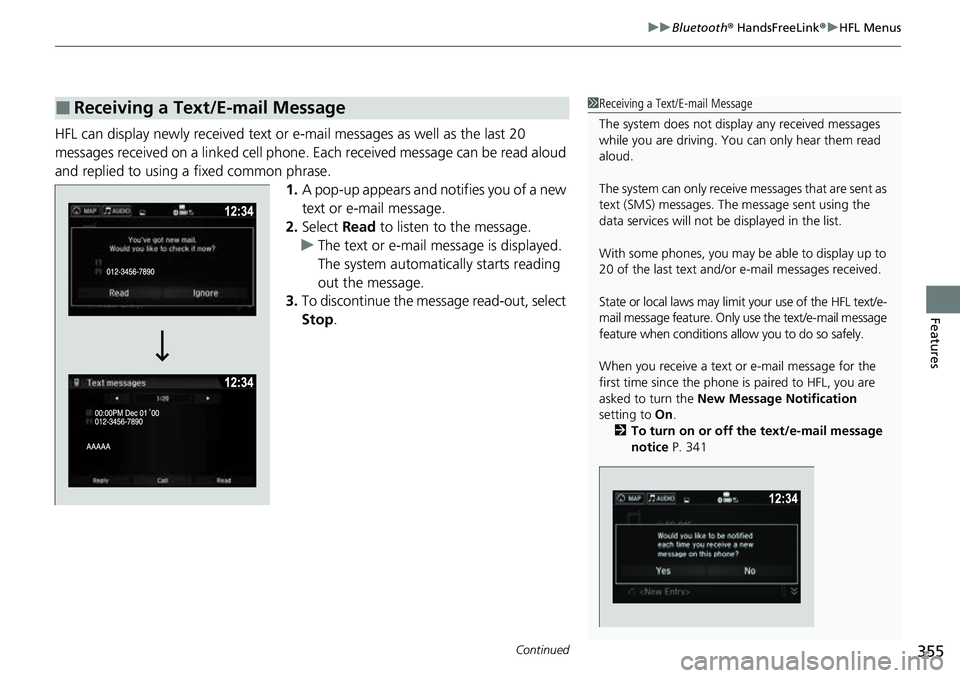
HFL can display newly received text or e-mail messages as well as the last 20
messages received on a linked cell phone. Each received message can be read aloud
and replied to using a fixed common phrase.
1.A pop-up appears and notifies you of a new
text or e-mail message.
2. Select Read to listen to the message.
u The text or e-mail message is displayed.
The system automatica lly starts reading
out the message.
3. To discontinue the message read-out, select
Stop .
■Receiving a Text/E-mail Message1Receiving a Text/E-mail Message
The system does not display any received messages
while you are driving. You can only hear them read
aloud.
The system can only receive messages that are sent as
text (SMS) messages. The message sent using the
data services will not be displayed in the list.
With some phones, you may be able to display up to
20 of the last text and/or e-mail messages received.
State or local laws may limit your use of the HFL text/e-
mail message feature. Only use the text/e-mail message
feature when conditions a llow you to do so safely.
When you receive a text or e-mail message for the
first time since the phone is paired to HFL, you are
asked to turn the New Message Notification
setting to On .
2 To turn on or off the text/e-mail message
notice P. 341
Page 359 of 598
Continued357
uuBluetooth ® HandsFreeLink ®u HFL Menus
Features
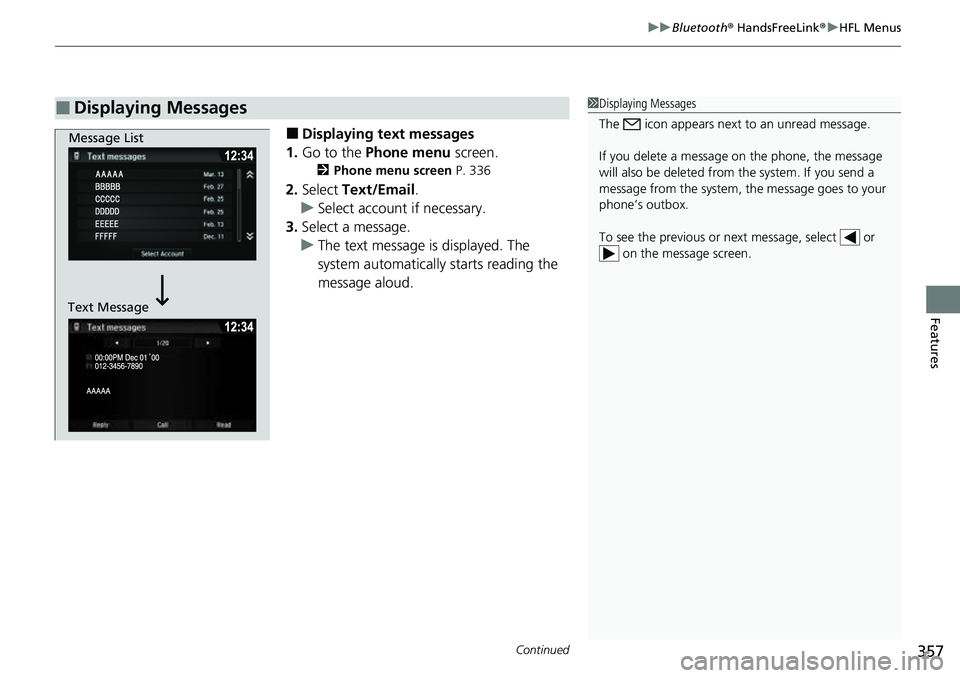
■Displaying t ext messages
1. Go to the Phone menu screen.
2Phone menu screen P. 336
2.Select Text/Email .
u Select account if necessary.
3. Select a message.
u The text message is displayed. The
system automatically starts reading the
message aloud.
■Displaying Messages1Displaying Messages
The icon appears next to an unread message.
If you delete a message on the phone, the message
will also be dele ted from the system. If you send a
message from the system, the message goes to your
phone’s outbox.
To see the previous or ne xt message, select or
on the message screen.
Message List
Text Message
Page 360 of 598
358
uuBluetooth ® HandsFreeLink ®u HFL Menus
Features
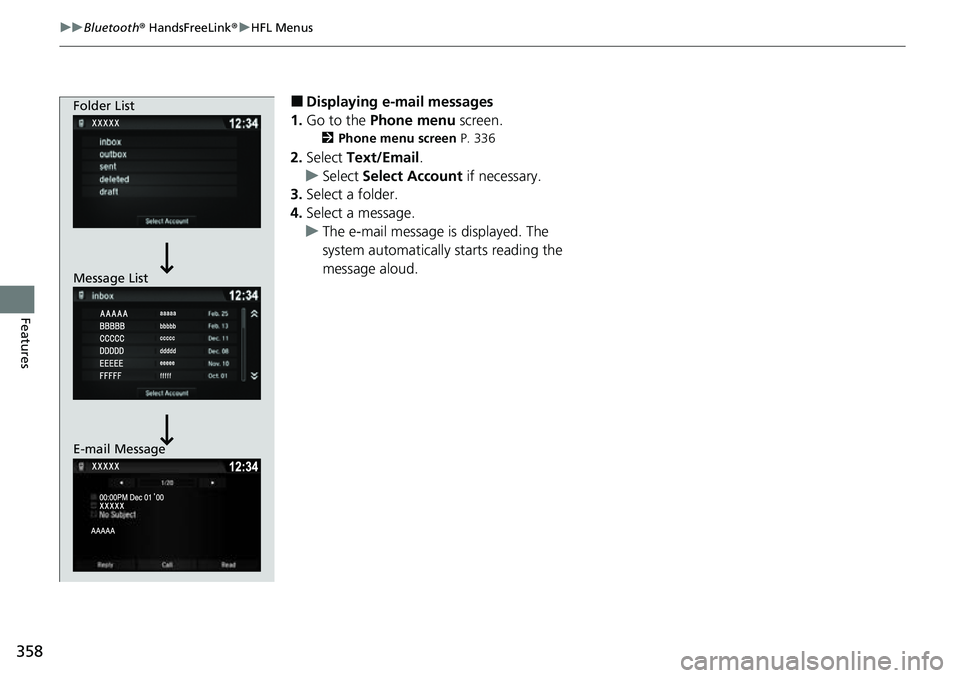
■Displaying e-mail messages
1. Go to the Phone menu screen.
2Phone menu screen P. 336
2.Select Text/Email .
u Select Select Account if necessary.
3. Select a folder.
4. Select a message.
u The e-mail message is displayed. The
system automatically starts reading the
message aloud.
Folder List
Message List
E-mail Message
Page 361 of 598
Continued359
uuBluetooth ® HandsFreeLink ®u HFL Menus
Features
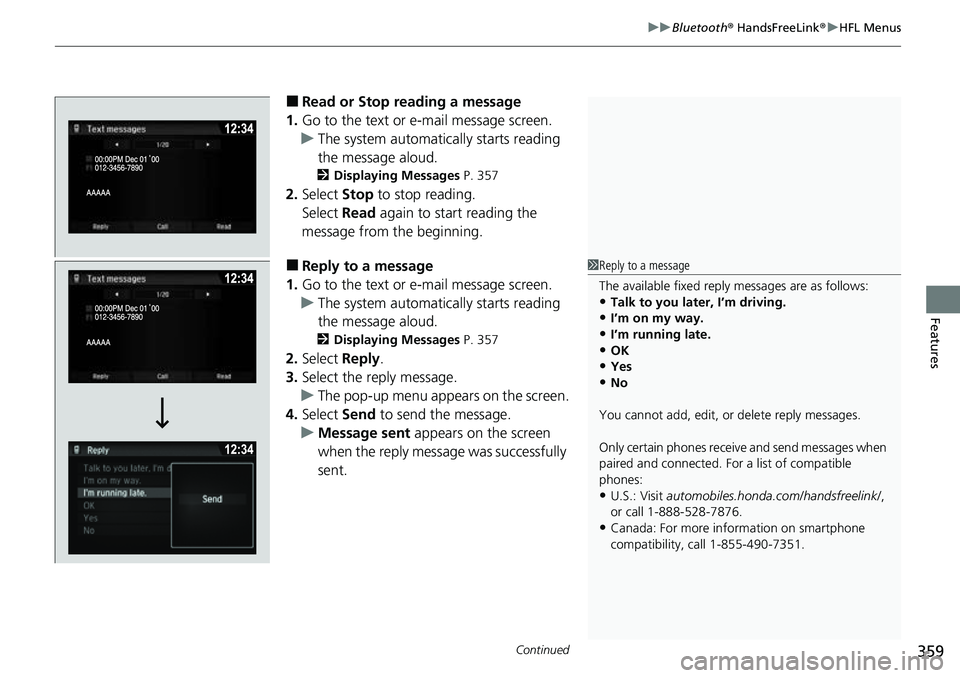
■Read or Stop reading a message
1. Go to the text or e-mail message screen.
u The system automatica lly starts reading
the message aloud.
2 Displaying Messages P. 357
2.Select Stop to stop reading.
Select Read again to start reading the
message from the beginning.
■Reply to a message
1. Go to the text or e-mail message screen.
u The system automatica lly starts reading
the message aloud.
2 Displaying Messages P. 357
2.Select Reply.
3. Select the reply message.
u The pop-up menu appears on the screen.
4. Select Send to send the message.
u Message sent appears on the screen
when the reply message was successfully
sent.
1 Reply to a message
The available fixed reply messages are as follows:
•Talk to you later, I’m driving.
•I’m on my way.
•I’m running late.•OK
•Yes
•No
You cannot add, edit, or delete reply messages.
Only certain phones receive and send messages when
paired and connected. For a list of compatible
phones:
•U.S.: Visit automobiles.honda.com/handsfreelink/ ,
or call 1-888-528-7876.
•Canada: For more info rmation on smartphone
compatibility, call 1-855-490-7351.