ECO mode HUMMER H3 2010 Owners Manual
[x] Cancel search | Manufacturer: HUMMER, Model Year: 2010, Model line: H3, Model: HUMMER H3 2010Pages: 410, PDF Size: 2.24 MB
Page 78 of 410

3-34 Seats and Restraints
You can lock the doors, turn off the
interior lamps and hazard warning
flashers by using the controls for
those features.
{WARNING
A crash severe enough to
inflate the airbags may have
also damaged important functions
in the vehicle, such as the fuel
system, brake and steering
systems, etc. Even if the vehicle
appears to be drivable after a
moderate crash, there may be
concealed damage that could
make it difficult to safely operate
the vehicle.
Use caution if you should attempt
to restart the engine after a crash
has occurred.If damage to the vehicle is minor,
you may attempt to restart the
vehicle's engine. Note: If the fuel
system has been shut off after an
airbag has inflated, you may not
be able to restart the engine for up
to ten minutes. See
Starting the
Engineon page 9‑35for more
information.
In many crashes severe enough to
inflate the airbag, windshields are
broken by vehicle deformation.
Additional windshield breakage
may also occur from the right front
passenger airbag.
.Airbags are designed to inflate
only once. After an airbag
inflates, you will need some
new parts for the airbag system.
If you do not get them, the
airbag system will not be there to help protect you in another
crash. A new system will include
airbag modules and possibly
other parts. The service manual
for your vehicle covers the need
to replace other parts.
.The vehicle has a crash sensing
and diagnostic module which
records information after a
crash. See
Vehicle Data
Recording and Privacy
on
page 13‑15and Event Data
Recorders on page 13‑15.
.Let only qualified technicians
work on the airbag systems.
Improper service can mean that
an airbag system will not work
properly. See your dealer for
service.
Page 99 of 410

Seats and Restraints 3-55
H3T Models
1. If the child restraint manufacturerrecommends that the top tether
be attached, attach and tighten
the top tether to the top tether
anchor (A), if equipped. Refer to
the child restraint instructions
and the following steps:
1.1. Put the child restraint on the seat.
1.2. Pull the seatback forward to access the top tether
anchors (A). See Rear
Seats (H3)
on page 3‑7
or Rear Seats (H3T)on
page 3‑9for additional
information.
1.3. Route the top tether according to the child
restraint instructions and
the following instructions:
If the position you are using
does not have a headrest
or head restraint and you
are using a single tether,
route the tether over the
seatback.
If the position you are using
does not have a headrest
or head restraint and you
are using a dual tether,
route the tether over the
seatback.
Page 101 of 410
Seats and Restraints 3-57
3. Tighten the top tether.If the headrest interferes with the
installation of the child restraint,
remove the headrest by pressing
the button on the headrest post,
at the top of the seatback, and
lift to remove. Store the headrest
under the outboard side of the
rear seat.
4. Push and pull the child restraint in different directions to be sure
it is secure.
When removing the child
restraint, reinsert the headrest if
it has been removed from the
seatback.
H3 Models
1. Attach and tighten the lower attachments to the lower
anchors. If the child restraint
does not have lower
attachments or the desired seating position does not
have lower anchors, secure
the child restraint with the top
tether and the safety belts.
Refer to the child restraint
manufacturer instructions and
the instructions in this manual.
1.1. Find the lower anchors for
the desired seating
position.
1.2. Put the child restraint on the seat.
1.3. Attach and tighten the lower attachments on the child
restraint to the lower
anchors.
2. If the child restraint manufacturer recommends that the top tether
be attached, attach and tighten
the top tether to the top tether
anchor, if equipped. Refer to the
child restraint instructions and
the following steps:
2.1. Find the top tether anchor. 2.2. Route, attach and tighten
the top tether according
to the child restraint
instructions and the
following instructions:
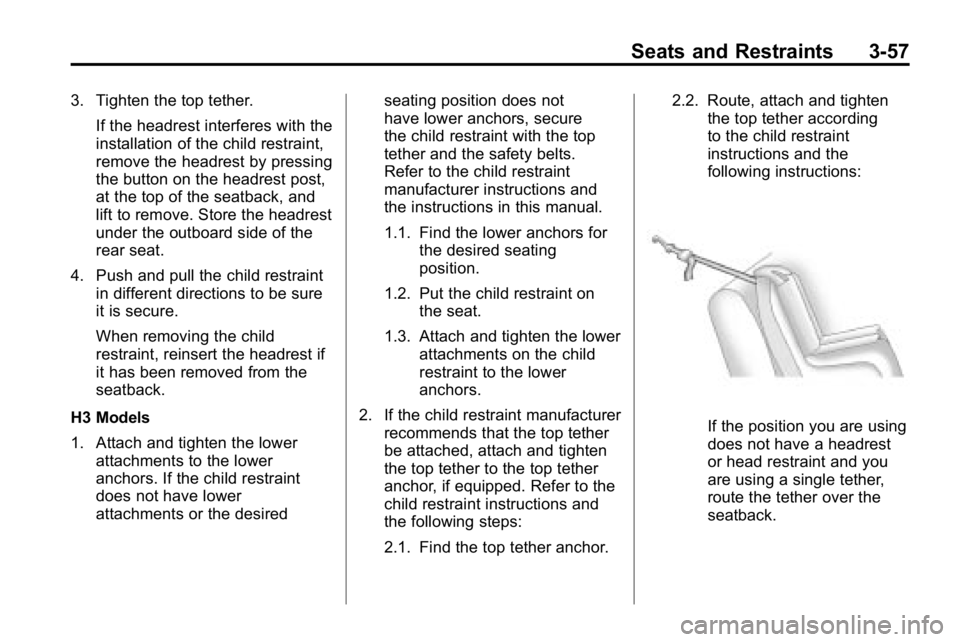
If the position you are using
does not have a headrest
or head restraint and you
are using a single tether,
route the tether over the
seatback.
Page 116 of 410
5-2 Instruments and Controls
Controls
Steering Wheel
Adjustment
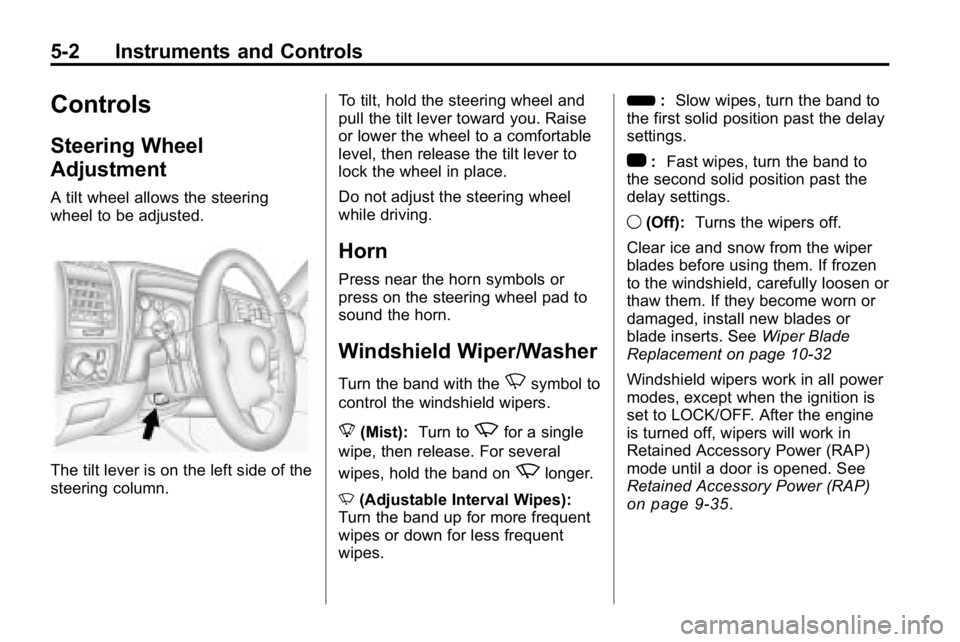
A tilt wheel allows the steering
wheel to be adjusted.
The tilt lever is on the left side of the
steering column.To tilt, hold the steering wheel and
pull the tilt lever toward you. Raise
or lower the wheel to a comfortable
level, then release the tilt lever to
lock the wheel in place.
Do not adjust the steering wheel
while driving.
Horn
Press near the horn symbols or
press on the steering wheel pad to
sound the horn.
Windshield Wiper/Washer
Turn the band with theNsymbol to
control the windshield wipers.
8 (Mist): Turn to
zfor a single
wipe, then release. For several
wipes, hold the band on
zlonger.
N (Adjustable Interval Wipes):
Turn the band up for more frequent
wipes or down for less frequent
wipes. 6
:Slow wipes, turn the band to
the first solid position past the delay
settings.
1 :Fast wipes, turn the band to
the second solid position past the
delay settings.
9 (Off): Turns the wipers off.
Clear ice and snow from the wiper
blades before using them. If frozen
to the windshield, carefully loosen or
thaw them. If they become worn or
damaged, install new blades or
blade inserts. See Wiper Blade
Replacement on page 10‑32
Windshield wipers work in all power
modes, except when the ignition is
set to LOCK/OFF. After the engine
is turned off, wipers will work in
Retained Accessory Power (RAP)
mode until a door is opened. See
Retained Accessory Power (RAP)
on page 9‑35.
Page 118 of 410

5-4 Instruments and Controls
Compass Calibration
The compass may need to be
calibrated if CAL is not displayed
and the compass requires
calibration. Press and hold
Ountil
CAL displays in the compass
window, then release the button.
The compass is now in
calibration mode.
.Drive the vehicle in circles
at less than 8 km/h (5 mph)
until CAL is no longer displayed
in the compass window. Then
continue to drive to make sure
all eight directions are available.
.Drive the vehicle under normal
operating conditions.
Compass Variance
The mirror is set to zone eight.
If you do not live in zone eight or
drive out of the area, the compass
variance needs to be changed to
the appropriate zone. To adjust for compass variance:
1. Find your current location and
variance zone number on the
following zone map.
2. Press and holdOfor
six seconds until ZONE
displays. Release the button.
The compass is now in
zone mode. 3. Keep pressing
Ountil the
desired zone number displays.
Release the button. After
four seconds, the new zone
number locks in and the
compass display returns.
Clock
The clock can be set with the
ignition on or off. Use the H and
M buttons located on the lower left
side of the radio.
To set the clock:
1. Press and hold H until the correct hour and AM or PM
displays.
2. Press and hold M until the correct minute displays.
Press DISP (Display) to display the
time while the ignition is turned off.
Page 133 of 410
Instruments and Controls 5-19
Engine Oil Life System
With the engine off, turn the key
to ON/RUN and then press the
reset stem until OIL LIFE RESET
appears—alternating between
OIL LIFE and RESET —on the DIC
display. The CHANGE OIL message
alerts you to change the oil on a
schedule consistent with your
driving conditions. Always reset
the OIL LIFE message after an
oil change. To reset the message,
see Engine Oil Life System
on
page 10‑11.
In addition to the engine oil life
system monitoring the oil life,
additional maintenance is
recommended in the Maintenance
Schedule in this manual. See
Engine Oil
on page 10‑9and
Scheduled Maintenanceon
page 11‑2for more information.
Language
This feature allows you to choose
the language in which the DIC
display shows information.
To set your choice for this feature:
1. With the engine off, turn the key to ON/RUN, but do not start the
engine.
2. Close all doors so the DOORS message does not display in
the DIC.
3. Momentarily press and release the reset stem until the current
language is displayed: English
(default), Spanish, or French.
4. To select a different language, press and hold the reset stem
until the next language appears. 5. Repeat Step 4 until the desired
language is displayed. Once the
desired language is shown on
the DIC display, the language
is set.
6. To exit the language selection, momentarily press and release
the reset stem. All DIC
messages will now display in
the language selected.
Automatic Door Locks
This feature allows you to program
the door locks to a preferred setting.
To set your choice for this feature:
1. With the engine off, turn the keyto LOCK/OFF. Do not remove
the key from the ignition.
2. Press and hold the power door lock button until the DIC display
shows the current door
lock mode.
Page 135 of 410
Instruments and Controls 5-21
The following are the available
modes:
RFA 1 (default):This mode flashes
the parking lamps when you press
the lock or unlock buttons on the
RKE transmitter.
RFA 2: This mode flashes the
parking lamps and sounds the horn
when you press the lock button on
the RKE transmitter. This mode also
flashes the parking lamps when you
press the unlock button on the RKE
transmitter.
RFA 3: This mode flashes the
parking lamps and sounds the horn
when you press the lock or unlock
buttons on the RKE transmitter.
RFA 4: This mode disables RKE
feedback. There will be no feedback
when you press the lock or unlock
buttons on the RKE transmitter.Vehicle Messages
Messages are displayed on the
DIC to notify the driver that the
status of the vehicle has changed
and that some action may be
needed by the driver to correct
the condition. Multiple messages
may appear one after another.
The messages are displayed for
several seconds each.
Some messages may not require
immediate action, but you should
press and release the trip odometer
reset stem to acknowledge that
you received the messages and to
clear them from the display. Each
message must be acknowledged
individually.
Some messages cannot be cleared
from the DIC display because they
are more urgent. These messages
require action before they can be
cleared. You should take any
messages that appear on the display seriously and remember that
clearing the messages only makes
the messages disappear, not correct
the problem.
The following are the possible
messages that can be displayed
and some information about them.
Battery Voltage and
Charging Messages
SERVICE CHARG (Charge)
SYS (System)
This message displays if there is a
problem with the battery charging
system. Under certain conditions,
the battery warning light may also
turn on in the instrument panel
cluster. See
Charging System Light
on page 5‑11. The battery will not
be charging at an optimal rate and
the vehicle will lose the ability to
enter the fuel economy mode.
Page 140 of 410
5-26 Instruments and Controls
Universal Remote
System
SeeRadio Frequency Statementon
page 13‑16for information
regarding Part 15 of the Federal
Communications Commission (FCC)
Rules and RSS-210/211 of Industry
and Science Canada.
The FCC Grant of Equipment
Authorization Certificate number is
CB2SAHL3.
The Canadian Registration ID
number is 2791021849A.
Universal Remote System
Programming
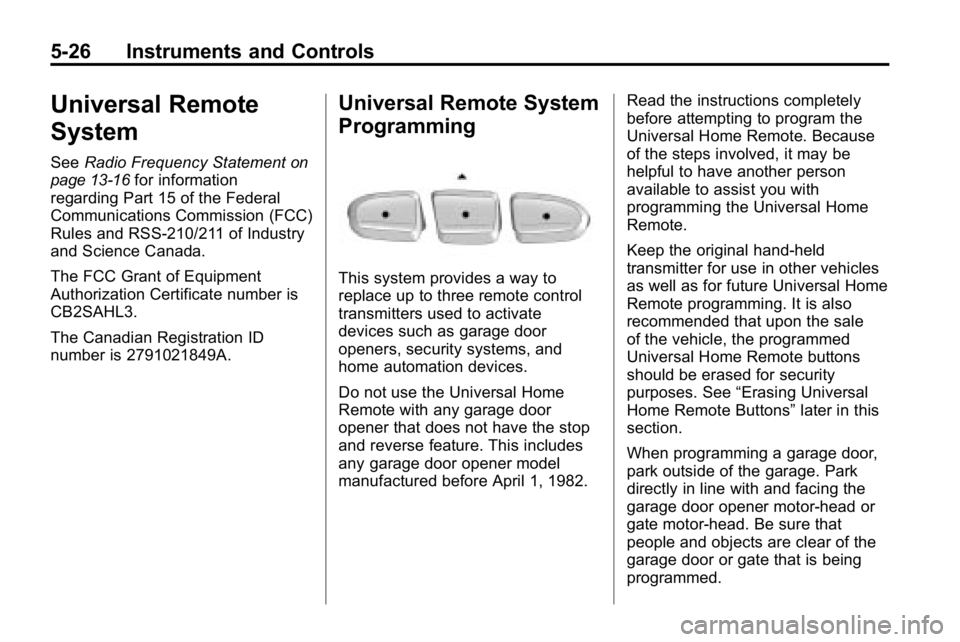
This system provides a way to
replace up to three remote control
transmitters used to activate
devices such as garage door
openers, security systems, and
home automation devices.
Do not use the Universal Home
Remote with any garage door
opener that does not have the stop
and reverse feature. This includes
any garage door opener model
manufactured before April 1, 1982. Read the instructions completely
before attempting to program the
Universal Home Remote. Because
of the steps involved, it may be
helpful to have another person
available to assist you with
programming the Universal Home
Remote.
Keep the original hand-held
transmitter for use in other vehicles
as well as for future Universal Home
Remote programming. It is also
recommended that upon the sale
of the vehicle, the programmed
Universal Home Remote buttons
should be erased for security
purposes. See
“Erasing Universal
Home Remote Buttons” later in this
section.
When programming a garage door,
park outside of the garage. Park
directly in line with and facing the
garage door opener motor-head or
gate motor-head. Be sure that
people and objects are clear of the
garage door or gate that is being
programmed.
Page 157 of 410
Infotainment System 7-3
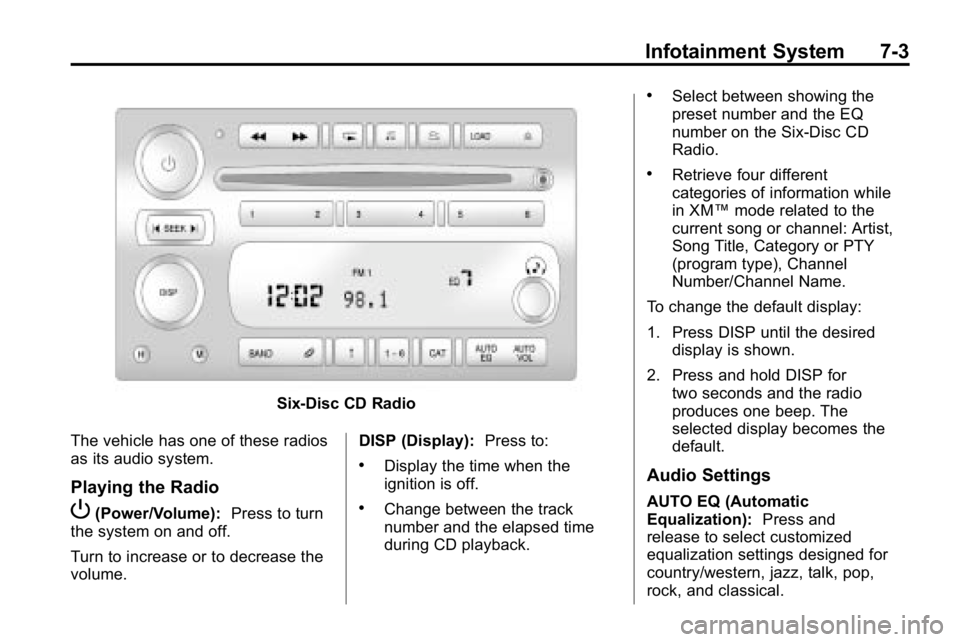
Six-Disc CD Radio
The vehicle has one of these radios
as its audio system.
Playing the Radio
P(Power/Volume): Press to turn
the system on and off.
Turn to increase or to decrease the
volume. DISP (Display):
Press to:
.Display the time when the
ignition is off.
.Change between the track
number and the elapsed time
during CD playback.
.Select between showing the
preset number and the EQ
number on the Six-Disc CD
Radio.
.Retrieve four different
categories of information while
in XM™mode related to the
current song or channel: Artist,
Song Title, Category or PTY
(program type), Channel
Number/Channel Name.
To change the default display:
1. Press DISP until the desired display is shown.
2. Press and hold DISP for two seconds and the radio
produces one beep. The
selected display becomes the
default.
Audio Settings
AUTO EQ (Automatic
Equalization): Press and
release to select customized
equalization settings designed for
country/western, jazz, talk, pop,
rock, and classical.
Page 161 of 410
Infotainment System 7-7
To scan stations:
1. Press and hold
torufor more
than two seconds. SC or SCAN
displays and the radio beeps
once. The radio goes to a
station, plays for a few seconds,
then goes to the next station.
2. Press
toruagain or one of
the pushbuttons to stop
scanning presets.
To scan preset stations:
1. Press and hold
torufor more
than four seconds. PSC or
PSCN displays and the radio
beeps twice. The radio goes to a
preset station, plays for a few
seconds, then goes to the next
preset station.
2. Press
toruagain or one of
the pushbuttons to stop
scanning presets. Finding a Category (CAT) Station
To select an XM station by category
for the Single CD Radio:
1. Press CAT to select a
category mode.
2. Press CAT repeatedly to change the category.
3. Press
toruto select the
first station in the category.
4. To go to another station in the selected category:
.Press CAT once if the
category is displayed.
.Press CAT twice if the
category is not displayed.
5. Press CAT to exit program type select mode. If CAT times out
and is no longer on the display,
go back to Step 1.
If the desired program type cannot
be found, NONE or NOT FOUND
displays and the radio returns to the
previous station. To select an XM station by category
for the Six-Disc CD Radio:
1. Press CAT to select a
category mode.
2. Turn
eto select a category.
3. Press
toruto select the
first station in the category.
4. Press
toruto go to another
station within the category if
category is displayed. If CAT
times out and is no longer on the
display, go back to Step 1.
5. Press CAT to exit program type select mode.
If the desired program type cannot
be found, NONE or NOT FOUND
displays and the radio returns to the
previous station.