display Hyundai Azera 2017 Workshop Manual
[x] Cancel search | Manufacturer: HYUNDAI, Model Year: 2017, Model line: Azera, Model: Hyundai Azera 2017Pages: 520, PDF Size: 16.33 MB
Page 260 of 520
Info
Press the keySelect
Details for the currently playing file
are displayed.
✽ ✽ NOTICE
• When the ‘Folder File’ option is
set as the default display within
Display setup, the album/artist/file
information are displayed as
detailed file information.
• When the ‘Album Artist Song’ option is set as the default display,
the folder name/file name are dis-
played as detailed file information.
• The title, artist and album info are displayed only when such infor-
mation are recorded within the
MP3 file ID3 tag.
Copy Files
Press the key Select
The currently playing file is copied
into My Music.
✽ ✽ NOTICE
• Selecting another feature during
copying will display a pop-up ask-
ing whether you wish to cancel
copying. To cancel, select 'Yes’.
CopyMENUInfoMENU
Features of your vehicle
181
4
Page 261 of 520
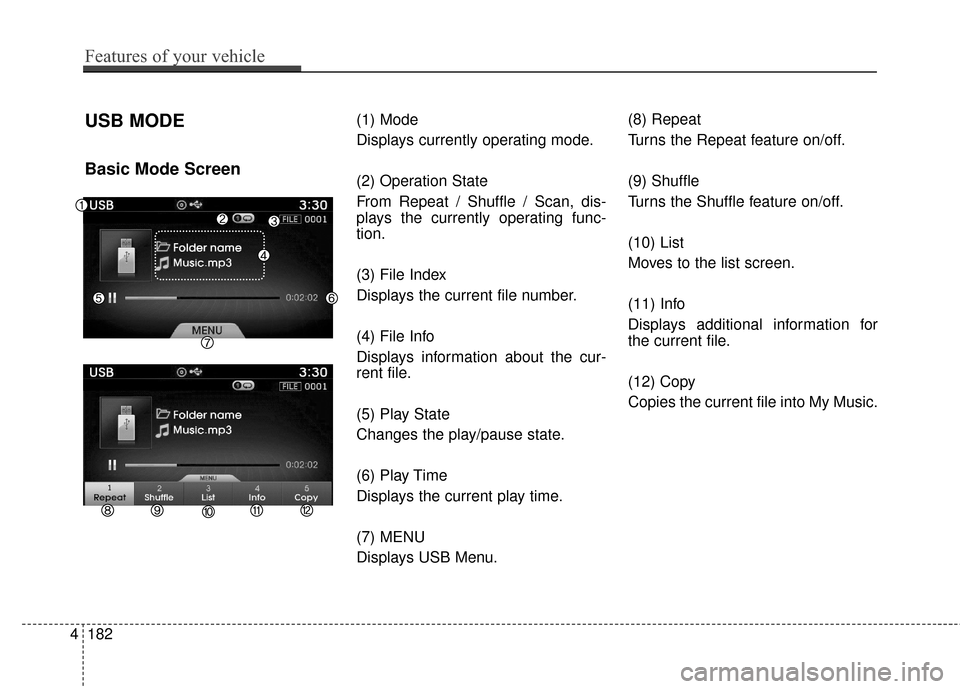
USB MODE
Basic Mode Screen
(1) Mode
Displays currently operating mode.
(2) Operation State
From Repeat / Shuffle / Scan, dis-
plays the currently operating func-
tion.
(3) File Index
Displays the current file number.
(4) File Info
Displays information about the cur-
rent file.
(5) Play State
Changes the play/pause state.
(6) Play Time
Displays the current play time.
(7) MENU
Displays USB Menu.(8) Repeat
Turns the Repeat feature on/off.
(9) Shuffle
Turns the Shuffle feature on/off.
(10) List
Moves to the list screen.
(11) Info
Displays additional information for
the current file.
(12) Copy
Copies the current file into My Music.
4182
Features of your vehicle
Page 262 of 520
Using USB Mode
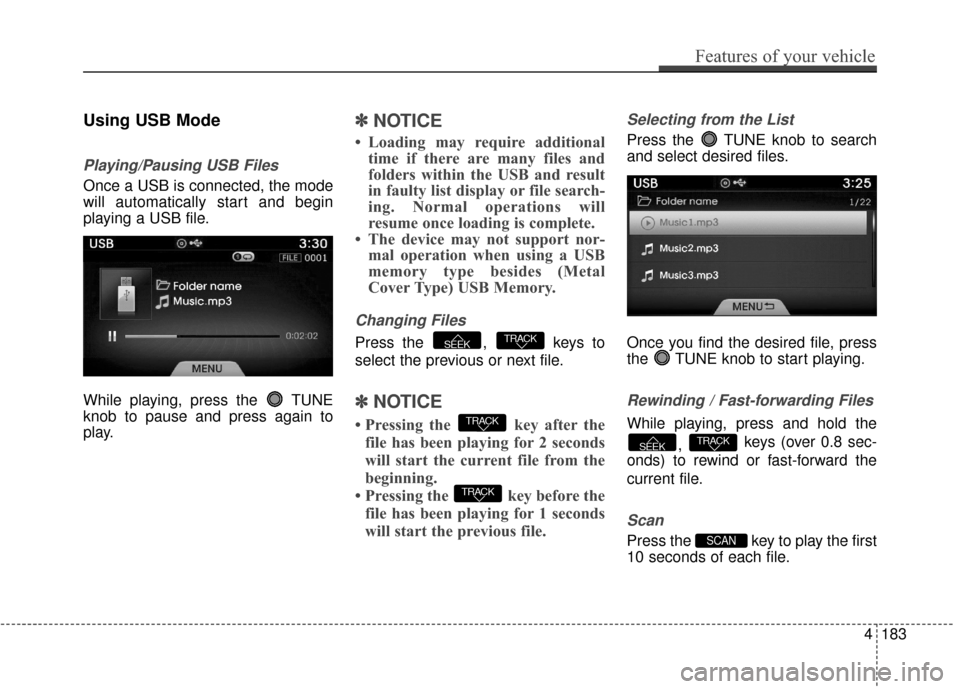
Playing/Pausing USB Files
Once a USB is connected, the mode
will automatically start and begin
playing a USB file.
While playing, press the TUNE
knob to pause and press again to
play.
✽ ✽NOTICE
• Loading may require additional
time if there are many files and
folders within the USB and result
in faulty list display or file search-
ing. Normal operations will
resume once loading is complete.
• The device may not support nor- mal operation when using a USB
memory type besides (Metal
Cover Type) USB Memory.
Changing Files
Press the , keys to
select the previous or next file.
✽ ✽ NOTICE
• Pressing the key after the
file has been playing for 2 seconds
will start the current file from the
beginning.
• Pressing the key before the file has been playing for 1 seconds
will start the previous file.
Selecting from the List
Press the TUNE knob to search
and select desired files.
Once you find the desired file, press
the TUNE knob to start playing.
Rewinding / Fast-forwarding Files
While playing, press and hold the
, keys (over 0.8 sec-
onds) to rewind or fast-forward the
current file.
Scan
Press the key to play the first
10 seconds of each file.SCAN
TRACKSEEK
TRACK
TRACK
TRACKSEEK
Features of your vehicle
183
4
Page 264 of 520
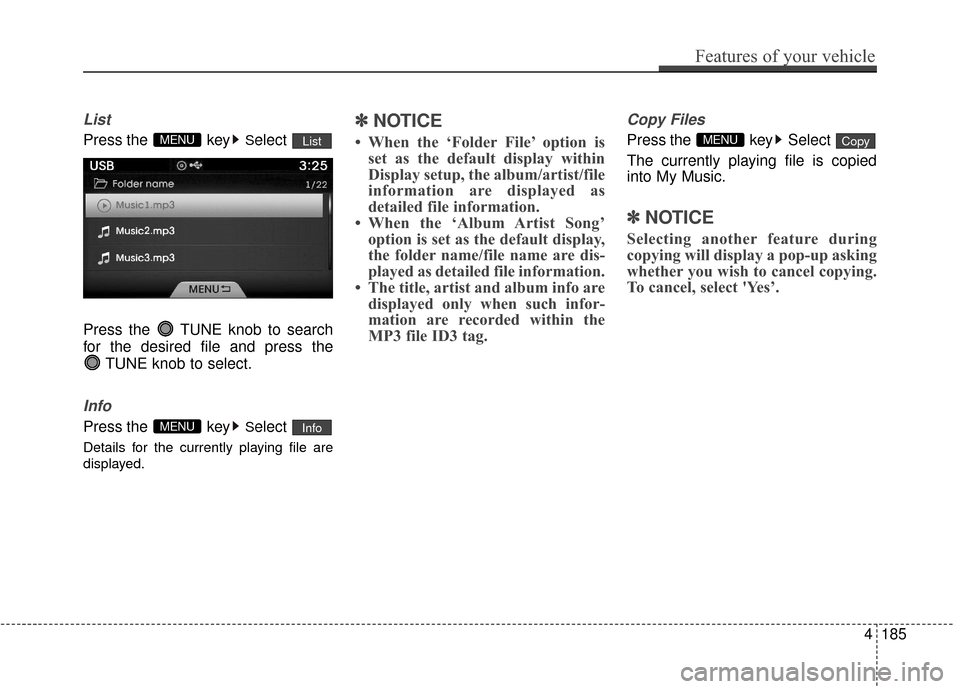
List
Press the keySelect
Press the TUNE knob to search
for the desired file and press the TUNE knob to select.
Info
Press the keySelect
Details for the currently playing file are
displayed.
✽ ✽NOTICE
• When the ‘Folder File’ option is
set as the default display within
Display setup, the album/artist/file
information are displayed as
detailed file information.
• When the ‘Album Artist Song’ option is set as the default display,
the folder name/file name are dis-
played as detailed file information.
• The title, artist and album info are displayed only when such infor-
mation are recorded within the
MP3 file ID3 tag.
Copy Files
Press the key Select
The currently playing file is copied
into My Music.
✽ ✽ NOTICE
Selecting another feature during
copying will display a pop-up asking
whether you wish to cancel copying.
To cancel, select 'Yes’.
CopyMENU
InfoMENU
ListMENU
Features of your vehicle
185
4
Page 265 of 520
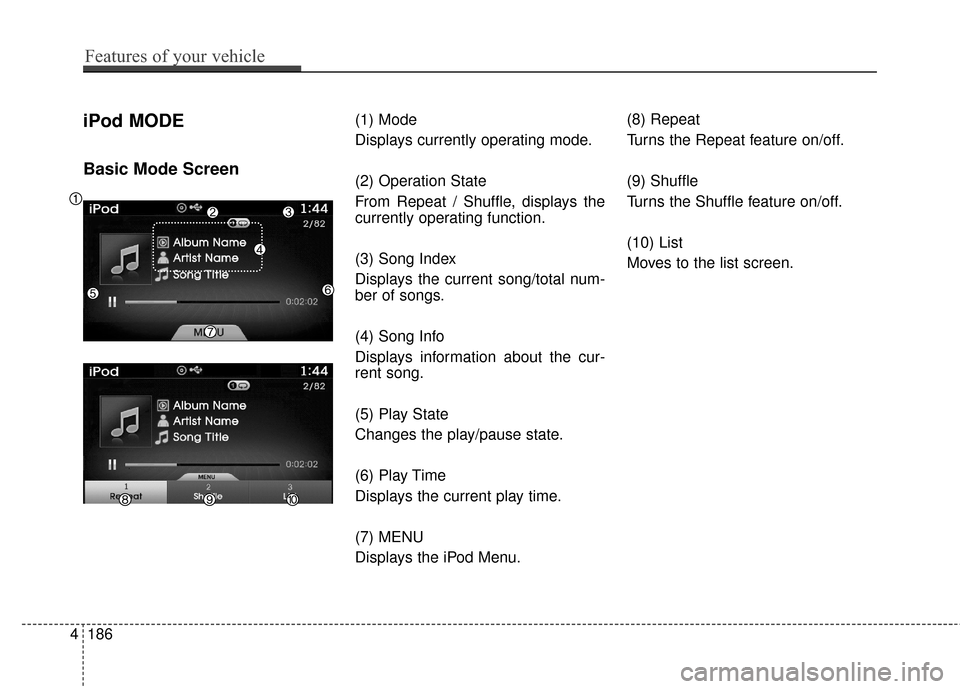
iPod MODE
Basic Mode Screen
(1) Mode
Displays currently operating mode.
(2) Operation State
From Repeat / Shuffle, displays the
currently operating function.
(3) Song Index
Displays the current song/total num-
ber of songs.
(4) Song Info
Displays information about the cur-
rent song.
(5) Play State
Changes the play/pause state.
(6) Play Time
Displays the current play time.
(7) MENU
Displays the iPod Menu.(8) Repeat
Turns the Repeat feature on/off.
(9) Shuffle
Turns the Shuffle feature on/off.
(10) List
Moves to the list screen.
4186
Features of your vehicle
Page 266 of 520
Using iPod Mode
Playing/Pausing iPod Songs
Once an iPod is connected, the
mode will automatically start and
begin playing an iPod song.
While playing, press the TUNE
knob to pause and press again to
play.
✽ ✽NOTICE
• iPods with unsupported communi-
cation protocols may not properly
operate in the audio system.
Changing Songs
Press the , keys to
select the previous or next file.
✽ ✽ NOTICE
• Pressing the key after the
song has been playing for 2 sec-
onds will start the current song
from the beginning.
• Pressing the key before the song has been playing for 1
seconds will start the previous
song.
• Slight time differences may exist depending your iPod product.
Rewinding / Fast-forwarding Songs
While playing, press and hold the
, keys (over 0.8 sec-
onds) to rewind or fast-forward the
current song.
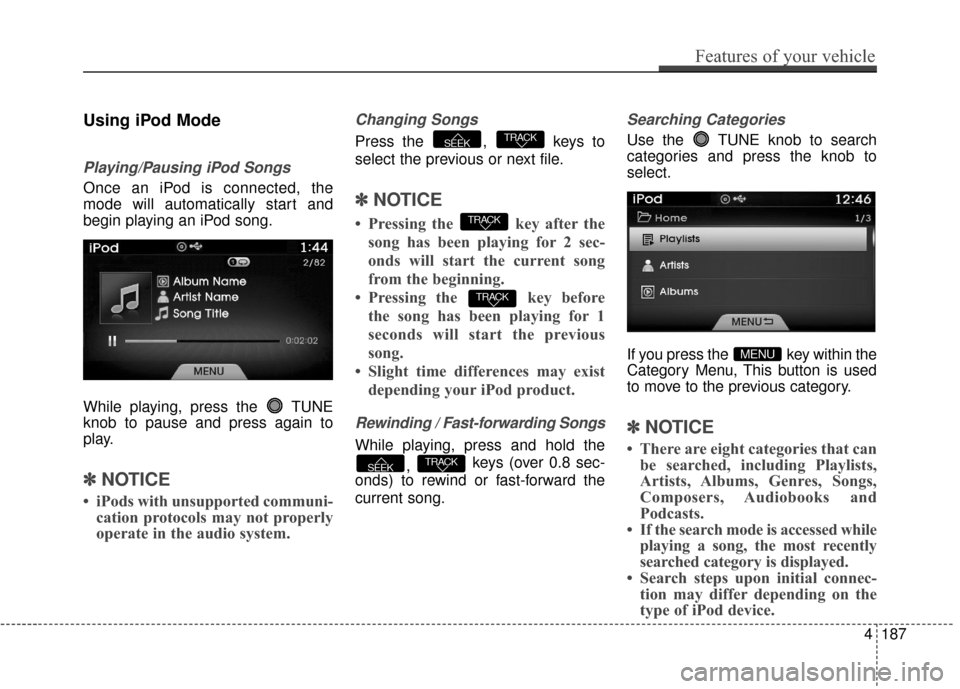
Searching Categories
Use the TUNE knob to search
categories and press the knob to
select.
If you press the key within the
Category Menu, This button is used
to move to the previous category.
✽ ✽ NOTICE
• There are eight categories that can
be searched, including Playlists,
Artists, Albums, Genres, Songs,
Composers, Audiobooks and
Podcasts.
• If the search mode is accessed while playing a song, the most recently
searched category is displayed.
• Search steps upon initial connec- tion may differ depending on the
type of iPod device.
MENU
TRACKSEEK
TRACK
TRACK
TRACKSEEK
Features of your vehicle
187
4
Page 269 of 520
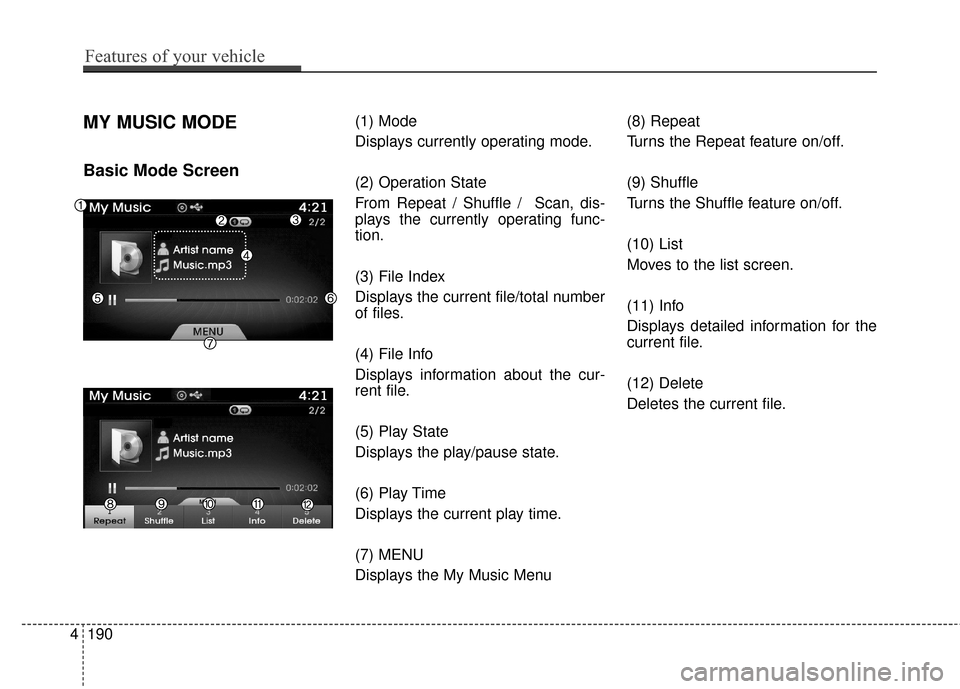
MY MUSIC MODE
Basic Mode Screen
(1) Mode
Displays currently operating mode.
(2) Operation State
From Repeat / Shuffle / Scan, dis-
plays the currently operating func-
tion.
(3) File Index
Displays the current file/total number
of files.
(4) File Info
Displays information about the cur-
rent file.
(5) Play State
Displays the play/pause state.
(6) Play Time
Displays the current play time.
(7) MENU
Displays the My Music Menu(8) Repeat
Turns the Repeat feature on/off.
(9) Shuffle
Turns the Shuffle feature on/off.
(10) List
Moves to the list screen.
(11) Info
Displays detailed information for the
current file.
(12) Delete
Deletes the current file.
4190
Features of your vehicle
Page 271 of 520
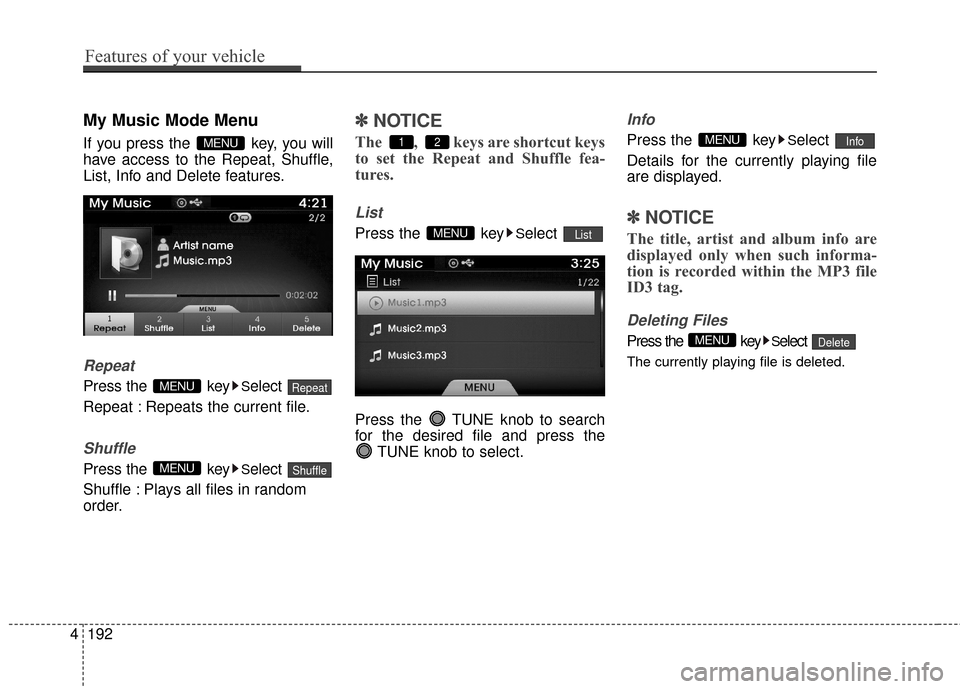
My Music Mode Menu
If you press the key, you will
have access to the Repeat, Shuffle,
List, Info and Delete features.
Repeat
Press the keySelect
Repeat : Repeats the current file.
Shuffle
Press the keySelect
Shuffle : Plays all files in random
order.
✽ ✽ NOTICE
The , keys are shortcut keys
to set the Repeat and Shuffle fea-
tures.
List
Press the keySelect
Press the TUNE knob to search
for the desired file and press the TUNE knob to select.
Info
Press the keySelect
Details for the currently playing file
are displayed.
✽ ✽ NOTICE
The title, artist and album info are
displayed only when such informa-
tion is recorded within the MP3 file
ID3 tag.
Deleting Files
Press the keySelect
The currently playing file is deleted.
DeleteMENU
InfoMENU
ListMENU
21
ShuffleMENU
RepeatMENU
MENU
4192
Features of your vehicle
Page 273 of 520
Features of your vehicle
194
4
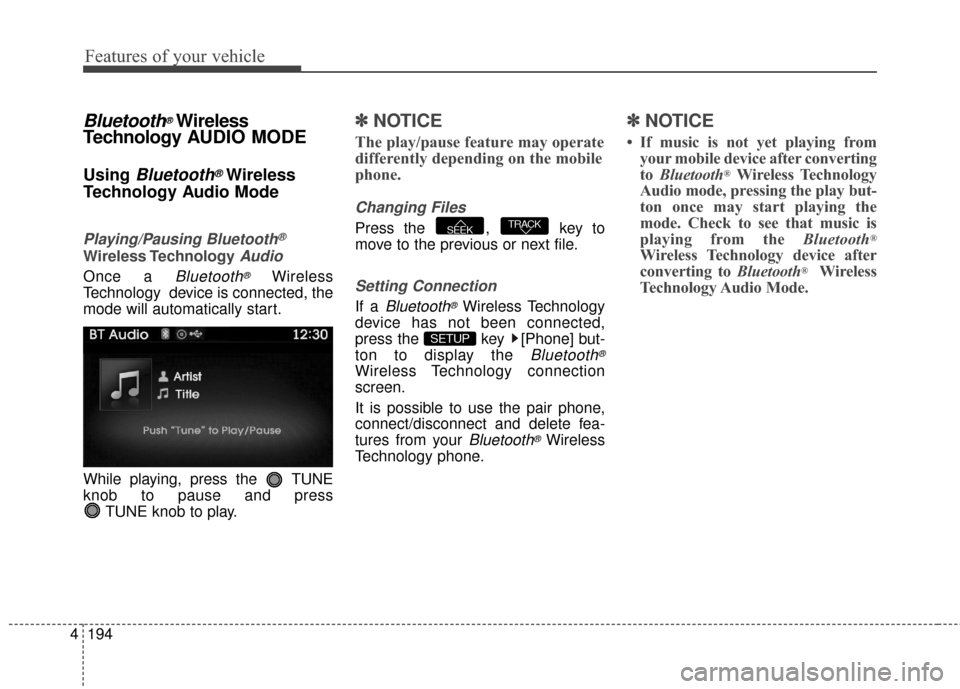
Bluetooth®Wireless
Technology A UDIO MODE
Using Bluetooth®Wireless
Technology Audio Mode
Playing/Pausing Bluetooth®
Wireless TechnologyAudio
Once a Bluetooth®Wireless
Technology device is connected, the
mode will automatically start.
While playing, press the TUNE
knob to pause and press TUNE knob to play.
✽ ✽NOTICE
The play/pause feature may operate
differently depending on the mobile
phone.
Changing Files
Press the , key to
move to the previous or next file.
Setting Connection
If a Bluetooth®Wireless Technology
device has not been connected,
press the key [Phone] but-
ton to display the
Bluetooth®
Wireless Technology connection
screen.
It is possible to use the pair phone,
connect/disconnect and delete fea-
tures from your
Bluetooth®Wireless
Technology phone.
✽ ✽ NOTICE
• If music is not yet playing from
your mobile device after converting
to Bluetooth
®Wireless Technology
Audio mode, pressing the play but-
ton once may start playing the
mode. Check to see that music is
playing from the Bluetooth
®
Wireless Technology device after
converting to Bluetooth®Wireless
Technology Audio Mode.
SETUP
TRACKSEEK
Page 275 of 520
![Hyundai Azera 2017 Workshop Manual Features of your vehicle
196
4
[Non SSP supported device]
(SSP: Secure Simple Pairing)
4. After a few moments, a screen is
displayed where the passkey is
entered.
Hear, enter the passkey “0000” to](/img/35/14459/w960_14459-274.png "Hyundai Azera 2017 Workshop Manual Features of your vehicle
196
4
[Non SSP supported device]
(SSP: Secure Simple Pairing)
4. After a few moments, a screen is
displayed where the passkey is
entered.
Hear, enter the passkey “0000” to")
Features of your vehicle
196
4
[Non SSP supported device]
(SSP: Secure Simple Pairing)
4. After a few moments, a screen is
displayed where the passkey is
entered.
Hear, enter the passkey “0000” to
pair your
Bluetooth®Wireless
Technology device with the car
audio system.
[SSP supported device]
4. After a few moments, a screen is displayed 6 digits passkey.
Hear, check the passkey on your
Bluetooth®Wireless Technology
device and confirm.
5. Once pairing is complete, the fol- lowing screen is displayed.
✽ ✽NOTICE
If Bluetooth®Wireless Technology
devices are paired but none are cur-
rently connected, pressing the key or the key on the
steering wheel displays the following
screen. Press the [Pair] button to
pair a new device or press the
[Connect] to connect a previously
paired device.
Pairing through [PHONE]
Setup
Press the key Select
[Phone] Select [Pair Phone]
Select TUNE knob
1.The following steps are the same
as those described in the section
"When No Devices have been
Paired" on the previous page.SETUP
PHONE