key Hyundai Creta 2016 Owners Manual
[x] Cancel search | Manufacturer: HYUNDAI, Model Year: 2016, Model line: Creta, Model: Hyundai Creta 2016Pages: 512, PDF Size: 11.54 MB
Page 302 of 512
4-84
Multimedia System
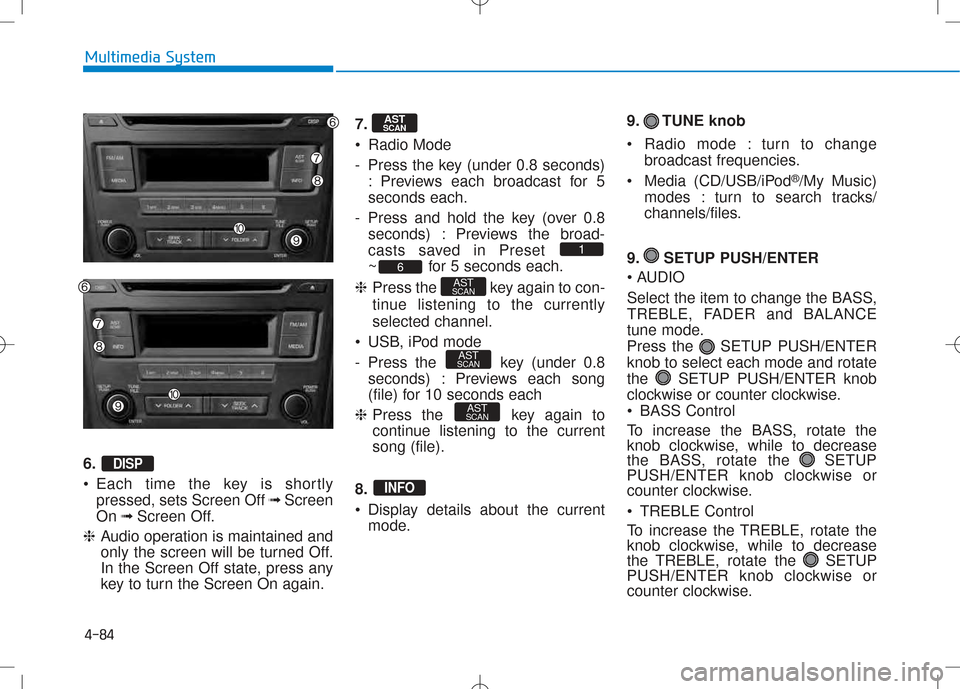
6. •Each time the key is shortly
pressed, sets Screen Off ➟Screen
On ➟Screen Off.
❈ Audio operation is maintained and
only the screen will be turned Off.
In the Screen Off state, press any
key to turn the Screen On again. 7.
Radio Mode
- Press the key (under 0.8 seconds)
: Previews each broadcast for 5 seconds each.
- Press and hold the key (over 0.8 seconds) : Previews the broad-
casts saved in Preset
~ for 5 seconds each.
❈ Press the key again to con-
tinue listening to the currentlyselected channel.
USB, iPod mode
- Press the key (under 0.8 seconds) : Previews each song
(file) for 10 seconds each
❈ Press the key again to
continue listening to the currentsong (file).
8.
Display details about the current mode. 9. TUNE knob
Radio mode : turn to change
broadcast frequencies.
Media (CD/USB/iPod ®
/My Music)
modes : turn to search tracks/
channels/files.
9. SETUP PUSH/ENTER
AUDIO
Select the item to change the BASS,
TREBLE, FADER and BALANCE
tune mode.
Press the SETUP PUSH/ENTERknob to select each mode and rotate
the SETUP PUSH/ENTER knob
clockwise or counter clockwise.
BASS Control
To increase the BASS, rotate the
knob clockwise, while to decrease
the BASS, rotate the SETUP
PUSH/ENTER knob clockwise or
counter clockwise.
TREBLE Control
To increase the TREBLE, rotate the
knob clockwise, while to decrease
the TREBLE, rotate the SETUP
PUSH/ENTER knob clockwise or
counter clockwise.
INFO
AST
SCAN
AST
SCAN
AST
SCAN6
1
AST
SCAN
DISP
Page 303 of 512
4-85
Multimedia System
4
•FADER Control
Turn the control SETUP PUSH/
ENTER knob clockwise to empha-
size rear speaker sound (front
speaker sound will be attenuated).
When the control SETUP PUSH/
ENTER knob is turned counterclock-
wise, front speaker sound will be
emphasized (rear speaker sound will
be attenuated).
BALANCE Control
Rotare the SETUP PUSH/
ENTER knob clockwise to empha-
size right speaker sound (left speak-
er sound will be attenuted). When the
control SETUP PUSH/ ENTER
knob is turnde counter clockwise, left
speaker sound will be emphasized
(right speaker sound will be attenuat-ed). 10.
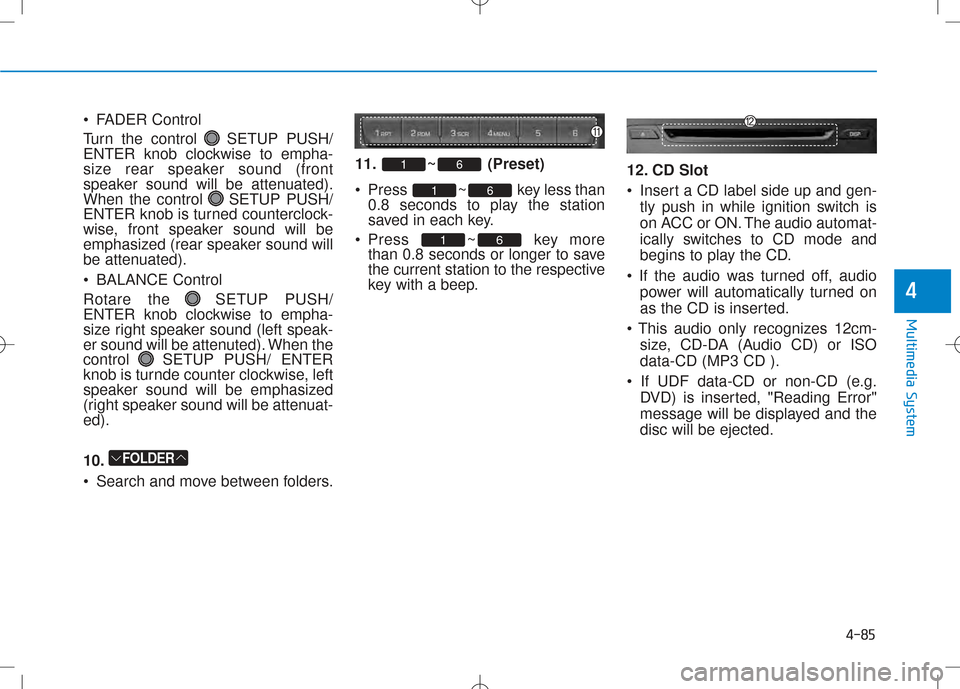
Search and move between folders. 11. ~ (Preset)
Press ~ key less
than
0.8 seconds to play the station
saved in each key.
Press ~ key more than 0.8 seconds or longer to save
the current station to the respective
key with a beep. 12. CD Slot
Insert a CD label side up and gen-
tly push in while ignition switch is
on ACC or ON. The audio automat-
ically switches to CD mode and
begins to play the CD.
power will automatically turned on
as the CD is inserted.
size, CD-DA (Audio CD) or ISOdata-CD (MP3 CD ).
DVD) is inserted, "Reading Error"
message will be displayed and thedisc will be ejected.
61
61
61
FOLDER
Page 305 of 512
4-87
Multimedia System
4
BBAA SSIICC MM EETT HH OO DD OO FF UU SSEE :: CC DD
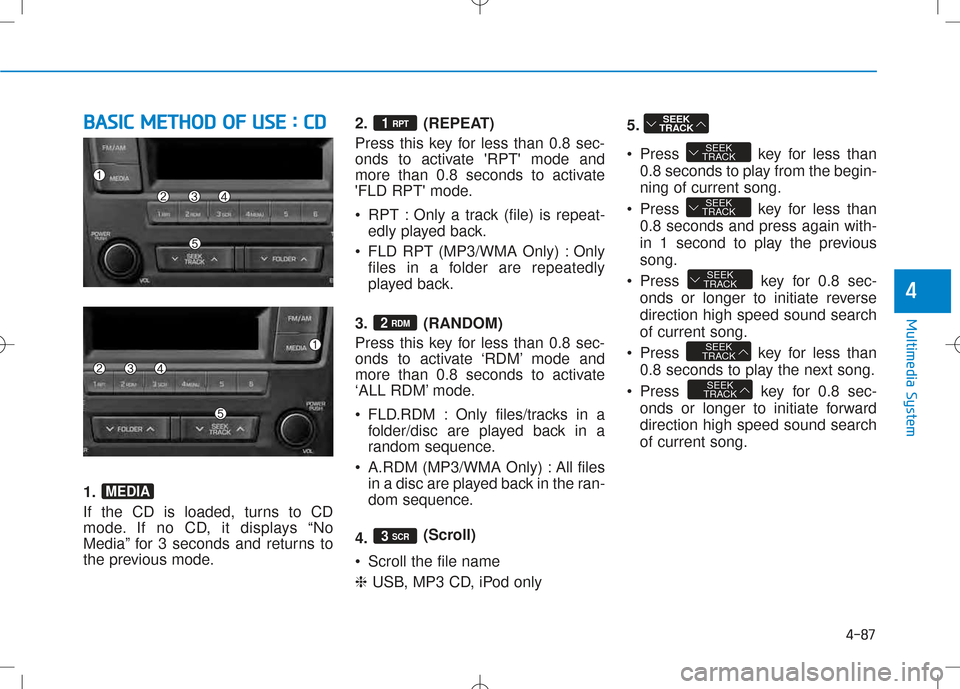
1.
If the CD is loaded, turns to CD
mode. If no CD, it displays “No
Media” for 3 seconds and returns to
the previous mode. 2. (REPEAT)
Press this key for less than 0.8 sec-
onds to activate 'RPT' mode and
more than 0.8 seconds to activate
'FLD RPT' mode.
RPT : Only a track (file) is repeat-
edly played back.
FLD RPT (MP3/WMA Only) : Only files in a folder are repeatedly
played back.
3. (RANDOM)
Press this key for less than 0.8 sec-
onds to activate ‘RDM’ mode and
more than 0.8 seconds to activate
‘ALL RDM’ mode.
FLD.RDM : Only files/tracks in a folder/disc are played back in a
random sequence.
A.RDM (MP3/WMA Only) : All files in a disc are played back in the ran-
dom sequence.
4. (Scroll)
Scroll the file name ❈ USB, MP3 CD, iPod only 5.
Press key for less than
0.8 seconds to play from the begin- ning of current song.
Press key for less than 0.8 seconds and press again with-
in 1 second to play the previoussong.
Press key for 0.8 sec- onds or longer to initiate reversedirection high speed sound searchof current song.
Press key for less than 0.8 seconds to play the next song.
Press key for 0.8 sec- onds or longer to initiate forwarddirection high speed sound searchof current song.
SEEK
TRACK
SEEK
TRACK
SEEK
TRACK
SEEK
TRACK
SEEK
TRACK
SEEK
TRACK
3 SCR
2 RDM
1 RPT
MEDIA
Page 306 of 512
4-88
Multimedia System
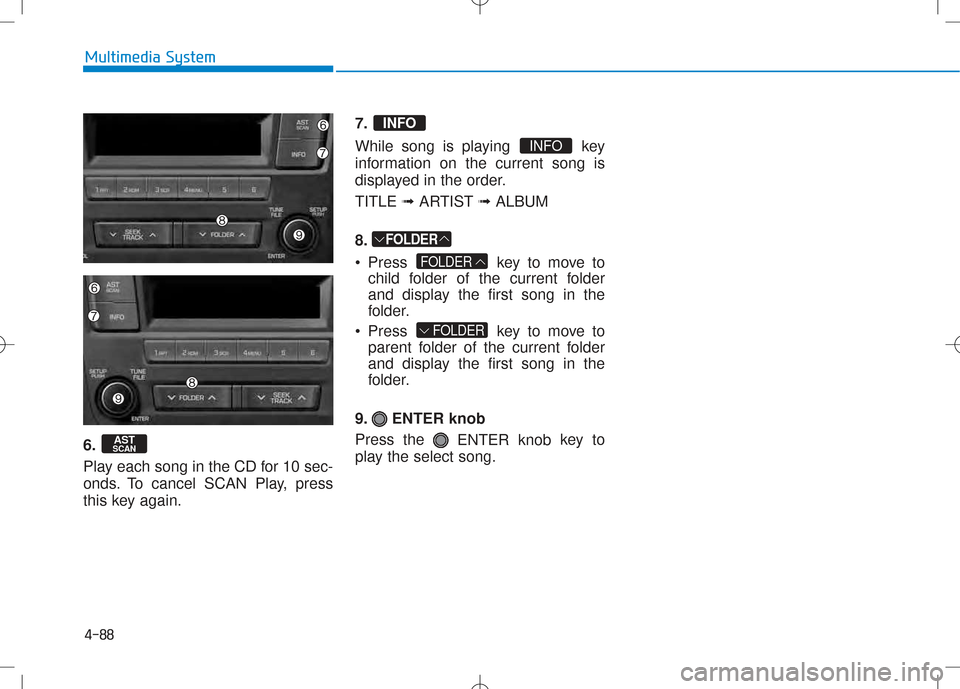
6.
Play each song in the CD for 10 sec-
onds. To cancel SCAN Play, press
this key again.7.
While song is playing key
information on the current song is
displayed in the order. TITLE
➟ARTIST ➟ALBUM
8.
Press key to move to child folder of the current folder
and display the first song in the
folder.
Press key to move to parent folder of the current folder
and display the first song in the
folder.
9. ENTER knob Press the ENTER knob key to
play the select song.
FOLDER
FOLDER
FOLDER
INFO
INFO
AST
SCAN
Page 308 of 512
4-90
Multimedia System
(Continued)
•Use of USB accessories such
as rechargers or heaters using
USB I/F may lower perform-
ance or cause trouble.
•If you use devices such as a
USB hub purchased separate-
ly, the vehicle’s audio system
may not recognize the USB
device. In that case, connect
the USB device directly to the
multimedia terminal of the
vehicle.
•If the USB device is divided by
logical drives, only the musicfiles on the highest-priority
drive are recognized by caraudio.
•Devices such as MP3 Player/ Cellular phone/Digital camera
can be unrecognizable by
standard USB I/F can be unrec-
ognizable.(Continued)
(Continued)
•Some non-standard USB
devices (METAL COVER TYPE
USB) can be unrecognizable.
•Some USB flash memory
readers (such as CF, SD,
microSD, etc.) or external-
HDD type devices can be
unrecognizable.
•Music files protected by DRM
(DIGITAL RIGHTS MANAGE-
MENT) are not recognizable.
•The data in the USB memory
may be lost while using this
audio. Always back up impor-
tant data on a personal stor-
age device.(Continued)
(Continued)
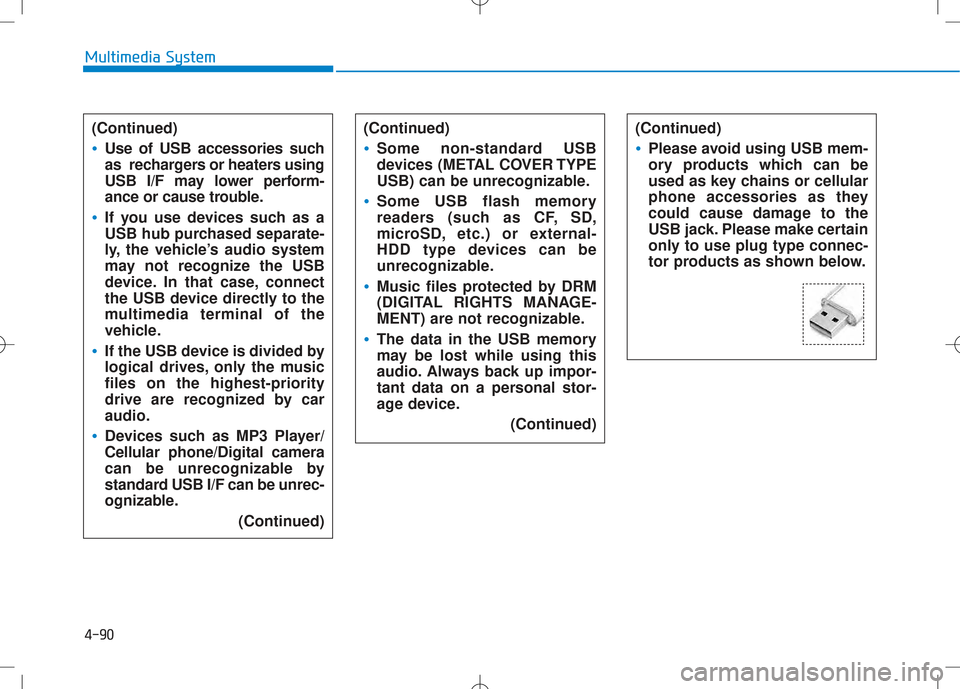
•Please avoid using USB mem-
ory products which can be
used as key chains or cellular
phone accessories as they
could cause damage to the
USB jack. Please make certain
only to use plug type connec-
tor products as shown below.
Page 310 of 512
4-92
Multimedia System
BBAA SSIICC MM EETT HH OO DD OO FF UU SSEE ::
U
U SSBB // iiPP oodd
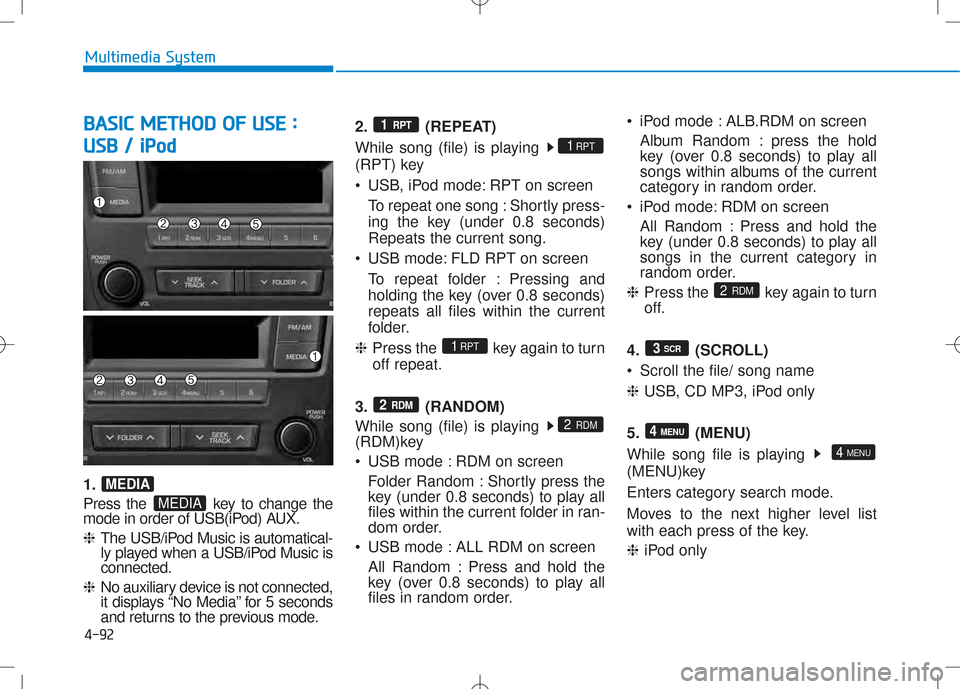
1.
Press the key to change the
mode in order of USB(iPod) AUX. ❈ The USB/iPod Music is automatical-
ly played when a USB/iPod Music isconnected.
❈ No auxiliary device is not connected,
it displays “No Media” for 5 seconds
and returns to the previous mode. 2. (REPEAT)
While song (file) is playing
(RPT) key
USB, iPod mode: RPT on screen
To repeat one song : Shortly press-
ing the key (under 0.8 seconds)Repeats the current song.
USB mode: FLD RPT on screen To repeat folder : Pressing and
holding the key (over 0.8 seconds)repeats all files within the current
folder.
❈ Press the key again to turnoff repeat.
3. (RANDOM)
While song (file) is playing
(RDM)key
USB mode : RDM on screen Folder Random : Shortly press the
key (under 0.8 seconds) to play all
files within the current folder in ran-
dom order.
USB mode : ALL RDM on screen
All Random : Press and hold the
key (over 0.8 seconds) to play all
files in random order. iPod mode : ALB.RDM on screen
Album Random : press the hold
key (over 0.8 seconds) to play all
songs within albums of the current
category in random order.
iPod mode: RDM on screen
All Random : Press and hold the
key (under 0.8 seconds) to play all
songs in the current category in
random order.
❈ Press the key again to turn
off.
4. (SCROLL)
Scroll the file/ song name❈ USB, CD MP3, iPod only
5. (MENU)
While song file is playing
(MENU)key
Enters category search mode.
Moves to the next higher level list
with each press of the key. ❈ iPod only
4 MENU
4 MENU
3
SCR
2
RDM
2 RDM
2 RDM
1RPT
1RPT
1 RPT
MEDIA
MEDIA
Page 311 of 512
4-93
Multimedia System
4
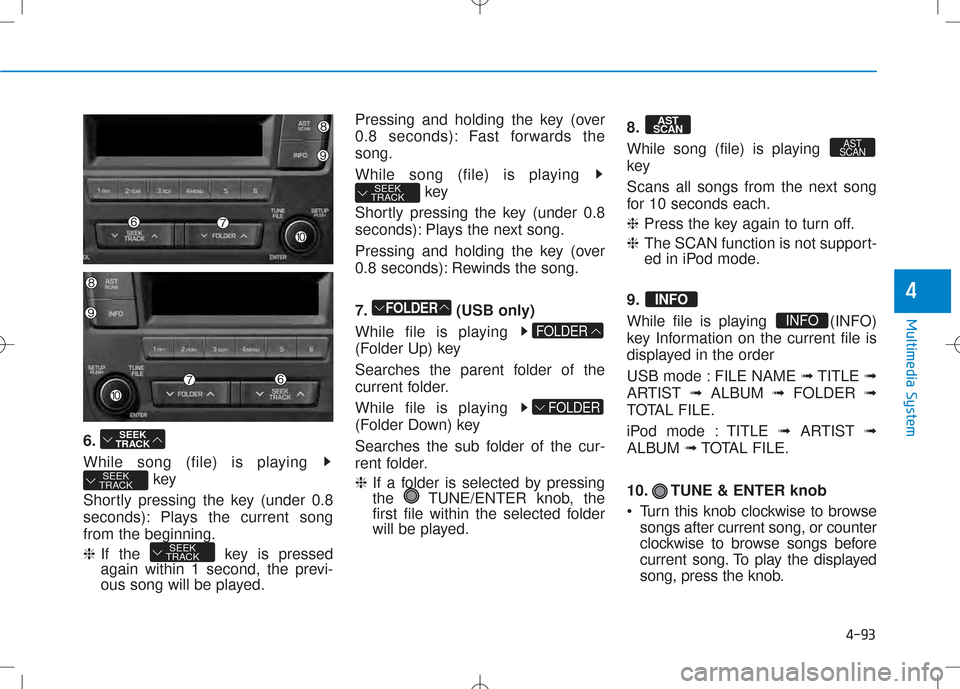
6.
While song (file) is playing key
Shortly pressing the key (under 0.8
seconds): Plays the current songfrom the beginning. ❈ If the key is pressed
again within 1 second, the previ-
ous song will be played. Pressing and holding the key (over
0.8 seconds): Fast forwards thesong.
While song (file) is playing
key
Shortly pressing the key (under 0.8
seconds): Plays the next song.
Pressing and holding the key (over
0.8 seconds): Rewinds the song.
7. (USB only)
While file is playing
(Folder Up) key
Searches the parent folder of the
current folder.
While file is playing
(Folder Down) key
Searches the sub folder of the cur-
rent folder. ❈ If a folder is selected by pressing
the TUNE/ENTER knob, the
first file within the selected folder
will be played. 8.
While song (file) is playing
key
Scans all songs from the next song
for 10 seconds each. ❈
Press the key again to turn off.
❈ The SCAN function is not support-
ed in iPod mode.
9.
While file is playing (INFO)
key Information on the current file is
displayed in the order
USB mode : FILE NAME ➟TITLE ➟
ARTIST ➟ALBUM ➟FOLDER ➟
TOTAL FILE.
iPod mode : TITLE ➟ARTIST ➟
ALBUM ➟TOTAL FILE.
10. TUNE & ENTER knob
Turn this knob clockwise to browse songs after current song, or counter
clockwise to browse songs before
current song. To play the displayed
song, press the knob.
INFO
INFO
AST
SCAN
AST
SCAN
FOLDER
FOLDER
FOLDER
SEEK
TRACK
SEEK
TRACK
SEEK
TRACK
SEEK
TRACK
Page 312 of 512
4-94
Multimedia System
AAUU XX
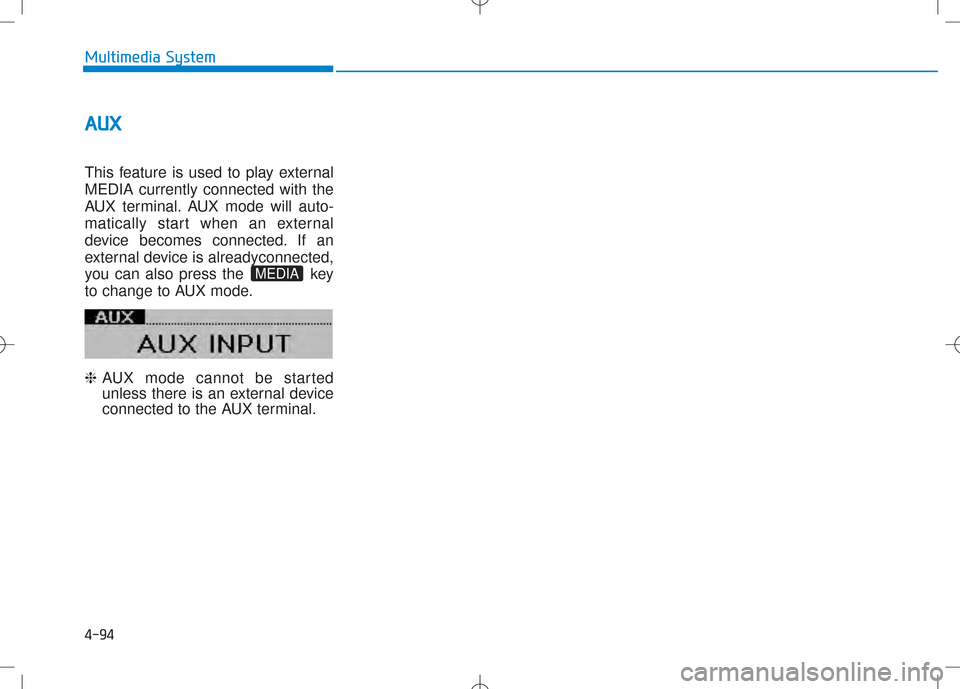
This feature is used to play external MEDIA currently connected with the
AUX terminal. AUX mode will auto-
matically start when an external
device becomes connected. If an
external device is alreadyconnected,
you can also press the key
to change to AUX mode. ❈ AUX mode cannot be started
unless there is an external device
connected to the AUX terminal.
MEDIA
Page 313 of 512
Driving your vehicle
5
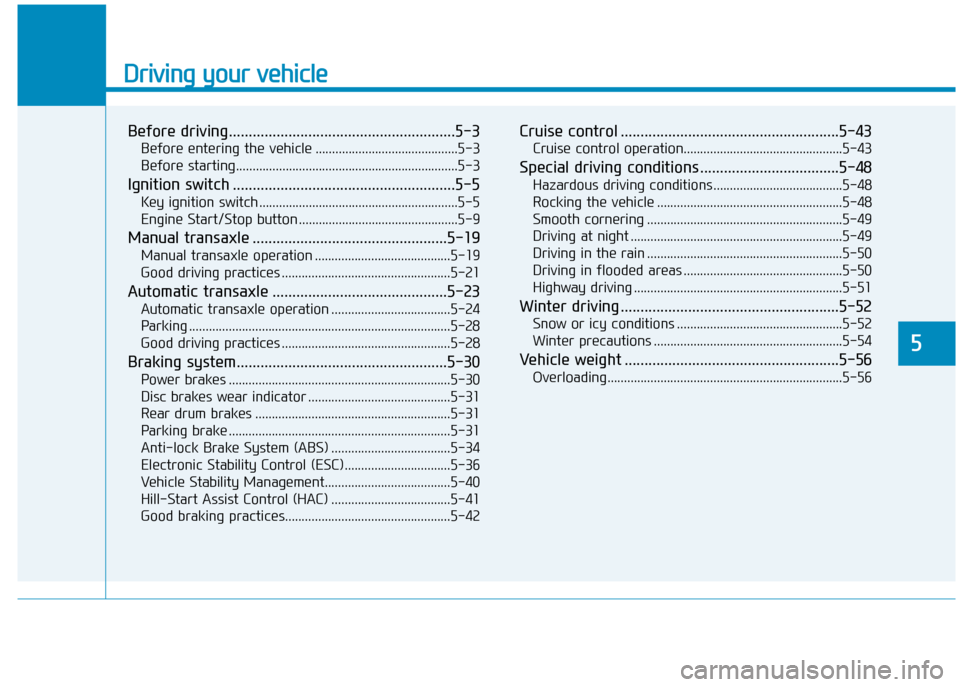
Before driving.........................................................5-3Before entering the vehicle ...........................................5-3
Before starting...................................................................5-3
Ignition switch ........................................................5-5 Key ignition switch ............................................................5-5
Engine Start/Stop button ................................................5-9
Manual transaxle .................................................5-19 Manual transaxle operation .........................................5-19
Good driving practices ...................................................5-21
Automatic transaxle ............................................5-23 Automatic transaxle operation ....................................5-24
Parking ...............................................................................5-28
Good driving practices ...................................................5-28
Braking system.....................................................5-30 Power brakes ...................................................................5-30
Disc brakes wear indicator ...........................................5-31
Rear drum brakes ...........................................................5-31
Parking brake ...................................................................5-31
Anti-lock Brake System (ABS) ....................................5-34
Electronic Stability Control (ESC)................................5-36
Vehicle Stability Management......................................5-40
Hill-Start Assist Control (HAC) ....................................5-41
Good braking practices..................................................5-42 Cruise control .......................................................5-43
Cruise control operation................................................5-43
Special driving conditions ...................................5-48 Hazardous driving conditions.......................................5-48
Rocking the vehicle ........................................................5-48
Smooth cornering ...........................................................5-49
Driving at night ................................................................5-49
Driving in the rain ...........................................................5-50
Driving in flooded areas ................................................5-50
Highway driving ...............................................................5-51
Winter driving .......................................................5-52 Snow or icy conditions ..................................................5-52
Winter precautions .........................................................5-54
Vehicle weight ......................................................5-56 Overloading.......................................................................5-56
Page 317 of 512
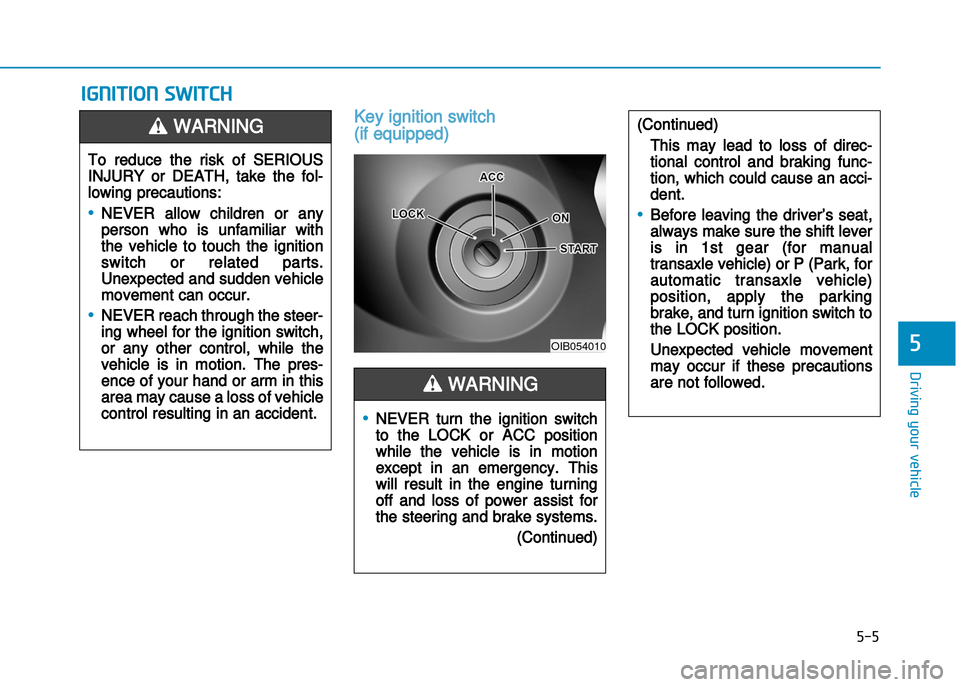
Key ignition switch
(if equipped)
IGNITION SWITCH
5-5
Driving your vehicle
5OIB054010
To reduce the risk of SERIOUS
INJURY or DEATH, take the fol
lowing precautions:
•NEVER allow children or any
person who is unfamiliar with
the vehicle to touch the ignition
switch or related parts.
Unexpected and sudden vehicle
movement can occur.
•NEVER reach through the steer
ing wheel for the ignition switch,
or any other control, while the
vehicle is in motion. The pres
ence of your hand or arm in this
area may cause a loss of vehicle
control resulting in an accident.
WARNING
•NEVER turn the ignition switch
to the LOCK or ACC position
while the vehicle is in motion
except in an emergency. This
will result in the engine turning
off and loss of power assist for
the steering and brake systems.
(Continued)
(Continued)
This may lead to loss of direc
tional control and braking func
tion, which could cause an acci
dent.
•Before leaving the driver’s seat,
always make sure the shift lever
is in 1st gear (for manual
transaxle vehicle) or P (Park, for
automatic transaxle vehicle)
position, apply the parking
brake, and turn ignition switch to
the LOCK position.
Unexpected vehicle movement
may occur if these precautions
are not followed.WARNING