change time Hyundai Creta 2016 User Guide
[x] Cancel search | Manufacturer: HYUNDAI, Model Year: 2016, Model line: Creta, Model: Hyundai Creta 2016Pages: 512, PDF Size: 11.54 MB
Page 238 of 512
4-20
Multimedia System
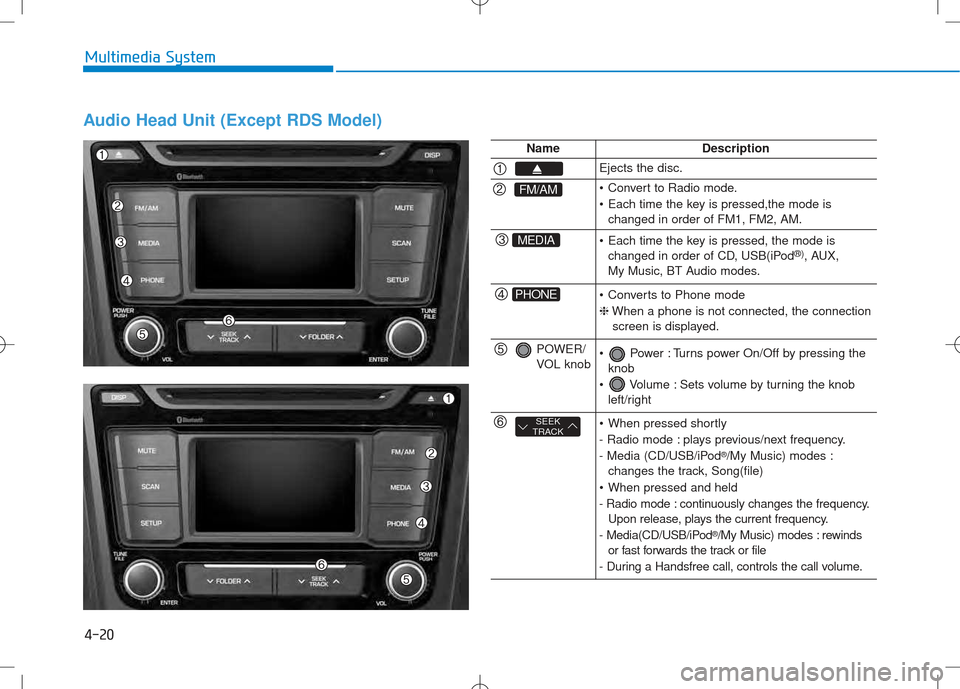
Audio Head Unit (Except RDS Model)
NameDescription
Ejects the disc.
FM/AM Convert to Radio mode.
Each time the key is pressed,the mode ischanged in order of FM1, FM2, AM.
MEDIA Each time the key is pressed, the mode ischanged in order of CD, USB(iPod ®)
, AUX,
My Music, BT Audio modes.
PHONE Converts to Phone mode ❈ When a phone is not connected, the connection
screen is displayed.
POWER/
VOL knob Power : Turns power On/Off by pressing the knob
Volume : Sets volume by turning the knob left/right
SEEK
TRACK When pressed shortly
- Radio mode : plays previous/next frequency.
- Media (CD/USB/iPod ®
/My Music) modes :
changes the track, Song(file)
When pressed and held
- Radio mode : continuously changes the frequency. Upon release, plays the current frequency.
- Media(CD/USB/iPod ®
/My Music) modes : rewinds
or fast forwards the track or file
- During a Handsfree call, controls the call volume.
Page 239 of 512
4-21
Multimedia System
4
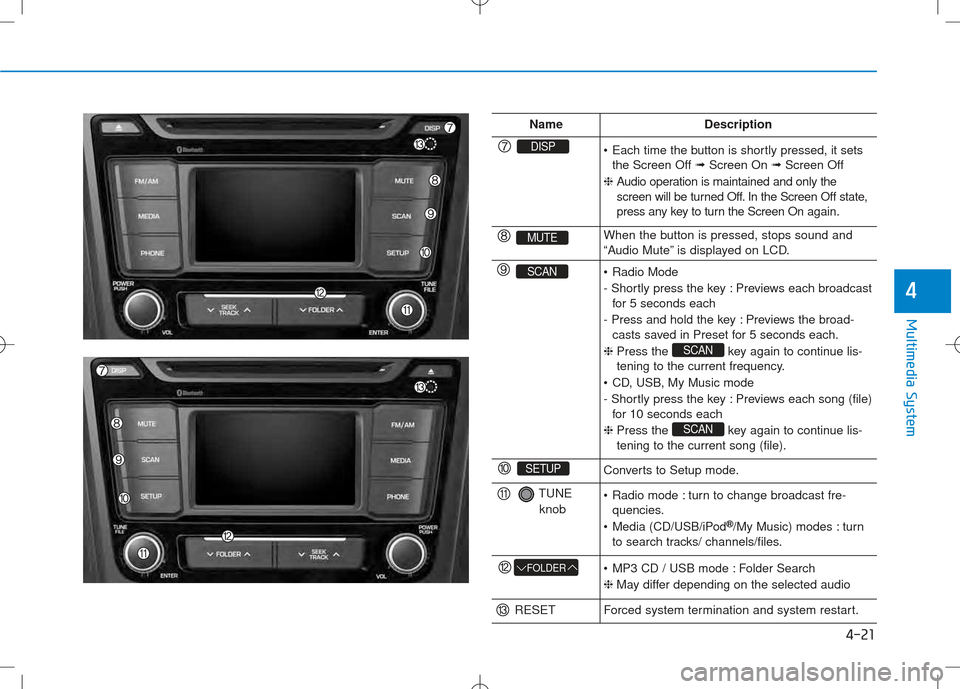
NameDescription
DISP Each time the button is shortly pressed, it setsthe Screen Off ➟Screen On ➟Screen Off
❈ Audio operation is maintained and only the
screen will be turned Off. In the Screen Off state,
press any key to turn the Screen On again.
MUTEWhen the button is pressed, stops sound and
“Audio Mute” is displayed on LCD.
SCAN Radio Mode
- Shortly press the key : Previews each broadcast
for 5 seconds each
- Press and hold the key : Previews the broad- casts saved in Preset for 5 seconds each.
❈ Press the key again to continue lis-
tening to the current frequency.
CD, USB, My Music mode
- Shortly press the key : Previews each song (file) for 10 seconds each
❈ Press the key again to continue lis- tening to the current song (file).
SCAN
SCAN
SETUPConverts to Setup mode.
TUNE
knob Radio mode : turn to change broadcast fre- quencies.
Media (CD/USB/iPod ®
/My Music) modes : turn
to search tracks/ channels/files.
FOLDER MP3 CD / USB mode : Folder Search ❈ May differ depending on the selected audio
RESETForced system termination and system restart.
Page 240 of 512
4-22
Multimedia System
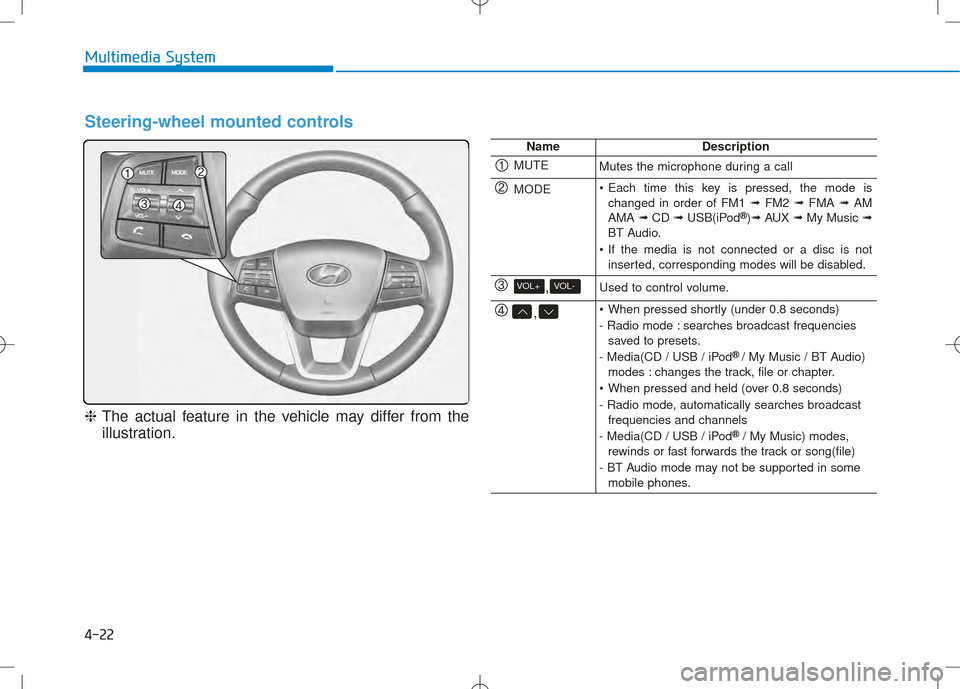
Steering-wheel mounted controls
❈The actual feature in the vehicle may differ from the
illustration.
NameDescription
MUTEMutes the microphone during a call
MODE Each time this key is pressed, the mode is changed in order of FM1 ➟FM2 ➟FMA ➟AM
AMA ➟CD ➟USB(iPod ®
)➟ AUX ➟My Music ➟
BT Audio.
If the media is not connected or a disc is not inserted, corresponding modes will be disabled.
,VOL-VOL+Used to control volume.
, When pressed shortly (under 0.8 seconds)
- Radio mode : searches broadcast frequenciessaved to presets.
- Media(CD / USB / iPod ®
/ My Music / BT Audio)
modes : changes the track, file or chapter.
When pressed and held (over 0.8 seconds)
- Radio mode, automatically searches broadcast frequencies and channels
- Media(CD / USB / iPod ®
/ My Music) modes,
rewinds or fast forwards the track or song(file)
- BT Audio mode may not be supported in some mobile phones.
Page 243 of 512
![Hyundai Creta 2016 User Guide 4-25
Multimedia System
4
Switching to Radio Mode
Pressing the key will change
the operating mode in order of
FM1
➟ FM2 ➟FMA ➟AM ➟AMA
If [Pop up Mode] is turned on within
[Display], then](/img/35/14533/w960_14533-242.png "Hyundai Creta 2016 User Guide 4-25
Multimedia System
4
Switching to Radio Mode
Pressing the key will change
the operating mode in order of
FM1
➟ FM2 ➟FMA ➟AM ➟AMA
If [Pop up Mode] is turned on within
[Display], then")
4-25
Multimedia System
4
Switching to Radio Mode
Pressing the key will change
the operating mode in order of
FM1
➟ FM2 ➟FMA ➟AM ➟AMA
If [Pop up Mode] is turned on within
[Display], then pressing the
key will display the Radio
Pop-up Mode screen.
Turn the TUNE knob to move the
focus. Press the knob to select.
Searching Radio Frequencies
Using Seek
Press the key to play the
previous/next frequency.
Using TUNE
Turn the TUNE knob to select the
desired frequency.
SEEK
TRACK
FM/AM
SETUP
FM/AM
Page 246 of 512
4-28
Multimedia System
RRAA DDIIOO MM OODDEE
(
( EE xxccpp eett RR DD SS MM ooddeell))
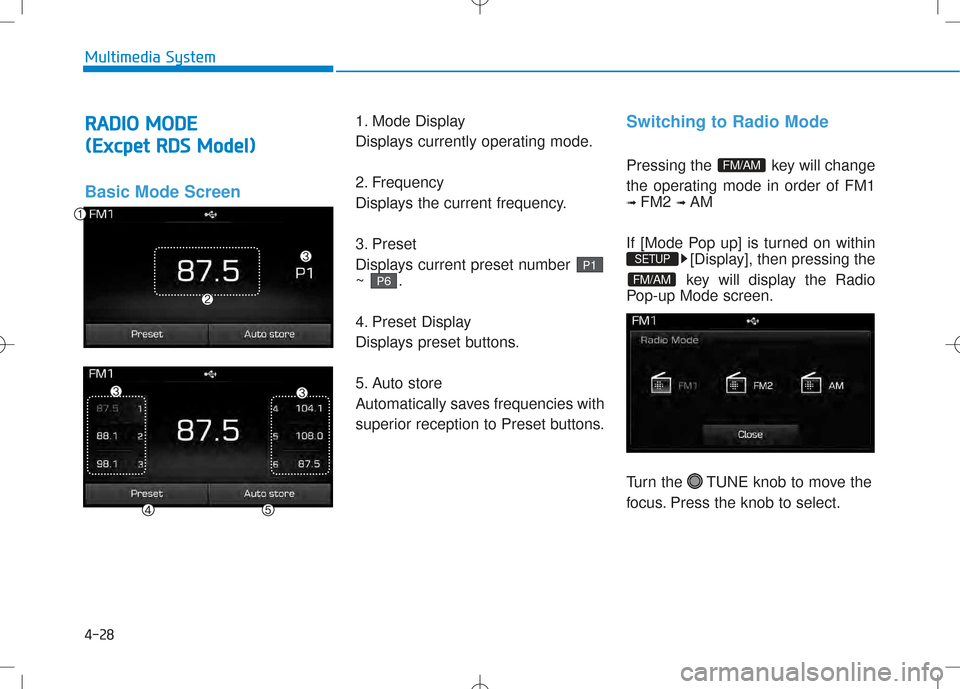
Basic Mode Screen
1. Mode Display
Displays currently operating mode.
2. Frequency
Displays the current frequency.
3. Preset
Displays current preset number ~ .
4. Preset Display
Displays preset buttons.
5. Auto store
Automatically saves frequencies with
superior reception to Preset buttons.Switching to Radio Mode
Pressing the key will change
the operating mode in order of FM1 ➟ FM2 ➟ AM
If [Mode Pop up] is turned on within [Display], then pressing the
key will display the Radio
Pop-up Mode screen.
Turn the TUNE knob to move the
focus. Press the knob to select.
FM/AM
SETUP
FM/AM
P 6
P1
Page 248 of 512
4-30
RRAA DDIIOO MM OODDEE
(
( FF oorr CC oolloo mm bbiiaa MM ooddeell))
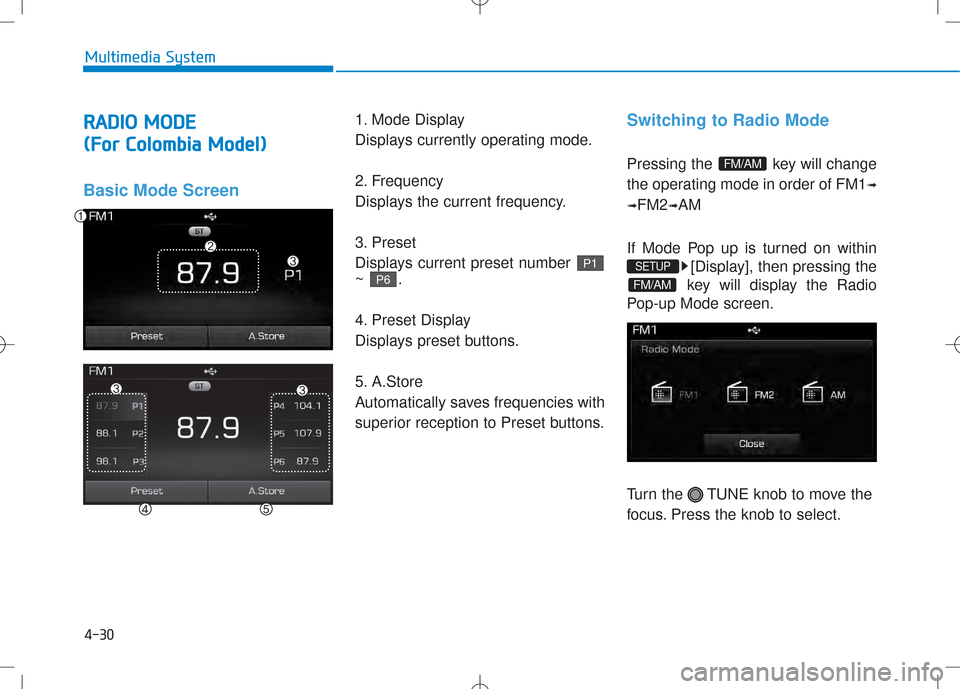
Basic Mode Screen
1. Mode Display
Displays currently operating mode.
2. Frequency
Displays the current frequency.
3. Preset
Displays current preset number ~ .
4. Preset Display
Displays preset buttons.
5. A.Store
Automatically saves frequencies with
superior reception to Preset buttons.Switching to Radio Mode
Pressing the key will change
the operating mode in order of FM1
➟
➟ FM2
➟AM
If Mode Pop up is turned on within [Display], then pressing the
key will display the Radio
Pop-up Mode screen.
Turn the TUNE knob to move the
focus. Press the knob to select.
FM/AM
SETUP
FM/AM
P 6
P 1
Multimedia System
Page 250 of 512
![Hyundai Creta 2016 User Guide 4-32
Multimedia System
MMEEDD IIAA MM OODDEE
Pressing the key will change
the operating mode in order of CD
➟
USB(iPod®) ➟ AUX ➟ My Music ➟BT
Audio.
If [Mode Pop up] is turned on within](/img/35/14533/w960_14533-249.png "Hyundai Creta 2016 User Guide 4-32
Multimedia System
MMEEDD IIAA MM OODDEE
Pressing the key will change
the operating mode in order of CD
➟
USB(iPod®) ➟ AUX ➟ My Music ➟BT
Audio.
If [Mode Pop up] is turned on within")
4-32
Multimedia System
MMEEDD IIAA MM OODDEE
Pressing the key will change
the operating mode in order of CD
➟
USB(iPod®) ➟ AUX ➟ My Music ➟BT
Audio.
If [Mode Pop up] is turned on within
[Display], then pressing the
key will display the Media
Pop-up Mode screen.
Turn the TUNE knob to move the
focus. Press the knob to select.
Information
The media mode pop up screen can be
displayed only when there are two or
more media modes turned on.
Title Icon
When a Bluetooth®Wireless
Technology, iPod®, USB, or AUX
device is connected or a CD is
inserted, the corresponding mode
icon will be displayed.
Icon Title
Bluetooth®Wireless Technology
CD
iPod®
USB
AUX
i
MEDIA
SETUP
MEDIA
Page 256 of 512
4-38
Multimedia System
Random(Shuffle)
Press the ( ) button to
play files in random(Shuffle) order.
Each time the button is pressed, the
feature changes in order of Random
(Shuffle) Folder ➟ Random (Shuffle)
All ➟ Off.
Random(Shuffle) Folder : Plays all files within the current folder in
Random (Shuffle) order.
Random(Shuffle) All : Plays all files in Random(Shuffle) order.
Repeat
Press the ( ) button to
repeat the current file or folder.
Each time the button is pressed, the
feature changes in order of Repeat ➟Repeat Folder ➟Off.
Repeat: Repeats the current file.
Repeat Folder: Repeats all files within the current Folder.
Copying Files
Press the ( ) button to
copy the current file into My Music.
Information
Selecting another feature during
copying will display a pop-up asking
whether you wish to cancel copying.
To cancel, select “Yes”.
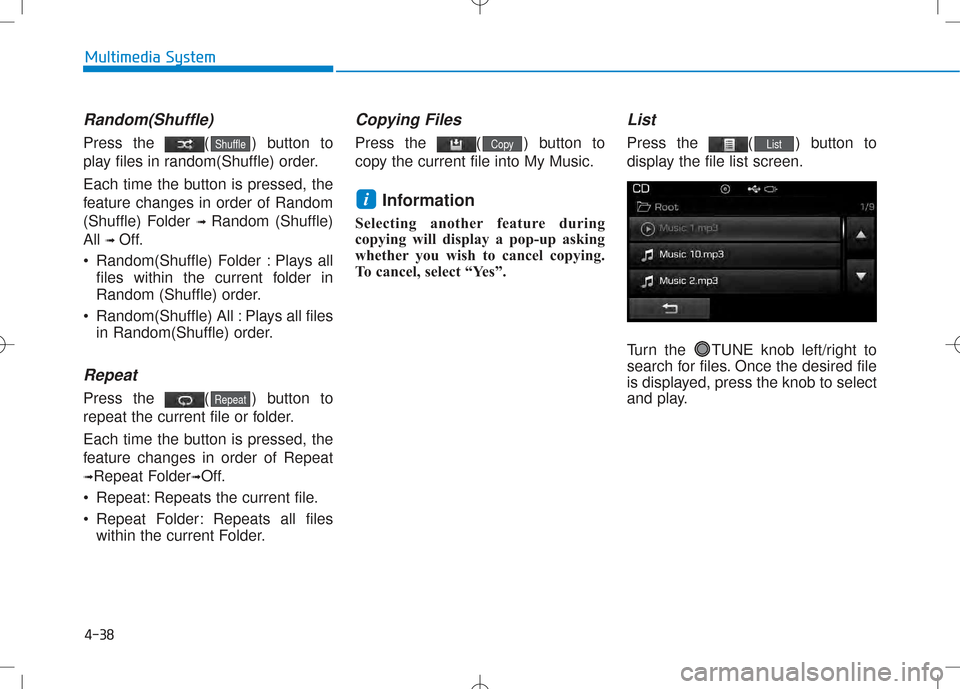
List
Press the ( ) button to
display the file list screen.
Turn the TUNE knob left/right to
search for files. Once the desired file
is displayed, press the knob to select
and play.List
i
Copy
Repeat
Shuffle
Page 259 of 512
4-41
Multimedia System
4
Info
Press the ( ) button to
display details about the current file.Information
When the ‘Folder File’ option is set as the default display within Display
setup, the album/artist/file informa-
tion are displayed as detailed file
information.
When the ‘Album Artist Song’ option is set as the default display,
the folder name/file name are dis-
played as detailed file information.
The title, artist and album info are displayed only when such informa-
tion are recorded within the MP3
file ID3 tag.
Random (Shuffle)
Press the ( ) button to
play files in random(Shuffle) order.
Each time the button is pressed, the
feature changes in order of
Random(Shuffle) Folder ➟Random
(Shuffle) All ➟Off.
Random(Shuffle) Folder : Plays the files in the current folder in ran-
dom(Shuffle) order.
Random(Shuffle) All : Plays all files in random(Shuffle) order.
Repeat
Press the ( ) button to
repeat the current file or folder.
Each time the button is pressed, the
feature changes in order of Repeat ➟
Repeat Folder ➟Off.
Repeat : Repeats the current file.
Repeat Folder : Repeats all files within the current folder.
Copying Files
Press the ( ) button to
copy the current file into My Music.
Information
Selecting another feature during
copying will display a pop-up asking
whether you wish to cancel copying.
To cancel, select “Yes”.
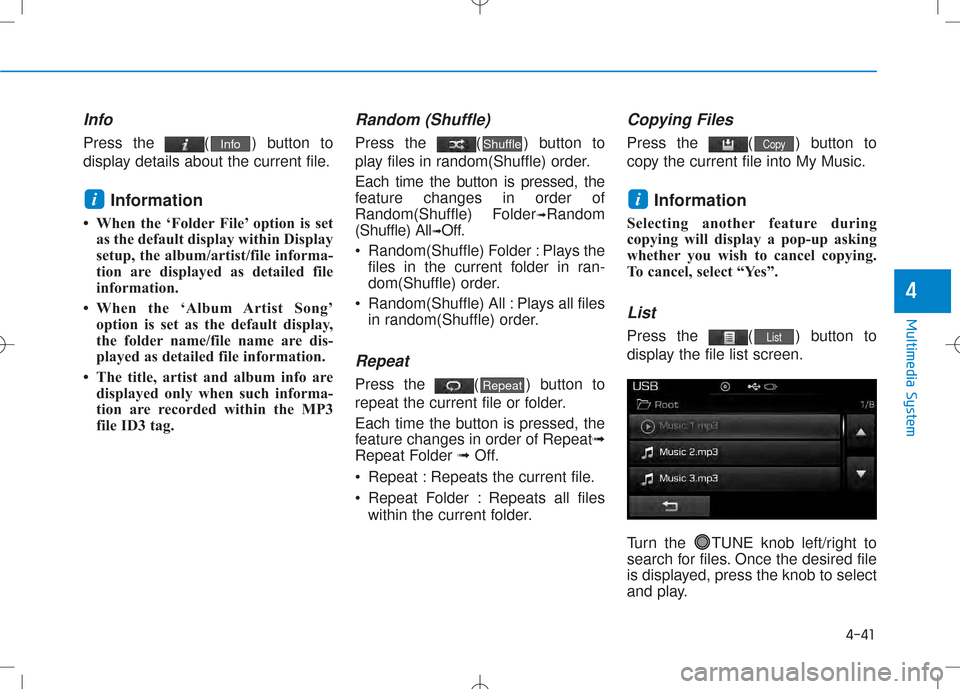
List
Press the ( ) button to
display the file list screen.
Turn the TUNE knob left/right to
search for files. Once the desired file
is displayed, press the knob to select
and play.List
i
Copy
Repeat
Shuffle
i
Info
Page 274 of 512
4-56
Multimedia System
Changing Priority
What is Priority?
It is possible to pair up to five
Bluetooth®Wireless Technology
devices with the car audio system.
As a result, the “Change Priority’ fea-
ture is used to set the connection pri-
ority of paired phones. However, themost recently connected phone will
always be set as the highest priority.
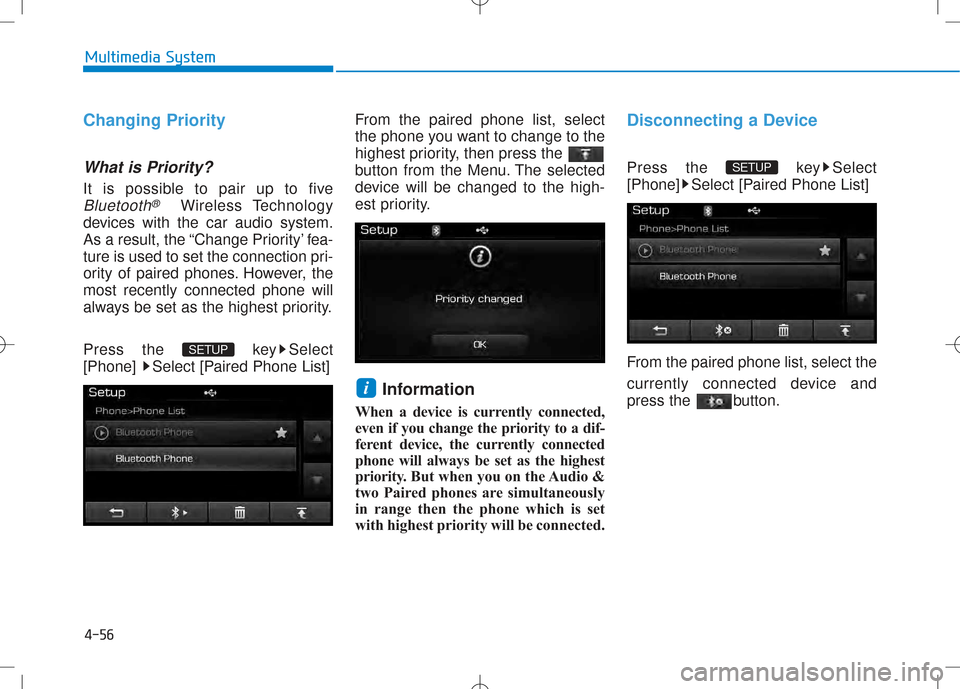
Press the key Select
[Phone] Select [Paired Phone List] From the paired phone list, select
the phone you want to change to the
highest priority, then press the
button from the Menu. The selected
device will be changed to the high-
est priority.
Information
When a device is currently connected,
even if you change the priority to a dif-
ferent device, the currently connected
phone will always be set as the highest
priority. But when you on the Audio &
two Paired phones are simultaneously
in range then the phone which is set
with highest priority will be connected.
Disconnecting a Device
Press the key Select
[Phone] Select [Paired Phone List]
From the paired phone list, select the
currently connected device and
press the button.SETUP
i
SETUP