ECO mode Hyundai Elantra 2016 Owner's Guide
[x] Cancel search | Manufacturer: HYUNDAI, Model Year: 2016, Model line: Elantra, Model: Hyundai Elantra 2016Pages: 669, PDF Size: 31.96 MB
Page 272 of 669
Features of your vehicle
186
4
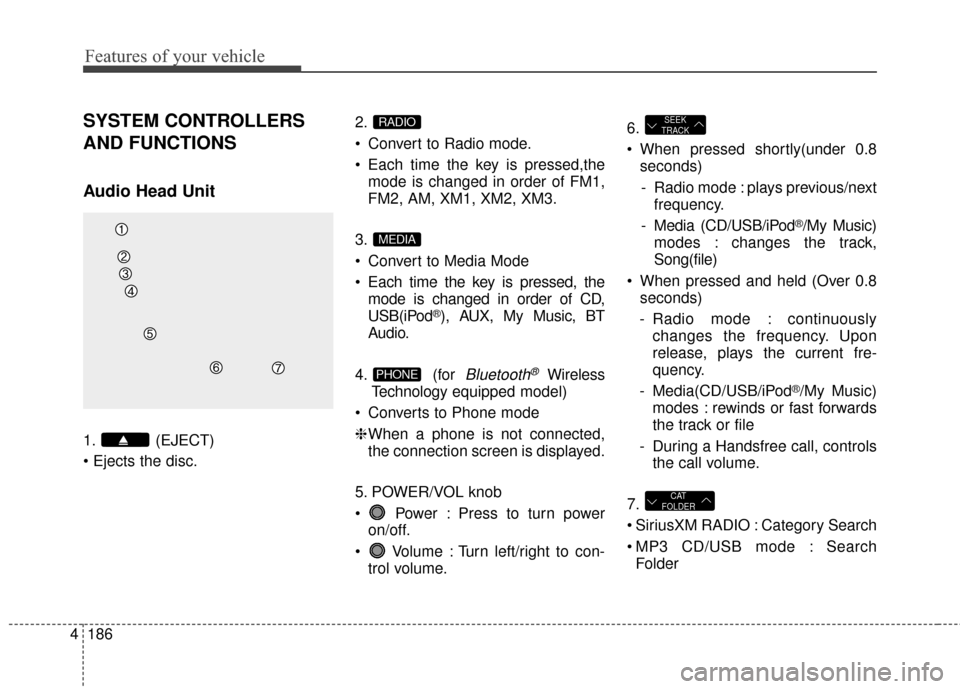
SYSTEM CONTROLLERS
AND FUNCTIONS
Audio Head Unit
1. (EJECT)
2.
Convert to Radio mode.
Each time the key is pressed,the
mode is changed in order of FM1,
FM2, AM, XM1, XM2, XM3.
3.
Convert to Media Mode
Each time the key is pressed, the mode is changed in order of CD,
USB(iPod
®), AUX, My Music, BT
Audio.
4. (for
Bluetooth®Wireless
Technology equipped model)
Converts to Phone mode
❈ When a phone is not connected,
the connection screen is displayed.
5. POWER/VOL knob
Power : Press to turn power on/off.
Volume : Turn left/right to con- trol volume. 6.
When pressed shortly(under 0.8
seconds)
- Radio mode : plays previous/next frequency.
- Media (CD/USB/iPod
®/My Music)
modes : changes the track,
Song(file)
When pressed and held (Over 0.8 seconds)
- Radio mode : continuously changes the frequency. Upon
release, plays the current fre-
quency.
- Media(CD/USB/iPod
®/My Music)
modes : rewinds or fast forwards
the track or file
- During a Handsfree call, controls the call volume.
7.
SiriusXM RADIO : Category Search
MP3 CD/USB mode : Search Folder
CAT
FOLDER
SEEK
TRACK
PHONE
MEDIA
RADIO
Page 273 of 669
4187
Features of your vehicle
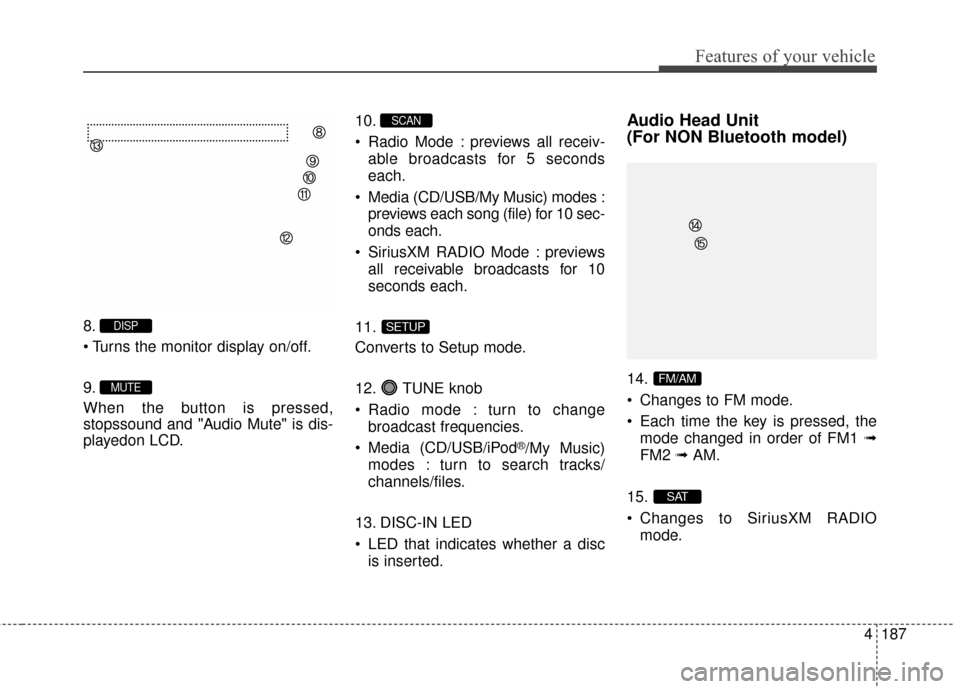
8.
9.
When the button is pressed,
stopssound and "Audio Mute" is dis-
playedon LCD.10.
Radio Mode : previews all receiv-
able broadcasts for 5 seconds
each.
Media (CD/USB/My Music) modes : previews each song (file) for 10 sec-
onds each.
SiriusXM RADIO Mode : previews all receivable broadcasts for 10
seconds each.
11.
Converts to Setup mode.
12. TUNE knob
Radio mode : turn to change broadcast frequencies.
Media (CD/USB/iPod
®/My Music)
modes : turn to search tracks/
channels/files.
13. DISC-IN LED
LED that indicates whether a disc is inserted.
Audio Head Unit
(For NON Bluetooth model)
14.
Changes to FM mode.
Each time the key is pressed, themode changed in order of FM1 ➟
FM2 ➟AM.
15.
Changes to SiriusXM RADIO mode.
SAT
FM/AM
SETUP
SCAN
MUTE
DISP
Page 276 of 669
Features of your vehicle
190
4
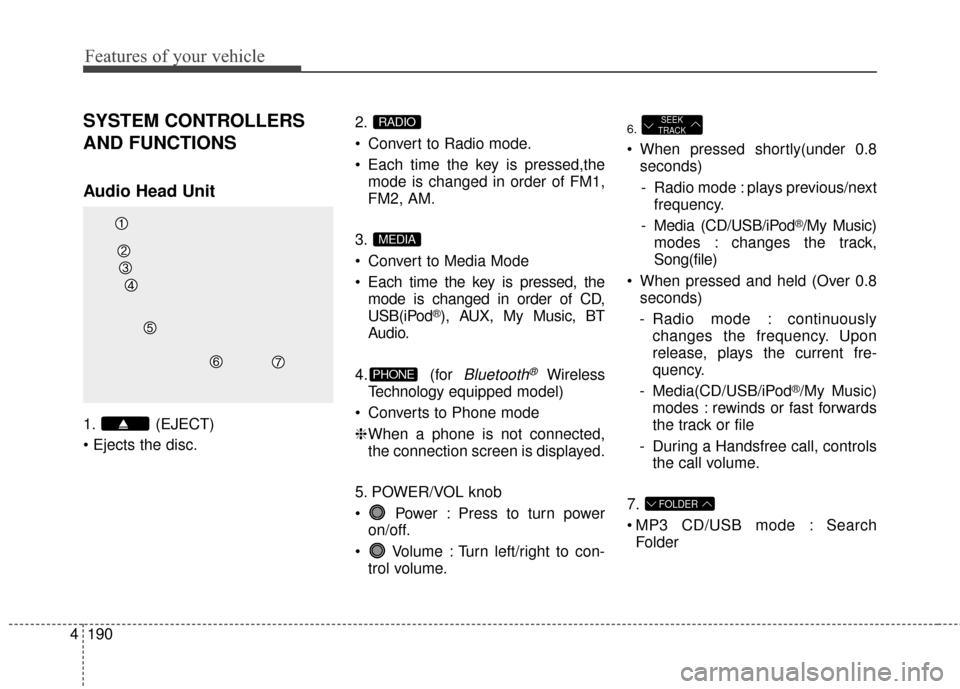
SYSTEM CONTROLLERS
AND FUNCTIONS
Audio Head Unit
1. (EJECT)
2.
Convert to Radio mode.
Each time the key is pressed,the
mode is changed in order of FM1,
FM2, AM.
3.
Convert to Media Mode
Each time the key is pressed, the mode is changed in order of CD,
USB(iPod
®), AUX, My Music, BT
Audio.
4. (for
Bluetooth®Wireless
Technology equipped model)
Converts to Phone mode
❈ When a phone is not connected,
the connection screen is displayed.
5. POWER/VOL knob
Power : Press to turn power on/off.
Volume : Turn left/right to con- trol volume.
6.
When pressed shortly(under 0.8seconds)
- Radio mode : plays previous/next frequency.
- Media (CD/USB/iPod
®/My Music)
modes : changes the track,
Song(file)
When pressed and held (Over 0.8 seconds)
- Radio mode : continuously changes the frequency. Upon
release, plays the current fre-
quency.
- Media(CD/USB/iPod
®/My Music)
modes : rewinds or fast forwards
the track or file
- During a Handsfree call, controls the call volume.
7.
MP3 CD/USB mode : Search Folder
FOLDER
SEEK
TRACK
PHONE
MEDIA
RADIO
Page 277 of 669
4191
Features of your vehicle
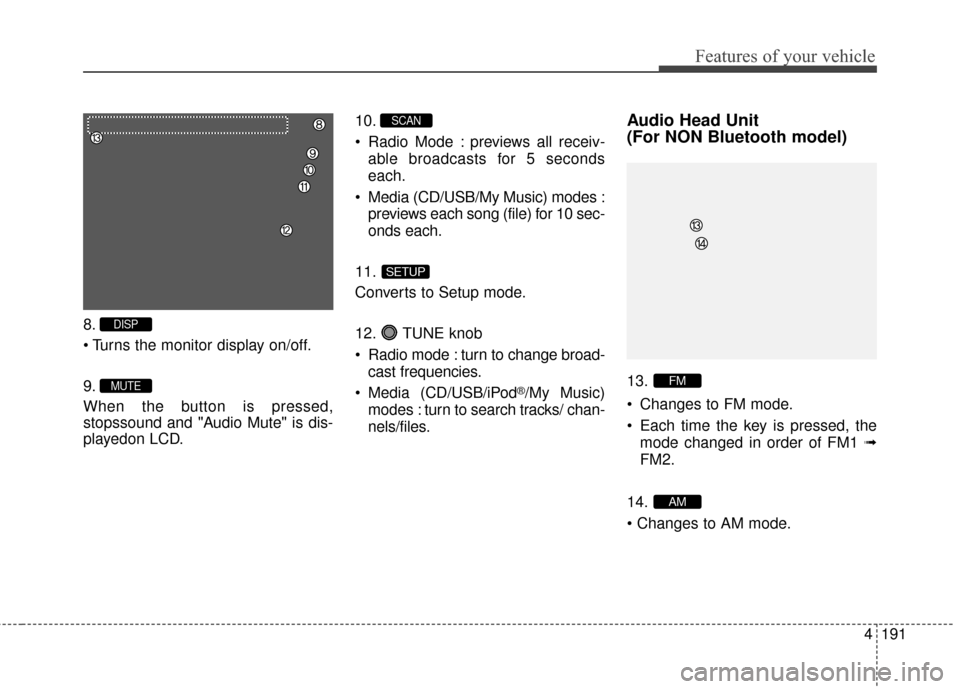
8.
9.
When the button is pressed,
stopssound and "Audio Mute" is dis-
playedon LCD.10.
Radio Mode : previews all receiv-
able broadcasts for 5 seconds
each.
Media (CD/USB/My Music) modes : previews each song (file) for 10 sec-
onds each.
11.
Converts to Setup mode.
12. TUNE knob
Radio mode : turn to change broad- cast frequencies.
Media (CD/USB/iPod
®/My Music)
modes : turn to search tracks/ chan-
nels/files.
Audio Head Unit
(For NON Bluetooth model)
13.
Changes to FM mode.
Each time the key is pressed, the mode changed in order of FM1 ➟
FM2.
14.
AM
FM
SETUP
SCAN
MUTE
DISP
Page 278 of 669
Features of your vehicle
192
4
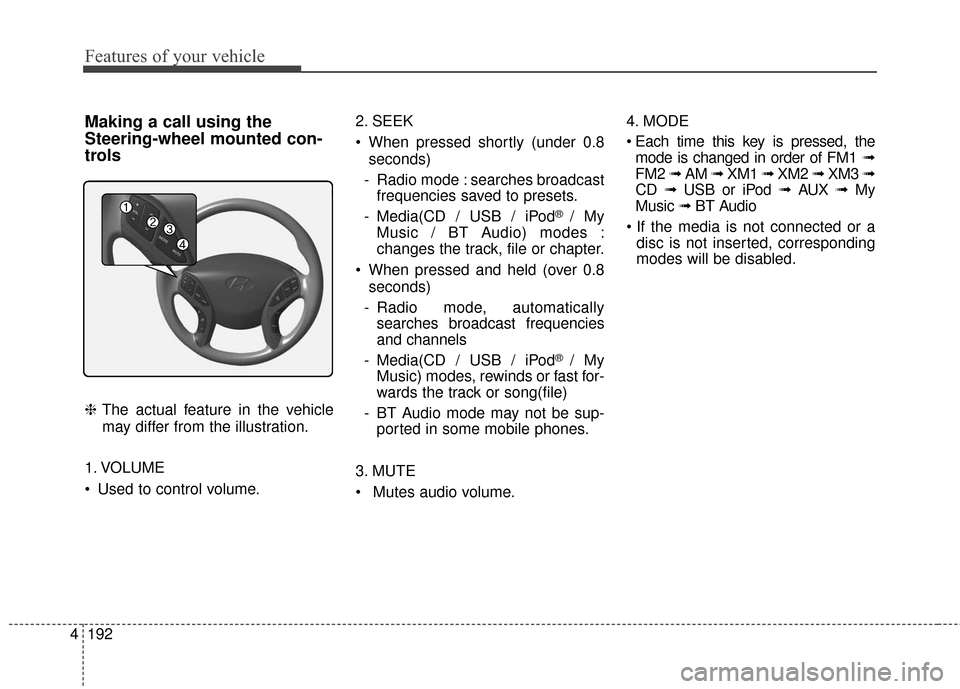
Making a call using the
Steering-wheel mounted con-
trols
❈ The actual feature in the vehicle
may differ from the illustration.
1. VOLUME
Used to control volume. 2. SEEK
When pressed shortly (under 0.8
seconds)
- Radio mode : searches broadcast frequencies saved to presets.
- Media(CD / USB / iPod
® / My
Music / BT Audio) modes :
changes the track, file or chapter.
When pressed and held (over 0.8 seconds)
- Radio mode, automatically searches broadcast frequencies
and channels
- Media(CD / USB / iPod
® / My
Music) modes, rewinds or fast for-
wards the track or song(file)
- BT Audio mode may not be sup- ported in some mobile phones.
3. MUTE
Mutes audio volume. 4. MODE
mode is changed in order of FM1 ➟
FM2 ➟ AM ➟ XM1 ➟ XM2 ➟ XM3 ➟
CD ➟ USB or iPod ➟ AUX ➟ My
Music ➟ BT Audio
disc is not inserted, corresponding
modes will be disabled.
Page 279 of 669
4193
Features of your vehicle
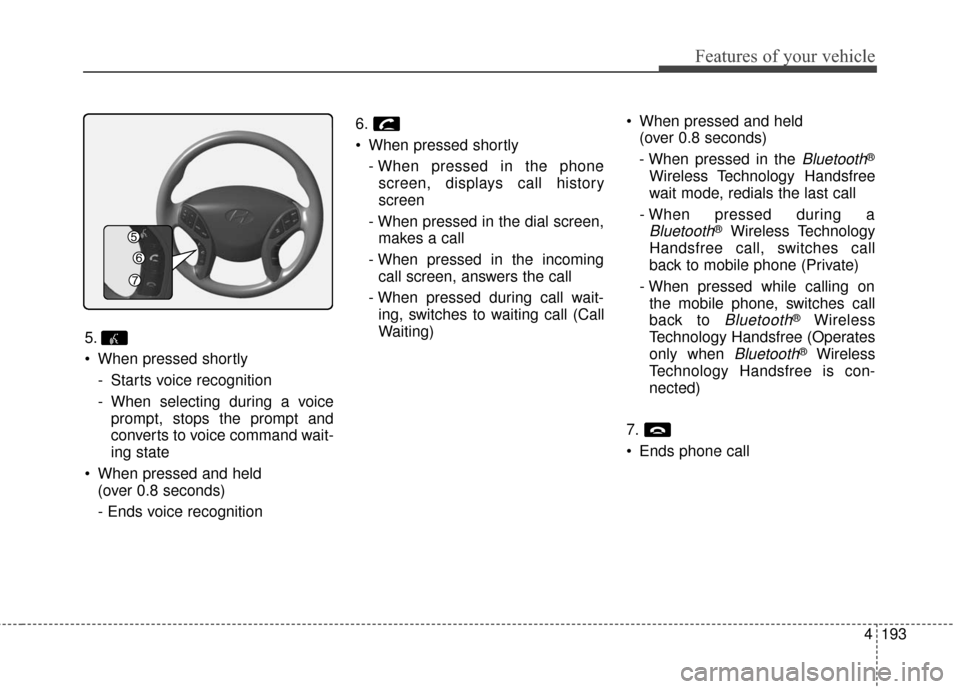
5.
When pressed shortly- Starts voice recognition
- When selecting during a voiceprompt, stops the prompt and
converts to voice command wait-
ing state
When pressed and held (over 0.8 seconds)
- Ends voice recognition 6.
When pressed shortly
- When pressed in the phonescreen, displays call history
screen
- When pressed in the dial screen, makes a call
- When pressed in the incoming call screen, answers the call
- When pressed during call wait- ing, switches to waiting call (Call
Waiting) When pressed and held
(over 0.8 seconds)
- When pressed in the
Bluetooth®
Wireless Technology Handsfree
wait mode, redials the last call
- When pressed during a
Bluetooth®Wireless Technology
Handsfree call, switches call
back to mobile phone (Private)
- When pressed while calling on the mobile phone, switches call
back to
Bluetooth®Wireless
Technology Handsfree (Operates
only when
Bluetooth®Wireless
Technology Handsfree is con-
nected)
7.
Ends phone call
Page 280 of 669
Features of your vehicle
194
4
SIRIUSXM™RADIO MODE
Features of your vehicle
Satellite radio reception
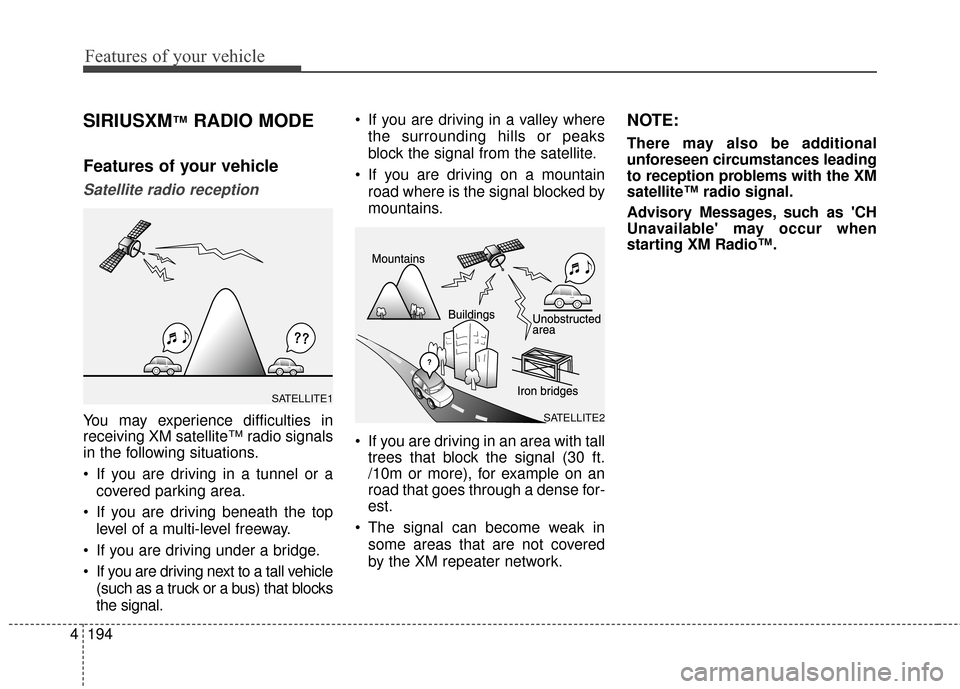
You may experience difficulties in
receiving XM satellite™ radio signals
in the following situations.
If you are driving in a tunnel or a
covered parking area.
If you are driving beneath the top level of a multi-level freeway.
If you are driving under a bridge.
If you are driving next to a tall vehicle (such as a truck or a bus) that blocks
the signal. If you are driving in a valley where
the surrounding hills or peaks
block the signal from the satellite.
If you are driving on a mountain road where is the signal blocked by
mountains.
If you are driving in an area with tall trees that block the signal (30 ft.
/10m or more), for example on an
road that goes through a dense for-
est.
The signal can become weak in some areas that are not covered
by the XM repeater network.
NOTE:
There may also be additional
unforeseen circumstances leading
to reception problems with the XM
satellite™ radio signal.
Advisory Messages, such as 'CH
Unavailable' may occur when
starting XM Radio™.
SATELLITE2
SATELLITE1
Page 288 of 669
Features of your vehicle
202
4
Using Audio CD Mode
Playing/Pausing CD Tracks
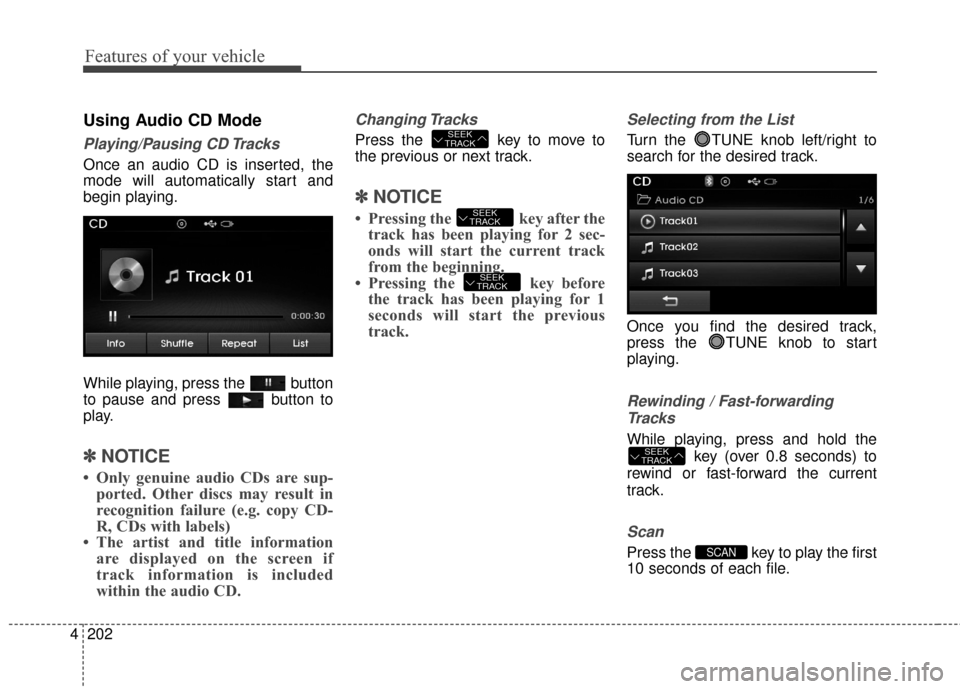
Once an audio CD is inserted, the
mode will automatically start and
begin playing.
While playing, press the button
to pause and press button to
play.
✽ ✽
NOTICE
• Only genuine audio CDs are sup-
ported. Other discs may result in
recognition failure (e.g. copy CD-
R, CDs with labels)
• The artist and title information are displayed on the screen if
track information is included
within the audio CD.
Changing Tracks
Press the key to move to
the previous or next track.
✽ ✽ NOTICE
• Pressing the key after the
track has been playing for 2 sec-
onds will start the current track
from the beginning.
• Pressing the key before the track has been playing for 1
seconds will start the previous
track.
Selecting from the List
Turn the TUNE knob left/right to
search for the desired track.
Once you find the desired track,
press the TUNE knob to start
playing.
Rewinding / Fast-forwarding
Tracks
While playing, press and hold the key (over 0.8 seconds) to
rewind or fast-forward the current
track.
Scan
Press the key to play the first
10 seconds of each file.SCAN
SEEK
TRACK
SEEK
TRACK
SEEK
TRACK
SEEK
TRACK
Page 290 of 669
Features of your vehicle
204
4
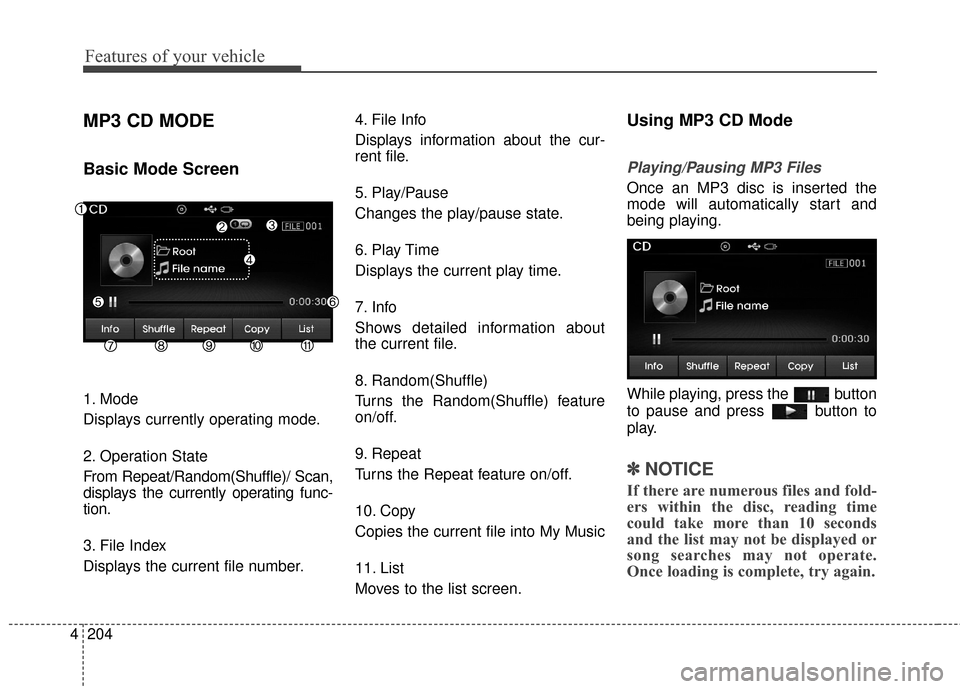
MP3 CD MODE
Basic Mode Screen
1. Mode
Displays currently operating mode.
2. Operation State
From Repeat/Random(Shuffle)/ Scan,
displays the currently operating func-
tion.
3. File Index
Displays the current file number. 4. File Info
Displays information about the cur-
rent file.
5. Play/Pause
Changes the play/pause state.
6. Play Time
Displays the current play time.
7. Info
Shows detailed information about
the current file.
8. Random(Shuffle)
Turns the Random(Shuffle) feature
on/off.
9. Repeat
Turns the Repeat feature on/off.
10. Copy
Copies the current file into My Music
11. List
Moves to the list screen.
Using MP3 CD Mode
Playing/Pausing MP3 Files
Once an MP3 disc is inserted the
mode will automatically start and
being playing.
While playing, press the button
to pause and press button to
play.
✽ ✽
NOTICE
If there are numerous files and fold-
ers within the disc, reading time
could take more than 10 seconds
and the list may not be displayed or
song searches may not operate.
Once loading is complete, try again.
Page 291 of 669
4205
Features of your vehicle
Changing Files
Press the key to move to
the previous or next file.
✽ ✽NOTICE
• Pressing the key after the
file has been playing for 2 seconds
will start the current file from the
beginning.
• Pressing the key before the file has been playing for 1 sec-
onds will start the previous file.
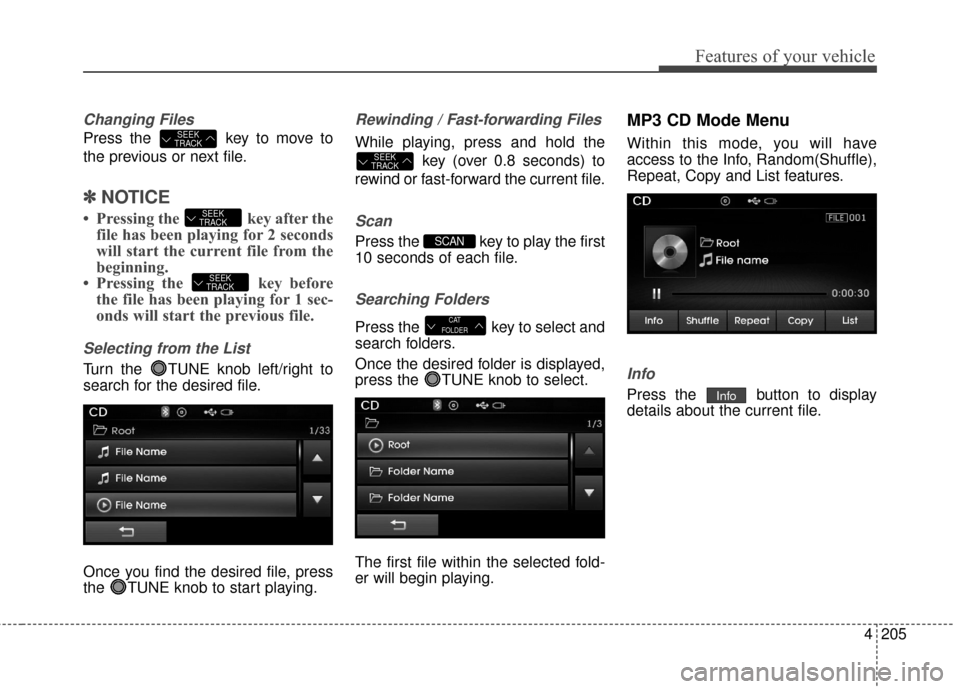
Selecting from the List
Turn the TUNE knob left/right to
search for the desired file.
Once you find the desired file, press
the TUNE knob to start playing.
Rewinding / Fast-forwarding Files
While playing, press and hold the
key (over 0.8 seconds) to
rewind or fast-forward the current file.
Scan
Press the key to play the first
10 seconds of each file.
Searching Folders
Press the key to select and
search folders.
Once the desired folder is displayed,
press the TUNE knob to select.
The first file within the selected fold-
er will begin playing.
MP3 CD Mode Menu
Within this mode, you will have
access to the Info, Random(Shuffle),
Repeat, Copy and List features.
Info
Press the button to display
details about the current file.Info
CAT
FOLDER
SCAN
SEEK
TRACK
SEEK
TRACK
SEEK
TRACK
SEEK
TRACK