key Hyundai Elantra 2016 Manual PDF
[x] Cancel search | Manufacturer: HYUNDAI, Model Year: 2016, Model line: Elantra, Model: Hyundai Elantra 2016Pages: 669, PDF Size: 31.96 MB
Page 273 of 669
4187
Features of your vehicle
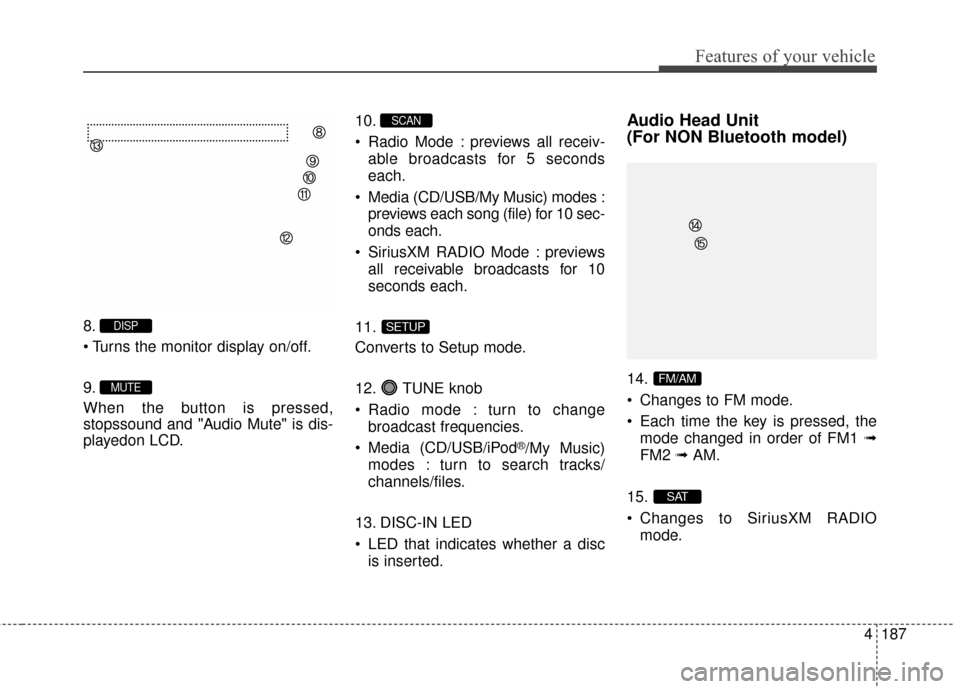
8.
9.
When the button is pressed,
stopssound and "Audio Mute" is dis-
playedon LCD.10.
Radio Mode : previews all receiv-
able broadcasts for 5 seconds
each.
Media (CD/USB/My Music) modes : previews each song (file) for 10 sec-
onds each.
SiriusXM RADIO Mode : previews all receivable broadcasts for 10
seconds each.
11.
Converts to Setup mode.
12. TUNE knob
Radio mode : turn to change broadcast frequencies.
Media (CD/USB/iPod
®/My Music)
modes : turn to search tracks/
channels/files.
13. DISC-IN LED
LED that indicates whether a disc is inserted.
Audio Head Unit
(For NON Bluetooth model)
14.
Changes to FM mode.
Each time the key is pressed, themode changed in order of FM1 ➟
FM2 ➟AM.
15.
Changes to SiriusXM RADIO mode.
SAT
FM/AM
SETUP
SCAN
MUTE
DISP
Page 276 of 669
Features of your vehicle
190
4
SYSTEM CONTROLLERS
AND FUNCTIONS
Audio Head Unit
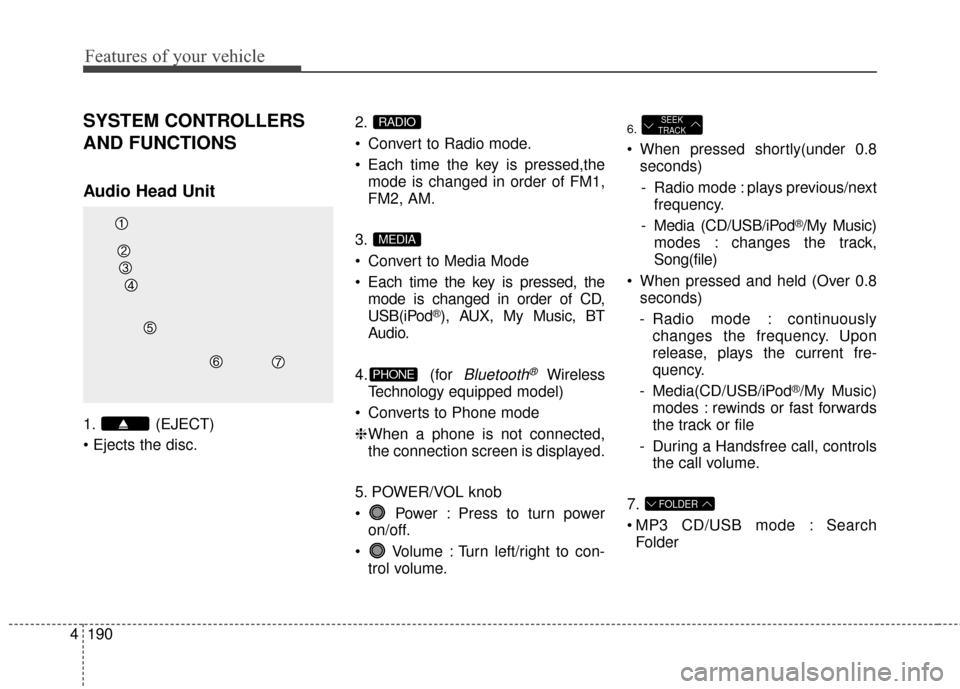
1. (EJECT)
2.
Convert to Radio mode.
Each time the key is pressed,the
mode is changed in order of FM1,
FM2, AM.
3.
Convert to Media Mode
Each time the key is pressed, the mode is changed in order of CD,
USB(iPod
®), AUX, My Music, BT
Audio.
4. (for
Bluetooth®Wireless
Technology equipped model)
Converts to Phone mode
❈ When a phone is not connected,
the connection screen is displayed.
5. POWER/VOL knob
Power : Press to turn power on/off.
Volume : Turn left/right to con- trol volume.
6.
When pressed shortly(under 0.8seconds)
- Radio mode : plays previous/next frequency.
- Media (CD/USB/iPod
®/My Music)
modes : changes the track,
Song(file)
When pressed and held (Over 0.8 seconds)
- Radio mode : continuously changes the frequency. Upon
release, plays the current fre-
quency.
- Media(CD/USB/iPod
®/My Music)
modes : rewinds or fast forwards
the track or file
- During a Handsfree call, controls the call volume.
7.
MP3 CD/USB mode : Search Folder
FOLDER
SEEK
TRACK
PHONE
MEDIA
RADIO
Page 277 of 669
4191
Features of your vehicle
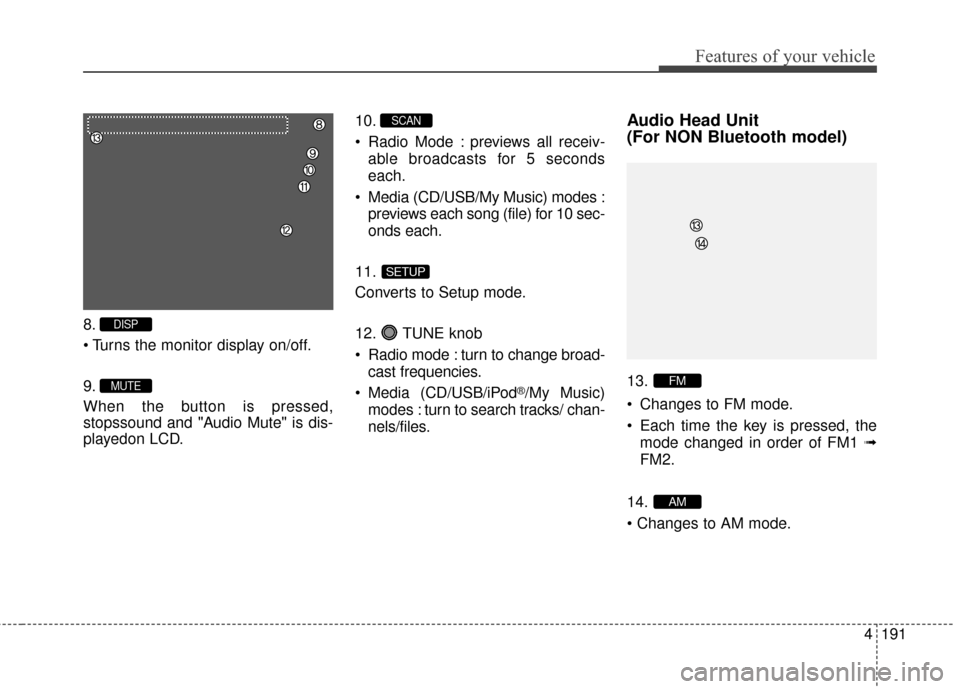
8.
9.
When the button is pressed,
stopssound and "Audio Mute" is dis-
playedon LCD.10.
Radio Mode : previews all receiv-
able broadcasts for 5 seconds
each.
Media (CD/USB/My Music) modes : previews each song (file) for 10 sec-
onds each.
11.
Converts to Setup mode.
12. TUNE knob
Radio mode : turn to change broad- cast frequencies.
Media (CD/USB/iPod
®/My Music)
modes : turn to search tracks/ chan-
nels/files.
Audio Head Unit
(For NON Bluetooth model)
13.
Changes to FM mode.
Each time the key is pressed, the mode changed in order of FM1 ➟
FM2.
14.
AM
FM
SETUP
SCAN
MUTE
DISP
Page 283 of 669
4197
Features of your vehicle
SiriusXM RADIO MODE
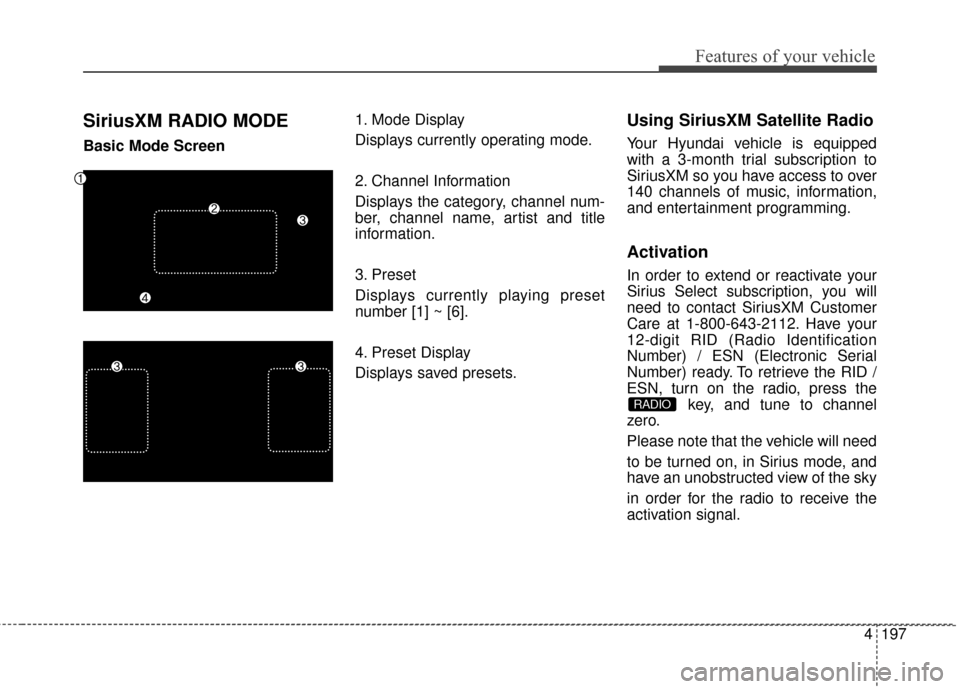
Basic Mode Screen1. Mode Display
Displays currently operating mode.
2. Channel Information
Displays the category, channel num-
ber, channel name, artist and title
information.
3. Preset
Displays currently playing preset
number [1] ~ [6].
4. Preset Display
Displays saved presets.
Using SiriusXM Satellite Radio
Your Hyundai vehicle is equipped
with a 3-month trial subscription to
SiriusXM so you have access to over
140 channels of music, information,
and entertainment programming.
Activation
In order to extend or reactivate your
Sirius Select subscription, you will
need to contact SiriusXM Customer
Care at 1-800-643-2112. Have your
12-digit RID (Radio Identification
Number) / ESN (Electronic Serial
Number) ready. To retrieve the RID /
ESN, turn on the radio, press the
key, and tune to channel
zero.
Please note that the vehicle will need
to be turned on, in Sirius mode, and
have an unobstructed view of the sky
in order for the radio to receive the
activation signal.
RADIO
Page 284 of 669
Features of your vehicle
198
4
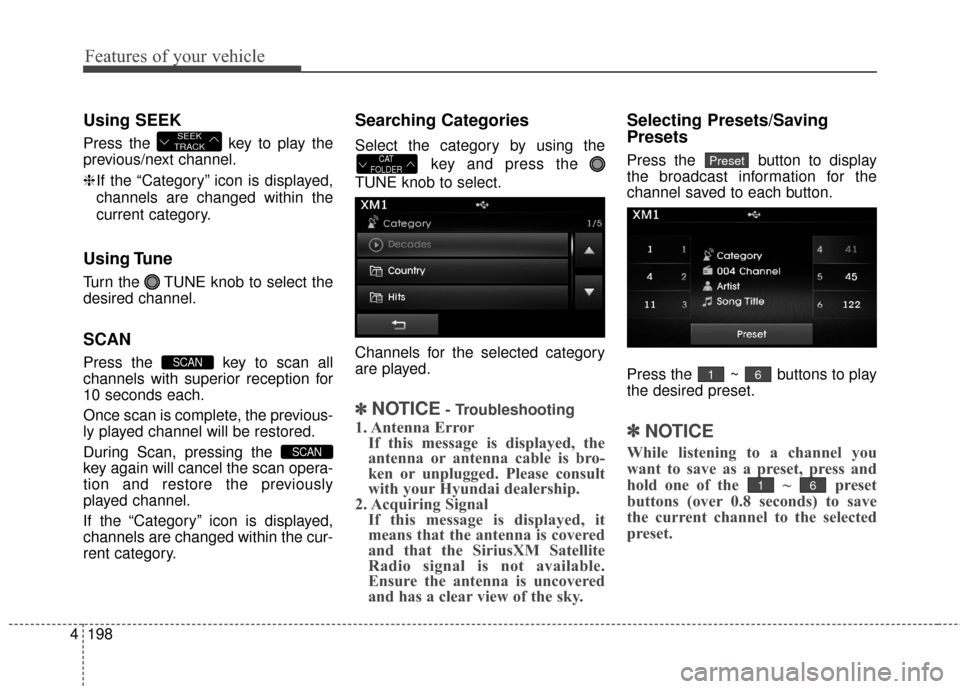
Using SEEK
Press the key to play the
previous/next channel.
❈ If the “Category” icon is displayed,
channels are changed within the
current category.
Using Tune
Turn the TUNE knob to select the
desired channel.
SCAN
Press the key to scan all
channels with superior reception for
10 seconds each.
Once scan is complete, the previous-
ly played channel will be restored.
During Scan, pressing the
key again will cancel the scan opera-
tion and restore the previously
played channel.
If the “Category” icon is displayed,
channels are changed within the cur-
rent category.
Searching Categories
Select the category by using the
key and press the
TUNE knob to select.
Channels for the selected category
are played.
✽ ✽NOTICE- Troubleshooting
1. Antenna Error If this message is displayed, the
antenna or antenna cable is bro-
ken or unplugged. Please consult
with your Hyundai dealership.
2. Acquiring Signal If this message is displayed, it
means that the antenna is covered
and that the SiriusXM Satellite
Radio signal is not available.
Ensure the antenna is uncovered
and has a clear view of the sky.
Selecting Presets/Saving
Presets
Press the button to display
the broadcast information for the
channel saved to each button.
Press the ~ buttons to play
the desired preset.
✽ ✽ NOTICE
While listening to a channel you
want to save as a preset, press and
hold one of the ~ preset
buttons (over 0.8 seconds) to save
the current channel to the selected
preset.
61
61
PresetCAT
FOLDER
SCAN
SCAN
SEEK
TRACK
Page 286 of 669
![Hyundai Elantra 2016 Manual PDF Features of your vehicle
200
4
MEDIA MODE
Pressing the key will change
the operating mode in order of CD
➟
USB(iPod®) ➟ AUX ➟ My Music ➟BT
Audio.
If [Mode Pop up] is turned on within
[Displ](/img/35/14551/w960_14551-285.png "Hyundai Elantra 2016 Manual PDF Features of your vehicle
200
4
MEDIA MODE
Pressing the key will change
the operating mode in order of CD
➟
USB(iPod®) ➟ AUX ➟ My Music ➟BT
Audio.
If [Mode Pop up] is turned on within
[Displ")
Features of your vehicle
200
4
MEDIA MODE
Pressing the key will change
the operating mode in order of CD
➟
USB(iPod®) ➟ AUX ➟ My Music ➟BT
Audio.
If [Mode Pop up] is turned on within
[Display], then pressing the
key will display the Media
Pop-up Mode screen.
Turn the TUNE knob to move the
focus. Press the knob to select.
✽ ✽ NOTICE
The media mode pop up screen can
be displayed only when there are
two or more media modes turned
on.
Title Icon
When a Bluetooth®Wireless
Technology, iPod®, USB, or AUX
device is connected or a CD is
inserted, the corresponding mode
icon will be displayed.
Icon Title
Bluetooth®Wireless Technology
CD
iPod®
USB
AUXMEDIA
SETUP
MEDIA
Page 288 of 669
Features of your vehicle
202
4
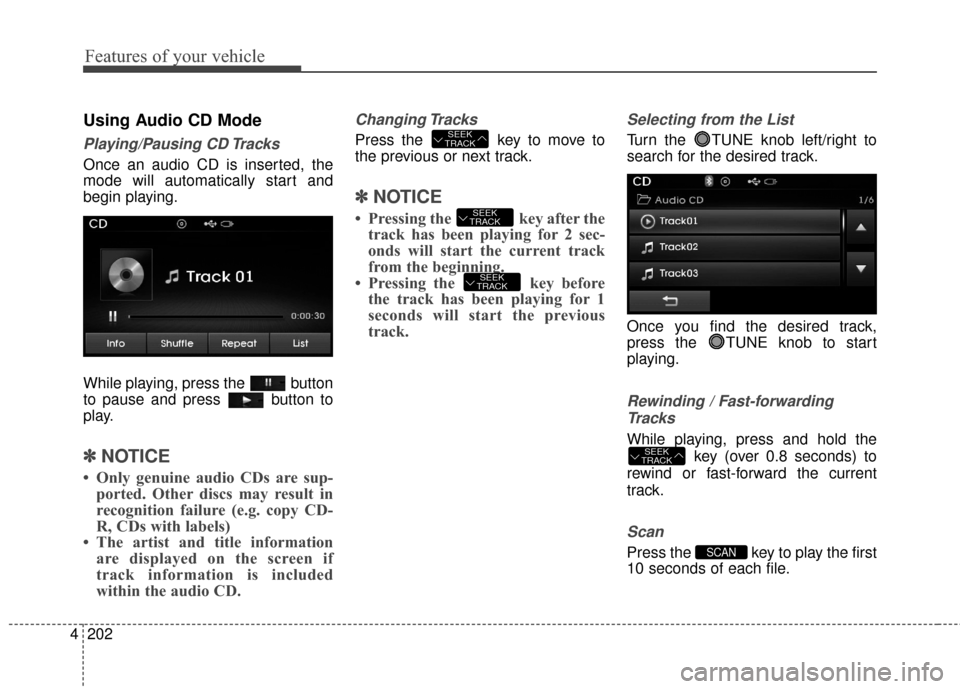
Using Audio CD Mode
Playing/Pausing CD Tracks
Once an audio CD is inserted, the
mode will automatically start and
begin playing.
While playing, press the button
to pause and press button to
play.
✽ ✽
NOTICE
• Only genuine audio CDs are sup-
ported. Other discs may result in
recognition failure (e.g. copy CD-
R, CDs with labels)
• The artist and title information are displayed on the screen if
track information is included
within the audio CD.
Changing Tracks
Press the key to move to
the previous or next track.
✽ ✽ NOTICE
• Pressing the key after the
track has been playing for 2 sec-
onds will start the current track
from the beginning.
• Pressing the key before the track has been playing for 1
seconds will start the previous
track.
Selecting from the List
Turn the TUNE knob left/right to
search for the desired track.
Once you find the desired track,
press the TUNE knob to start
playing.
Rewinding / Fast-forwarding
Tracks
While playing, press and hold the key (over 0.8 seconds) to
rewind or fast-forward the current
track.
Scan
Press the key to play the first
10 seconds of each file.SCAN
SEEK
TRACK
SEEK
TRACK
SEEK
TRACK
SEEK
TRACK
Page 291 of 669
4205
Features of your vehicle
Changing Files
Press the key to move to
the previous or next file.
✽ ✽NOTICE
• Pressing the key after the
file has been playing for 2 seconds
will start the current file from the
beginning.
• Pressing the key before the file has been playing for 1 sec-
onds will start the previous file.
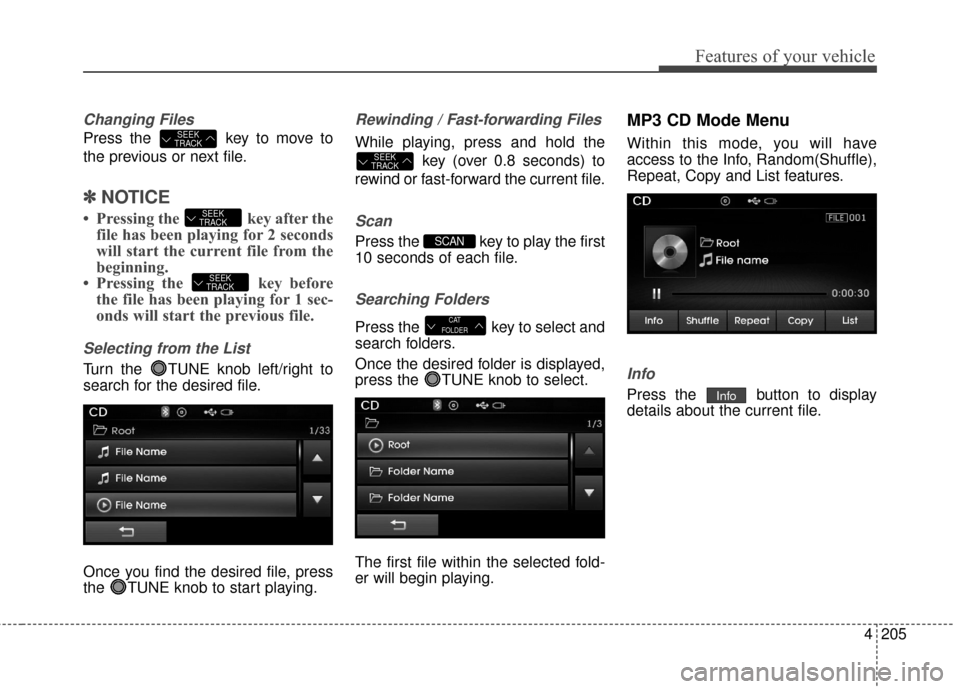
Selecting from the List
Turn the TUNE knob left/right to
search for the desired file.
Once you find the desired file, press
the TUNE knob to start playing.
Rewinding / Fast-forwarding Files
While playing, press and hold the
key (over 0.8 seconds) to
rewind or fast-forward the current file.
Scan
Press the key to play the first
10 seconds of each file.
Searching Folders
Press the key to select and
search folders.
Once the desired folder is displayed,
press the TUNE knob to select.
The first file within the selected fold-
er will begin playing.
MP3 CD Mode Menu
Within this mode, you will have
access to the Info, Random(Shuffle),
Repeat, Copy and List features.
Info
Press the button to display
details about the current file.Info
CAT
FOLDER
SCAN
SEEK
TRACK
SEEK
TRACK
SEEK
TRACK
SEEK
TRACK
Page 294 of 669
Features of your vehicle
208
4
(Continued)
• Charging through the USB may
not work for some mobile devices.
• The device may not support nor- mal operation when using a USB
memory type besides (Metal
Cover Type) USB Memory.
• The device may not support nor- mal operation when using formats
such as HDD Type, CF, or SD
Memory.
• The device will not support files locked by DRM (Digital Rights
Management.)
• USB memory sticks used by con- necting an Adaptor (SD Type or
CF Type) may not be properly rec-
ognized.
• The device may not operate prop- erly when using USB HDDs or
USBs subject to connection fail-
ures caused by vehicle vibrations.
(e.g. i-stick type) (Continued)(Continued)
• Avoid use of USB
memory products that
can also be used as key
chains or mobile phone
accessories. Use of such products
may cause damage to the USB
jack.
• Connecting an MP3 device or phone through various channels,
such as AUX/BT or Audio/ USB
mode may result in pop noises or
abnormal operation.
Page 296 of 669
Features of your vehicle
210
4
Using USB Mode
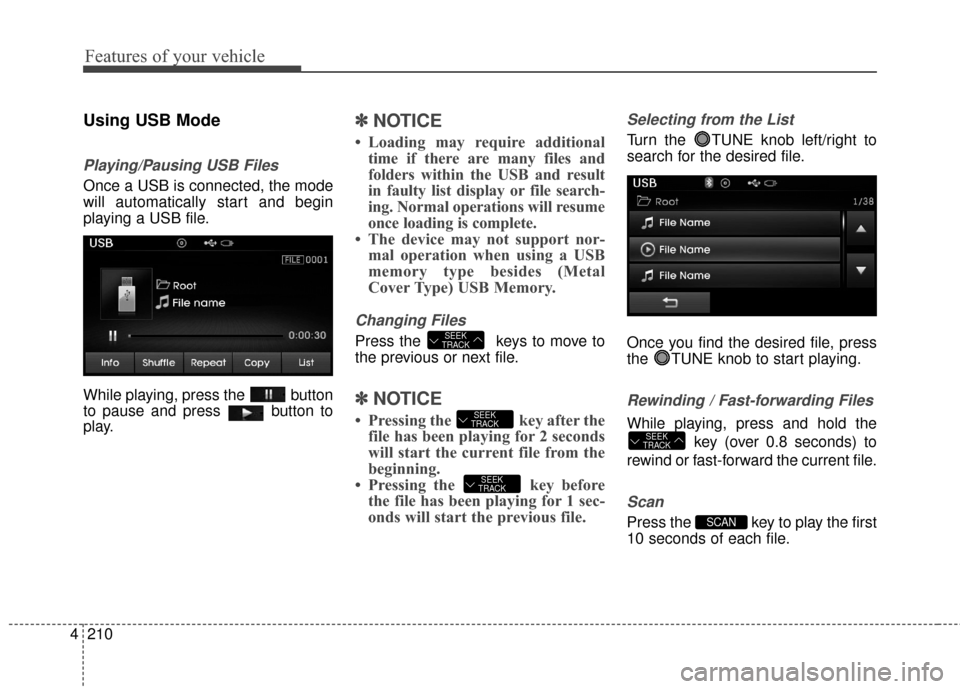
Playing/Pausing USB Files
Once a USB is connected, the mode
will automatically start and begin
playing a USB file.
While playing, press the button
to pause and press button to
play.
✽ ✽
NOTICE
• Loading may require additional
time if there are many files and
folders within the USB and result
in faulty list display or file search-
ing. Normal operations will resume
once loading is complete.
• The device may not support nor- mal operation when using a USB
memory type besides (Metal
Cover Type) USB Memory.
Changing Files
Press the keys to move to
the previous or next file.
✽ ✽ NOTICE
• Pressing the key after the
file has been playing for 2 seconds
will start the current file from the
beginning.
• Pressing the key before the file has been playing for 1 sec-
onds will start the previous file.
Selecting from the List
Turn the TUNE knob left/right to
search for the desired file.
Once you find the desired file, press
the TUNE knob to start playing.
Rewinding / Fast-forwarding Files
While playing, press and hold the
key (over 0.8 seconds) to
rewind or fast-forward the current file.
Scan
Press the key to play the first
10 seconds of each file.SCAN
SEEK
TRACK
SEEK
TRACK
SEEK
TRACK
SEEK
TRACK