key Hyundai Elantra 2016 Owner's Guide
[x] Cancel search | Manufacturer: HYUNDAI, Model Year: 2016, Model line: Elantra, Model: Hyundai Elantra 2016Pages: 669, PDF Size: 31.96 MB
Page 206 of 669
Features of your vehicle
120
4
✽
✽
NOTICE
• If you install an after market HID
(high intensity discharge) head
lamp, your vehicle's audio and
electronic devices may malfunc-
tion.
• Prevent chemicals such as per- fume, cosmetic oil, sun cream,
hand cleaner, and air freshener
from contacting the interior parts
because they may cause damage
or discoloration.
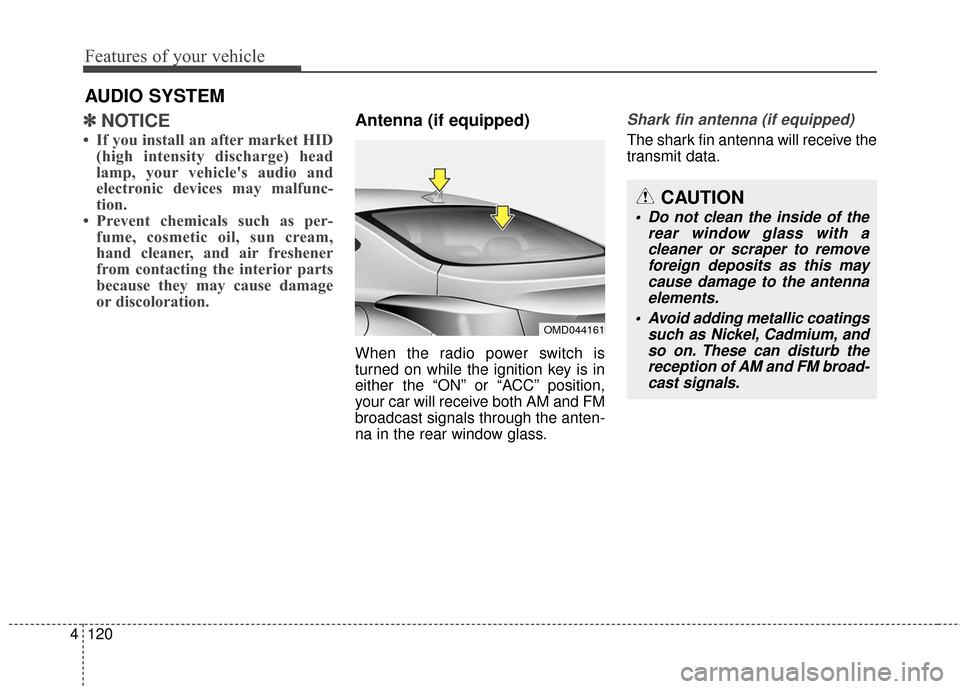
Antenna (if equipped)
When the radio power switch is
turned on while the ignition key is in
either the “ON” or “ACC” position,
your car will receive both AM and FM
broadcast signals through the anten-
na in the rear window glass.
Shark fin antenna (if equipped)
The shark fin antenna will receive the
transmit data.
AUDIO SYSTEM
OMD044161
CAUTION
• Do not clean the inside of the
rear window glass with acleaner or scraper to removeforeign deposits as this maycause damage to the antennaelements.
Avoid adding metallic coatings such as Nickel, Cadmium, andso on. These can disturb thereception of AM and FM broad-cast signals.
Page 215 of 669
4129
Features of your vehicle
(Continued)
• Some USB flash memory read-ers (such as CF, SD, micro SD,
etc.) or external-HDD type
devices can be unrecognizable.
• Music files protected by DRM (DIGITAL RIGHTS MANAGE-
MENT) are not recognizable.
• The data in the USB memory may be lost while using this
audio. Always back up impor-
tant data on a personal storage
device.
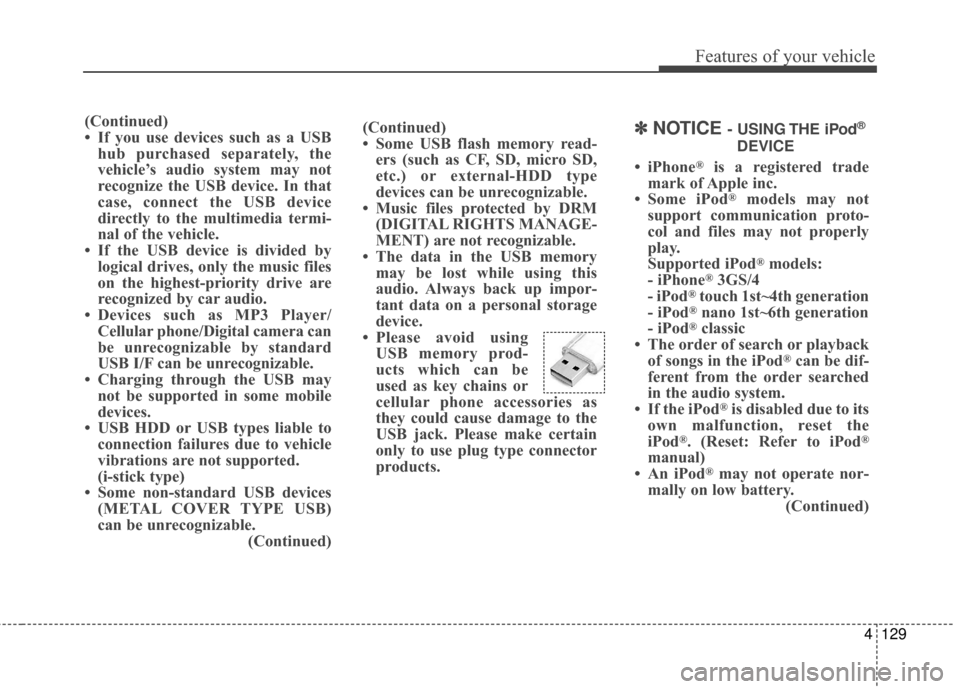
• Please avoid using USB memory prod-
ucts which can be
used as key chains or
cellular phone accessories as
they could cause damage to the
USB jack. Please make certain
only to use plug type connector
products.(Continued)
• If you use devices such as a USBhub purchased separately, the
vehicle’s audio system may not
recognize the USB device. In that
case, connect the USB device
directly to the multimedia termi-
nal of the vehicle.
• If the USB device is divided by logical drives, only the music files
on the highest-priority drive are
recognized by car audio.
• Devices such as MP3 Player/ Cellular phone/Digital camera can
be unrecognizable by standard
USB I/F can be unrecognizable.
• Charging through the USB may not be supported in some mobile
devices.
• USB HDD or USB types liable to connection failures due to vehicle
vibrations are not supported.
(i-stick type)
• Some non-standard USB devices (METAL COVER TYPE USB)
can be unrecognizable. (Continued)✽ ✽NOTICE - USING THE iPod®
DEVICE
• iPhone®is a registered trade
mark of Apple inc.
• Some iPod
®models may not
support communication proto-
col and files may not properly
play.
Supported iPod
®models:
- iPhone®3GS/4
- iPod®touch 1st~4th generation
- iPod®nano 1st~6th generation
- iPod®classic
• The order of search or playback of songs in the iPod
®can be dif-
ferent from the order searched
in the audio system.
• If the iPod
®is disabled due to its
own malfunction, reset the
iPod
®. (Reset: Refer to iPod®
manual)
• An iPod®may not operate nor-
mally on low battery. (Continued)
Page 218 of 669
Features of your vehicle
132
4
(Continued)
• Park the vehicle when connecting
the head unit with the mobile
phone.
• Bluetooth
®connection may
become intermittently disconnect-
ed in some mobile phones. Follow
these steps to try again. 1.Within the mobile phone, turn the Bluetooth
®function off/on
and try again.
2.Turn the mobile phone power Off/On and try again.
3.Completely remove the mobile phone battery, reboot, and then
again.
4.Reboot the Audio System and try again.
5. Delete all paired devices, pair and try again.
✽ ✽ NOTICE - USING THE VOICE
RECOGNITION
• When using the voice recognition feature, only commands listed
within the user's manual are sup-
ported.
• Be aware that during the opera- tion of the voice recognition sys-
tem, pressing any key other than
the key terminate voice recog-
nition mode.
• For superior voice recognition performance, position the micro-
phone used for voice recognition
above the head of the driver’s seat
and maintain a proper position
when saying commands.
• Within the following situations, voice recognition may not function
properly due to external sound.
- When the windows and sunroofare open
- When the wind of the cooling / heating device is strong
- When entering and passing through tunnels (Continued)(Continued)
- When driving on rugged anduneven roads
- During severe rain (heavy rains, windstorms)
• Phone related voice commands can be used only when a
Bluetooth
®Wireless Technology
device is connected.
• When making calls by stating a name, the corresponding contact
must be downloaded and stored
within the audio system.
• After downloading the Bluetooth
®
Wireless Technology phone book,
it takes some time to convert the
phone book data into voice infor-
mation. During this time, voice
recognition may not properly
operate.
• Pronounce the voice commands naturally and clearly as if in a nor-
mal conversation.
Page 219 of 669
4133
Features of your vehicle
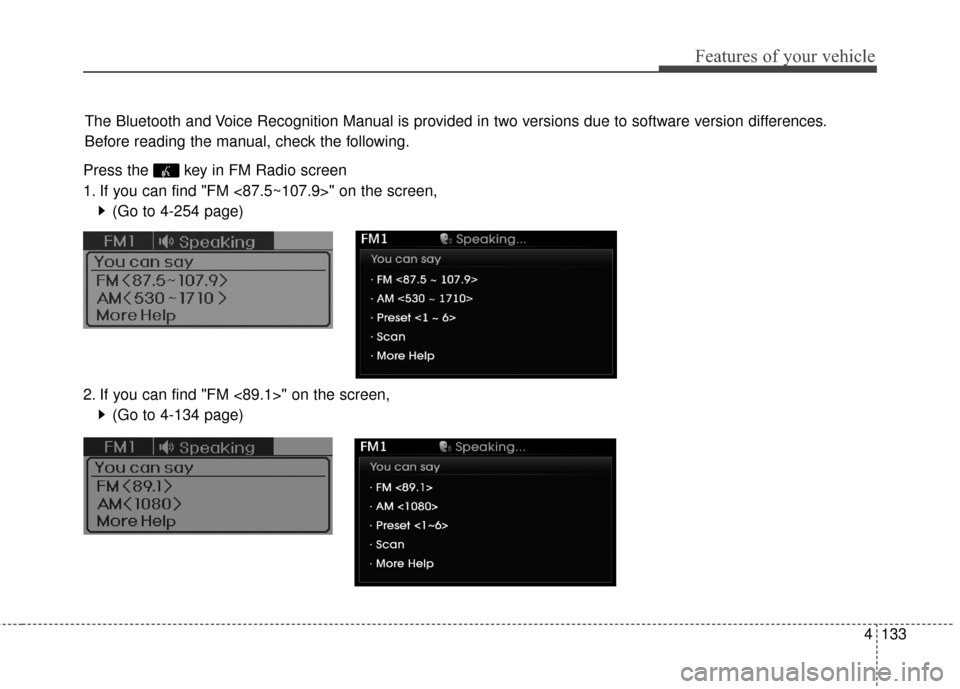
Press the key in FM Radio screen
1. If you can find "FM <87.5~107.9>" on the screen,(Go to 4-254 page)
2. If you can find "FM <89.1>" on the screen, (Go to 4-134 page)
The Bluetooth and Voice Recognition Manual is provided in two versions due to software version differences.
Before reading the manual, check the following.
Page 222 of 669
Features of your vehicle
136
4
SYSTEM CONTROLLERS
AND FUNCTIONS
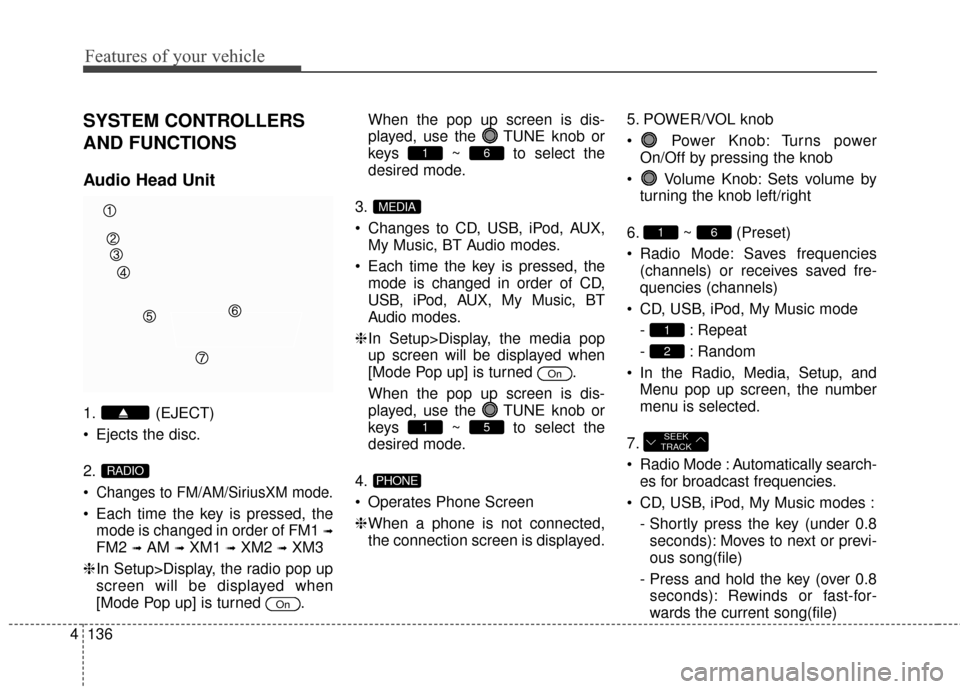
Audio Head Unit
1. (EJECT)
Ejects the disc.
2.
Changes to FM/AM/SiriusXM mode.
Each time the key is pressed, the
mode is changed in order of FM1
➟
FM2 ➟AM ➟XM1 ➟XM2 ➟XM3
❈ In Setup>Display, the radio pop up
screen will be displayed when
[Mode Pop up] is turned . When the pop up screen is dis-
played, use the TUNE knob or
keys ~ to select the
desired mode.
3.
Changes to CD, USB, iPod, AUX, My Music, BT Audio modes.
Each time the key is pressed, the mode is changed in order of CD,
USB, iPod, AUX, My Music, BT
Audio modes.
❈ In Setup>Display, the media pop
up screen will be displayed when
[Mode Pop up] is turned .
When the pop up screen is dis-
played, use the TUNE knob or
keys ~ to select the
desired mode.
4.
Operates Phone Screen
❈ When a phone is not connected,
the connection screen is displayed. 5. POWER/VOL knob
Power Knob: Turns power
On/Off by pressing the knob
Volume Knob: Sets volume by turning the knob left/right
6. ~ (Preset)
Radio Mode: Saves frequencies (channels) or receives saved fre-
quencies (channels)
CD, USB, iPod, My Music mode - : Repeat
- : Random
In the Radio, Media, Setup, and Menu pop up screen, the number
menu is selected.
7.
Radio Mode : Automatically search- es for broadcast frequencies.
CD, USB, iPod, My Music modes : - Shortly press the key (under 0.8seconds): Moves to next or previ-
ous song(file)
- Press and hold the key (over 0.8 seconds): Rewinds or fast-for-
wards the current song(file)
SEEK
TRACK
2
1
61
PHONE
51
On
MEDIA
61
On
RADIO
Page 223 of 669
4137
Features of your vehicle
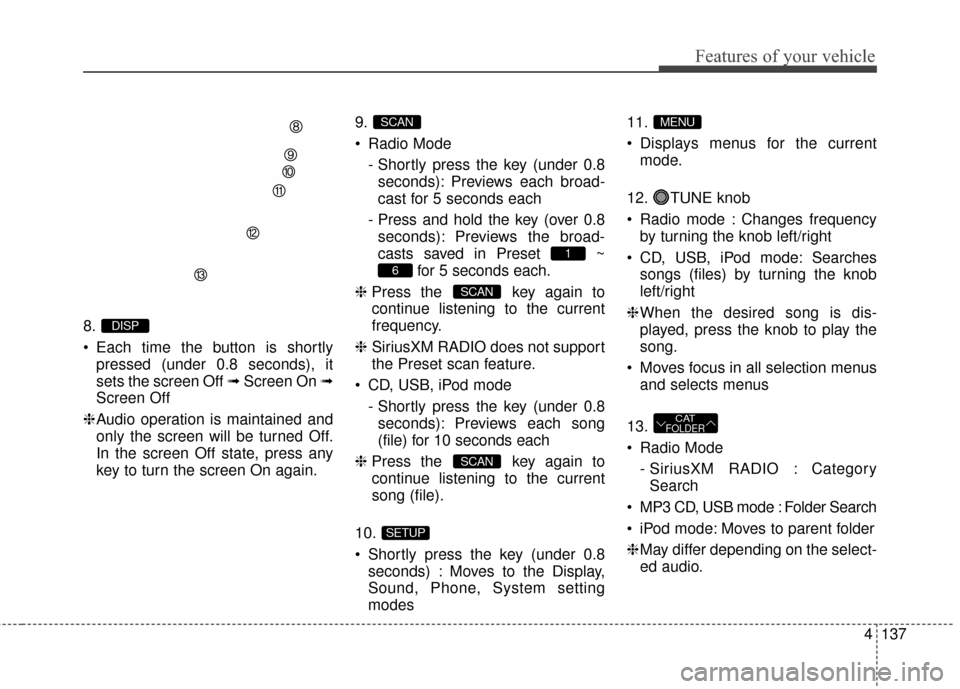
8.
Each time the button is shortlypressed (under 0.8 seconds), it
sets the screen Off ➟ Screen On ➟
Screen Off
❈ Audio operation is maintained and
only the screen will be turned Off.
In the screen Off state, press any
key to turn the screen On again. 9.
Radio Mode
- Shortly press the key (under 0.8seconds): Previews each broad-
cast for 5 seconds each
- Press and hold the key (over 0.8 seconds): Previews the broad-
casts saved in Preset ~ for 5 seconds each.
❈ Press the key again to
continue listening to the current
frequency.
❈ SiriusXM RADIO does not support
the Preset scan feature.
CD, USB, iPod mode - Shortly press the key (under 0.8seconds): Previews each song
(file) for 10 seconds each
❈ Press the key again to
continue listening to the current
song (file).
10.
Shortly press the key (under 0.8 seconds) : Moves to the Display,
Sound, Phone, System setting
modes 11.
Displays menus for the current
mode.
12. TUNE knob
Radio mode : Changes frequency by turning the knob left/right
CD, USB, iPod mode: Searches songs (files) by turning the knob
left/right
❈ When the desired song is dis-
played, press the knob to play the
song.
Moves focus in all selection menus and selects menus
13.
Radio Mode - SiriusXM RADIO : CategorySearch
MP3 CD, USB mode : Folder Search
iPod mode: Moves to parent folder
❈ May differ depending on the select-
ed audio.
CATFOLDER
MENU
SETUP
SCAN
SCAN
6
1
SCAN
DISP
Page 224 of 669
Features of your vehicle
138
4
Audio Head Unit
(For NON Bluetooth model)
14.
Changes to FM mode.
Each time the key is pressed, the
mode changed in order of FM1 ➟
FM2 ➟ AM.
15.
Changes to SiriusXM mode.
SAT
FM/AM
Page 227 of 669
4141
Features of your vehicle
SYSTEM CONTROLLERS
AND FUNCTIONS
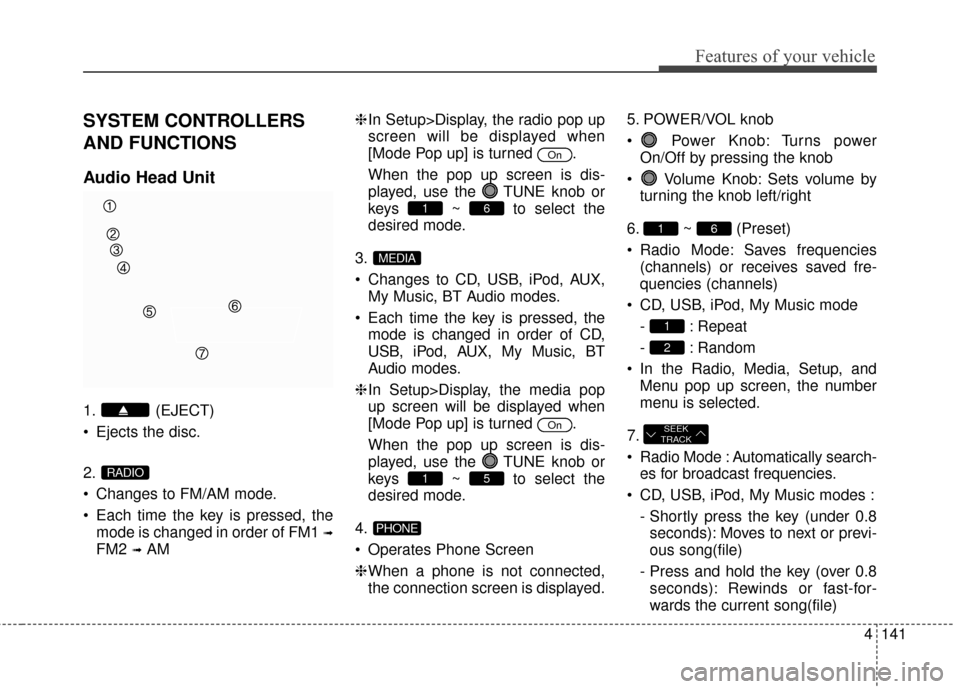
Audio Head Unit
1. (EJECT)
Ejects the disc.
2.
Changes to FM/AM mode.
Each time the key is pressed, themode is changed in order of FM1
➟
FM2 ➟AM ❈
In Setup>Display, the radio pop up
screen will be displayed when
[Mode Pop up] is turned .
When the pop up screen is dis-
played, use the TUNE knob or
keys ~ to select the
desired mode.
3.
Changes to CD, USB, iPod, AUX, My Music, BT Audio modes.
Each time the key is pressed, the mode is changed in order of CD,
USB, iPod, AUX, My Music, BT
Audio modes.
❈ In Setup>Display, the media pop
up screen will be displayed when
[Mode Pop up] is turned .
When the pop up screen is dis-
played, use the TUNE knob or
keys ~ to select the
desired mode.
4.
Operates Phone Screen
❈ When a phone is not connected,
the connection screen is displayed. 5. POWER/VOL knob
Power Knob: Turns power
On/Off by pressing the knob
Volume Knob: Sets volume by turning the knob left/right
6. ~ (Preset)
Radio Mode: Saves frequencies (channels) or receives saved fre-
quencies (channels)
CD, USB, iPod, My Music mode - : Repeat
- : Random
In the Radio, Media, Setup, and Menu pop up screen, the number
menu is selected.
7.
Radio Mode : Automatically search- es for broadcast frequencies.
CD, USB, iPod, My Music modes : - Shortly press the key (under 0.8seconds): Moves to next or previ-
ous song(file)
- Press and hold the key (over 0.8 seconds): Rewinds or fast-for-
wards the current song(file)
SEEK
TRACK
2
1
61
PHONE
51
On
MEDIA
61
On
RADIO
Page 228 of 669
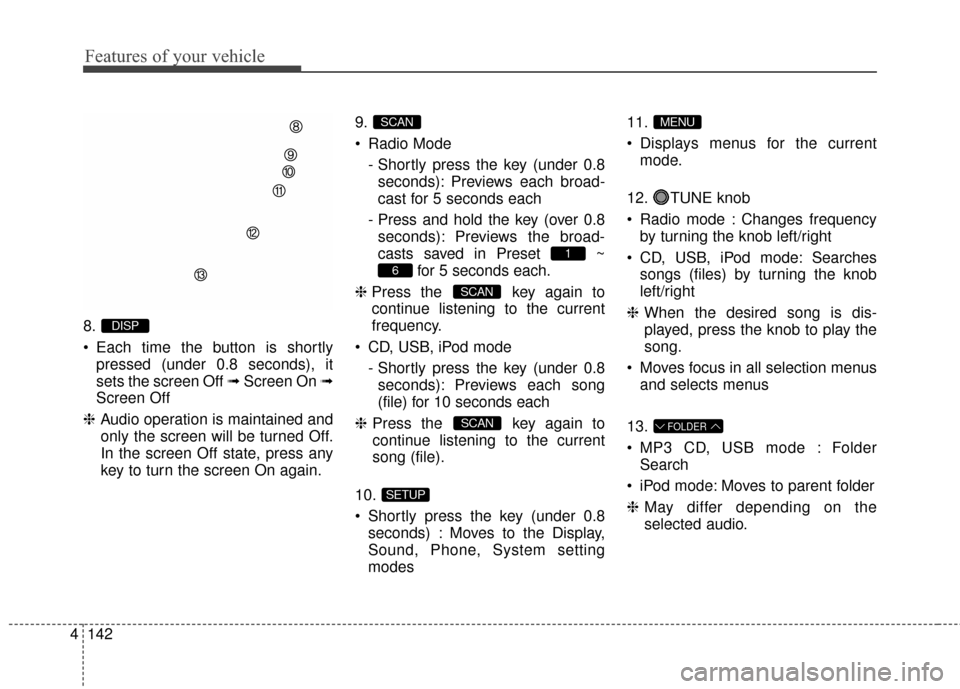
Features of your vehicle
142
4
8.
Each time the button is shortly
pressed (under 0.8 seconds), it
sets the screen Off ➟ Screen On ➟
Screen Off
❈ Audio operation is maintained and
only the screen will be turned Off.
In the screen Off state, press any
key to turn the screen On again. 9.
Radio Mode
- Shortly press the key (under 0.8seconds): Previews each broad-
cast for 5 seconds each
- Press and hold the key (over 0.8 seconds): Previews the broad-
casts saved in Preset ~ for 5 seconds each.
❈ Press the key again to
continue listening to the current
frequency.
CD, USB, iPod mode - Shortly press the key (under 0.8seconds): Previews each song
(file) for 10 seconds each
❈ Press the key again to
continue listening to the current
song (file).
10.
Shortly press the key (under 0.8 seconds) : Moves to the Display,
Sound, Phone, System setting
modes 11.
Displays menus for the current
mode.
12. TUNE knob
Radio mode : Changes frequency by turning the knob left/right
CD, USB, iPod mode: Searches songs (files) by turning the knob
left/right
❈ When the desired song is dis-
played, press the knob to play the
song.
Moves focus in all selection menus and selects menus
13.
MP3 CD, USB mode : Folder Search
iPod mode: Moves to parent folder
❈ May differ depending on the
selected audio.
FOLDER
MENU
SETUP
SCAN
SCAN
6
1
SCAN
DISP
Page 229 of 669
4143
Features of your vehicle
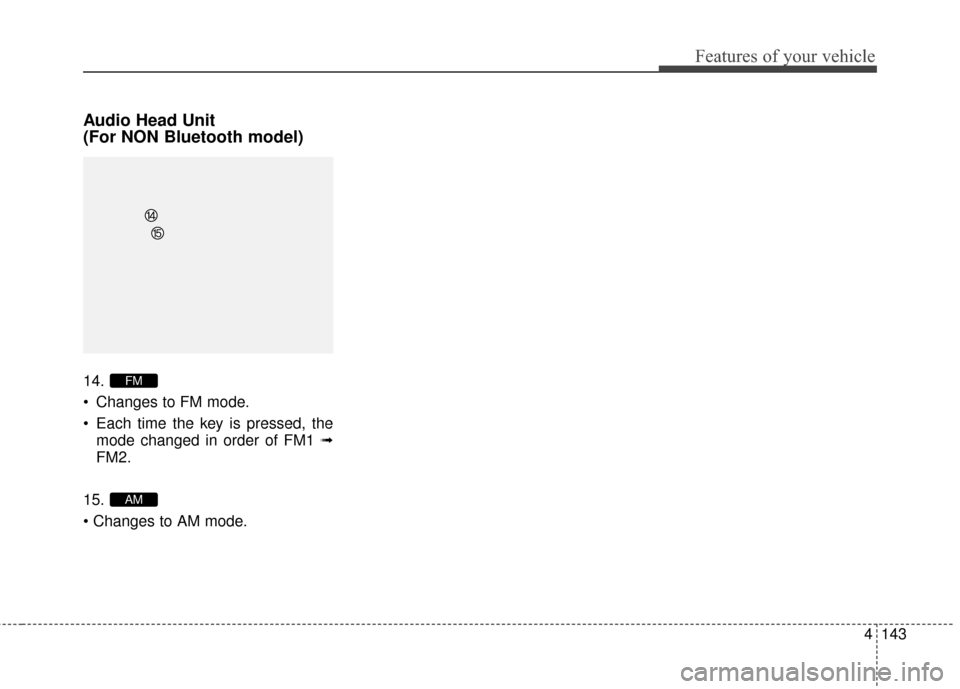
Audio Head Unit
(For NON Bluetooth model)
14.
Changes to FM mode.
Each time the key is pressed, themode changed in order of FM1 ➟
FM2.
15.
AM
FM