display Hyundai Elantra 2018 Workshop Manual
[x] Cancel search | Manufacturer: HYUNDAI, Model Year: 2018, Model line: Elantra, Model: Hyundai Elantra 2018Pages: 526, PDF Size: 17.2 MB
Page 217 of 526
3-140
Convenient features of your vehicle
To prevent damage to the Power
Outlets :
Use the power outlet only when theengine is running and remove the
accessory plug after use. Using the
accessory plug for prolonged peri-
ods of time with the engine off could
cause the battery to discharge.
Only use 12V electric accessories which are less than 180 W (Watts) in
electric capacity.
Adjust the air-conditioner or heater to the lowest operating level when
using the power outlet.
Close the cover when not in use. (Continued)(Continued)
Some electronic devices can cause
electronic interference when
plugged into a vehicle’s power out-
let. These devices may cause exces-
sive audio static and malfunctions
in other electronic systems or
devices used in your vehicle.
Push the plug in as far as it will go. If good contact is not made, the
plug may overheat and the fuse may
open.
Plug in battery equipped electri- cal/electronic devices with reverse
current protection. The current from
the battery may flow into the vehi-
cle's electrical/electronic system
and cause system malfunction.
USB Charger (if equipped)
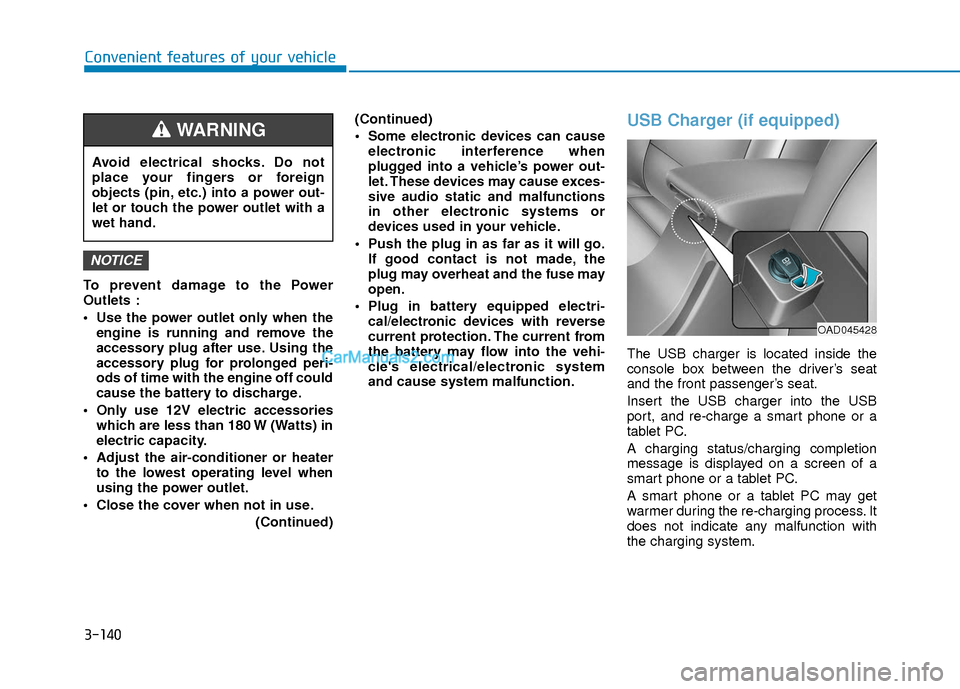
The USB charger is located inside the
console box between the driver’s seat
and the front passenger’s seat.
Insert the USB charger into the USB
port, and re-charge a smart phone or a
tablet PC.
A charging status/charging completion
message is displayed on a screen of a
smart phone or a tablet PC.
A smart phone or a tablet PC may get
warmer during the re-charging process. It
does not indicate any malfunction with
the charging system.
NOTICE
Avoid electrical shocks. Do not
place your fingers or foreign
objects (pin, etc.) into a power out-
let or touch the power outlet with a
wet hand.
WARNING
OAD045428
Page 220 of 526
Multimedia System
Multimedia system .................................................4-2
AUX, USB and iPod®port ...............................................4-2
Antenna ........................................................................\
.......4-2
Steering Wheel Audio Controls ......................................4-3
Bluetooth®Wireless Technology Hands-Free ...........4-4
Audio (Display Audio) / Video /
Navigation System (AVN).................................................4-4
How Vehicle Audio Works ...............................................4-5
Features of Your Vehicle.................................................4-6
Caring for CDs ....................................................................4-7
Audio (Without Touch Screen) ..........................4-16
Features of Your Audio .................................................4-17
Radio Mode.......................................................................4\
-32
SiriusXM Radio Mode.....................................................4-34
Media Mode......................................................................4-\
36
Phone Mode .....................................................................4-4\
2
Voice Recognition Mode ...............................................4-46
Setup Mode ......................................................................4-\
53
Declaration of conformity ..................................4-63
FCC ........................................................................\
..............4-63
4
Page 223 of 526
4-4
Multimedia System
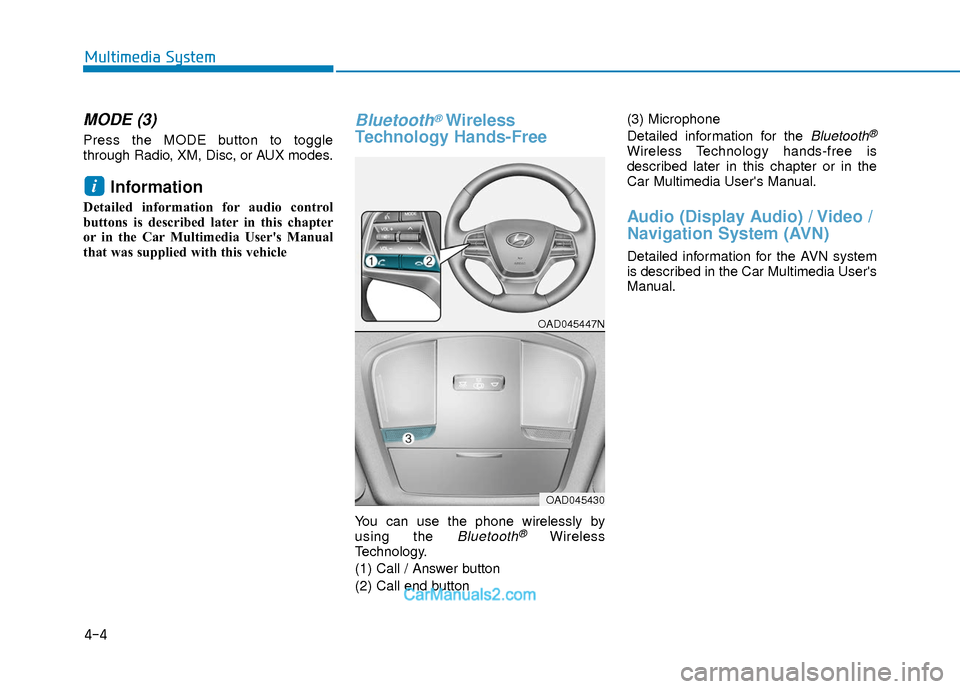
MODE (3)
Press the MODE button to toggle
through Radio, XM, Disc, or AUX modes.
Information
Detailed information for audio control
buttons is described later in this chapter
or in the Car Multimedia User's Manual
that was supplied with this vehicle
Bluetooth®Wireless
Technology Hands-Free
You can use the phone wirelessly by
using the Bluetooth®Wireless
Technology.
(1) Call / Answer button
(2) Call end button (3) Microphone
Detailed information for the
Bluetooth®
Wireless Technology hands-free is
described later in this chapter or in the
Car Multimedia User's Manual.
Audio (Display Audio) / Video /
Navigation System (AVN)
Detailed information for the AVN system
is described in the Car Multimedia User's
Manual.
i
OAD045447N
OAD045430
Page 227 of 526
Information - Playing an
Incompatible Copy Protected
Audio CD
Some copy protected CDs, which do not
comply with international audio CD stan-
dards (Red Book), may not play on your
car audio. Please note that inabilities to
properly play a copy protected CD may
indicate that the CD is defective, not the
CD player.
Using a cellular phone or a two-
way radio
When a cellular phone is used inside the
vehicle, noise may be produced from the
audio system. This does not mean that
something is wrong with the audio equip-
ment. In such a case, try to operate
mobile devices as far from the audio
equipment as possible.
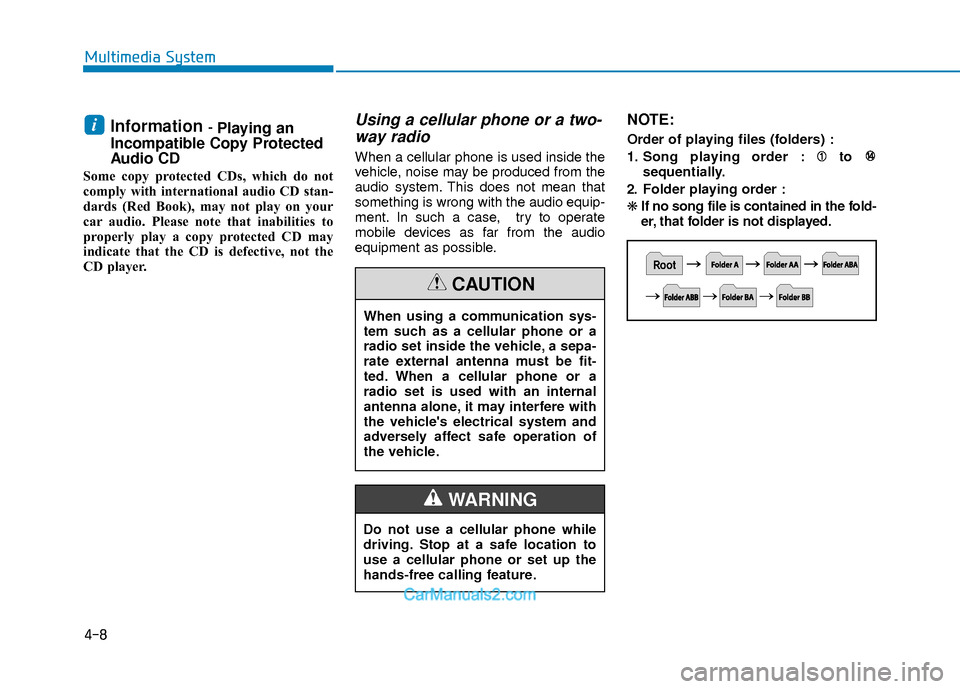
NOTE:
Order of playing files (folders) :
1. Song playing order : to
sequentially.
2. Folder playing order :
❋ If no song file is contained in the fold-
er, that folder is not displayed.i
4-8
Multimedia System
When using a communication sys-
tem such as a cellular phone or a
radio set inside the vehicle, a sepa-
rate external antenna must be fit-
ted. When a cellular phone or a
radio set is used with an internal
antenna alone, it may interfere with
the vehicle's electrical system and
adversely affect safe operation of
the vehicle.
CAUTION
Do not use a cellular phone while
driving. Stop at a safe location to
use a cellular phone or set up the
hands-free calling feature.
WARNING
Page 236 of 526
4-17
Multimedia System
4
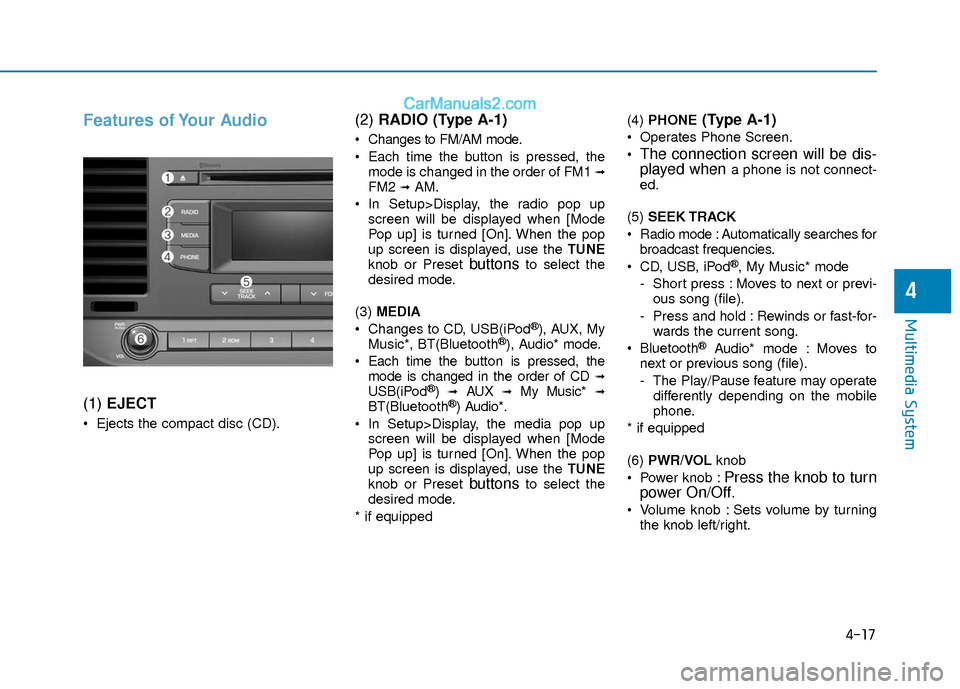
Features of Your Audio
(1) EJECT
Ejects the compact disc (CD).
(2) RADIO (Type A-1)
Changes to FM/AM mode.
Each time the button is pressed, the
mode is changed in the order of FM1
➟FM2 ➟AM.
In Setup>Display, the radio pop up screen will be displayed when [Mode
Pop up] is turned [On]. When the pop
up screen is displayed, use the TUNE
knob or Preset
buttonsto select the
desired mode.
(3) MEDIA
Changes to CD, USB(iPod
®), AUX, My
Music*, BT(Bluetooth®), Audio* mode.
Each time the button is pressed, the mode is changed in the order of CD
➟USB(iPod®)➟AUX➟My Music*➟BT(Bluetooth®) Audio*.
In Setup>Display, the media pop up screen will be displayed when [Mode
Pop up] is turned [On]. When the pop
up screen is displayed, use the TUNE
knob or Preset
buttonsto select the
desired mode.
* if equipped (4)
PHONE
(Type A-1)
Operates Phone Screen.
The connection screen will be dis-
played whena phone is not connect-
ed.
(5) SEEK TRACK
Radio mode : Automatically searches for broadcast frequencies.
CD, USB, iPod
®, My Music* mode
- Short press : Moves to next or previ- ous song (file).
- Press and hold : Rewinds or fast-for- wards the current song.
Bluetooth
®Audio* mode : Moves to
next or previous song (file).
- The Play/Pause feature may operate differently depending on the mobile
phone.
* if equipped
(6) PWR/VOL knob
Power knob :
Press the knob to turn
power On/Off.
Volume knob : Sets volume by turning
the knob left/right.
Page 237 of 526
![Hyundai Elantra 2018 Workshop Manual 4-18
Multimedia System
(7) [1] ~ [6] (Preset)
Radio mode : Saves frequencies (channels) or receives saved frequen-
cies (channels).
CD, USB, iPod
®, My Music* mode
- [RPT] : Repeat
- [RDM] : Random](/img/35/14540/w960_14540-236.png "Hyundai Elantra 2018 Workshop Manual 4-18
Multimedia System
(7) [1] ~ [6] (Preset)
Radio mode : Saves frequencies (channels) or receives saved frequen-
cies (channels).
CD, USB, iPod
®, My Music* mode
- [RPT] : Repeat
- [RDM] : Random")
4-18
Multimedia System
(7) [1] ~ [6] (Preset)
Radio mode : Saves frequencies (channels) or receives saved frequen-
cies (channels).
CD, USB, iPod
®, My Music* mode
- [RPT] : Repeat
- [RDM] : Random
In the Radio, Media, Setup, and Menu
pop up screen, the number menu is
selected.
* if equipped (8) DISP
Each short press toggles through the following modes : Screen Off
➟Screen
On ➟Screen Off.
Audio operation is maintained and only the Screen will be turned Off.
In the Screen Off state, press any but- ton to turn the Screen On again. (9)
SCAN
Radio mode - Short press : Previews each broad-cast for 5 seconds each.
- Press and hold : Previews the broad- casts saved in Preset [1] ~ [6] for 5
seconds each.
- Press the [SCAN] button again to
continue listening to the current fre-
quency.
CD, USB, My Music* mode - Short press : Previews each song(file) for 10 seconds each.
- Press the [SCAN] button again to
continue listening to the current song
(file).
* if equipped
(10) SETUP/CLOCK
Moves to the Display, Sound, Clock, Phone, System setting menu.
Page 238 of 526
4-19
Multimedia System
4
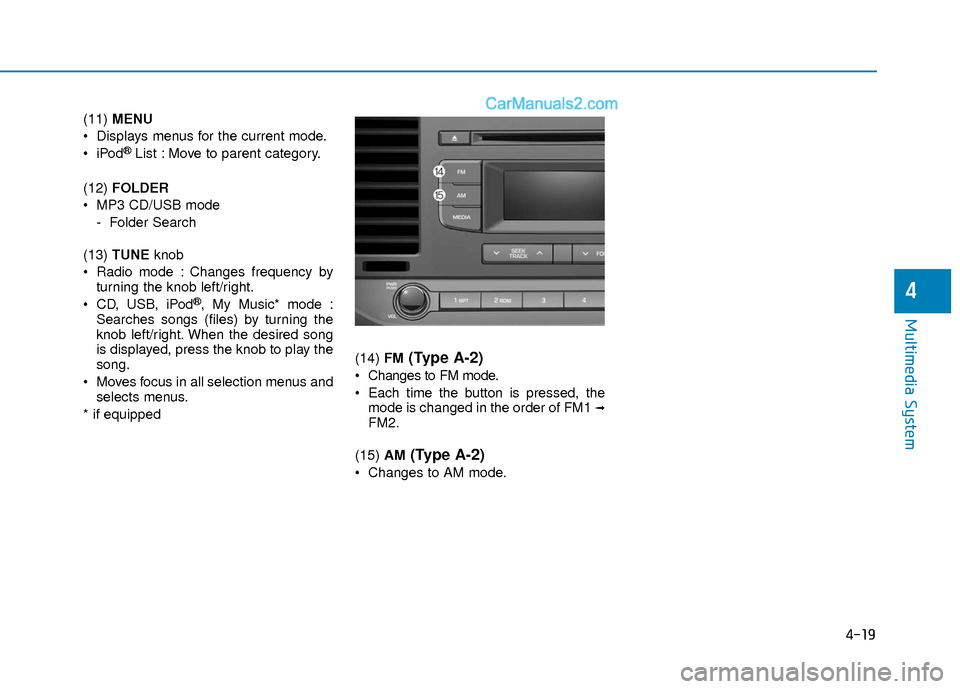
(11) MENU
Displays menus for the current mode.
®List : Move to parent category.
(12) FOLDER
MP3 CD/USB mode - Folder Search
(13) TUNE knob
Radio mode : Changes frequency by turning the knob left/right.
CD, USB, iPod
®, My Music* mode :
Searches songs (files) by turning the
knob left/right. When the desired song
is displayed, press the knob to play the
song.
Moves focus in all selection menus and selects menus.
* if equipped (14)
FM
(Type A-2)
Changes to FM mode.
Each time the button is pressed, the
mode is changed in the order of FM1
➟FM2.
(15) AM
(Type A-2)
Changes to AM mode.
Page 240 of 526
4-21
Multimedia System
4
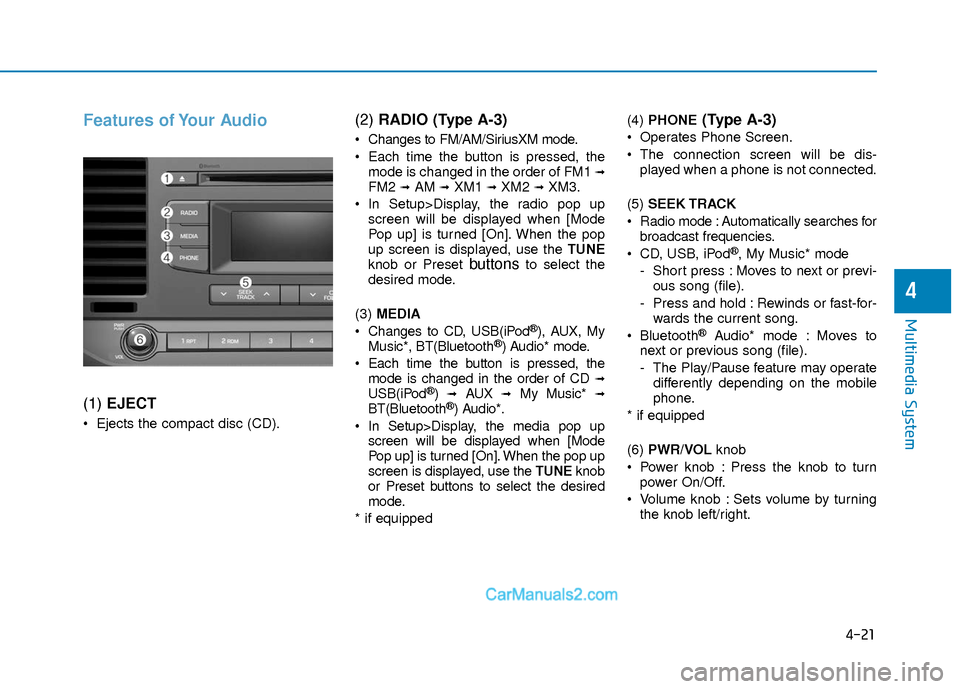
Features of Your Audio
(1) EJECT
Ejects the compact disc (CD).
(2) RADIO (Type A-3)
Changes to FM/AM/SiriusXM mode.
Each time the button is pressed, the
mode is changed in the order of FM1
➟FM2 ➟AM ➟XM1 ➟XM2 ➟XM3.
In Setup>Display, the radio pop up screen will be displayed when [Mode
Pop up] is turned [On]. When the pop
up screen is displayed, use the TUNE
knob or Preset
buttonsto select the
desired mode.
(3) MEDIA
Changes to CD, USB(iPod
®), AUX, My
Music*, BT(Bluetooth®) Audio* mode.
Each time the button is pressed, the mode is changed in the order of CD
➟USB(iPod®)➟AUX➟My Music*➟BT(Bluetooth®) Audio*.
In Setup>Display, the media pop up screen will be displayed when [Mode
Pop up] is turned [On]. When the pop up
screen is displayed, use the TUNE knob
or Preset buttons to select the desired
mode.
* if equipped (4)
PHONE
(Type A-3)
Operates Phone Screen.
The connection screen will be dis-
played when a phone is not connected.
(5) SEEK TRACK
Radio mode : Automatically searches for broadcast frequencies.
CD, USB, iPod
®, My Music* mode
- Short press : Moves to next or previ- ous song (file).
- Press and hold : Rewinds or fast-for- wards the current song.
Bluetooth
®Audio* mode : Moves to
next or previous song (file).
- The Play/Pause feature may operate differently depending on the mobile
phone.
* if equipped
(6) PWR/VOL knob
Power knob : Press the knob to turn power On/Off.
Volume knob : Sets volume by turning the knob left/right.
Page 241 of 526
![Hyundai Elantra 2018 Workshop Manual 4-22
Multimedia System
(7) [1] ~ [6] (Preset)
Radio mode : Saves frequencies (channels) or receives saved frequen-
cies (channels).
CD, USB, iPod
®, My Music* mode
- [RPT] : Repeat
- [RDM] : Random](/img/35/14540/w960_14540-240.png "Hyundai Elantra 2018 Workshop Manual 4-22
Multimedia System
(7) [1] ~ [6] (Preset)
Radio mode : Saves frequencies (channels) or receives saved frequen-
cies (channels).
CD, USB, iPod
®, My Music* mode
- [RPT] : Repeat
- [RDM] : Random")
4-22
Multimedia System
(7) [1] ~ [6] (Preset)
Radio mode : Saves frequencies (channels) or receives saved frequen-
cies (channels).
CD, USB, iPod
®, My Music* mode
- [RPT] : Repeat
- [RDM] : Random
In the Radio, Media, Setup, and Menu
pop up screen, the number menu is
selected.
* if equipped (8) DISP
Each short press toggles through the following modes : Screen Off
➟Screen
On ➟Screen Off.
Audio operation is maintained and only the Screen will be turned Off.
In the Screen Off state, press any but- ton to turn the Screen On again. (9)
SCAN
Radio mode - Short press : Previews each broad-cast for 5 seconds each.
- Press and hold : Previews the broad- casts saved in Preset [1] ~ [6] for 5
seconds each.
- Press the [SCAN] button again to
continue listening to the current fre-
quency.
- XM Radio does not support the Preset scan feature.
CD, USB, My Music* mode - Short press : Previews each song(file) for 10 seconds each.
- Press the [SCAN] button again to
continue listening to the current song
(file).
* if equipped
(10) SETUP/CLOCK
Moves to the Display, Sound, Clock, Phone, System setting menu.
Page 242 of 526
4-23
Multimedia System
4
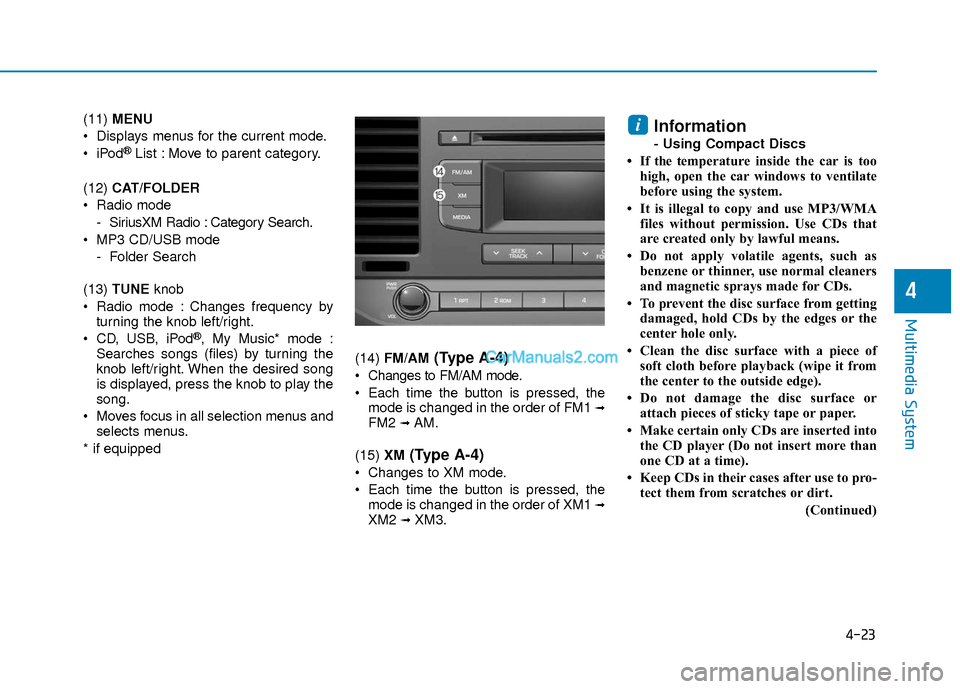
(11) MENU
Displays menus for the current mode.
®List : Move to parent category.
(12) CAT/FOLDER
Radio mode - SiriusXM Radio : Category Search.
MP3 CD/USB mode - Folder Search
(13) TUNE knob
Radio mode : Changes frequency by turning the knob left/right.
CD, USB, iPod
®, My Music* mode :
Searches songs (files) by turning the
knob left/right. When the desired song
is displayed, press the knob to play the
song.
Moves focus in all selection menus and selects menus.
* if equipped (14)
FM/AM
(Type A-4)
Changes to FM/AM mode.
Each time the button is pressed, the
mode is changed in the order of FM1
➟FM2 ➟ AM.
(15) XM
(Type A-4)
Changes to XM mode.
Each time the button is pressed, the
mode is changed in the order of XM1
➟XM2 ➟ XM3.
Information
- Using Compact Discs
• If the temperature inside the car is too high, open the car windows to ventilate
before using the system.
• It is illegal to copy and use MP3/WMA files without permission. Use CDs that
are created only by lawful means.
• Do not apply volatile agents, such as benzene or thinner, use normal cleaners
and magnetic sprays made for CDs.
• To prevent the disc surface from getting damaged, hold CDs by the edges or the
center hole only.
• Clean the disc surface with a piece of soft cloth before playback (wipe it from
the center to the outside edge).
• Do not damage the disc surface or attach pieces of sticky tape or paper.
• Make certain only CDs are inserted into the CD player (Do not insert more than
one CD at a time).
• Keep CDs in their cases after use to pro- tect them from scratches or dirt.
(Continued)
i