display HYUNDAI ELANTRA SEL 2021 Manual PDF
[x] Cancel search | Manufacturer: HYUNDAI, Model Year: 2021, Model line: ELANTRA SEL, Model: HYUNDAI ELANTRA SEL 2021Pages: 570, PDF Size: 52.21 MB
Page 387 of 570
Driver assistance system
7-74
Leading Vehicle Departure Alert
function
OCN7070050L
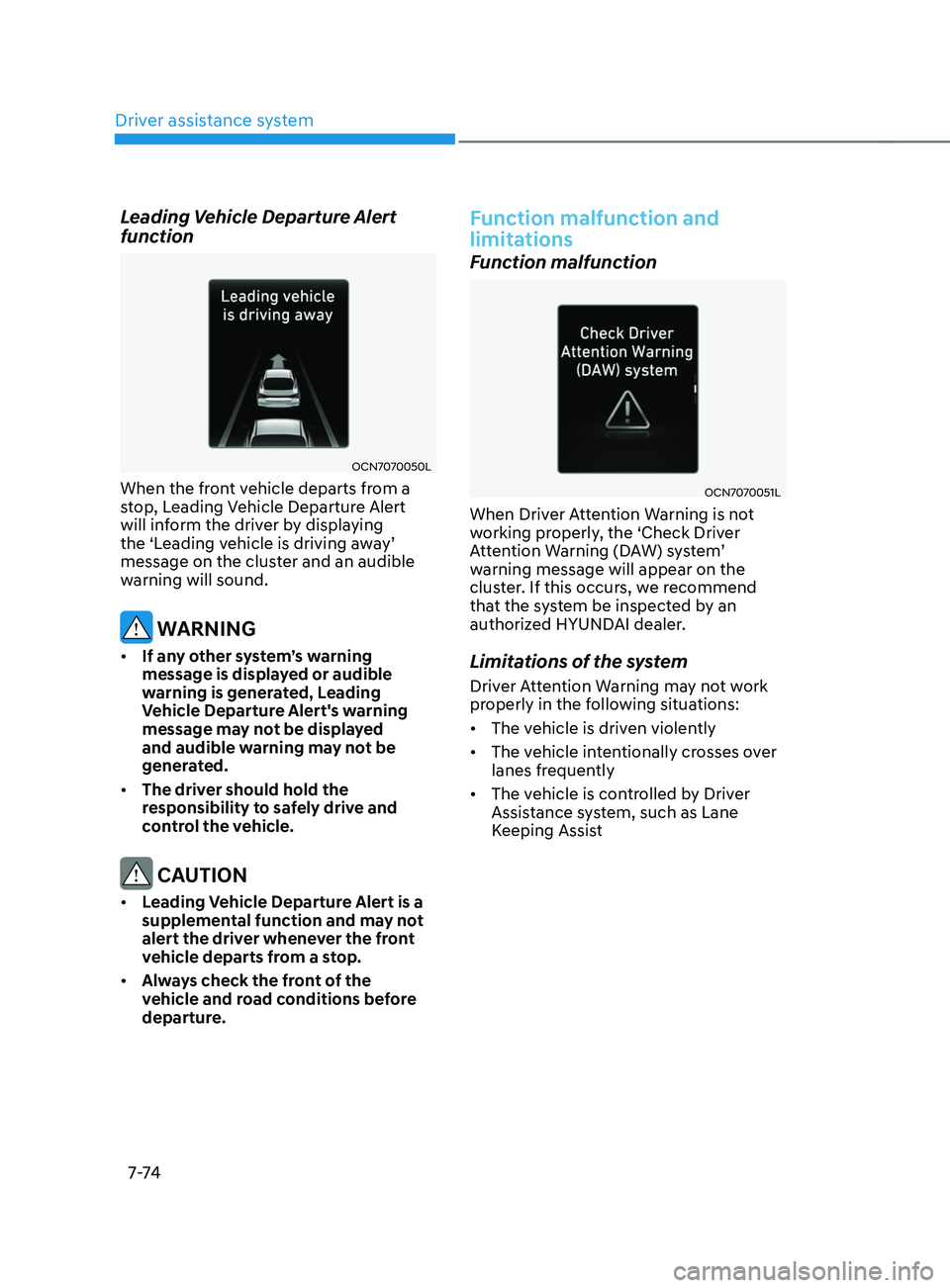
When the front vehicle departs from a
stop, Leading Vehicle Departure Alert
will inform the driver by displaying
the
‘L
eading
v
ehicle
is driving a
way’
message on the clust
er and an audible
warning will sound.
WARNING
• If any other system’s warning
message is displayed or audible
warning is generated, Leading
Vehicle Departure Alert's warning
message may not be displayed
and audible warning may not be
generated.
• The driver should hold the
responsibility to safely drive and
control the vehicle.
CAUTION
• Leading Vehicle Departure Alert is a
supplemental function and may not
alert the driver whenever the front
vehicle departs from a stop.
• Always check the front of the
vehicle and road conditions before
departure.
Function malfunction and
limitations
Function malfunction
OCN7070051L
When Driver Attention Warning is not
working properly, the ‘Check Driver
Attention
W
arning
(D
AW)
s
ystem’
warning message will appear on the
clus
ter. If this occurs, we recommend
that the system be inspected by an
authorized HYUNDAI dealer.
Limitations of the system
Driver Attention Warning may not work
properly in the following situations:
• The vehicle is driven violently
• The vehicle intentionally crosses over
lanes frequently
• The vehicle is controlled by Driver
Assistance system, such as Lane
Keeping Assist
Page 399 of 570
Driver assistance system
7-86
Overtaking Acceleration Assist
Overtaking Acceleration Assist will
operate when the turn signal indicator is
turned on to the left while Smart Cruise
Control is operating, and the following
conditions are satisfied:
• Your vehicle speed is above 40 mph
(60 km/h)
• The hazard warning flasher is off
• A vehicle is detected in front of your
vehicle
• Deceleration is not needed to
maintain distance with the vehicle in
front
WARNING
• When the turn signal indicator is
turned on to the left (left-hand drive)
or turned on to the right (right-
hand drive) while there is a vehicle
ahead, the vehicle may accelerate
temporarily. Pay attention to the
road conditions at all times.
• Regardless of your countries driving
direction, Overtaking Acceleration
Assist will operate when the
conditions are satisfied. When
using the function in countries with
different driving direction, always
check the road conditions at all
times.
Function display and control
Basic function
You can see the status of the Smart
Cruise Control operation in the Driving
Assist mode on the cluster. Refer to “LCD
Display Modes” section in chapter 4.
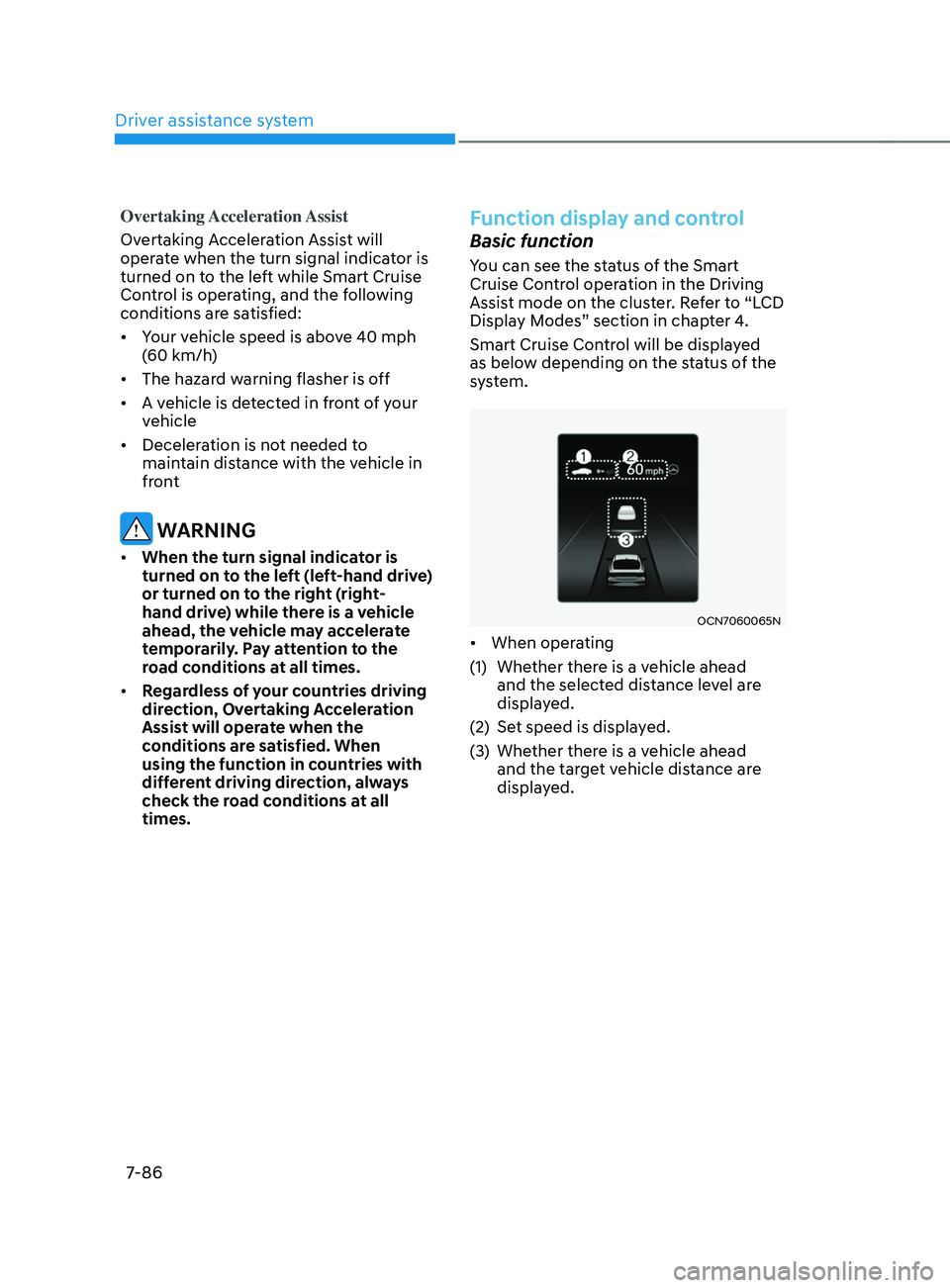
Smart Cruise Control will be displayed
as below depending on the status of the
system.
OCN7060065N
• When operating
(1)
Whether ther
e is a vehicle ahead
and the selected distance level are
displayed.
(2)
Set speed is displa
yed.
(3)
Whether ther
e is a vehicle ahead
and the target vehicle distance are
displayed.
Page 400 of 570
07
7-87
OCN7060123N
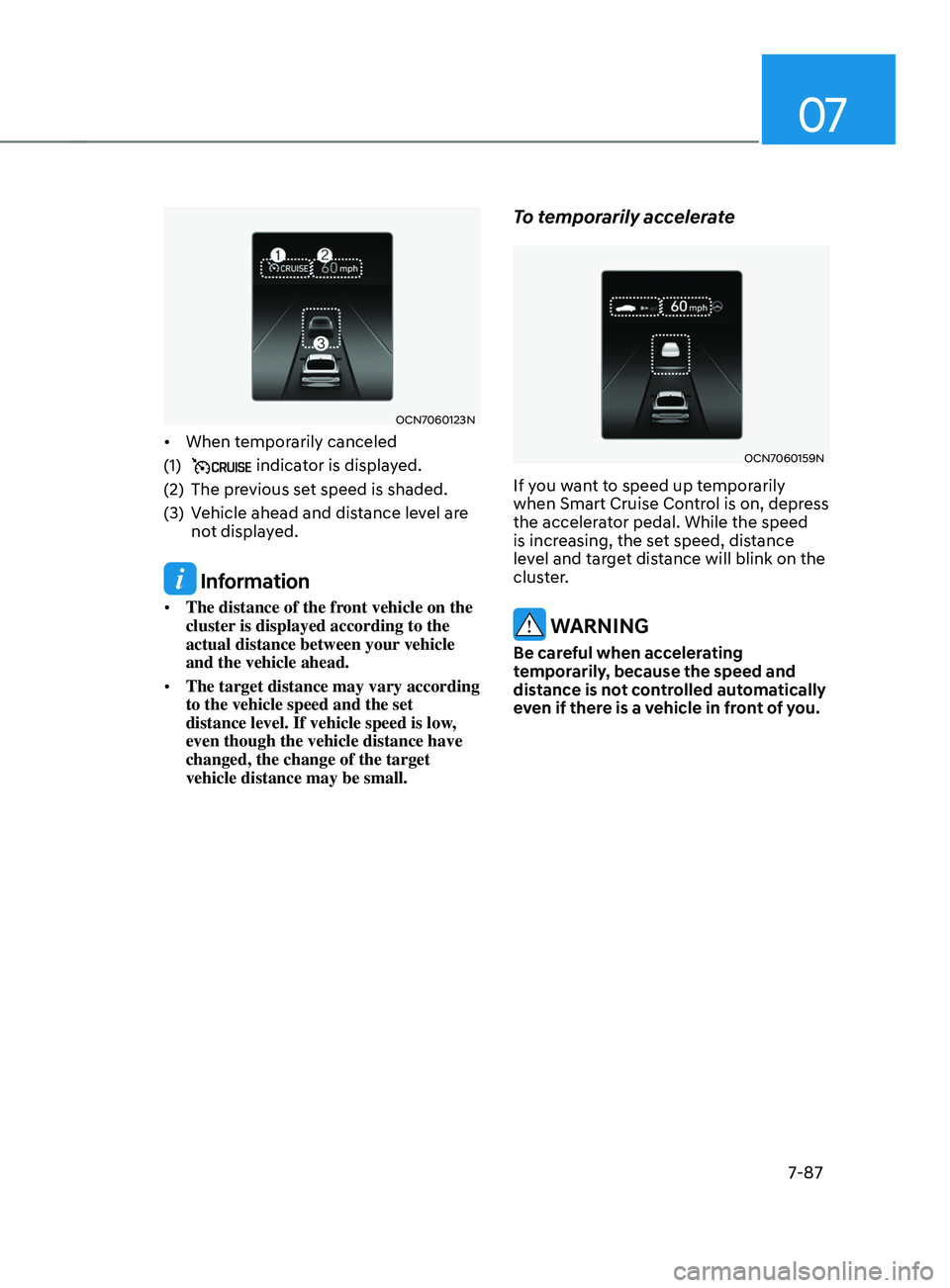
• When temporarily canceled
(1)
indicator is displayed.
(2)
The pre
vious set speed is shaded.
(3)
Vehicle ahead and dis
tance level are
not displayed.
Information
• The distance of the front vehicle on the
cluster is displayed according to the
actual distance between your vehicle
and the vehicle ahead.
• The target distance may vary according
to the vehicle speed and the set
distance level. If vehicle speed is low,
even though the vehicle distance have
changed, the change of the target
vehicle distance may be small.
To temporarily accelerate
OCN7060159N
If you want to speed up temporarily
when Smart Cruise Control is on, depress
the accelerator pedal. While the speed
is increasing, the set speed, distance
level and target distance will blink on the
cluster.
WARNING
Be careful when accelerating
temporarily, because the speed and
distance is not controlled automatically
even if there is a vehicle in front of you.
Page 402 of 570
07
7-89
In traffic situation
OCN7070054L
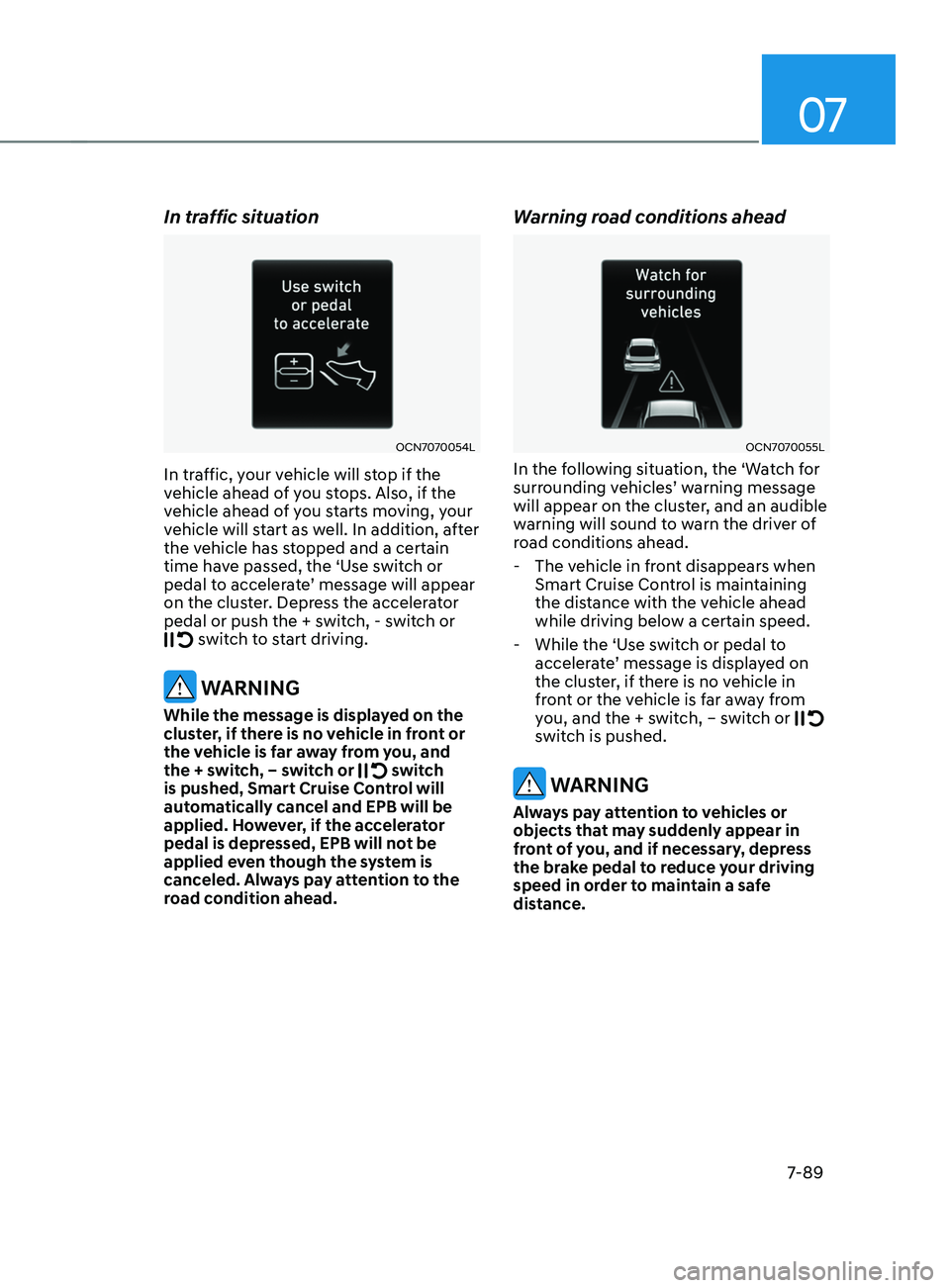
In traffic, your vehicle will stop if the
vehicle ahead of you stops. Also, if the
vehicle ahead of you starts moving, your
vehicle will start as well. In addition, after
the vehicle has stopped and a certain
time have passed, the ‘Use switch or
pedal
t
o
acceler
ate’
message will appear on the clust
er. Depress the accelerator
pedal or push the + switch, - switch or
switch to start driving.
WARNING
While the message is displayed on the
cluster, if there is no vehicle in front or
the vehicle is far away from you, and
the + switch, – switch or
switch
is pushed, Smart Cruise Control will
automatically cancel and EPB will be
applied. However, if the accelerator
pedal is depressed, EPB will not be
applied even though the system is
canceled. Always pay attention to the
road condition ahead.
Warning road conditions ahead
OCN7070055L
In the following situation, the ‘Watch for
surrounding v ehicles’ w arning message will appear on the clust
er, and an audible
warning will sound to warn the driver of
road conditions ahead.
- The vehicle in fr
ont disappears when
Smart Cruise Control is maintaining
the distance with the vehicle ahead
while driving below a certain speed.
- While the ‘Use s
witch or pedal to
accelerate’
message is displa
yed
on the clust
er, if there is no vehicle in
front or the vehicle is far away from
you, and the + switch, – switch or
switch is pushed.
WARNING
Always pay attention to vehicles or
objects that may suddenly appear in
front of you, and if necessary, depress
the brake pedal to reduce your driving
speed in order to maintain a safe
distance.
Page 404 of 570
07
7-91
• When you are towing a trailer or
another vehicle, we recommend that
Smart Cruise Control is turned off
due to safety reasons.
• Turn off Smart Cruise Control when
your vehicle is being towed.
• Smart Cruise Control may not
operate normally if interfered by
strong electromagnetic waves.
• Smart Cruise Control may not
detect an obstacle in front and lead
to a collision. Always look ahead
cautiously to prevent unexpected
and sudden situations from
occurring.
• Vehicles moving in front of you with
a frequent lane change may cause
a delay in the system's reaction or
may cause the system to react to a
vehicle actually in an adjacent lane.
Always drive cautiously to prevent
unexpected and sudden situations
from occurring.
• Always be aware of the surroundings
and drive safely, even though a
warning message does not appear or
an audible warning does not sound.
• If any other system’s warning
message is displayed or warning
sound is generated, Smart Cruise
Control warning message may not
be displayed and warning sound may
not be generated.
• You may not hear the warning sound
of Forward Collision-Avoidance
Assist if the surrounding is noisy.
• The vehicle manufacturer is not
responsible for any traffic violation
or accidents caused by the driver.
• Always set the vehicle speed to the
speed limit in your country. Information
• Smart Cruise Control may not operate
for 15 seconds after the vehicle is
started or the front view camera or
front radar is initialized.
• You may hear a sound when the brake
is controlled by Smart Cruise Control.
Function malfunction and
limitations
Function malfunction
OCN7070056L
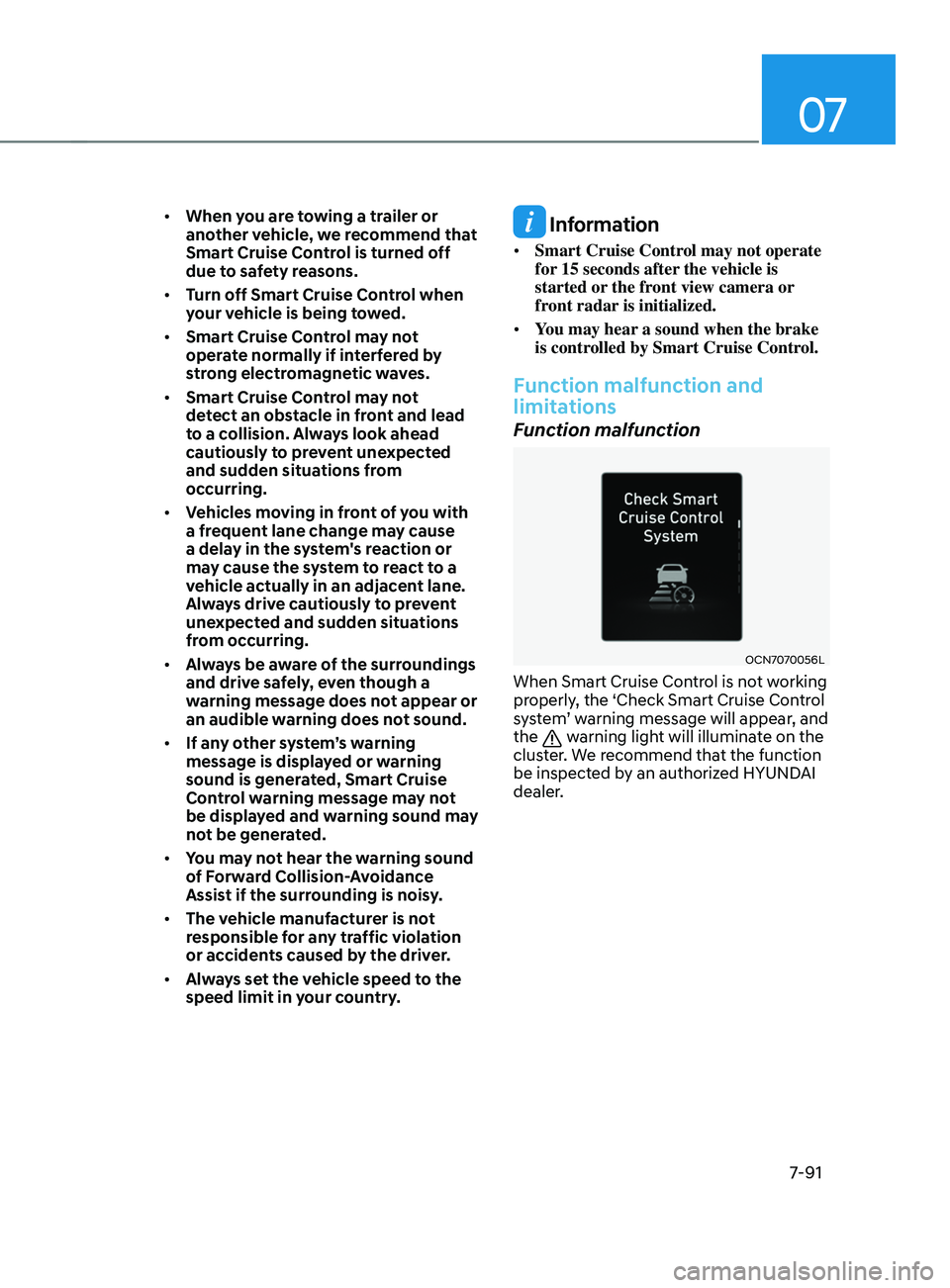
When Smart Cruise Control is not working
properly, the ‘Check Smart Cruise Control
system’ warning message will appear, and
the
warning light will illuminate on the
cluster. We recommend that the function
be inspected by an authorized HYUNDAI
dealer.
Page 412 of 570
07
7-99
Function operation
Operating conditions
Navigation-based Smart Cruise Control
is ready to operate if all of the following
conditions are satisfied:
• Smart Cruise Control is operating
• Driving on main roads of highways (or
motorways)
Information
For more details on how to operate Smart
Cruise Control, refer to “Smart Cruise
Control (SCC)” section in chapter 7.
Function display and control
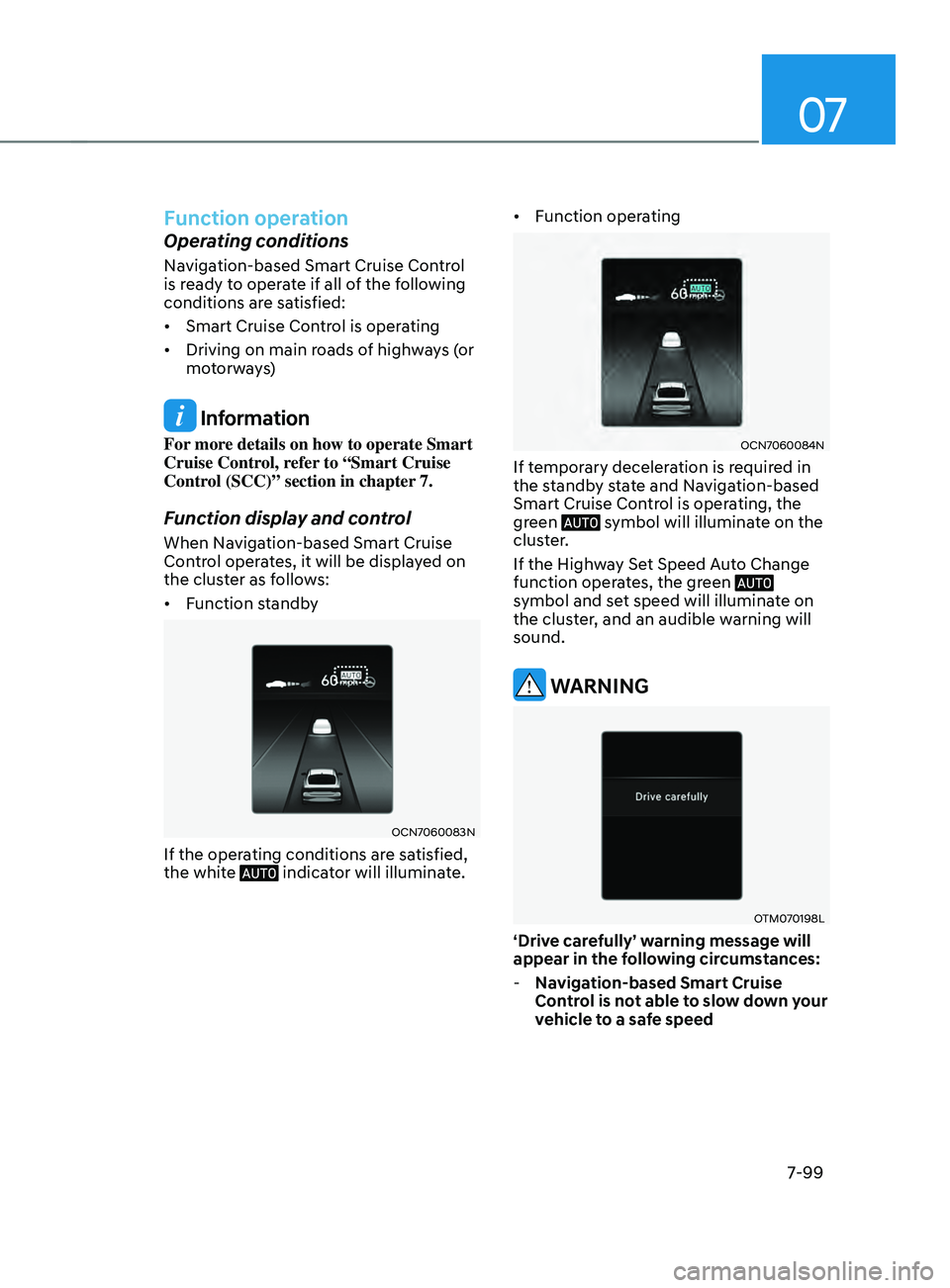
When Navigation-based Smart Cruise
Control operates, it will be displayed on
the cluster as follows:
• Function standby
OCN7060083N
If the operating conditions are satisfied,
the white indicator will illuminate. •
Function operating
OCN7060084N
If temporary deceleration is required in
the standby state and Navigation-based
Smart Cruise Control is operating, the
green
symbol will illuminate on the
cluster.
If the Highway Set Speed Auto Change
function operates, the green
symbol and set speed will illuminate on
the cluster, and an audible warning will
sound.
WARNING
OTM070198L
‘Drive carefully’ warning message will
appear in the following circumstances:
- Na
vigation-based Smart Cruise
Control is not able to slow down your
vehicle to a safe speed
Page 424 of 570
07
7-111
Function operation
Basic function
System display and control
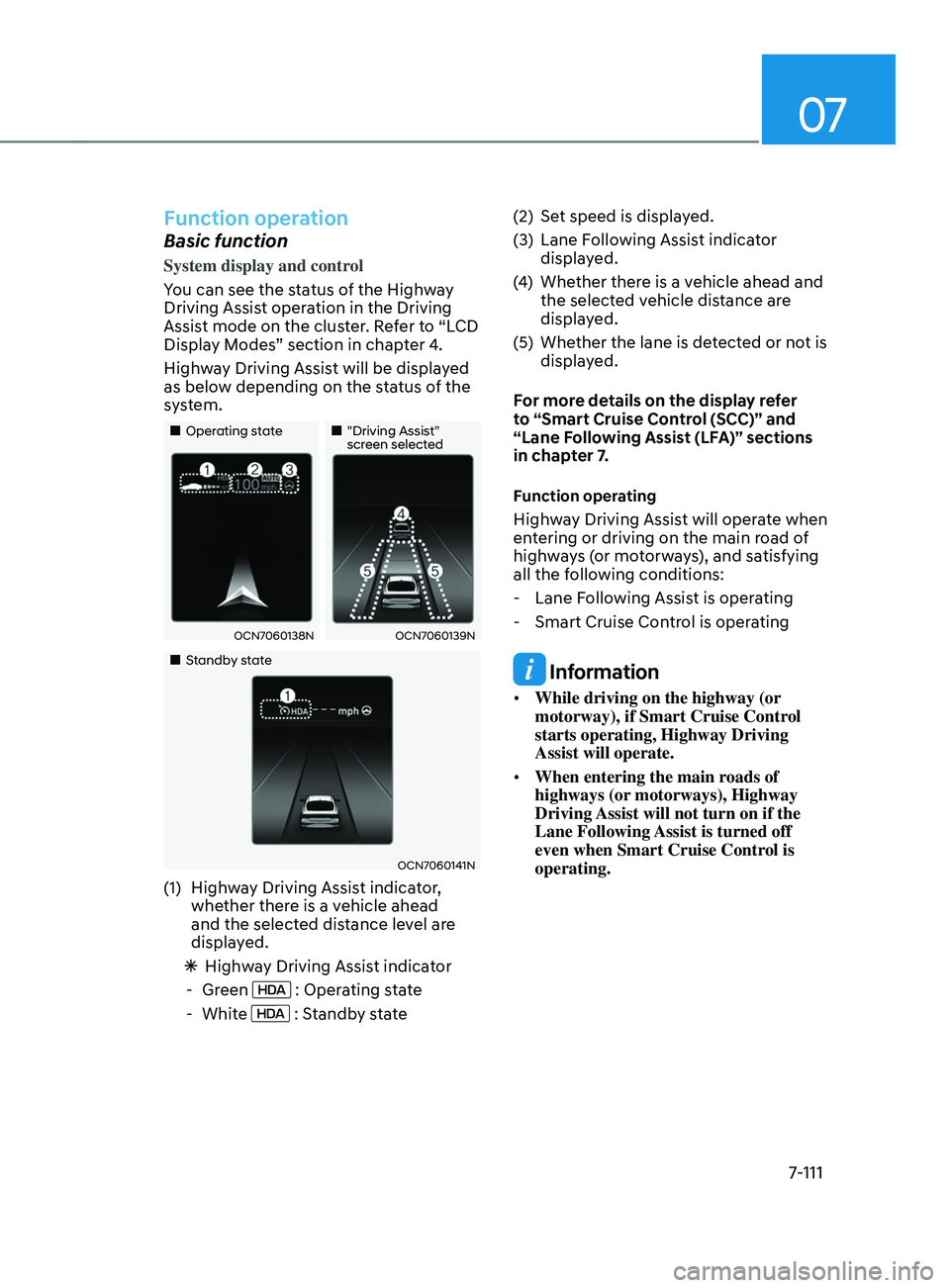
You can see the status of the Highway
Driving Assist operation in the Driving
Assist mode on the cluster. Refer to “LCD
Display Modes” section in chapter 4.
Highway Driving Assist will be displayed
as below depending on the status of the
system.
„„Operating state„„"Driving Assist" screen selected
OCN7060138NOCN7060139N
„„Standby state
OCN7060141N
(1) Highway Driving Assist indicator,
whe
ther there is a vehicle ahead
and the selected distance level are
displayed.
à Highw
ay Driving Assist indicator
- Green : Operating state
- White : Standby state (2)
Set speed is displa
yed.
(3)
Lane Follo
wing Assist indicator
displayed.
(4)
Whether ther
e is a vehicle ahead and
the selected vehicle distance are
displayed.
(5)
Whether the lane is de
tected or not is
displayed.
For more details on the display refer
to “Smart Cruise Control (SCC)” and
“Lane Following Assist (LFA)” sections
in chapter 7.
Function operating
Highway Driving Assist will operate when
entering or driving on the main road of
highways (or motorways), and satisfying
all the following conditions:
- Lane Follo
wing Assist is operating
- Smart Cruise Contr
ol is operating
Information
• While driving on the highway (or
motorway), if Smart Cruise Control
starts operating, Highway Driving
Assist will operate.
• When entering the main roads of
highways (or motorways), Highway
Driving Assist will not turn on if the
Lane Following Assist is turned off
even when Smart Cruise Control is
operating.
Page 430 of 570
07
7-117
Function settings
Camera settings
You can change Rear View Monitor
settings by pressing the setup icon
(
) on the screen while the system is
operating, or select ‘Driver Assistance →
Parking Safety → Camera Settings’ from
the Settings menu while the Engine
Start/Stop button is in the ON position.
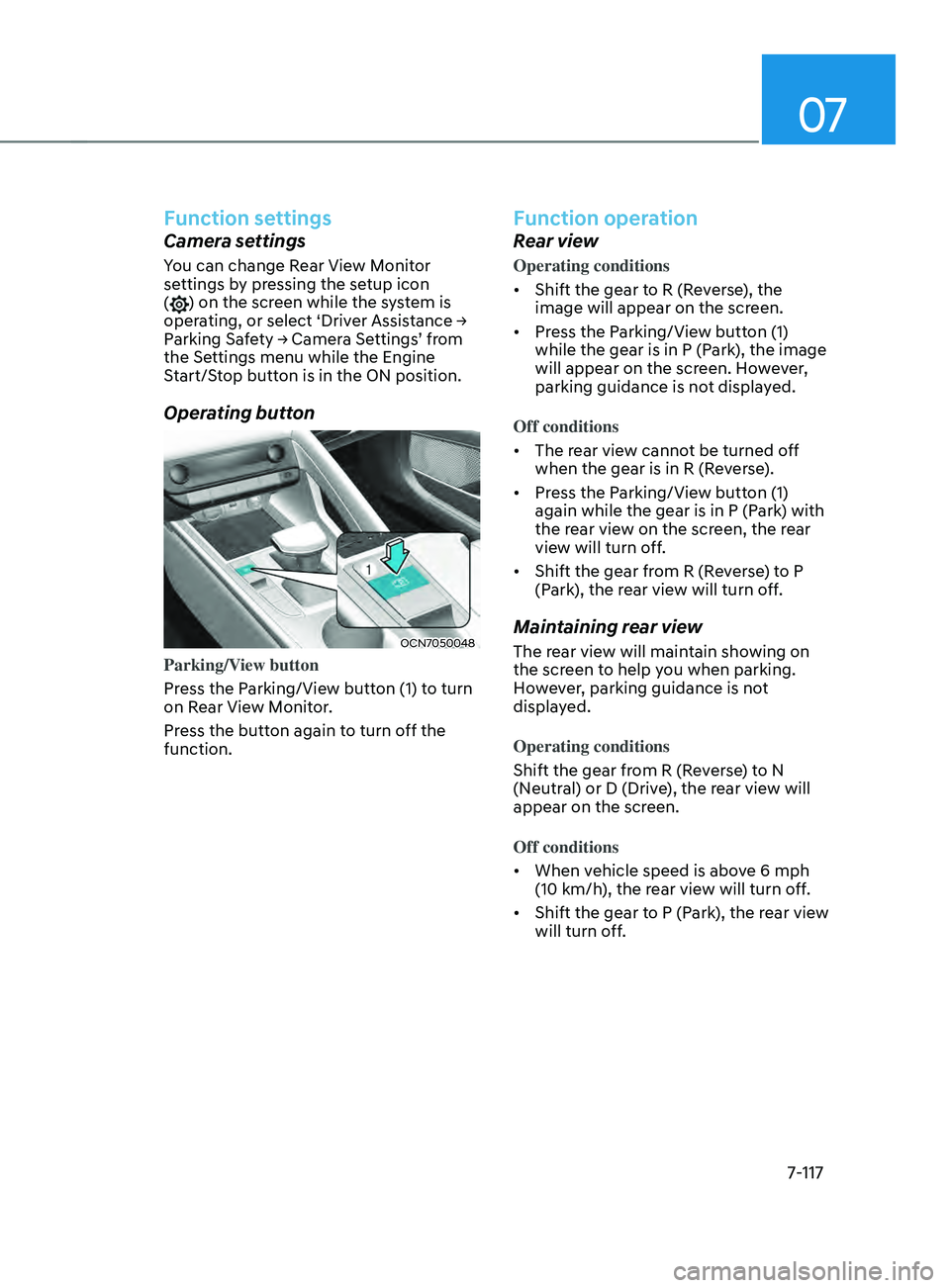
Operating button
OCN7050048
Parking/View button
Press the Parking/View button (1) to turn
on Rear View Monitor.
Press the button again to turn off the
function.
Function operation
Rear view
Operating conditions
• Shift the gear to R (Reverse), the
image will appear on the screen.
• Press the Parking/View button (1)
while the gear is in P (Park), the image
will appear on the screen. However,
parking guidance is not displayed.
Off conditions
• The rear view cannot be turned off
when the gear is in R (Reverse).
• Press the Parking/View button (1)
again while the gear is in P (Park) with
the rear view on the screen, the rear
view will turn off.
• Shift the gear from R (Reverse) to P
(Park), the rear view will turn off.
Maintaining rear view
The rear view will maintain showing on
the screen to help you when parking.
However, parking guidance is not
displayed.
Operating conditions
Shift the gear from R (Reverse) to N
(Neutral) or D (Drive), the rear view will
appear on the screen.
Off conditions
• When vehicle speed is above 6 mph
(10 km/h), the rear view will turn off.
• Shift the gear to P (Park), the rear view
will turn off.
Page 431 of 570
Driver assistance system
7-118
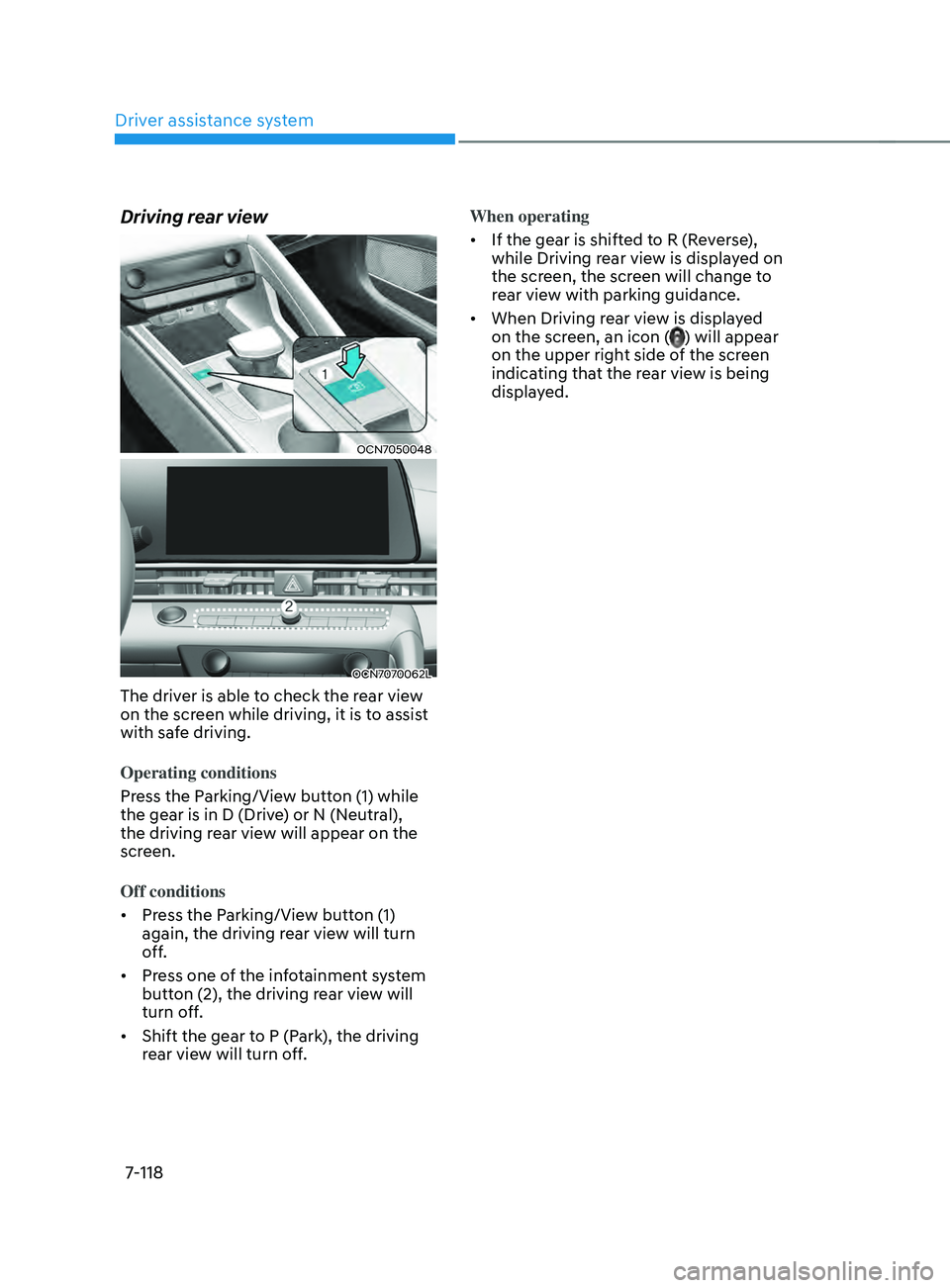
Driving rear view
OCN7050048
OCN7070062L
The driver is able to check the rear view
on the screen while driving, it is to assist
with safe driving.
Operating conditions
Press the Parking/View button (1) while
the gear is in D (Drive) or N (Neutral),
the driving rear view will appear on the
screen.
Off conditions
• Press the Parking/View button (1)
again, the driving rear view will turn
off.
• Press one of the infotainment system
button (2), the driving rear view will
turn off.
• Shift the gear to P (Park), the driving
rear view will turn off. When operating
•
If the gear is shifted to R (Reverse),
while Driving rear view is displayed on
the screen, the screen will change to
rear view with parking guidance.
• When Driving rear view is displayed
on the screen, an icon (
) will appear
on the upper right side of the screen
indicating that the rear view is being
displayed.
Page 432 of 570
07
7-119
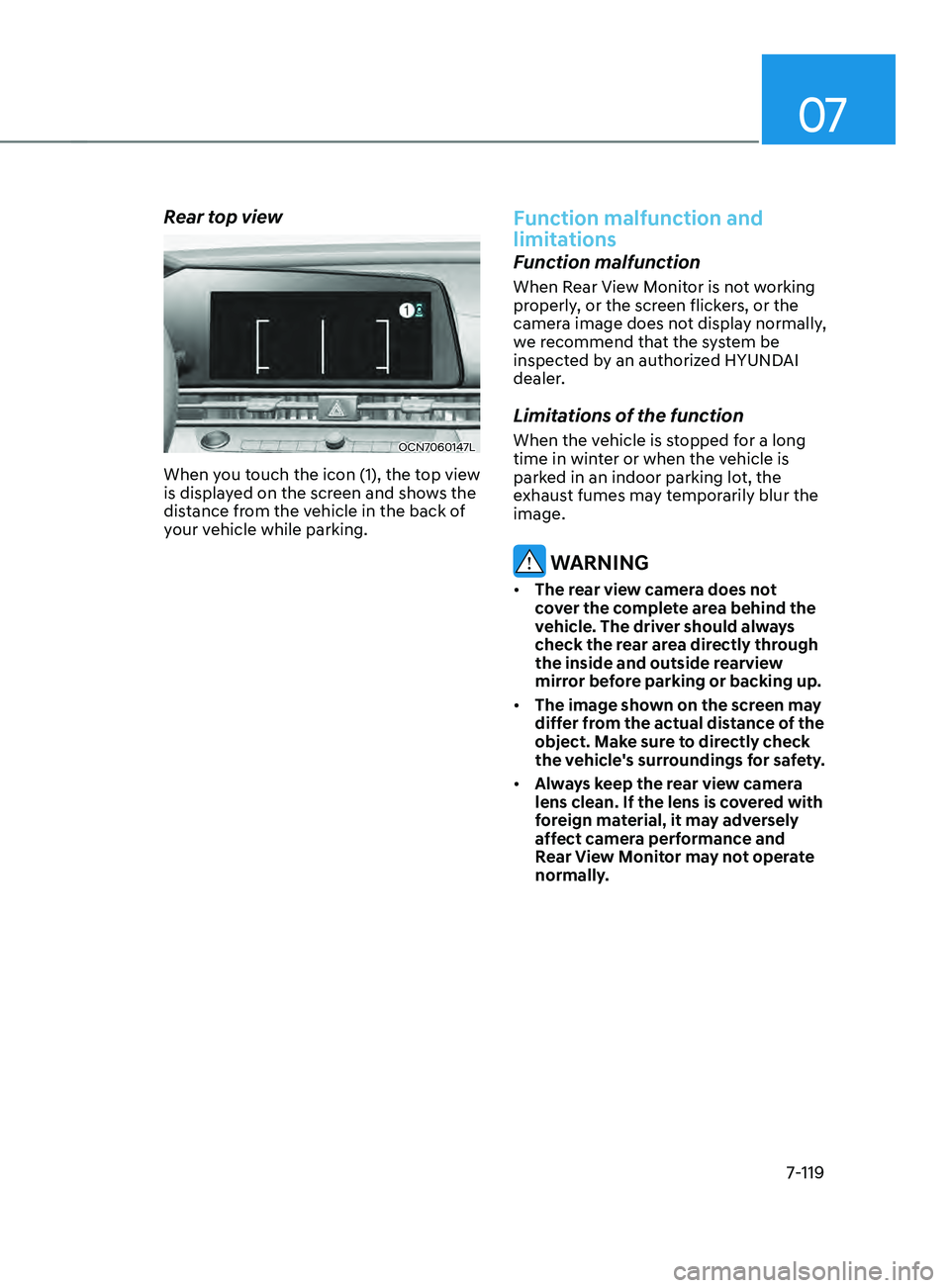
Rear top view
OCN7060147L
When you touch the icon (1), the top view
is displayed on the screen and shows the
distance from the vehicle in the back of
your vehicle while parking.
Function malfunction and
limitations
Function malfunction
When Rear View Monitor is not working
properly, or the screen flickers, or the
camera image does not display normally,
we recommend that the system be
inspected by an authorized HYUNDAI
dealer.
Limitations of the function
When the vehicle is stopped for a long
time in winter or when the vehicle is
parked in an indoor parking lot, the
exhaust fumes may temporarily blur the
image.
WARNING
• The rear view camera does not
cover the complete area behind the
vehicle. The driver should always
check the rear area directly through
the inside and outside rearview
mirror before parking or backing up.
• The image shown on the screen may
differ from the actual distance of the
object. Make sure to directly check
the vehicle's surroundings for safety.
• Always keep the rear view camera
lens clean. If the lens is covered with
foreign material, it may adversely
affect camera performance and
Rear View Monitor may not operate
normally.