warning HYUNDAI IONIQ 2020 Owners Manual
[x] Cancel search | Manufacturer: HYUNDAI, Model Year: 2020, Model line: IONIQ, Model: HYUNDAI IONIQ 2020Pages: 561, PDF Size: 24.5 MB
Page 324 of 561
5-88
Driving your vehicle
Information
The system may suggest a break
according to the driver's driving pat-
tern or habits even if the driver does-
n't feel fatigue.Driver Attention Warning system
utilizes the front view camera sen-
sor on the front windshield for its
operation. To keep the front view
camera sensor in the best condi-
tion, you should observe the fol-
lowings:
Never install any accessories or
stickers on the front windshield,
or tint the front windshield.
NEVER place any reflective
objects (i.e. white paper, mirror)
over the dashboard. Any light
reflection may cause a malfunc-
tion of Driver Attention Warning
system.
Pay extreme caution to keep the
front view camera sensor dry.
NEVER disassemble the front
view camera assembly, nor
apply any impact on the front
view camera assembly.
(Continued)(Continued)
If the sensor is forcibly moved
out of proper alignment, the sys-
tem may not operate correctly.
We recommend that you take
your vehicle to an authorized
HYUNDAI dealer and have the
system checked for calibration.
NOTICE
i
Driver Attention Warning sys-
tem is not a substitute for safe
driving practices, but a con-
venience function only. It is
the responsibility of the driver
to always drive cautiously to
prevent unexpected and sud-
den situations from occur-
ring. Pay attention to the road
conditions at all times.
The driver who feels fatigued
should take a break, even
though there is no break sug-
gestion by Driver Attention
Warning system.
The driver has a responsibility
of safe driving himself/herself
at all times.
WARNING
Page 325 of 561
5-89
Driving your vehicle
5
Driver Attention Warning sys-
tem may not provide alerts in
the following situations:
The system may not work
around 15 seconds after start-
ing the vehicle or the initial-
ization or rebooting of the
front view camera.
The lane detection perform-
ance is limited. (For more
information, refer to "Lane
Keeping Assist (LKA)" in this
chapter.)
The vehicle is erratically driv-
en or is abruptly turned for
obstacle avoidance (e.g. con-
struction area, other vehicles,
fallen objects, bumpy road).
(Continued)
CAUTION(Continued)
Forward drivability of the
vehicle is severely under-
mined (possibly due to wide
variation in tire pressures,
uneven tire wear-out, toe-
in/toe-out alignment).
The vehicle is driven on a
curvy road.
The vehicle is driven through
a windy area.
The vehicle is driven on a
bumpy road.
The vehicle is controlled by
the following driving assist
systems:
- Forward Collision-
Avoidance Assist system
- Lane Keeping Assist system
- Smart Cruise Control system
- Lane Following Assist sys-
tem
Playing the vehicle audio sys-
tem at high volume may prevent
occupants from hearing Driver
Attention Warning system warn-
ing sounds.
CAUTION
Page 326 of 561
5-90
Driving your vehicle
Leading Vehicle Departure
Alert (if equipped)
Leading Vehicle Departure Alert
function provides an alert on whether
the leading vehicle drives away or
not, while at a stop.
Function setting and operating
conditions
System setting
Selecting Driver Attention Warning
system
The Leading Vehicle Departure
Alert can be activated from Users
Settings mode in the cluster LCD
display by following the procedure
below.
1. Set the ignition switch to the ON
position.
2. Select 'User Settings →Driving
Assistance →Driver Attention
Warning →Leading Vehicle
Departure Alert' in cluster LCD
display. Deselect the setting to
turn off the system.
If the vehicle is turned off then on
again, the system maintains the
last setting.
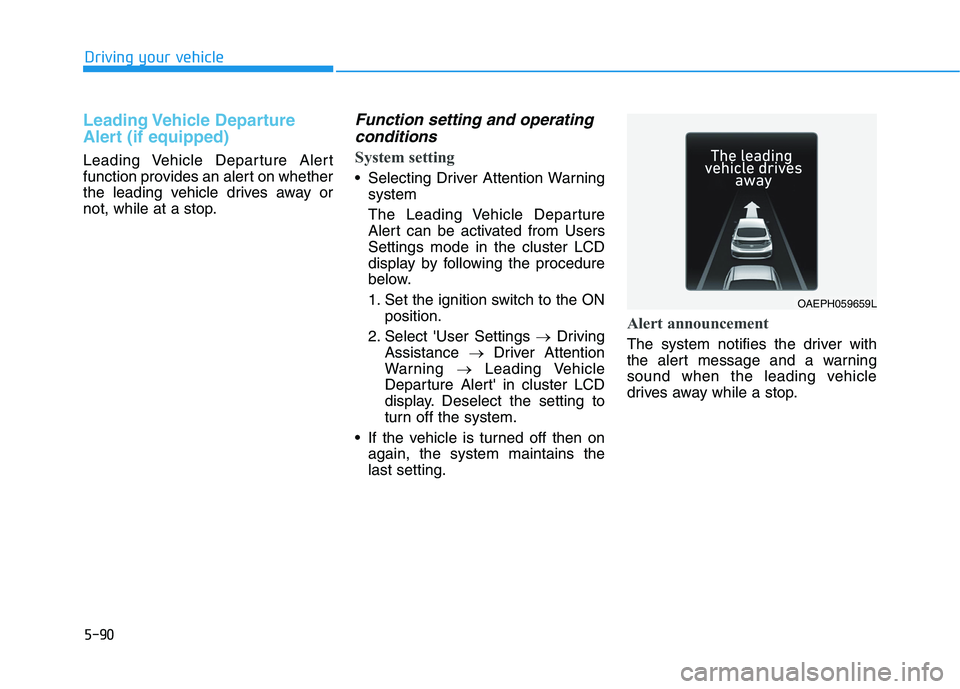
Alert announcement
The system notifies the driver with
the alert message and a warning
sound when the leading vehicle
drives away while a stop.
OAEPH059659L
Page 327 of 561
5-91
Driving your vehicle
5
Leading Vehicle Departure
Alert function is only a con-
venient auxiliary for the driv-
er. The system can't announce
the alarm when a leading
vehicle departs in real time.
The driver must check and
determine real conditions and
then start to drive even if the
system notified the leading
vehicle departure.
WARNING
Leading Vehicle Departure
Alert function is quite related
with the front camera in the
vehicle for the better perform-
ance. For more information of
front camera, refer to "Lane
Keeping Assist (LKA)"
It may not provide Leading
Vehicle Departure Alert or
may not properly operate in
the following situations:
- Leading pedestrian(s) or
bicycle(s) in front of vehicle
- Leading cut-in vehicle(s)
- Leading vehicle's quick
departure
- Stop on speed bump or
steep hill
- Stop on a right-turn junction
or a curved road
- Stop on shoulder road, rest
area, parking lot
CAUTION
Page 328 of 561
5-92
Driving your vehicle
S SM
MA
AR
RT
T
C
CR
RU
UI
IS
SE
E
C
CO
ON
NT
TR
RO
OL
L
W
WI
IT
TH
H
S
ST
TO
OP
P
A
AN
ND
D
G
GO
O
(
(S
SC
CC
C
W
WI
IT
TH
H
S
S&
&G
G)
)
(
(I
IF
F
E
EQ
QU
UI
IP
PP
PE
ED
D)
)
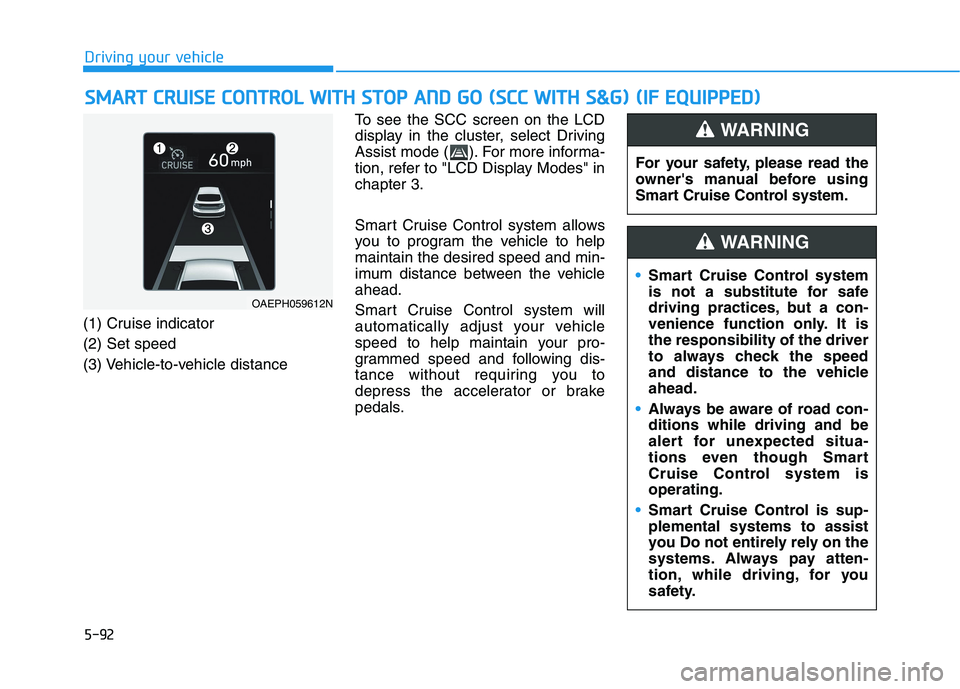
(1) Cruise indicator
(2) Set speed
(3) Vehicle-to-vehicle distanceTo see the SCC screen on the LCD
display in the cluster, select Driving
Assist mode ( ). For more informa-
tion, refer to "LCD Display Modes" in
chapter 3.
Smart Cruise Control system allows
you to program the vehicle to help
maintain the desired speed and min-
imum distance between the vehicle
ahead.
Smart Cruise Control system will
automatically adjust your vehicle
speed to help maintain your pro-
grammed speed and following dis-
tance without requiring you to
depress the accelerator or brake
pedals.
OAEPH059612N
For your safety, please read the
owner's manual before using
Smart Cruise Control system.
WARNING
Smart Cruise Control system
is not a substitute for safe
driving practices, but a con-
venience function only. It is
the responsibility of the driver
to always check the speed
and distance to the vehicle
ahead.
Always be aware of road con-
ditions while driving and be
alert for unexpected situa-
tions even though Smart
Cruise Control system is
operating.
Smart Cruise Control is sup-
plemental systems to assist
you Do not entirely rely on the
systems. Always pay atten-
tion, while driving, for you
safety.
WARNING
Page 329 of 561
5-93
Driving your vehicle
5
(Continued)
- When driving near crash
barriers
- When driving on a sharp
curve
- When driving with limited
view (possibly due to bad
weather, such as fog, snow,
rain or sandstorm)
- When the vehicle sensing
ability decreases due to
vehicle modification result-
ing level difference of the
vehicle's front and rear
- Smart Cruise Control is sup-
plemental systems to assist
you. Do not entirely rely on
the systems. Always pay
attention, while driving, for
your safety.
- When using the Cruise
Control mode, you must
manually adjust the distance
to other vehicles by depress-
ing the brake pedal. The sys-
tem does not automatically
adjust the distance to vehi-
cles in front of you.
Take the following precautions :
Always set the vehicle speed
under the speed limit on the
road that you are driving.
If Smart Cruise Control is left
on, (cruise ( ) indi-
cator light in the instrument
cluster is illuminated) Smart
Cruise Control can be activat-
ed unintentionally. Keep
Smart Cruise Control system
off (cruise ( ) indi-
cator light OFF) when the
Smart Cruise Control is not in
use, to avoid inadvertently
setting a speed.
Use Smart Cruise Control sys-
tem only when traveling on
open highways in good
weather.
(Continued)
WARNING (Continued)
Smart Cruise Control is not a
collision avoidance or warn-
ing device.
Smart Cruise Control is
designed to only detect vehi-
cles as it cannot detect motor-
cycles, bicycles, or pedestri-
ans.
Do not use Smart Cruise
Control when it may not be
safe to keep the vehicle at a
constant speed:
- When driving in heavy traffic
or when traffic conditions
make it difficult to drive at a
constant speed
- When driving on rainy, icy, or
snow-covered roads
- When driving on a steep
downhill or uphill
- When driving in windy areas
- When driving in parking lots
(Continued)
Page 331 of 561
5-95
Driving your vehicle
5
To convert to Cruise Control
mode
The driver may choose to only use
the conventional Cruise Control
mode (speed control function) by
doing as follows:
1. Turn Smart Cruise Control system
on (the cruise indicator light will be
on but the system will not be acti-
vated).
2. Push and hold the Vehicle-to-
Vehicle Distance button for more
than 2 seconds.
3. Choose between "Smart Cruise
Control" and "Cruise Control".
When the system is cancelled using
the CRUISE button or the CRUISE
button is used after the vehicle is in
the ready ( ) mode, the Smart
Cruise Control mode will turn on.
Smart Cruise Control speed
To set Smart Cruise Control
speed
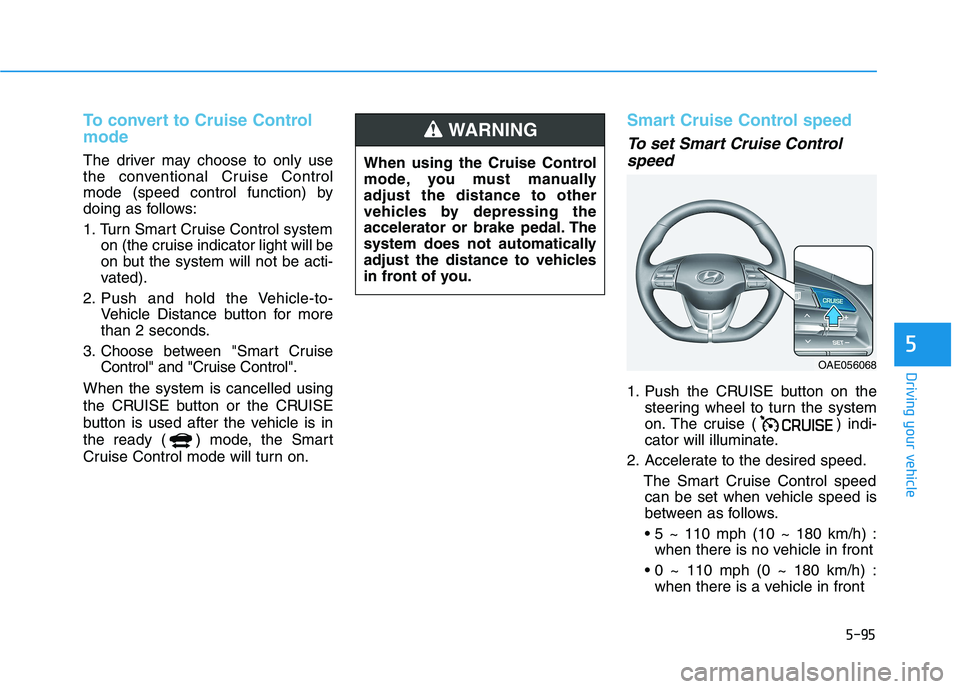
1. Push the CRUISE button on the
steering wheel to turn the system
on. The cruise ( ) indi-
cator will illuminate.
2. Accelerate to the desired speed.
The Smart Cruise Control speed
can be set when vehicle speed is
between as follows.
when there is no vehicle in front
when there is a vehicle in front
When using the Cruise Control
mode, you must manually
adjust the distance to other
vehicles by depressing the
accelerator or brake pedal. The
system does not automatically
adjust the distance to vehicles
in front of you.
WARNING
OAE056068
Page 335 of 561
5-99
Driving your vehicle
5
Each of these actions will cancel the
Smart Cruise Control operation. The
Set Speed and Vehicle-to-Vehicle
Distance on the LCD display will go
off.
In a condition Smart Cruise Control
is cancelled automatically, Smart
Cruise Control will not resume even
though the RES+ or SET- toggle
switch is pushed.
Also, if Smart Cruise Control is can-
celled automatically while the vehicle
is at a standstill, the EPB (Electronic
Parking Brake) will be applied.
Information
If Smart Cruise Control is cancelled
by other than the reasons mentioned,
we recommend that the system be
checked by an authorized HYUNDAI
dealer.
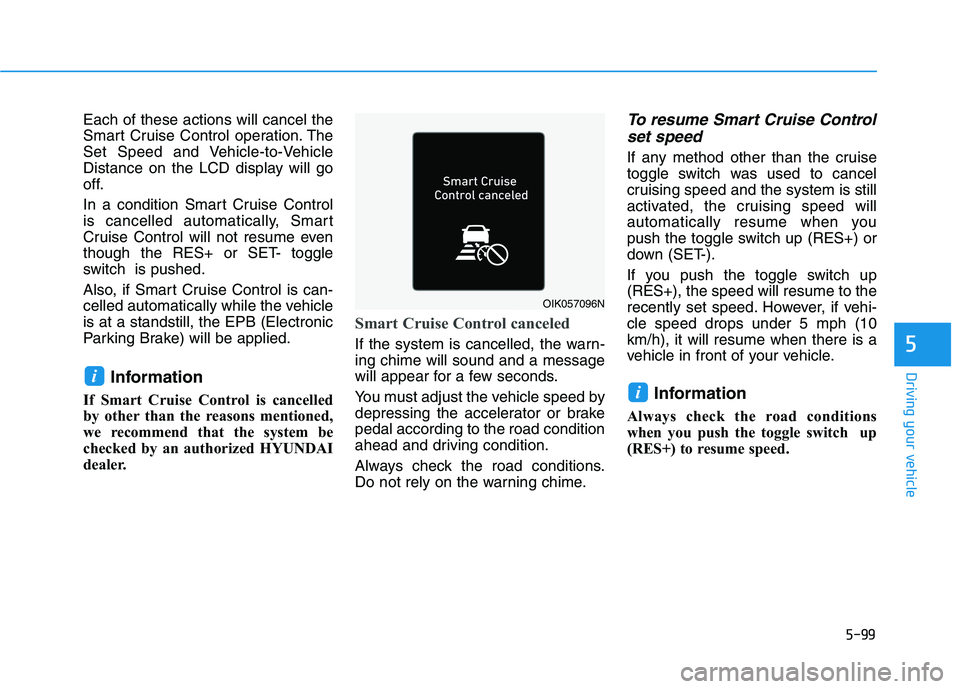
Smart Cruise Control canceled
If the system is cancelled, the warn-
ing chime will sound and a message
will appear for a few seconds.
You must adjust the vehicle speed by
depressing the accelerator or brake
pedal according to the road condition
ahead and driving condition.
Always check the road conditions.
Do not rely on the warning chime.
To resume Smart Cruise Control
set speed
If any method other than the cruise
toggle switch was used to cancel
cruising speed and the system is still
activated, the cruising speed will
automatically resume when you
push the toggle switch up (RES+) or
down (SET-).
If you push the toggle switch up
(RES+), the speed will resume to the
recently set speed. However, if vehi-
cle speed drops under 5 mph (10
km/h), it will resume when there is a
vehicle in front of your vehicle.
Information
Always check the road conditions
when you push the toggle switch up
(RES+) to resume speed.
i
i
OIK057096N
Page 338 of 561
5-102
Driving your vehicle
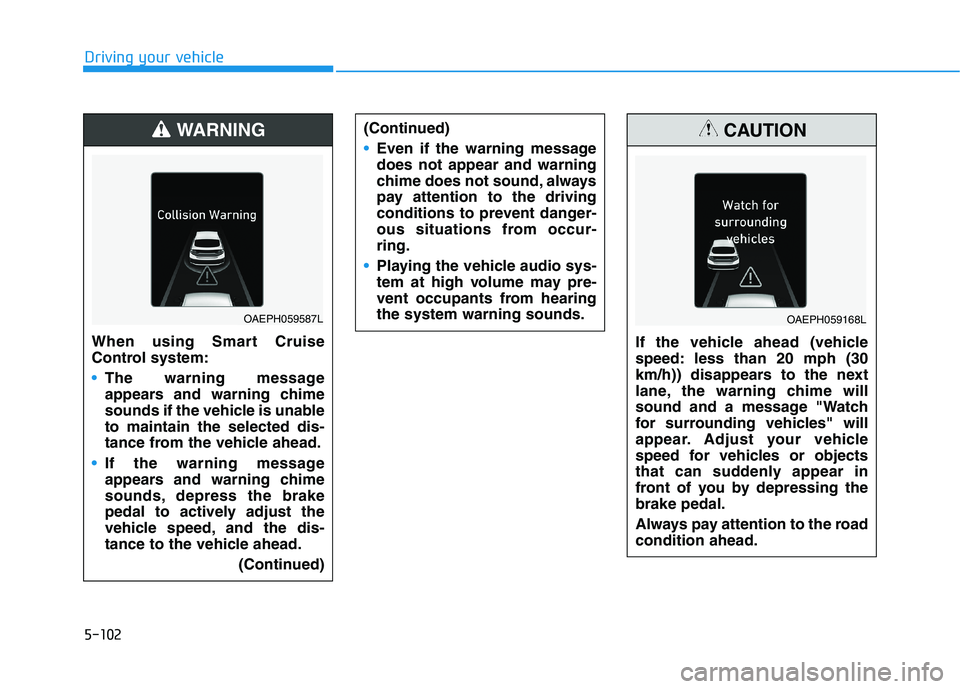
When using Smart Cruise
Control system:
The warning message
appears and warning chime
sounds if the vehicle is unable
to maintain the selected dis-
tance from the vehicle ahead.
If the warning message
appears and warning chime
sounds, depress the brake
pedal to actively adjust the
vehicle speed, and the dis-
tance to the vehicle ahead.
(Continued)
WARNING
OAEPH059587L
(Continued)
Even if the warning message
does not appear and warning
chime does not sound, always
pay attention to the driving
conditions to prevent danger-
ous situations from occur-
ring.
Playing the vehicle audio sys-
tem at high volume may pre-
vent occupants from hearing
the system warning sounds.
If the vehicle ahead (vehicle
speed: less than 20 mph (30
km/h)) disappears to the next
lane, the warning chime will
sound and a message "Watch
for surrounding vehicles" will
appear. Adjust your vehicle
speed for vehicles or objects
that can suddenly appear in
front of you by depressing the
brake pedal.
Always pay attention to the road
condition ahead.
CAUTION
OAEPH059168L
Page 340 of 561
5-104
Driving your vehicle
Warning message
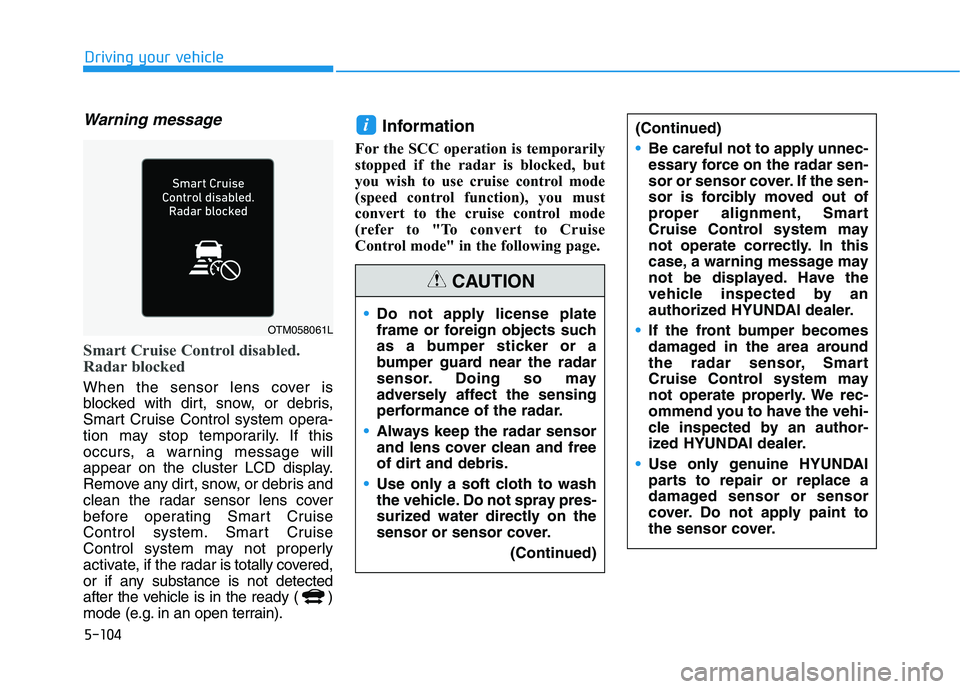
Smart Cruise Control disabled.
Radar blocked
When the sensor lens cover is
blocked with dirt, snow, or debris,
Smart Cruise Control system opera-
tion may stop temporarily. If this
occurs, a warning message will
appear on the cluster LCD display.
Remove any dirt, snow, or debris and
clean the radar sensor lens cover
before operating Smart Cruise
Control system. Smart Cruise
Control system may not properly
activate, if the radar is totally covered,
or if any substance is not detected
after the vehicle is in the ready ( )
mode (e.g. in an open terrain).
Information
For the SCC operation is temporarily
stopped if the radar is blocked, but
you wish to use cruise control mode
(speed control function), you must
convert to the cruise control mode
(refer to "To convert to Cruise
Control mode" in the following page.
i
OTM058061LDo not apply license plate
frame or foreign objects such
as a bumper sticker or a
bumper guard near the radar
sensor. Doing so may
adversely affect the sensing
performance of the radar.
Always keep the radar sensor
and lens cover clean and free
of dirt and debris.
Use only a soft cloth to wash
the vehicle. Do not spray pres-
surized water directly on the
sensor or sensor cover.
(Continued)
CAUTION
(Continued)
Be careful not to apply unnec-
essary force on the radar sen-
sor or sensor cover. If the sen-
sor is forcibly moved out of
proper alignment, Smart
Cruise Control system may
not operate correctly. In this
case, a warning message may
not be displayed. Have the
vehicle inspected by an
authorized HYUNDAI dealer.
If the front bumper becomes
damaged in the area around
the radar sensor, Smart
Cruise Control system may
not operate properly. We rec-
ommend you to have the vehi-
cle inspected by an author-
ized HYUNDAI dealer.
Use only genuine HYUNDAI
parts to repair or replace a
damaged sensor or sensor
cover. Do not apply paint to
the sensor cover.