display Hyundai Kona 2018 Workshop Manual
[x] Cancel search | Manufacturer: HYUNDAI, Model Year: 2018, Model line: Kona, Model: Hyundai Kona 2018Pages: 523, PDF Size: 33.6 MB
Page 234 of 523
![Hyundai Kona 2018 Workshop Manual 4-13
Multimedia System
4
Radio
FM/AM (with RDS (if equipped))
Switching between FM and AM
Press the [RADIO]button on the
audio system to switch between FM and AM.
Searching stations
Press the [SEEK/](/img/35/16231/w960_16231-233.png "Hyundai Kona 2018 Workshop Manual 4-13
Multimedia System
4
Radio
FM/AM (with RDS (if equipped))
Switching between FM and AM
Press the [RADIO]button on the
audio system to switch between FM and AM.
Searching stations
Press the [SEEK/")
4-13
Multimedia System
4
Radio
FM/AM (with RDS (if equipped))
Switching between FM and AM
Press the [RADIO]button on the
audio system to switch between FM and AM.
Searching stations
Press the [SEEK/TRACK] button to
search stations.
Presets
Save up to 36 frequently used sta-
tions.
1. Press and hold the desired slot from 1 through 36. This saves the current station in the selected slot.
If the slot is empty, simply press-
ing saves the station to the slot.
2. To save in slots numbered 7 or higher, press the [PRESET]but-
ton to move to the previous/next
page and save.
To listen to a preset station, pressthe desired station in the list.
Menu
Press the [MENU]button, and select
the desired function.
List: A list of all available stations in the current location of the vehicle is
displayed. Press the desired sta-tion.
Traffic Announcement (TA): Enable or disable Traffic Announcements.
Scan: All available stations are played for five seconds each.
Sound Settings: Audio sound set- tings can be changed.
DAB/FM (with DAB)
Switching between DAB/FM and AM
Press the [RADIO]button on the
audio system to switch between
DAB/FM and AM.
Searching stations
Press the [SEEK/TRACK] button to
search stations.
Page 235 of 523
4-14
Multimedia System
Presets
Save up to 36 frequently used sta-
tions.
1. Press and hold the desired slotfrom 1 through 36. This saves the current station in the selected slot.
If the slot is empty, simply press-
ing saves the station to the slot.
2. To save in slots numbered 7 or higher, press the [PRESET]but-
ton to move to the previous/next
page and save.
To listen to a preset station, pressthe desired station in the list.
Menu
Press the [MENU]button, and select
the desired function.
List: A list of all available stations in the current location of the vehicle is
displayed. Press the desired sta-tion.
Traffic Announcement (TA): Enable or disable Traffic Announcements.
Region : Enable or disable auto- matic switching between regional
stations.
Sound Settings: Audio sound set- tings can be changed.
Scan: All available stations are played for five seconds each.
Manual tune FM : Search for fre- quencies manually.
Media
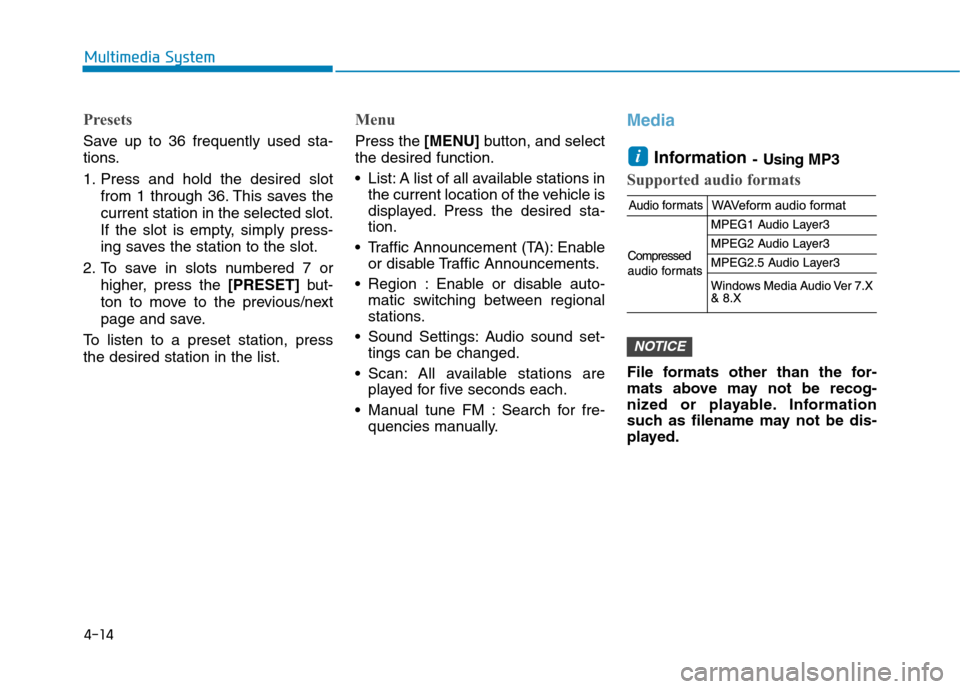
Information - Using MP3
Supported audio formats
File formats other than the for-
mats above may not be recog-
nized or playable. Information
such as filename may not be dis-
played.
NOTICE
i
Page 236 of 523
4-15
Multimedia System
4
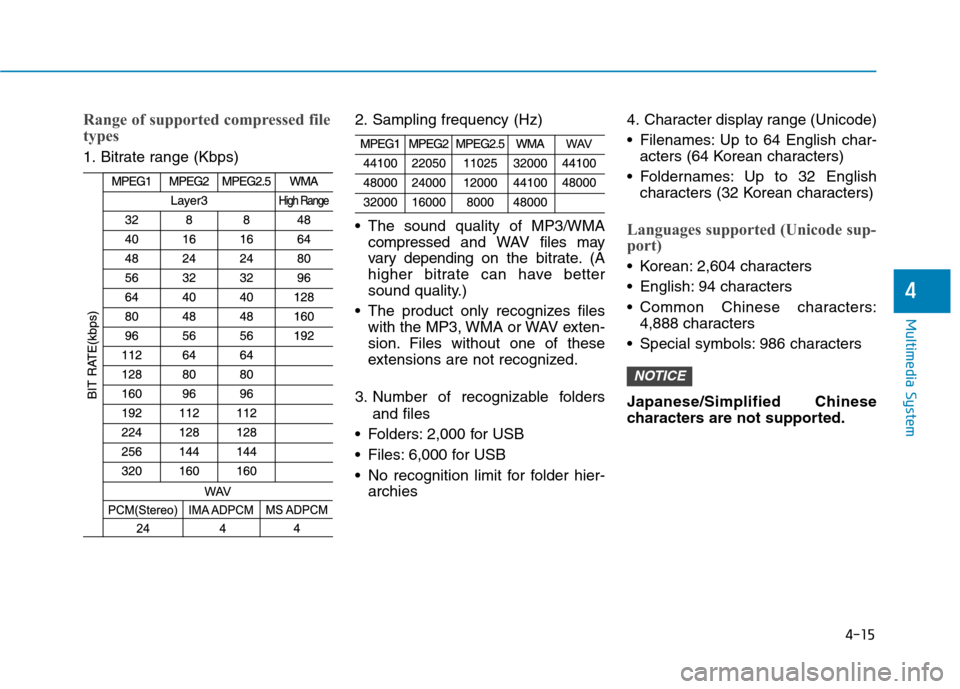
Range of supported compressed file
types
1. Bitrate range (Kbps)2. Sampling frequency (Hz)
The sound quality of MP3/WMA
compressed and WAVfiles may
vary depending on the bitrate. (A
higher bitrate can have better
sound quality.)
The product only recognizes files with the MP3, WMA or WAV exten-
sion. Files without one of these
extensions are not recognized.
3. Number of recognizable folders and files
Folders: 2,000 for USB
Files: 6,000 for USB
No recognition limit for folder hier- archies 4. Character display range (Unicode)
Filenames: Up to 64 English char-
acters (64 Korean characters)
Foldernames: Up to 32 English characters (32 Korean characters)
Languages supported (Unicode sup-
port)
Korean: 2,604 characters
English: 94 characters
Common Chinese characters:4,888 characters
Special symbols: 986 characters Japanese/Simplified Chinese
characters are not supported.
NOTICE
Page 237 of 523
4-16
Multimedia System
Information
- Usingthe USB Devices
Starting the vehicle while a USB device is connected can damage the
device. Please disconnect USB
devices before starting the vehicle.
Starting the vehicle or stopping the engine while an external USB device
is connected can result in failure of
the external USB device to operate.
Be cautious of static electricity when connecting/disconnecting external
USB devices.
An encrypted MP3 player is not rec- ognized when connected as an exter-
nal device.
External USB devices may not be recognized, depending on the state
of the external USB device.
Only products with byte/sectors for- matted at 4 KB or lower are recog-
nized.
Only USB devices in FAT12/16/32 format are recognized; NTFS and
ExFAT file systems are not recog-
nized.
Some USB devices are not recog- nized due to compatibility issues. Do not touch the USB connections.
Connecting and disconnecting USB
devices rapidly over a short period
of time can cause equipment failure.
Abnormal sounds may be audible when the USB device is disconnect-
ed.
Turn the audio off before connecting or disconnecting external USB
devices.
Recognition may take longer depending on the type, capacity or
file format of the external USB
device. This is not a product mal-
function.
Use of USB devices for purposes other than playing music files is pro-
hibited.
Image display and video playback are not supported.
Use of USB accessories, including charge and heat though the USB I/F,
can lead to reduced product per-
formance or malfunctions. Do not
use USB devices or accessories for
these purposes. Use of aftermarket USB hubs and
extension cables can result in the
vehicle’s audio system failing to rec-
ognize your USB device. Connect
the USB device directly to the multi-
media port of your vehicle.
When using high-capacity USB devices with logical drive divisions,
only files saved on the highest level
logical drive can be played.
If applications are loaded on a USB
drive, file playback may fail.
Some MP3 players, cell phones, dig- ital cameras, etc. (USB devices that
are not recognized as mobile stor-
age) may not operate normally
when connected.
USB charging may not be supported by some mobile devices.
Operation is guaranteed only for standard (Metal Cover Type) USB
Memory drives.i
Page 239 of 523
![Hyundai Kona 2018 Workshop Manual 4-18
Multimedia System
Repeat play
Select [Repeat] to enable or disable
‘Repeat all’, ‘Repeat current song’,
‘Repeat folder’ or ‘Repeat category’
play.
Repeat all: Repeat all songs.](/img/35/16231/w960_16231-238.png "Hyundai Kona 2018 Workshop Manual 4-18
Multimedia System
Repeat play
Select [Repeat] to enable or disable
‘Repeat all’, ‘Repeat current song’,
‘Repeat folder’ or ‘Repeat category’
play.
Repeat all: Repeat all songs.")
4-18
Multimedia System
Repeat play
Select [Repeat] to enable or disable
‘Repeat all’, ‘Repeat current song’,
‘Repeat folder’ or ‘Repeat category’
play.
Repeat all: Repeat all songs.
Repeat current song: The cur-rently playing song is repeated.
Repeat folder: All songs in the current folder are repeated.
Repeat category: Repeat all songs in the current category.
Information
The repeat folder function is available
only when songs are playing from the
[File] category under [List].
Shuffle play
Select [Shuffle] to enable or disable
‘Shuffle’, ‘Shuffle folder’ or ‘Shuffle
category’ play.
Shuffle: Songs are played in random order.
Shuffle folder: Songs within the current folder are played in ran-
dom order.
Shuffle category: Songs within the current category are played in
random order.
Menu
Press the [MENU]button, and select
the desired function.
Information: Detailed information on the song that is currently play-
ing is displayed.
Sound Settings: Audio sound set- tings can be changed. Information
- Using the iPod
®
Devices
To use the audio system’s iPod ®
con-
trol function, use the dedicated
cable provided with your iPod ®
.
Connecting the iPod ®
to the vehicle
during play may result in a loud
noise that lasts about one to two sec-
onds. Connect the iPod ®
to the vehi-
cle after stopping or pausing play.
Connect the iPod ®
with the vehicle
in the ACC ON state to begin charg-
ing.
When connecting the iPod ®
cable,
be sure to fully push the cable into
the port.
When EQ effects are enabled simul- taneously on external devices, such
as iPod ®
s and the audio system, the
EQ effects may overlap, causing
sound quality deterioration or dis-
tortion. Deactivate the EQ function
for all external devices, if possible.
Noise may occur when your iPod ®
or the AUX port is connected.
Disconnect and store separately
when not in use.
i
i
Page 241 of 523
![Hyundai Kona 2018 Workshop Manual 4-20
Multimedia System
Playback
Connect your iPod®
to the audio
USB port, press the [MEDIA]button,
and select [iPod].
Changing songs
Press the [SEEK/TRACK] button to
play the previous or next song.](/img/35/16231/w960_16231-240.png "Hyundai Kona 2018 Workshop Manual 4-20
Multimedia System
Playback
Connect your iPod®
to the audio
USB port, press the [MEDIA]button,
and select [iPod].
Changing songs
Press the [SEEK/TRACK] button to
play the previous or next song.")
4-20
Multimedia System
Playback
Connect your iPod®
to the audio
USB port, press the [MEDIA]button,
and select [iPod].
Changing songs
Press the [SEEK/TRACK] button to
play the previous or next song. Press and hold the [SEEK/TRACK]
button to rewind or fast forward the
currently playing song.
Search songs by turning the TUNE
knob, and press the knob to play.
Selecting songs from a list
Select [List] to see a list of songs
available for play.
Select and play the desired song.
Repeat play
Select [Repeat] to enable or disable
‘Repeat category’, ‘Repeat current
song’ play.
Repeat category: Repeat all songs in the current category.
Repeat current song: The cur- rently playing song is repeated.
Shuffle play
Select [Shuffle] to enable or disable
‘Shuffle category’ play.
Shuffle category: Songs withinthe current category are played in
random order.
Menu
Press the [MENU]button, and select
the desired function.
Information: Detailed info on the currently playing song is displayed.
Sound Settings: Audio sound set- tings can be changed.
When other music programs are
running
When songs saved on your iPod ®
are playing through a separate music
app, the above screen is displayed.
(1) Play/Pause: Pause or play music by pressing button [1].
(2) iPod files: Play music files saved on your iPod ®
by pressing button
[2] .
(3) Sound Settings: Audio sound set- tings can be changed by pressing
button [3].
Page 246 of 523
4-25
Multimedia System
4
Pairing a Bluetooth®device
Information on pairing Bluetooth®
devices
Pairing refers to the process of pairing Bluetooth ®
cell phones or
devices with the system prior to
connection. This is a necessary
procedure for Bluetooth ®
connec-
tion and usage.
Up to five devices can be paired.
Pairing Bluetooth ®
device is not
allowed while vehicle is moving.
Pairing the first Bluetooth ®
device
Press the [PHONE]button on the
audio system or the [CALL]button
on the steering wheel remote control ➟ Search for the vehicle from the
Bluetooth ®
device, and pair ➟Enter
the passkey on the Bluetooth ®
device or approve passkey ➟
Bluetooth ®
pairing completed.
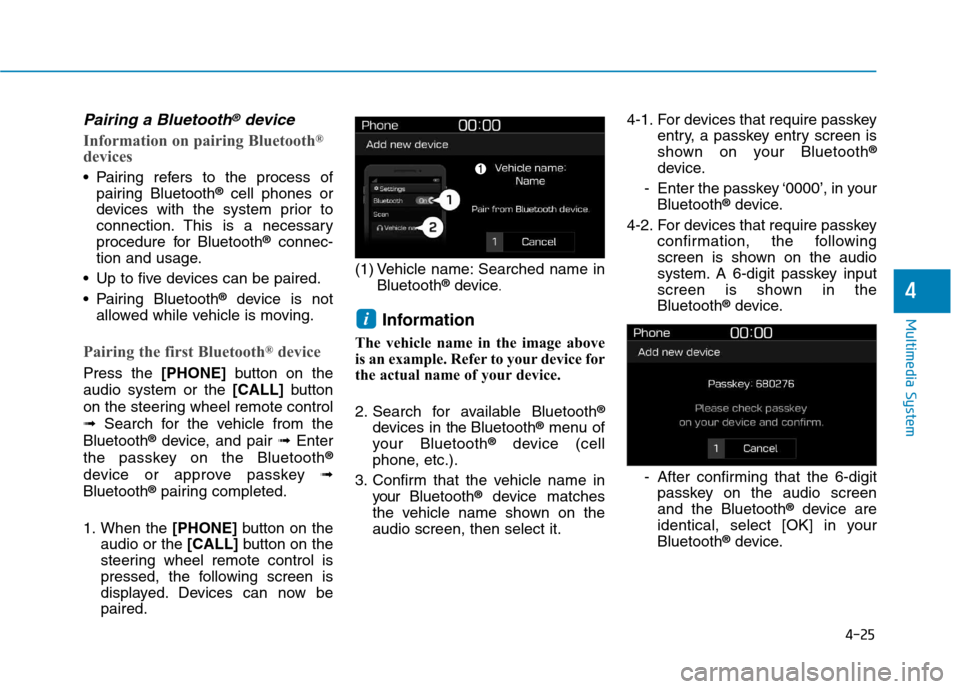
1. When the [PHONE]button on the
audio or the [CALL]button on the
steering wheel remote control is
pressed, the following screen is
displayed. Devices can now bepaired. (1) Vehicle name: Searched name in
Bluetooth ®
device .
Information
The vehicle name in the image above
is an example. Refer to your device for
the actual name of your device.
2. Search for available Bluetooth ®
devices in the Bluetooth ®
menu of
your Bluetooth ®
device (cell
phone, etc.).
3. Confirm that the vehicle name in your Bluetooth ®
device matches
the vehicle name shown on the audio screen, then select it. 4-1. For devices that require passkey
entry, a passkey entry screen is
shown on your Bluetooth ®
device.
- Enter the passkey ‘0000’, in your Bluetooth ®
device.
4-2. For devices that require passkey confirmation, the following
screen is shown on the audio
system. A 6-digit passkey input
screen is shown in theBluetooth ®
device.
- After confirming that the 6-digit passkey on the audio screenand the Bluetooth ®
device are
identical, select [OK] in yourBluetooth ®
device.
i
Page 248 of 523
![Hyundai Kona 2018 Workshop Manual 4-27
Multimedia System
4
If there are connected devices
Press the [PHONE]button on the
audio system ➟Select [Settings] ➟
Select [Connections] ➟Select
Bluetooth ®
device to connect ➟Select](/img/35/16231/w960_16231-247.png "Hyundai Kona 2018 Workshop Manual 4-27
Multimedia System
4
If there are connected devices
Press the [PHONE]button on the
audio system ➟Select [Settings] ➟
Select [Connections] ➟Select
Bluetooth ®
device to connect ➟Select")
4-27
Multimedia System
4
If there are connected devices
Press the [PHONE]button on the
audio system ➟Select [Settings] ➟
Select [Connections] ➟Select
Bluetooth ®
device to connect ➟Select
[Connect] ➟Connect Bluetooth ®
.
Information
Only one Bluetooth ®
device can be
connected at a time.
When a Bluetooth ®
device is con-
nected, other devices cannot be
paired.
Accepting/rejecting phone calls
Receiving phone calls with Bluetooth ®
connected.
(1) Caller name: If the caller number is in your contacts, the correspon-
ding name is displayed.
(2) Incoming phone number: Incoming phone number is displayed.
(3) Accept: Accept call.
(4) Reject: Reject call. Information
When the incoming call screen is displayed, audio mode and the set-
tings screen cannot be shown. Only
call volume control is supported.
Some Bluetooth ®
devices may not
support the call reject function.
Some Bluetooth ®
devices may not
support the phone number display
function.
i
i
Page 249 of 523
![Hyundai Kona 2018 Workshop Manual 4-28
Multimedia System
Operation during calls
Incoming call with Bluetooth®
con-
nected ➟Select [Accept].
(1) Call duration: Call duration display.
(2) Caller name: If the caller number is in yo](/img/35/16231/w960_16231-248.png "Hyundai Kona 2018 Workshop Manual 4-28
Multimedia System
Operation during calls
Incoming call with Bluetooth®
con-
nected ➟Select [Accept].
(1) Call duration: Call duration display.
(2) Caller name: If the caller number is in yo")
4-28
Multimedia System
Operation during calls
Incoming call with Bluetooth®
con-
nected ➟Select [Accept].
(1) Call duration: Call duration display.
(2) Caller name: If the caller number is in your contacts, the corresponding
name is displayed.
(3) Incoming phone number: Incoming phone number is displayed.
(4) Private: Call is transferred to a cell phone.
(5) End: End call.
(6) Mute: Block outgoing voice.
Menu
Press the [MENU]button and select
the desired function.
Switch: Switch between calls if connected to two or more calls.
Microphone Volume: Adjust outgo- ing voice volume.
Information
Some Bluetooth ®
devices may not
support the Private function.
The outgoing voice volume may vary depending on the type of
Bluetooth ®
device. If the outgoing
voice volume is too high or low,
adjust the Microphone Volume.
The Switch menu will only be dis- played if connected to two or more
calls.
Favourites
Press the [PHONE]button on the
audio system ➟Select [Favourites] ➟
Favourites list displayed.
(1) Add to favourites: Add a down- loaded phone number to
favourites.
(2) Favourites list: A list of paired favourite is displayed Connect a call when selected.
Menu
Press the [MENU]button, and select
the desired function.
Delete: Delete a saved favourites.
i
Page 250 of 523
4-29
Multimedia System
4
Information
Up to 20 favourites can be saved for each connected Bluetooth ®
device.
Favourites can be accessed when the Bluetooth ®
device they were paired
from is connected.
The audio system does not down- load favourites from Bluetooth ®
devices. Favourites must be newly
saved before use.
To add to favourites, contacts must be downloaded first.
Saved favourites are not updated even if the contacts of the connected
Bluetooth ®
device are changed. In
this case, favourites need to be delet-
ed and added again.Call history
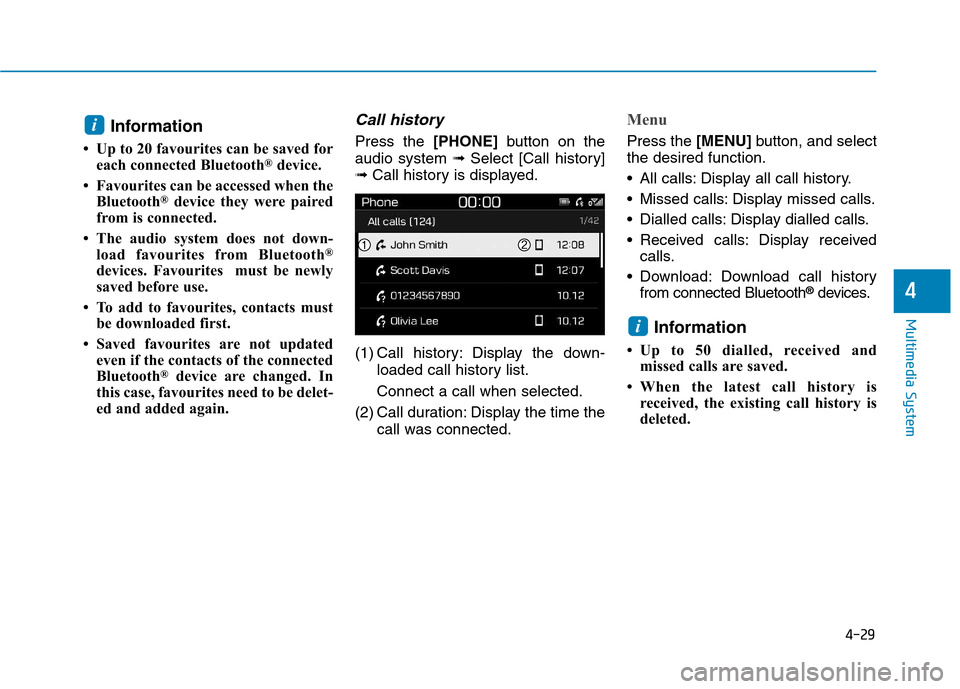
Press the [PHONE]button on the
audio system ➟Select [Call history]
➟ Call history is displayed.
(1) Call history: Display the down- loaded call history list. Connect a call when selected.
(2) Call duration: Display the time the call was connected.
Menu
Press the [MENU]button, and select
the desired function.
All calls: Display all call history.
Missed calls: Display missed calls.
Dialled calls: Display dialled calls.
Received calls: Display received calls.
Download: Download call history from connected Bluetooth ®
devices.
Information
Up to 50 dialled, received and missed calls are saved.
When the latest call history is received, the existing call history is
deleted.
i
i