Change HYUNDAI KONA 2022 Owner's Manual
[x] Cancel search | Manufacturer: HYUNDAI, Model Year: 2022, Model line: KONA, Model: HYUNDAI KONA 2022Pages: 579, PDF Size: 35.31 MB
Page 155 of 579

05
5-21
Remote Start with Digital Key
When the shift button of your vehicle
is in P (Park) and all of the doors
including trunk and hood is locked
and the vehicle is off, press the Door
Lock button in the Hyundai Digital
Key app then press the Remote Start
button within 4 seconds.
You can confirm the engine is on if the
hazard warning lights blinks two times
and the chime sounds.
If you want to turn off the engine,
press Remote Engine Stop. Air
Conditioner / Heating system
maintains the same status as when
you last used the vehicle.
Unless you put the registered digital
key(smartphone) on the interior
authentication pad (wireless charger)
when the remote start function is on,
the engine will turn off.
If you do not get on the vehicle within
10 minutes after the engine turns on,
the vehicle will turn off.
For more information, refer to the Engine
Start/Stop button in chapter 6.
Vehicle information Display
The digital key application displays
the vehicle information such as
driving or door conditions through the
communication with the vehicle.
How to check : Select the vehicle
what you want to check and touch
the vehicle image, then vehicle
information display page will be
shown.
Contents : accumulated odometer,
latest fuel economy, driving range,
fuel remaining, tire pressure, doors
lock/unlock status and last data
updated time.
Displayed vehicle date could be
differed from the current vehicle
condition.
For more information, please refer to
the ‘Tutorial’ on your Digital key app.
If you change your smartphone or delete
the Hyundai Digital Key App, please refer
to the following to set up your Digital
Key:
Smartphone Change/ Reset
If you change or reset the smartphone,
the registered digital key in your previous
smartphone may not be used. Please
refer to following procedure to use the
digital key.
1. Install the digital key application and
log in.
2. If you are the owner, retry the Digital
key save process.
3. If you are the sharer, need to re-share
the key from owner.
App delete & reinstall/ Delete App data
You can re-download the digital key
from server in these cases as follow
procedure.
1. Reinstall the application and log in.
2. Input the PIN number for user
verification.
3. If PIN is correct, digital key data
will be re-downloaded to your
smartphone and you can use it
without any further registration or
sharing.
Smartphone operability with Digital Key
The digital key application may not
be available to old type smartphones.
Please check the available smartphone
models with your dealer. NFC antenna
position on the smartphone can be
confirmed on each smartphone’s manual
or contact to customer service center of
the smartphone manufacture.
Page 157 of 579
05
5-23
-If you use a smart phone cover that
uses wireless communication or is
made of metal, the digital key NFC
function may not work properly.
Remove the smart phone cover
before using the digital key NFC
function.
The vehicle may not be controlled by
the smartphone if any of the following
occurs:
-Basic and necessary functions of
the smartphone manufacturer are
operating. (General call, urgent
call, audio or NFC payment)
-Wireless earphone is operating.
(General call, urgent call or audio)
-The digital key app function such
as basic setting or app launching
is limited by prior policy according
to the manufacturer while using a
smartphone produced by domestic
and foreign manufactures.
If you change the smartphone
number, you should modify the user
account information on the HYUNDAI
customer web site to use the digital
key app.
If the vehicle owner changes
the smartphone device, the new
smartphone should be registered in
the car after deleting the registered
digital key(smartphone).
If a sharer changes or reset the
smartphone, the key should be re-
shared from owner.
Some of the old smartphone may
not work properly. Please check the
available smartphone models with
your dealer.
NFC antenna position on the
smartphone can be confirmed
on each smartphone’s manual or
contact to customer service center
of the smartphone manufacture.
Digital key (Card key)
1. Install Hyundai digital key app in
main user’s smartphone and register
the digital key (smartphone). Please
refer to the registration method of the
digital key (smartphone).
2. Using the [Pair Card Key] menu on
the digital key application, you can
activate the Card Key registration
mode.
NFC authentication : enter the NFC
authentication menu and contact
the smartphone on the outside door
handle.
Bluetooth authentication : enter the
Bluetooth authentication menu and
press the [OK] button for activation.
If you activate the registration mode,
you should complete the Card saving
process within 5 minutes.
If you have not registered the digital
key (smartphone), please register the
digital key (card key) with two smart
keys.
Page 160 of 579
Convenient features
5-26
After placing your registered card key
onto the interior authentication pad
(wireless charger), step on the brake and
press the Engine Start/Stop button.
WARNING
If you do not place the digital key
(card key) onto the center of the
interior authentication pad (wireless
charger) exactly, the card key may
not be recognized. If the engine is
not turned on, adjust and place the
key again.
If you overlap and use the key
with NFC-enabled cards such as
transportation card or credit card,
the card key may not be recognized.
If the digital key (card key) does not
work, please detach the key around
4 inches (0.1 m) from the handle
authentication pad and retry to
contact.
The card key may be damaged due to
impact. It would not work properly if
the key is damaged. You should buy a
new card and register again.
For more information, refer to the
Engine Start/Stop button in chapter 6.
If you do not want to use the digital key
(smartphone and card key), you can
disable the function temporarily. You
should have the smart key when you
change the settings
With Navigation screen :
From the infotainment screen menu,
go to [Setup] - [Vehicle] - [Digital Key]
- [Enable Digital Keys] (deselect)
Without navigation screen :
From cluster menu, go to [Digital Key]
- [Enable Digital Keys] (deselect)
Information
CAUTION
If you uncheck Enable digital keys, it is
impossible to lock or unlock the doors
or start up the vehicle with digital keys
such as smartphone and card key. If
you check Enable digital keys again, the
registered digital keys(smartphone and
card key) are available. Even though
you stop the digital key function, the
registered keys (smartphone and card
key) are not deleted.
Page 162 of 579
Convenient features
5-28
The personalization function linked with
digital key works as following conditions:
Contact the driver’s door handle with
the profile linked smart phone to lock
or unlock the doors (Personalization
does not operate when locking or
unlocking the front passenger door.)
Remote door unlock with the profile
linked smartphone digital key app.
The profile linked with digital key can be
changed manually in the infotainment
system setup screen.
Profile operation according to door lock/
unlock system is as follows.
ItemPersonalization
Operation
Initial value Guest
Profile linked
smart phone
key
Linked profile
Profile unlinked
smart phone
keyRecently activated
profileNFC card key
Smart key
The personalization function using
the digital key can be operated
after linking the digital key on the
infotainment system profile menu.
You should use the personalization
function during stopping your vehicle
safely.
Page 170 of 579
Convenient features
5-36
Electric Power Steering (EPS)
The system assists you with steering the
vehicle. If the vehicle is turned off or
if the power steering system becomes
inoperative, you may still steer the
vehicle, but it will require increased
steering effort.
Should you notice any change in the
effort required to steer during normal
vehicle operation, have the system
checked by an authorized HYUNDAI
dealer.
CAUTION
If Electric Power Steering does not
operate normally, the warning
light and the message ‘Check motor
driven power steering’ will illuminate
on the instrument cluster. You may
steer the vehicle, but it will require
increased steering efforts. Take your
vehicle to an authorized HYUNDAI
dealer or to a service station and
have the system checked as soon as
possible.
When abnormality is detected in
the electric power steering system,
to prevent a deadly accident, the
steering assist function will stop. At
this time, the warning light turns on
or blinks on the cluster. The steering
wheel may become difficult to
control or operate. Have your vehicle
checked immediately, after moving
the vehicle to a safe zone.
Information
STEERING WHEEL
Page 177 of 579
05
5-43
OOS040476N
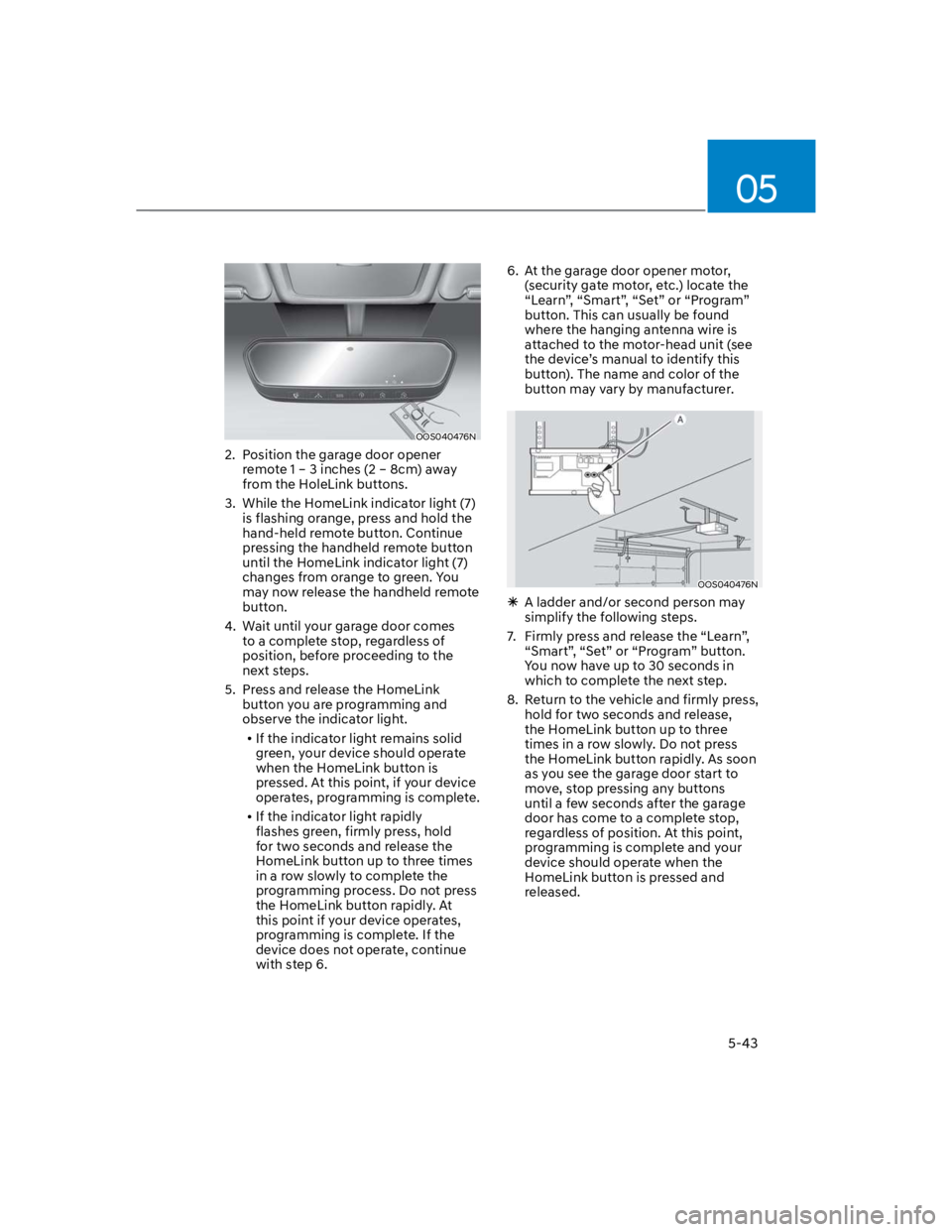
2. Position the garage door opener
remote 1 – 3 inches (2 – 8cm) away
from the HoleLink buttons.
3. While the HomeLink indicator light (7)
is flashing orange, press and hold the
hand-held remote button. Continue
pressing the handheld remote button
until the HomeLink indicator light (7)
changes from orange to green. You
may now release the handheld remote
button.
4. Wait until your garage door comes
to a complete stop, regardless of
position, before proceeding to the
next steps.
5. Press and release the HomeLink
button you are programming and
observe the indicator light.
If the indicator light remains solid
green, your device should operate
when the HomeLink button is
pressed. At this point, if your device
operates, programming is complete.
If the indicator light rapidly
flashes green, firmly press, hold
for two seconds and release the
HomeLink button up to three times
in a row slowly to complete the
programming process. Do not press
the HomeLink button rapidly. At
this point if your device operates,
programming is complete. If the
device does not operate, continue
with step 6.
6. At the garage door opener motor,
(security gate motor, etc.) locate the
“Learn”, “Smart”, “Set” or “Program”
button. This can usually be found
where the hanging antenna wire is
attached to the motor-head unit (see
the device’s manual to identify this
button). The name and color of the
button may vary by manufacturer.
OOS040476N
A ladder and/or second person may
simplify the following steps.
7. Firmly press and release the “Learn”,
“Smart”, “Set” or “Program” button.
You now have up to 30 seconds in
which to complete the next step.
8. Return to the vehicle and firmly press,
hold for two seconds and release,
the HomeLink button up to three
times in a row slowly. Do not press
the HomeLink button rapidly. As soon
as you see the garage door start to
move, stop pressing any buttons
until a few seconds after the garage
door has come to a complete stop,
regardless of position. At this point,
programming is complete and your
device should operate when the
HomeLink button is pressed and
released.
Page 179 of 579
05
5-45
4) Canadian Programming
Canadian radio-frequency laws require
transmitter remote signals to “time-
out” (or quit) after a couple seconds of
transmission, which may not be long
enough for HomeLink to pick up the
signal during programming.
If you live in Canada or you are having
difficulties programming a gate operator
or garage door opener by using the
programming procedures, replace
“Programming a New HomeLink Button”
step 3 with the following:
While the HomeLink indicator light (7)
is flashing orange, press and release
(“cycle”) your device’s handheld remote
every two seconds until the HomeLink
indicator light (7) changes from orange
to green. You may now release the hand-
held remote button. Then proceed with
“Programming a New HomeLink Button”
step 4.
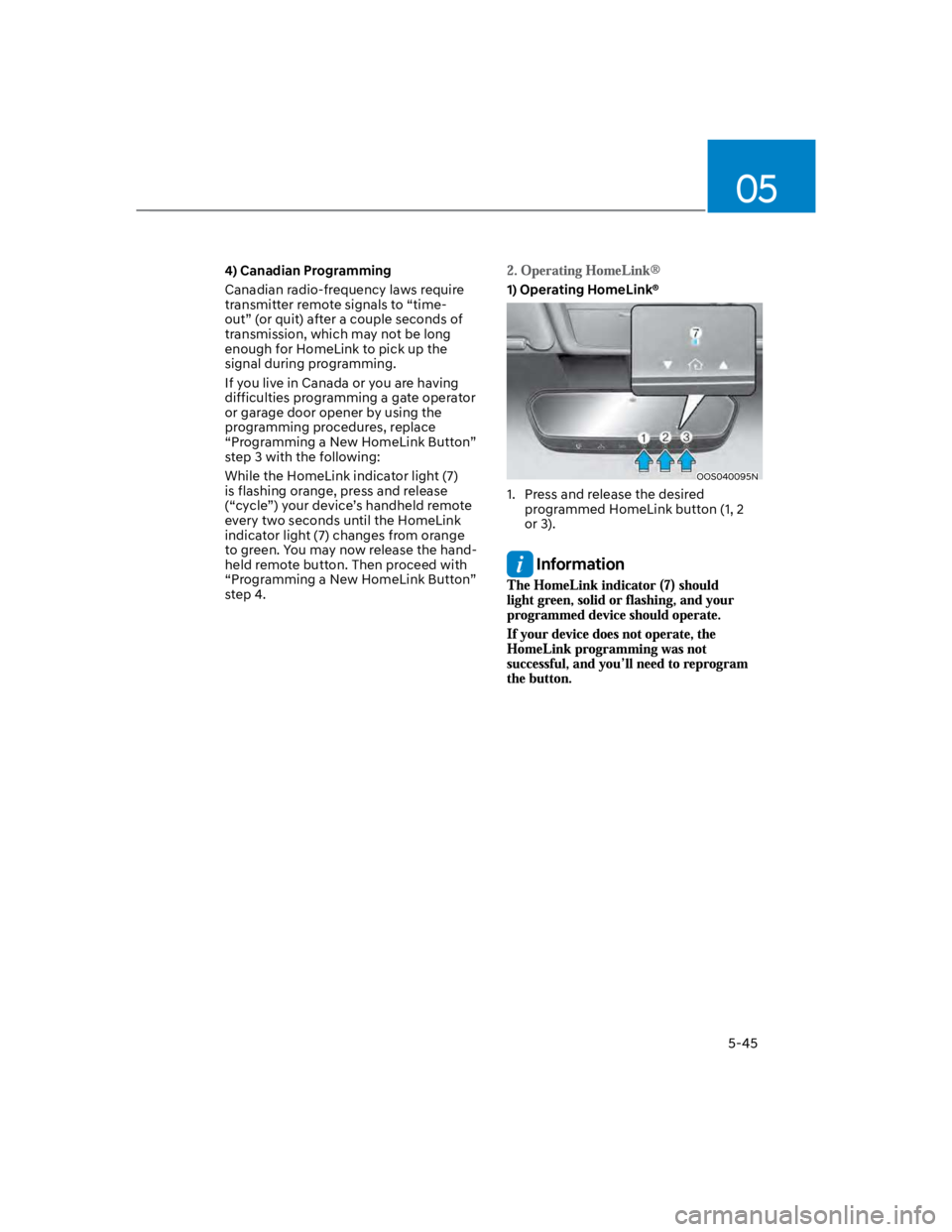
1) Operating HomeLink®
OOS040095N
1. Press and release the desired
programmed HomeLink button (1, 2
or 3).
Information
Page 181 of 579
05
5-47
1) Erasing and Reprogramming a Single
HomeLink® Button:
1. Press and hold the desired HomeLink
button you want to re-program. DO
NOT release the button.
2. The HomeLink indicator light (7) will
illuminate solid green. Release the
button as soon as the HomeLink
indicator light (7) begins to flash
orange, usually about 20 seconds.
3. Proceed with the steps in the
“Programming a New HomeLink
Button” section.
Information
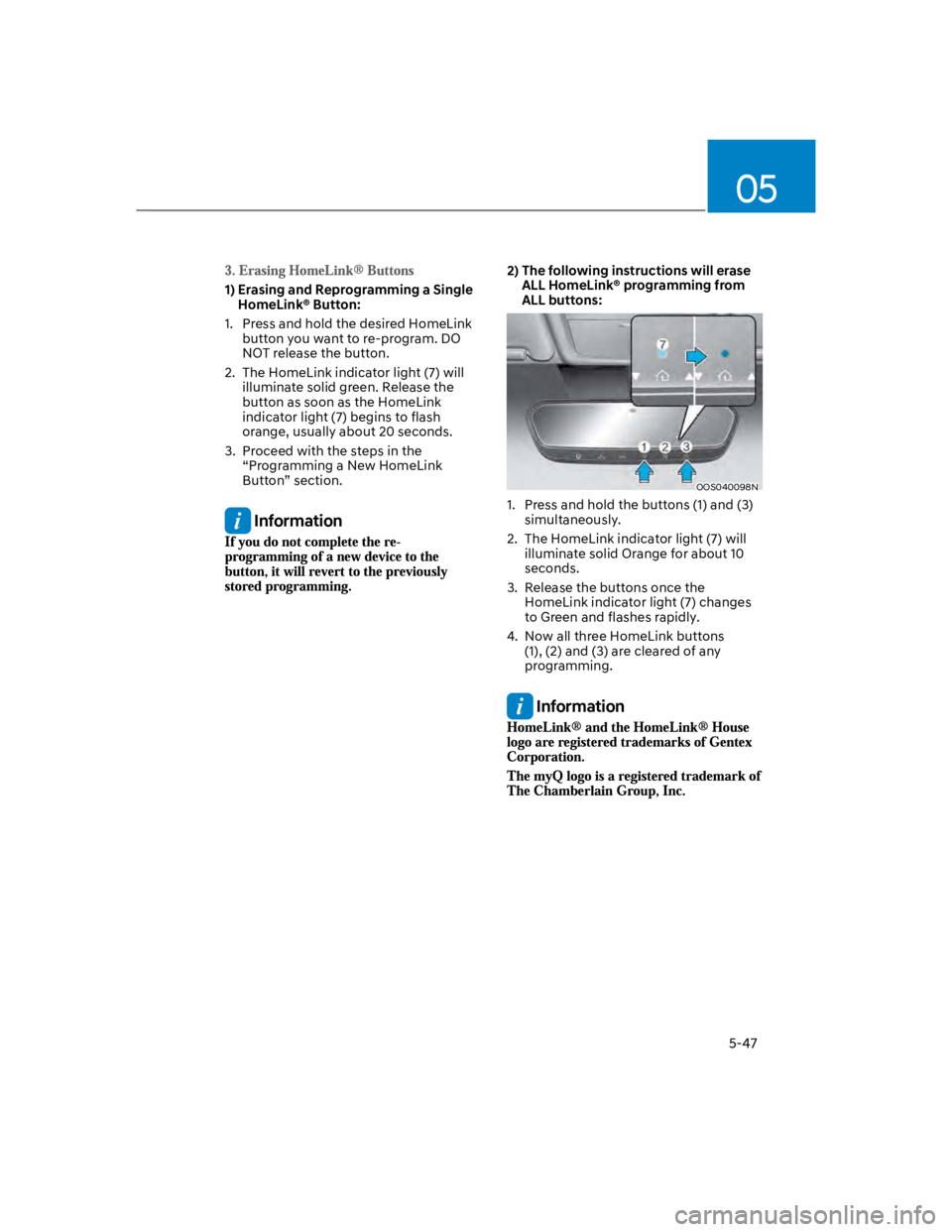
2) The following instructions will erase
ALL HomeLink® programming from
ALL buttons:
OOS040098N
1. Press and hold the buttons (1) and (3)
simultaneously.
2. The HomeLink indicator light (7) will
illuminate solid Orange for about 10
seconds.
3. Release the buttons once the
HomeLink indicator light (7) changes
to Green and flashes rapidly.
4. Now all three HomeLink buttons
(1), (2) and (3) are cleared of any
programming.
Information
Page 182 of 579

Convenient features
5-48
FCC (USA) and ISED (Canada)
This device complies with FCC rules
part 15 and Innovation, Science, and
Economic Development Canada RSS-
210. Operation is subject to the following
two conditions: (1) This device may not
cause harmful interference, and (2) This
device must accept any interference that
may be received including interference
that may cause undesired operation.
WARNING: The transmitter has been
tested and complies with FCC and
ISED rules. Changes or modifications
not expressly approved by the party
responsible for compliance could void
the user’s authority to operate the
device.
This equipment complies with FCC
and ISED radiation exposure limits set
forth for an uncontrolled environment.
End Users must follow the specific
operating instructions for satisfying RF
exposure compliance. This transmitter
must be at least 20cm from the user and
must not be co-located or operating in
conjunction with any other antenna or
transmitter.
FCC (Htats-Unis) et ISED (Canada)
Cet appareil est conforme aux
règlements de la FCC, section 15, et
au CNR-210 d’Innovation, Sciences et
Dhveloppement économique Canada. Le
fonctionnement est assujetti aux deux
conditions suivantes : (1) cet appareil ne
doit pas causer d’interférences nuisibles
et (2) cet appareil doit accepter toute
interférence reçue, y compris celle qui
pourrait entraîner un dysfonctionnement.
MISE EN GARDE : L’émetteur a subi des
tests et est conforme aux règlements
de la FCC et d’ISDE. Les changements
ou modifications non approuvés
explicitement par la partie responsable
de la conformité pourraient rendre
caduque l’autorisation de l’utilisateur de
se servir du dispositif.
Cet appareil est conforme aux limites
d’exposition aux radiations de la FCC et
d’ISDE établies pour un environnement
non contrôlé. Les utilisateurs finaux
doivent respecter les instructions
d’utilisation spécifiques pour satisfaire
aux exigences de conformité aux
expositions de RF.
L’émetteur doit se trouver à 20 cm au
minimum de l’utilisateur et ne doit pas
être situé au même endroit que tout
autre émetteur ou antenne ni fonctionner
avec un autre émetteur ou antenne.
La operación de este equipo está sujeta
a las siguientes dos condiciones: (1) es
posible que este equipo o dispositivo
pueda no causar interferencia dañina, y
(2) este dispositivo o dispositivos deben
aceptar cualquier interferencia, que
incluye la interferencia que puede causar
su operación no deseada.
Page 203 of 579
05
5-69
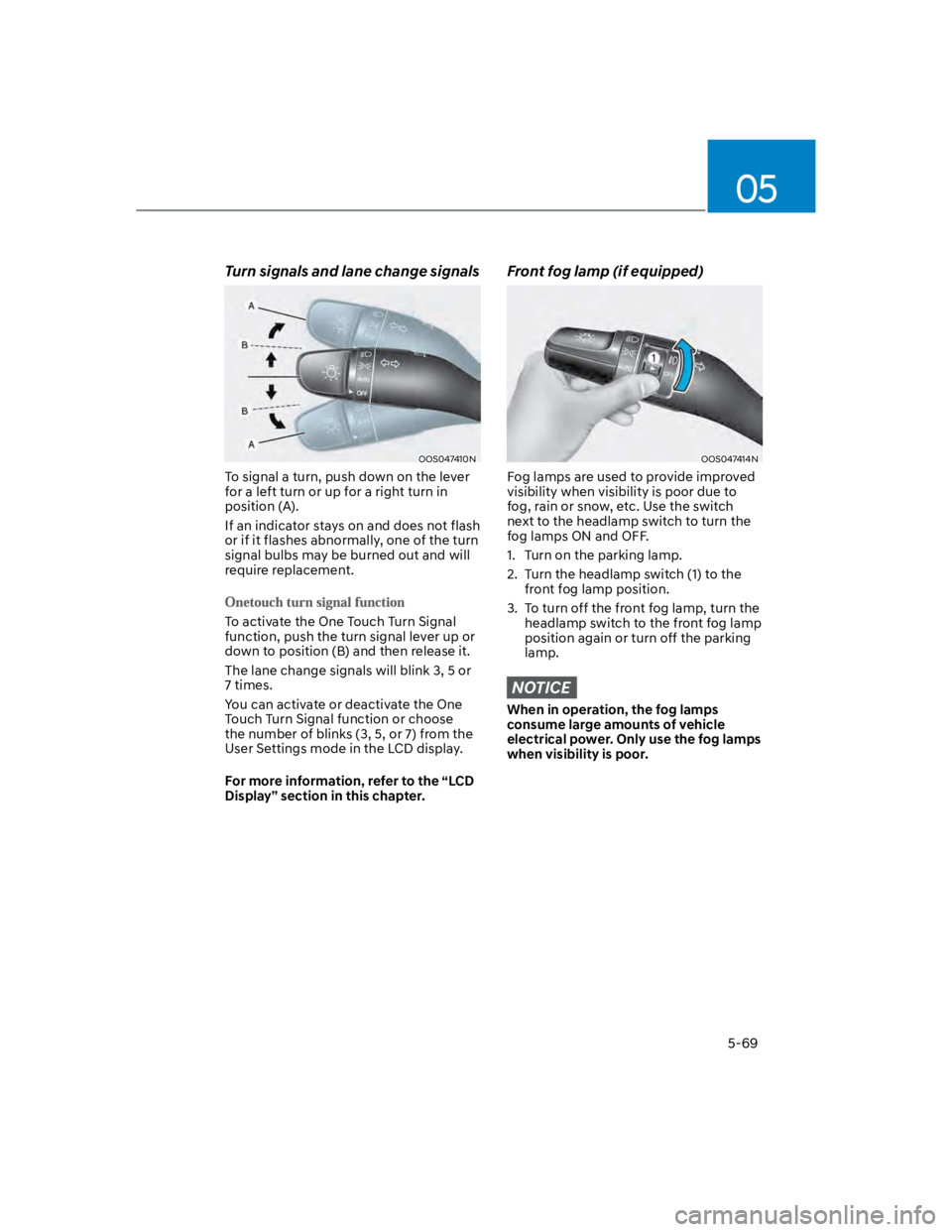
Turn signals and lane change signals
OOS047410N
To signal a turn, push down on the lever
for a left turn or up for a right turn in
position (A).
If an indicator stays on and does not flash
or if it flashes abnormally, one of the turn
signal bulbs may be burned out and will
require replacement.
To activate the One Touch Turn Signal
function, push the turn signal lever up or
down to position (B) and then release it.
The lane change signals will blink 3, 5 or
7 times.
You can activate or deactivate the One
Touch Turn Signal function or choose
the number of blinks (3, 5, or 7) from the
User Settings mode in the LCD display.
For more information, refer to the “LCD
Display” section in this chapter.
Front fog lamp (if equipped)
OOS047414N
Fog lamps are used to provide improved
visibility when visibility is poor due to
fog, rain or snow, etc. Use the switch
next to the headlamp switch to turn the
fog lamps ON and OFF.
1. Turn on the parking lamp.
2. Turn the headlamp switch (1) to the
front fog lamp position.
3. To turn off the front fog lamp, turn the
headlamp switch to the front fog lamp
position again or turn off the parking
lamp.
NOTICE
When in operation, the fog lamps
consume large amounts of vehicle
electrical power. Only use the fog lamps
when visibility is poor.