Change HYUNDAI KONA 2022 User Guide
[x] Cancel search | Manufacturer: HYUNDAI, Model Year: 2022, Model line: KONA, Model: HYUNDAI KONA 2022Pages: 579, PDF Size: 35.31 MB
Page 115 of 579

Instrument cluster
4-22
LCD display messages
Shift to P (for smart key system and
dual clutch transmission)
This message is displayed if you try to
turn off the vehicle without the gear in
the P (Park) position.
If this occurs, the Engine Start/Stop
button turns to the ACC position.
Low key battery (for smart key
system)
This message is displayed if the battery
of the smart key is discharged while
changing the Engine Start/Stop button to
the OFF position.
Press START button while turning
wheel (for smart key system)
This message is displayed if the steering
wheel does not unlock normally when
the Engine Start/Stop button is pressed.
You should press the Engine Start/Stop
button while turning the steering wheel
right and left.
Steering wheel not locked
(for smart key system)
This message is displayed if the steering
wheel does not lock normally while the
Engine Start/Stop button is pressed to
the OFF position.
Press brake pedal to start engine (for
smart key system and dual clutch
transmission)
This message is displayed if the Engine
Start/Stop button changes to the ACC
position twice by pressing the button
repeatedly without depressing the brake
pedal.
You can start the vehicle by depressing
the brake pedal and then pressing the
Engine Start/Stop button.
Key not in vehicle (for smart key
system)
This message is displayed if the smart
key is not in the vehicle when you leave
the vehicle with the Engine Start/Stop
button in the ON or Start position.
Always turn off the engine before leaving
your vehicle.
Key not detected (for smart key
system)
This message is displayed if the smart
key is not detected when you press the
Engine Start/Stop button.
Press START button again (for smart
key system)
This message is displayed if you were
unable to start the vehicle when the
Engine Start/Stop button was pressed.
If this occurs, attempt to start the engine
by pressing the Engine Start/ Stop button
again.
If the warning message appears each
time you press the Engine Start/Stop
button, have the vehicle inspected by an
authorized HYUNDAI dealer.
Page 121 of 579
Instrument cluster
4-28
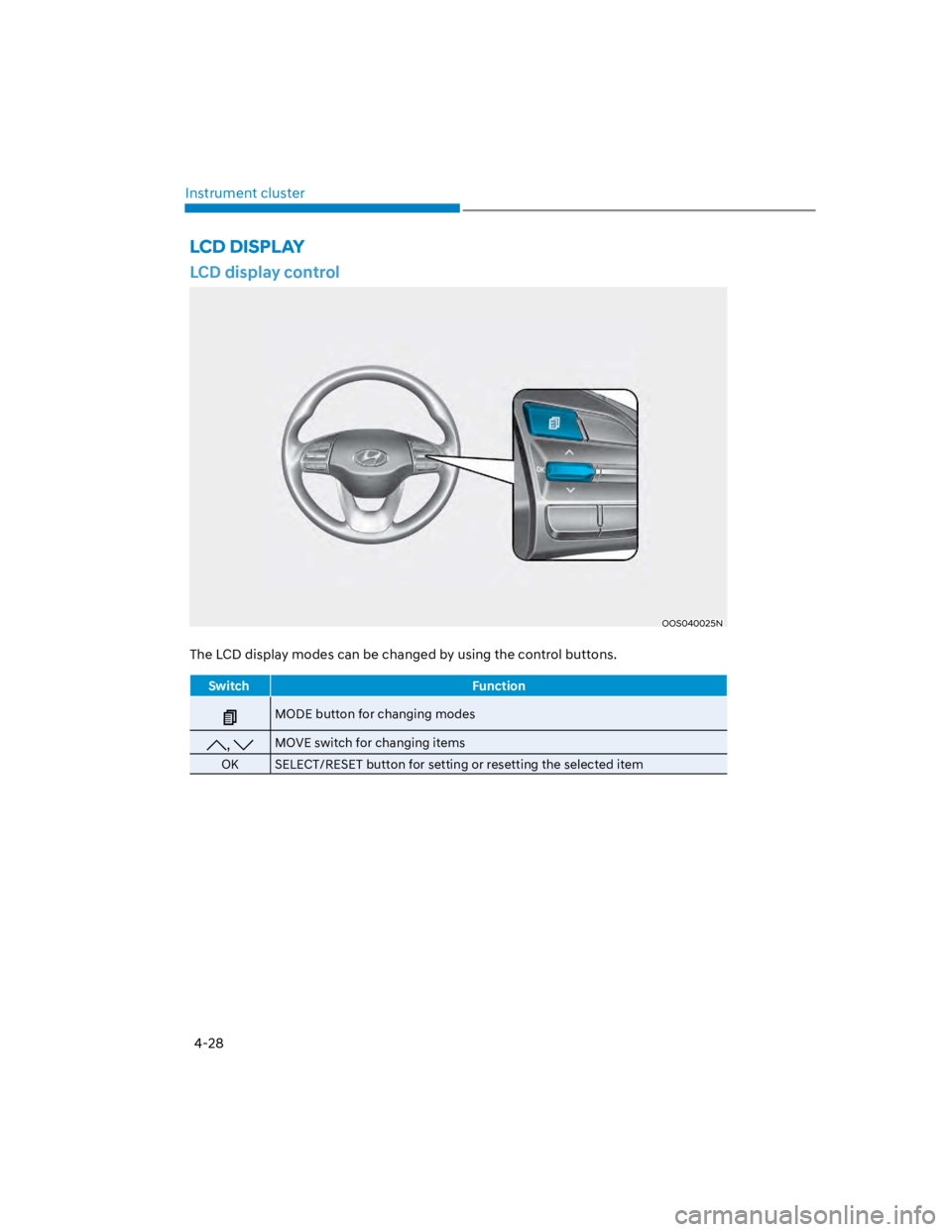
LCD display control
OOS040025N
The LCD display modes can be changed by using the control buttons.
Switch Function
MODE button for changing modes
, MOVE switch for changing items
OK SELECT/RESET button for setting or resetting the selected item
LCD DISPLAY
Page 122 of 579
04
4-29
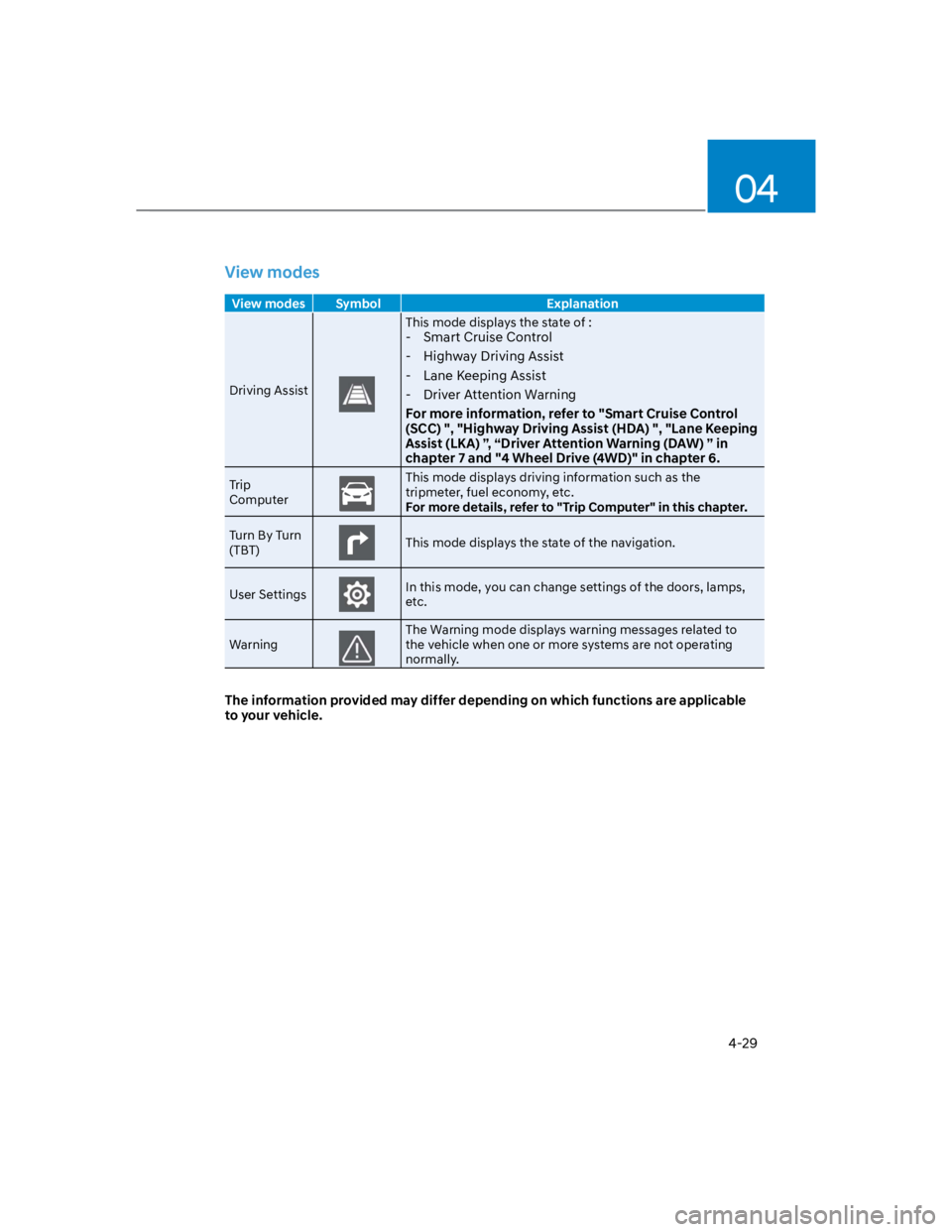
View modes
View modes Symbol Explanation
Driving Assist
This mode displays the state of :
- Smart Cruise Control
- Highway Driving Assist
- Lane Keeping Assist
- Driver Attention Warning
For more information, refer to "Smart Cruise Control
(SCC) ", "Highway Driving Assist (HDA) ", "Lane Keeping
Assist (LKA) ”, “Driver Attention Warning (DAW) ” in
chapter 7 and "4 Wheel Drive (4WD)" in chapter 6.
Trip
Computer
This mode displays driving information such as the
tripmeter, fuel economy, etc.
For more details, refer to "Trip Computer" in this chapter.
Turn By Turn
(TBT)This mode displays the state of the navigation.
User SettingsIn this mode, you can change settings of the doors, lamps,
etc.
Warning
The Warning mode displays warning messages related to
the vehicle when one or more systems are not operating
normally.
The information provided may differ depending on which functions are applicable
to your vehicle.
Page 125 of 579
Instrument cluster
4-32
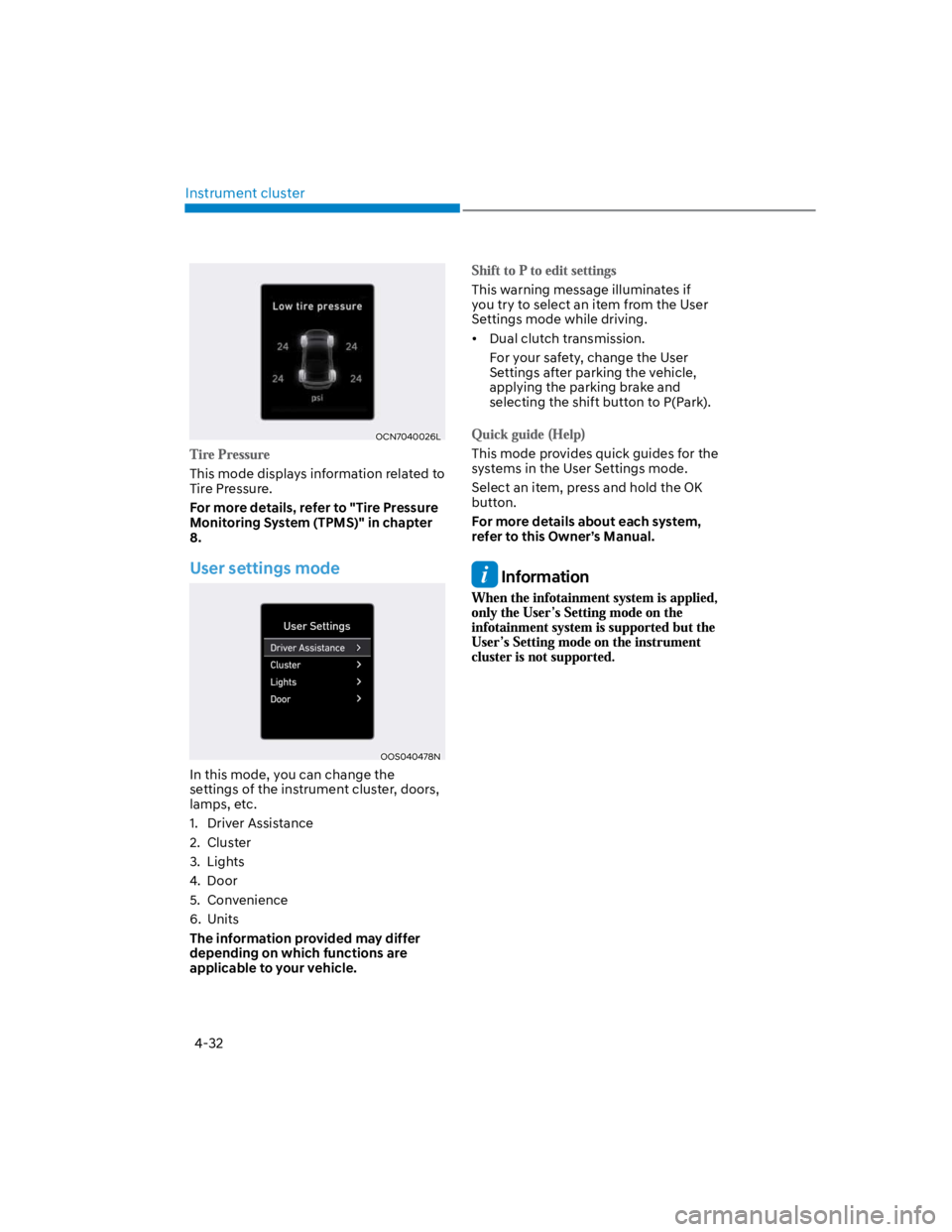
OCN7040026L
This mode displays information related to
Tire Pressure.
For more details, refer to "Tire Pressure
Monitoring System (TPMS)" in chapter
8.
User settings mode
OOS040478N
In this mode, you can change the
settings of the instrument cluster, doors,
lamps, etc.
1. Driver Assistance
2. Cluster
3. Lights
4. Door
5. Convenience
6. Units
The information provided may differ
depending on which functions are
applicable to your vehicle.
This warning message illuminates if
you try to select an item from the User
Settings mode while driving.
Dual clutch transmission.
For your safety, change the User
Settings after parking the vehicle,
applying the parking brake and
selecting the shift button to P(Park).
This mode provides quick guides for the
systems in the User Settings mode.
Select an item, press and hold the OK
button.
For more details about each system,
refer to this Owner’s Manual.
Information
Page 128 of 579
04
4-35
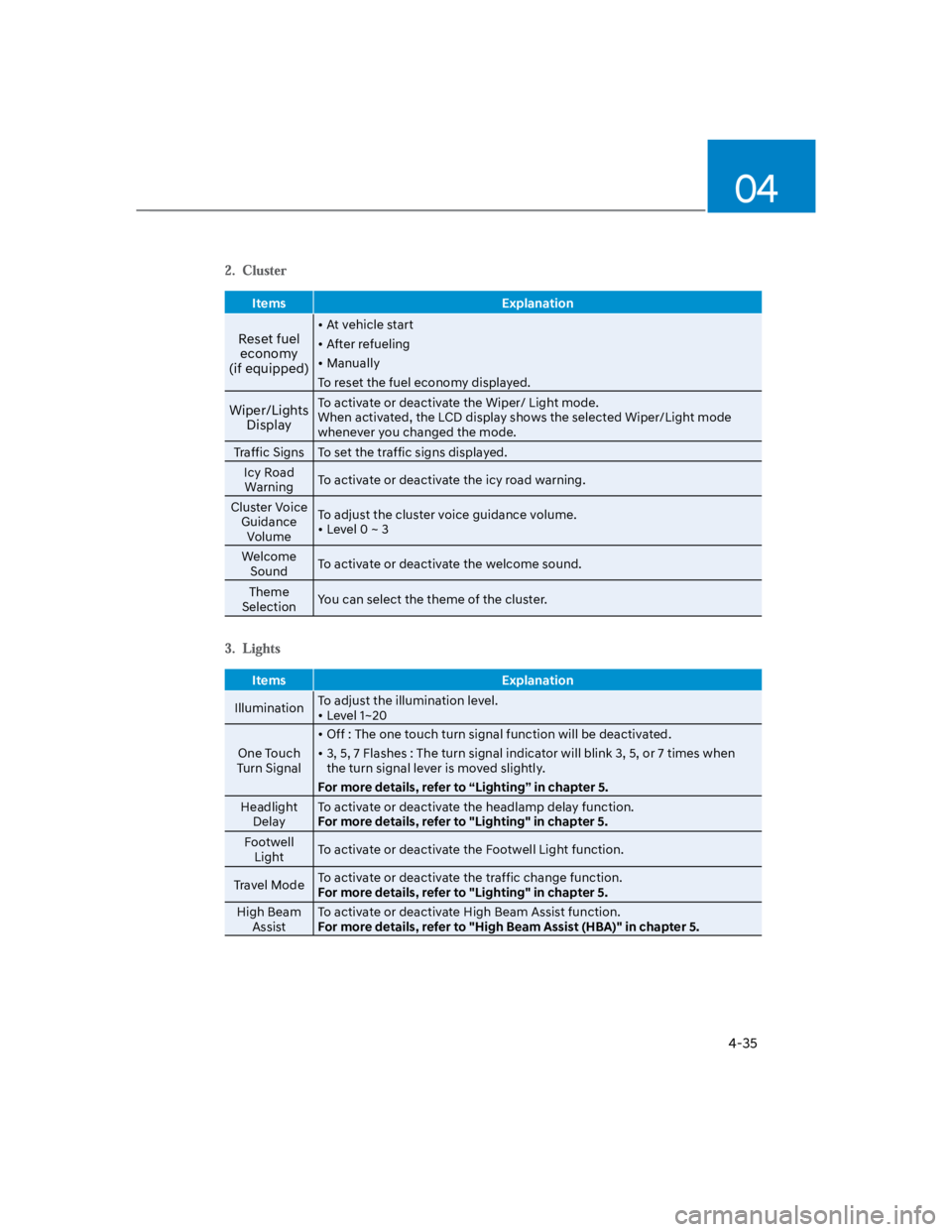
Items Explanation
Reset fuel
economy
(if equipped)
At vehicle start
After refueling
Manually
To reset the fuel economy displayed.
Wiper/Lights
Display
To activate or deactivate the Wiper/ Light mode.
When activated, the LCD display shows the selected Wiper/Light mode
whenever you changed the mode.
Traffic Signs To set the traffic signs displayed.
Icy Road
WarningTo activate or deactivate the icy road warning.
Cluster Voice
Guidance
Volume
To adjust the cluster voice guidance volume.
Level 0 ~ 3
Welcome
SoundTo activate or deactivate the welcome sound.
Theme
SelectionYou can select the theme of the cluster.
Items Explanation
IlluminationTo adjust the illumination level.
Level 1~20
One Touch
Turn Signal
Off : The one touch turn signal function will be deactivated.
3, 5, 7 Flashes : The turn signal indicator will blink 3, 5, or 7 times when
the turn signal lever is moved slightly.
For more details, refer to “Lighting” in chapter 5.
Headlight
Delay
To activate or deactivate the headlamp delay function.
For more details, refer to "Lighting" in chapter 5.
Footwell
LightTo activate or deactivate the Footwell Light function.
Travel ModeTo activate or deactivate the traffic change function.
For more details, refer to "Lighting" in chapter 5.
High Beam
Assist
To activate or deactivate High Beam Assist function.
For more details, refer to "High Beam Assist (HBA)" in chapter 5.
Page 131 of 579
Instrument cluster
4-38
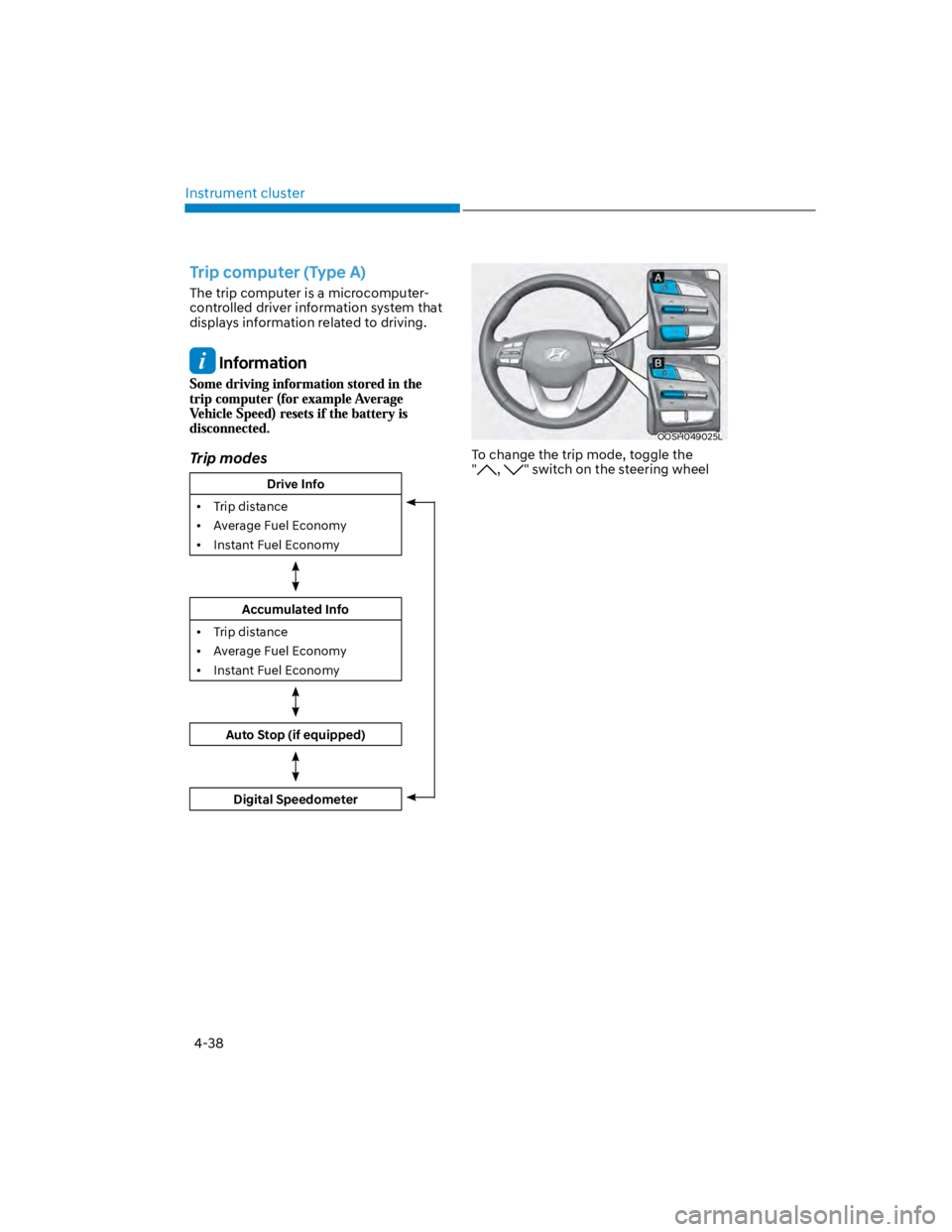
Trip computer (Type A)
The trip computer is a microcomputer-
controlled driver information system that
displays information related to driving.
Information
Trip modes
Drive Info
Trip distance
Average Fuel Economy
Instant Fuel Economy
Accumulated Info
Trip distance
Average Fuel Economy
Instant Fuel Economy
Auto Stop (if equipped)
Digital Speedometer
OOSH049025L
To change the trip mode, toggle the
", " switch on the steering wheel
Page 133 of 579
Instrument cluster
4-40
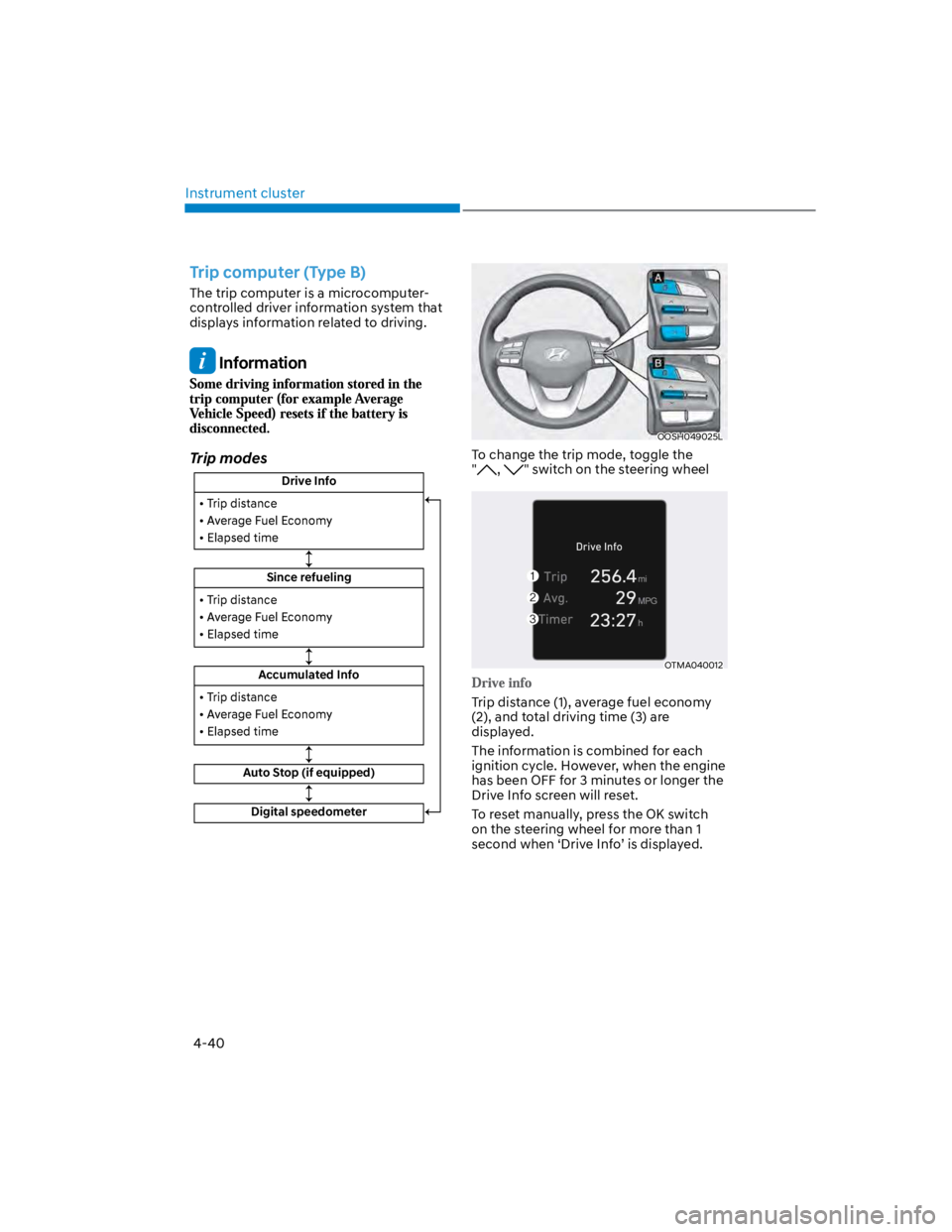
Trip computer (Type B)
The trip computer is a microcomputer-
controlled driver information system that
displays information related to driving.
Information
Trip modes
Drive Info
Since refueling
Accumulated Info
Auto Stop (if equipped)
Digital speedometer
OOSH049025L
To change the trip mode, toggle the
", " switch on the steering wheel
OTMA040012
Trip distance (1), average fuel economy
(2), and total driving time (3) are
displayed.
The information is combined for each
ignition cycle. However, when the engine
has been OFF for 3 minutes or longer the
Drive Info screen will reset.
To reset manually, press the OK switch
on the steering wheel for more than 1
second when ‘Drive Info’ is displayed.
Page 138 of 579
Convenient features
5-4
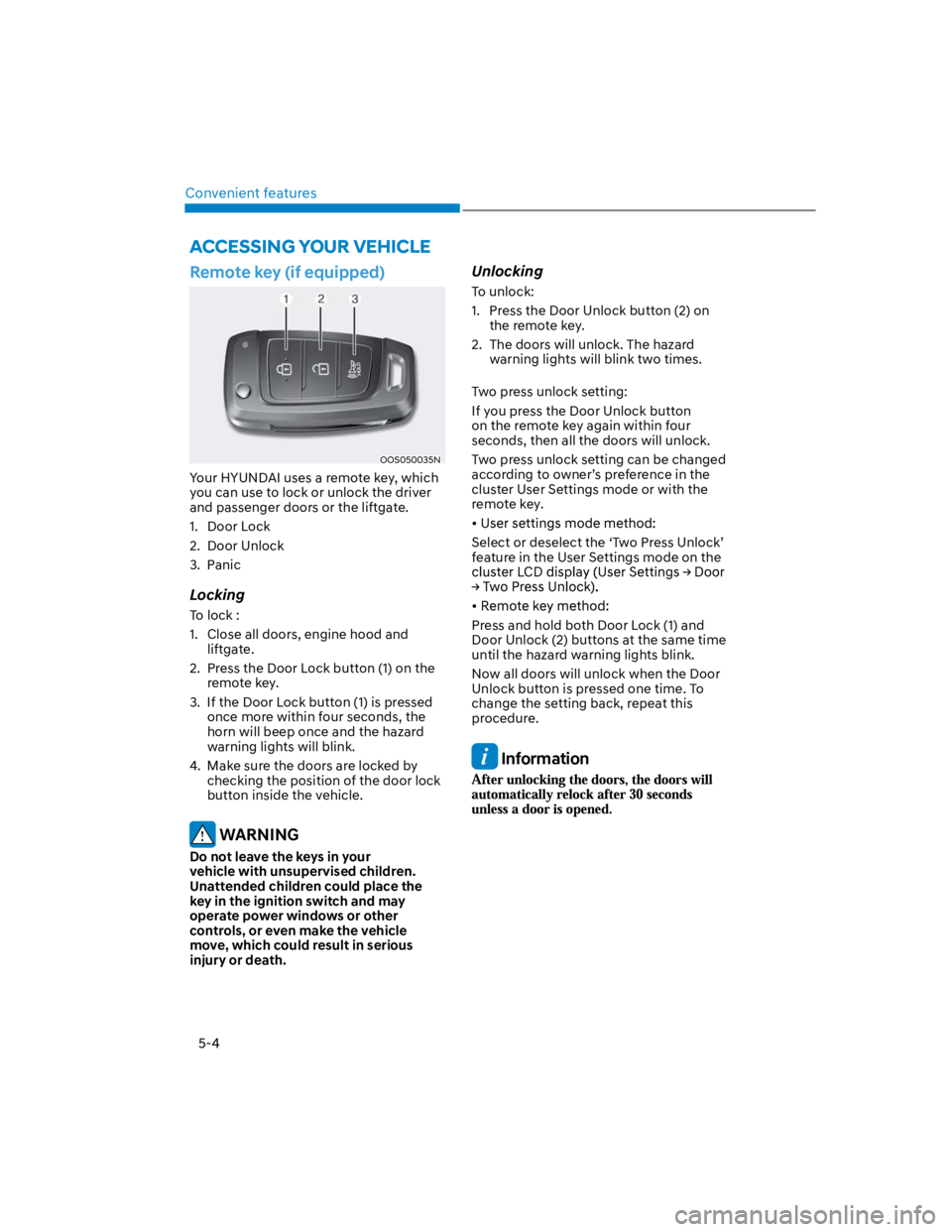
Remote key (if equipped)
OOS050035N
Your HYUNDAI uses a remote key, which
you can use to lock or unlock the driver
and passenger doors or the liftgate.
1. Door Lock
2. Door Unlock
3. Panic
Locking
To lock :
1. Close all doors, engine hood and
liftgate.
2. Press the Door Lock button (1) on the
remote key.
3. If the Door Lock button (1) is pressed
once more within four seconds, the
horn will beep once and the hazard
warning lights will blink.
4. Make sure the doors are locked by
checking the position of the door lock
button inside the vehicle.
WARNING
Do not leave the keys in your
vehicle with unsupervised children.
Unattended children could place the
key in the ignition switch and may
operate power windows or other
controls, or even make the vehicle
move, which could result in serious
injury or death.
Unlocking
To unlock:
1. Press the Door Unlock button (2) on
the remote key.
2. The doors will unlock. The hazard
warning lights will blink two times.
Two press unlock setting:
If you press the Door Unlock button
on the remote key again within four
seconds, then all the doors will unlock.
Two press unlock setting can be changed
according to owner’s preference in the
cluster User Settings mode or with the
remote key.
Select or deselect the ‘Two Press Unlock’
feature in the User Settings mode on the
Press and hold both Door Lock (1) and
Door Unlock (2) buttons at the same time
until the hazard warning lights blink.
Now all doors will unlock when the Door
Unlock button is pressed one time. To
change the setting back, repeat this
procedure.
Information
ACCESSING YOUR VEHICLE
Page 149 of 579
05
5-15
Hyundai Digital Key
(if equipped)
Digital Key Application
To use Hyundai Digital Key mobile app,
you should install Hyundai digital key
application. Search ‘Hyundai digital key’
in the Google Play Store and download
the app. Please refer to the detailed
manual of the digital key app. The option
can be found under the following app
menu:
Please note the manual before using the
app.
This service is only available for
Android smartphones. Please confirm
supported/compatible devices on our
website.
WARNING
For used vehicle
If any of the digital key (smartphone key
or card key) is already registered when
you press ON button after unlocking the
doors, the message ‘Digital key(s) active’
appears on the instrument cluster once.
If you buy a used vehicle, you should
confirm the message and delete the
registered smartphone key and card key.
In addition, please notify the Hyundai
Customer Care Center.
If the card key does not work properly,
please delete the card key and register
the smartphone key and re-register the
card key.
For vehicle maintenance
If you need to have your Digital Key
System repaired or replaced please
ensure your Smartphone Key is still
active. You may have to pair your phone
again.
In the case, re-initialize your Digital Keys
using the Hyundai Digital Key mobile app.
Digital key (smartphone) NFC
function
You can use the Digital Key NFC (Near
Field Communication) function after turn
your smartphone NFC settings on. And
you should unlock & turn on smartphone
screen to use it.
To change the NFC mode of the
smartphone, please refer to the
smartphone manual or contact
to the customer service center of
smartphone manufacturers.
Page 151 of 579
05
5-17
1. Turn the vehicle on with the Smart
key and make sure to keep the smart
key inside the vehicle during delete
process.
2. Delete your Digital key from the
vehicle user setting menu as follows.
With Navigation screen :
From the infotainment screen menu,
go to [Setup] - [Vehicle] - [Digital Key]
- [Smart Phone Key] then select the
[Delete] from submenu.
Without navigation screen :
From cluster menu, go to [Digital
Key] - [Smart Phone Key] and select
[Delete].
Information
3. Once the digital key delete is
complete, a message will be shown
on the infotainment screen or cluster.
4. Go to [Initialize Digital Key] menu on
the digital key application and select
the vehicle to delete the digital key
information.
If the saved digital key information
in your car is deleted due to vehicle
maintenance, the digital key in your
smartphone should be deleted as well.
For more information, please refer to
the ‘Tutorial’ on your Digital key app.
CAUTION
If the smartphone is removed
from the interior authentication
pad during enrollment, the saving
process will be cancelled.
If the infotainment or instrument
cluster screen is changed during
enrollment, the saving process will
be cancelled.
If the vehicle is turned off during
enrollment, the saving process will
be cancelled.
If the gear is shifted, the saving
process will be cancelled.
If you try to save the smartphone
which is not logged in with the
vehicle owner’s ID or if you try to
save the Card key, the saving process
will not begin.
If the NFC setting on your
smartphone is off, the saving process
will not begin.
If the smartphone screen is changed
to off or locked status, the saving
process will be cancelled.
If there is no Smart key during the
save process, the saving process will
not begin.