warning HYUNDAI KONA EV 2021 Owners Manual
[x] Cancel search | Manufacturer: HYUNDAI, Model Year: 2021, Model line: KONA EV, Model: HYUNDAI KONA EV 2021Pages: 478, PDF Size: 32.83 MB
Page 161 of 478
3-77
Convenient features of your vehicle
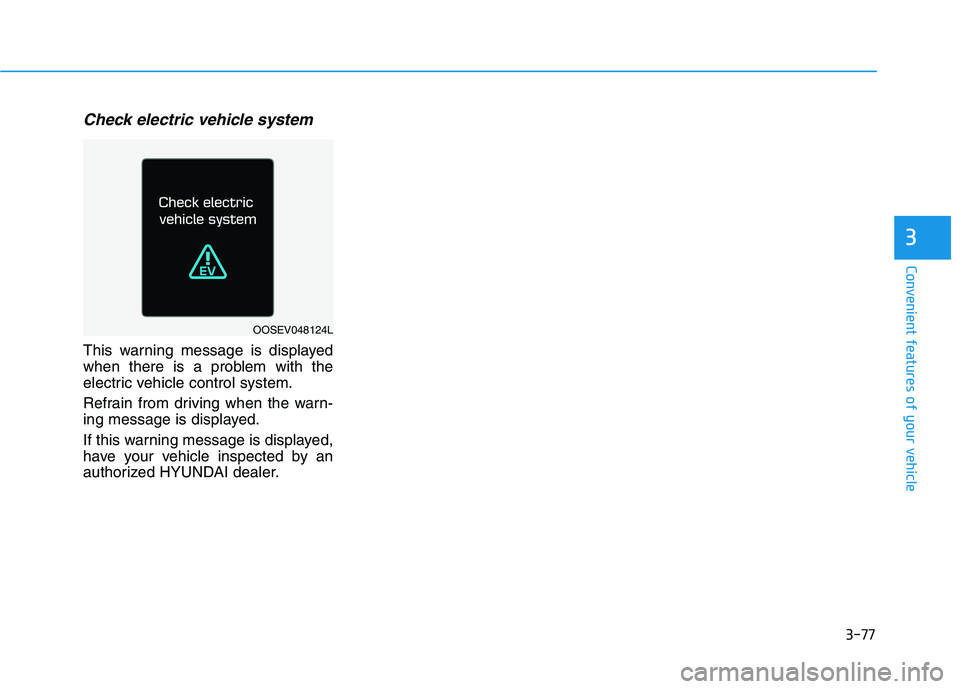
Check electric vehicle system
This warning message is displayed
when there is a problem with the
electric vehicle control system.
Refrain from driving when the warn-
ing message is displayed.
If this warning message is displayed,
have your vehicle inspected by an
authorized HYUNDAI dealer.
3
OOSEV048124L
Page 163 of 478
3-79
Convenient features of your vehicle
3
The information provided may differ depending on which functions are applicable to your vehicle.
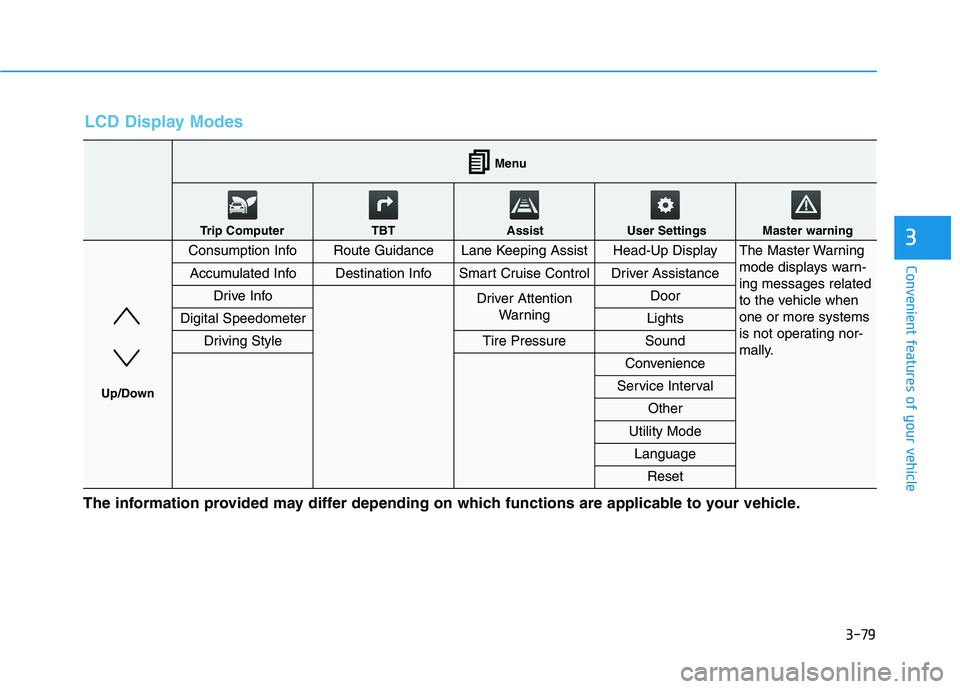
LCD Display Modes
Consumption InfoRoute GuidanceLane Keeping AssistHead-Up DisplayThe Master Warning
mode displays warn-
ing messages related
to the vehicle when
one or more systems
is not operating nor-
mally.
Accumulated InfoDestination InfoSmart Cruise ControlDriver Assistance
Drive InfoDriver Attention
Warning Door
Digital SpeedometerLights
Driving StyleTire PressureSound
Convenience
Service Interval
Other
Utility Mode
Language
Reset
Menu
Trip Computer TBT Assist User Settings Master warning
Up/Down
Page 164 of 478
3-80
Convenient features of your vehicle
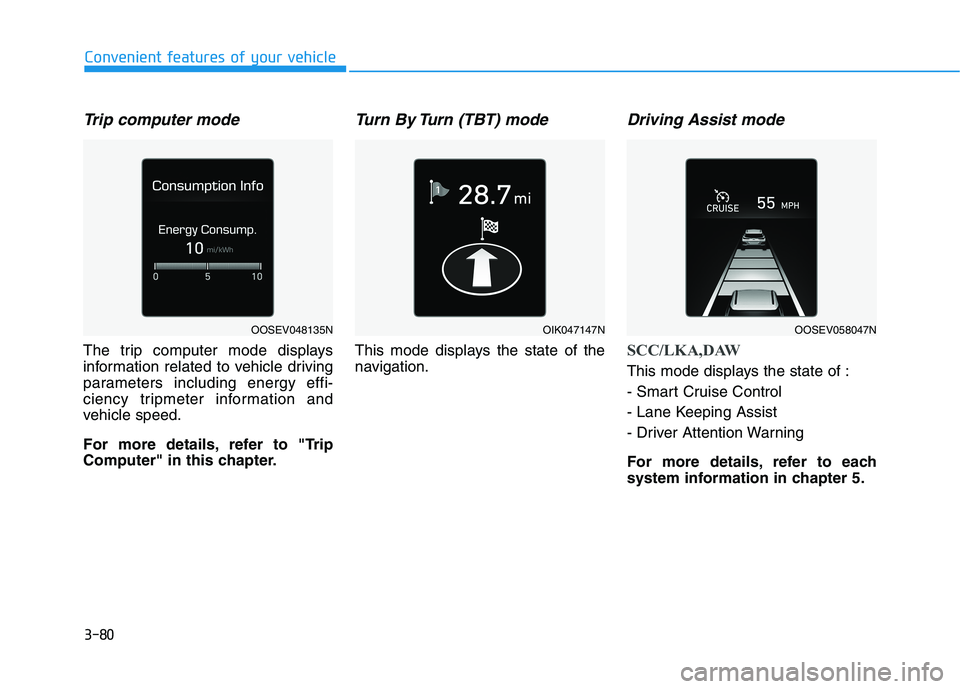
Trip computer mode
The trip computer mode displays
information related to vehicle driving
parameters including energy effi-
ciency tripmeter information and
vehicle speed.
For more details, refer to "Trip
Computer" in this chapter.
Turn By Turn (TBT) mode
This mode displays the state of the
navigation.
Driving Assist mode
SCC/LKA,DAW
This mode displays the state of :
- Smart Cruise Control
- Lane Keeping Assist
- Driver Attention Warning
For more details, refer to each
system information in chapter 5.
OOSEV048135NOIK047147NOOSEV058047N
Page 165 of 478
3-81
Convenient features of your vehicle
3
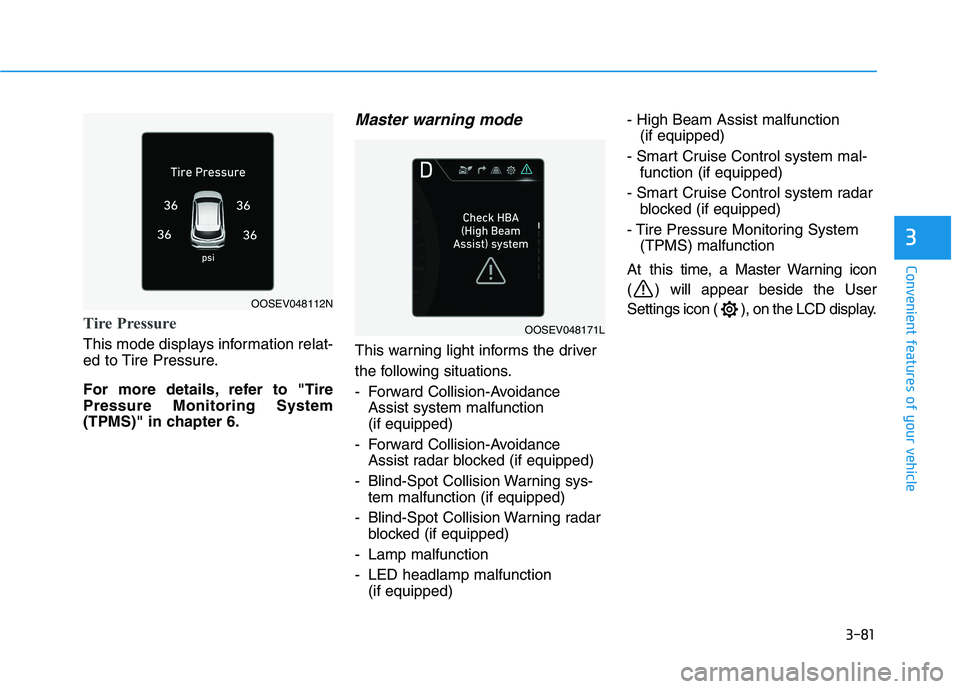
Tire Pressure
This mode displays information relat-
ed to Tire Pressure.
For more details, refer to "Tire
Pressure Monitoring System
(TPMS)" in chapter 6.
Master warning mode
This warning light informs the driver
the following situations.
- Forward Collision-Avoidance
Assist system malfunction
(if equipped)
- Forward Collision-Avoidance
Assist radar blocked (if equipped)
- Blind-Spot Collision Warning sys-
tem malfunction (if equipped)
- Blind-Spot Collision Warning radar
blocked (if equipped)
- Lamp malfunction
- LED headlamp malfunction
(if equipped)- High Beam Assist malfunction
(if equipped)
- Smart Cruise Control system mal-
function (if equipped)
- Smart Cruise Control system radar
blocked (if equipped)
- Tire Pressure Monitoring System
(TPMS) malfunction
At this time, a Master Warning icon
( ) will appear beside the User
Settings icon ( ), on the LCD display.
OOSEV048112N
OOSEV048171L
Page 166 of 478
3-82
Convenient features of your vehicle
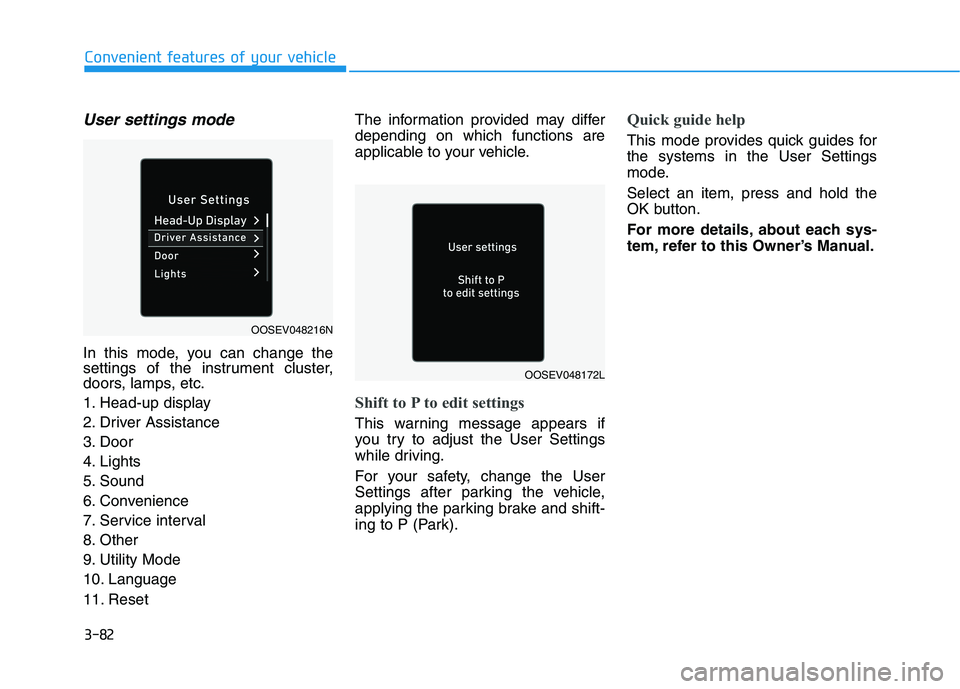
User settings mode
In this mode, you can change the
settings of the instrument cluster,
doors, lamps, etc.
1. Head-up display
2. Driver Assistance
3. Door
4. Lights
5. Sound
6. Convenience
7. Service interval
8. Other
9. Utility Mode
10. Language
11. ResetThe information provided may differ
depending on which functions are
applicable to your vehicle.
Shift to P to edit settings
This warning message appears if
you try to adjust the User Settings
while driving.
For your safety, change the User
Settings after parking the vehicle,
applying the parking brake and shift-
ing to P (Park).
Quick guide help
This mode provides quick guides for
the systems in the User Settings
mode.
Select an item, press and hold the
OK button.
For more details, about each sys-
tem, refer to this Owner’s Manual.
OOSEV048216N
OOSEV048172L
Page 168 of 478
3-84
Convenient features of your vehicle
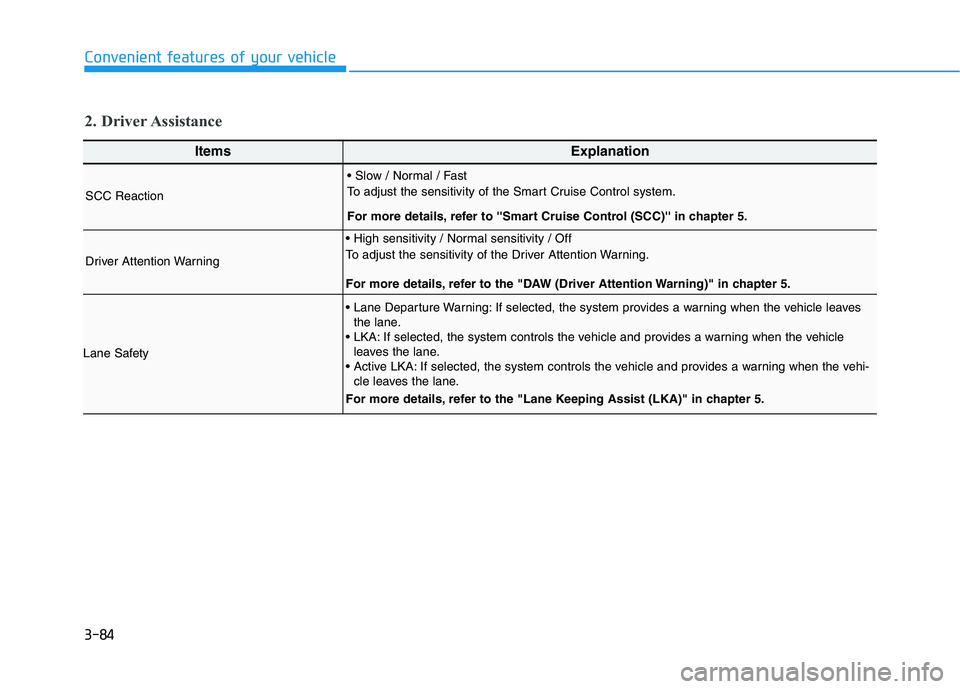
ItemsExplanation
SCC Reaction
To adjust the sensitivity of the Smart Cruise Control system.
For more details, refer to ''Smart Cruise Control (SCC)'' in chapter 5.
Driver Attention Warning
To adjust the sensitivity of the Driver Attention Warning.
For more details, refer to the "DAW (Driver Attention Warning)" in chapter 5.
Lane Safety
If selected, the system provides a warning when the vehicle leaves
the lane.
If selected, the system controls the vehicle and provides a warning when the vehicle
leaves the lane.
If selected, the system controls the vehicle and provides a warning when the vehi-
cle leaves the lane.
For more details, refer to the "Lane Keeping Assist (LKA)" in chapter 5.
2. Driver Assistance
Page 169 of 478
3-85
Convenient features of your vehicle
3
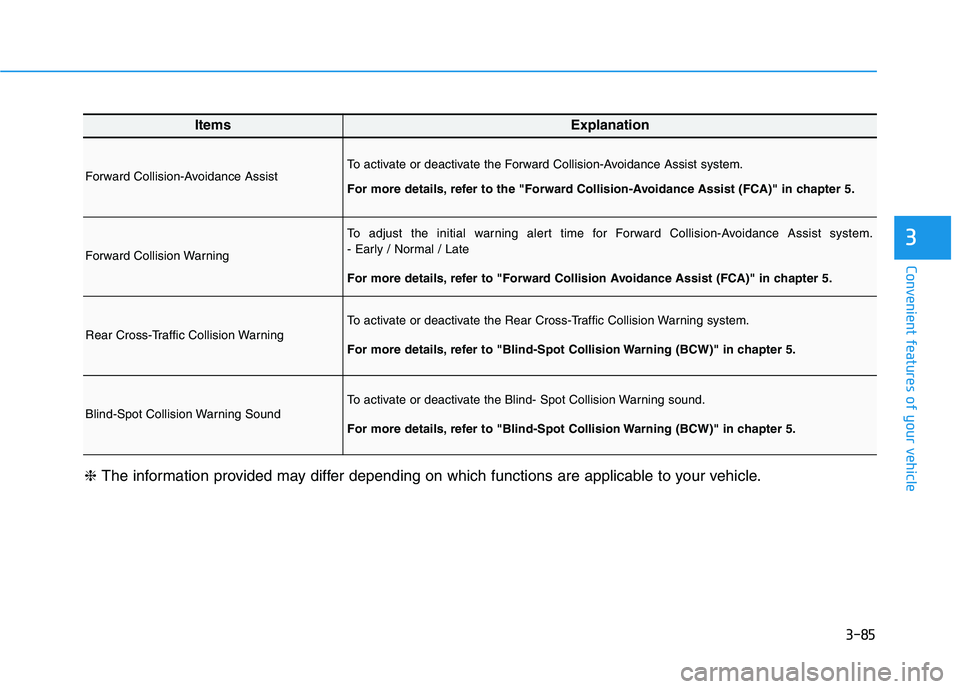
ItemsExplanation
Forward Collision-Avoidance AssistTo activate or deactivate the Forward Collision-Avoidance Assist system.
For more details, refer to the "Forward Collision-Avoidance Assist (FCA)" in chapter 5.
Forward Collision Warning
To adjust the initial warning alert time for Forward Collision-Avoidance Assist system.
- Early / Normal / Late
For more details, refer to "Forward Collision Avoidance Assist (FCA)" in chapter 5.
Rear Cross-Traffic Collision WarningTo activate or deactivate the Rear Cross-Traffic Collision Warning system.
For more details, refer to "Blind-Spot Collision Warning (BCW)" in chapter 5.
Blind-Spot Collision Warning SoundTo activate or deactivate the Blind- Spot Collision Warning sound.
For more details, refer to "Blind-Spot Collision Warning (BCW)" in chapter 5.
❈The information provided may differ depending on which functions are applicable to your vehicle.
Page 171 of 478
3-87
Convenient features of your vehicle
3
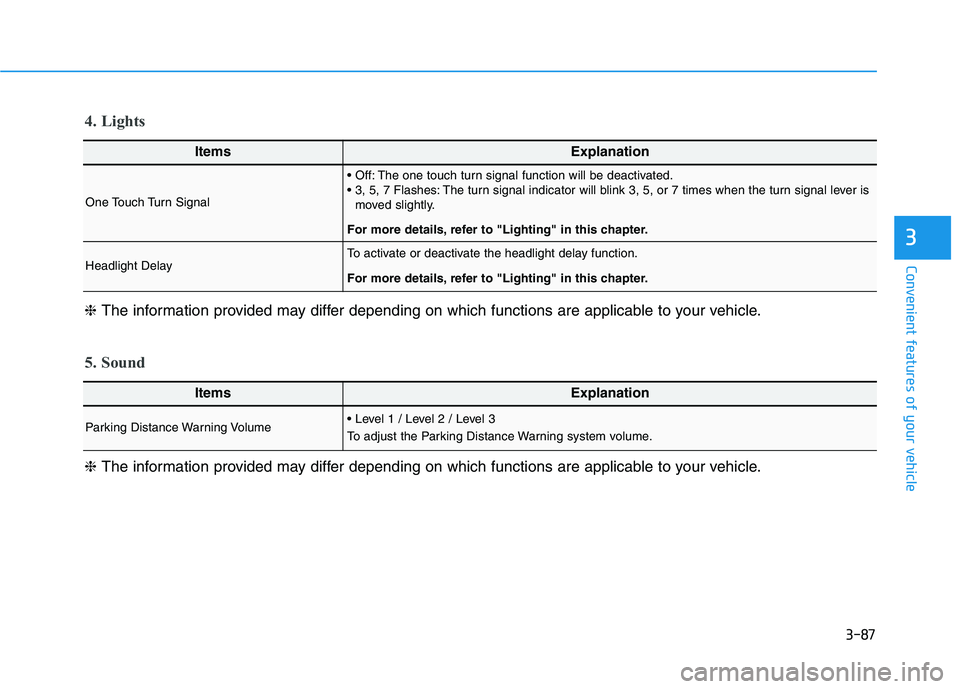
ItemsExplanation
One Touch Turn Signal
The one touch turn signal function will be deactivated.
The turn signal indicator will blink 3, 5, or 7 times when the turn signal lever is
moved slightly.
For more details, refer to "Lighting" in this chapter.
Headlight DelayTo activate or deactivate the headlight delay function.
For more details, refer to "Lighting" in this chapter.
4. Lights
ItemsExplanation
Parking Distance Warning Volume
To adjust the Parking Distance Warning system volume.
5. Sound
❈The information provided may differ depending on which functions are applicable to your vehicle. ❈The information provided may differ depending on which functions are applicable to your vehicle.
Page 172 of 478
3-88
Convenient features of your vehicle
ItemsExplanation
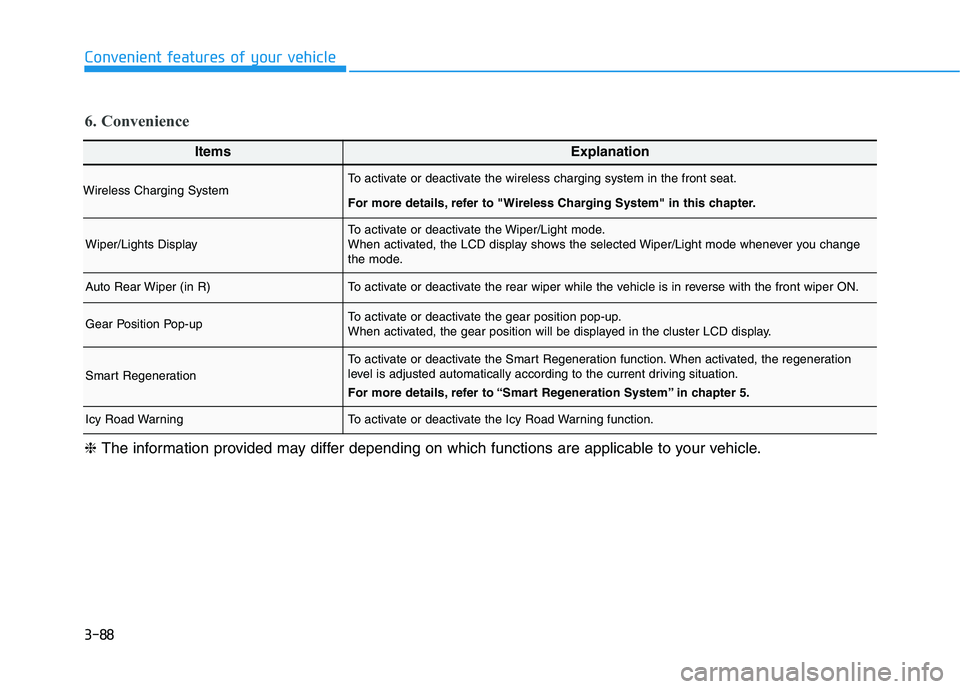
Wireless Charging SystemTo activate or deactivate the wireless charging system in the front seat.
For more details, refer to "Wireless Charging System" in this chapter.
Wiper/Lights DisplayTo activate or deactivate the Wiper/Light mode.
When activated, the LCD display shows the selected Wiper/Light mode whenever you change
the mode.
Auto Rear Wiper (in R)To activate or deactivate the rear wiper while the vehicle is in reverse with the front wiper ON.
Gear Position Pop-upTo activate or deactivate the gear position pop-up.
When activated, the gear position will be displayed in the cluster LCD display.
Smart Regeneration
To activate or deactivate the Smart Regeneration function. When activated, the regeneration
level is adjusted automatically according to the current driving situation.
For more details, refer to “Smart Regeneration System” in chapter 5.
Icy Road WarningTo activate or deactivate the Icy Road Warning function.
6. Convenience
❈The information provided may differ depending on which functions are applicable to your vehicle.
Page 180 of 478
3-96
Convenient features of your vehicle
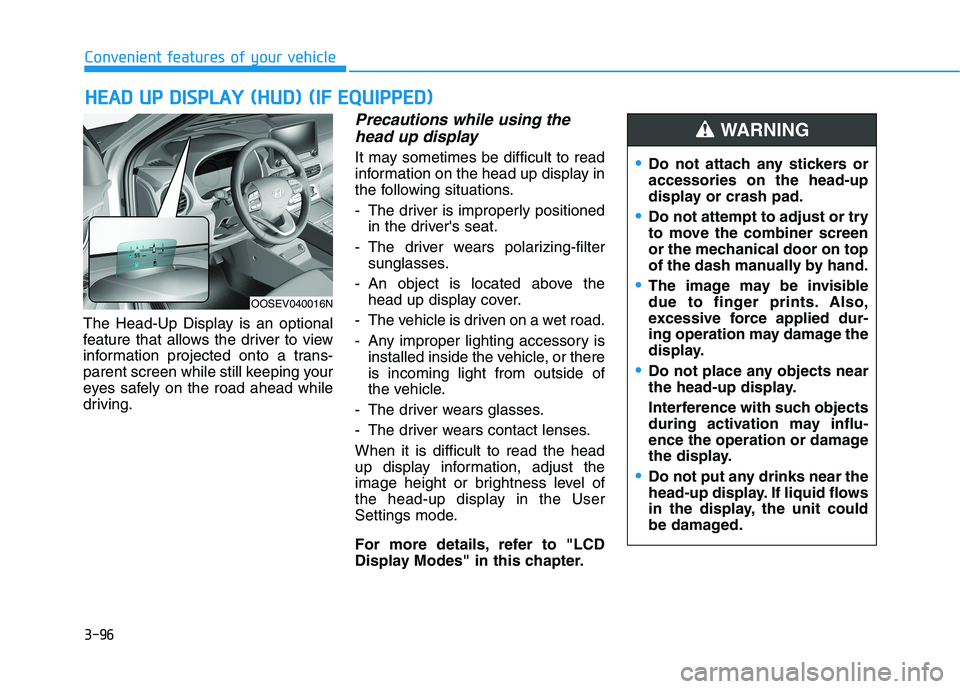
The Head-Up Display is an optional
feature that allows the driver to view
information projected onto a trans-
parent screen while still keeping your
eyes safely on the road ahead while
driving.
Precautions while using the
head up display
It may sometimes be difficult to read
information on the head up display in
the following situations.
- The driver is improperly positioned
in the driver's seat.
- The driver wears polarizing-filter
sunglasses.
- An object is located above the
head up display cover.
- The vehicle is driven on a wet road.
- Any improper lighting accessory is
installed inside the vehicle, or there
is incoming light from outside of
the vehicle.
- The driver wears glasses.
- The driver wears contact lenses.
When it is difficult to read the head
up display information, adjust the
image height or brightness level of
the head-up display in the User
Settings mode.
For more details, refer to "LCD
Display Modes" in this chapter.
H HE
EA
AD
D
U
UP
P
D
DI
IS
SP
PL
LA
AY
Y
(
(H
HU
UD
D)
)
(
(I
IF
F
E
EQ
QU
UI
IP
PP
PE
ED
D)
)
Do not attach any stickers or
accessories on the head-up
display or crash pad.
Do not attempt to adjust or try
to move the combiner screen
or the mechanical door on top
of the dash manually by hand.
The image may be invisible
due to finger prints. Also,
excessive force applied dur-
ing operation may damage the
display.
Do not place any objects near
the head-up display.
Interference with such objects
during activation may influ-
ence the operation or damage
the display.
Do not put any drinks near the
head-up display. If liquid flows
in the display, the unit could
be damaged.
WARNING
OOSEV040016N