light HYUNDAI KONA EV 2021 Manual PDF
[x] Cancel search | Manufacturer: HYUNDAI, Model Year: 2021, Model line: KONA EV, Model: HYUNDAI KONA EV 2021Pages: 478, PDF Size: 32.83 MB
Page 205 of 478
3-121
Convenient features of your vehicle
3
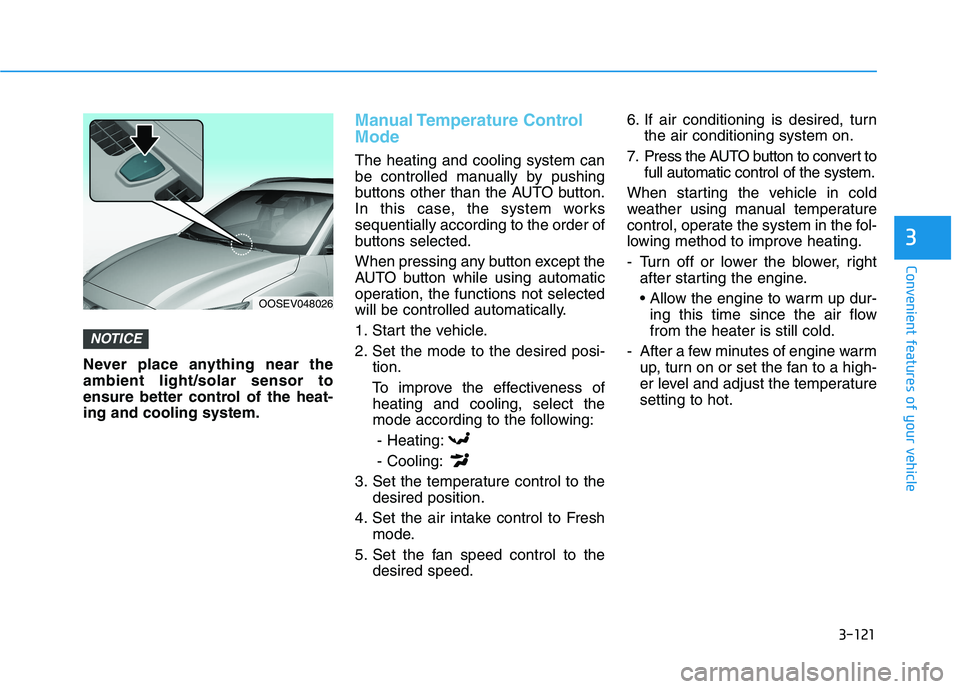
Never place anything near the
ambient light/solar sensor to
ensure better control of the heat-
ing and cooling system.
Manual Temperature Control
Mode
The heating and cooling system can
be controlled manually by pushing
buttons other than the AUTO button.
In this case, the system works
sequentially according to the order of
buttons selected.
When pressing any button except the
AUTO button while using automatic
operation, the functions not selected
will be controlled automatically.
1. Start the vehicle.
2. Set the mode to the desired posi-
tion.
To improve the effectiveness of
heating and cooling, select the
mode according to the following:
- Heating:
- Cooling:
3. Set the temperature control to the
desired position.
4. Set the air intake control to Fresh
mode.
5. Set the fan speed control to the
desired speed.6. If air conditioning is desired, turn
the air conditioning system on.
7. Press the AUTO button to convert to
full automatic control of the system.
When starting the vehicle in cold
weather using manual temperature
control, operate the system in the fol-
lowing method to improve heating.
- Turn off or lower the blower, right
after starting the engine.
• Allow the engine to warm up dur-
ing this time since the air flow
from the heater is still cold.
- After a few minutes of engine warm
up, turn on or set the fan to a high-
er level and adjust the temperature
setting to hot.
NOTICE
OOSEV048026
Page 210 of 478
3-126
Convenient features of your vehicle
Fan speed control
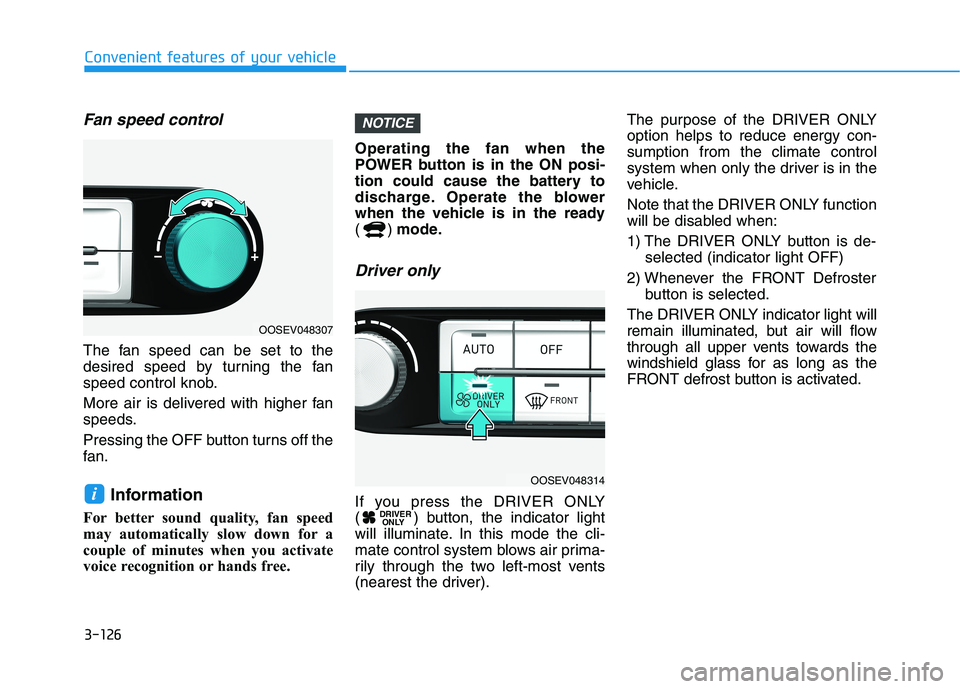
The fan speed can be set to the
desired speed by turning the fan
speed control knob.
More air is delivered with higher fan
speeds.
Pressing the OFF button turns off the
fan.
Information
For better sound quality, fan speed
may automatically slow down for a
couple of minutes when you activate
voice recognition or hands free.Operating the fan when the
POWER button is in the ON posi-
tion could cause the battery to
discharge. Operate the blower
when the vehicle is in the ready
() mode.
Driver only
If you press the DRIVER ONLY
( ) button, the indicator light
will illuminate. In this mode the cli-
mate control system blows air prima-
rily through the two left-most vents
(nearest the driver).The purpose of the DRIVER ONLY
option helps to reduce energy con-
sumption from the climate control
system when only the driver is in the
vehicle.
Note that the DRIVER ONLY function
will be disabled when:
1) The DRIVER ONLY button is de-
selected (indicator light OFF)
2) Whenever the FRONT Defroster
button is selected.
The DRIVER ONLY indicator light will
remain illuminated, but air will flow
through all upper vents towards the
windshield glass for as long as the
FRONT defrost button is activated.DRIVER
ONLY
NOTICE
i
OOSEV048307
OOSEV048314
Page 211 of 478
3-127
Convenient features of your vehicle
3
Air conditioning
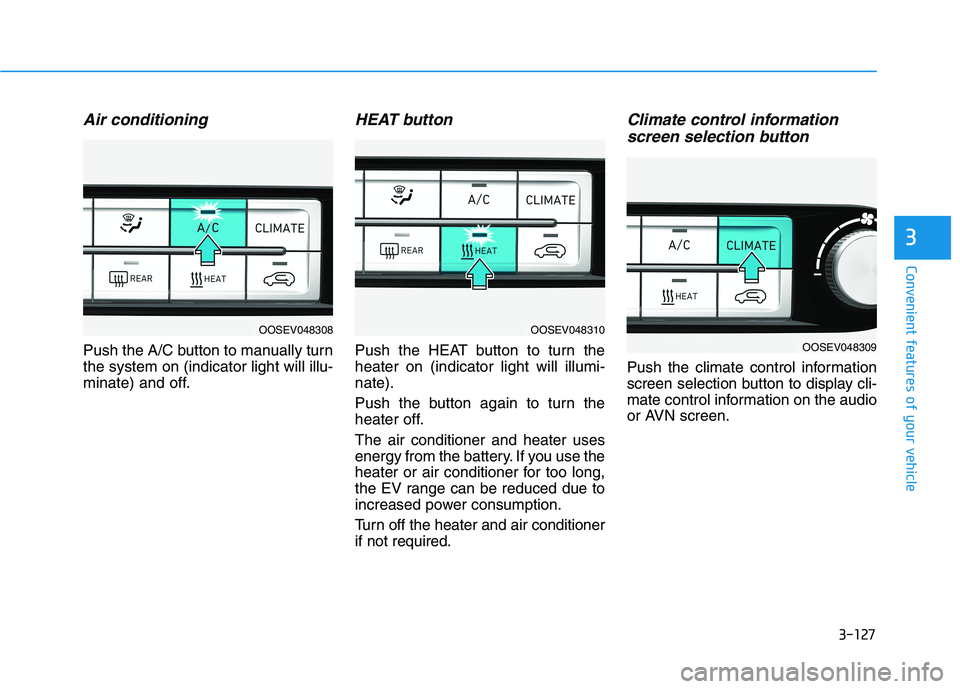
Push the A/C button to manually turn
the system on (indicator light will illu-
minate) and off.
HEAT button
Push the HEAT button to turn the
heater on (indicator light will illumi-
nate).
Push the button again to turn the
heater off.
The air conditioner and heater uses
energy from the battery. If you use the
heater or air conditioner for too long,
the EV range can be reduced due to
increased power consumption.
Turn off the heater and air conditioner
if not required.
Climate control information
screen selection button
Push the climate control information
screen selection button to display cli-
mate control information on the audio
or AVN screen.
OOSEV048308OOSEV048310
OOSEV048309
Page 213 of 478
3-129
Convenient features of your vehicle
3
Air conditioning
1. Start the engine.
2. Press the air conditioning button.
3. Select the Face Level mode.
4. Set the air intake control to
Recirculation mode temporarily to
allow the cabin to cool quickly.
When the desired temperature in
the cabin is reached, change the
air intake control back to Fresh
mode.
5. Adjust the fan speed control and
temperature control to maintain
maximum comfort.
When maximum cooling is desired,
set the temperature control to the
MAX A/C position, then set the fan
speed control to the highest setting.
Air conditioning system operation
tips
If the vehicle has been parked in
direct sunlight during hot weather,
open the windows for a short time
to let the hot air inside the vehicle
escape.
After sufficient cooling has been
achieved, switch back from recircu-
lation mode to fresh mode.
To help decrease the humidity
inside the vehicle on rainy or humid
days, operate the air conditioning
system with the windows and sun-
roof closed. It is useful to operate the air condi-
tioning system periodically through-
out the year. Turn on the A/C sys-
tem at least once a month for a few
minutes to maintain system pres-
sure and help optimize A/C per-
formance.
Note that if you operate the air con-
ditioner to cool your vehicle with
the mode set to or when
the outside relative humidity is
high, moisture may collect on the
outer surface of the windshield
glass causing the windshield to fog
up on the outside and limit your
visibility.
If this occurs, use the windshield
wipers to clear the glass. In addi-
tion, change the mode selection
knob or button on the climate con-
trol system to the mode to
redirect cooling air away from the
windshield.
Page 221 of 478
3-137
Convenient features of your vehicle
3
S ST
TO
OR
RA
AG
GE
E
C
CO
OM
MP
PA
AR
RT
TM
ME
EN
NT
T
To avoid possible theft, do not
leave valuables in the storage
compartments.
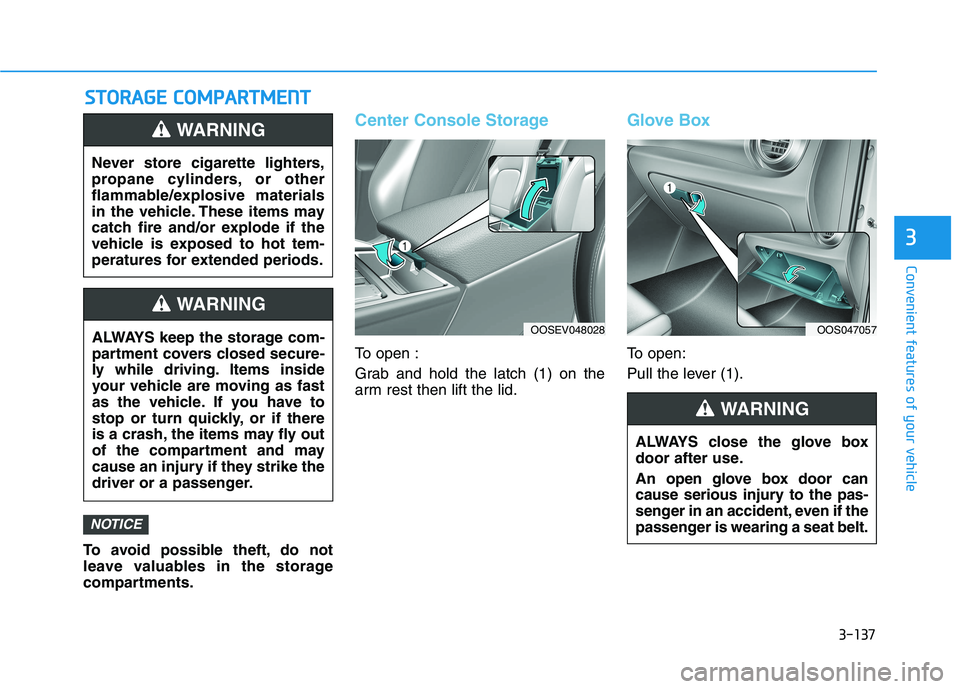
Center Console Storage
To open :
Grab and hold the latch (1) on the
arm rest then lift the lid.
Glove Box
To open:
Pull the lever (1).
NOTICE
Never store cigarette lighters,
propane cylinders, or other
flammable/explosive materials
in the vehicle. These items may
catch fire and/or explode if the
vehicle is exposed to hot tem-
peratures for extended periods.
WARNING
ALWAYS keep the storage com-
partment covers closed secure-
ly while driving. Items inside
your vehicle are moving as fast
as the vehicle. If you have to
stop or turn quickly, or if there
is a crash, the items may fly out
of the compartment and may
cause an injury if they strike the
driver or a passenger.
WARNING
ALWAYS close the glove box
door after use.
An open glove box door can
cause serious injury to the pas-
senger in an accident, even if the
passenger is wearing a seat belt.
WARNING
OOSEV048028OOS047057
Page 223 of 478
3-139
Convenient features of your vehicle
3
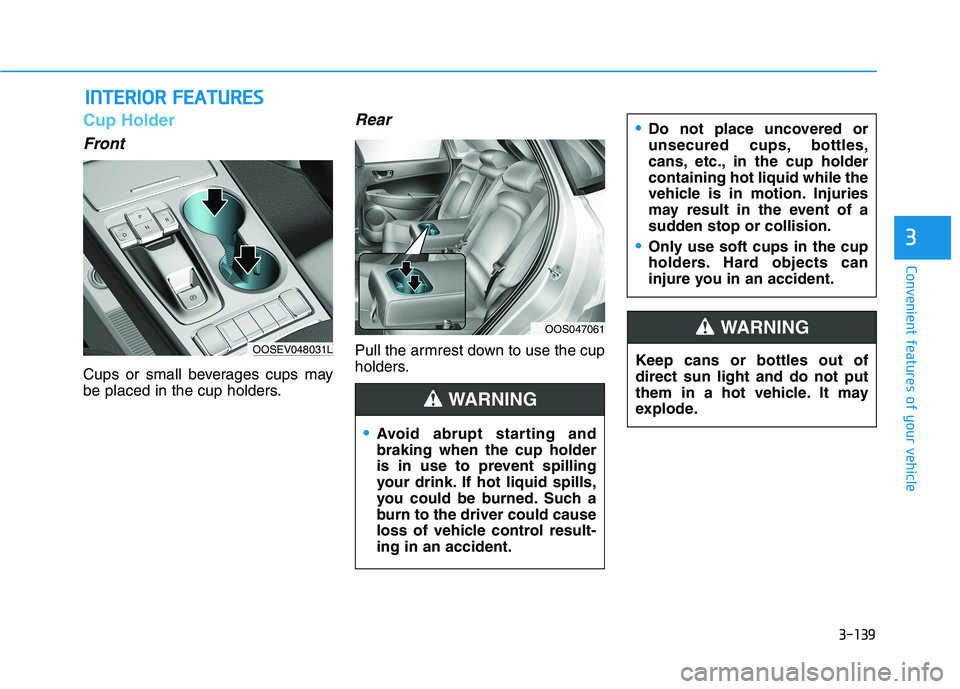
Cup Holder
Front
Cups or small beverages cups may
be placed in the cup holders.
Rear
Pull the armrest down to use the cup
holders.
I IN
NT
TE
ER
RI
IO
OR
R
F
FE
EA
AT
TU
UR
RE
ES
S
Avoid abrupt starting and
braking when the cup holder
is in use to prevent spilling
your drink. If hot liquid spills,
you could be burned. Such a
burn to the driver could cause
loss of vehicle control result-
ing in an accident.
WARNING
OOSEV048031L
OOS047061
Keep cans or bottles out of
direct sun light and do not put
them in a hot vehicle. It may
explode.
WARNING
Do not place uncovered or
unsecured cups, bottles,
cans, etc., in the cup holder
containing hot liquid while the
vehicle is in motion. Injuries
may result in the event of a
sudden stop or collision.
Only use soft cups in the cup
holders. Hard objects can
injure you in an accident.
Page 226 of 478
3-142
Convenient features of your vehicle
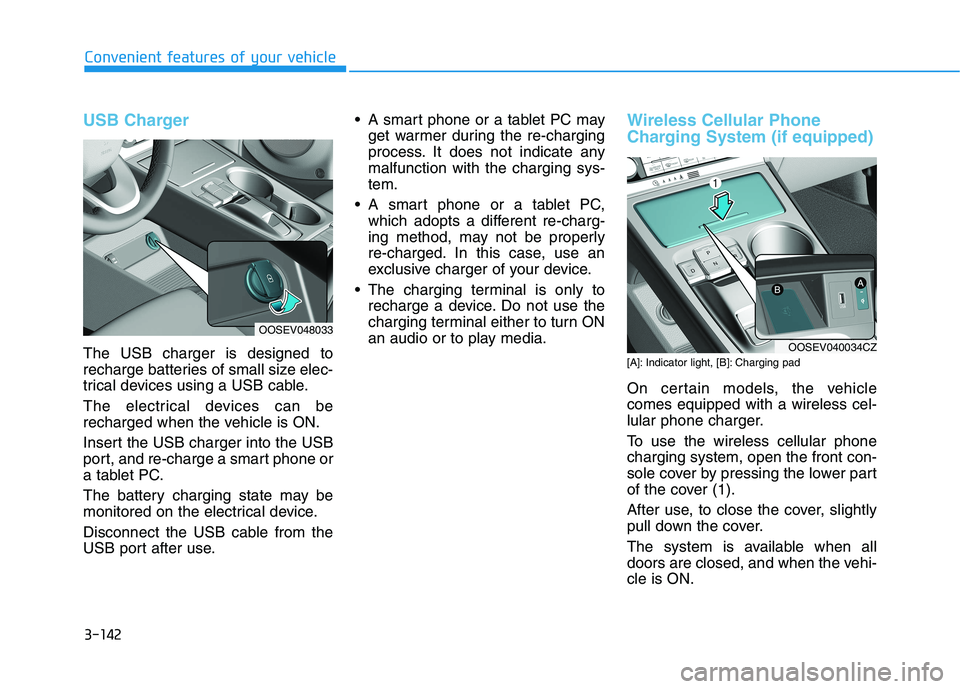
USB Charger
The USB charger is designed to
recharge batteries of small size elec-
trical devices using a USB cable.
The electrical devices can be
recharged when the vehicle is ON.
Insert the USB charger into the USB
port, and re-charge a smart phone or
a tablet PC.
The battery charging state may be
monitored on the electrical device.
Disconnect the USB cable from the
USB port after use. A smart phone or a tablet PC may
get warmer during the re-charging
process. It does not indicate any
malfunction with the charging sys-
tem.
A smart phone or a tablet PC,
which adopts a different re-charg-
ing method, may not be properly
re-charged. In this case, use an
exclusive charger of your device.
The charging terminal is only to
recharge a device. Do not use the
charging terminal either to turn ON
an audio or to play media.
Wireless Cellular Phone
Charging System (if equipped)
[A]: Indicator light, [B]: Charging pad
On certain models, the vehicle
comes equipped with a wireless cel-
lular phone charger.
To use the wireless cellular phone
charging system, open the front con-
sole cover by pressing the lower part
of the cover (1).
After use, to close the cover, slightly
pull down the cover.
The system is available when all
doors are closed, and when the vehi-
cle is ON.
OOSEV048033
OOSEV040034CZ
Page 227 of 478
3-143
Convenient features of your vehicle
3
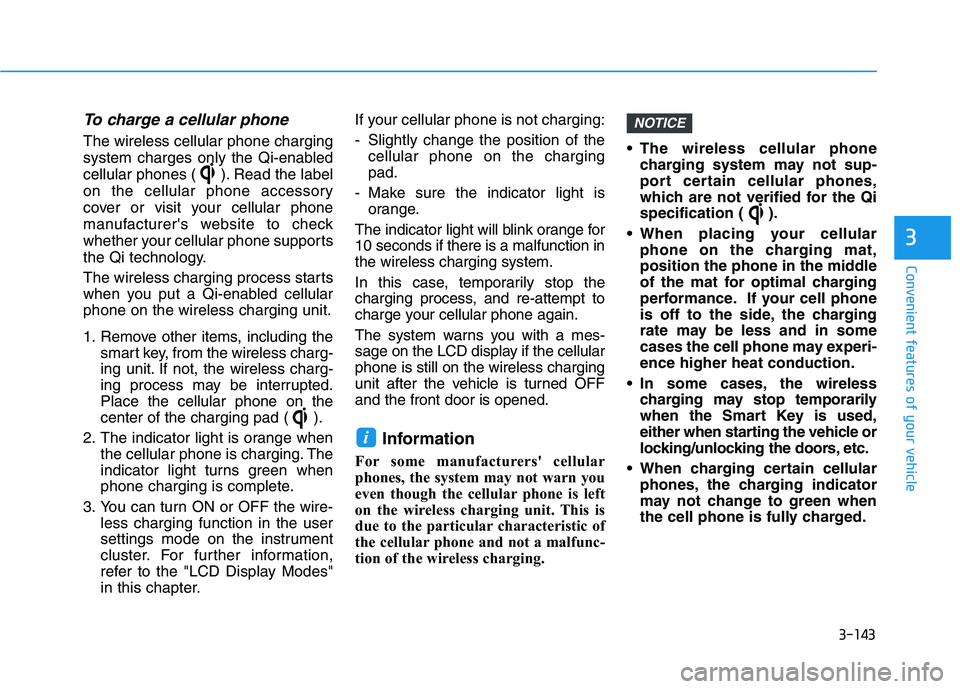
To charge a cellular phone
The wireless cellular phone charging
system charges only the Qi-enabled
cellular phones ( ). Read the label
on the cellular phone accessory
cover or visit your cellular phone
manufacturer's website to check
whether your cellular phone supports
the Qi technology.
The wireless charging process starts
when you put a Qi-enabled cellular
phone on the wireless charging unit.
1. Remove other items, including the
smart key, from the wireless charg-
ing unit. If not, the wireless charg-
ing process may be interrupted.
Place the cellular phone on the
center of the charging pad ( ).
2. The indicator light is orange when
the cellular phone is charging. The
indicator light turns green when
phone charging is complete.
3. You can turn ON or OFF the wire-
less charging function in the user
settings mode on the instrument
cluster. For further information,
refer to the "LCD Display Modes"
in this chapter.If your cellular phone is not charging:
- Slightly change the position of the
cellular phone on the charging
pad.
- Make sure the indicator light is
orange.
The indicator light will blink orange for
10 seconds if there is a malfunction in
the wireless charging system.
In this case, temporarily stop the
charging process, and re-attempt to
charge your cellular phone again.
The system warns you with a mes-
sage on the LCD display if the cellular
phone is still on the wireless charging
unit after the vehicle is turned OFF
and the front door is opened.
Information
For some manufacturers' cellular
phones, the system may not warn you
even though the cellular phone is left
on the wireless charging unit. This is
due to the particular characteristic of
the cellular phone and not a malfunc-
tion of the wireless charging. The wireless cellular phone
charging system may not sup-
port certain cellular phones,
which are not verified for the Qi
specification ( ).
When placing your cellular
phone on the charging mat,
position the phone in the middle
of the mat for optimal charging
performance. If your cell phone
is off to the side, the charging
rate may be less and in some
cases the cell phone may experi-
ence higher heat conduction.
In some cases, the wireless
charging may stop temporarily
when the Smart Key is used,
either when starting the vehicle or
locking/unlocking the doors, etc.
When charging certain cellular
phones, the charging indicator
may not change to green when
the cell phone is fully charged.
NOTICE
i
Page 230 of 478
3-146
Convenient features of your vehicle
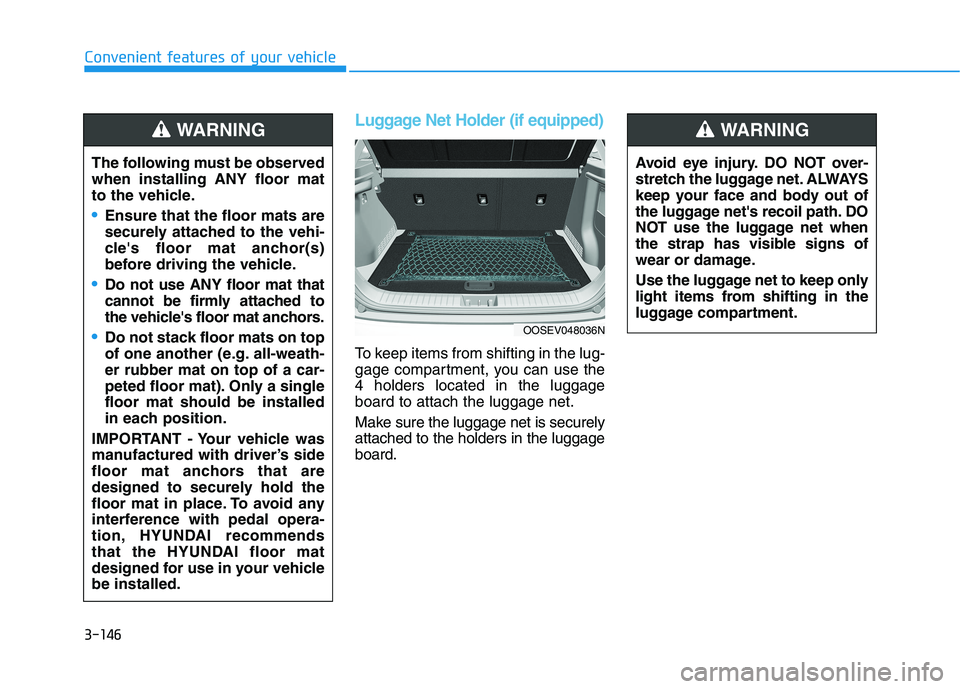
Luggage Net Holder (if equipped)
To keep items from shifting in the lug-
gage compartment, you can use the
4 holders located in the luggage
board to attach the luggage net.
Make sure the luggage net is securely
attached to the holders in the luggage
board. The following must be observed
when installing ANY floor mat
to the vehicle.
Ensure that the floor mats are
securely attached to the vehi-
cle's floor mat anchor(s)
before driving the vehicle.
Do not use ANY floor mat that
cannot be firmly attached to
the vehicle's floor mat anchors.
Do not stack floor mats on top
of one another (e.g. all-weath-
er rubber mat on top of a car-
peted floor mat). Only a single
floor mat should be installed
in each position.
IMPORTANT - Your vehicle was
manufactured with driver’s side
floor mat anchors that are
designed to securely hold the
floor mat in place. To avoid any
interference with pedal opera-
tion, HYUNDAI recommends
that the HYUNDAI floor mat
designed for use in your vehicle
be installed.
WARNING
Avoid eye injury. DO NOT over-
stretch the luggage net. ALWAYS
keep your face and body out of
the luggage net's recoil path. DO
NOT use the luggage net when
the strap has visible signs of
wear or damage.
Use the luggage net to keep only
light items from shifting in the
luggage compartment.
WARNING
OOSEV048036N
Page 233 of 478
4-2
Multimedia System
• If you install an aftermarket HID
head lamp, your vehicle's audio
and electronic devices may not
function properly.
Prevent chemicals such as per-
fume, cosmetic oil, sun cream,
hand cleaner, and air freshener
from contacting the interior
parts because they may cause
damage or discoloration.
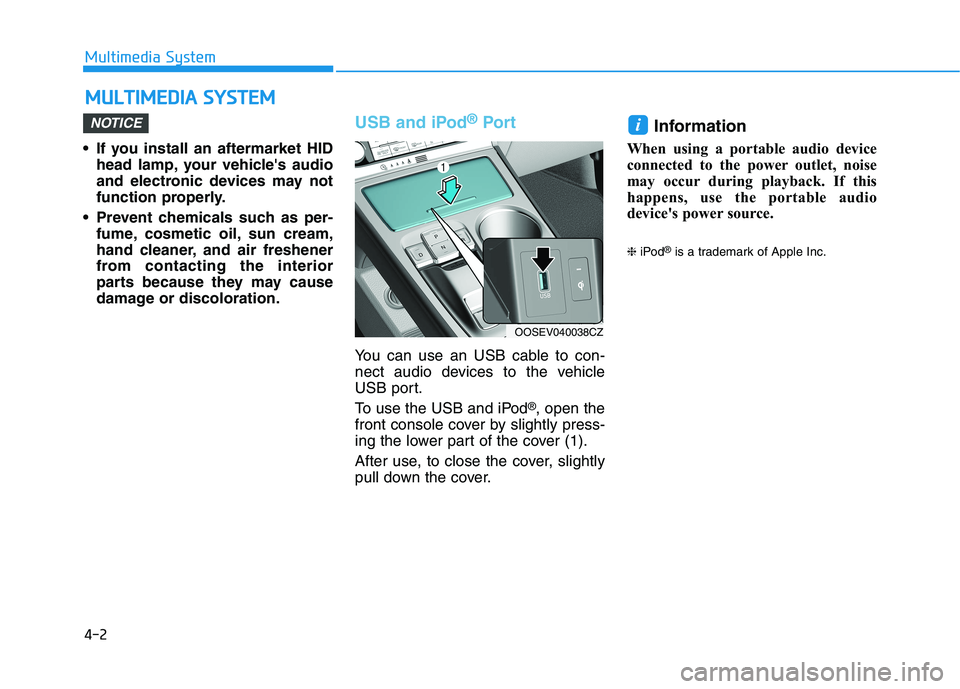
USB and iPod®Por t
You can use an USB cable to con-
nect audio devices to the vehicle
USB port.
To use the USB and iPod
®, open the
front console cover by slightly press-
ing the lower part of the cover (1).
After use, to close the cover, slightly
pull down the cover.
Information
When using a portable audio device
connected to the power outlet, noise
may occur during playback. If this
happens, use the portable audio
device's power source.
❈iPod®is a trademark of Apple Inc.
iNOTICE
M
MU
UL
LT
TI
IM
ME
ED
DI
IA
A
S
SY
YS
ST
TE
EM
M
OOSEV040038CZ