display HYUNDAI PALISADE 2022 Owner's Guide
[x] Cancel search | Manufacturer: HYUNDAI, Model Year: 2022, Model line: PALISADE, Model: HYUNDAI PALISADE 2022Pages: 663, PDF Size: 15.74 MB
Page 205 of 663
3-109
Convenience Features
3
L LC C D D D D I IS S P P L LA A Y Y ( ( C C L LU U S ST T E ER R T T Y Y P PE E A A A A N N D D T T Y Y P PE E B B ) )
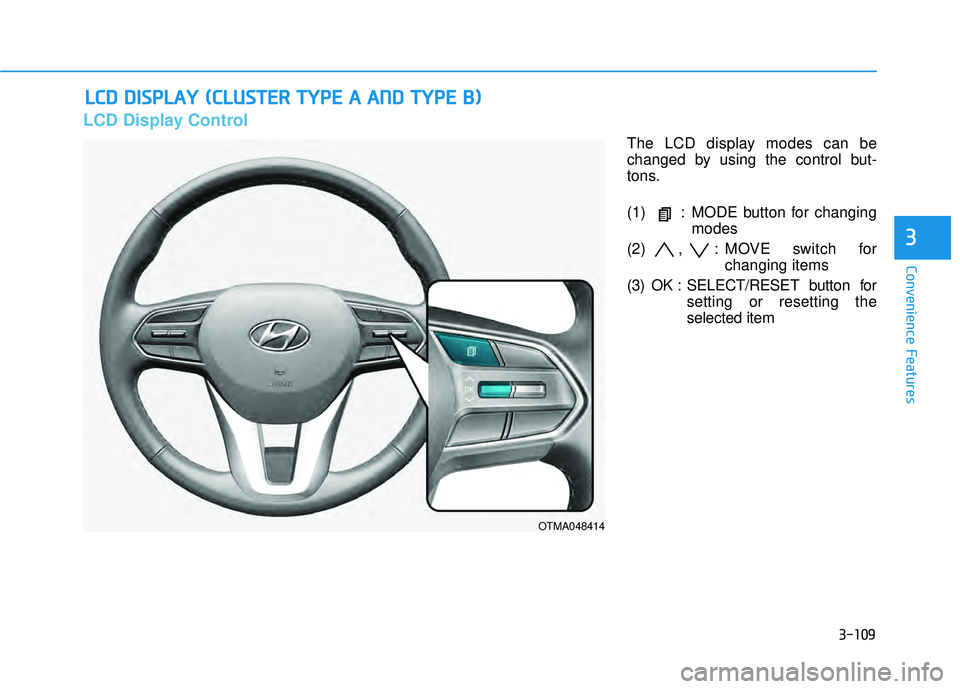
LCD Display Control
The LCD display modes can be
changed by using the control but-
tons.
(1) : MODE button for changing
modes
(2) , : MOVE switch for changing items
(3) OK : SELECT/RESET button for setting or resetting the
selected item
OTMA048414
Page 206 of 663
3-110
Convenience Features
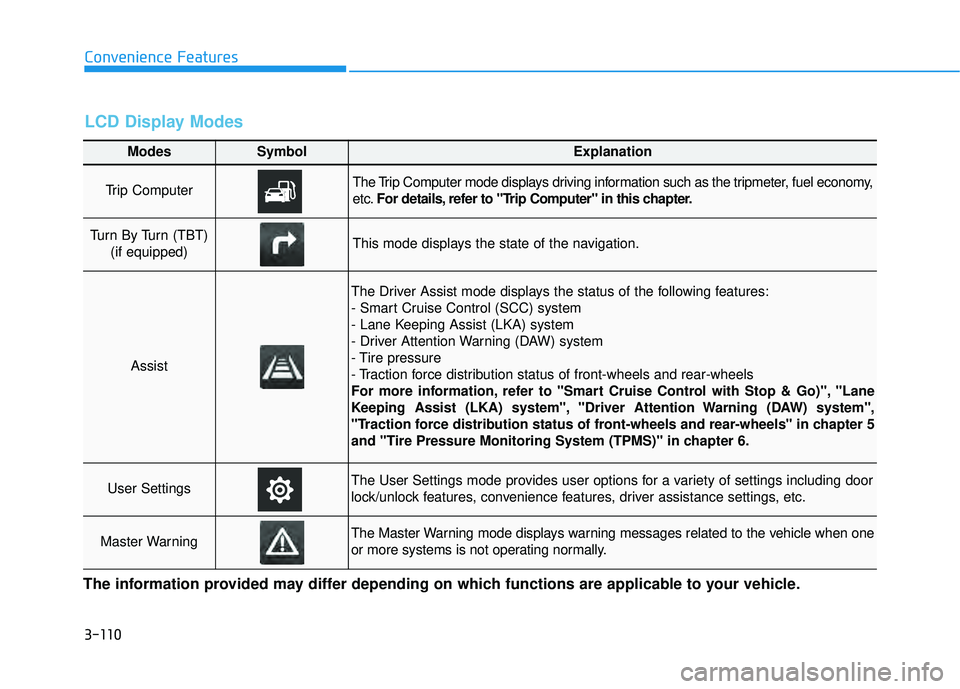
Modes SymbolExplanation
Trip Computer The Trip Computer mode displays driving information such as the tripmeter, fuel economy,
etc.For details, refer to "Trip Computer" in this chapter.
Turn By Turn (TBT)
(if equipped)This mode displays the state of the navigation.
Assist
The Driver Assist mode displays the status of the following features:
- Smart Cruise Control (SCC) system
- Lane Keeping Assist (LKA) system
- Driver Attention Warning (DAW) system
- Tire pressure
- Traction force distribution status of front-wheels and rear-wheels
For more information, refer to "Smart Cruise Control with Stop & Go)", "Lane
Keeping Assist (LKA) system", "Driver Attention Warning (DAW) system",
"Traction force distribution status of front-wheels and rear-wheels" in chapter 5
and "Tire Pressure Monitoring System (TPMS)" in chapter 6.
User SettingsThe User Settings mode provides user options for a variety of settings including door
lock/unlock features, convenience features, driver assistance settings, etc.
Master WarningThe Master Warning mode displays warning messages related to the vehicle when one
or more systems is not operating normally.
The information provided may differ depending on which functions are applicable to your vehicle.
LCD Display Modes
Page 207 of 663
3-111
Convenience Features
3
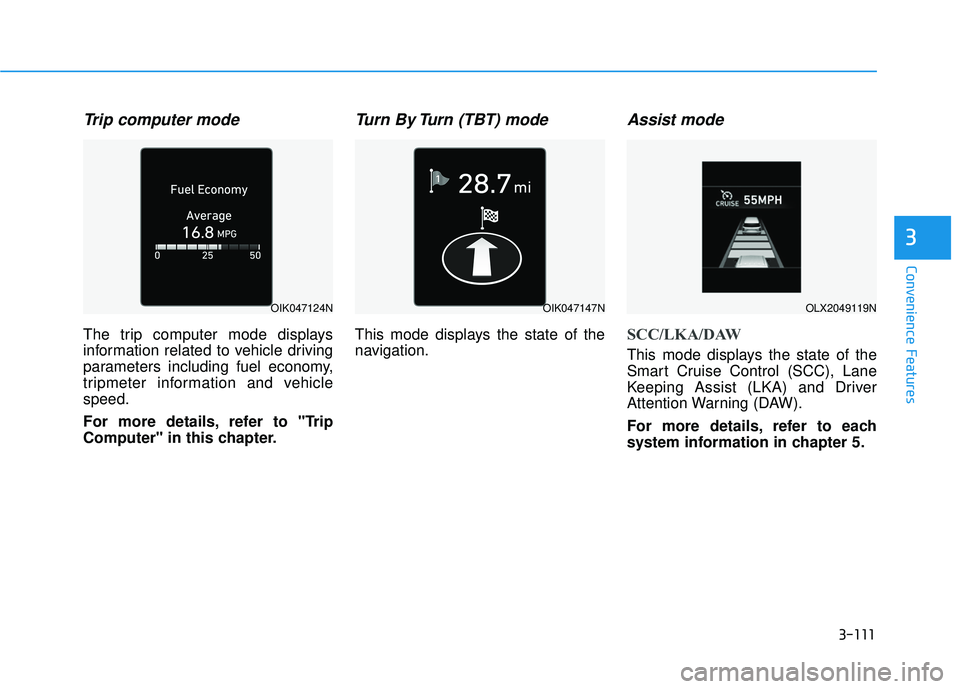
Trip computer mode
The trip computer mode displays
information related to vehicle driving
parameters including fuel economy,
tripmeter information and vehicle
speed.
For more details, refer to "Trip
Computer" in this chapter.
Turn By Turn (TBT) mode
This mode displays the state of the
navigation.
Assist mode
SCC/LKA/DAW
This mode displays the state of the
Smart Cruise Control (SCC), Lane
Keeping Assist (LKA) and Driver
Attention Warning (DAW).
For more details, refer to each
system information in chapter 5.
OIK047124NOIK047147NOLX2049119N
Page 208 of 663
3-112
Convenience Features
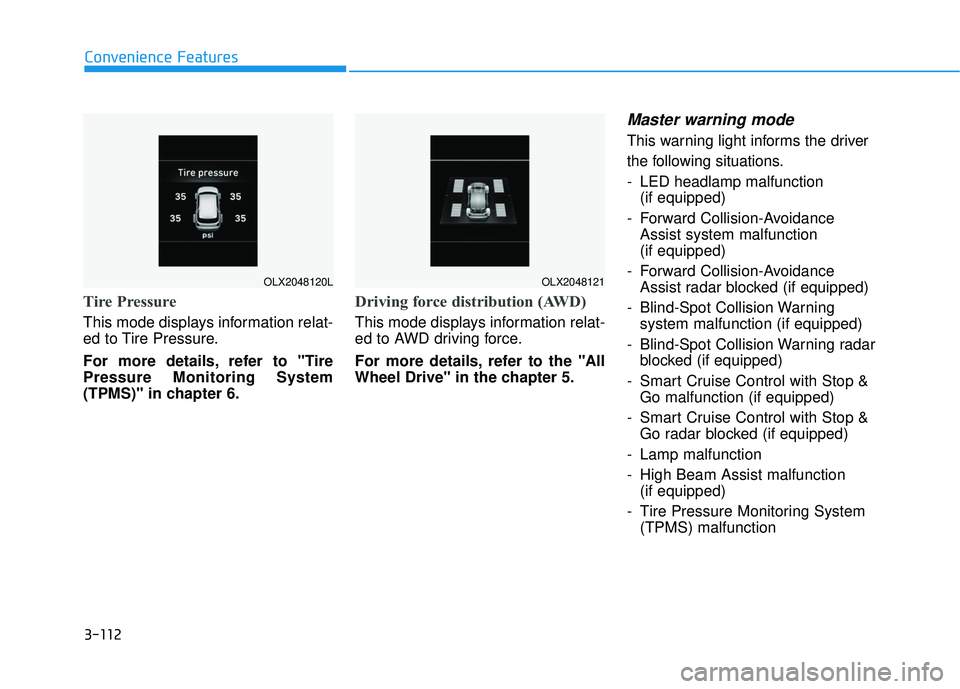
Tire Pressure
This mode displays information relat-
ed to Tire Pressure.
For more details, refer to "Tire
Pressure Monitoring System
(TPMS)" in chapter 6.
Driving force distribution (AWD)
This mode displays information relat-
ed to AWD driving force.
For more details, refer to the "All
Wheel Drive" in the chapter 5.
Master warning mode
This warning light informs the driver
the following situations.
- LED headlamp malfunction(if equipped)
- Forward Collision-Avoidance Assist system malfunction
(if equipped)
- Forward Collision-Avoidance Assist radar blocked (if equipped)
- Blind-Spot Collision Warning system malfunction (if equipped)
- Blind-Spot Collision Warning radar blocked (if equipped)
- Smart Cruise Control with Stop & Go malfunction (if equipped)
- Smart Cruise Control with Stop & Go radar blocked (if equipped)
- Lamp malfunction
- High Beam Assist malfunction (if equipped)
- Tire Pressure Monitoring System (TPMS) malfunction
OLX2048120LOLX2048121
Page 209 of 663
3-113
Convenience Features
3
The Master Warning Light illumi-
nates if one or more of the above
warning situations occur. At this time,
the LCD Modes Icon will change
from ( ) to ( ).
If the warning situation is solved, the
master warning light will be turned
off and the LCD Modes Icon will be
changed back to its previous icon
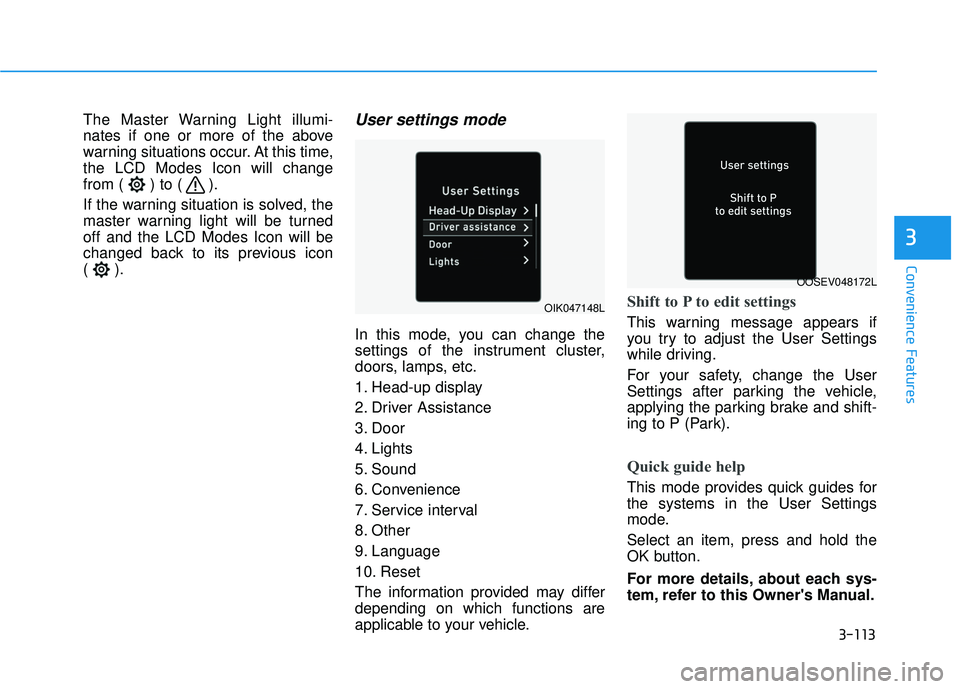
().User settings mode
In this mode, you can change the
settings of the instrument cluster,
doors, lamps, etc.
1. Head-up display
2. Driver Assistance
3. Door
4. Lights
5. Sound
6. Convenience
7. Service interval
8. Other
9. Language
10. Reset
The information provided may differ
depending on which functions are
applicable to your vehicle.
Shift to P to edit settings
This warning message appears if
you try to adjust the User Settings
while driving.
For your safety, change the User
Settings after parking the vehicle,
applying the parking brake and shift-
ing to P (Park).
Quick guide help
This mode provides quick guides for
the systems in the User Settings
mode.
Select an item, press and hold the
OK button.
For more details, about each sys-
tem, refer to this Owner's Manual.
OIK047148L
OOSEV048172L
Page 210 of 663
3-114
Convenience Features
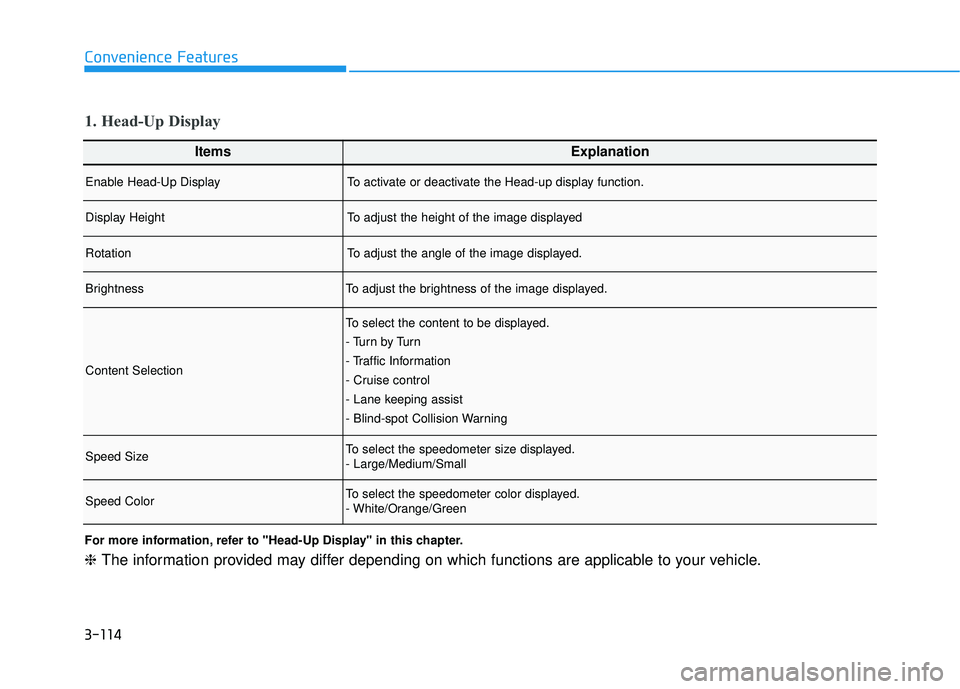
ItemsExplanation
Enable Head-Up DisplayTo activate or deactivate the Head-up display function.
Display HeightTo adjust the height of the image displayed
RotationTo adjust the angle of the image displayed.
BrightnessTo adjust the brightness of the image displayed.
Content Selection
To select the content to be displayed.
- Tu r n b y Tu r n
- Traffic Information
- Cruise control
- Lane keeping assist
- Blind-spot Collision Warning
Speed SizeTo select the speedometer size displayed.
- Large/Medium/Small
Speed ColorTo select the speedometer color displayed.
- White/Orange/Green
1. Head-Up Display
For more information, refer to "Head-Up Display" in this chapter.
❈The information provided may differ depending on which functions are applicable to your vehicle.
Page 216 of 663
3-120
Convenience Features
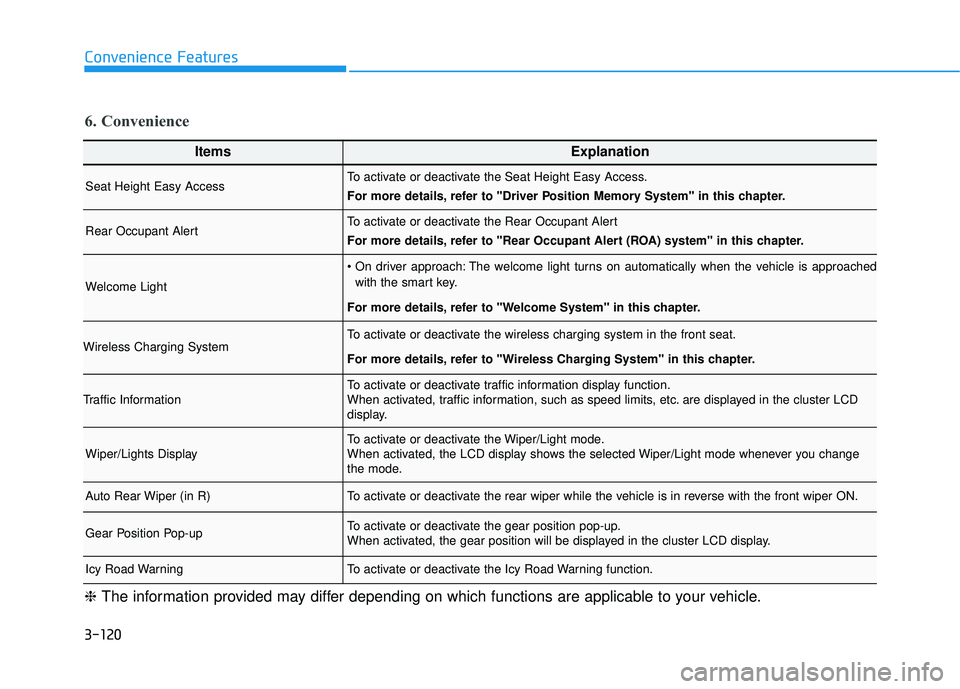
ItemsExplanation
Seat Height Easy AccessTo activate or deactivate the Seat Height Easy Access.
For more details, refer to "Driver Position Memory System" in this chapter.
Rear Occupant AlertTo activate or deactivate the Rear Occupant Alert
For more details, refer to "Rear Occupant Alert (ROA) system" in this chapter.
Welcome Light
The welcome light turns on automatically when the vehicle is approachedwith the smart key.
For more details, refer to ''Welcome System'' in this chapter.
Wireless Charging SystemTo activate or deactivate the wireless charging system in the front seat.
For more details, refer to "Wireless Charging System" in this chapter.
Traffic InformationTo activate or deactivate traffic information display function.
When activated, traffic information, such as speed limits, etc. are displayed in the cluster LCD
display.
Wiper/Lights DisplayTo activate or deactivate the Wiper/Light mode.
When activated, the LCD display shows the selected Wiper/Light mode whenever you change
the mode.
Auto Rear Wiper (in R)To activate or deactivate the rear wiper while the vehicle is in reverse with the front wiper ON.
Gear Position Pop-upTo activate or deactivate the gear position pop-up.
When activated, the gear position will be displayed in the cluster LCD display.
Icy Road WarningTo activate or deactivate the Icy Road Warning function.
6. Convenience
❈ The information provided may differ depending on which functions are applicable to your vehicle.
Page 217 of 663
3-121
Convenience Features
3
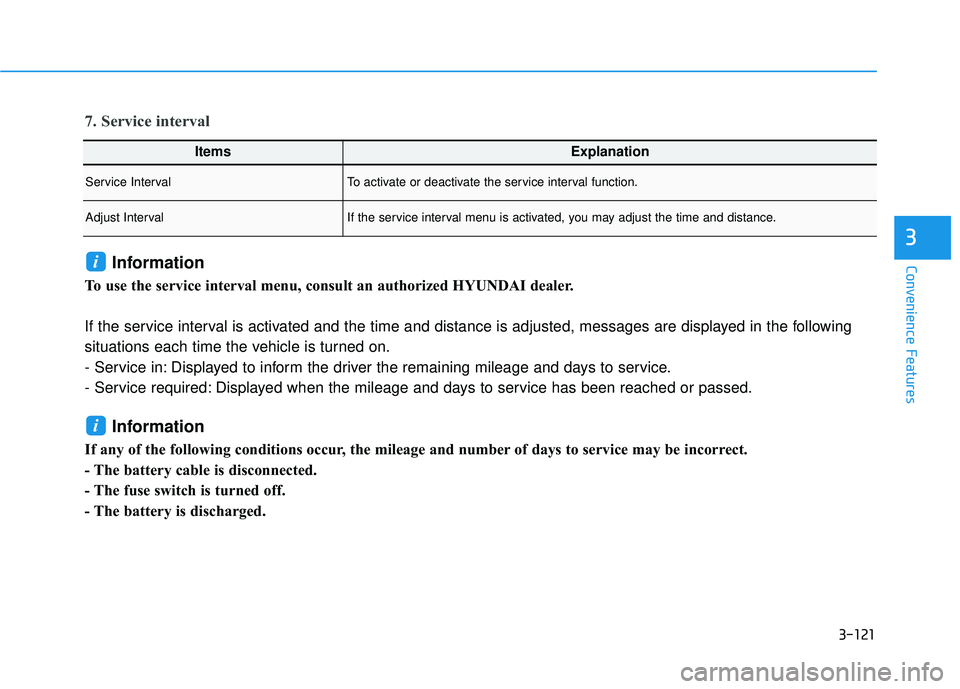
7. Service interval
Information
To use the service interval menu, consult an authorized HYUNDAI dealer.
If the service interval is activated and the time and distance is adjusted, messages are displayed in the following
situations each time the vehicle is turned on.
- Service in: Displayed to inform the driver the remaining mileage and days to service.
- Service required: Displayed when the mileage and days to service has been reached or passed.
Information
If any of the following conditions occur, the mileage and number of days to service may be incorrect.
- The battery cable is disconnected.
- The fuse switch is turned off.
- The battery is discharged.
i
i
ItemsExplanation
Service IntervalTo activate or deactivate the service interval function.
Adjust IntervalIf the service interval menu is activated, you may adjust the time and distance.
Page 219 of 663
3-123
Convenience Features
3
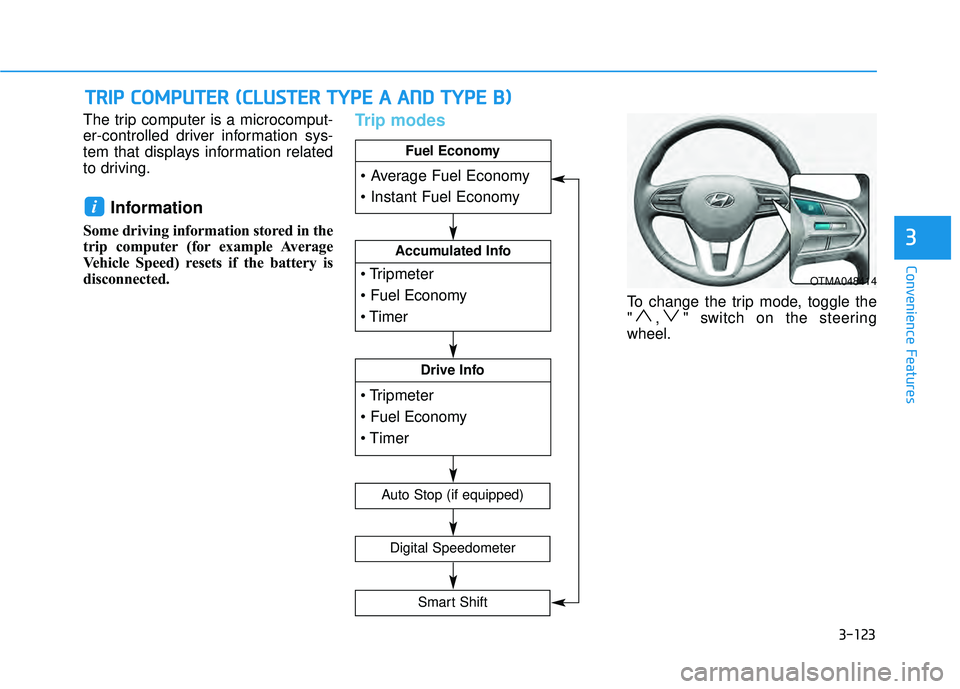
The trip computer is a microcomput-
er-controlled driver information sys-
tem that displays information related
to driving.
Information
Some driving information stored in the
trip computer (for example Average
Vehicle Speed) resets if the battery is
disconnected.
Trip modes
To change the trip mode, toggle the
" , " switch on the steering
wheel.
i
T TR R I IP P C C O O M M P PU U T TE ER R ( ( C C L LU U S ST T E ER R T T Y Y P PE E A A A A N N D D T T Y Y P PE E B B ) )
OTMA048414
Accumulated Info
Drive Info
Fuel Economy
Digital Speedometer
Auto Stop (if equipped)
Smart Shift
Page 220 of 663
3-124
Convenience Features
Average fuel economy/Instant fuel economy
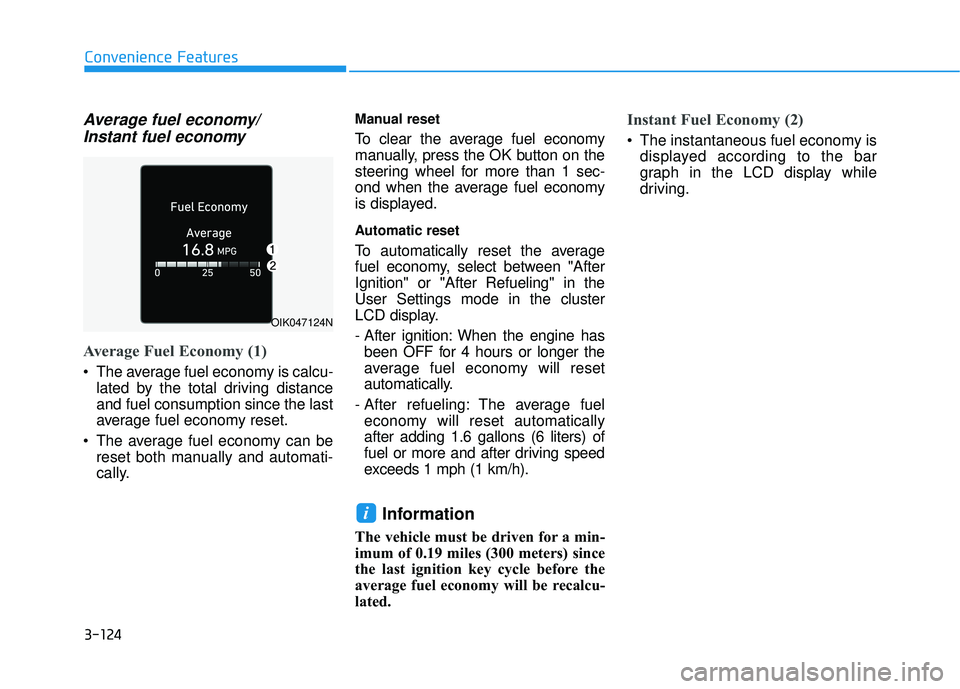
Average Fuel Economy (1)
The average fuel economy is calcu-
lated by the total driving distance
and fuel consumption since the last
average fuel economy reset.
The average fuel economy can be reset both manually and automati-
cally.
Manual reset
To clear the average fuel economy
manually, press the OK button on the
steering wheel for more than 1 sec-
ond when the average fuel economy
is displayed.
Automatic reset
To automatically reset the average
fuel economy, select between "After
Ignition" or "After Refueling" in the
User Settings mode in the cluster
LCD display.
- After ignition: When the engine hasbeen OFF for 4 hours or longer the
average fuel economy will reset
automatically.
- After refueling: The average fuel economy will reset automatically
after adding 1.6 gallons (6 liters) of
fuel or more and after driving speed
exceeds 1 mph (1 km/h).
Information
The vehicle must be driven for a min-
imum of 0.19 miles (300 meters) since
the last ignition key cycle before the
average fuel economy will be recalcu-
lated.
Instant Fuel Economy (2)
The instantaneous fuel economy is displayed according to the bar
graph in the LCD display while
driving.
i
OIK047124N