display HYUNDAI PALISADE 2022 Workshop Manual
[x] Cancel search | Manufacturer: HYUNDAI, Model Year: 2022, Model line: PALISADE, Model: HYUNDAI PALISADE 2022Pages: 663, PDF Size: 15.74 MB
Page 236 of 663
3-140
Convenience Features
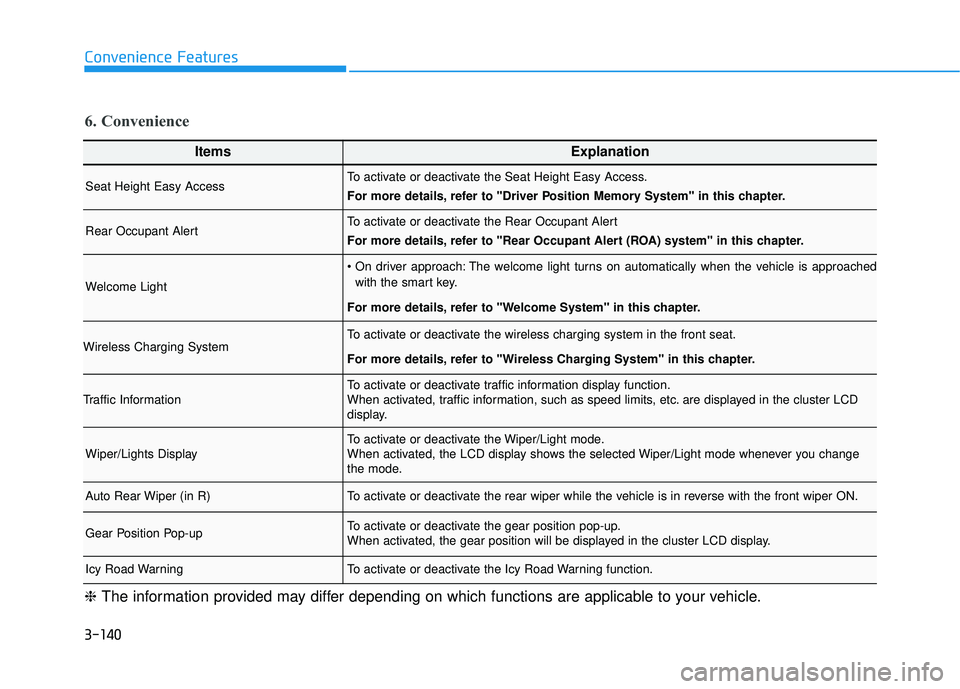
ItemsExplanation
Seat Height Easy AccessTo activate or deactivate the Seat Height Easy Access.
For more details, refer to "Driver Position Memory System" in this chapter.
Rear Occupant AlertTo activate or deactivate the Rear Occupant Alert
For more details, refer to "Rear Occupant Alert (ROA) system" in this chapter.
Welcome Light
The welcome light turns on automatically when the vehicle is approachedwith the smart key.
For more details, refer to ''Welcome System'' in this chapter.
Wireless Charging SystemTo activate or deactivate the wireless charging system in the front seat.
For more details, refer to "Wireless Charging System" in this chapter.
Traffic InformationTo activate or deactivate traffic information display function.
When activated, traffic information, such as speed limits, etc. are displayed in the cluster LCD
display.
Wiper/Lights DisplayTo activate or deactivate the Wiper/Light mode.
When activated, the LCD display shows the selected Wiper/Light mode whenever you change
the mode.
Auto Rear Wiper (in R)To activate or deactivate the rear wiper while the vehicle is in reverse with the front wiper ON.
Gear Position Pop-upTo activate or deactivate the gear position pop-up.
When activated, the gear position will be displayed in the cluster LCD display.
Icy Road WarningTo activate or deactivate the Icy Road Warning function.
6. Convenience
❈ The information provided may differ depending on which functions are applicable to your vehicle.
Page 237 of 663
3-141
Convenience Features
3
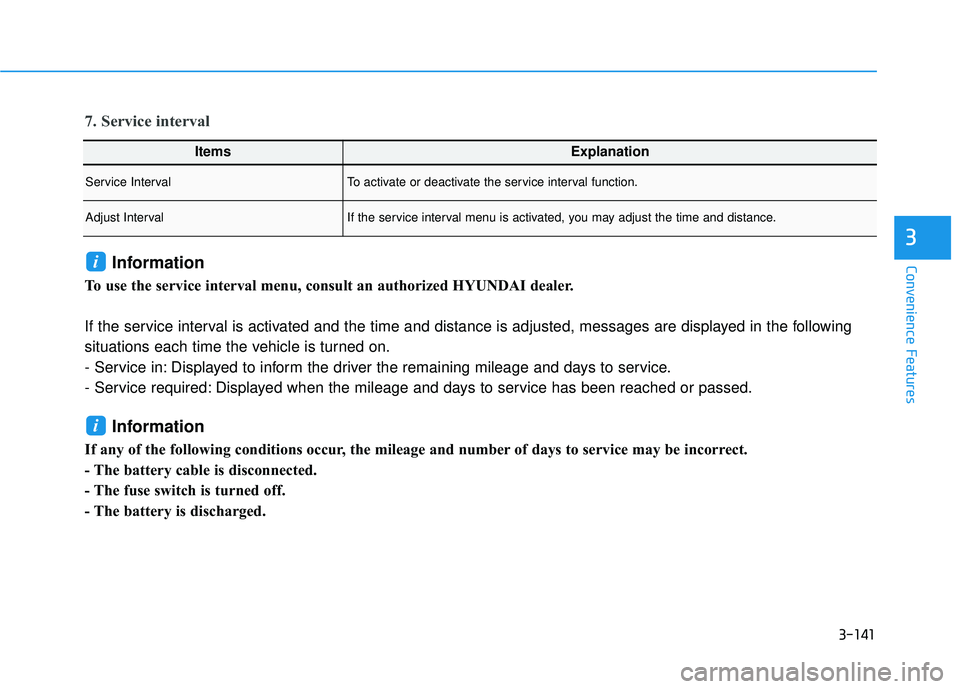
7. Service interval
Information
To use the service interval menu, consult an authorized HYUNDAI dealer.
If the service interval is activated and the time and distance is adjusted, messages are displayed in the following
situations each time the vehicle is turned on.
- Service in: Displayed to inform the driver the remaining mileage and days to service.
- Service required: Displayed when the mileage and days to service has been reached or passed.
Information
If any of the following conditions occur, the mileage and number of days to service may be incorrect.
- The battery cable is disconnected.
- The fuse switch is turned off.
- The battery is discharged.
i
i
ItemsExplanation
Service IntervalTo activate or deactivate the service interval function.
Adjust IntervalIf the service interval menu is activated, you may adjust the time and distance.
Page 239 of 663
3-143
Convenience Features
3
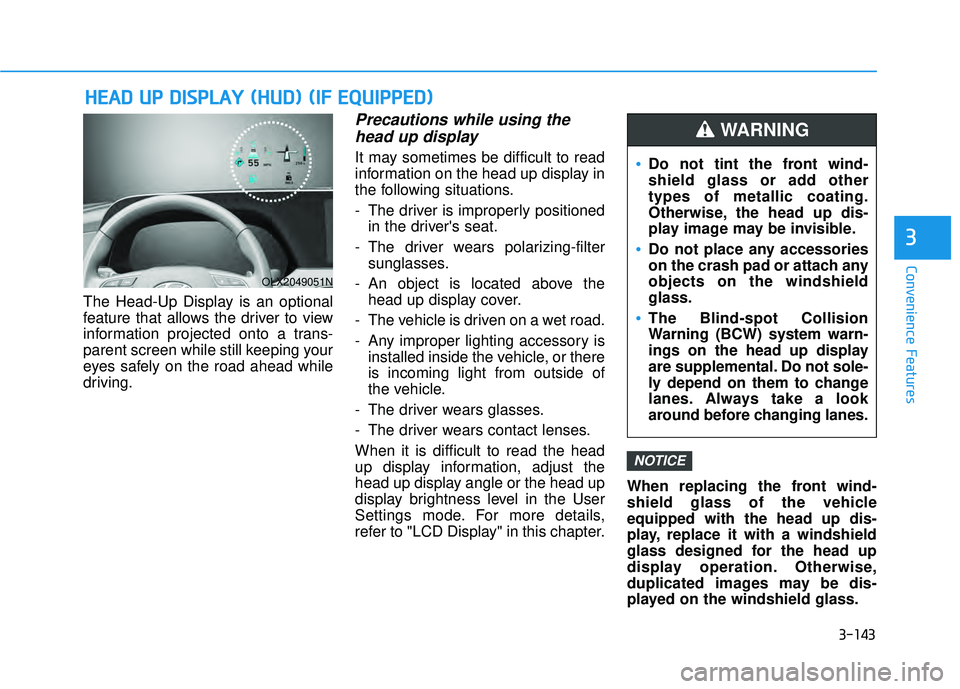
The Head-Up Display is an optional
feature that allows the driver to view
information projected onto a trans-
parent screen while still keeping your
eyes safely on the road ahead while
driving.
Precautions while using thehead up display
It may sometimes be difficult to read
information on the head up display in
the following situations.
- The driver is improperly positioned
in the driver's seat.
- The driver wears polarizing-filter sunglasses.
- An object is located above the head up display cover.
- The vehicle is driven on a wet road.
- Any improper lighting accessory is installed inside the vehicle, or there
is incoming light from outside of
the vehicle.
- The driver wears glasses.
- The driver wears contact lenses.
When it is difficult to read the head
up display information, adjust the
head up display angle or the head up
display brightness level in the User
Settings mode. For more details,
refer to "LCD Display" in this chapter. When replacing the front wind-
shield glass of the vehicle
equipped with the head up dis-
play, replace it with a windshield
glass designed for the head up
display operation. Otherwise,
duplicated images may be dis-
played on the windshield glass.
NOTICE
H H
E EA A D D U U P P D D I IS S P P L LA A Y Y ( ( H H U U D D) ) ( ( I IF F E E Q Q U UI IP P P PE ED D ) )
OLX2049051N
Do not tint the front wind-
shield glass or add other
types of metallic coating.
Otherwise, the head up dis-
play image may be invisible.
Do not place any accessories
on the crash pad or attach any
objects on the windshield
glass.
The Blind-spot Collision
Warning (BCW) system warn-
ings on the head up display
are supplemental. Do not sole-
ly depend on them to change
lanes. Always take a look
around before changing lanes.
WARNING
Page 240 of 663
3-144
Convenience Features
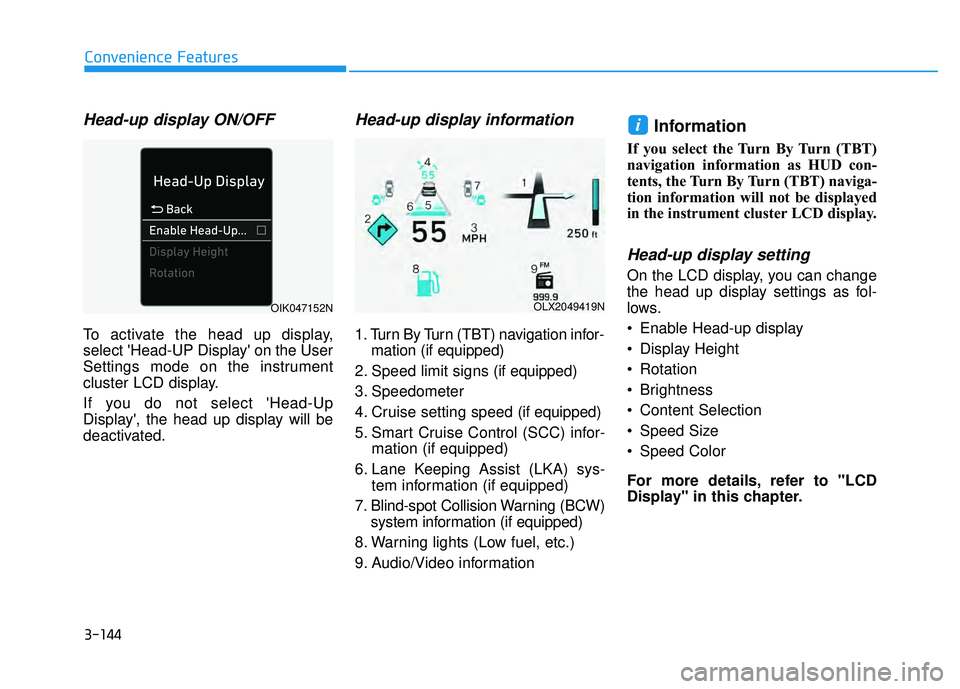
Head-up display ON/OFF
To activate the head up display,
select 'Head-UP Display' on the User
Settings mode on the instrument
cluster LCD display.
If you do not select 'Head-Up
Display', the head up display will be
deactivated.
Head-up display information
1. Turn By Turn (TBT) navigation infor-mation (if equipped)
2. Speed limit signs (if equipped)
3. Speedometer
4. Cruise setting speed (if equipped)
5. Smart Cruise Control (SCC) infor- mation (if equipped)
6. Lane Keeping Assist (LKA) sys- tem information (if equipped)
7. Blind-spot Collision Warning (BCW) system information (if equipped)
8. Warning lights (Low fuel, etc.)
9. Audio/Video information
Information
If you select the Turn By Turn (TBT)
navigation information as HUD con-
tents, the Turn By Turn (TBT) naviga-
tion information will not be displayed
in the instrument cluster LCD display.
Head-up display setting
On the LCD display, you can change
the head up display settings as fol-
lows.
Enable Head-up display
Display Height
Rotation
Brightness
Content Selection
Speed Size
Speed Color
For more details, refer to "LCD
Display" in this chapter.
i
OLX2049419NOIK047152N
Page 244 of 663
3-148
Convenience Features
One-touch turn signal function
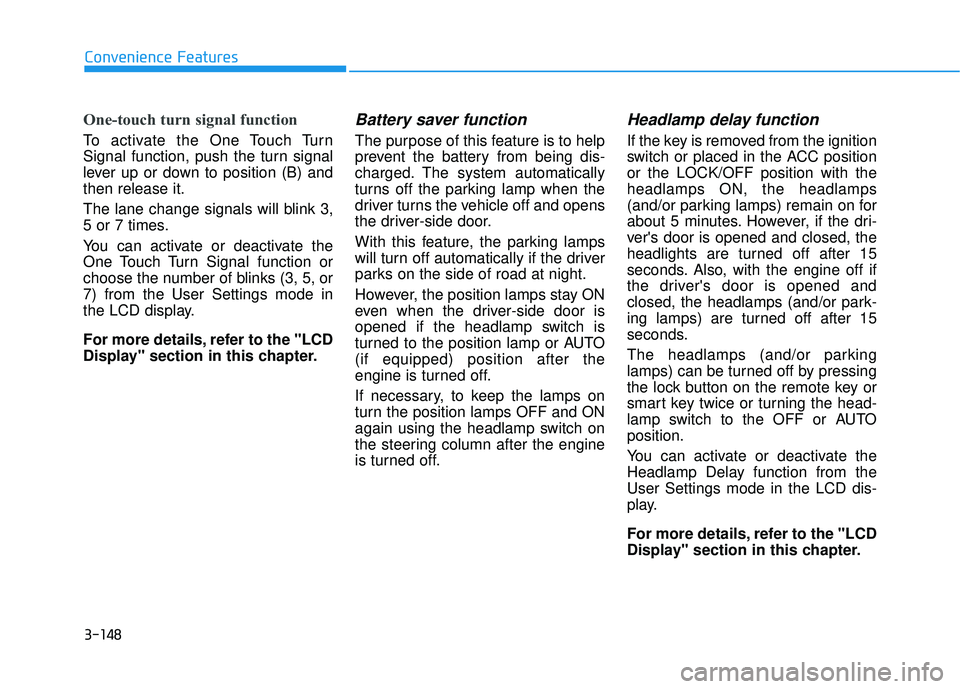
To activate the One Touch Turn
Signal function, push the turn signal
lever up or down to position (B) and
then release it.
The lane change signals will blink 3,
5 or 7 times.
You can activate or deactivate the
One Touch Turn Signal function or
choose the number of blinks (3, 5, or
7) from the User Settings mode in
the LCD display.
For more details, refer to the "LCD
Display" section in this chapter.
Battery saver function
The purpose of this feature is to help
prevent the battery from being dis-
charged. The system automatically
turns off the parking lamp when the
driver turns the vehicle off and opens
the driver-side door.
With this feature, the parking lamps
will turn off automatically if the driver
parks on the side of road at night.
However, the position lamps stay ON
even when the driver-side door is
opened if the headlamp switch is
turned to the position lamp or AUTO
(if equipped) position after the
engine is turned off.
If necessary, to keep the lamps on
turn the position lamps OFF and ON
again using the headlamp switch on
the steering column after the engine
is turned off.
Headlamp delay function
If the key is removed from the ignition
switch or placed in the ACC position
or the LOCK/OFF position with the
headlamps ON, the headlamps
(and/or parking lamps) remain on for
about 5 minutes. However, if the dri-
ver's door is opened and closed, the
headlights are turned off after 15
seconds. Also, with the engine off if
the driver's door is opened and
closed, the headlamps (and/or park-
ing lamps) are turned off after 15
seconds.
The headlamps (and/or parking
lamps) can be turned off by pressing
the lock button on the remote key or
smart key twice or turning the head-
lamp switch to the OFF or AUTO
position.
You can activate or deactivate the
Headlamp Delay function from the
User Settings mode in the LCD dis-
play.
For more details, refer to the "LCD
Display" section in this chapter.
Page 248 of 663
3-152
Convenience Features
Escort light
When the vehicle is turned OFF and
the driver's door is opened, the pud-
dle lamp will come on for 30 sec-
onds. If the driver's door is closed
within the 30 seconds, the puddle
lamp will turn off after 15 seconds. If
the driver's door is closed and
locked, the puddle lamp will turn off
immediately.
The Puddle Lamp Escort Light will
turn on only the first time the driver's
door is opened after the engine is
turned off.
Welcome System (if equipped)
Welcome light
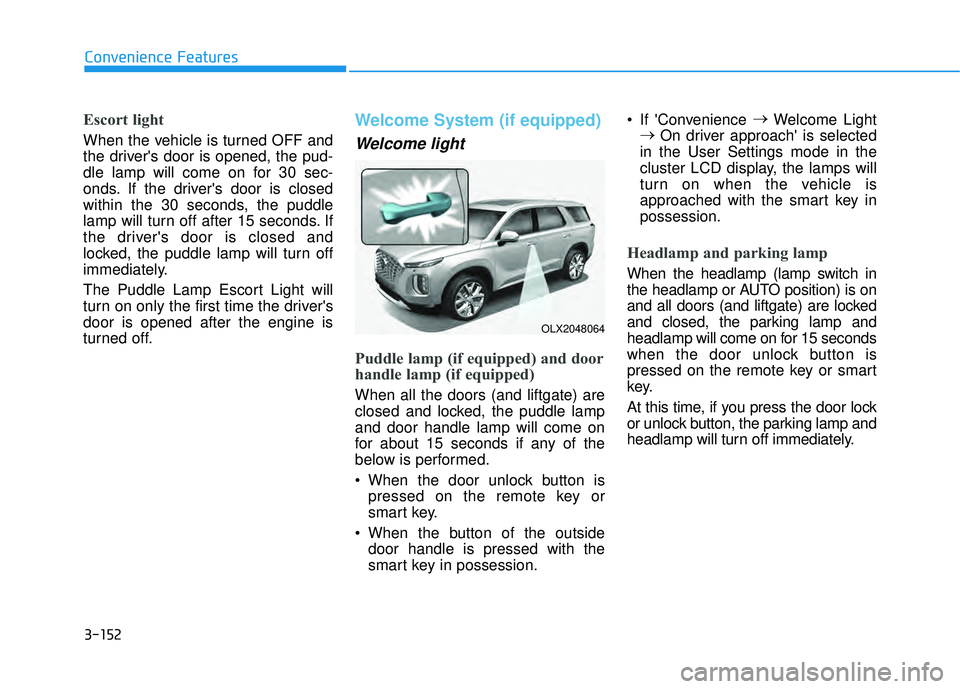
Puddle lamp (if equipped) and door
handle lamp (if equipped)
When all the doors (and liftgate) are
closed and locked, the puddle lamp
and door handle lamp will come on
for about 15 seconds if any of the
below is performed.
When the door unlock button ispressed on the remote key or
smart key.
When the button of the outside door handle is pressed with the
smart key in possession. If 'Convenience
→
Welcome Light
→ On driver approach' is selected
in the User Settings mode in the
cluster LCD display, the lamps will
turn on when the vehicle is
approached with the smart key in
possession.
Headlamp and parking lamp
When the headlamp (lamp switch in
the headlamp or AUTO position) is on
and all doors (and liftgate) are locked
and closed, the parking lamp and
headlamp will come on for 15 seconds
when the door unlock button is
pressed on the remote key or smart
key.
At this time, if you press the door lock
or unlock button, the parking lamp and
headlamp will turn off immediately.
OLX2048064
Page 251 of 663
3-155
Convenience Features
3
High Beam Assist operation
Display and control
After selecting ‘High Beam Assist’in the Settings menu, High Beam
Assist will operate by following the
procedure below.
- Place the headlamp switch in theAUTO position and push the
headlamp lever towards the
instrument cluster. The High
Beam Assist ( ) indicator light
will illuminate on the cluster and
High Beam Assist will be
enabled.
- When High Beam Assist is enabled, high beam will turn on
when vehicle speed is above 40
km/h (25 mph). When vehicle
speed is below 25 km/h (15 mph),
high beam will not turn on.
- The High Beam ( ) indicator light will illuminate on the cluster
when high beam is on. When High Beam Assist is operat-
ing, if the headlamp lever or switch
is used, High Beam Assist oper-
ates as follow:
- If the headlamp lever is pulledtowards you when the high beam
is off, the high beam will turn on
without High Beam Assist can-
celed. When you let go of the
headlamp lever, the lever will
move to the middle and the high
beam will turn off.
- If the headlamp lever is pulled towards you when the high beam
is on by High Beam Assist, low
beam will be on and the system
will turn off.
- If the headlamp switch is placed from AUTO to another position
(headlamp/position/off), High
Beam Assist will turn off and the
corresponding lamp will turn on. When High Beam Assist is operat-
ing, high beam switches to low
beam if any of the following condi-
tions occur:
- When the headlamp of anoncoming vehicle is detected.
- When the tail lamp of a vehicle in front is detected.
- When the headlamp or tail lamp of a motorcycle or a bicycle is
detected.
- When the surrounding ambient light is bright enough that high
beams are not required.
- When streetlights or other lights are detected.
Page 257 of 663
3-161
Convenience Features
3
To prevent possible damage tothe washer pump, do not oper-
ate the washer when the fluid
reservoir is empty.
To prevent possible damage to the wipers or windshield, do not
operate the wipers when the
windshield is dry.
To prevent damage to the wiper arms and other components, do
not attempt to move the wipers
manually.
To prevent possible damage to the wipers and washer system,
use anti-freezing washer fluids
in the winter season or cold
weather.
Rear Window Wiper and Washer
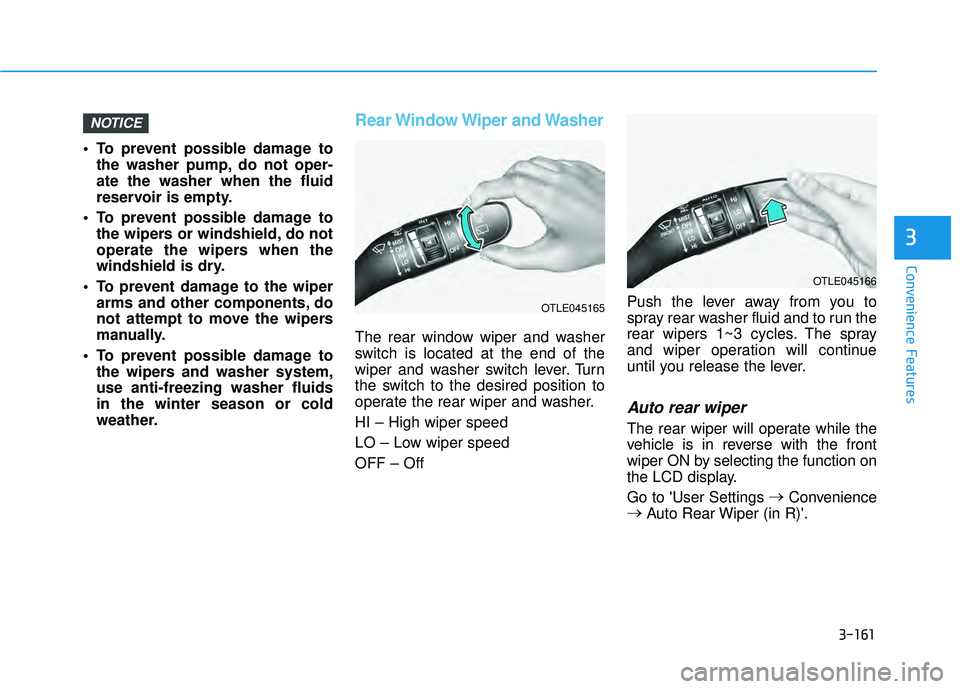
The rear window wiper and washer
switch is located at the end of the
wiper and washer switch lever. Turn
the switch to the desired position to
operate the rear wiper and washer.
HI – High wiper speed
LO – Low wiper speed
OFF – Off Push the lever away from you to
spray rear washer fluid and to run the
rear wipers 1~3 cycles. The spray
and wiper operation will continue
until you release the lever.
Auto rear wiper
The rear wiper will operate while the
vehicle is in reverse with the front
wiper ON by selecting the function on
the LCD display.
Go to 'User Settings
→
Convenience
→ Auto Rear Wiper (in R)'.
NOTICE
OTLE045166
OTLE045165
Page 258 of 663
3-162
Convenience features
R RE EA A R R V V I IE E W W M M O ON NI IT T O O R R ( ( R R V V M M ) ) ( ( I IF F E E Q Q U UI IP P P PE ED D ) )
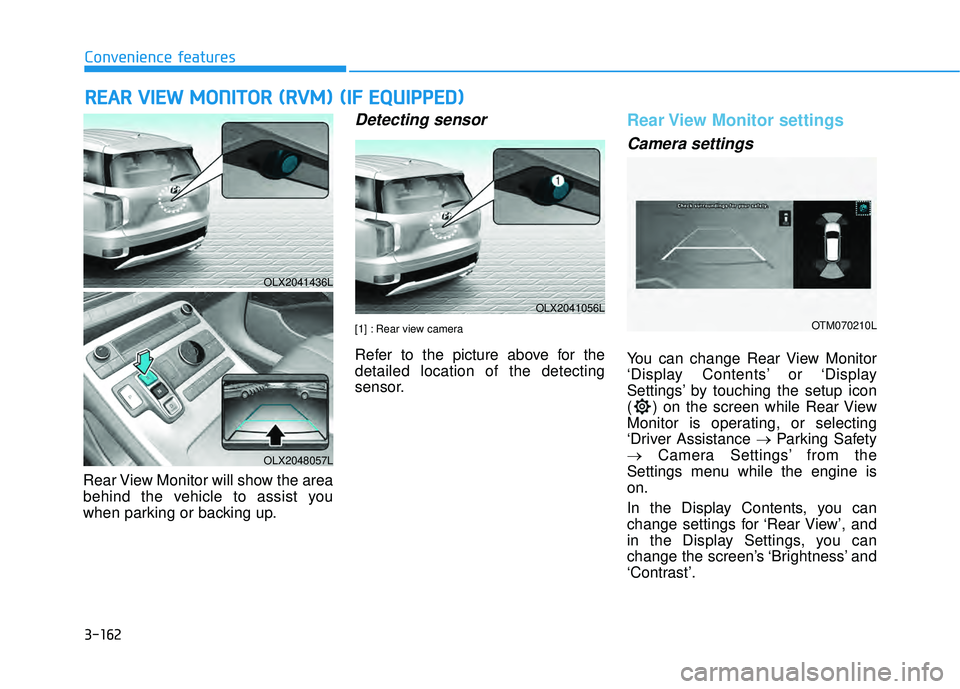
Rear View Monitor will show the area
behind the vehicle to assist you
when parking or backing up.
Detecting sensor
[1] : Rear view camera
Refer to the picture above for the
detailed location of the detecting
sensor.
Rear View Monitor settings
Camera settings
You can change Rear View Monitor
‘Display Contents’ or ‘Display
Settings’ by touching the setup icon
( ) on the screen while Rear View
Monitor is operating, or selecting
‘Driver Assistance → Parking Safety
→ Camera Settings’ from the
Settings menu while the engine is
on.
In the Display Contents, you can
change settings for ‘Rear View’, and
in the Display Settings, you can
change the screen’s ‘Brightness’ and
‘Contrast’.
OLX2041436L
OLX2048057L
OLX2041056L
OTM070210L
Page 260 of 663
3-164
Convenience features
Rear View while driving
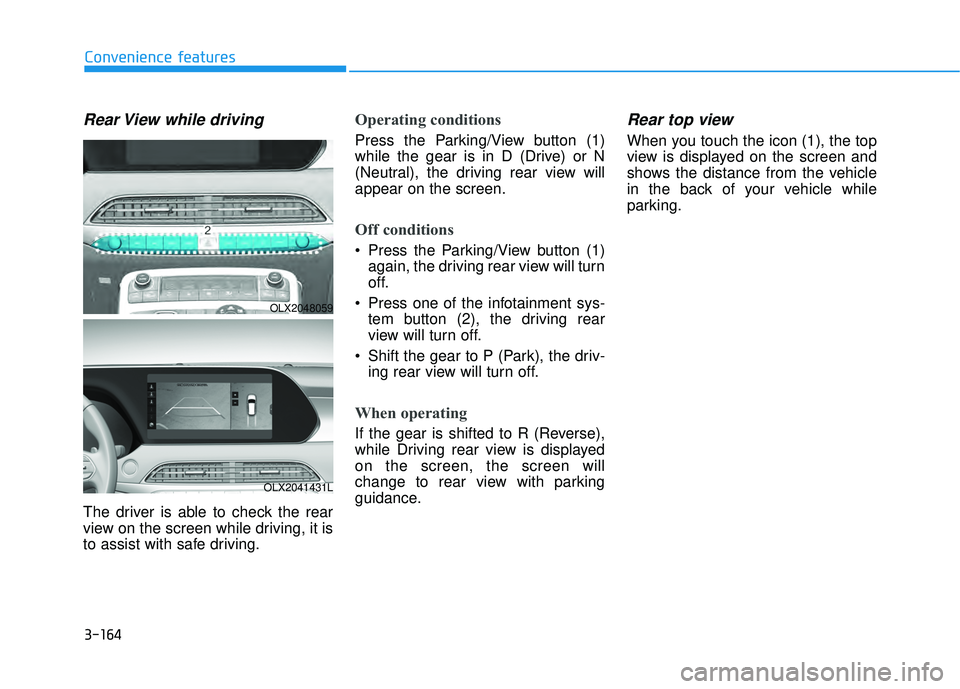
The driver is able to check the rear
view on the screen while driving, it is
to assist with safe driving.
Operating conditions
Press the Parking/View button (1)
while the gear is in D (Drive) or N
(Neutral), the driving rear view will
appear on the screen.
Off conditions
Press the Parking/View button (1)again, the driving rear view will turn
off.
Press one of the infotainment sys- tem button (2), the driving rear
view will turn off.
Shift the gear to P (Park), the driv- ing rear view will turn off.
When operating
If the gear is shifted to R (Reverse),
while Driving rear view is displayed
on the screen, the screen will
change to rear view with parking
guidance.
Rear top view
When you touch the icon (1), the top
view is displayed on the screen and
shows the distance from the vehicle
in the back of your vehicle while
parking.
OLX2048059
OLX2041431L