ESP Hyundai Santa Fe 2012 User Guide
[x] Cancel search | Manufacturer: HYUNDAI, Model Year: 2012, Model line: Santa Fe, Model: Hyundai Santa Fe 2012Pages: 419, PDF Size: 5.61 MB
Page 188 of 419
4109
Features of your vehicle
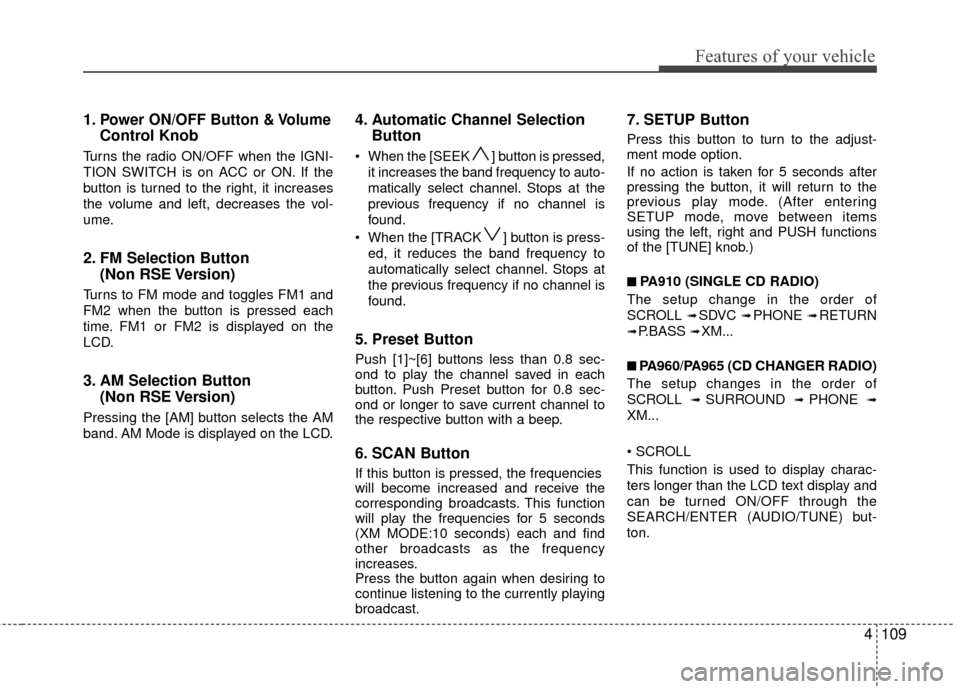
1.Power ON/OFF Button & Volume
Control Knob
Turns the radio ON/OFF when the IGNI-
TION SWITCH is on ACC or ON. If the
button is turned to the right, it increases
the volume and left, decreases the vol-
ume.
2. FM Selection Button (Non RSE Version)
Turns to FM mode and toggles FM1 and
FM2 when the button is pressed each
time. FM1 or FM2 is displayed on the
LCD.
3. AM Selection Button (Non RSE Version)
Pressing the [AM] button selects the AM
band. AM Mode is displayed on the LCD.
4. Automatic Channel SelectionButton
When the [SEEK ] button is pressed,
it increases the band frequency to auto-
matically select channel. Stops at the
previous frequency if no channel is
found.
When the [TRACK ] button is press- ed, it reduces the band frequency to
automatically select channel. Stops at
the previous frequency if no channel is
found.
5. Preset Button
Push [1]~[6] buttons less than 0.8 sec-
ond to play the channel saved in each
button. Push Preset button for 0.8 sec-
ond or longer to save current channel to
the respective button with a beep.
6. SCAN Button
If this button is pressed, the frequencies
will become increased and receive the
corresponding broadcasts. This function
will play the frequencies for 5 seconds
(XM MODE:10 seconds) each and find
other broadcasts as the frequency
increases.
Press the button again when desiring to
continue listening to the currently playing
broadcast.
7. SETUP Button
Press this button to turn to the adjust-
ment mode option.
If no action is taken for 5 seconds after
pressing the button, it will return to the
previous play mode. (After entering
SETUP mode, move between items
using the left, right and PUSH functions
of the [TUNE] knob.)
■ ■
PA910 (SINGLE CD RADIO)
The setup change in the order of
SCROLL
➟ SDVC ➟ PHONE ➟ RETURN
➟ P.BASS ➟ XM...
■ ■
PA960/PA965 (CD CHANGER RADIO)
The setup changes in the order of
SCROLL
➟ SURROUND ➟ PHONE ➟
XM...
This function is used to display charac-
ters longer than the LCD text display and
can be turned ON/OFF through the
SEARCH/ENTER (AUDIO/TUNE) but-
ton.
Page 192 of 419
4113
Features of your vehicle
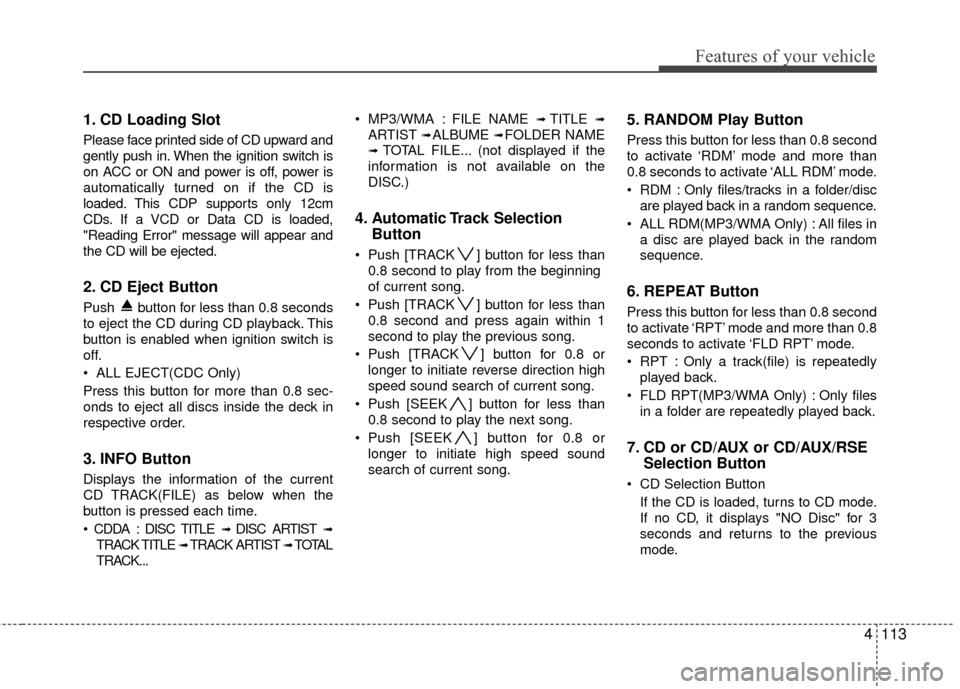
1. CD Loading Slot
Please face printed side of CD upward and
gently push in. When the ignition switch is
on ACC or ON and power is off, power is
automatically turned on if the CD is
loaded. This CDP supports only 12cm
CDs. If a VCD or Data CD is loaded,
"Reading Error" message will appear and
the CD will be ejected.
2. CD Eject Button
Push button for less than 0.8 seconds
to eject the CD during CD playback. This
button is enabled when ignition switch is
off.
ALL EJECT(CDC Only)
Press this button for more than 0.8 sec-
onds to eject all discs inside the deck in
respective order.
3. INFO Button
Displays the information of the current
CD TRACK(FILE) as below when the
button is pressed each time.
DISC TITLE
➟ DISC ARTIST ➟
TRACK TITLE ➟ TRACK ARTIST ➟ TOTAL
TRACK... MP3/WMA : FILE NAME
➟ TITLE ➟
ARTIST ➟ ALBUME ➟ FOLDER NAME
➟TOTAL FILE... (not displayed if the
information is not available on the
DISC.)
4. Automatic Track Selection Button
Push [TRACK ] button for less than
0.8 second to play from the beginning
of current song.
Push [TRACK ] button for less than 0.8 second and press again within 1
second to play the previous song.
Push [TRACK ] button for 0.8 or longer to initiate reverse direction high
speed sound search of current song.
Push [SEEK ] button for less than 0.8 second to play the next song.
Push [SEEK ] button for 0.8 or longer to initiate high speed sound
search of current song.
5. RANDOM Play Button
Press this button for less than 0.8 second
to activate ‘RDM’ mode and more than
0.8 seconds to activate ‘ALL RDM’ mode.
RDM : Only files/tracks in a folder/discare played back in a random sequence.
ALL RDM(MP3/WMA Only) : All files in a disc are played back in the random
sequence.
6. REPEAT Button
Press this button for less than 0.8 second
to activate ‘RPT’ mode and more than 0.8
seconds to activate ‘FLD RPT’ mode.
RPT : Only a track(file) is repeatedlyplayed back.
FLD RPT(MP3/WMA Only) : Only files in a folder are repeatedly played back.
7. CD or CD/AUX or CD/AUX/RSE Selection Button
CD Selection Button
If the CD is loaded, turns to CD mode.
If no CD, it displays "NO Disc" for 3
seconds and returns to the previous
mode.
Page 205 of 419
Features of your vehicle
126
4
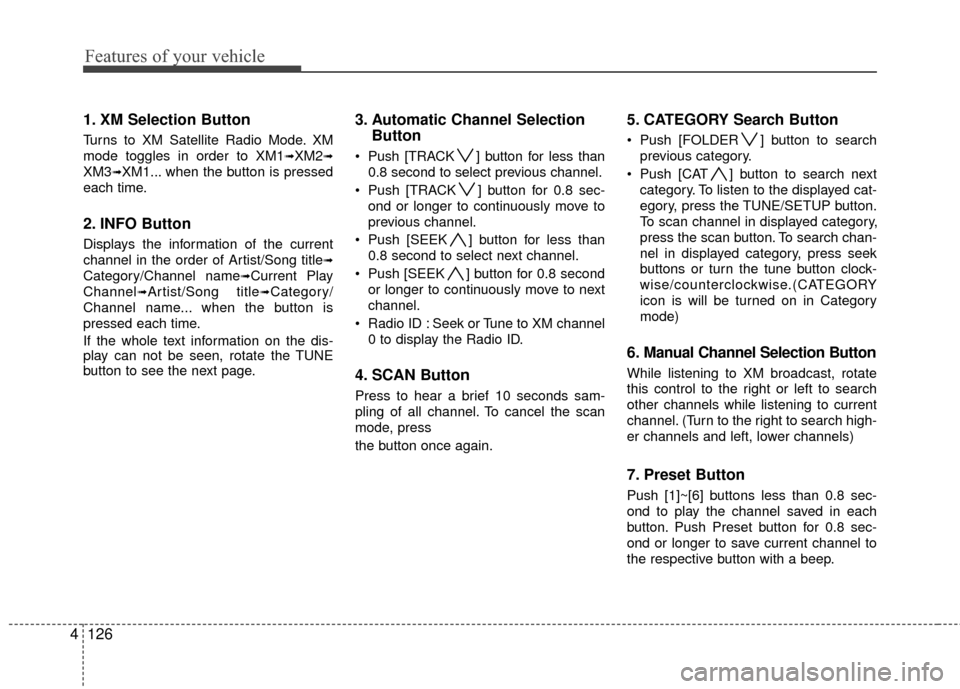
1. XM Selection Button
Turns to XM Satellite Radio Mode. XM
mode toggles in order to XM1
➟XM2➟
XM3➟XM1... when the button is pressed
each time.
2. INFO Button
Displays the information of the current
channel in the order of Artist/Song title
➟
Category/Channel name➟Current Play
Channel
➟Artist/Song title➟Category/
Channel name... when the button is
pressed each time.
If the whole text information on the dis-
play can not be seen, rotate the TUNE
button to see the next page.
3. Automatic Channel Selection Button
Push [TRACK ] button for less than
0.8 second to select previous channel.
Push [TRACK ] button for 0.8 sec- ond or longer to continuously move to
previous channel.
Push [SEEK ] button for less than 0.8 second to select next channel.
Push [SEEK ] button for 0.8 second or longer to continuously move to next
channel.
Radio ID : Seek or Tune to XM channel 0 to display the Radio ID.
4. SCAN Button
Press to hear a brief 10 seconds sam-
pling of all channel. To cancel the scan
mode, press
the button once again.
5. CATEGORY Search Button
Push [FOLDER ] button to searchprevious category.
Push [CAT ] button to search next category. To listen to the displayed cat-
egory, press the TUNE/SETUP button.
To scan channel in displayed category,
press the scan button. To search chan-
nel in displayed category, press seek
buttons or turn the tune button clock-
wise/counterclockwise.(CATEGORY
icon is will be turned on in Category
mode)
6. Manual Channel Selection Button
While listening to XM broadcast, rotate
this control to the right or left to search
other channels while listening to current
channel. (Turn to the right to search high-
er channels and left, lower channels)
7. Preset Button
Push [1]~[6] buttons less than 0.8 sec-
ond to play the channel saved in each
button. Push Preset button for 0.8 sec-
ond or longer to save current channel to
the respective button with a beep.
Page 213 of 419
Features of your vehicle
134
4
Contacts Sync
(Automatic Phonebook download setting)
While in ADVANCED menu, select
“CONTACTS” To automatically save the
contacts and call history in your mobile
phone each time you connect a mobile
device, select ON. If you do not wish for
automatic download, select OFF.
It’s not available to make a phone call by
bluetooth audio system while the phone-
book is being downloaded.
Bluetooth
®wireless technology sys-
tem off
While in ADVANCED menu, select
“BT OFF” to turn off the Bluetooth
®wire-
less technology system.
■Voice Recognition Activation
in the Bluetooth®wireless technology
system can be activated in the following
conditions:
- Button Activation
The voice recognition system will be
active when the button is pressed
and after the sound of a Beep.
- Active Listening The voice recognition system will be
active for a period of time when the
Voice Recognition system has asked
for a customer response.
from zero to nine while number greater
than ten will not be recognized.
tion mode in following cases : When
pressing the button and saying
“cancel” following the beep. When not
making a call and pressing the but-
ton. When voice recognition has failed
3 consecutive times.
will announce what commands are
available.
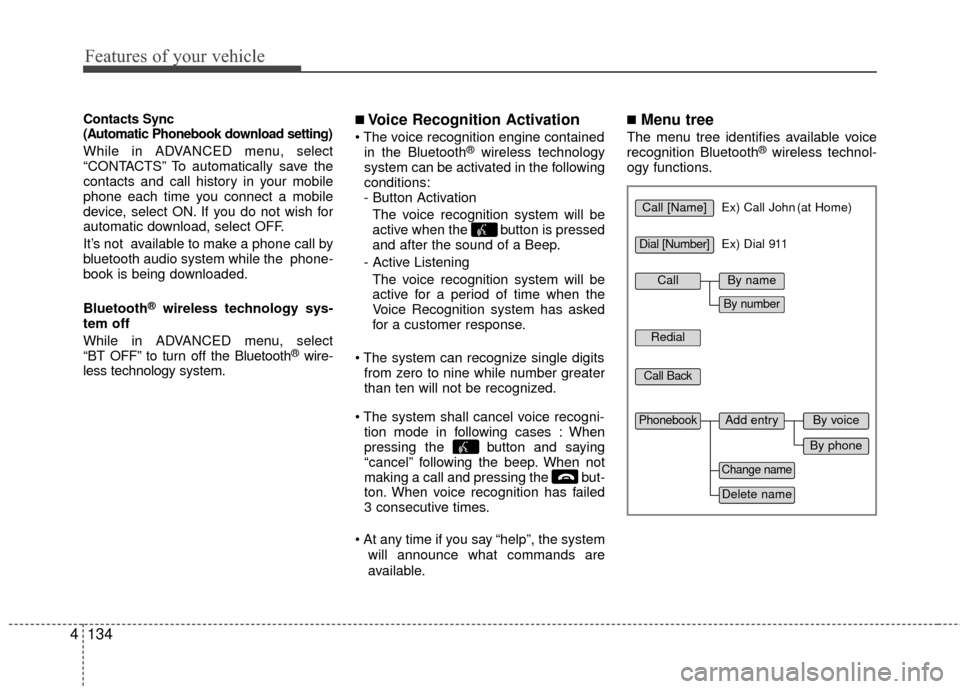
■Menu tree
The menu tree identifies available voice
recognition Bluetooth®wireless technol-
ogy functions.
Call [Name]Ex) Call John (at Home)
Ex) Dial 911
Dial [Number]
Redial
Call Back
Add entryPhonebook
Change name
Delete name
By phone
By voice
CallBy name
By number
Page 215 of 419
Features of your vehicle
136
4
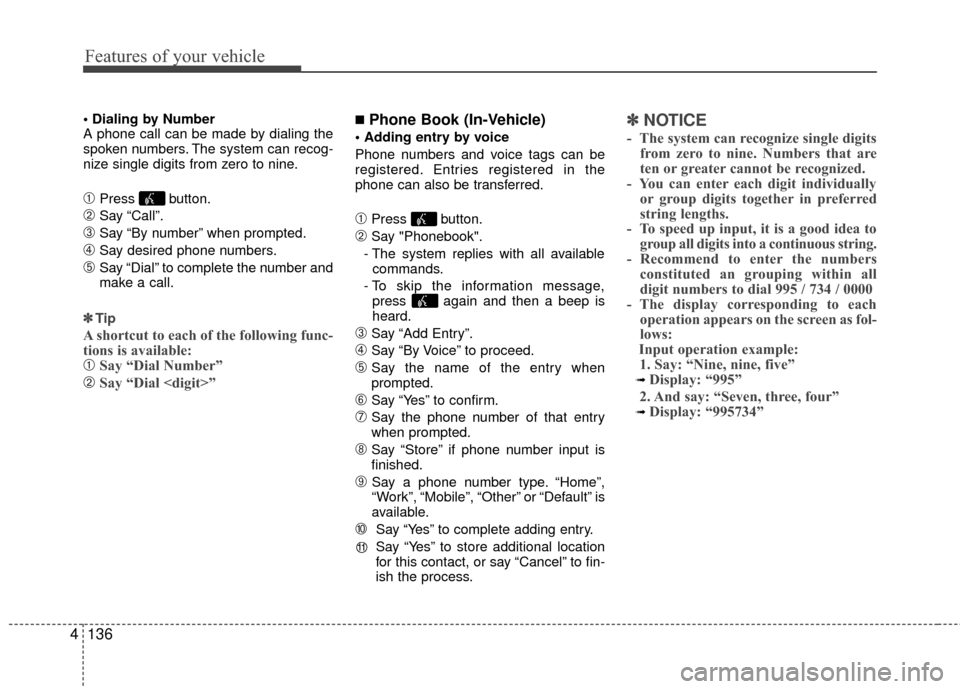
A phone call can be made by dialing the
spoken numbers. The system can recog-
nize single digits from zero to nine.
➀Press button.
➁Say “Call”.
\bSay “By number” when prompted.
➃Say desired phone numbers.
➄Say “Dial” to complete the number and
make a call.
✽ ✽ Tip
A shortcut to each of the following func-
tions is available:
➀Say “Dial Number”
➁Say “Dial
■Phone Book (In-Vehicle)
Phone numbers and voice tags can be
registered. Entries registered in the
phone can also be transferred.
➀Press button.
➁Say "Phonebook".
- The system replies with all available commands.
- To skip the information message, press again and then a beep is
heard.
\bSay “Add Entry”.
➃Say “By Voice” to proceed.
➄Say the name of the entry when
prompted.
➅Say “Yes” to confirm.
\fSay the phone number of that entry
when prompted.
➇Say “Store” if phone number input is
finished.
➈ Say a phone number type. “Home”,
“Work”, “Mobile”, “Other” or “Default” is
available.
➉ Say “Yes” to complete adding entry.
Say “Yes” to store additional location
for this contact, or say “Cancel” to fin-
ish the process.
✽ ✽ NOTICE
- The system can recognize single digits
from zero to nine. Numbers that are
ten or greater cannot be recognized.
- You can enter each digit individually or group digits together in preferred
string lengths.
- To speed up input, it is a good idea to group all digits into a continuous string.
- Recommend to enter the numbers constituted an grouping within all
digit numbers to dial 995 / 734 / 0000
- The display corresponding to each operation appears on the screen as fol-
lows:
Input operation example: 1. Say: “Nine, nine, five”
➟ Display: “995”
2. And say: “Seven, three, four”
➟ Display: “995734”
11
Page 218 of 419
4139
Features of your vehicle
D320000AEN
Important Safety Information
It is always important to operate your
vehicle in a safe manner and to avoid dis-
traction while driving. This manual pro-
vides information that will help you safely
operate your Rear Seat Entertainment
System (RSE). Please read it completely
before using the system.
This device complies with part 15 of
the FCC rules.
Operation is subject to the following two
conditions:
1. This device may not cause harmfulinterference, and
2. This device must accept any interfer- ence received, including interference
that may cause undesired operation.
Welcome
The Rear Seat Entertainment System is
a compact, built-in, easy-to-use enter-
tainment system designed to provide
family fun while you are on the road.
Enjoy great quality sound from the vehi-
cle speakers, or have a private, quiet lis-
tening with the wireless headphones.
The overhead display unit is mounted to
the ceiling in the rear passenger area of
the vehicle, allowing rear-seat passen-
gers to play DVD movies, video CDs or
music CDs. Users may also plug in a
game platform or VHS player into an aux-
iliary input to show the programs through
the RSE display. The RSE can also
access to the vehicle's front radio pro-
grams.
System Overview
Connections / Setup
Your Rear Seat Entertainment system
will play DVD movies, video CDs, music
CDs or music MP3 discs, and is
designed to make your time on the road
more enjoyable. Please follow these
instructions carefully to get the most out
of your RSE.
REAR SEAT ENTERTAINMENT SYSTEM (RSE) (IF EQUIPPED)
CAUTION
Avoid having food or drinks near, in or on the RSE, the wirelessheadphones or the remote con-troller.
Direct sunlight may interfere with the headphone's operation andperformance.
Normal RSE operation cannot be guaranteed with unofficiallyduplicated discs.
(Continued)
WARNING
Changes or modifications not
expressly approved by the party
responsible for compliance could
void the user's authority to operate
the equipment.
Page 230 of 419
4151
Features of your vehicle
Play/Pause Button
You do not need to press the
PLAY/PAUSEbutton after loading a disc
to begin playing the disc. The player will
start playing automatically.
While a disc is playing, press PLAY/
PAUSE to pause. While paused, the
elapsed time of the current disc will blink
on the monitor status display, and
"PAUSE" will be displayed on the RSE
control panel. Press the button again to
resume play.
✽ ✽ NOTICE
The RSE will enter standby mode when
the vehicle ignition is turned off. When
the vehicle is turned back on within 30
seconds, the RSE will turn on and the
CD will automatically begin playing
again at the point where it paused. If the
vehicle is turned off for longer than 30
seconds, the RSE system will not turn on
automatically when the vehicle is
restarted.
Fast Forward/Reverse
Press and hold the FF > or < REW but-
ton and the player will fast forward or
reverse at 32 times the normal speed.
Release the FWD > or < REW button to
return to normal speed play.
Previous/Next Chapter
While a DVD/VCD is playing, press the
NEXT button to skip to the next chapter.
Press the PREVbutton to jump to
the beginning of the current chapter.
Press PREVagain to go move
through earlier chapters. Press the but-
ton repeatedly to move quickly through
chapters.
✽ ✽ NOTICE
Some VCDs do not have track informa-
tion. If the VCD has no chapter infor-
mation, pressing either of these buttons
will restart the VCD.
While pressing the NEXTor
PREV buttons, the Status Display, includ-
ing the current medium (DVD or VCD),
chapter and title information is displayed.
It will automatically disappear after five
seconds.
✽ ✽ NOTICE
Some DVDs do not permit chapter nav-
igation.
Instead of using the PREV /
NEXT buttons, you can also enter the
chapter number using the numbers on
the remote controller. While a DVD/VCD
is playing, press the number button(s)
that correspond to the desired chapter
and press ENTER.
Page 236 of 419
4157
Features of your vehicle
Also you can select the CATEGORYor
CHANNEL function by using FF> and
pressing the NEXTor PREV but-
ton will activate the category up or down,
channel up or down function. When the
focus on the CATEGORY, if you press
the ENTER button and move the focus
on the CHANNEL icon, you can select
the channel up or down function in the
current category by pressing the
NEXT or PREV buttons.
Move the focus on the SCAN icon, you
can activate the scan function by press-
ing the ENTER button. If meantime, the
CATEGORY icon been highlighted,
above operation will activate the scan
function in the current category.Listening to the Vehicle Radio
To control the vehicle radio from the RSE
control panel or remote control, press the
SOURCE button on the remote control or
the SRC button on the RSE control
panel, then select the desired play mode
on the source change operation. Finally,
press the ENTER button to complete the
selection.
The RSE monitor status display and the
RSE control panel will indicate the
selected source.
Tuning a Station
While the vehicle radio is the current
source, press the NEXTor PREV
button on the RSE control panel or
remote control once to search up or
down for the next available station. When
the tuner finds a station it will stop at the
station and start to play.
Press the NEXTor PREV button
to seek up or down through all radio sta-
tions. When the radio finds a station, it
will stop and play that station.
Press the FF > or < REW button to man-
ually tune up or down one channel. Press
and hold the FF > or < REW button to
continue tuning up or down.
Pressing a number on the remote control
keypad will tune to the corresponding
preset station. For example, if 89.7 has
been stored as preset 1 (CH1), then
pressing the 1 button on the keypad will
tune to that station.
Page 239 of 419

Features of your vehicle
160
4
1. POWER On/Off
Press the RSE control panel POWER
button or the POWER ON/OFF button
on the remote control to turn the
RSE on or off. If a disc is loaded and
playing when the RSE is turned off, when
the RSE is turned back on the disc will
automatically resume playback at the
point where it was stopped.
2. Mute
Press the MUTE button to mute the
audio in the vehicle speakers. The MUTE
button has no effect on the wireless
headphones.
While muted, the RSE control panel,
vehicle radio and RSE monitor will all dis-
play "MUTE." Press the button again, or
adjust the volume at RSE control panel
or vehicle radio, to un-mute the audio.
3. Number Buttons ~
The number buttons ( 0 through 9) can
be used to directly enter information such
as chapters in a DVD, track or file num-
bers for audio CDs, and preset radio.
To select a DVD or VCD chapter, while a
DVD/VCD is playing, press the number
button(s) that correspond to the desired
chapter and press ENTER.
To select a CD track, while a CD is play-
ing press the number button(s) that cor-
respond to the track and press ENTER.
To select an MP3 file, while an MP3 disc
is playing, press the number button(s)
that correspond to the desired file and
press ENTER.
To select a radio station preset, while the
desired band (AM, FM1 or FM2) is
selected, press the numbered button that
corresponds to the preset on the vehicle
radio. There is no need to press ENTER.
4. Source
Pressing this SOURCE button will bring
out the Source Change selection opera-
tion. You can select any available mode
by using the four direction arrow buttons
and press the ENTER button for com-
pleting the selection.
The RSE control panel will display
"REAR" if the current source is the RSE
player, and will display "FRONT" if the
current source is the vehicle radio.
5. A.LANG - Alternate Language Folder -
Where alternate languages are available
on a DVD, pressing the A.LANG button
will allow you to select your preferred lan-
guage. Press the button repeatedly to
cycle through the available languages.
When the desired language is displayed,
press ENTER.
Pressing the A.LANG (or FOLD-) button
during MP3 normal play will immediately
bring the player to the first file of the pre-
vious folder.
Pressing the A.LANG (or FOLD-) button
during CD or VCD play will do nothing.
Page 244 of 419
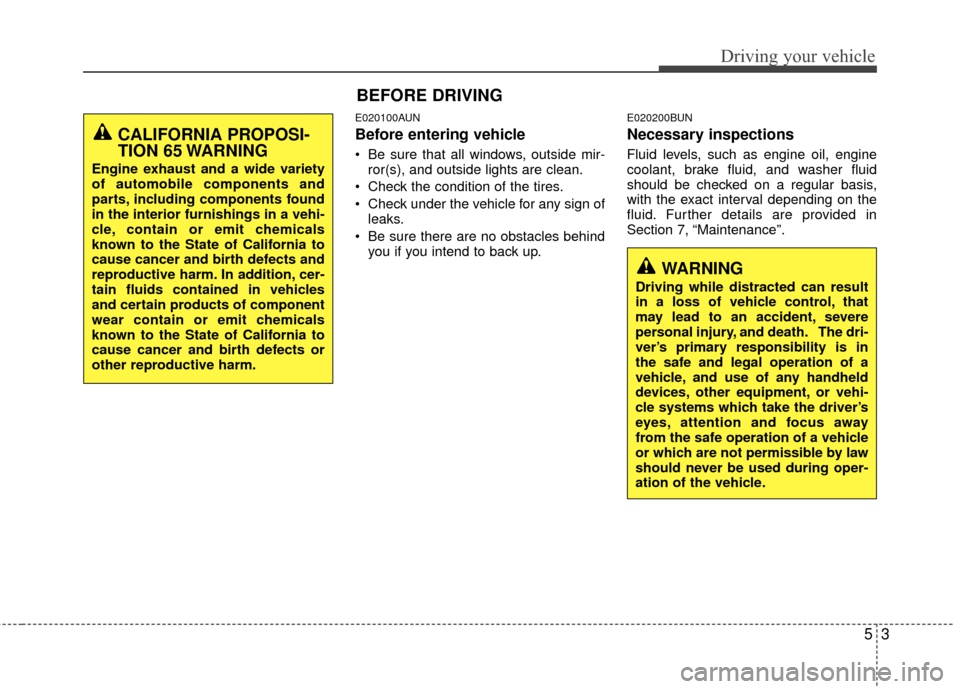
53
Driving your vehicle
E020100AUN
Before entering vehicle
• Be sure that all windows, outside mir-ror(s), and outside lights are clean.
Check the condition of the tires.
Check under the vehicle for any sign of leaks.
Be sure there are no obstacles behind you if you intend to back up.
E020200BUN
Necessary inspections
Fluid levels, such as engine oil, engine
coolant, brake fluid, and washer fluid
should be checked on a regular basis,
with the exact interval depending on the
fluid. Further details are provided in
Section 7, “Maintenance”.
BEFORE DRIVING
CALIFORNIA PROPOSI-
TION 65 WARNING
Engine exhaust and a wide variety
of automobile components and
parts, including components found
in the interior furnishings in a vehi-
cle, contain or emit chemicals
known to the State of California to
cause cancer and birth defects and
reproductive harm. In addition, cer-
tain fluids contained in vehicles
and certain products of component
wear contain or emit chemicals
known to the State of California to
cause cancer and birth defects or
other reproductive harm.
WARNING
Driving while distracted can result
in a loss of vehicle control, that
may lead to an accident, severe
personal injury, and death. The dri-
ver’s primary responsibility is in
the safe and legal operation of a
vehicle, and use of any handheld
devices, other equipment, or vehi-
cle systems which take the driver’s
eyes, attention and focus away
from the safe operation of a vehicle
or which are not permissible by law
should never be used during oper-
ation of the vehicle.