ECO Hyundai Santa Fe 2016 Manual PDF
[x] Cancel search | Manufacturer: HYUNDAI, Model Year: 2016, Model line: Santa Fe, Model: Hyundai Santa Fe 2016Pages: 759, PDF Size: 29.36 MB
Page 160 of 759
463
Features of your vehicle
Retain the original transmitter of the
RF device you are programming for
use in other vehicles as well as for
future HomeLink
®programming. It is
also suggested that upon the sale of
the vehicle, the programmed
HomeLink
®buttons be erased for
security purposes. Programming HomeLink
®
✽ ✽
NOTICE
• When programming a garage
door opener, it is advised to park
the vehicle outside of the garage.
• It is recommended that a new bat- tery be placed in the hand-held
transmitter of the device being pro-
grammed to HomeLink
®for quick-
er training and accurate transmis-
sion of the radio-frequency signal.
• Some vehicles may require the ignition switch to be turned to the
second (or "accessories") position
for programming and/or opera-
tion of HomeLink.
• In the event that there are still pro- gramming difficulties or questions
after following the programming
steps listed below, contact
HomeLink
®at: www.homelink.com
or 1-800-355-3515.
WARNING
Before programming HomeLink®
to a garage door opener or gate
operator, make sure that people
and objects are out of the way of
the device to prevent potential
harm or damage. Do not use
HomeLink
®with any garage
door opener that lacks the safe-
ty stop and reverse features
required by U.S. federal safety
standards (this includes any
garage door opener model man-
ufactured before April 1, 1982).
A garage door that cannot
detect an object - signaling the
door to stop and reverse - does
not meet current U.S. federal
safety standards. Using a
garage door opener without
these features increases the
risk of serious injury or death.
Page 161 of 759
Features of your vehicle
64
4
Programming
To train most devices, follow these
instructions:
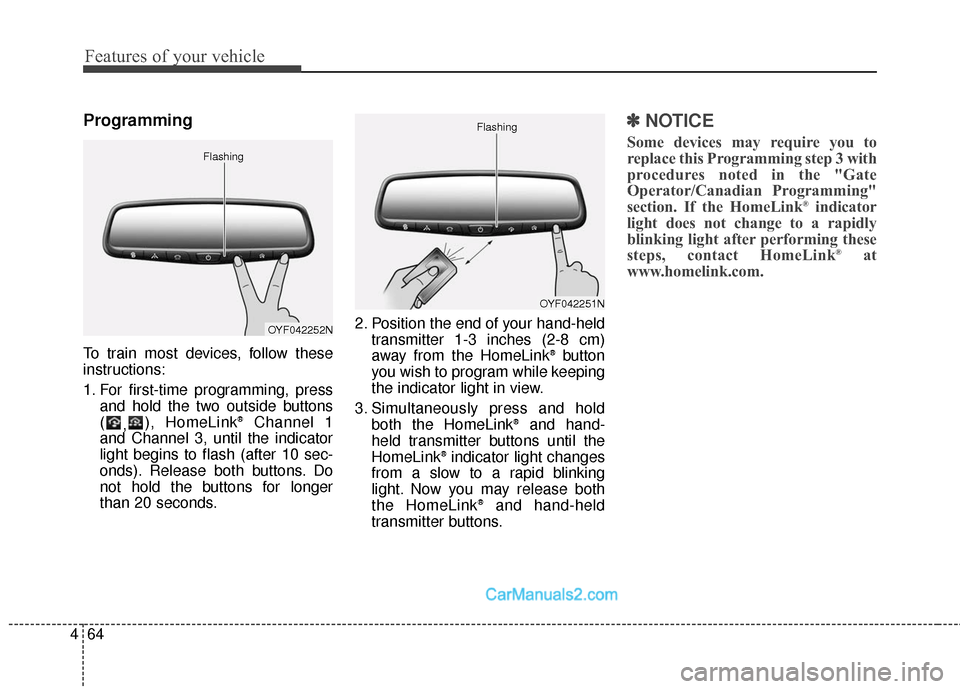
1. For first-time programming, press
and hold the two outside buttons
( ,), HomeLink
®Channel 1
and Channel 3, until the indicator
light begins to flash (after 10 sec-
onds). Release both buttons. Do
not hold the buttons for longer
than 20 seconds. 2. Position the end of your hand-held
transmitter 1-3 inches (2-8 cm)
away from the HomeLink
®button
you wish to program while keeping
the indicator light in view.
3. Simultaneously press and hold both the HomeLink
®and hand-
held transmitter buttons until the
HomeLink
®indicator light changes
from a slow to a rapid blinking
light. Now you may release both
the HomeLink
®and hand-held
transmitter buttons.
✽ ✽ NOTICE
Some devices may require you to
replace this Programming step 3 with
procedures noted in the "Gate
Operator/Canadian Programming"
section. If the HomeLink
®indicator
light does not change to a rapidly
blinking light after performing these
steps, contact HomeLink
®at
www.homelink.com.
OYF042252N
Flashing
OYF042251N
Flashing
Page 162 of 759
465
Features of your vehicle
4. Firmly press, hold for 5 secondsand release the programmed
HomeLink
®button up to two sepa-
rate times to activate the door. If the
door does not activate, press and
hold the just-trained HomeLink
®but-
ton and observe the indicator light.
stantly, programming is complete
and your device should activate
when the HomeLink
®button is
pressed and released.
for 2 seconds and then turns to a
constant light, continue with
"Programming" steps 5-7 to com-
plete the programming of a rolling
code equipped device (most com-
monly a garage door opener).
5. At the garage door opener receiv- er (motor-head unit) in the garage,
locate the "leam" or "smart" but-
ton. This can usually be found
where the hanging antenna wire is
attached to the motor-head unit. 6. Firmly press and release the
"leam" or "smart" button. (The
name and color of the button vary
by manufacturer). There are 30
seconds to initiate step 7.
7. Return to the vehicle and firmly press, hold for 2 seconds and
release the programmed
HomeLink
®button. Repeat the
"press/hold/release" sequence a
second time, and, depending on
the brand of the garage door
opener (or other rolling code
equipped device), repeat this
sequence a third time to complete
the programming process.
HomeLink
®should now activate your
rolling code equipped device. Gate operator & Canadian pro-
gramming
During programming, your handheld
transmitter may automatically stop
transmitting. Continue to press the
Integrated HomeLink
®Wireless
Control System button (note steps 2
through 3 in the Programming portion
of this document) while you press
and re-press ("cycle") your handheld
transmitter every two seconds until
the frequency signal has been
learned. The indicator light will flash
slowly and then rapidly after several
seconds upon successful training.
Operating HomeLink
®
To operate, simply press and release
the programmed HomeLink®button.
Activation will now occur for the
trained device (i.e. garage door
opener, gate operator, security sys-
tem, entry door lock, home/office
lighting, etc.). For convenience, the
hand-held transmitter of the device
may also be used at any time.
Page 163 of 759
Features of your vehicle
66
4
CAUTION
The transceiver has been tested
and complies with FCC andIndustry Canada rules. Changesor modifications not expresslyapproved by the party responsi-ble for compliance could voidthe user's authority to operatethe device.
Reprogramming a single
HomeLink®button
To program a device to HomeLink®
using a HomeLink®button previously
trained, follow these steps:
1.Press and hold the desired HomeLink
®button. DO NOT
release the button.
2.The indicator light will begin to flash after 20 seconds. Without releasing
the HomeLink
®button, proceed
with "Programming" step 2.
For questions or comments, contact
HomeLink
®at www.homelink.comor
1-800-355-3515. Erasing HomeLink
®buttons
Individual buttons cannot be erased.
However, to erase all three pro-
grammed buttons:
1. Press and hold the two outer HomeLink
®buttons until the indi-
cator light begins to flash after 10
seconds.
2. Release both buttons. Do not hold for longer than 20 seconds.
The Integrated HomeLink
®Wireless
Control System is now in the training
(learn) mode and can be pro-
grammed at any time following the
appropriate steps in the
Programming sections above. FCC ID: NZLTLMHL4
IC: 4112A-TLMHL4
This device complies with Part 15
of the FCC Rules.
Operation is subject to the following
two conditions:
1. This device may not cause harm-
ful interference, and
2. This device must accept any inter- ference received, including inter-
ference that may cause undesired
operation.
Page 174 of 759
477
Features of your vehicle
LCD Modes
LCD DISPLAY
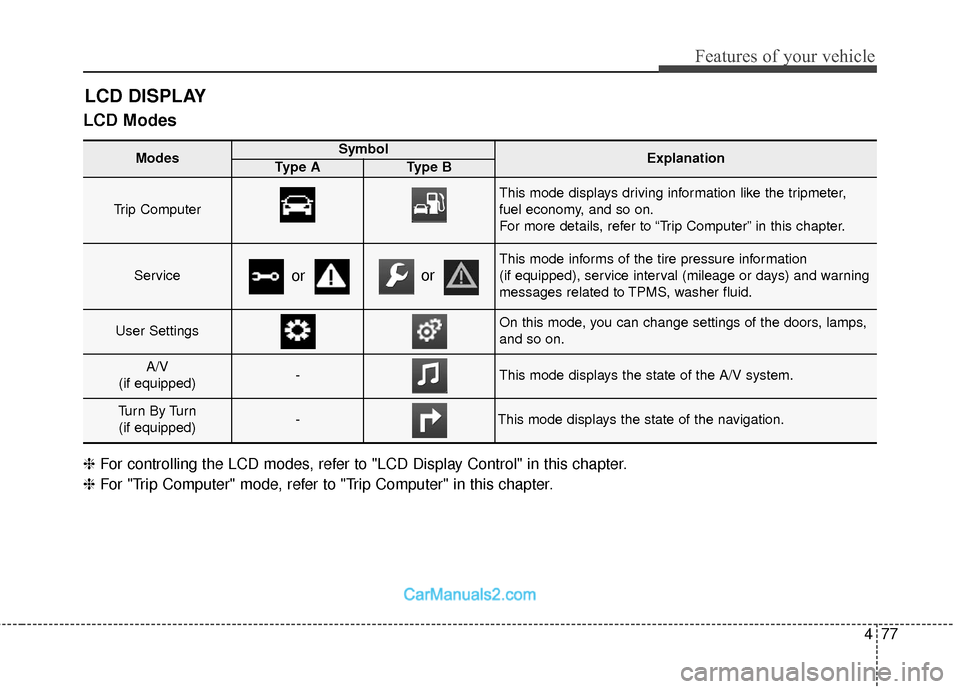
Modes SymbolExplanationType AType B
Trip Computer
This mode displays driving information like the tripmeter,
fuel economy, and so on.
For more details, refer to “Trip Computer” in this chapter.
Service
This mode informs of the tire pressure information
(if equipped), service interval (mileage or days) and warning
messages related to TPMS, washer fluid.
User SettingsOn this mode, you can change settings of the doors, lamps,
and so on.
A/V
(if equipped)-This mode displays the state of the A/V system.
Tu r n B y Tu r n (if equipped)-This mode displays the state of the navigation.
or or
❈ For controlling the LCD modes, refer to "LCD Display Control" in this chapter.
❈ For "Trip Computer" mode, refer to "Trip Computer" in this chapter.
Page 175 of 759
Features of your vehicle
78
4
Service Mode
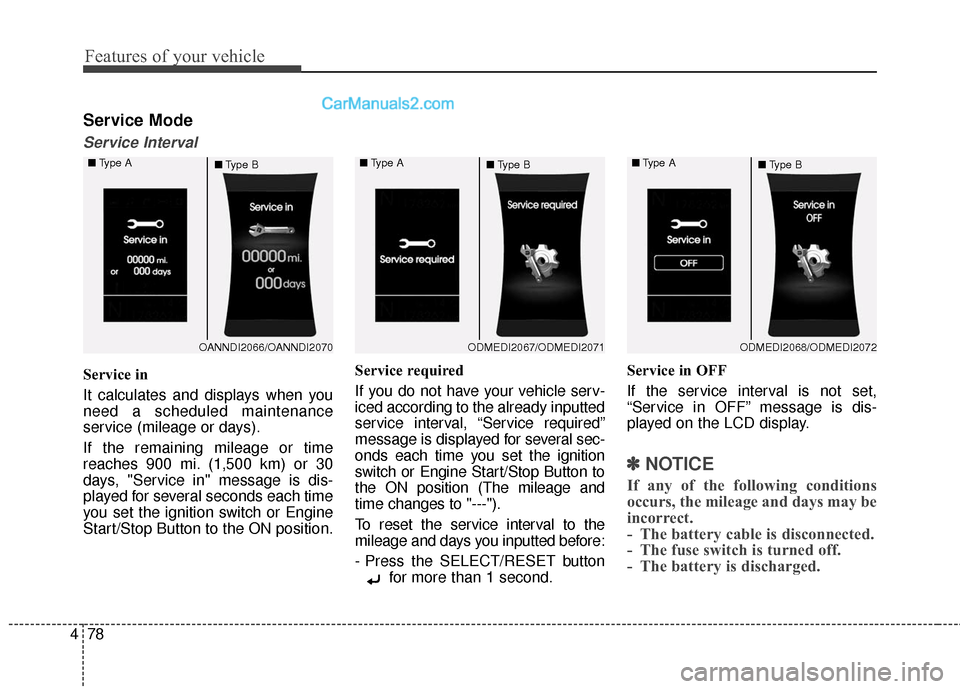
Service Interval
Service in
It calculates and displays when you
need a scheduled maintenance
service (mileage or days).
If the remaining mileage or time
reaches 900 mi. (1,500 km) or 30
days, "Service in" message is dis-
played for several seconds each time
you set the ignition switch or Engine
Start/Stop Button to the ON position. Service required
If you do not have your vehicle serv-
iced according to the already inputted
service interval, “Service required”
message is displayed for several sec-
onds each time you set the ignition
switch or Engine Start/Stop Button to
the ON position (The mileage and
time changes to "---").
To reset the service interval to the
mileage and days you inputted before:
- Press the SELECT/RESET button
for more than 1 second. Service in OFF
If the service interval is not set,
“Service in OFF” message is dis-
played on the LCD display.
✽ ✽
NOTICE
If any of the following conditions
occurs, the mileage and days may be
incorrect.
- The battery cable is disconnected.
- The fuse switch is turned off.
- The battery is discharged.
OANNDI2066/OANNDI2070
■
Type A
■Type BODMEDI2067/ODMEDI2071
■
Type A
■Type BODMEDI2068/ODMEDI2072
■
Type A
■Type B
Page 177 of 759
Features of your vehicle
80
4
Two Press Unlock (if equipped)
Off (not checked) :
The two press unlock function will
be deactivated. Therefore, all doors
will unlock if the door is unlocked.
On (checked) : The driver’s door will unlock if the
door is unlocked. When the door is
unlocked again within 4 seconds,
all doors will unlock.
Power Liftgate (Power Tailgate)
(if equipped)
If this item is checked, the power lift-
gate (power tailgate) system function
will be activated.
Smart Liftgate (Smart Tailgate)
(if equipped)
If this item is checked, the Smart
Liftgate (Smart Tailgate) system func-
tion will be activated.
For more details, refer to "Liftgate
(Tailgate)" in this chapter. Horn Feedback (if equipped)
Off (not checked) :
The Horn feedback operation will
be deactivated.
On (checked) : After locking the door by pressing
the lock button on the transmitter, if
you press the lock button again
within 4 seconds, the warning
sound will operate once to indicate
that all doors are locked.Lamp
Head Lamp Delay (if equipped)
If this item is checked, the headlamp
delay and headlamp welcome func-
tion will be activated.
Welcome Light (if equipped)
If this item is checked, the welcome
light function of the puddle lamp will
be activated.
Auto Triple Turn
(One-touch triple turn signal)
(if equipped)
If this item is checked, the lane
change signals will blink 3 times when
the turn signal lever is moved slightly.
One Touch Turn Signal (if equipped)
Off:
The one touch turn signal function
will be deactivated.
3, 5, 7 Flashing : The lane change signals will blink
3, 5, or 7 times when the turn sig-
nal lever is moved slightly.
For more details, refer to ''Light'' in
this chapter.
Page 178 of 759
481
Features of your vehicle
Settings
Temperature Unit
Convert the temperature unit from °C
to °F or from °F to °C.
Welcome Sound
If this item is checked, the welcome
sound function will be activated.
Shift Indicator (if equipped)
If this item is checked, the shift indi-
cator function will be activated.
For more details, refer to “Instrument
Cluster” in this chapter.
Seat Easy Access (if equipped)
If this item is checked, the driver’s
seat will automatically move forward
or rearward for the driver to enter or
exit the vehicle comfortably.Tire Pressure Unit (if equipped)
Choose the tire pressure unit.
(psi, kPa, Bar)
AVG Fuel Eco Reset
Auto Reset:
The average fuel economy will
reset automatically when refueling.
Manual Reset: The average fuel economy will not
reset automatically whenever refu-
eling.
For more details, refer to “Trip
Computer” in this chapter.
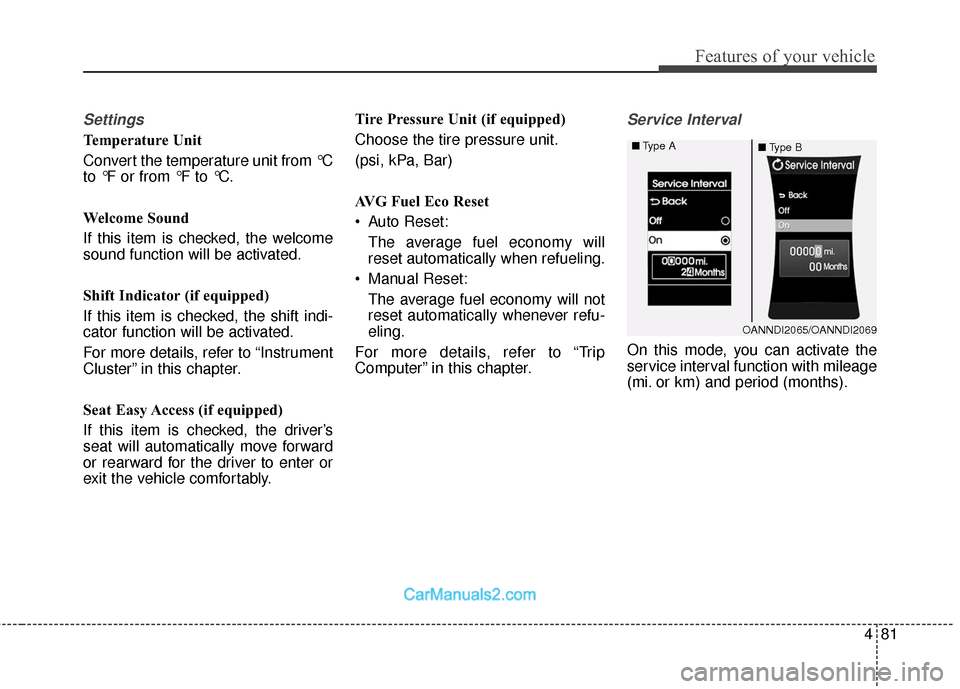
Service Interval
On this mode, you can activate the
service interval function with mileage
(mi. or km) and period (months).
OANNDI2065/OANNDI2069
■
Type A
■Type B
Page 183 of 759
Features of your vehicle
86
4
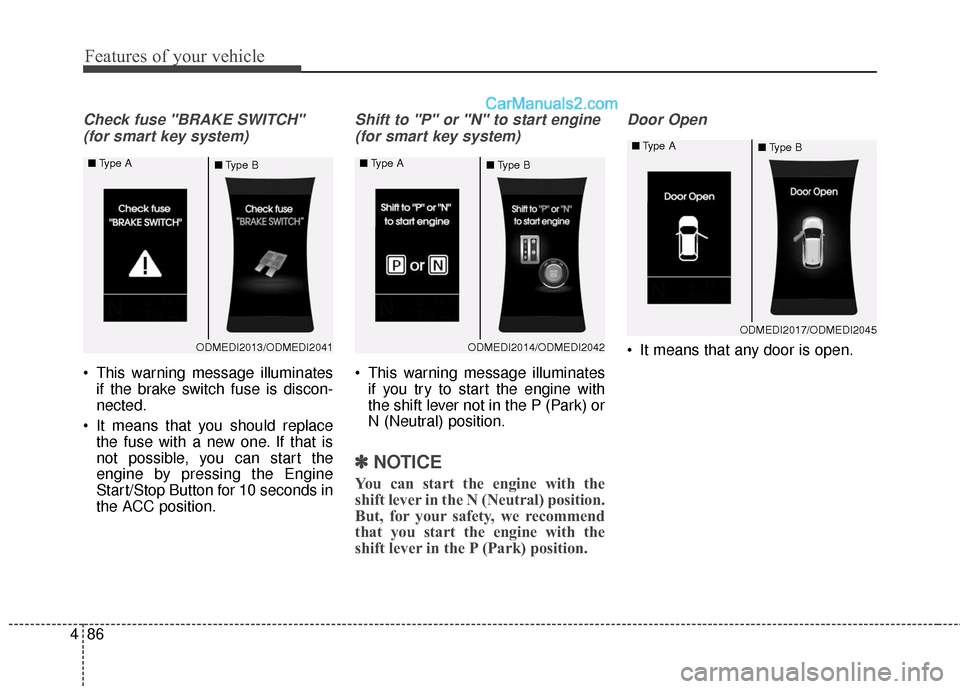
Check fuse "BRAKE SWITCH"
(for smart key system)
This warning message illuminates if the brake switch fuse is discon-
nected.
It means that you should replace the fuse with a new one. If that is
not possible, you can start the
engine by pressing the Engine
Start/Stop Button for 10 seconds in
the ACC position.
Shift to "P" or "N" to start engine
(for smart key system)
This warning message illuminates if you try to start the engine with
the shift lever not in the P (Park) or
N (Neutral) position.
✽ ✽ NOTICE
You can start the engine with the
shift lever in the N (Neutral) position.
But, for your safety, we recommend
that you start the engine with the
shift lever in the P (Park) position.
Door Open
It means that any door is open.ODMEDI2013/ODMEDI2041
■
Type A
■Type BODMEDI2014/ODMEDI2042
■
Type A
■Type B
ODMEDI2017/ODMEDI2045
■
Type A
■Type B
Page 186 of 759
489
Features of your vehicle
Overview
Description
The trip computer is a microcomput-
er-controlled driver information sys-
tem that displays information related
to driving.
✽ ✽NOTICE
Some driving information stored in
the trip computer (for example
Average Vehicle Speed) resets if the
battery is disconnected.
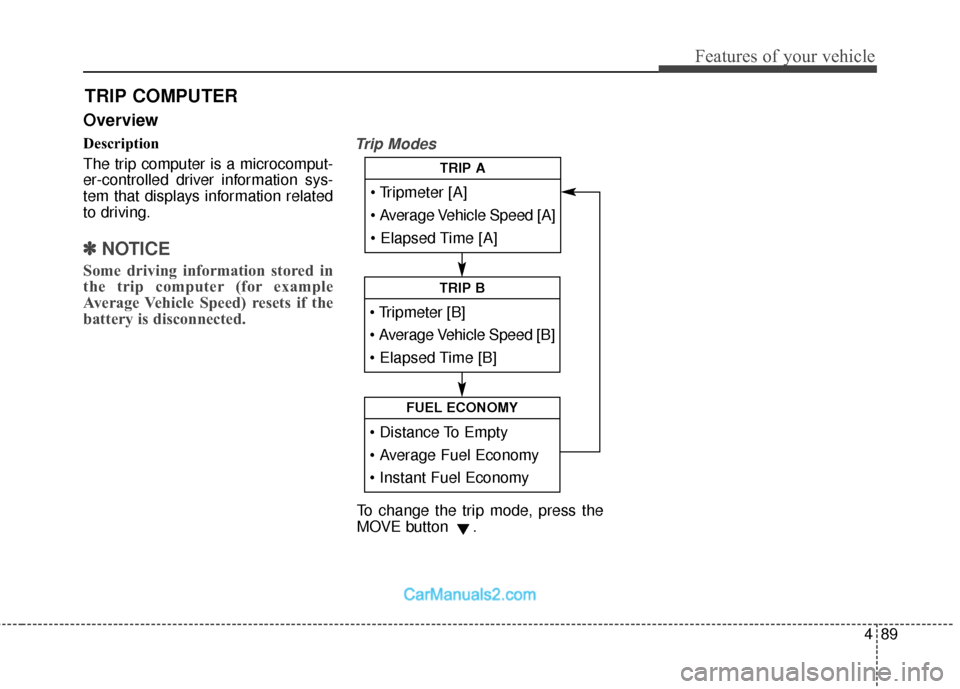
Trip Modes
TRIP COMPUTER
Average Vehicle Speed [A]
TRIP A
TRIP B
FUEL ECONOMY
To change the trip mode, press the
MOVE button .