ECO Hyundai Santa Fe 2016 Owner's Manual
[x] Cancel search | Manufacturer: HYUNDAI, Model Year: 2016, Model line: Santa Fe, Model: Hyundai Santa Fe 2016Pages: 759, PDF Size: 29.36 MB
Page 254 of 759
4157
Features of your vehicle
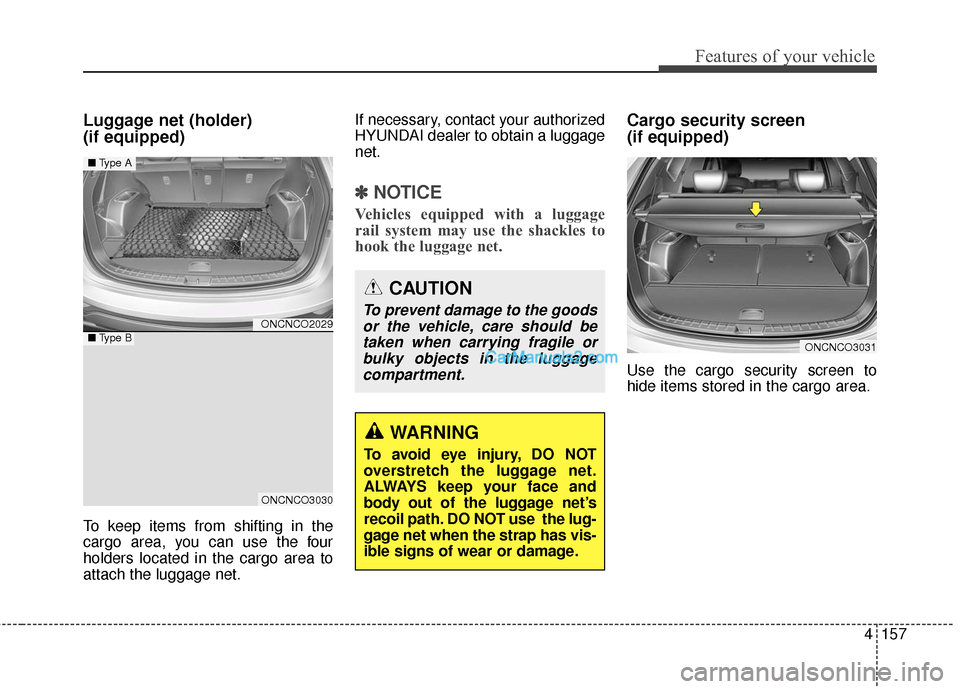
Luggage net (holder)
(if equipped)
To keep items from shifting in the
cargo area, you can use the four
holders located in the cargo area to
attach the luggage net.If necessary, contact your authorized
HYUNDAI dealer to obtain a luggage
net.
✽ ✽
NOTICE
Vehicles equipped with a luggage
rail system may use the shackles to
hook the luggage net.
Cargo security screen
(if equipped)
Use the cargo security screen to
hide items stored in the cargo area.
ONCNCO2029
ONCNCO3030
■ Type A
■Type B
WARNING
To avoid eye injury, DO NOT
overstretch the luggage net.
ALWAYS keep your face and
body out of the luggage net’s
recoil path. DO NOT use the lug-
gage net when the strap has vis-
ible signs of wear or damage.
CAUTION
To prevent damage to the goods
or the vehicle, care should betaken when carrying fragile orbulky objects in the luggagecompartment.
ONCNCO3031
Page 259 of 759
Features of your vehicle
162
4
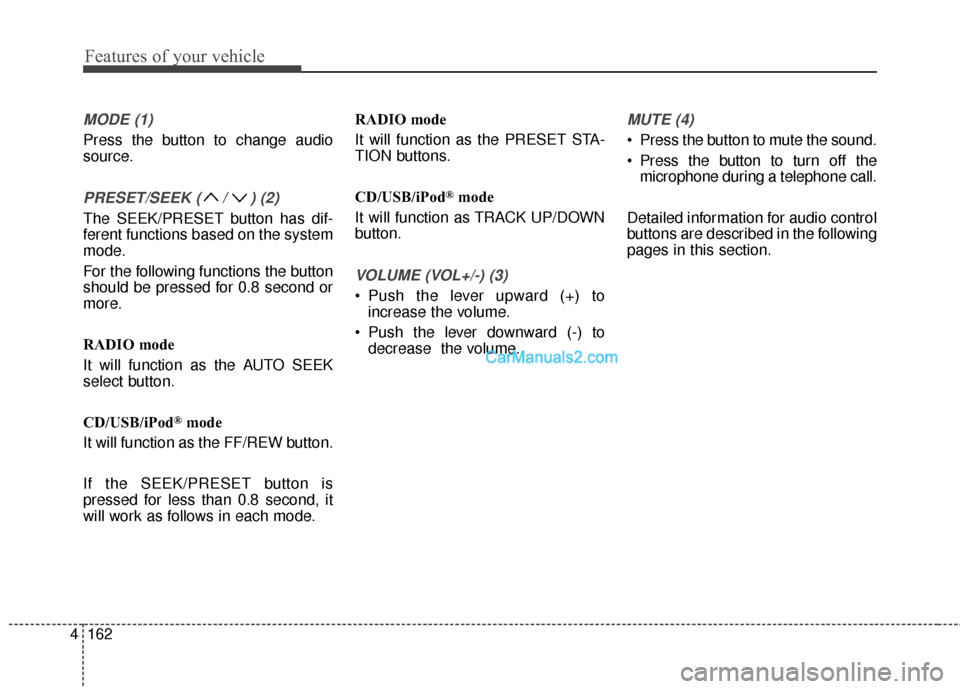
MODE (1)
Press the button to change audio
source.
PRESET/SEEK ( / ) (2)
The SEEK/PRESET button has dif-
ferent functions based on the system
mode.
For the following functions the button
should be pressed for 0.8 second or
more.
RADIO mode
It will function as the AUTO SEEK
select button.
CD/USB/iPod
®mode
It will function as the FF/REW button.
If the SEEK/PRESET button is
pressed for less than 0.8 second, it
will work as follows in each mode. RADIO mode
It will function as the PRESET STA-
TION buttons.
CD/USB/iPod
®mode
It will function as TRACK UP/DOWN
button.
VOLUME (VOL+/-) (3)
• Push the lever upward (+) to increase the volume.
Push the lever downward (-) to decrease the volume.
MUTE (4)
Press the button to mute the sound.
Press the button to turn off themicrophone during a telephone call.
Detailed information for audio control
buttons are described in the following
pages in this section.
Page 264 of 759
4167
Features of your vehicle
(Continued) Turn on the car ignition before using this device. Do not oper-ate the audio system for longperiods of time with the ignitionturned off as such operationsmay lead to battery discharge.
Do not subject the device to severe shock or impact. Directpressure onto the front side ofthe monitor may cause dam-age to the LCD or touchscreen.
When cleaning the device, make sure to turn off thedevice and use a dry andsmooth cloth. Never usetough materials, chemicalcloths, or solvents (alcohol,benzene, thinners, etc.) assuch materials may damagethe device panel or causecolor/quality deterioration.
(Continued)CAUTION
Operating the device whiledriving could lead to accidentsdue to a lack of attention toexternal surroundings. Firstpark the vehicle before operat-ing the device.
Adjust the volume to levels that allow the driver to hear soundsfrom outside of the vehicle.Driving in a state where exter-nal sounds cannot be heardmay lead to accidents.
Pay attention to the volume set- ting when turning the deviceon. A sudden output of extremevolume upon turning thedevice on could lead to hearingimpairment. (Adjust the volumeto a suitable levels before turn-ing off the device.)
(Continued)
(Continued)
Please refrain from use if thescreen is blank or no sound
can be heard as these signs
may indicate product malfunc-
tion. Continued use in such
conditions could lead to acci-
dents(fires, electric shock) or
product malfunctions.
Do not touch the antenna dur- ing thunder or lightening as
such acts may lead to light-
ning induced electric shock.
Do not stop or park in park- ing-restricted areas to operate
the product. Such acts could
lead to traffic accidents.
Use the system with the vehi- cle ignition turned on.
Prolonged use with the igni-
tion turned off could result in
battery discharge.
Page 265 of 759
Features of your vehicle
168
4
(Continued)
Do not place beverages close to the audio system. Spillingbeverages may lead to systemmalfunction.
In case of product malfunction, please contact your place of pur-chase or After Service center.
Placing the audio system within an electromagneticenvironment may result innoise interference.
Prevent caustic solutions such as perfume and cosmet-ic oil from contacting thedashboard because they maycause damage or discol-oration.✽
✽ NOTICE - USING THE
USB DEVICE
• To use an external USB device,
make sure the device is not con-
nected when starting up the
vehicle. Connect the device after
starting up.
• If you start the engine when the USB device is connected, it may
damage the USB device. (USB
flashdrives are very sensitive to
electric shock.)
• If the engine is started up or turned off while the external USB
device is connected, the external
USB device may not work.
• The System may not play unau- thenticated MP3 or WMA files.
1) It can only play MP3 files with the compression rate between
8Kbps~320Kbps.
2) It can only play WMA music files with the compression rate
between 8Kbps~320Kbps.
• Take precautions for static elec- tricity when connecting or dis-
connecting the external USB
device. (Continued)(Continued)
• An encrypted MP3 PLAYER is
not recognizable.
• Depending on the condition of the external USB device, the
connected external USB device
can be unrecognizable.
• When the formatted byte/sector setting of External USB device
is not either 512BYTE or
2048BYTE, then the device will
not be recognized.
• Use only a USB device format- ted to FAT 12/16/32.
• USB devices without USB I/F authentication may not be rec-
ognizable.
• Make sure the USB connection terminal does not come in con-
tact with the human body or
other objects.
• If you repeatedly connect or dis- connect the USB device in a
short period of time, it may
break the device.
• You may hear a strange noise when connecting or disconnect-
ing a USB device. (Continued)
Page 266 of 759
4169
Features of your vehicle
(Continued)
• If you disconnect the externalUSB device during playback in
USB mode, the external USB
device can be damaged or may
malfunction. Therefore, discon-
nect the external USB device
when the audio is turned off or
in another mode. (e.g, Radio,
CD)
• Depending on the type and capacity of the external USB
device or the type of the files
stored in the device, there is a
difference in the time taken for
recognition of the device.
• Do not use the USB device for purposes other than playing
music files.
• Playing videos through the USB is not supported.
• Use of USB accessories such as rechargers or heaters using USB
I/F may lower performance or
cause trouble. (Continued) (Continued)
• Some USB flash memory read-
ers (such as CF, SD, micro SD,
etc.) or external-HDD type
devices can be unrecognizable.
• Music files protected by DRM (DIGITAL RIGHTS MANAGE-
MENT) are not recognizable.
• The data in the USB memory may be lost while using this
audio. Always back up impor-
tant data on a personal storage
device.
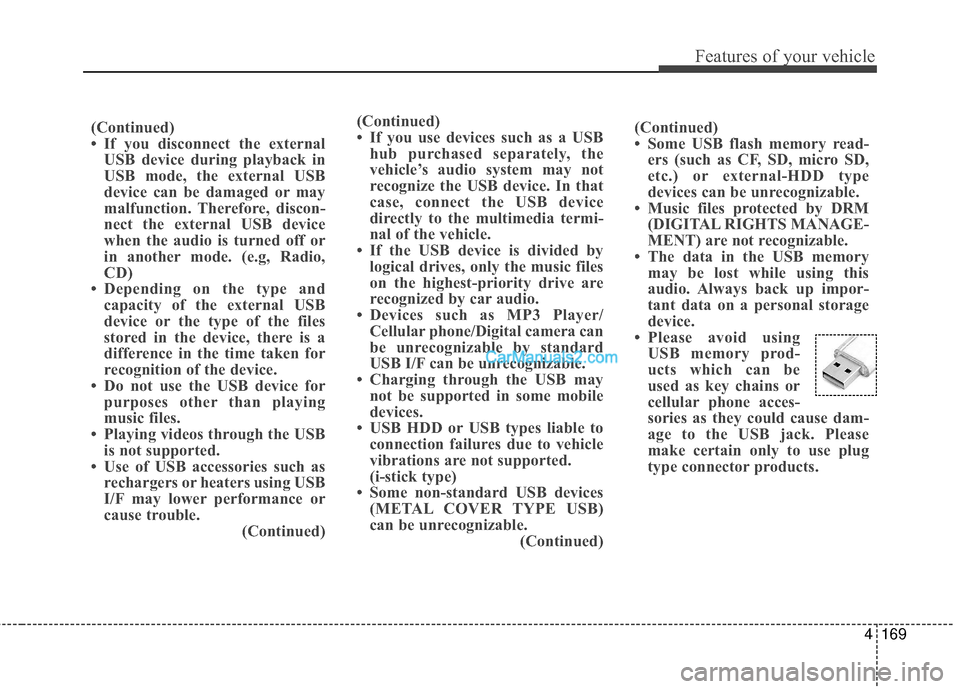
• Please avoid using USB memory prod-
ucts which can be
used as key chains or
cellular phone acces-
sories as they could cause dam-
age to the USB jack. Please
make certain only to use plug
type connector products.(Continued)
• If you use devices such as a USBhub purchased separately, the
vehicle’s audio system may not
recognize the USB device. In that
case, connect the USB device
directly to the multimedia termi-
nal of the vehicle.
• If the USB device is divided by logical drives, only the music files
on the highest-priority drive are
recognized by car audio.
• Devices such as MP3 Player/ Cellular phone/Digital camera can
be unrecognizable by standard
USB I/F can be unrecognizable.
• Charging through the USB may not be supported in some mobile
devices.
• USB HDD or USB types liable to connection failures due to vehicle
vibrations are not supported.
(i-stick type)
• Some non-standard USB devices (METAL COVER TYPE USB)
can be unrecognizable. (Continued)
Page 269 of 759
Features of your vehicle
172
4
✽
✽
NOTICE -WHEN CON-
NECTING A
Bluetooth®
PHONE
• Before connecting the head unit
with the mobile phone, check to
see that the mobile phone supports
Bluetooth
®features.
• Even if the phone supports Bluetooth
®, the phone will not be
found during device searches if the
phone has been set to hidden state
or the Bluetooth
®power is turned
off. Disable the hidden state or
turn on the Bluetooth
®power
prior to searching/connecting with
the Head unit.
• After a Bluetooth phone has been successfully paired, the phone will
automatically connect when the
ignition is turned on.
• If you do not want automatic con- nection with your Bluetooth
®
device, turn off the Bluetooth®fea-
ture within your mobile phone.
• The Handsfree call volume and quality may differ depending on
the mobile phone. (Continued)(Continued)
• Park the vehicle when connecting
the head unit with the mobile
phone.
• Bluetooth
®connection may
become intermittently disconnect-
ed in some mobile phones. Follow
these steps to try again.
1. Within the mobile phone, turn the Bluetooth
®function off/on
and try again.
2. Turn the mobile phone power Off/On and try again.
3. Completely remove the mobile phone battery, reboot, and then
again.
4. Reboot the Audio System and try again.
5. Delete all paired devices, pair and try again.
• Handsfree call quality and volume may differ depending on the
model of your mobile phone.
Page 270 of 759
4173
Features of your vehicle
✽
✽NOTICE - USING THE
Voice Recognition
• When using the voice recognition
feature, only commands listed
within the user's manual are sup-
ported.
• Be aware that during the opera- tion of the voice recognition sys-
tem, pressing any key other than
the key terminate voice recog-
nition mode.
• For superior voice recognition performance, position the micro-
phone used for voice recognition
above the head of the driver’s seat
and maintain a proper position
when saying commands.
• Within the following situations, voice recognition may not function
properly due to background noises
which may be picked up by the
overhead microphone.
- When the windows and sunroofare open
- When the heating and air condi- tioning fan blower speed is high
- When entering and passing through tunnels (Continued)(Continued)
- When driving on rugged anduneven roads
- During severe rain (heavy rains, windstorms)
• Phone related voice commands can be used only when a
Bluetooth
®Wireless Technology
device is connected.
• When making calls by stating a name, the corresponding contact
must be downloaded and stored
within the audio system.
• After downloading the Bluetooth
®
Wireless Technology phone book,
it takes some times to convert the
phone book data into voice infor-
mation. During this time, voice
recognition may not properly
operate.
• Pronounce the voice commands naturally and clearly as if in a nor-
mal conversation.
Page 271 of 759
Features of your vehicle
174
4
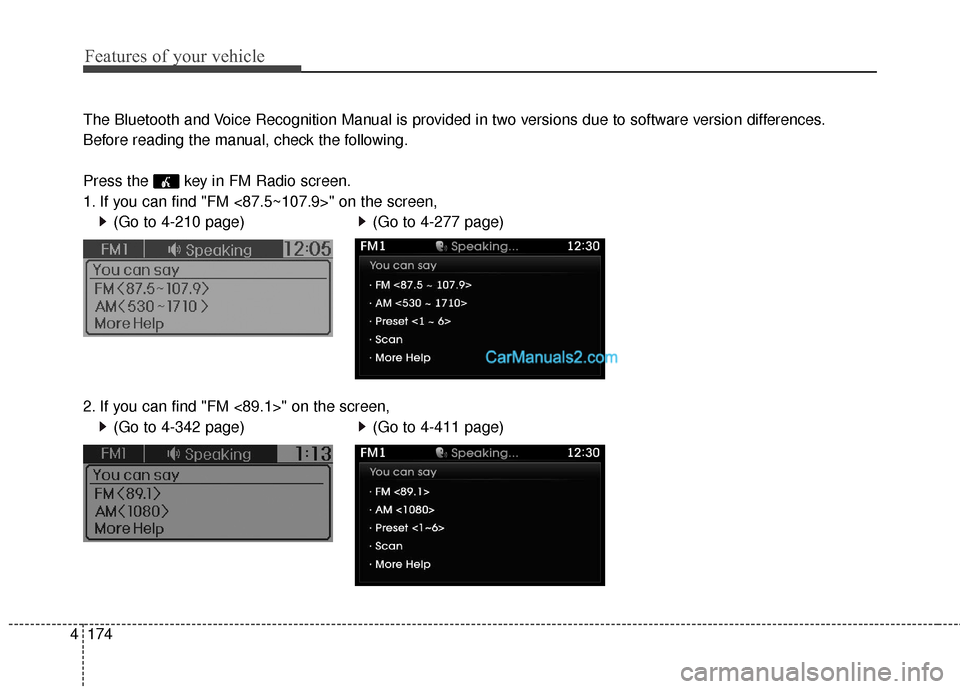
The Bluetooth and Voice Recognition Manual is provided in two versions due to software version differences.
Before reading the manual, check the following.
Press the key in FM Radio screen.
1. If you can find "FM <87.5~107.9>" on the screen,
(Go to 4-210 page)
2. If you can find "FM <89.1>" on the screen, (Go to 4-342 page)
(Go to 4-277 page)
(Go to 4-411 page)
Page 273 of 759
Features of your vehicle
176
4
SYSTEM CONTROLLERS
AND FUNCTIONS
❈ Display and settings may differ
depending on the selected audio.
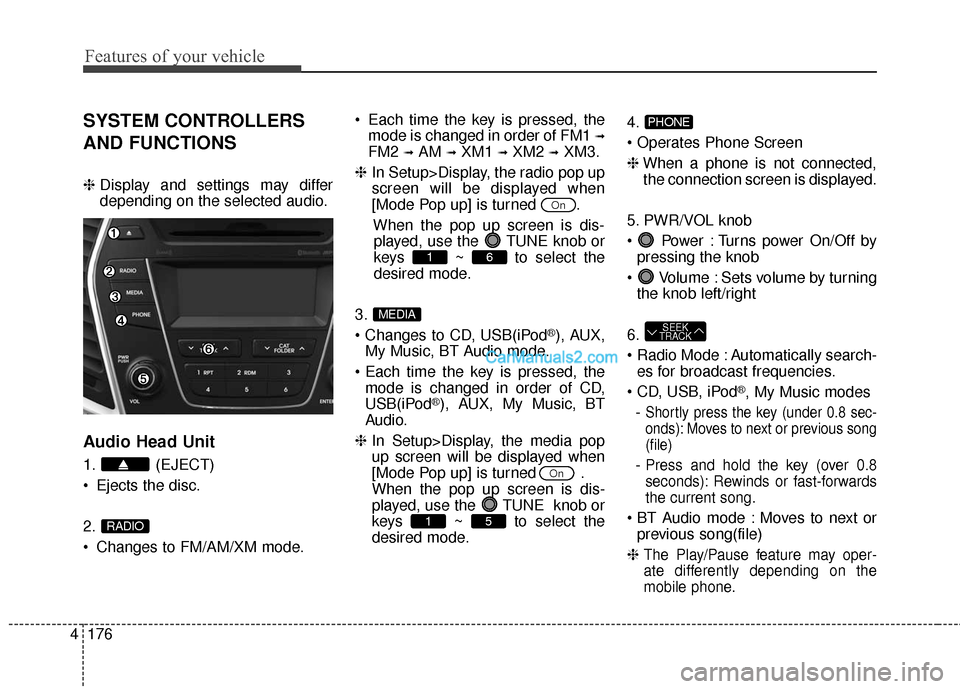
Audio Head Unit
1. (EJECT)
Ejects the disc.
2.
Changes to FM/AM/XM mode. Each time the key is pressed, the
mode is changed in order of FM1
➟
FM2 ➟AM ➟XM1 ➟XM2 ➟XM3.
❈ In Setup>Display, the radio pop up
screen will be displayed when
[Mode Pop up] is turned .
When the pop up screen is dis-played, use the TUNE knob or
keys ~ to select the
desired mode.
3.
®), AUX,
My Music, BT Audio mode.
mode is changed in order of CD,
USB(iPod
®), AUX, My Music, BT
Audio.
❈ In Setup>Display, the media pop
up screen will be displayed when
[Mode Pop up] is turned .
When the pop up screen is dis-
played, use the TUNE knob or
keys ~ to select the
desired mode. 4.
❈
When a phone is not connected,
the connection screen is displayed.
5. PWR/VOL knob
Power : Turns power On/Off by pressing the knob
Volume : Sets volume by turning the knob left/right
6.
Automatically search- es for broadcast frequencies.
®, My Music modes
-
Shortly press the key (under 0.8 sec-
onds): Moves to next or previous song
(file)
- Press and hold the key (over 0.8
seconds): Rewinds or fast-forwards
the current song.
Moves to next or previous song(file)
❈
The Play/Pause feature may oper-
ate differently depending on the
mobile phone.
SEEK
TRACK
PHONE
51
On
MEDIA
61
On
RADIO
Page 274 of 759
4177
Features of your vehicle
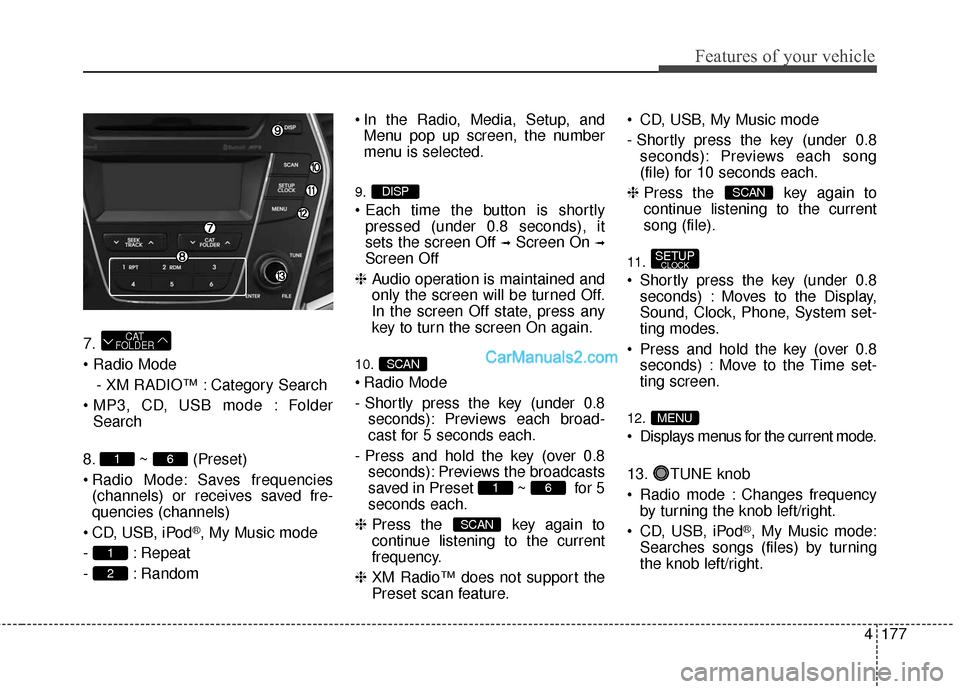
7.
- XM RADIO™ : Category Search
Folder Search
8. ~ (Preset)
Radio Mode: Saves frequencies (channels) or receives saved fre-
quencies (channels)
CD, USB, iPod
®, My Music mode
- : Repeat
- : Random In the Radio, Media, Setup, and
Menu pop up screen, the number
menu is selected.
9.
pressed (under 0.8 seconds), it
sets the screen Off
➟Screen On ➟
Screen Off
❈ Audio operation is maintained and
only the screen will be turned Off.
In the screen Off state, press any
key to turn the screen On again.
10.
Radio Mode
- Shortly press the key (under 0.8
seconds): Previews each broad-
cast for 5 seconds each.
- Press and hold the key (over 0.8 seconds): Previews the broadcasts
saved in Preset ~ for 5
seconds each.
❈ Press the key again to
continue listening to the current
frequency.
❈ XM Radio™ does not support the
Preset scan feature. CD, USB, My Music mode
- Shortly press the key (under 0.8
seconds): Previews each song
(file) for 10 seconds each.
❈ Press the key again to
continue listening to the current
song (file).
11.
Shortly press the key (under 0.8
seconds) : Moves to the Display,
Sound, Clock, Phone, System set-
ting modes.
Press and hold the key (over 0.8 seconds) : Move to the Time set-
ting screen.
12.
Displays menus for the current mode.
13. TUNE knob
Radio mode : Changes frequencyby turning the knob left/right.
CD, USB, iPod
®, My Music mode:
Searches songs (files) by turning
the knob left/right.
MENU
SETUPCLOCK
SCAN
SCAN
61
SCAN
DISP
2
1
61
CAT
FOLDER