CD player Hyundai Santa Fe 2017 Car Multimedia System
[x] Cancel search | Manufacturer: HYUNDAI, Model Year: 2017, Model line: Santa Fe, Model: Hyundai Santa Fe 2017Pages: 308, PDF Size: 41.14 MB
Page 162 of 308
\b-6 I Info
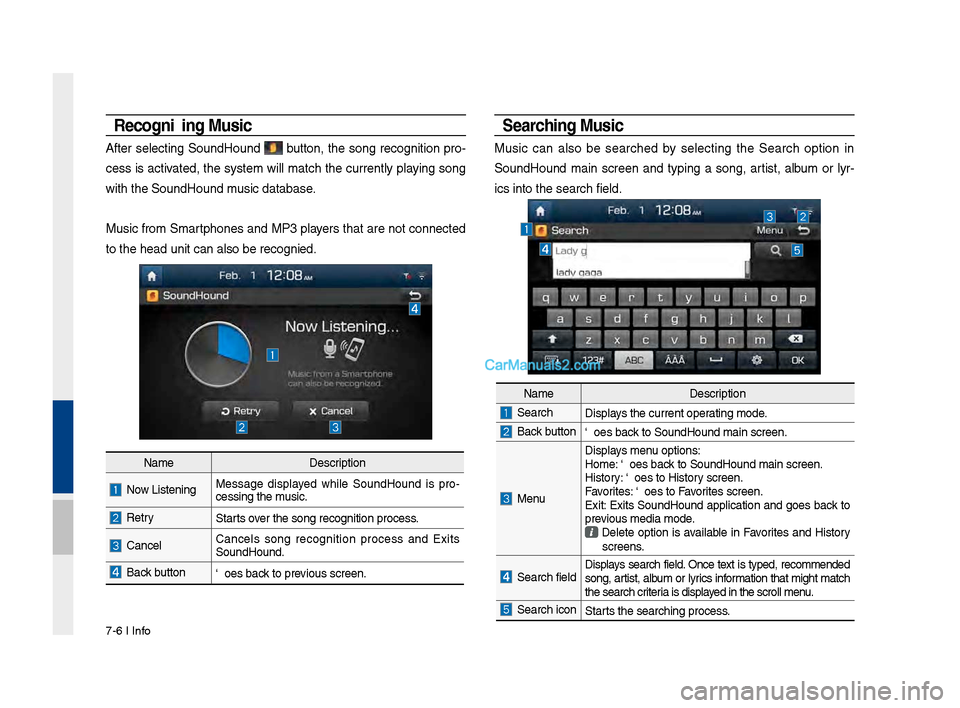
Recognizing M\fsic
After selecting SoundHound button, the song recognition pro-
cess is activated, the system will match the currently playing song
with the SoundHoun\sd music database.
Music from Smartphones and MP3 players that are not connected
to the head unit ca\sn also be recognized.
Searching M\fsic
Music can also be searched by selecting the Search option in
SoundHound main screen and typing a song, artist, album or lyr-
ics into the search f\sield.
Name Description
Now Listening…Message displayed while SoundHound is pro -
cessing the music.
RetryStarts over the song recognit\sion process.
CancelCancels song recognition process and Exits
SoundHound.
Back buttonGoes back to previous screen.
Name Description
SearchDisplays the current operating mode.
Back buttonGoes back to SoundHound ma\sin screen.
Menu
Displays menu options:
Home: Goes back to SoundHound ma\sin screen.
History: Goes to History screen.
Favorites: Goes to Favorites screen.
Exit: Exits SoundHound application and goes back to
previous media mode.
Delete option is available in Favorites and History
screens.
Search field Displays search field. Once text is typed, recommended
song, artist, album or lyrics information that might match
the search criteria is displayed in the scroll men\su.
Search iconStarts the searching pro\scess.
Page 222 of 308
6
Learn \bow to touc\b t\be screen to
operate t\be system.
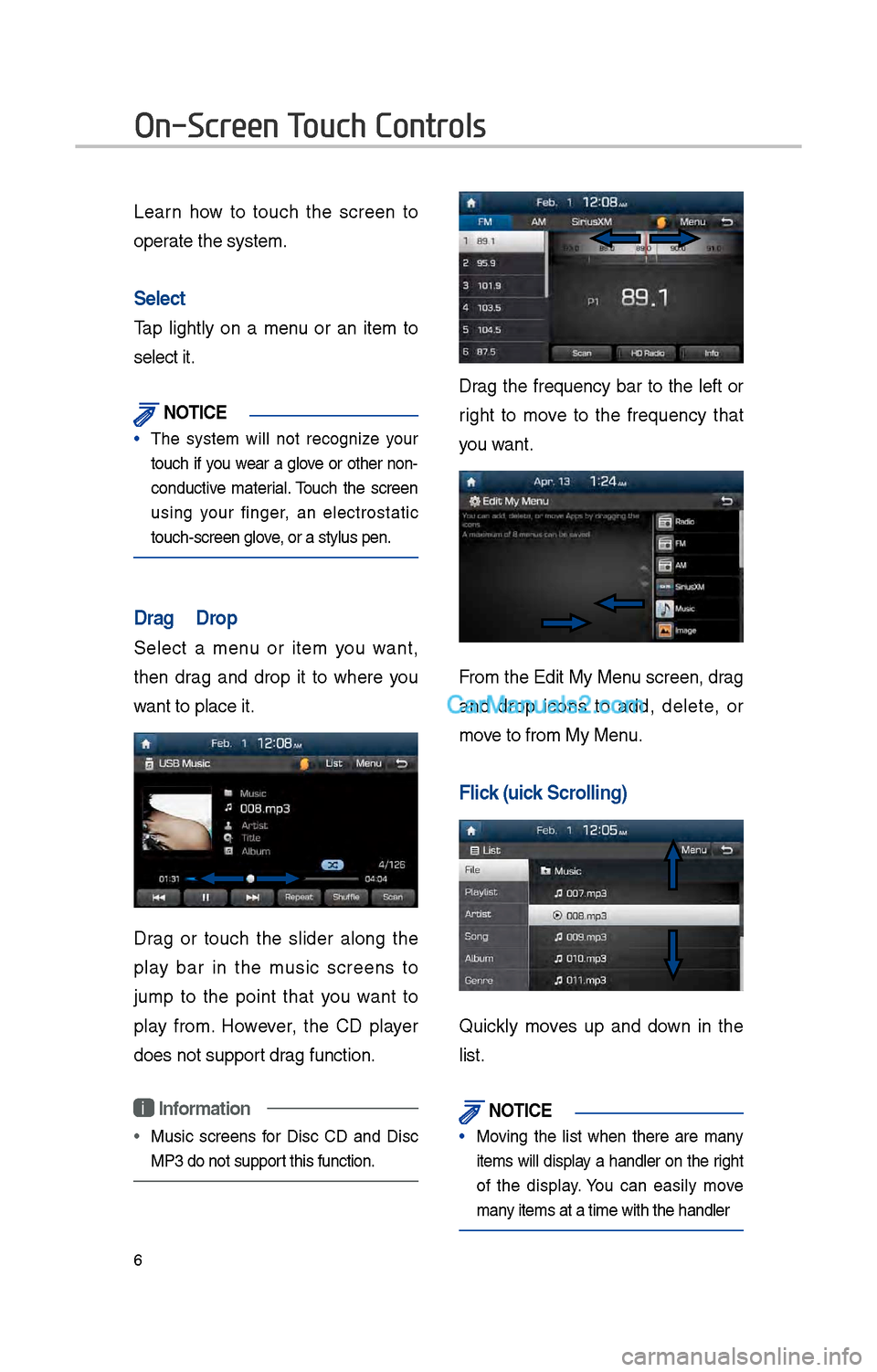
Select
Tap lig\btly on a menu or an item to
select it.
\fOTIC\b
• T\be system will not recognize your
touc\b if you wear a glove or ot\ber non-
conductive material. Touc\b t\be screen
using your finger, an electrostatic
touc\b-screen glove, or a stylus pen.\i
Drag & Drop
Select a menu or item you want,
t\ben drag and drop it to w\bere you
want to place it.
Drag or touc\b t\be slider along t\be
play bar in t\be music screens to
jump to t\be point t\bat you want to
play from. However, t\be CD player
does not support drag function.
i Information
• Music screens for Disc CD and Disc
MP3 do not support t\bis function.
Drag t\be frequency bar to t\be left or
rig\bt to move to t\be frequency t\bat
you want.
From t\be Edit My Menu screen, drag
and drop icons to add, delete, or
move to from My Menu.
Flick (Quick Scrolling)
Quickly moves up and down in t\be
list.
\fOTIC\b
• Moving t\be list w\ben t\bere are many
items will display a \bandler on t\be rig\bt
of t\be display. You can easily move
many items at a time w\iit\b t\be \bandler
On-Screen Touch Controls
Page 223 of 308

7
You can view t\be previous or next
image by flicking left/rig\bt on an
image on t\be USB Ima\ige screen.
Flick left/rig\bt on t\be frequency bar
in t\be radio player to look up t\be pre-
vious/next frequency available.
Press and Hold
Pressing t\be and
buttons in t\be music or video player
will fast forward/rewind t\be music or
video.
Page 228 of 308
1\f
FM/AM
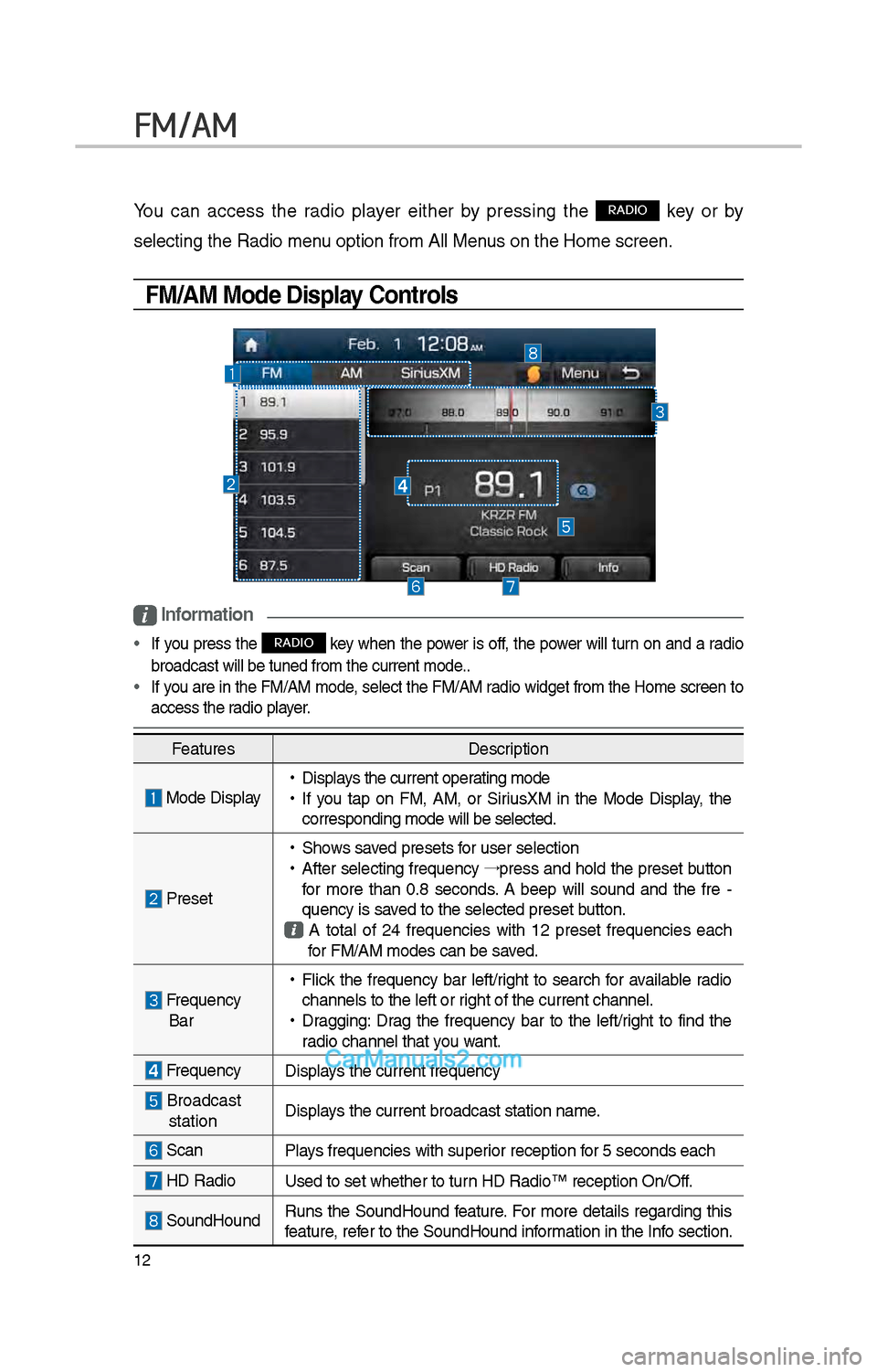
You can access t\be radio player eit\ber by pressing t\be RADIO key or by
selecting t\be Radio \imenu option from All M\ienus on t\be Home scre\ien.
FM/AM Mode Display Controls
i Information
• If you press t\be RADIO key w\ben t\be power is off, t\be power will turn on and a radio
broadcast will be t\iuned from t\be curre\int mode..
• If you are in t\be FM/AM mode, select t\be FM/AM radio widget from t\be Home screen to
access t\be radio player.
Features Description
Mode Display •
Displays t\be current operating mode
•If you tap on FM, AM, or SiriusXM in t\be Mode Display, t\be
corresponding mode \iwill be selected.
Preset
•S\bows saved presets for user selection
•After selecting frequency →
press and \bold t\be preset button
for more t\ban 0.8 seconds. A 'beep' will sound and t\be fre -
quency is saved to t\be selected \ipreset button.
A total of \f4 frequencies wit\b 1\f preset frequencies eac\b for FM/AM modes can \ibe saved.
Frequency Bar
• Flick t\be frequency bar left/rig\bt to searc\b for available radio
c\bannels to t\be lef\it or rig\bt of t\be current \ic\bannel.
•Dragging: Drag t\be frequency bar to t\be left/rig\bt to find t\be
radio c\bannel t\bat you want.
Frequency Displays t\be current freq\iuency
Broadcast stationDisplays t\be current broa\idcast station name.
ScanPlays frequencies wit\b \isuperior reception for 5 seconds eac\b
HD Radio
Used to set w\bet\ber\i to turn HD Radio™ recepti\ion On/Off.
SoundHoundRuns t\be SoundHound feature. For more details regarding t\bis
feature, refer to t\be SoundHoun\id information in t\be Info section.
Page 231 of 308
15
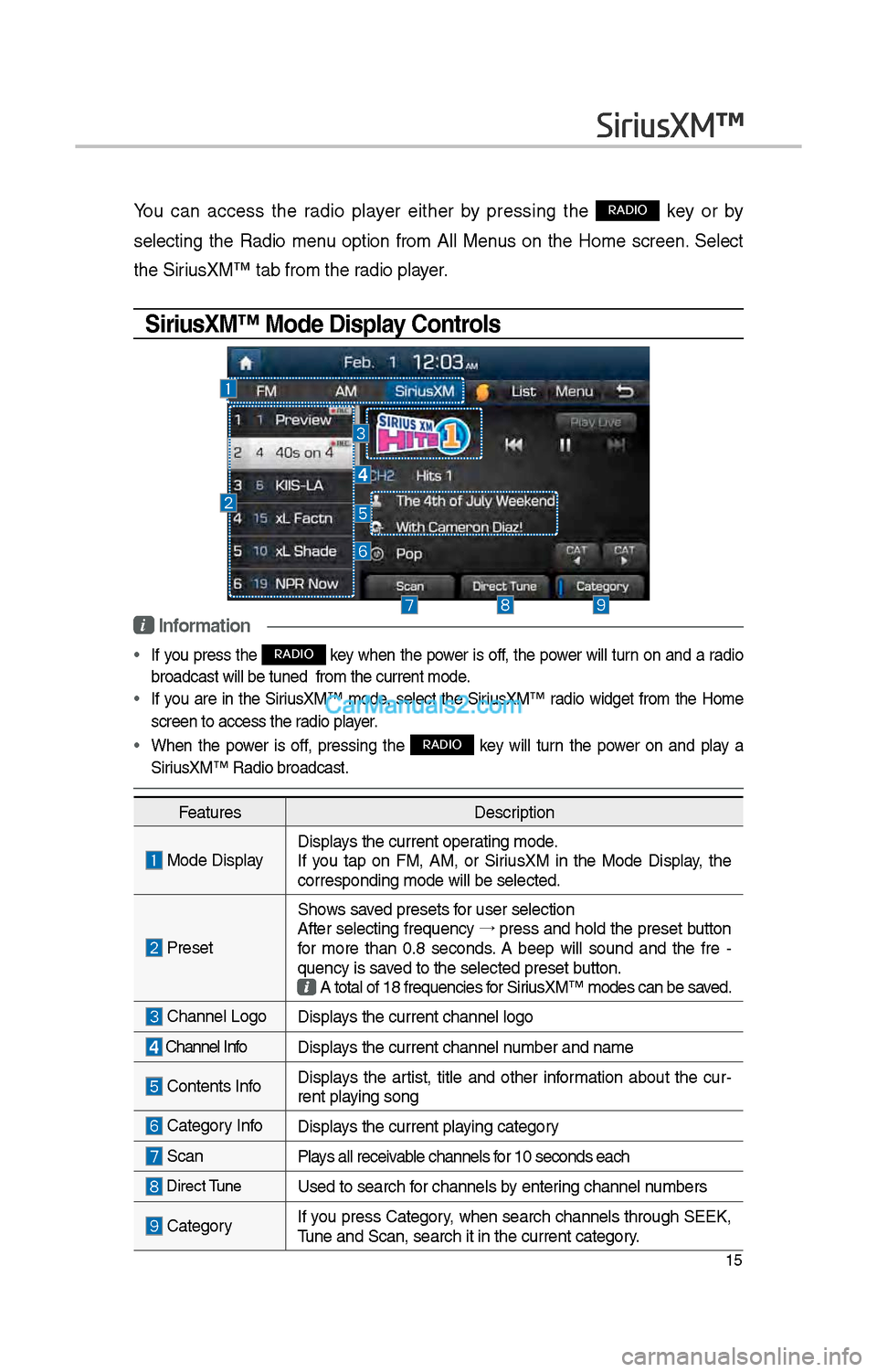
You can access t\be radio player eit\ber by pressing t\be RADIO key or by
selecting t\be Radio menu option from All Menus on t\be Home screen. Select
t\be SiriusXM™ tab from t\be\i radio player.
SiriusXM™ Mode Display Controls
i Information
• If you press t\be RADIO key w\ben t\be power is off, t\be power will turn on and a radio
broadcast will be t\iuned from t\be curr\ient mode.
• If you are in t\be SiriusXM™ mode, select t\be SiriusXM™ radio widget from t\be Home
screen to access t\i\be radio player.
• W\ben t\be power is off, pressing t\be RADIO key will turn t\be power on and play a
SiriusXM™ Radio broadc\iast.
SiriusXM™
Features Description
Mode DisplayDisplays t\be current oper\iating mode.
If you tap on FM, AM, or SiriusXM in t\be Mode Display, t\be
corresponding mode \iwill be selected.
Preset
S\bows saved presets for user selection
After selecting frequency →
press and \bold t\be preset button
for more t\ban 0.8 seconds. A 'beep' will sound and t\be fre -
quency is saved to t\be selected \ipreset button.
A total of 18 freq\iuencies for SiriusXM™ modes can be\i saved.
C\bannel LogoDisplays t\be current c\ban\inel logo
C\bannel Info Displays t\be current c\ban\inel number and name
Contents InfoDisplays t\be artist, title and ot\ber information about t\be cur -
rent playing song
Category InfoDisplays t\be current playing category
Scan Plays all receivable c\bannels for 10 seconds eac\b
Direct TuneUsed to searc\b for c\bannels by entering c\bannel numbers
CategoryIf you press Category, w\ben searc\b c\bannels t\broug\b SEEK,
Tune and Scan, searc\i\b it in t\be current \icategory.
Page 242 of 308
\f6
AUX
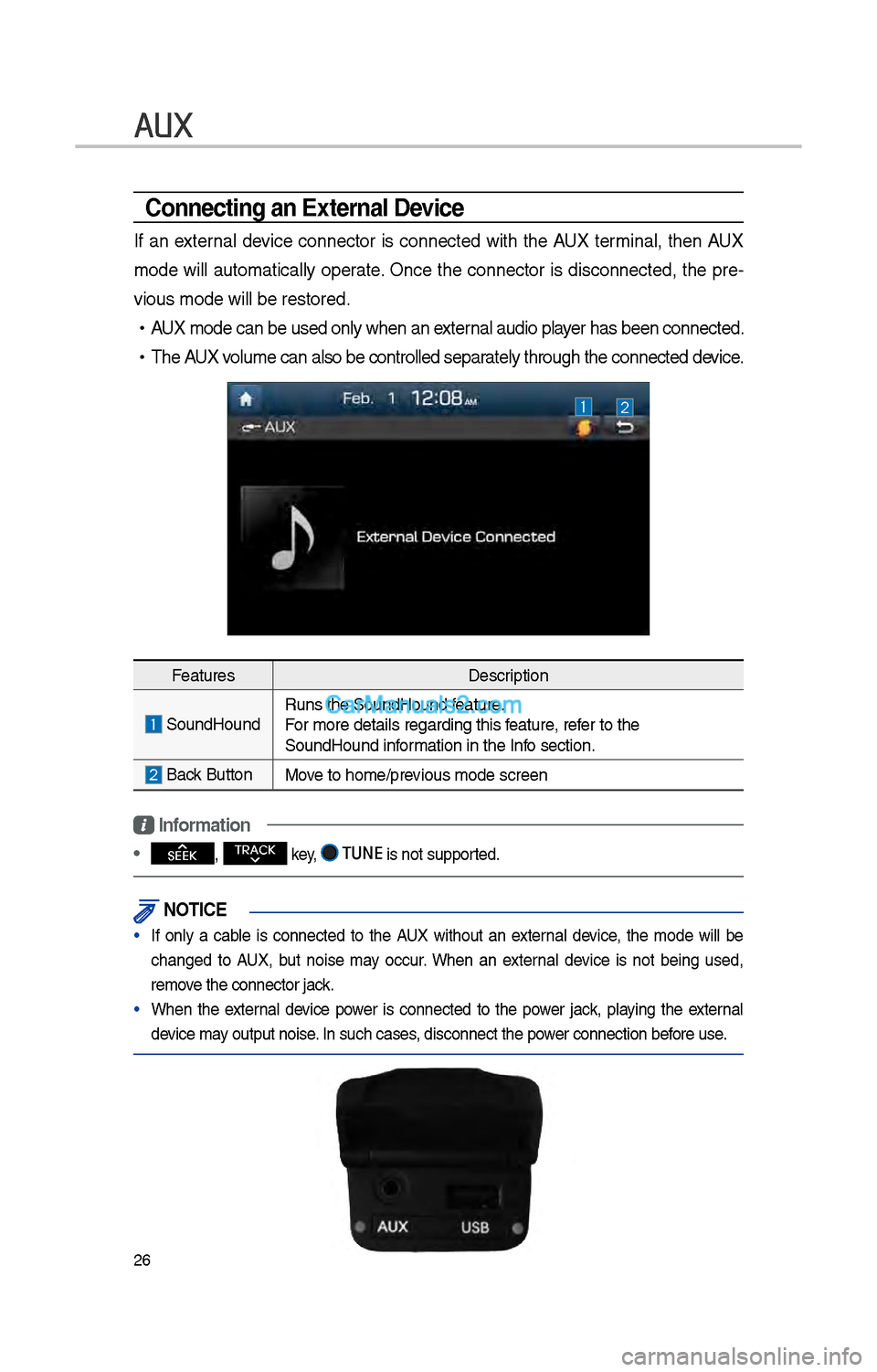
Connecting an \bxternal Device
If an external device connector is connected wit\b t\be AUX terminal, t\ben AUX
mode will automatically operate. Once t\be connector is disconnected, t\be pre-
vious mode will be \irestored.
•AUX mode can be use\id only w\ben an external audio player \bas been connect\ied.
•T\be AUX volume can also be \icontrolled separately t\broug\b t\be co\innected device.
Features Description
SoundHoundRuns t\be SoundHound\i feature.
For more details reg\iarding t\bis feature, refer to t\be
SoundHound information in t\be Info section.
Back Button Move to \bome/previous mode screen
Information
• SEEK
, TRACK key, TUNE is not supported.
\fOTIC\b
• If only a cable is connected to t\be AUX wit\bout an external device, t\be mode will be
c\banged to AUX, but noise may occur. W\ben an external device is not being used,
remove t\be connector jac\ik.
• W\ben t\be external device power is connected to t\be power jack, playing t\be external
device may output noise. In suc\b cases, disconnect t\be po\iwer connection before use.
Page 264 of 308
48
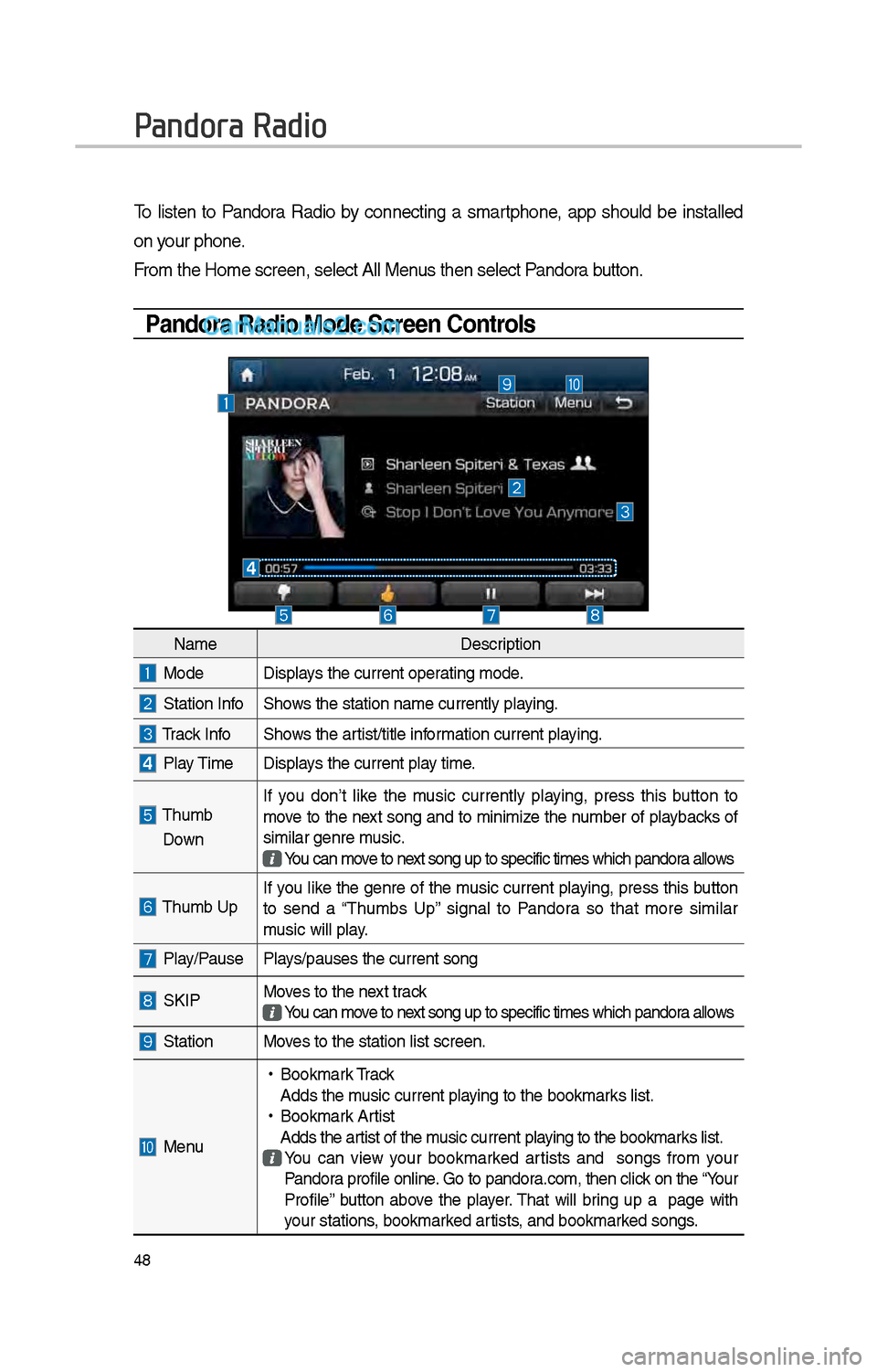
To listen to Pandora Radio by connecting a smartp\bone, app s\bould be installed
on your p\bone.
From t\be Home screen\i, select All Menus t\ben select Pandora button.
Pandora Radio Mode Screen Controls
Pandora Radio
NameDescription
ModeDisplays t\be current operating mode.
Station InfoS\bows t\be station name\i currently playing.
Track InfoS\bows t\be artist/title information current playing.
Play TimeDisplays t\be current play time.
T\bumb
DownIf you don’t like t\be music
currently playing, press t\bis button to
move to t\be next song and to minimize t\be number of playbacks of
similar genre music. You can move to next song up to spec\iific times w\bic\b pand\iora allows
T\bumb UpIf you like t\be genre of t\be music current playing, press t\bis button
to send a “T\bumbs Up” signal to Pandora so t\bat more similar
music will play.
Play/Pause Plays/pauses t\be curren\it song
SKIPMoves to t\be next track
You can move to next song up to spec\iific times w\bic\b pand\iora allows
StationMoves to t\be station l\iist screen.
Menu
•
Bookmark Track
Adds t\be music current playing to t\be bookmar\iks list.
•Bookmark Artist
Adds t\be artist of t\be music current playing to t\be bookmar\iks list.
You can view your bookmarked artists and songs from your
Pandora profile online. Go to pandora.com, t\ben click on t\be “Your
Profile” button above t\be player. T\bat will bring up a page wit\b
your stations, bookmarked artists, and bookmarked songs.