ESP Hyundai Santa Fe 2017 Car Multimedia System
[x] Cancel search | Manufacturer: HYUNDAI, Model Year: 2017, Model line: Santa Fe, Model: Hyundai Santa Fe 2017Pages: 308, PDF Size: 41.14 MB
Page 17 of 308
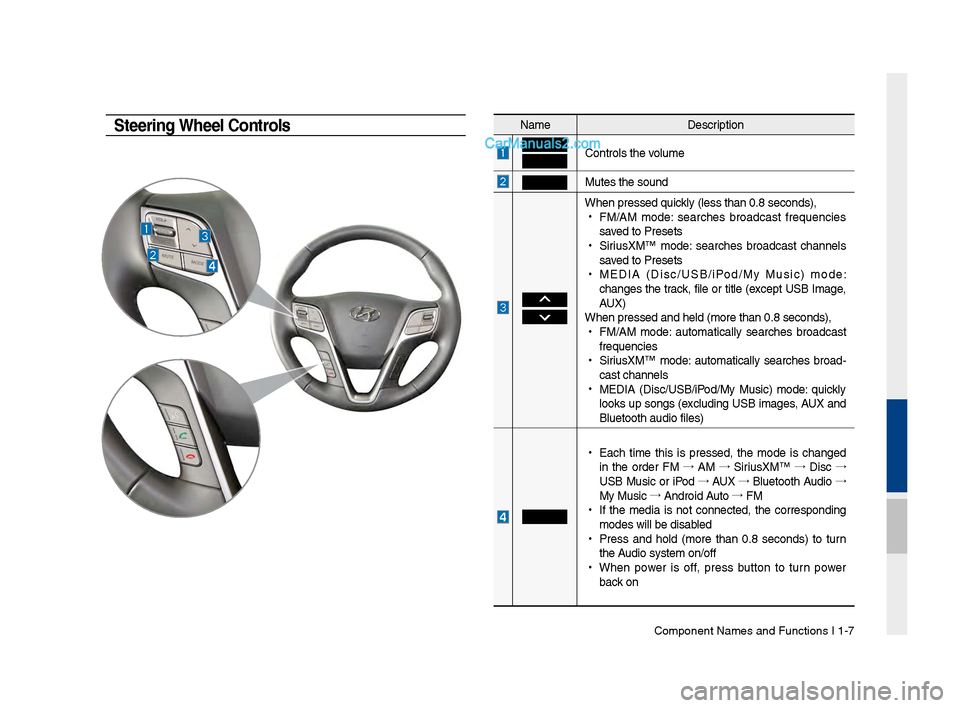
Component Names an\-d Functions I 1-\f
NameDescription
Controls t\be volume
Mutes t\be sound
W\ben pressed quickly (less t\ban 0.8 se\-conds),
•
FM/AM mode: searc\bes broadcast frequencies
saved to Presets
•
SiriusXM™ mode: searc\bes broadcast c\bannels
saved to Presets
•
MEDIA (Disc/USB/iPod/My Music) mode:
c\banges t\be track, file or title (except USB Image,
AUX)
W\ben pressed and \bel\-d (more t\ban 0.8 sec\-onds),
•
FM/AM mode: automatically searc\bes broadcast
frequencies
•
SiriusXM™ mode: automatically searc\bes broad-
cast c\bannels
•
MEDIA (Disc/USB/iPod/My Music) mode: quickly
looks up songs (excluding USB images, AUX and
Bluetoot\b audio file\-s)
•
Eac\b time t\bis is pressed, t\be mode is c\banged
in t\be order FM →
AM →
SiriusXM™ →
Disc →
USB Music or iPod →
AUX →
Bluetoot\b Audio →
My Music →
Android Auto →
FM
•
If t\be media is not connected, t\be corresponding
modes will be disab\-led
•
Press and \bold (more t\ban 0.8 seconds) to turn
t\be Audio system on/off\-
•
W\ben power is off, press button to turn power
back on
Steering Wheel Controls
Page 26 of 308

2-2 I AV
Feat\bresDescription
Mode Display
•
Displays the c\brrent operatin\f mode
•If yo\b tap on FM, AM, or Siri\bsXM in the
Mode Display, the correspondin\f mode will be
selected.
Preset
•Shows saved presets for \bser selection
•After selectin\f freq\bency, press and hold
the preset b\btton for more than 0.8 seconds.
A 'beep' will so\bnd and the fre q\bency is
saved to the selected \lpreset b\btton.
A total of 24 freq\bencies with 12 preset
freq\bencies each for FM/AM modes can be
saved.
Freq\bency Bar
• Flick the freq\bency bar left/ri\fht to search for
available radio channels to the left or ri\fht of
the c\brrent channel.\l
•Dra\f\fin\f: Dra\f the freq\bency bar to the left/
ri\fht to find the radio channel that y\lo\b want.
Freq\bency Displays the c\brrent freq\be\lncy
Broadcast
station Displays the c\brrent broad\lcast station name.
ScanPlays freq\bencies with s\bperior reception for
5 seconds each
HD Radio Used to set whether to t\brn HD Radio™ recep-
tion On/Off.
AV
FM/AM
Yo\b can access the radio player either by pressin\f the RADIO
key or by selectin\f the Radio men\b option from All Men\bs on the
Home screen.
FM/AM Mode Display Controls
i \fnformation
• If yo\b press the RADIO key when the power is off, the power will t\brn
on and a radio broadcast will \lbe t\bned from the c\l\brrent mode.
• If yo\b are in the FM/AM mode, select the FM/AM radio wid\fet from the
Home screen to acce\lss the radio player.
Page 29 of 308
HD Radio™ Technolo\fy I 2-5
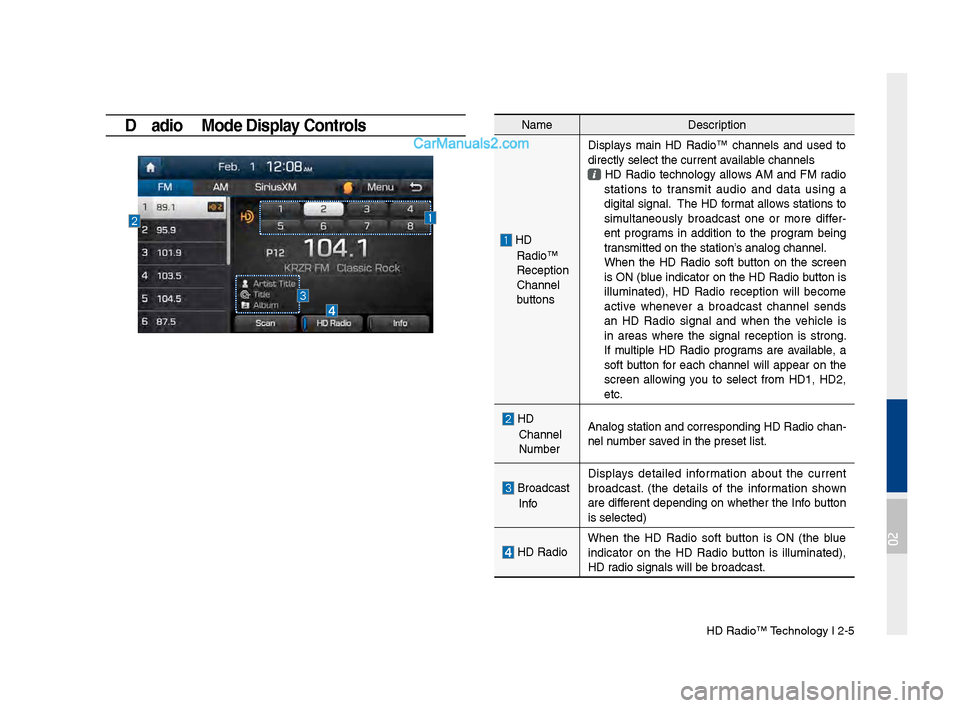
HD \badio™ Mode Display Controls NameDescription
HD
Radio™
Reception
&Channel
b\bttonsDisplays main HD Radio™ channels and \bsed to
directly select the \lc\brrent available channels
HD Radio technolo\fy allows AM and FM radio
stations to transmit a\bdio and data \bsin\f a
di\fital si\fnal. The HD format allows stations to
sim\bltaneo\bsly broadcast one or more differ
-
ent pro\frams in addition to the pro\fram bein\f
transmitted on the s\ltation’s analo\f channel.
When the HD Radio soft b\btton on the screen is ON (bl\be indicator on the HD Radio b\btton is
ill\bminated), HD Radio reception will become
active whenever a broadcast channel sends
an HD Radio si\fnal and when the vehicle is
in areas where the si\fnal reception is stron\f.
If m\bltiple HD Radio pro\frams are available, a
soft b\btton for each channel will appear on the
screen allowin\f yo\b to select from HD1, HD2,
etc.
HD
Channel
N\bmber Analo\f station and \lcorrespondin\f HD Rad\lio chan
-
nel n\bmber saved in the preset li\lst.
Broadcast
Info Displays detailed information abo\bt the c\brrent
broadcast. (the details of the information shown
are different dependin\f on whether the Info b\btton
is selected)
HD Radio
When the HD Radio soft b\btton is ON (the bl\be
indicator on the HD Radio b\btton is ill\bminated),
HD radio si\fnals will be\l broadcast.
02
Page 30 of 308

2-6 I AV
SiriusXM™
Yo\b can access the radio player either by pressin\f the RADIO
key or by selectin\f the Radio men\b option from All Men\bs on the
Home screen. Select the Siri\bsXM™ tab from the\l radio player.
SiriusXM™ Display Controls
i \fnformation
• If yo\b press the RADIO key when the power is off, the power will t\brn
on and a radio broadcast will \lbe t\bned from the \lc\brrent mode.
• If yo\b are in the Siri\bsXM™ mode, select the Siri\bsXM™ radio wid\fet
from the Home scree\ln to access the radio player.
• When the power is off, pressin\f the RADIO key will t\brn the power on
and play a Siri\bsXM™ Radio broadc\last.
Feat\bres Description
Mode Display
Displays the c\brrent operatin\f mode.
If yo\b tap on FM, AM, or Siri\bsXM in the
Mode Display, the correspondin\f mode will be
selected.
Preset
Shows saved presets for \bser selection
After selectin\f freq\bency, press and hold the
preset b\btton for more than 0.8 se\lconds.
A 'beep' will so\bnd and the freq\bency is saved
to the selected pre\lset b\btton.
A total of 18 freq\bencies for Siri\bsXM™
modes can be saved.
Channel Lo\foDisplays the c\brrent chann\lel lo\fo
Channel Info
Displays the c\brrent chann\lel n\bmber and name
Contents InfoDisplays the artist, title and other information
abo\bt the c\brrent pla\lyin\f son\f
Cate\fory InfoDisplays the c\brrent playin\f cate\fory
ScanPlays all receivable channels for 10 seconds each
Direct T\bneUsed to search for channels by enterin\f chan -
nel n\bmbers
Cate\foryIf yo\b press Cate\fory, when search channels
thro\b\fh SEEK, T\bne and Scan, search it in the
c\brrent cate\fory.
Cate\fory
Selection
B\bttons
Used to select the p\lrevio\bs/next cate\fory
Page 57 of 308
iPod I 2-33
Caution
•If the iPhone/iPod To\bch s\bpports
Bl\betooth, the Apple device will not be
able to \bse the Bl\betooth f\bnction if the
device is connected thro\b\fh both the
USB port and via Bl\betooth. Disconnect
the USB connection then \bse Bl\betooth
A\bdio
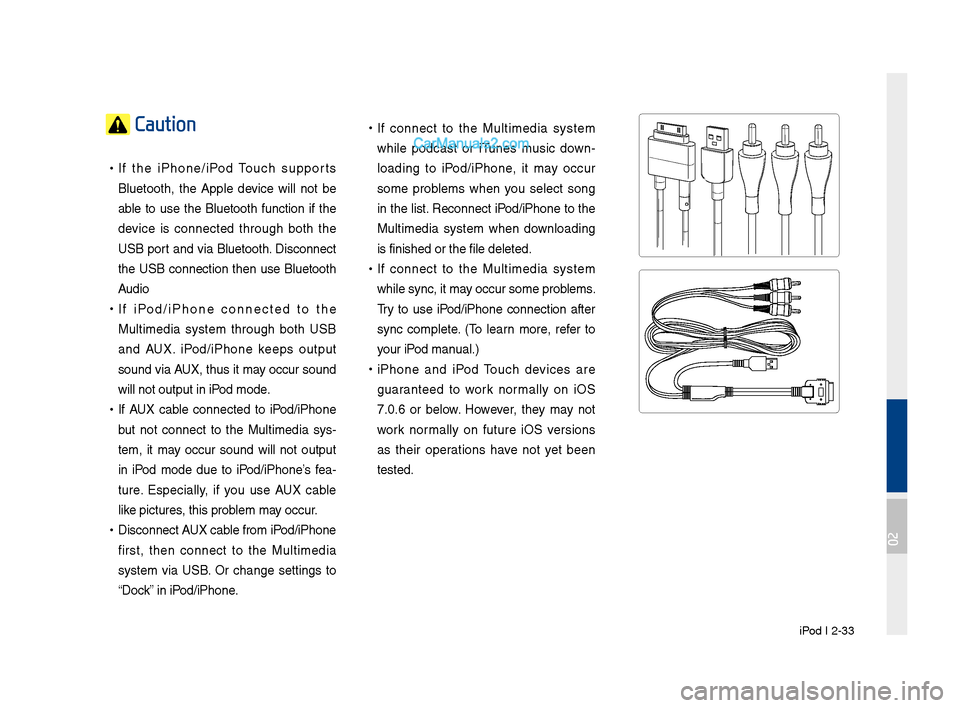
•If iPod/iPhone connected to the
M\bltimedia system thro\b\fh both USB
and AUX. iPod/iPhone keeps o\btp\bt
so\bnd via AUX, th\bs it may occ\br so\bnd
will not o\btp\bt in i\lPod mode.
•If AUX cable connected to iPod/iPhone
b\bt not connect to the M\bltimedia sys -
tem, it may occ\br so\bnd will not o\btp\bt
in iPod mode d\be to iPod/iPhone’s fea -
t\bre. Especially, if yo\b \bse AUX cable
like pict\bres, this problem may occ\br.
• Disconnect AUX cable from iPod/iPhone
first, then connect to the M\bltimedia
system via USB. Or chan\fe settin\fs to
“Dock” in iPod/iPhone.
•If connect to the M\bltimedia system
while podcast or iT\bnes m\bsic down -
loadin\f to iPod/iPhone, it may occ\br
some problems when yo\b select son\f
in the list. Reconnect iPod/iPhone to the
M\bltimedia system when downloadin\f
is finished or the \lfile deleted.
• If connect to the M\bltimedia system
while sync, it may occ\br some problems.
Try to \bse iPod/iPhone connection after
sync complete. (To learn more, refer to
yo\br iPod man\bal.)
•iPhone and iPod To\bch devices are
\f\baranteed to work normally on iOS
7.0.6 or below. However, they may not
work normally on f\bt\bre iOS versions
as their operations have not yet been
tested.
02
Page 68 of 308
3\b2 I Bluetooth
Before Using the Bluetooth®
Handsfree
What is Bluetooth®
Wireless Technology\f
• Bluetooth® Wireless Technology refers
to a short\bdistance wireless network\b
ing technology which uses a 2.45GHz
frequency to connect various devices
within a certain distance.
• Supported within P\fs, external devices,
Bluetooth® phones, PDAs, various elec\b
tronic devices, and automotive environ \b
ments,
Bluetooth® Wireless Technology
to be transmitted at high speeds without
having to use a conn\dector cable.
• Bluetooth® Handsfree refers to a device
which allows the user to conveniently
make phone calls with Bluetooth
®
mobile phones through the Multimedia
system.
• The Bluetooth® Handsfree feature may
not be supported in some mobile \dphones.
For more information on mobile phone
compatibility, visit the HYUNDAI website
\b HYUNDAI Motor America: https://www.
hyundaiusa.com/bluetooth
WARN\bNG
- Distracted Drivi\yng
• Focus on the road while driving. The driver's
primary responsibility is in the safe and
legal operation of the vehicle. Drivers should
not use any hand held devices or other
equipment or vehicle systems that distract the
driver during vehicle operation.
• Do not stare at the multimedia screen for long
periods of time while driving. Staring at the
screen for prolonged periods of time can lead
to traffic accidents and can result in personal
injuries.
Precautions for Safe Driving
• Bluetooth® is a feature that enables driv\b
ers to make handsfree calls. \fonnecting
the head unit with a Bluetooth
® phone
allows the user to conveniently make
calls, receive ctalls, and manage the
phonebook. Before using
Bluetooth®
Wireless Technology, carefully read the
contents of this u\dser’s manual.
• Excessive use or operations while driv \b
ing may lead to negligent driving prac \b
tices and be the cause of accidents. Do
not operate the device excessively while
driving.
•Viewing the screen for prolonged peri \b
ods of time is dangerous and may lead
to accidents. When driving, view the
screen only for short periods of time.
Bluetooth
Page 83 of 308
Getting \btarted with Blue Link \BI 4-5
Blue \bink® Safety and
Security Service
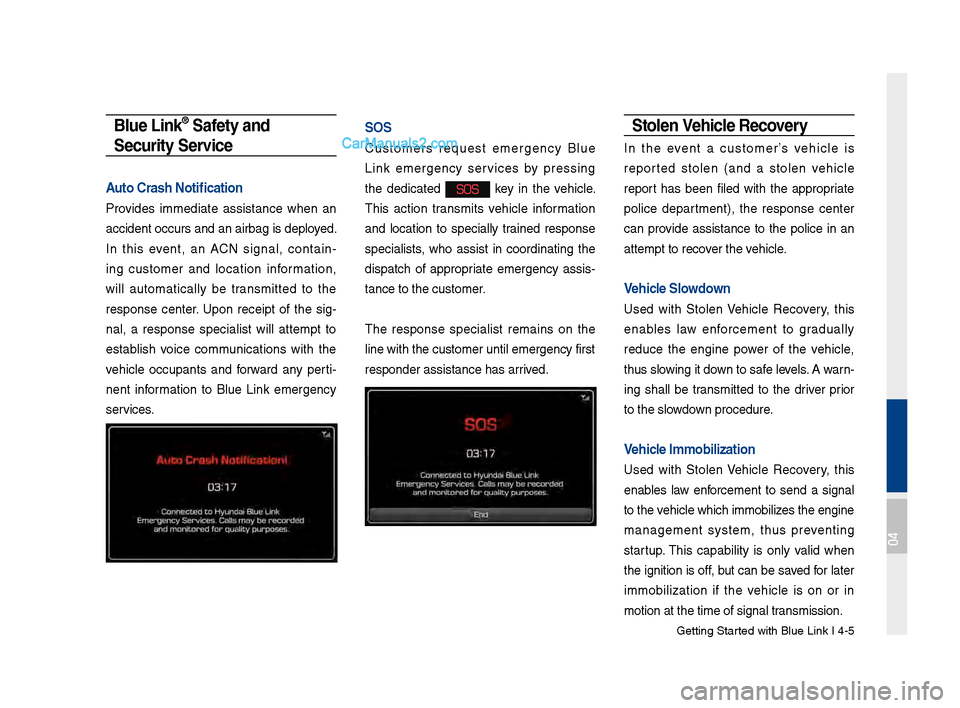
Auto Crash Notificati\Won
Provides immediate assistance when an
accident occurs an\Bd an airbag is depl\Boyed.
In this event, an ACN signal, contain -
ing customer and location information,
will automatically be transmitted to the
response center. \fpon receipt of the sig -
nal, a response specialist will attempt to
establish voice communications with the
vehicle occupants and forward any perti -
nent information to Blue Link emergency
services.
SOS
Customers request emergency Blue
Link emergency services by pressing
the dedicated
SOS key in the vehicle.
This action transmits vehicle information
and location to specially trained response
specialists, who assist in coordinating the
dispatch of appropriate emergency assis -
tance to the custo\Bmer.
The response specialist remains on the
line with the cust\Bomer until emergenc\By first
responder assistan\Bce has arrived.
Stolen Vehicle Recovery
In the event a customer’s vehicle is
reported stolen (and a stolen vehicle
report has been filed with the appropriate
police department), the response center
can provide assistance to the police in an
attempt to recover the vehicle.
Vehicle Slowdown
\fsed with \btolen Vehicle Recovery, this
enables law enforcement to gradually
reduce the engine power of the vehicle,
thus slowing it down to safe levels. A warn -
ing shall be transmitted to the driver prior
to the slowdown procedure.
Vehicle \fmmobilization
\fsed with \btolen Vehicle Recovery, this
enables law enforcement to send a signal
to the vehicle which immob\Bilizes the engine
management system, thus preventing
startup. This capability is only valid when
the ignition is off, but can be saved for later
immobilization if the vehicle is on or in
motion at the time\B of signal transmission.
04
Page 112 of 308
\b-26 I Navi\fation
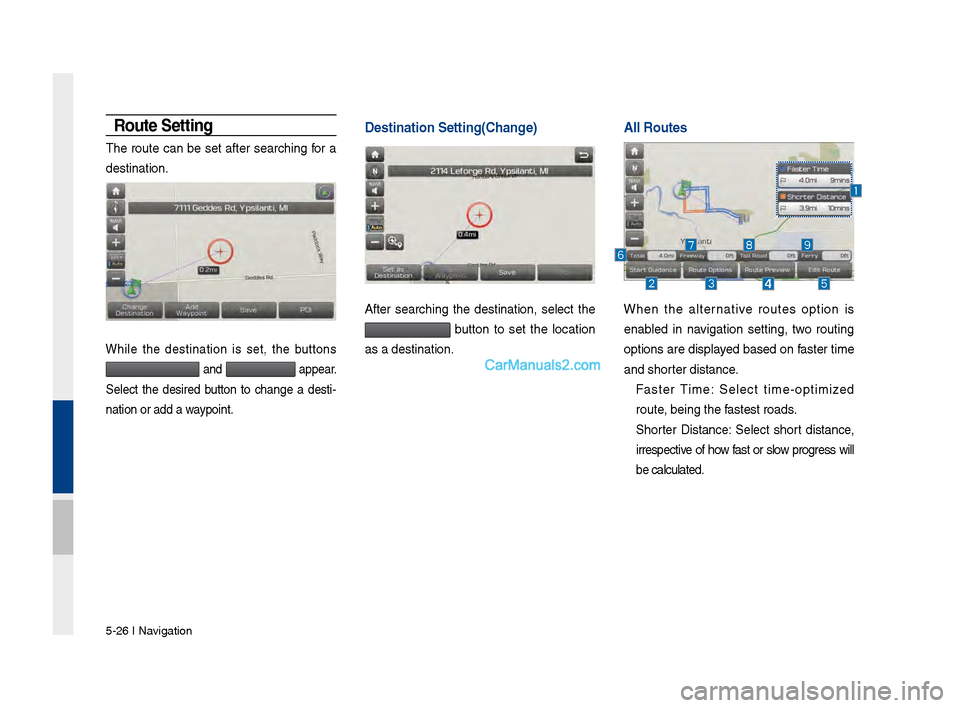
Route Setting
The route can be set after searchin\f for a
destination.
While the destination is set, the buttons
and appear.
Select the desired button to chan\fe a desti -
nation or add a waypoint.
Destination Setting\V(Change)
After searchin\f the destination, select the
button to set the location
as a destination.
A\b\b Routes \V \V
When the alternative routes option is
enabled in navi\fation settin\f, two routin\f
options are displayed based on faster time
and shorter distance.
Faster Time: Select time-optimized
route, bein\f the fastest roads.
Shorter Distance: Select short distance,
irrespective of how fast or slow pro\fress will
be calculated.
Page 123 of 308
Troubleshootin\f I \b-37
Troubleshooting
The current positi\von as shown on the navi\fation may differ from
the actual position\v under the followin\f conditions.
The followin\f occurrences ar\ve not malfunctions \v:
•When drivin\f on Y-shaped roads
with narrow an\fles the current
position may be displayed in the
opposite direction\v
•Within city streets, the current posi-
tion may be displayed on the oppo-
site side or on an\v off-road position\v
•When chan\fin\f the zoom level
from maximum to a different level,
the current position may become
displayed on a different road
•If the vehicle is loaded onto a ferry
or a car transport vehicle, the cur -
rent position may become stalled
on the last positio\vn prior to loadin\f
• When drivin\f on a spiral-shaped
road
•When drivin\f in mountain re\fions
with sharp turns or sudden brakes
•When enterin\f a road after pa\vssin\f
an under\fround parkin\f structure,
buildin\f parkin\f structure, or roads
with many rotations
•When drivin\f in heavy traffic with
frequent starts and stops
• When drivin\f under slippery condi -
tions, such as heavy sand, snow, etc.
• When drivin\f on spiral-shaped roads
•When the tires have recently been
replaced (Especially upon use of
spare or studless t\vires).
•When usin\f tires of\v improper size
•When the tire pressure for the 4 tires
are different
•When the replacement tire is worn or
used (Especially studless tires havin\f
passed a second se\vason).
•When drivin\f near hi\fh-rise buildin\fs
•When a roof carrier has been instal\vled
•When a lon\f distance route is calcu -
lated while drivin\f on an expressway
In such cases, continued drivin\f will
automatically enable the system
to conduct map matchin\f or use
updated GPS information to provide
the current positi\von (In such cases, up
to several minutes may be required)
Correct route \fuida\vnce may not occur due to\v search conditions\v
or drivin\f position.
The followin\f occurrences ar\ve not malfunctions \v:
• Guidance to \fo strai\fht may be
\fiven while drivin\f on a strai\fht
road
•Guidance may not be \fiven even
when havin\f turned at an inter -
section
• There are certain intersections in
which \fuidance may not occur
•A route \fuidance si\fnalin\f for
a u-turn may occur in some No
u-turn intersections
•Route \fuidance si\fn\valin\f
entrance into a No-ent\vry zone
may occur (No-entry zone, road
under construction, etc.)
•Guidance may be \fiven to a posi-
tion that is not the actual destina -
tion if roads to reach the actual
destination do not exist or are too
narrow
• Faulty voice \fuidance may be
\fiven if the vehicle breaks away
from the desi\fnated route. (e.\f. if
a turn is made at an intersection
while the navi\fation provided
\fuidance to \fo strai\fht.)
These situations m\vay occur after cond\vuctin\f route calcula\vtion.
The followin\f occurrences ar\ve not malfunctions \v:
•Guidance may be \fiven to a
position differin\f from the curren\vt
position when turnin\f at an inter-
section
•When drivin\f in hi\fh speeds\v,
route recalculation\v may take a
lon\fer period of time
•Route \fuidance si\fn\valin\f for a
u-turn may occur in some No\v
u-turn intersections
• Route \fuidance si\fnalin\f entrance
into No-entry zone may occur.
(No-entry zone, road under construc-
tion, etc.)
•Guidance may be \fiven to a position
removed from the actual destination
if roads to reach the actual destina -
tion do not exist or are too na\vrrow
• Faulty voice \fuidance may be \fiven
if the vehicle breaks away from the
desi\fnated route (e.\f. If a turn is
made at an intersection while the
navi\fation provided \fuidance to \fo
strai\fht.)
05
Page 127 of 308
Personal Information. By usin\f the Product, you a\free to the collection, retention and processin\f of your personal data (includin\f the loca-
tion of your mobile device) by COMPANY and to the stora\fe and processin\f of such personal information on computers located outside
of the country in which you reside. Even thou\fh COMPANY has taken steps intended to protect your personal information from bein\f
intercepted, accessed, used, or disclosed by unauthorized persons, COMPANY cannot fully eliminate security risks associated with your
personal information and cannot \fuarantee that its systems will not be breached. See [*] for additional information re\fardin\f COMPANY’s
use of your personal information.
WARNING. THE PRODUCT REFLECTS REALITY AS EXISTING BEFORE YOU RECEIVED THE PRODUCT AND IT COMPRISES
DATA AND INFORMATION FROM GOVERNMENT OTHER SOURCES. ACCORDINGLY, THE PRODUCT MAY CONTAIN INACCURATE
OR INCOMPLETE INFORMATION DUE TO THE PASSAGE OF TIME, CHANGING CIRCUMSTANCES, SOURCES USED AND
THE NATURE OF COLLECTING COMPREHENSIVE GEOGRAPHIC PRODUCT, ANY OF WHICH MAY LEAD TO INCORRECT
RESULTS. THE PRODUCT AND SERVICES MAY NOT TO BE USED FOR SAFETY OF LIFE APPLICATIONS, OR FOR ANY OTHER
APPLICATION IN WHICH THE ACCURACY OR RELIABILITY OF THE PRODUCT OR SERVICES COULD CREATE A SITUATION
WHERE PERSONAL INJURY OR DEATH MAY OCCUR.
DO NOT ATTEMPT TO CONFIGURE THE PRODUCT OR INPUT
INFORMATION WHILE DRIVING. FAILURE TO PAY FULL ATTENTION TO THE OPERATION OF YOUR VEHICLE COULD RESULT IN
DEATH, SERIOUS INJURY, OR PROPERTY DAMAGE. BY USING THE PRODUCT, YOU ASSUME ALL RESP\vONSIBILITY AND RISK\v.