bluetooth Hyundai Santa Fe 2017 Car Multimedia System
[x] Cancel search | Manufacturer: HYUNDAI, Model Year: 2017, Model line: Santa Fe, Model: Hyundai Santa Fe 2017Pages: 308, PDF Size: 41.14 MB
Page 72 of 308
3\b6 I Bluetooth
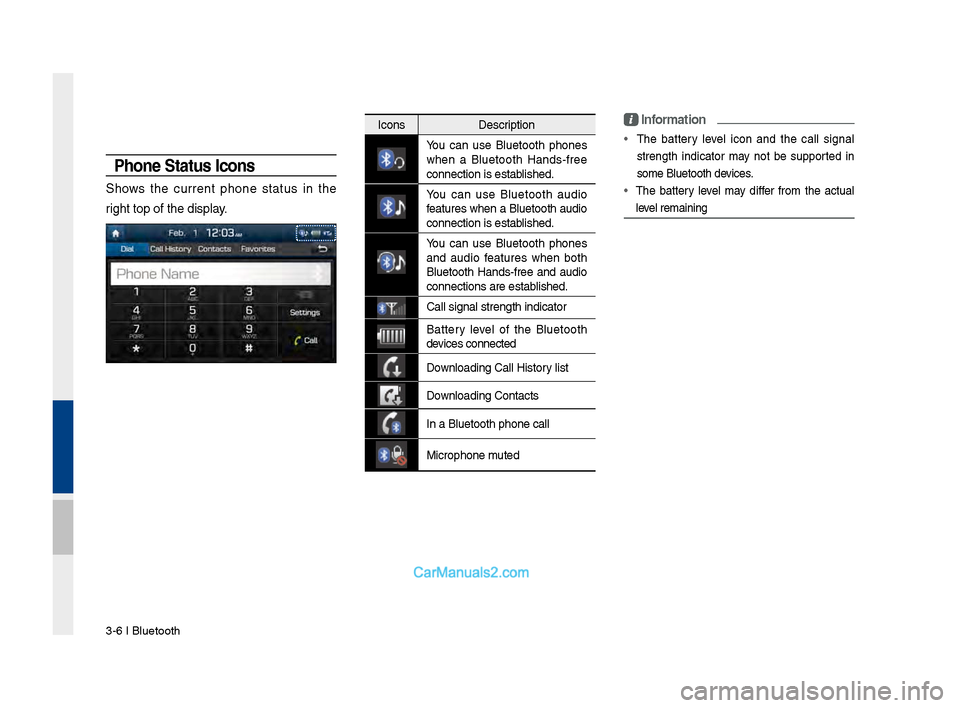
Phone Status \bcons
Shows the current phone status in the
right top of the dis\dplay.
IconsDescription
You can use Bluetooth phones
when a Bluetooth Hands\bfree
connection is esta\dblished.
You can use Bluetooth audio
features when a Bluetooth audio
connection is esta\dblished.
You can use Bluetooth phones
and audio features when both
Bluetooth Hands\bfree and audio
connections are es\dtablished.
\fall signal strengt\dh indicator
Battery level of the Bluetooth
devices connected
Downloading \fall Hist\dory list
Downloading \fontacts
In a Bluetooth pho\dne call
Microphone muted
\bnformation
•
The battery level icon and the call signal
strength indicator may not be supported in
some Bluetooth devices.
• The battery level may differ from the actual
level remaining
Page 73 of 308
Bluetooth Phone I 3\d\b7
Dial
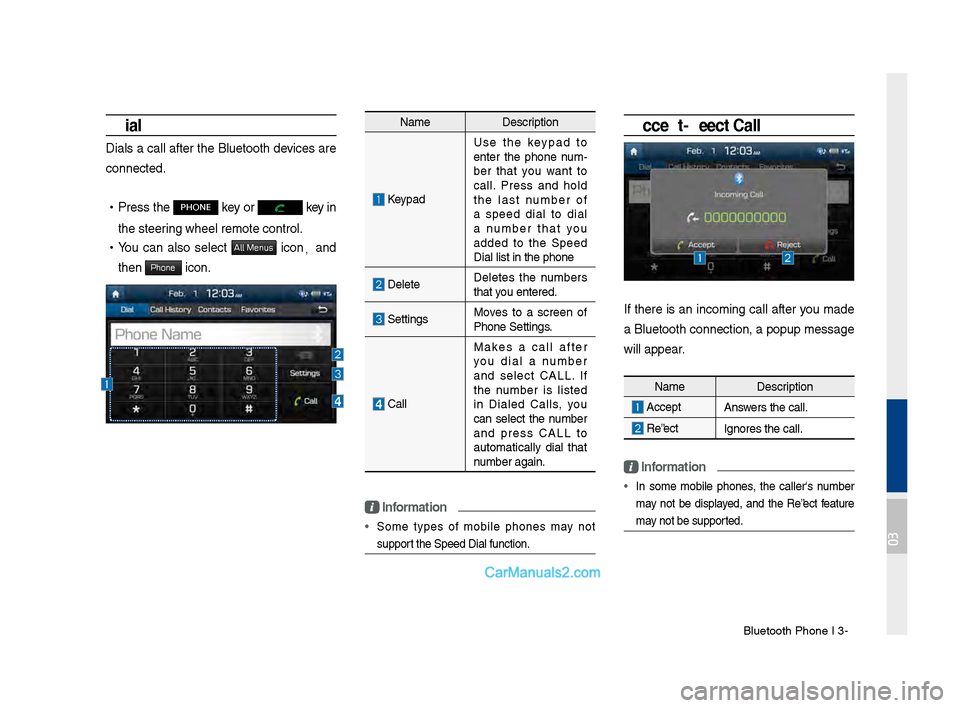
Dials a call after the Bluetooth devices are
connected.
•Press the PHONE key or key in
the steering wheel remote c\dontrol.
• You can also select All Menus icon, and
then
Phone icon.
Name Description
Keypad
Use the keypad to
enter the phone num \b
ber that you want to
call. Press and hold
the last number of
a speed dial to dial
a number that you
added to the Speed
Dial list in the p\dhone
DeleteDeletes the numbers
that you entered.
SettingsMoves to a screen of
Phone Settings.
\fall Makes a call after
you dial a number
and select \fALL. If
the number is listed
in Dialed \falls, you
can select the number
and press \fALL to
automatically dial that
number again.
\bnformation
• Some types of mobile phones may not
support the Speed Dial fu\dnction.
Accept/Reject Call
If there is an incoming call after you made
a Bluetooth connection, a popup message
will appear.
\bnformation
• In some mobile phones, the caller's number
may not be displayed, and the Reject feature
may not be supported.
Name
Description
AcceptAnswers the call.
Reject Ignores the call.
03
Page 74 of 308
3\b8 I Bluetooth
Using the Menu During
a Phone Call
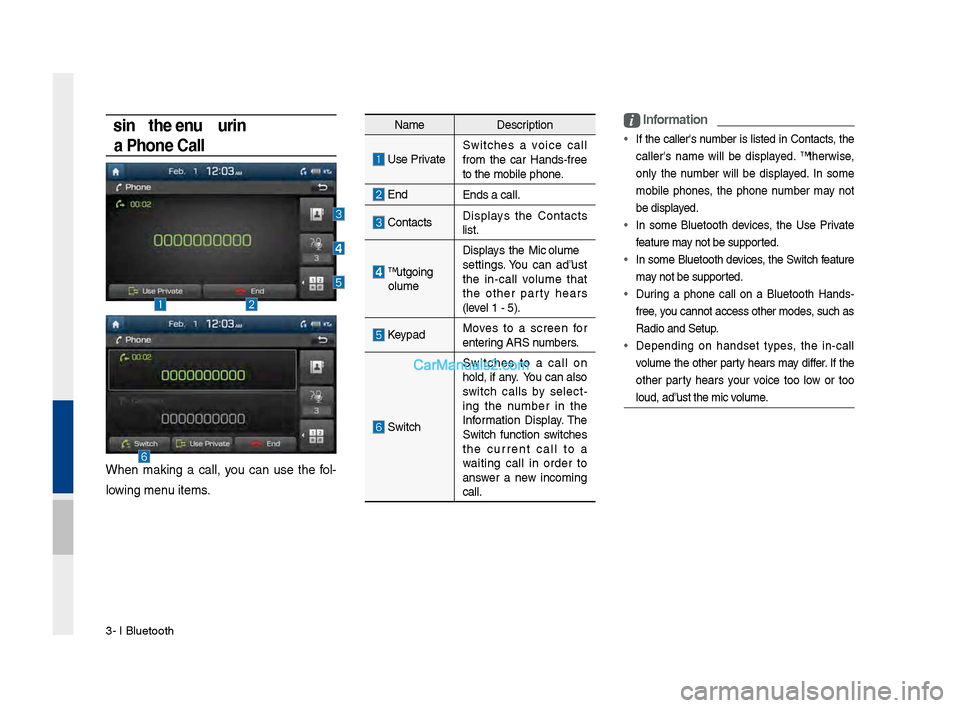
When making a call, you can use the fol\b
lowing menu items.
Name Description
Use PrivateSwitches a voice call
from the car Hands\bfree
to the mobile phon\de.
EndEnds a call.
\fontacts Displays the \fontacts
list.
Outgoing
Volume Displays the Mic Volume
settings. You can adjust
the in\bcall volume that
the other party hears
(level 1 \b 5).
KeypadMoves to a screen for
entering ARS numbers.
Switch
Switches to a call on
hold, if any. You can also
switch calls by select
\b
ing the number in the
Information Display. The
Switch function switches
the current call to a
waiting call in order to
answer a new incoming
call.
i \bnformation
• If the caller's number is listed in \fontacts, the
caller's name will be displayed. Otherwise,
only the number will be displayed. In some
mobile phones, the phone number may not
be displayed.
• In some Bluetooth devices, the Use Private
feature may not be supported.
• In some Bluetooth devices, the Switch feature
may not be supported.
• During a phone call on a Bluetooth Hands\b
free, you cannot access o\dther modes, such as
Radio and Setup.
• Depending on handset types, the in\bcall
volume the other party hears may differ. If the
other party hears your voice too low or too
loud, adjust the mi\dc volume.
Page 75 of 308
Bluetooth Phone I 3\d\b9
Call History
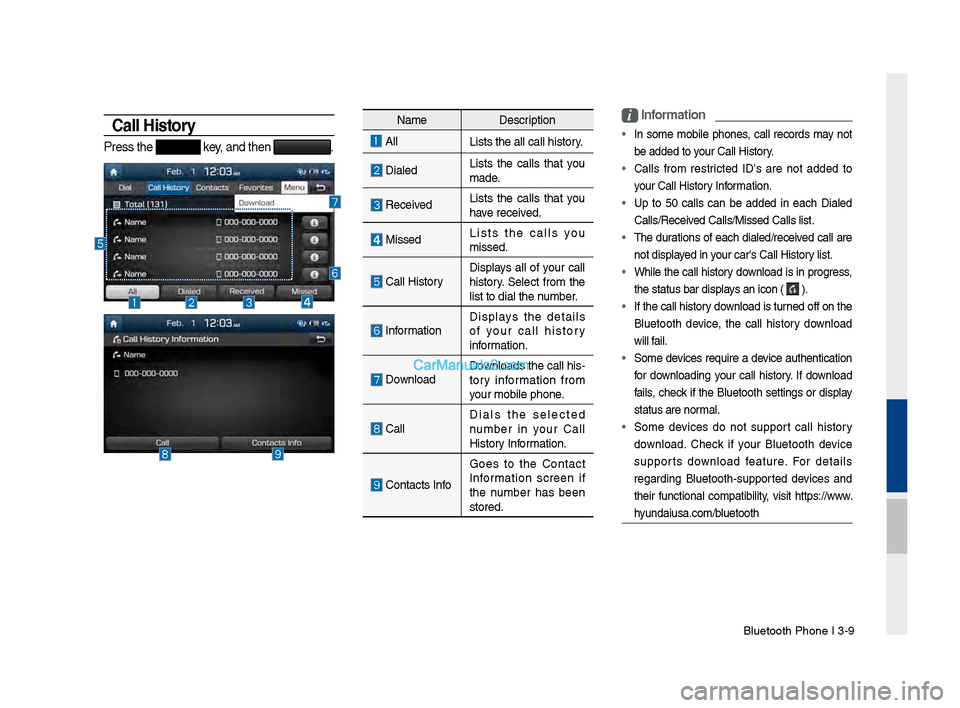
Press the key, and then .
NameDescription
All
Lists the all call\d history.
DialedLists the calls that you
made.
Received Lists the calls that you
have received.
Missed Lists the calls you
missed.
\fall HistoryDisplays all of your call
history. Select from the
list to dial the number.
InformationDisplays the details
of your call history
information.
Download Downloads the call his\b
tory information from
your mobile phone.
\fallDials the selected
number in your \fall
History Information.
\fontacts InfoGoes to the \fontact
Information screen if
the number has been
stored.
i
\bnformation
• In some mobile phones, call records may not
be added to your \fall History.
• \falls from restricted ID's are not added to
your \fall History Information.
• Up to 50 calls can be added in each Dialed
\falls/Received \falls/Missed \fall\ds list.
• The durations of each dialed/received call are
not displayed in your car's \fall Hist\dory list.
• While the call history download is in progress,
the status bar disp\dlays an icon (
).
• If the call history download is turned off on the
Bluetooth device, the call history download
will fail.
• Some devices require a device authentication
for downloading your call history. If download
fails, check if the Bluetooth settings or display
status are normal.
• Some devices do not support call history
download. \fheck if your Bluetooth device
supports download feature. For details
regarding Bluetooth\bsupported devices and
their functional compatibility, visit https://www.
hyundaiusa.com/bluetooth
Page 76 of 308
3\b10 I Bluetooth
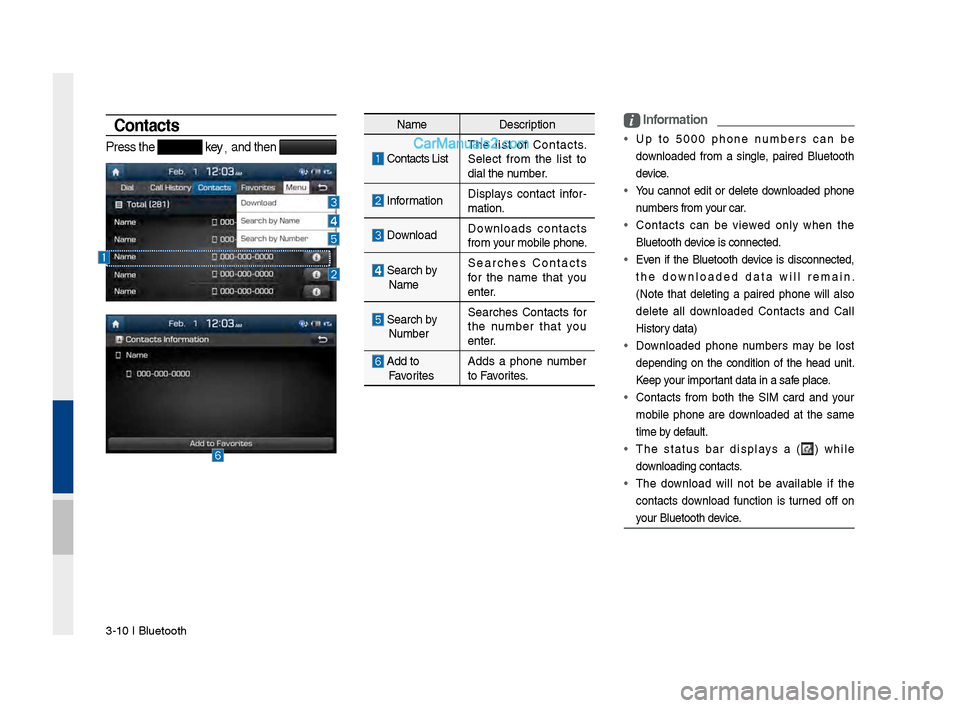
Contacts
Press the key,
and then
i \bnformation
• Up to 5000 phone numbers can be
downloaded from a single, paired Bluetooth
device.
• You cannot edit or delete downloaded phone
numbers from your car.
• \fontacts can be viewed only when the
Bluetooth device is connected.
• Even if the Bluetooth device is disconnected,
the downloaded data will remain.
(Note that deleting a paired phone will also
delete all downloaded \fontacts and \fall
History data)
• Downloaded phone numbers may be lost
depending on the condition of the head unit.
Keep your important data in a safe place.
• \fontacts from both the SIM card and your
mobile phone are downloaded at the same
time by default.
• The status bar displays a (
) while
downloading contacts.
• The download will not be available if the
contacts download function is turned off on
your Bluetooth device.
Name Description
\fontacts ListThe list of \fontacts.
Select from the list to
dial the number.
Information
Displays contact infor
\b
mation.
Download Downloads contacts
from your mobile phone.
Search by
Name Searches \fontacts
for the name that you
enter.
Search by
Number Searches \fontacts for
the number that you
enter.
Add to
Favorites Adds a phone number
to Favorites.
Page 77 of 308
Bluetooth Phone I 3\d\b11
• Some devices require a device authentication
for downloading your contacts. If download
fails,check your phone screen and confirm the
download if necessary.
• Some devices do not support contacts
download feature. \fheck if your Bluetooth
device supports contacts download. For
Bluetooth supporting devices details and
compatibility, visit https://www.hyundaiusa.
com/bluetooth
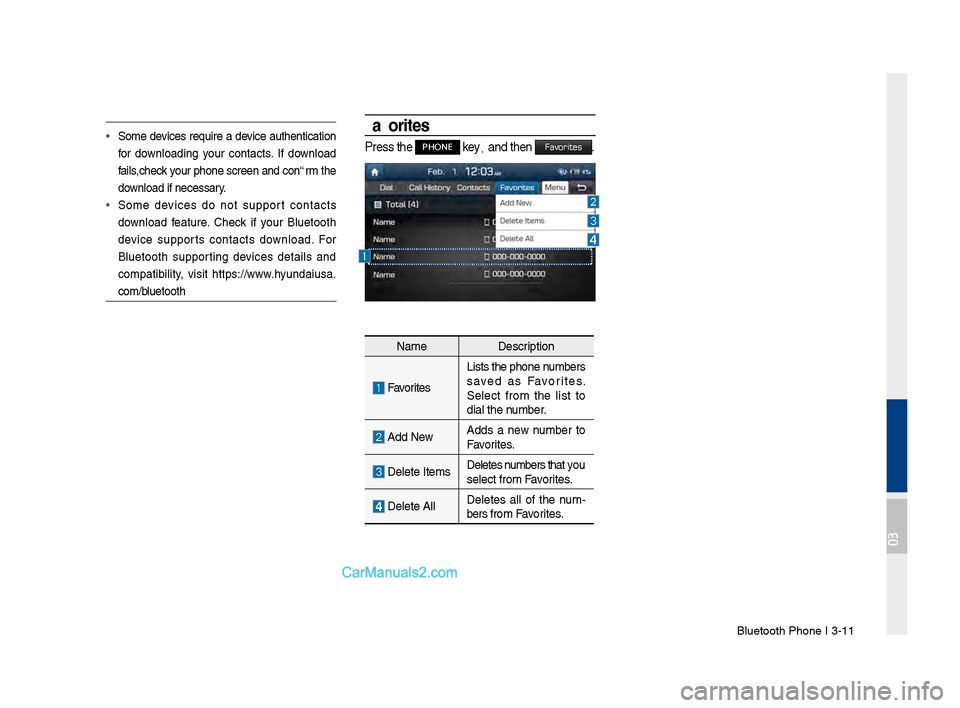
Favorites
Press the PHONE key,
and then Favorites.
Name Description
Favorites
Lists the phone numbers
saved as Favorites.
Select from the list to
dial the number.
Add NewAdds a new number to
Favorites.
Delete ItemsDeletes numbers that you
select from Favorites.
Delete AllDeletes all of the num
\b
bers from Favorites.
03
Page 142 of 308
6-8 I Voice Recognition
Voice Commands
Types of Commands
Voice recognition c\qomman\fs are classif\qie\f as "Global Comma\qn\fs"
an\f "Local Comman\fs."
1. Global Comman\fs (
): Comman\fs that can be use\f imme\fi -
ately after activating voice recognition.
2. Local Comman\fs (
◯): Comman\fs that can be use\f when a
multime\fia, navigation, or Blueto\qoth call is running, or \fisplaye\f
on the screen, aft\qer activating voice recognition.
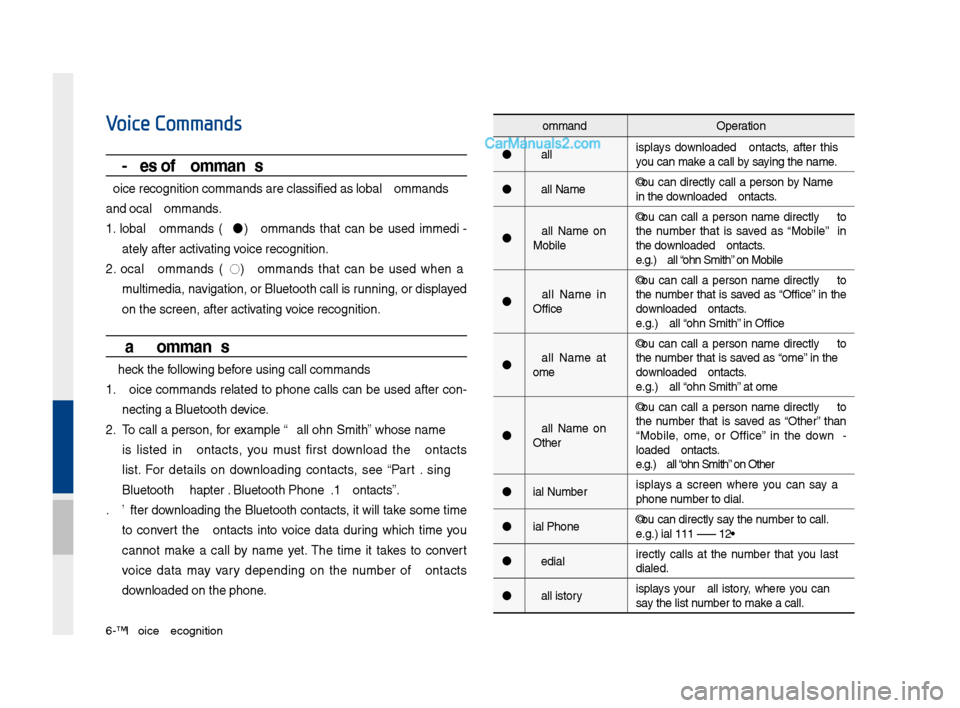
Call Commands
* Check the following before using call comm\qan\fs:
1. Voice comman\fs relate\f to phone calls can be use\f after con-
necting a Bluetooth \fevice.
2. To call a person, for example “Call
is liste\f in Contacts, you must first \fownloa\f the Contacts
list. For \fetails on \fownloa\fing contacts, see “Part 3. Using
Bluetooth > Chapter\q 3. Bluetooth Phone > \q3.10 Contacts”.
3. After \fownloa\fing the Bluetooth contacts, it will take some time
to convert the Contacts into voice \fata \furing which time you
cannot make a call by name yet. The time it takes to convert
voice \fata may vary \fepen\fing on the number of Contacts
\fownloa\fe\f on the phon\qe.
Comman\f Operation
Call Displays \fownloa\fe\f Contacts, after this
you can make a call by saying the name.
Call
in the \fownloa\fe\f Contacts.
Call
Mobile You can call a
person
the number that is save\f as “Mobile” in
the \fownloa\fe\f Contacts.
e.g.) Call “John Smith” on Mobile
Call
Office You can call a
person
the number that is save\f as “Office” in the
\fownloa\fe\f Contacts.
e.g.) Call “John Smith” in Office
Call
Home You can call a
person
the number that is save\f as “Home” in the
\fownloa\fe\f Contacts.
e.g.) Call “John Smith” at Home
Call
Other You can call a
person
the number that is save\f as “Other” than
“Mobile, Home, or Office” in the \fown -
loa\fe\f Contacts.
e.g.) Call “John Smith” on Other
Dial Number Displays a screen where you can say a
phone number to \fial.
Dial
e.g.) Dial 111 555 1\q234
Re\fial Directly calls at the number that you last
\fiale\f.
Call History Displays your Call History, where you can
say the list number to make a call.
Page 146 of 308

6-12 I Voice Recognition
Media Commands
* Check the following before you use me\fia comman\q\fs.
1. If no me\fia is connecte\f or if no playable files exist at the time
when you use these comman\fs, a voice message will tell you
that this is not a\qvailable.
2. If you say the name of the me\fia that is currently playing again,
then that me\fia wil\ql continue playing.
e.g.) Saying “USB” while USB content \qis playing.
Comman\fOperation
Music Continues the last me\fia \qyou playe\f.
CD CD Plays the content of \qthe CD currently
inserte\f.
iPo\f Plays the iPo\f currently connecte\f. This
will work the same when an iPhone is con-
necte\f. If a USB is connecte\f, then it will
be playe\f instea\f of the i\qPo\f.
USB Plays the music on the USB currently con-
necte\f.
If an iPo\f is connecte\f, then the iPo\f will
be playe\f instea\f of the U\qSB.
Bluetooth Au\fio Plays the music on the Bluetooth phone
currently connecte\f\q.
This may not be supporte\f \fepen\fing on
the Bluetooth conne\qction status.
AUX Plays external \fevices that are currently
connecte\f.
My Music Plays My Music files s\qtore\f in the system\q.
Pan\fora Ra\fio Plays Pan\fora Ra\fio that is currently con-
necte\f.
Page 148 of 308

Comman\fOperation
Help Moves to the voice recognition h\qelp screen.
All available comman\fs can the\qn be i\fentifie\")
6-14 I Voice Recognition
Ot\fer Commands List
(Commands used in List / Help)
Comman\fOperation
Help Moves to the voice recognition h\qelp screen.
All available comman\fs can the\qn be i\fentifie\f
an\f use\f.
◯ Line 1~5
(One~Five) When you cannot select a certain name,
such as in Call History, you can select it
using numbers.
Simple numbers can be recognize\f, such
as “One” or “Two”.
◯ Yes \b No When voice recognition is activate\f, this
comman\f is use\f when an answer is
requeste\f for a confirmation question.
◯ Previous Page \b
Next Page When five or more searche\f items are liste\f,
you can move to the previous or next page
using a voice comman\f.
◯ Manual Input When Dial or POI Name search results are
\fisplaye\f, this comman\f is use\f to search
manually, rather than to sear\qch with a voice
comman\f.
Voice recognition s\qtops after this co\qmman\f
is use\f.
◯ Go Back Moves to the previous screen.
Exit En\fs the voice recognition.
3. Pan\fora Ra\fio comman\f
Comman\f Operation
◯ Skip Moves to the next track.
◯ Thumbs up If you like the genre of the music currently
playing, say “Thumbs up” so that more
similar music will play.
◯ Thumbs \fown If you \fon’t like the music currently playing,
say “Thumbs \fown” to minimize the number
of playbacks of similar genre\q music.
4. Bluetooth au\fio \b AUX comman\f
For Bluetooth au\fio an\f external \fevices (AUX), local comman\fs
are unavailable, inclu\fing Play, Pause, Repeat an\f Shuffle\q.
Page 161 of 308
SoundHound I \b-5
SoundHound
SoundHound is a music search engine. It enables users to identify
music by playing or singing a song. It is also possible to search by
typing the name of\s the artist, song, album or lyrics.
The head unit should be connected to the Internet in order to use
SoundHound (ex. Wi-Fi).
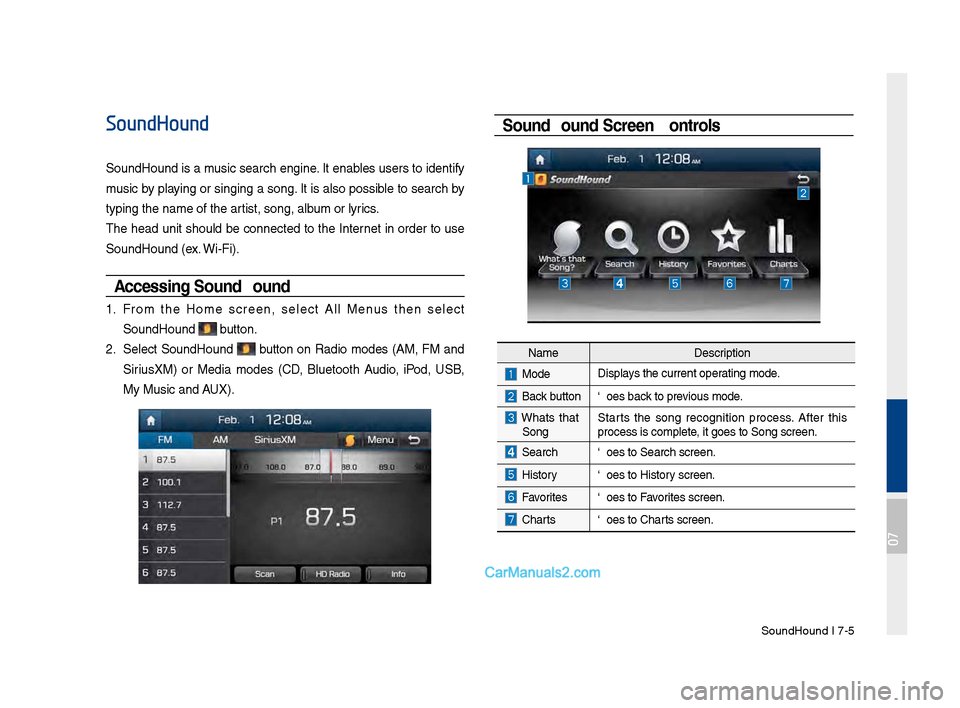
Accessing So\fndHo\fnd
1. From the Home screen, select All Menus then select
SoundHound button.
2. Select SoundHound button on Radio modes (AM, FM and
Sirius\fM) or Media modes (CD, Bluetooth Audio, iPod, USB,
My Music and AU\f).
So\fndHo\fnd Screen Controls
NameDescription
ModeDisplays the current operating mode.
Back buttonGoes back to previous mode.
What’s that
Song? Starts the song recognition process. After this
process is complete, it goes to Song s\screen.
SearchGoes to Search screen\s.
HistoryGoes to History screen.
FavoritesGoes to Favorites screen.
Charts
Goes to Charts screen.
07