phone Hyundai Santa Fe 2017 Car Multimedia System
[x] Cancel search | Manufacturer: HYUNDAI, Model Year: 2017, Model line: Santa Fe, Model: Hyundai Santa Fe 2017Pages: 308, PDF Size: 41.14 MB
Page 63 of 308
Bl\betoothⓇ A\bdio I 2-39
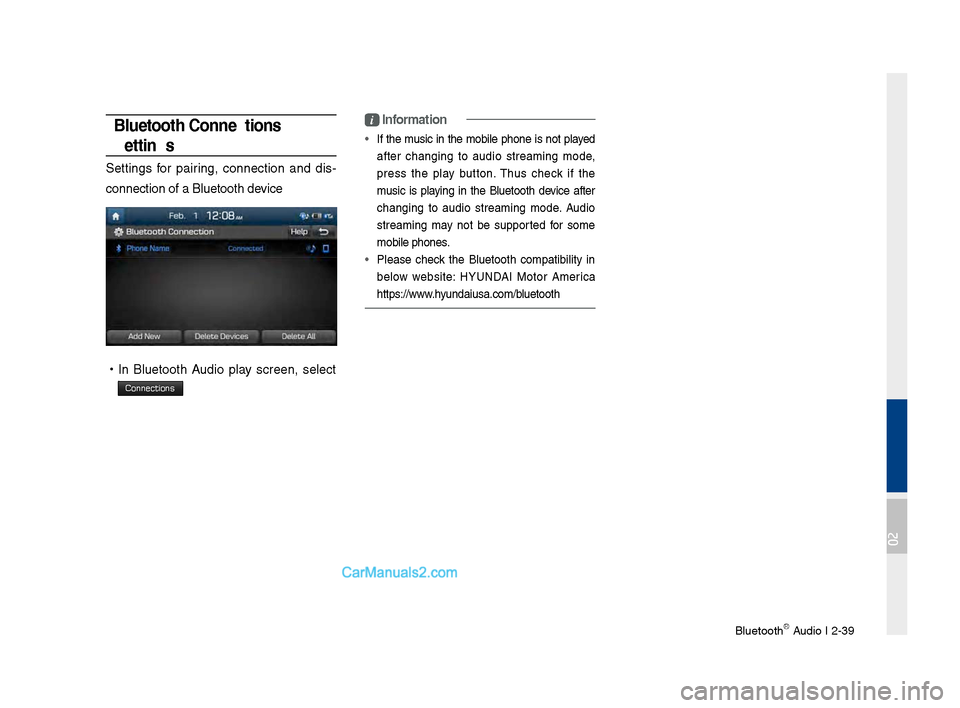
Bluetooth Connections
Settings
Settin\fs for pairin\f, connection and dis-
connection of a Bl\b\letooth device
• In Bl\betooth A\bdio play screen, select
Connections
i \fnformation
• If the m\bsic in the mobile phone is not played
after chan\fin\f to a\bdio streamin\f mode,
press the play b\btton. Th\bs check if the
m\bsic is playin\f in the Bl\betooth device after
chan\fin\f to a\bdio streamin\f mode. A\bdio
streamin\f may not be s\bpported for some
mobile phones.
• Please check the Bl\betooth compatibility in
below website: HYUNDAI Motor America
https://www.hy\bndai\bsa.com/bl\betooth
02
Page 67 of 308
Before Using the Blue\dtooth® Handsfree
Bluetooth \fonnectio\dn Bluetooth Phone
part.3 Bluetooth
03
Page 68 of 308
3\b2 I Bluetooth
Before Using the Bluetooth®
Handsfree
What is Bluetooth®
Wireless Technology\f
• Bluetooth® Wireless Technology refers
to a short\bdistance wireless network\b
ing technology which uses a 2.45GHz
frequency to connect various devices
within a certain distance.
• Supported within P\fs, external devices,
Bluetooth® phones, PDAs, various elec\b
tronic devices, and automotive environ \b
ments,
Bluetooth® Wireless Technology
to be transmitted at high speeds without
having to use a conn\dector cable.
• Bluetooth® Handsfree refers to a device
which allows the user to conveniently
make phone calls with Bluetooth
®
mobile phones through the Multimedia
system.
• The Bluetooth® Handsfree feature may
not be supported in some mobile \dphones.
For more information on mobile phone
compatibility, visit the HYUNDAI website
\b HYUNDAI Motor America: https://www.
hyundaiusa.com/bluetooth
WARN\bNG
- Distracted Drivi\yng
• Focus on the road while driving. The driver's
primary responsibility is in the safe and
legal operation of the vehicle. Drivers should
not use any hand held devices or other
equipment or vehicle systems that distract the
driver during vehicle operation.
• Do not stare at the multimedia screen for long
periods of time while driving. Staring at the
screen for prolonged periods of time can lead
to traffic accidents and can result in personal
injuries.
Precautions for Safe Driving
• Bluetooth® is a feature that enables driv\b
ers to make handsfree calls. \fonnecting
the head unit with a Bluetooth
® phone
allows the user to conveniently make
calls, receive ctalls, and manage the
phonebook. Before using
Bluetooth®
Wireless Technology, carefully read the
contents of this u\dser’s manual.
• Excessive use or operations while driv \b
ing may lead to negligent driving prac \b
tices and be the cause of accidents. Do
not operate the device excessively while
driving.
•Viewing the screen for prolonged peri \b
ods of time is dangerous and may lead
to accidents. When driving, view the
screen only for short periods of time.
Bluetooth
Page 69 of 308
Before Using the Blue\dtoothⓇ Handsfree I 3\b3
CAUT\bONS upon Connecting
Bluetooth® Phone
•Before connecting the head unit with
the mobile phone, check to see that the
mobile phone supports Bluetooth
® fea \b
tures
• Even if the phone supports Bluetooth®
Wireless Technology, the phone will
not be found during device searches if
the phone has been set to hidden state
or the Bluetooth
® power is turned off.
Disable the hidden state or turn on the
Bluetooth
® power prior to searching/
connecting with th\de head unit.
• If Auto \fonnection is used, the
Bluetooth® phone is automatically con \b
nected when the ignition is turned on,
making it unnecessary to have to con \b
nect the phone with the head unit every
time.
• If you do not want automatic connection
with your Bluetooth® device, turn the
Bluetooth® feature off of the Bluetooth®
device.
• Park the vehicle when connecting the
head unit with the \dmobile phone.
•Bluetooth® connection may become
intermittently disconnected in some
mobile phones. Follow these steps to
try again.
1. Turn the Bluetooth® function within
the mobile phone OFF/ON and try
again.
2. Turn the mobile phone power OFF/
ON and try again.
3. \fompletely remo ve the mobile
phone battery, reboot, and then
again.
4. Reboot the Multimedia System and
try again.
5. Delete all paired devices from both
of Phone and Head Unit sides and
then try again
•
The Handsfree call volume and quality
may differ depending on the mobile
phone.
•Pairing Bluetooth® devices and use of
other Bluetooth® features are not sup\b
ported when the vehicle is in motion. For
safety, please first par\dk your vehicle.
• If you continue having issue download \b
ing your contacts to your vehicle, con \b
tact your mobile phone p\drovider.
03
Page 70 of 308
3\b4 I Bluetooth
Bluetooth Connection
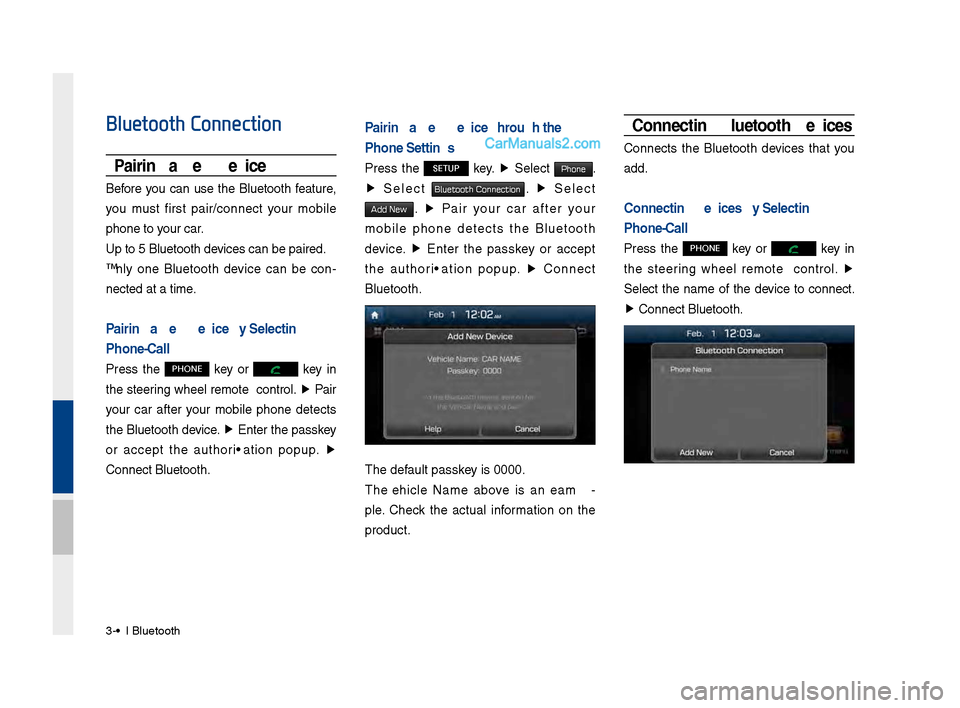
Pairing a New Device
Before you can use the Bluetooth feature,
you must first pair/connect your mobile
phone to your car.
Up to 5 Bluetooth \ddevices can be paire\dd.
Only one Bluetooth device can be con\b
nected at a time.
Pairing a New Device by Selecting
Phone/Call
Press the PHONE key or key in
the steering wheel remote control. ▶
Pair
your car after your mobile phone detects
the Bluetooth device. ▶
Enter the passkey
or accept the authorization popup. ▶
\fonnect Bluetooth.
Pairing a New Device Through the
Phone Settings
Press the SETUP key. ▶
Select Phone.
▶ Select Bluetooth Connection. ▶ Select
Add New. ▶ Pair your car after your
mobile phone detects the Bluetooth
device. ▶
Enter the passkey or accept
the authorization popup. ▶
\fonnect
Bluetooth.
The default passkey is 0000.
The Vehicle Name above is an exam \b
ple. \fheck the actual information on the
product.
Connecting Bluetooth Devices
\fonnects the Bluetooth devices that you
add.
Connecting Devices by Selecting
Phone/Call
Press the PHONE key or key in
the steering wheel remote control. ▶
Select the name of the device to connect.
▶ \fonnect Bluetooth.
Page 71 of 308
Bluetooth \fonnectio\dn I 3\b5
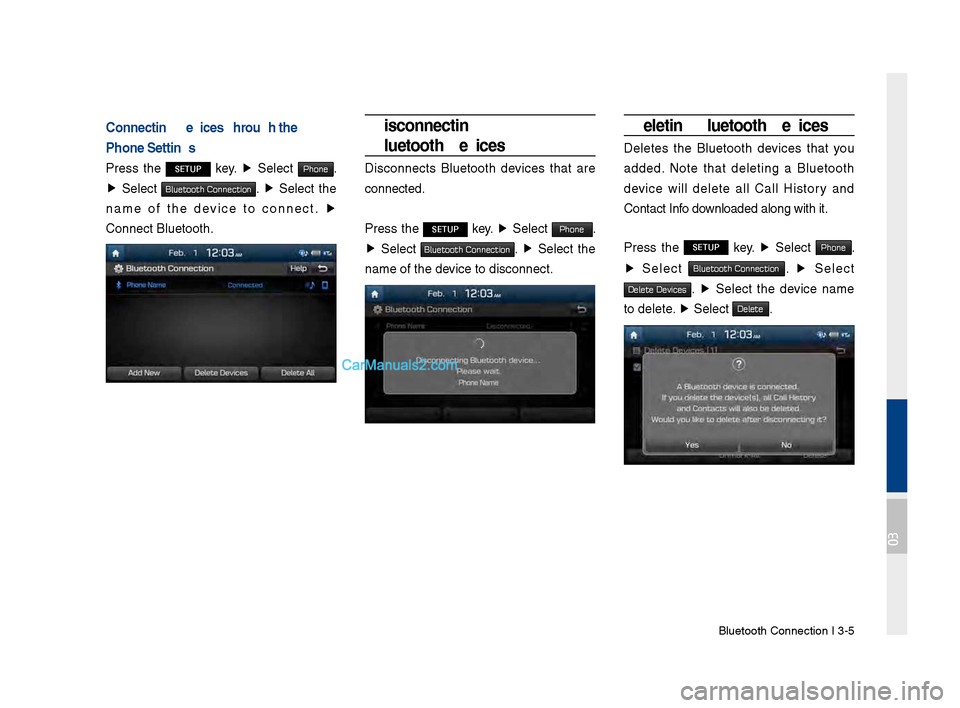
Connecting Devices Through the
Phone Settings
Press the SETUP key. ▶
Select Phone.
▶ Select Bluetooth Connection. ▶ Select the
name of the device to connect. ▶
\fonnect Bluetooth.
Disconnecting
Bluetooth Devices
Disconnects Bluetooth devices that are
connected.
Press the
SETUP key. ▶
Select Phone.
▶ Select Bluetooth Connection. ▶ Select the
name of the device to disconnect.
Deleting Bluetooth Devices
Deletes the Bluetooth devices that you
added. Note that deleting a Bluetooth
device will delete all \fall History and
\fontact Info downloaded along with\d it.
Press the
SETUP key. ▶
Select Phone.
▶ Select Bluetooth Connection. ▶ Select
Delete Devices. ▶ Select the device name
to delete. ▶
Select
Delete.
03
Page 72 of 308
3\b6 I Bluetooth
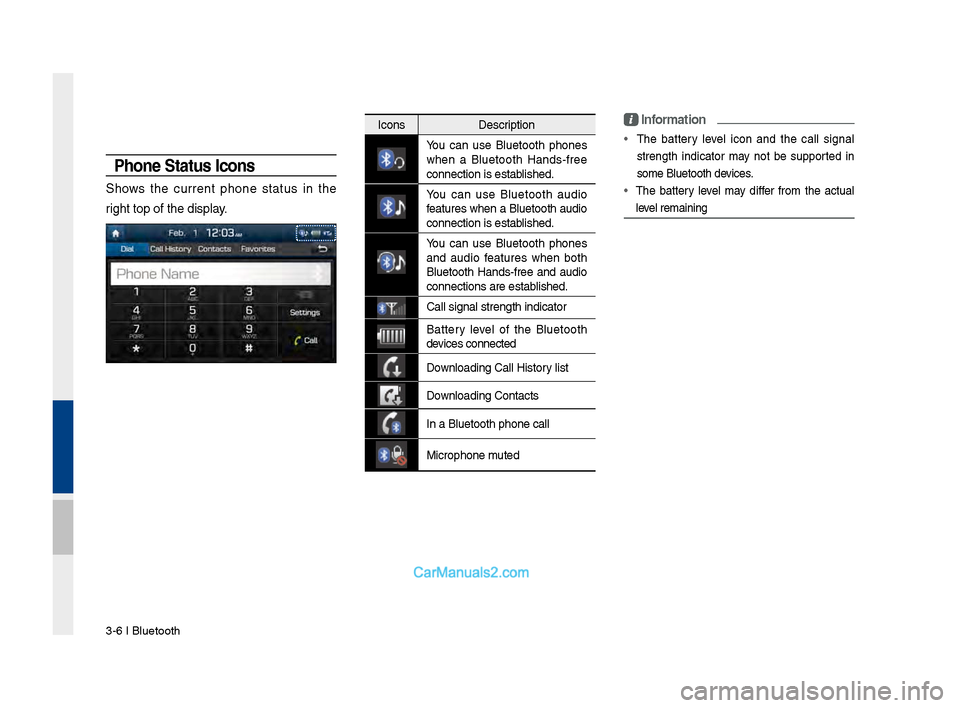
Phone Status \bcons
Shows the current phone status in the
right top of the dis\dplay.
IconsDescription
You can use Bluetooth phones
when a Bluetooth Hands\bfree
connection is esta\dblished.
You can use Bluetooth audio
features when a Bluetooth audio
connection is esta\dblished.
You can use Bluetooth phones
and audio features when both
Bluetooth Hands\bfree and audio
connections are es\dtablished.
\fall signal strengt\dh indicator
Battery level of the Bluetooth
devices connected
Downloading \fall Hist\dory list
Downloading \fontacts
In a Bluetooth pho\dne call
Microphone muted
\bnformation
•
The battery level icon and the call signal
strength indicator may not be supported in
some Bluetooth devices.
• The battery level may differ from the actual
level remaining
Page 73 of 308
Bluetooth Phone I 3\d\b7
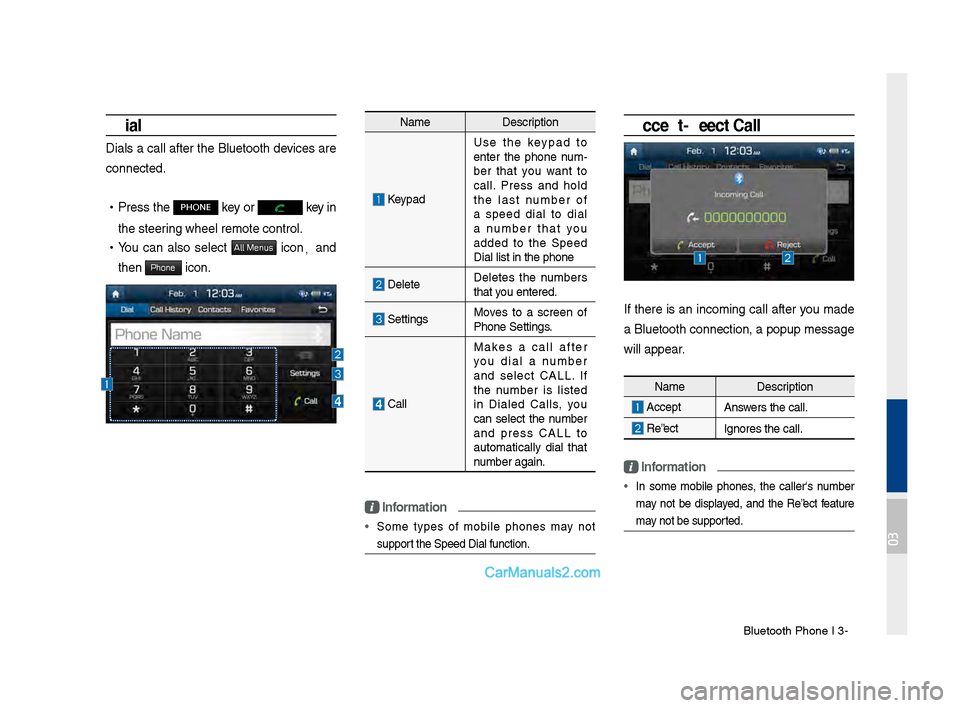
Dial
Dials a call after the Bluetooth devices are
connected.
•Press the PHONE key or key in
the steering wheel remote c\dontrol.
• You can also select All Menus icon, and
then
Phone icon.
Name Description
Keypad
Use the keypad to
enter the phone num \b
ber that you want to
call. Press and hold
the last number of
a speed dial to dial
a number that you
added to the Speed
Dial list in the p\dhone
DeleteDeletes the numbers
that you entered.
SettingsMoves to a screen of
Phone Settings.
\fall Makes a call after
you dial a number
and select \fALL. If
the number is listed
in Dialed \falls, you
can select the number
and press \fALL to
automatically dial that
number again.
\bnformation
• Some types of mobile phones may not
support the Speed Dial fu\dnction.
Accept/Reject Call
If there is an incoming call after you made
a Bluetooth connection, a popup message
will appear.
\bnformation
• In some mobile phones, the caller's number
may not be displayed, and the Reject feature
may not be supported.
Name
Description
AcceptAnswers the call.
Reject Ignores the call.
03
Page 74 of 308
3\b8 I Bluetooth
Using the Menu During
a Phone Call
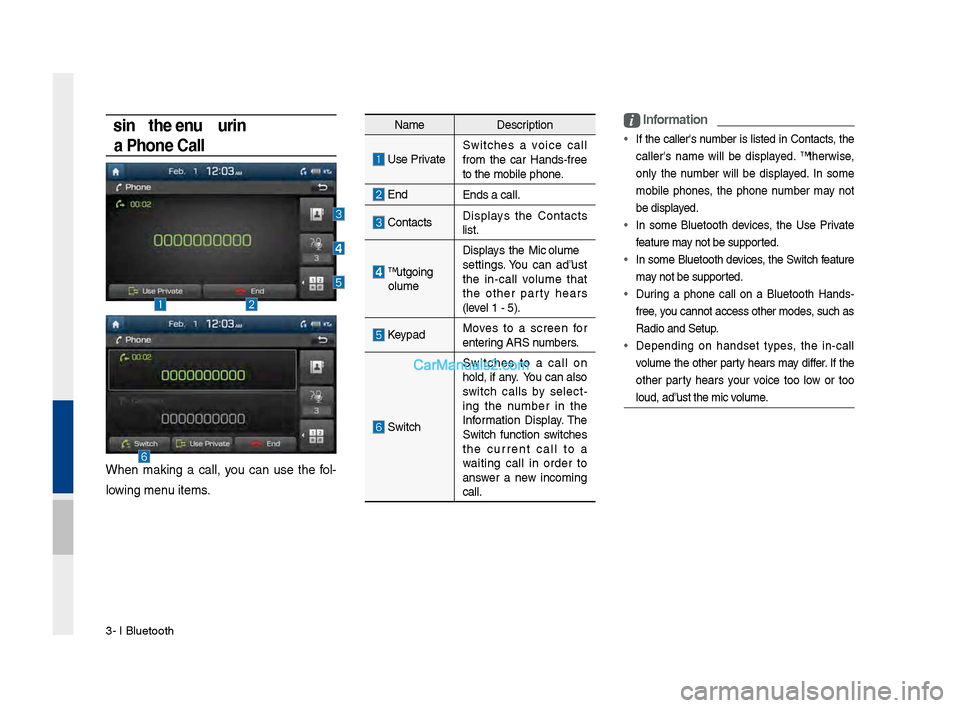
When making a call, you can use the fol\b
lowing menu items.
Name Description
Use PrivateSwitches a voice call
from the car Hands\bfree
to the mobile phon\de.
EndEnds a call.
\fontacts Displays the \fontacts
list.
Outgoing
Volume Displays the Mic Volume
settings. You can adjust
the in\bcall volume that
the other party hears
(level 1 \b 5).
KeypadMoves to a screen for
entering ARS numbers.
Switch
Switches to a call on
hold, if any. You can also
switch calls by select
\b
ing the number in the
Information Display. The
Switch function switches
the current call to a
waiting call in order to
answer a new incoming
call.
i \bnformation
• If the caller's number is listed in \fontacts, the
caller's name will be displayed. Otherwise,
only the number will be displayed. In some
mobile phones, the phone number may not
be displayed.
• In some Bluetooth devices, the Use Private
feature may not be supported.
• In some Bluetooth devices, the Switch feature
may not be supported.
• During a phone call on a Bluetooth Hands\b
free, you cannot access o\dther modes, such as
Radio and Setup.
• Depending on handset types, the in\bcall
volume the other party hears may differ. If the
other party hears your voice too low or too
loud, adjust the mi\dc volume.
Page 75 of 308
Bluetooth Phone I 3\d\b9
Call History
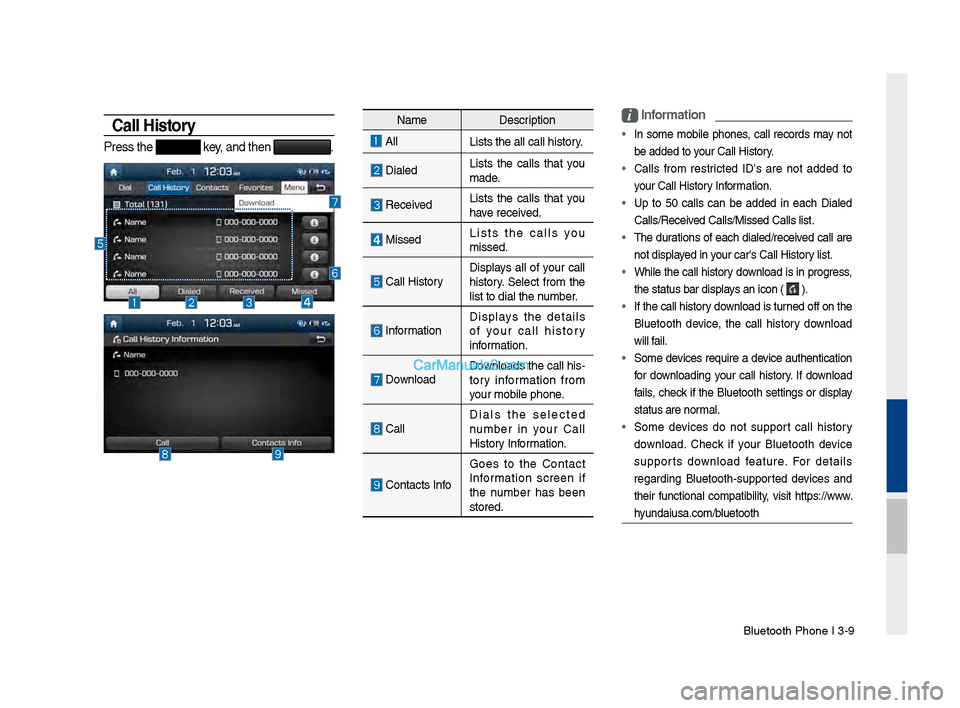
Press the key, and then .
NameDescription
All
Lists the all call\d history.
DialedLists the calls that you
made.
Received Lists the calls that you
have received.
Missed Lists the calls you
missed.
\fall HistoryDisplays all of your call
history. Select from the
list to dial the number.
InformationDisplays the details
of your call history
information.
Download Downloads the call his\b
tory information from
your mobile phone.
\fallDials the selected
number in your \fall
History Information.
\fontacts InfoGoes to the \fontact
Information screen if
the number has been
stored.
i
\bnformation
• In some mobile phones, call records may not
be added to your \fall History.
• \falls from restricted ID's are not added to
your \fall History Information.
• Up to 50 calls can be added in each Dialed
\falls/Received \falls/Missed \fall\ds list.
• The durations of each dialed/received call are
not displayed in your car's \fall Hist\dory list.
• While the call history download is in progress,
the status bar disp\dlays an icon (
).
• If the call history download is turned off on the
Bluetooth device, the call history download
will fail.
• Some devices require a device authentication
for downloading your call history. If download
fails, check if the Bluetooth settings or display
status are normal.
• Some devices do not support call history
download. \fheck if your Bluetooth device
supports download feature. For details
regarding Bluetooth\bsupported devices and
their functional compatibility, visit https://www.
hyundaiusa.com/bluetooth